From SimplyBook.me
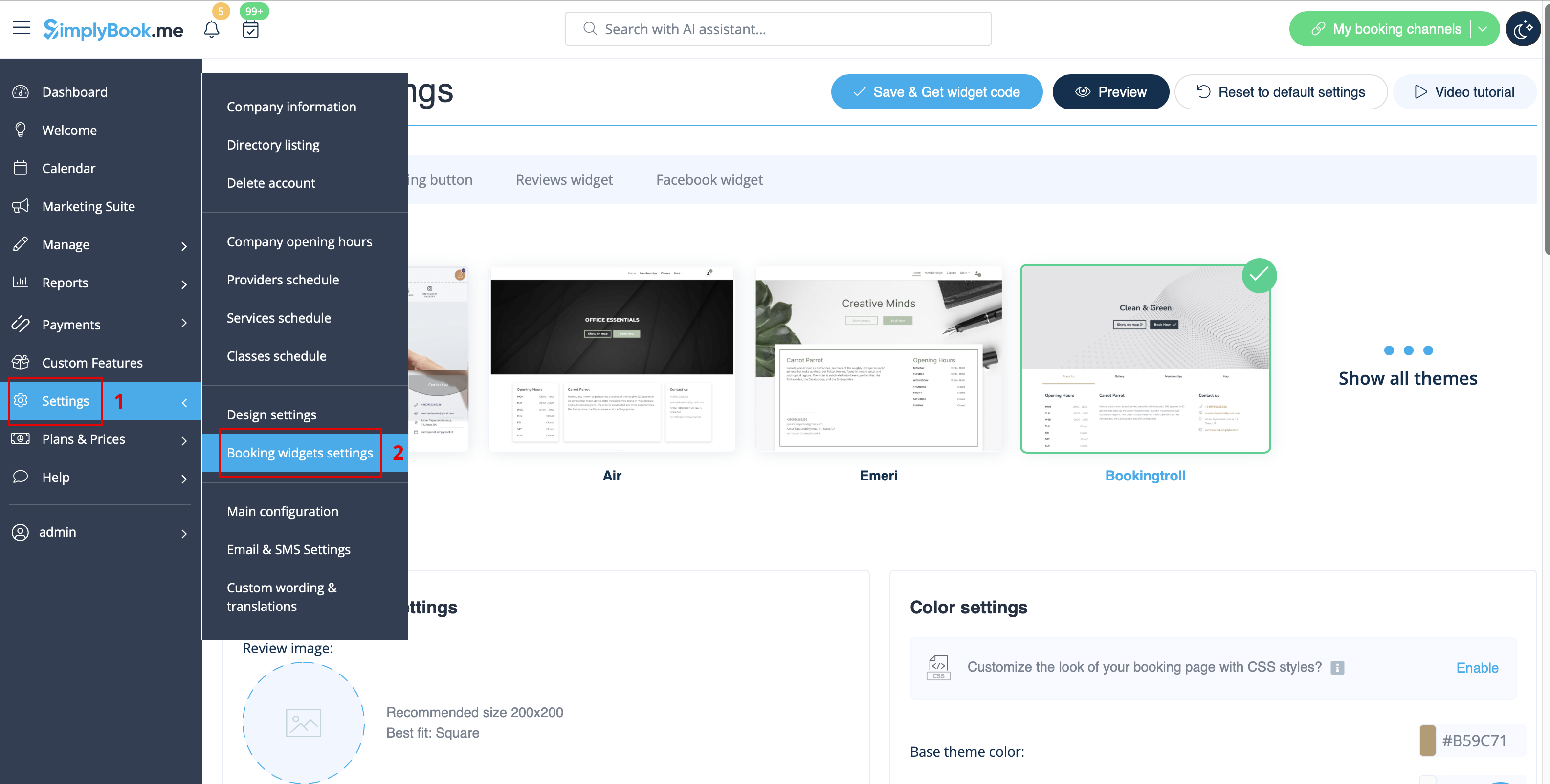
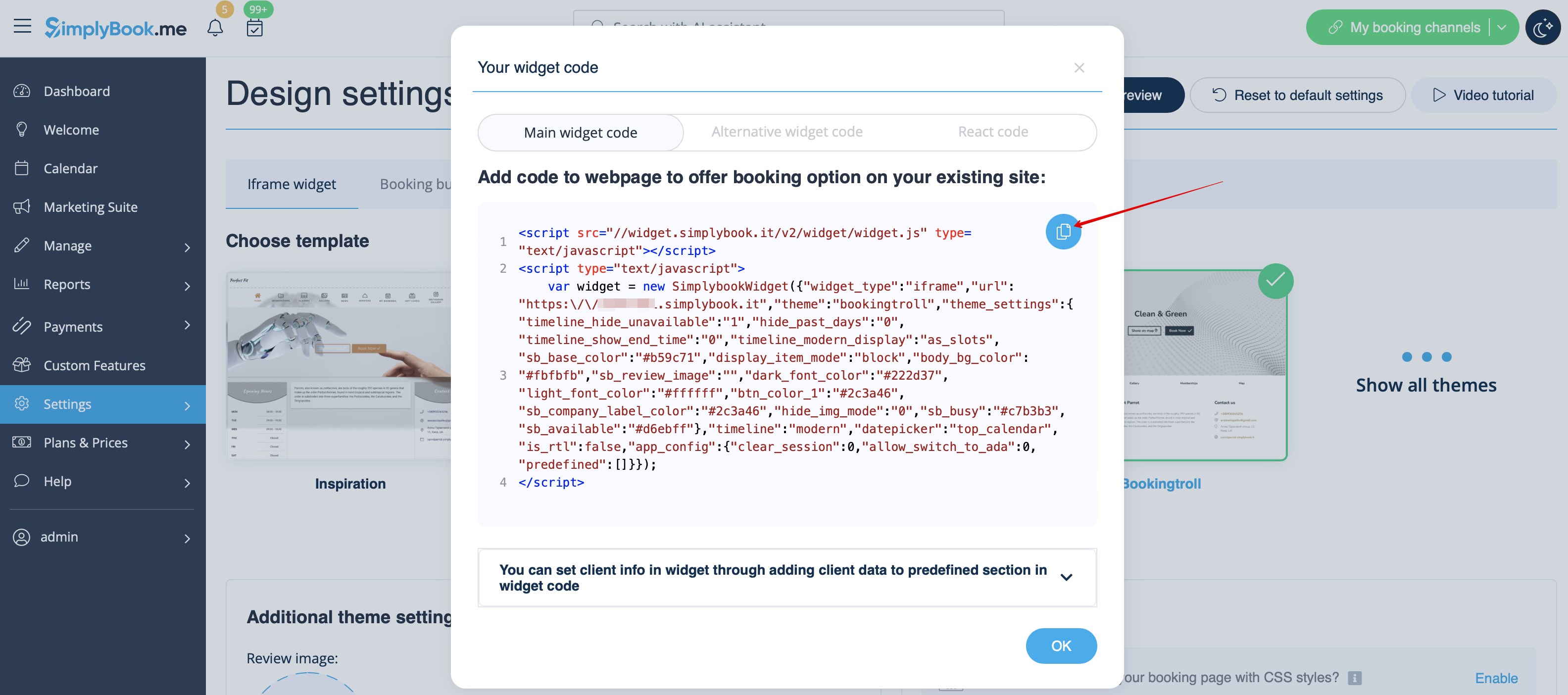
Created page with "= iFrame-widget = :1. På din [https://simplybook.me/ Simplybook-administrationsside] finder du koden under <span style="background-color:#d4f8e5; padding:5px; border-radius:5px;">Indstillinger</span> -> <span style="background-color:#d4f8e5; padding:5px; border-radius:5px;">Indstillinger for bookingwidgets</span> -> <span style="background-color:#d4f8e5; padding:5px; border-radius:5px;">iFrame-widget</span> File:Booking widget path redesigned.png|1200px | center..." |
Created page with "= Widget til bookingknap = :1. På din [https://simplybook.me/ Simplybook-administrationsside] finder du koden under <span style="background-color:#d4f8e5; padding:5px; border-radius:5px;">Indstillinger</span> -> <span style="background-color:#d4f8e5; padding:5px; border-radius:5px;">Indstillinger for bookingwidgets</span> -> <span style="background-color:#d4f8e5; padding:5px; border-radius:5px;">Bookingknap</span> File:Booking widget path redesigned.png|1200px..." |
||
| Line 30: | Line 30: | ||
[[File:Squarespace website look.png|center]] | [[File:Squarespace website look.png|center]] | ||
<br><br> | <br><br> | ||
= Widget til bookingknap = | |||
:1. På din [https://simplybook.me/ Simplybook-administrationsside] finder du koden under <span style="background-color:#d4f8e5; padding:5px; border-radius:5px;">Indstillinger</span> -> <span style="background-color:#d4f8e5; padding:5px; border-radius:5px;">Indstillinger for bookingwidgets</span> -> <span style="background-color:#d4f8e5; padding:5px; border-radius:5px;">Bookingknap</span> | |||
:1. | |||
[[File:Booking widget path redesigned.png|1200px | center|link=https://help.simplybook.me/images/6/68/Booking_widget_path_redesigned.png]] | [[File:Booking widget path redesigned.png|1200px | center|link=https://help.simplybook.me/images/6/68/Booking_widget_path_redesigned.png]] | ||
<br><br> | <br><br> | ||
:2. | :2. Gå til den side i din Squarespace-konto, hvor du vil tilføje koden, skift til redigeringsfunktionen, og vælg at tilføje "Kode"-blokken. | ||
[[File:Squarespace add new block.png | center]] | [[File:Squarespace add new block.png|center]] | ||
<br><br> | <br><br> | ||
[[File:Squarespace select code block.png | center]] | [[File:Squarespace select code block.png|center]] | ||
<br><br> | <br><br> | ||
:3. | :3. Indsæt den kode, du har modtaget på [https://simplybook.me/ Simplybook-administrations] siden, på din Squarespace-side. | ||
[[File:Squarespace add code.png | center]] | [[File:Squarespace add code.png|center]] | ||
<br><br> | <br><br> | ||
:4. | :4. Gem siden, og tjek, hvordan den ser ud. | ||
[[File:Squarespace booking button widget new.png | center]] | [[File:Squarespace booking button widget new.png|center]] | ||
<br><br> | <br><br> | ||
Revision as of 08:55, 18 June 2025
iFrame-widget
- 1. På din Simplybook-administrationsside finder du koden under Indstillinger -> Indstillinger for bookingwidgets -> iFrame-widget
- 2. På din Squarespace-konto vælger du den side, hvor du planlægger at indsætte din bookingkalender. Vi anbefaler, at du bruger en ny side i hovednavigationen, der er designet specielt til online booking.
- Du kan kalde den "Book nu", "Online booking" eller "Kalender".

- 3. Åbn sideeditoren. Fjern standardbookingsblokken.
- 4. Klik på "+" i øverste højre hjørne og vælg Kode i blokmenuen.


- 5. Indsæt den kode, du har modtaget på Simplybook-administrationssiden, i HTML-kodeboksen og klik på "Anvend".

- 6. Du får muligvis en besked om, at indlejrede scripts er deaktiveret - dette er gjort af Squarespace af sikkerhedsmæssige årsager, men du kan klikke på "Preview" for at se, om widgetten fungerer.

- 7. Du kan også offentliggøre hjemmesiden og åbne den som klient for at se, hvordan den ser ud.

Widget til bookingknap
- 1. På din Simplybook-administrationsside finder du koden under Indstillinger -> Indstillinger for bookingwidgets -> Bookingknap
- 2. Gå til den side i din Squarespace-konto, hvor du vil tilføje koden, skift til redigeringsfunktionen, og vælg at tilføje "Kode"-blokken.
- 3. Indsæt den kode, du har modtaget på Simplybook-administrations siden, på din Squarespace-side.
- 4. Gem siden, og tjek, hvordan den ser ud.

