From SimplyBook.me
Created page with "__FORCETOC__ = iFrame-widget = :1. Neem de iFrame-code van uw boekingspagina in Instellingen//Boekingswidgetinstellingen//iFrame-widget//Widgetcode ophalen." |
Created page with "1200px | center|link=https://help.simplybook.me/images/6/68/Booking_widget_path_redesigned.png <br><br> 1200px | center|link=https://help.simplybook.me/images/3/37/Booking_widget_design_path_redesigned.png <br><br> 1200px | center|link=https://help.simplybook.me/images/b/b4/Copy_widget_code_redesigned.png <br><br> :2. Ga nu naar Content&..." Tags: Mobile edit Mobile web edit |
||
| Line 5: | Line 5: | ||
:1. Neem de iFrame-code van uw boekingspagina in Instellingen//Boekingswidgetinstellingen//iFrame-widget//Widgetcode ophalen. | :1. Neem de iFrame-code van uw boekingspagina in Instellingen//Boekingswidgetinstellingen//iFrame-widget//Widgetcode ophalen. | ||
[[File:Booking widget path redesigned.png|1200px | center|link=https://help.simplybook.me/images/6/68/Booking_widget_path_redesigned.png]] | [[File:Booking widget path redesigned.png|1200px | center|link=https://help.simplybook.me/images/6/68/Booking_widget_path_redesigned.png]] | ||
<br><br> | <br><br> | ||
| Line 12: | Line 11: | ||
[[File:Copy widget code redesigned.png|1200px | center|link=https://help.simplybook.me/images/b/b4/Copy_widget_code_redesigned.png]] | [[File:Copy widget code redesigned.png|1200px | center|link=https://help.simplybook.me/images/b/b4/Copy_widget_code_redesigned.png]] | ||
<br><br> | <br><br> | ||
:2. | :2. Ga nu naar Content>Articles, vink het vakje aan van het item waarin u de boekingsfunctionaliteit wilt invoegen en klik op 'edit'. Voeg vervolgens de widgetcode toe aan de HTML-code <body> van uw website op de pagina waar u de boekingsfunctionaliteit wilt weergeven. | ||
[[File:Joomla widget code adding.png | center]] | [[File:Joomla widget code adding.png|center]] | ||
<br><br> | <br><br> | ||
:3. | :3. Sla de instellingen op en publiceer de pagina. | ||
<br><br | <br><br><div lang="en" dir="ltr" class="mw-content-ltr"> | ||
==Widget with predefined service, provider, category or location== | ==Widget with predefined service, provider, category or location== | ||
<br> | <br> | ||
Revision as of 08:57, 18 June 2025
iFrame-widget
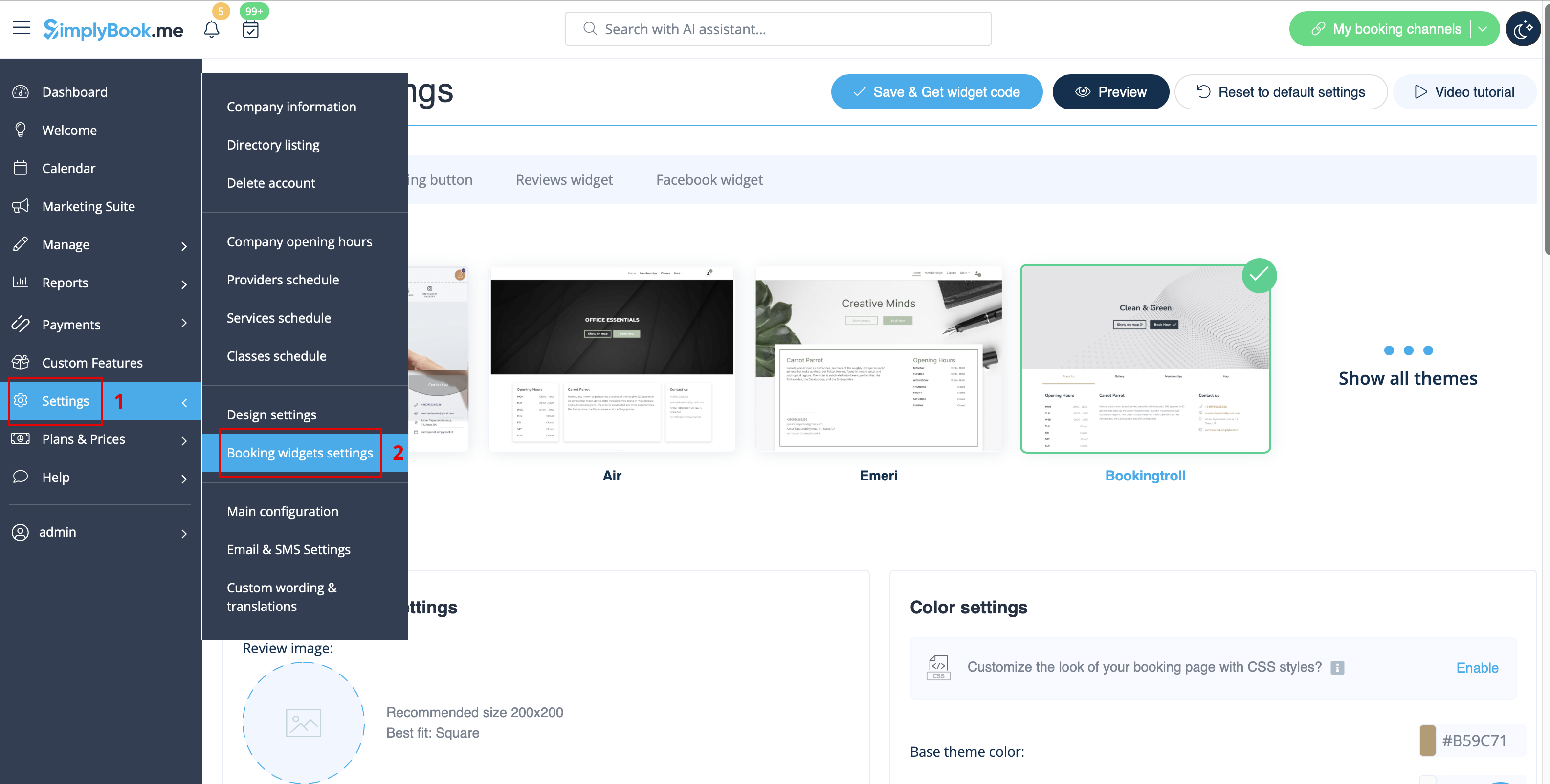
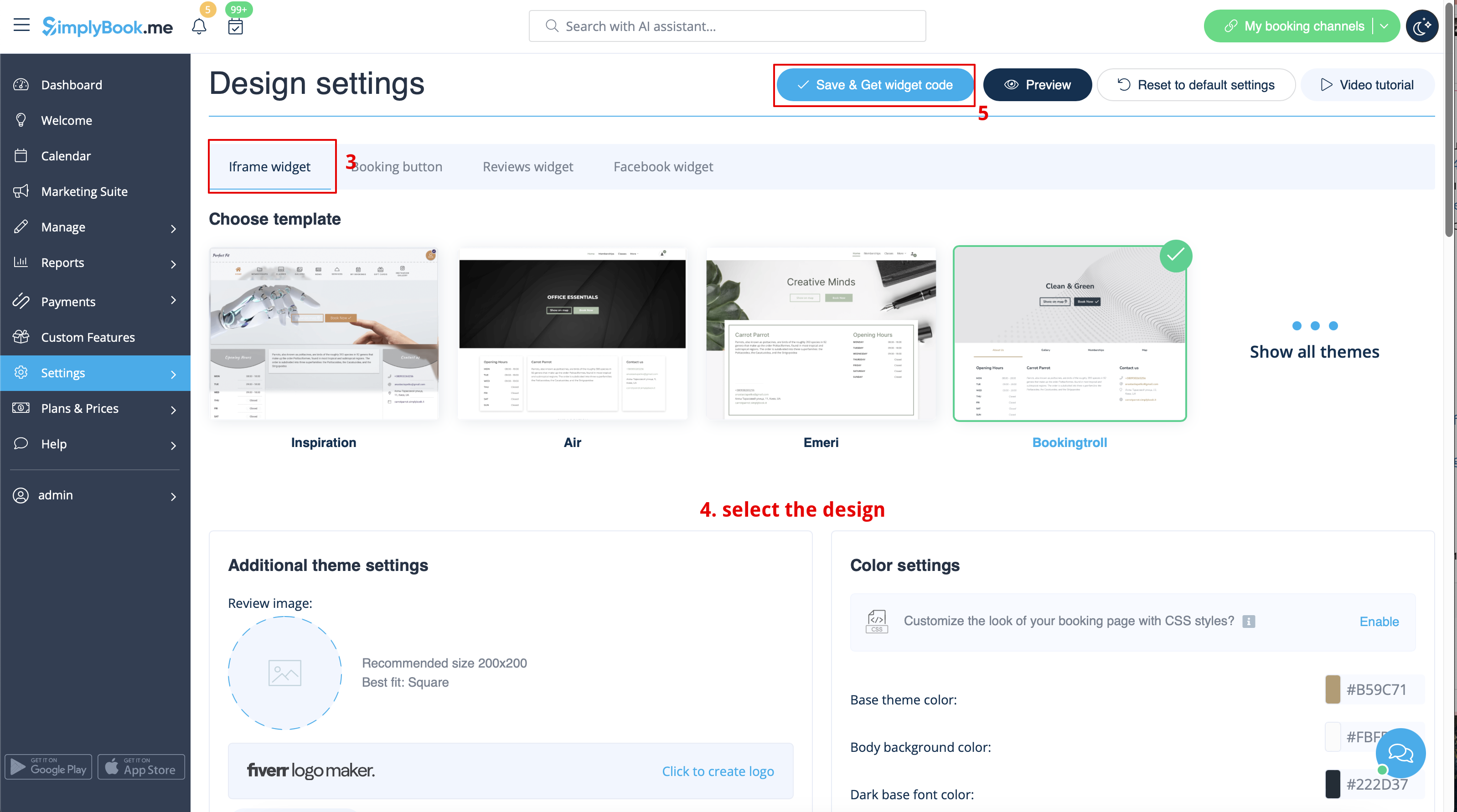
- 1. Neem de iFrame-code van uw boekingspagina in Instellingen//Boekingswidgetinstellingen//iFrame-widget//Widgetcode ophalen.
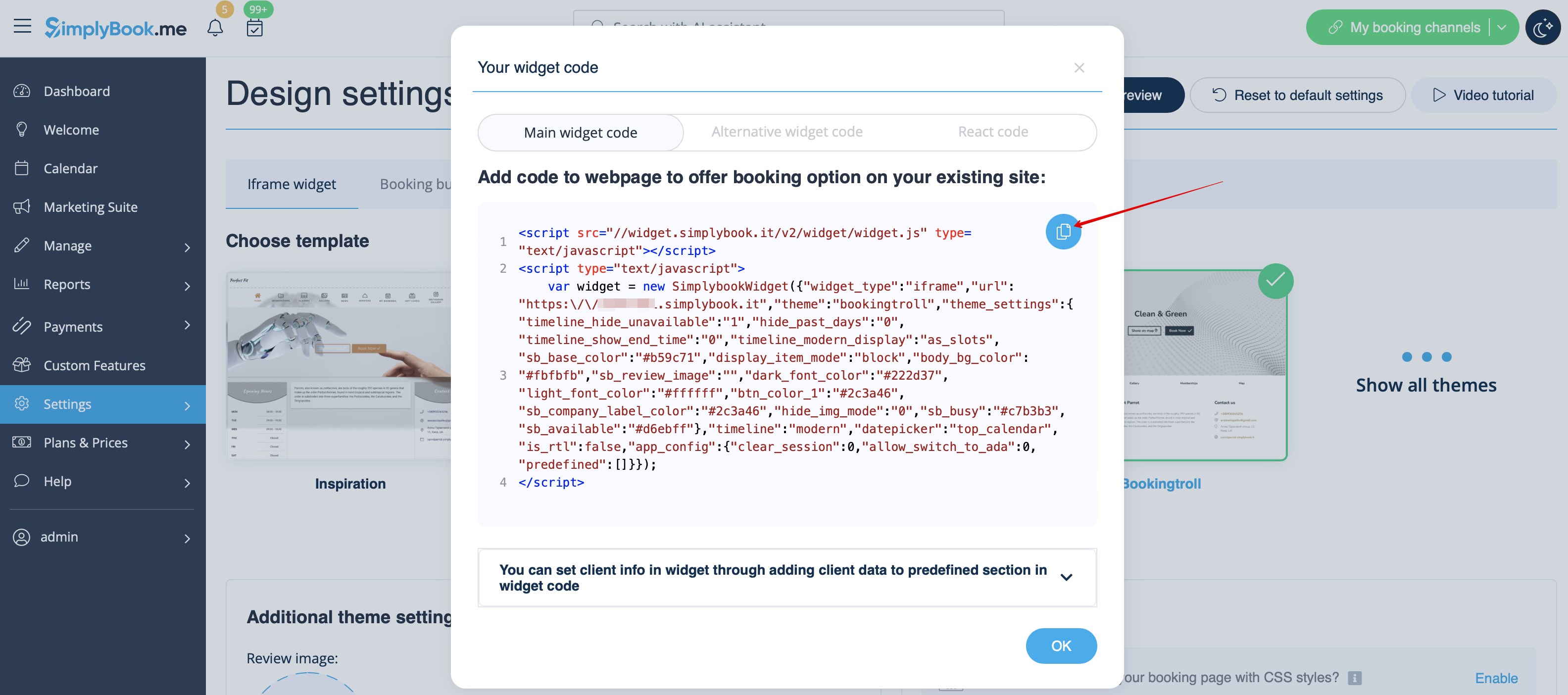
- 2. Ga nu naar Content>Articles, vink het vakje aan van het item waarin u de boekingsfunctionaliteit wilt invoegen en klik op 'edit'. Voeg vervolgens de widgetcode toe aan de HTML-code <body> van uw website op de pagina waar u de boekingsfunctionaliteit wilt weergeven.

- 3. Sla de instellingen op en publiceer de pagina.
Widget with predefined service, provider, category or location
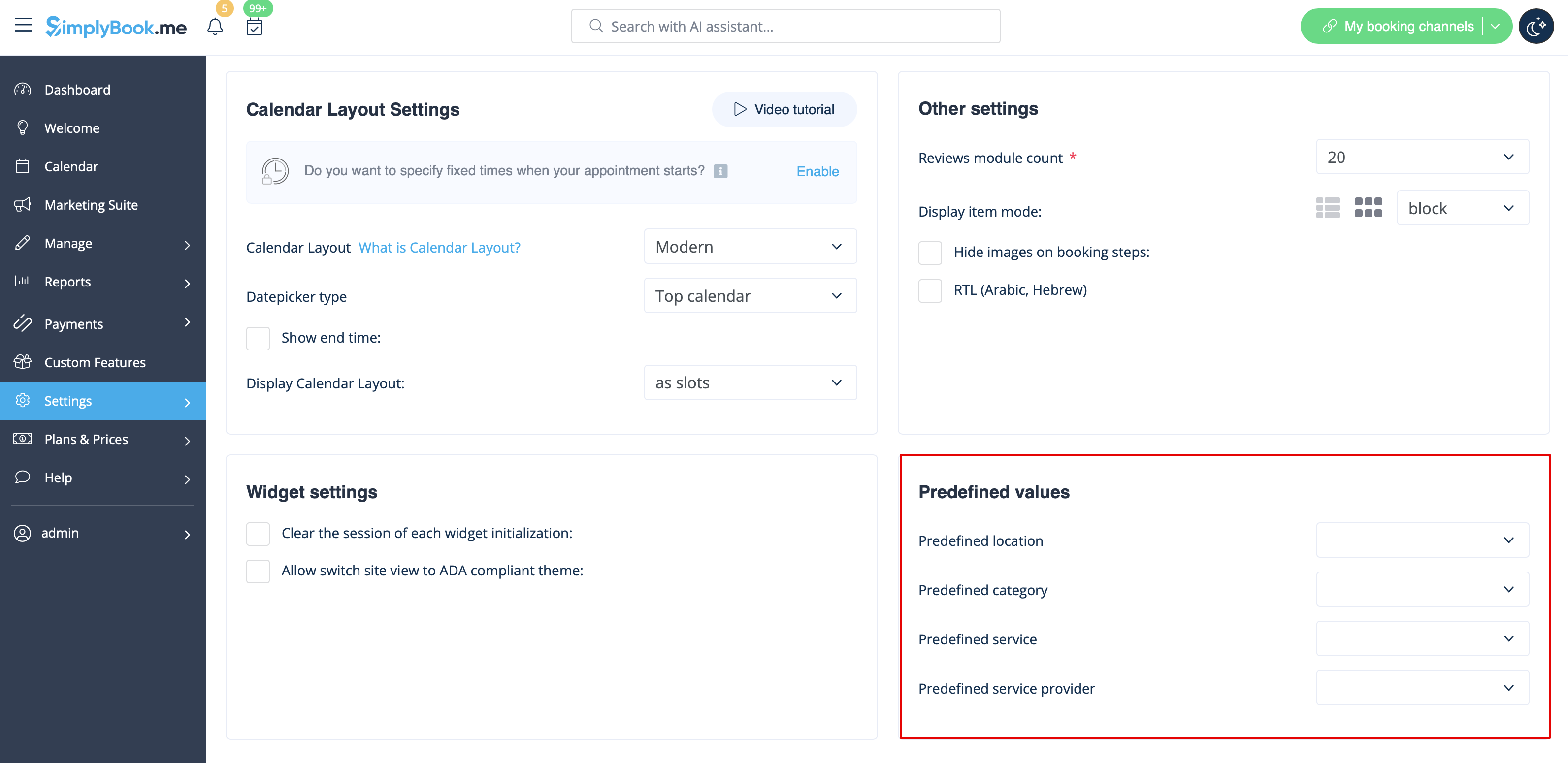
This option allows you to generate iframe code specifically for service, provider, category or location you have. For example, if you have 2 services A and B and you choose service A as predefined, the widget will open on that service, skipping the step of choosing the service. This feature may be useful if you need to display only certain services on specific page on your website. The steps to generate the code are the same as above, only in the settings of the widget, choose the item you need to predefine.