From SimplyBook.me
Created page with "<br><br> __FORCETOC__" |
Created page with "= iFrame-widget = :1. Ga in uw [https://simplybook.me/ Simplybook-beheerderspagina] naar <span style="background-color:#d4f8e5; padding:5px; border-radius:5px;">Instellingen</span> -> <span style="background-color:#d4f8e5; padding:5px; border-radius:5px;">Instellingen voor boekingswidgets</span> -> <span style="background-color:#d4f8e5; padding:5px; border-radius:5px;">iFrame-widget</span> File:Booking widget path redesigned.png|1200px | center|link=https://help...." |
||
| Line 4: | Line 4: | ||
__FORCETOC__ | __FORCETOC__ | ||
= iFrame-widget = | |||
:1. Ga in uw [https://simplybook.me/ Simplybook-beheerderspagina] naar <span style="background-color:#d4f8e5; padding:5px; border-radius:5px;">Instellingen</span> -> <span style="background-color:#d4f8e5; padding:5px; border-radius:5px;">Instellingen voor boekingswidgets</span> -> <span style="background-color:#d4f8e5; padding:5px; border-radius:5px;">iFrame-widget</span> | |||
:1. | |||
[[File:Booking widget path redesigned.png|1200px | center|link=https://help.simplybook.me/images/6/68/Booking_widget_path_redesigned.png]] | [[File:Booking widget path redesigned.png|1200px | center|link=https://help.simplybook.me/images/6/68/Booking_widget_path_redesigned.png]] | ||
<br><br> | <br><br> | ||
[[File:Copy widget code redesigned.png|1200px | center|link=https://help.simplybook.me/images/b/b4/Copy_widget_code_redesigned.png]] | [[File:Copy widget code redesigned.png|1200px | center|link=https://help.simplybook.me/images/b/b4/Copy_widget_code_redesigned.png]] | ||
<br><br> | <br><br> | ||
:2. | :2. Kies in uw Squarespace-account de pagina waar u uw boekingskalender wilt invoegen. We raden u aan een nieuwe pagina in de hoofdnavigatie te gebruiken die speciaal is ontworpen voor online boekingen. | ||
: | :U kunt deze pagina 'Nu boeken', 'Online boeken' of 'Kalender' noemen. | ||
[[File:Squarespace add new page.png | center]] | [[File:Squarespace add new page.png|center]] | ||
<br><br> | <br><br> | ||
:3. Open | :3. Open de pagina-editor. Verwijder het standaard boekingsblok. | ||
<br><br> | <br><br> | ||
:4. | :4. Klik op '+' in de rechterbovenhoek en selecteer '''Code''' in het blokmenu. | ||
[[File:Squarespace add new block.png | center]] | [[File:Squarespace add new block.png|center]] | ||
<br><br> | <br><br> | ||
[[File:Squarespace select code block.png | center]] | [[File:Squarespace select code block.png|center]] | ||
<br><br> | <br><br> | ||
:5. | :5. Voeg de code die u op [https://simplybook.me/ de Simplybook-] beheerderspagina hebt ontvangen in het HTML-codevak in en klik op 'Toepassen'. | ||
[[File:Squarespace add code.png | center]] | [[File:Squarespace add code.png|center]] | ||
<br><br> | <br><br> | ||
:6. | :6. Mogelijk krijgt u een bericht dat ingesloten scripts zijn uitgeschakeld. Dit is om veiligheidsredenen gedaan door Squarespace, maar u kunt op 'Preview' klikken om te zien of de widget werkt. | ||
[[File:Squarespace preview.png | center]] | [[File:Squarespace preview.png|center]] | ||
<br><br> | <br><br> | ||
:7. | :7. U kunt ook de website publiceren en deze als klant openen om het resultaat te bekijken. | ||
[[File:Squarespace website look.png | center]] | [[File:Squarespace website look.png|center]] | ||
<br><br> | <br><br> | ||
<div lang="en" dir="ltr" class="mw-content-ltr"> | <div lang="en" dir="ltr" class="mw-content-ltr"> | ||
=Booking button widget= | =Booking button widget= | ||
Revision as of 08:57, 18 June 2025
iFrame-widget
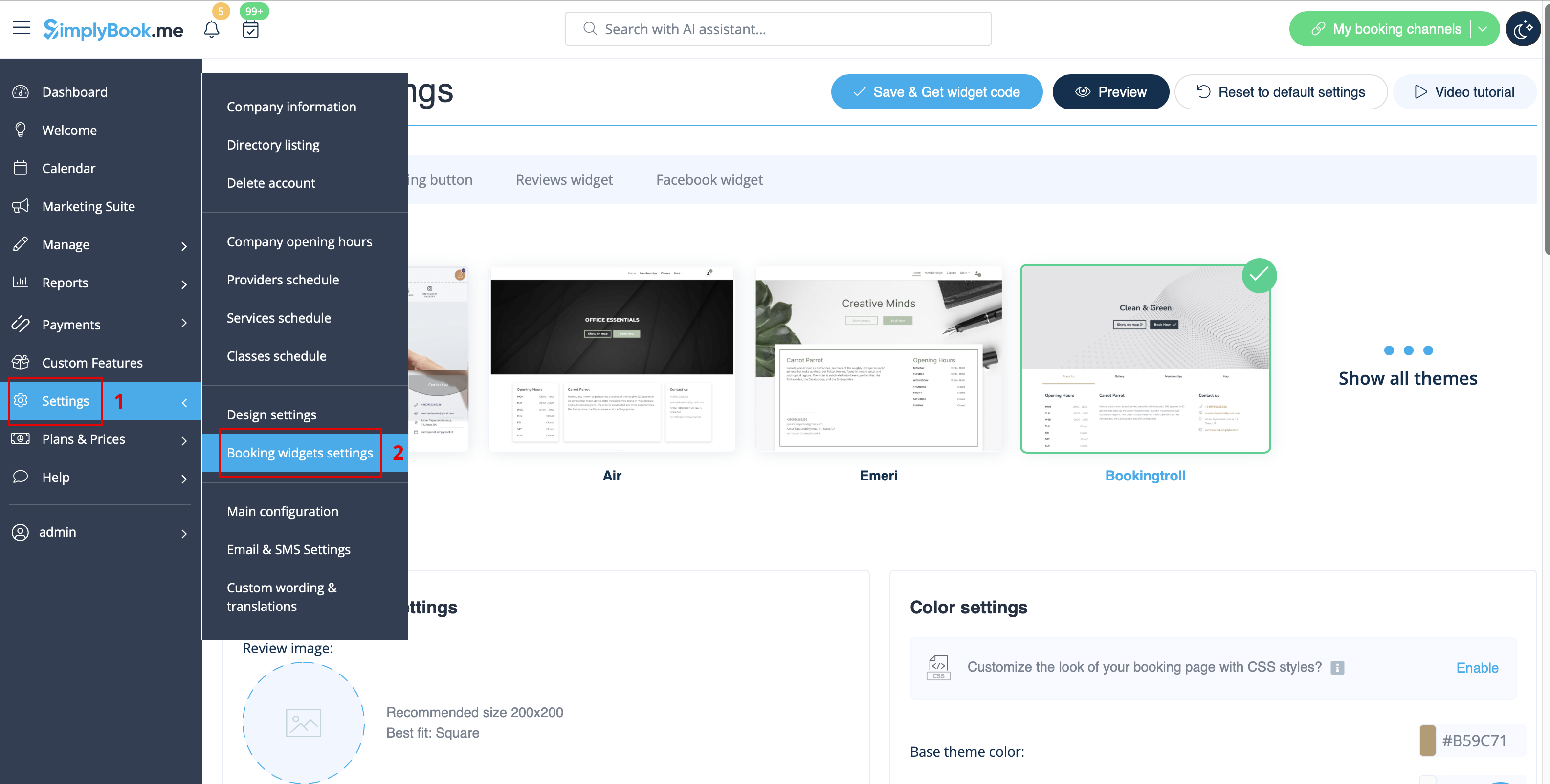
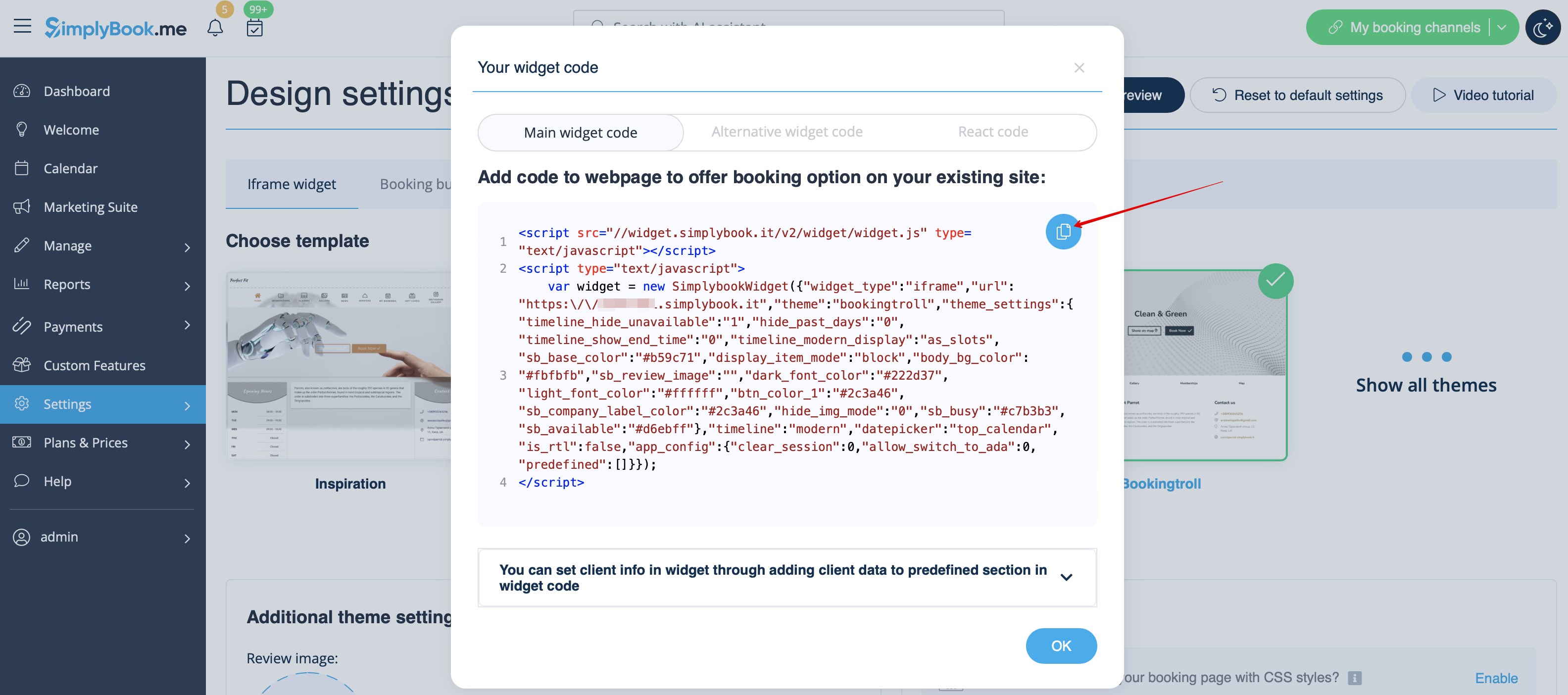
- 1. Ga in uw Simplybook-beheerderspagina naar Instellingen -> Instellingen voor boekingswidgets -> iFrame-widget
- 2. Kies in uw Squarespace-account de pagina waar u uw boekingskalender wilt invoegen. We raden u aan een nieuwe pagina in de hoofdnavigatie te gebruiken die speciaal is ontworpen voor online boekingen.
- U kunt deze pagina 'Nu boeken', 'Online boeken' of 'Kalender' noemen.

- 3. Open de pagina-editor. Verwijder het standaard boekingsblok.
- 4. Klik op '+' in de rechterbovenhoek en selecteer Code in het blokmenu.


- 5. Voeg de code die u op de Simplybook- beheerderspagina hebt ontvangen in het HTML-codevak in en klik op 'Toepassen'.

- 6. Mogelijk krijgt u een bericht dat ingesloten scripts zijn uitgeschakeld. Dit is om veiligheidsredenen gedaan door Squarespace, maar u kunt op 'Preview' klikken om te zien of de widget werkt.

- 7. U kunt ook de website publiceren en deze als klant openen om het resultaat te bekijken.

Booking button widget
- 1. In your Simplybook admin page get the code in Settings -> Booking widgets settings -> Booking button
- 2. In your Squarespace account go to the page you wish to add the code to, switch to editing mode and select to add "Code" block.
- 3. Insert the code received in Simplybook admin page, to your Squarespace page.
- 4. Save the page and check the look.

