Shopify/nl: Difference between revisions

Created page with ";Hoe instellen"
 
Created page with "Shopify"
Line 8: Line 8:
;Hoe instellen
;Hoe instellen


<div lang="en" dir="ltr" class="mw-content-ltr">
<div class="mw-translate-fuzzy">
:1. Please navigate to <span style="background-color:#d4f8e5; padding:5px; border-radius:5px;">Online Store</span> -> <span style="background-color:#d4f8e5; padding:5px; border-radius:5px;">Themes</span> -> <span style="background-color:#d4f8e5; padding:5px; border-radius:5px;">Customize</span> in your <span style="background-color:#d4f8e5; padding:5px; border-radius:5px;">Shopify account.</span>
:1. Ga naar <span style="background-color:#d4f8e5; padding:5px; border-radius:5px;">Online Store</span> -&gt; <span style="background-color:#d4f8e5; padding:5px; border-radius:5px;">Themes</span> -&gt; <span style="background-color:#d4f8e5; padding:5px; border-radius:5px;">Customize</span> in uw <span style="background-color:#d4f8e5; padding:5px; border-radius:5px;">Shopify-account.</span>
[[File:Shopify customize theme.png|border|center]]
[[File:Shopify customize theme.png|border|center]]
<br><br>
<br><br>
:2. Select the section you would like to edit on the left or add a new one.
:2. Selecteer de sectie die u wilt bewerken aan de linkerkant of voeg een nieuwe toe.
[[File:Shopify add section.png|border|center]]
[[File:Shopify add section.png|border|center]]
<br><br>
<br><br>
:3. Choose to add <span style="background-color:#d4f8e5; padding:5px; border-radius:5px;">Custom content.</span>
:3. Kies voor <span style="background-color:#d4f8e5; padding:5px; border-radius:5px;">Custom content</span> toevoegen <span style="background-color:#d4f8e5; padding:5px; border-radius:5px;">.</span>
[[File:Shopify select custom content.png|border|center]]
[[File:Shopify select custom content.png|border|center]]
<br><br>
<br><br>
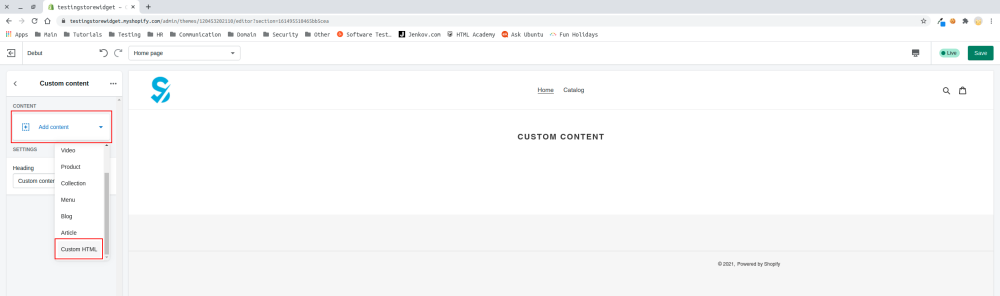
:4. Click on <span style="background-color:#d4f8e5; padding:5px; border-radius:5px;">Add content</span> and select <span style="background-color:#d4f8e5; padding:5px; border-radius:5px;">Custom HTML</span>
:4. Klik op <span style="background-color:#d4f8e5; padding:5px; border-radius:5px;">'Add content'</span> (In <span style="background-color:#d4f8e5; padding:5px; border-radius:5px;">houd</span> toevoegen) en selecteer <span style="background-color:#d4f8e5; padding:5px; border-radius:5px;">'Custom HTML'</span> (Aangepaste <span style="background-color:#d4f8e5; padding:5px; border-radius:5px;">HTML</span>[[File:Select html.png|border|center]]
[[File:Select html.png|border|center]]
[[File:Select html.png|border|center]]
<br><br>
<br><br>
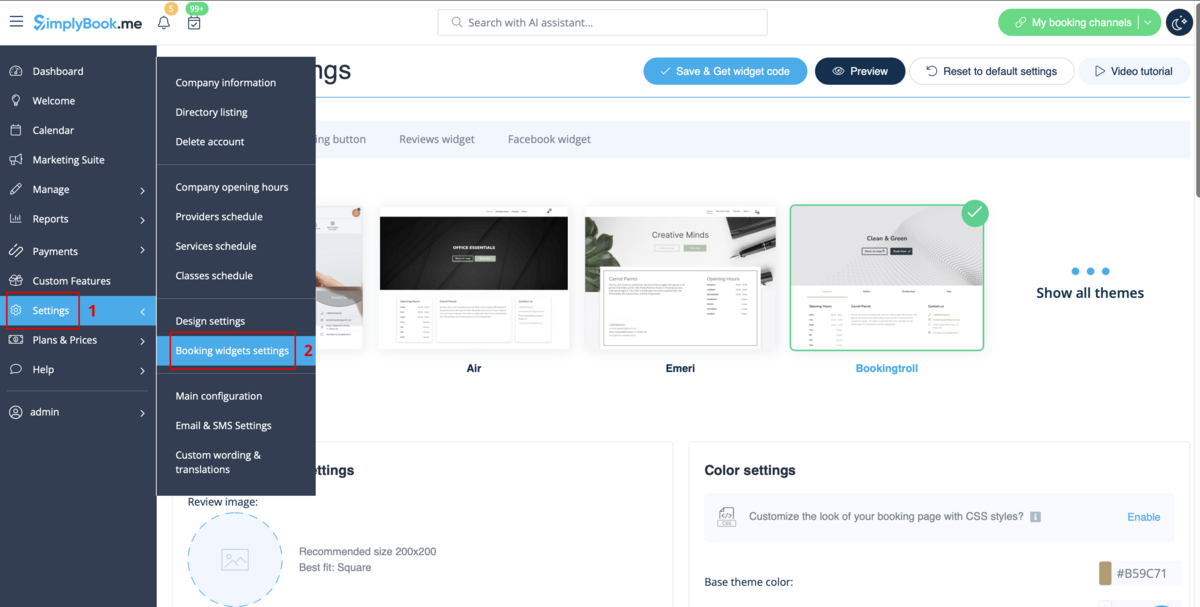
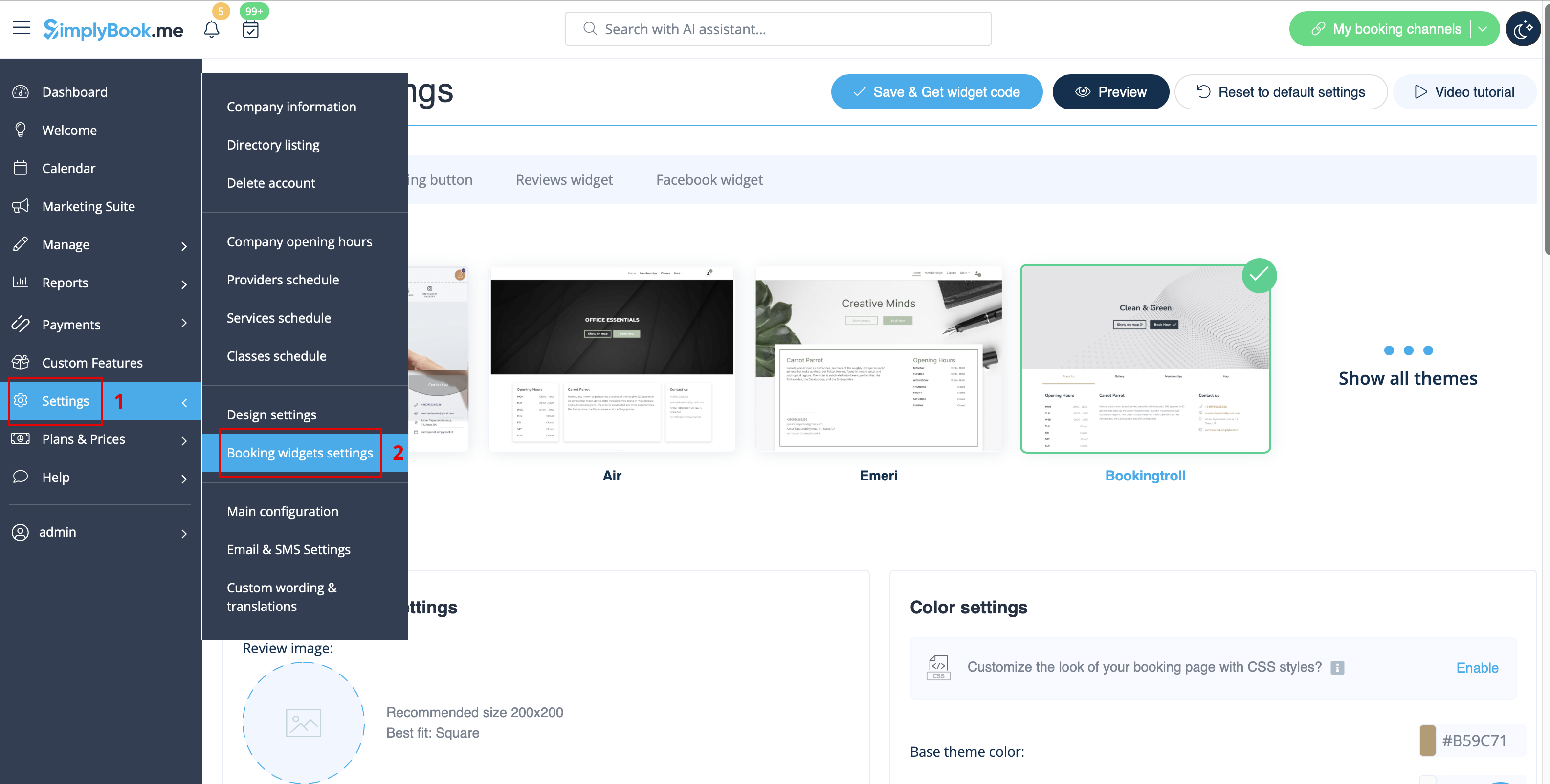
:5. Navigate to your <span style="background-color:#d4f8e5; padding:5px; border-radius:5px;">SimplyBook.me account</span> -> <span style="background-color:#d4f8e5; padding:5px; border-radius:5px;">Settings</span> -> <span style="background-color:#d4f8e5; padding:5px; border-radius:5px;">Booking widgets settings</span> -> <span style="background-color:#d4f8e5; padding:5px; border-radius:5px;">iFrame widget</span>
:5. Ga naar uw <span style="background-color:#d4f8e5; padding:5px; border-radius:5px;">SimplyBook.me-account</span> -&gt; <span style="background-color:#d4f8e5; padding:5px; border-radius:5px;">Settings (Instellingen</span> ) -&gt; <span style="background-color:#d4f8e5; padding:5px; border-radius:5px;">Booking widgets settings</span> (Instellingen voor boekingswidgets) -&gt; <span style="background-color:#d4f8e5; padding:5px; border-radius:5px;">iFrame widget</span>[[File:Booking widget path redesigned.png|1200px|border|center|link=https://help.simplybook.me/images/6/68/Booking_widget_path_redesigned.png]]iFrame-widget[[File:Booking widget path redesigned.png|1200px|border|center|link=https://help.simplybook.me/images/6/68/Booking_widget_path_redesigned.png]]
[[File:Booking widget path redesigned.png|1200px|border|center|link=https://help.simplybook.me/images/6/68/Booking_widget_path_redesigned.png]]
[[File:Booking widget path redesigned.png|1200px|border|center|link=https://help.simplybook.me/images/6/68/Booking_widget_path_redesigned.png]]
<br><br>
<br><br>
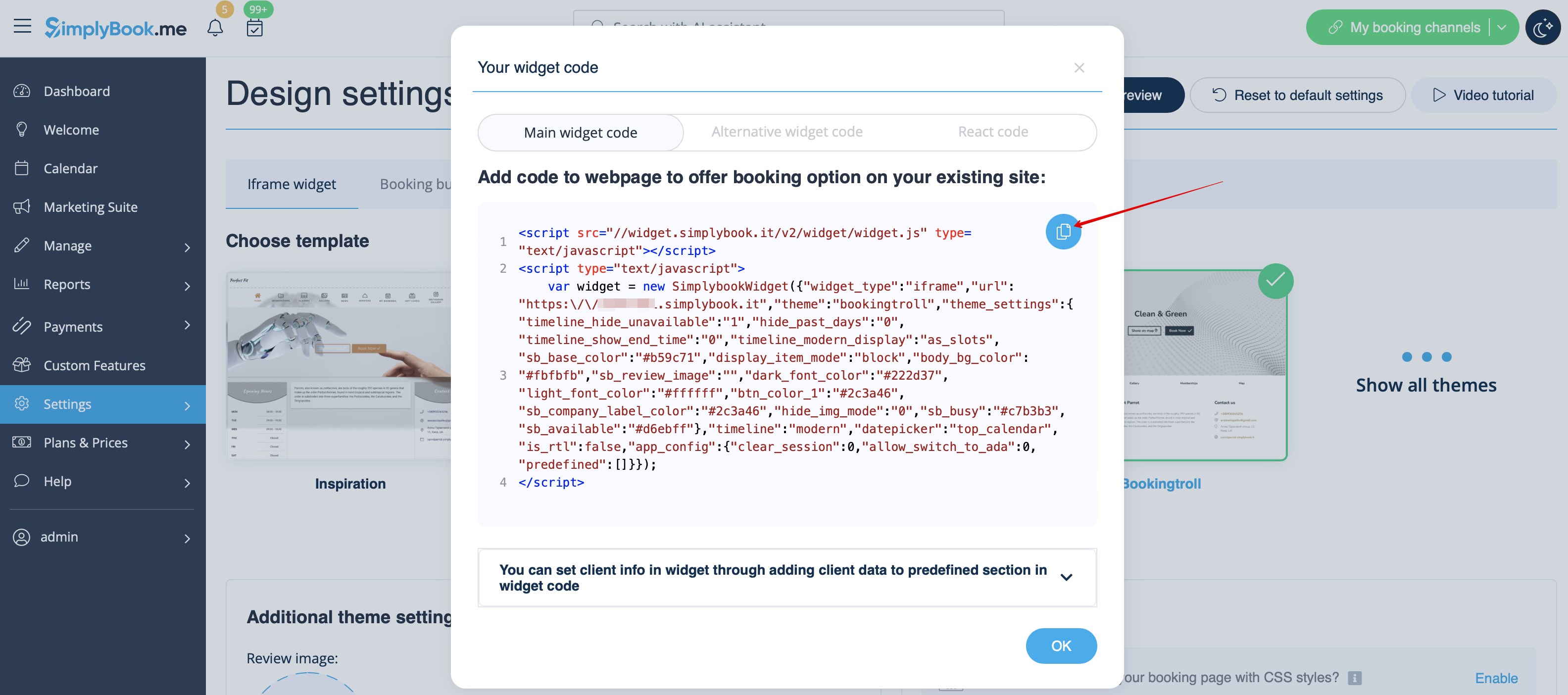
:6. Adjust the design to your taste and needs, <span style="background-color:#d4f8e5; padding:5px; border-radius:5px;">get widget code.</span>
:6. Pas het ontwerp aan uw smaak en behoeften aan en <span style="background-color:#d4f8e5; padding:5px; border-radius:5px;">kopieer de widgetcode.</span>
[[File:Copy widget code redesigned.png|1200px|border|center|link=https://help.simplybook.me/images/b/b4/Copy_widget_code_redesigned.png]]
[[File:Copy widget code redesigned.png|1200px|border|center|link=https://help.simplybook.me/images/b/b4/Copy_widget_code_redesigned.png]]
<br><br>
<br><br>
:7. Copy the whole code from the popup and insert it to <span style="background-color:#d4f8e5; padding:5px; border-radius:5px;">HTML</span> field on Shopify side. Adjust container width if necessary. <span style="background-color:#d4f8e5; padding:5px; border-radius:5px;">Save</span> the changes
:7. Kopieer de volledige code uit het pop-upvenster en plak deze in <span style="background-color:#d4f8e5; padding:5px; border-radius:5px;">het HTML-veld</span> aan de Shopify-kant. Pas indien nodig de breedte van de container aan. <span style="background-color:#d4f8e5; padding:5px; border-radius:5px;">Sla</span> de wijzigingen <span style="background-color:#d4f8e5; padding:5px; border-radius:5px;">op</span>
[[File:Insert html to shopify side.png|border|center]]
[[File:Insert html to shopify side.png|border|center]]
<br><br>
<br><br>
:8. As the result you will see how the booking widget looks like right away.
:8. Het resultaat is dat u meteen kunt zien hoe de boekingswidget eruitziet.
[[File:Shopify widget result.png|border|center]]
[[File:Shopify widget result.png|border|center]]
<br><br><br><br>
<br><br><br><br>
</div>
</div>