From SimplyBook.me
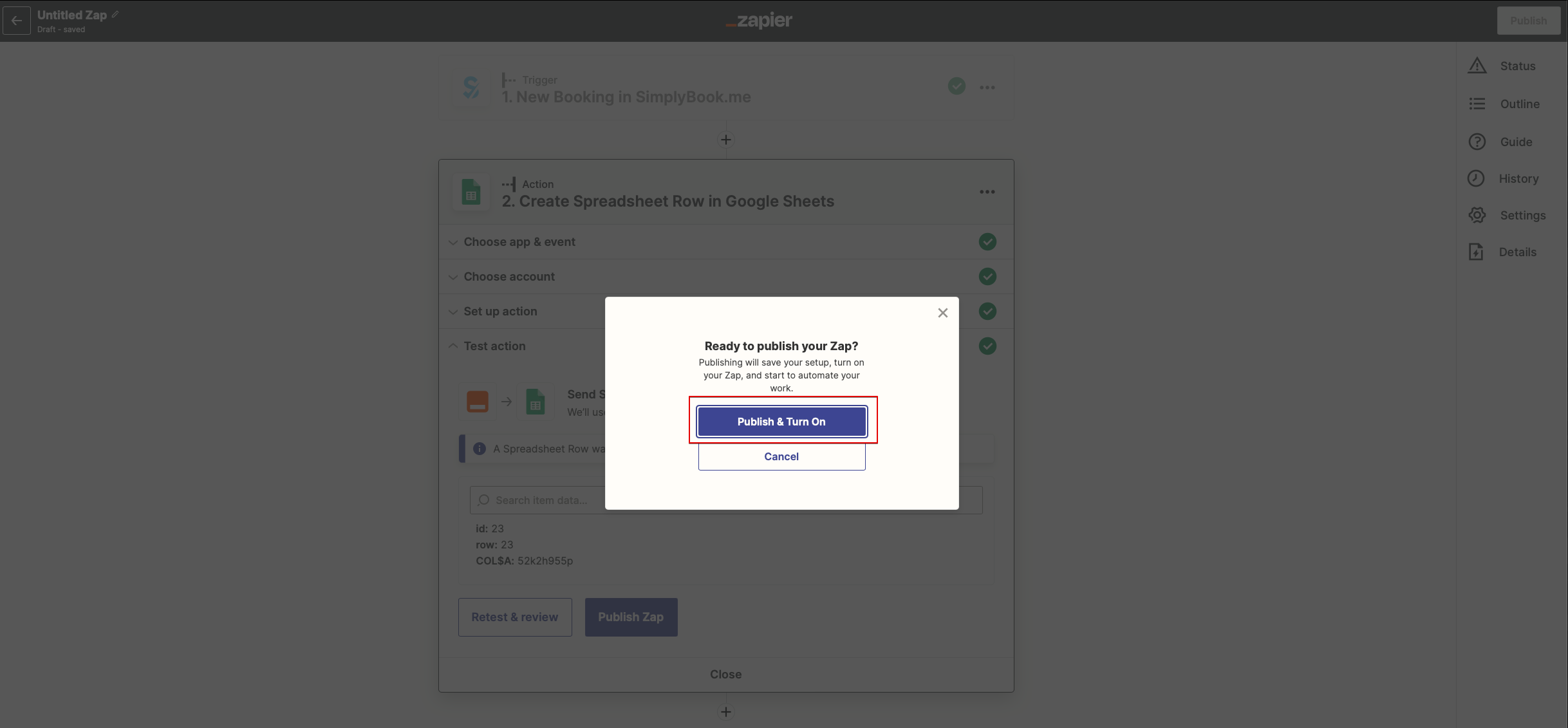
Created page with ":8.'''Тепер''' ви можете увімкнути Zap. Він автоматично надсилатиме електронні листи на вказані адреси, коли система SimplyBook.me отримає нове бронювання. 1200px|center|link=https://help.simplybook.me/images/9/9b/Zapier_redesigned_enable_zap.png <br><br>" |
Updating to match new version of source page |
||
| Line 14: | Line 14: | ||
<br><br> | <br><br> | ||
<div class="mw-translate-fuzzy"> | |||
:3.'''На''' наступному кроці підключіть свій обліковий запис SimplyBook.me. Увімкніть [[Custom_Features#Zapier_Connector |спеціальну]] функцію [[Custom_Features#Zapier_Connector |коннектора Zapier]]. У Zapier використовуйте ті самі облікові дані, що й для входу в обліковий запис SimplyBook.me. Збережіть цей крок. | :3.'''На''' наступному кроці підключіть свій обліковий запис SimplyBook.me. Увімкніть [[Custom_Features#Zapier_Connector |спеціальну]] функцію [[Custom_Features#Zapier_Connector |коннектора Zapier]]. У Zapier використовуйте ті самі облікові дані, що й для входу в обліковий запис SimplyBook.me. Збережіть цей крок. | ||
[[File:Zapier redesigned connect simplybook account.png|1200px |center|link=https://help.simplybook.me/images/2/24/Zapier_redesigned_connect_simplybook_account.png]] | [[File:Zapier redesigned connect simplybook account.png|1200px |center|link=https://help.simplybook.me/images/2/24/Zapier_redesigned_connect_simplybook_account.png]] | ||
| Line 34: | Line 35: | ||
[[File:Zapier redesigned setup the email template.png|1200px | center|link=https://help.simplybook.me/images/5/5d/Zapier_redesigned_setup_the_email_template.png]] | [[File:Zapier redesigned setup the email template.png|1200px | center|link=https://help.simplybook.me/images/5/5d/Zapier_redesigned_setup_the_email_template.png]] | ||
<br><br> | <br><br> | ||
</div> | |||
<div lang="en" dir="ltr" class="mw-content-ltr"> | |||
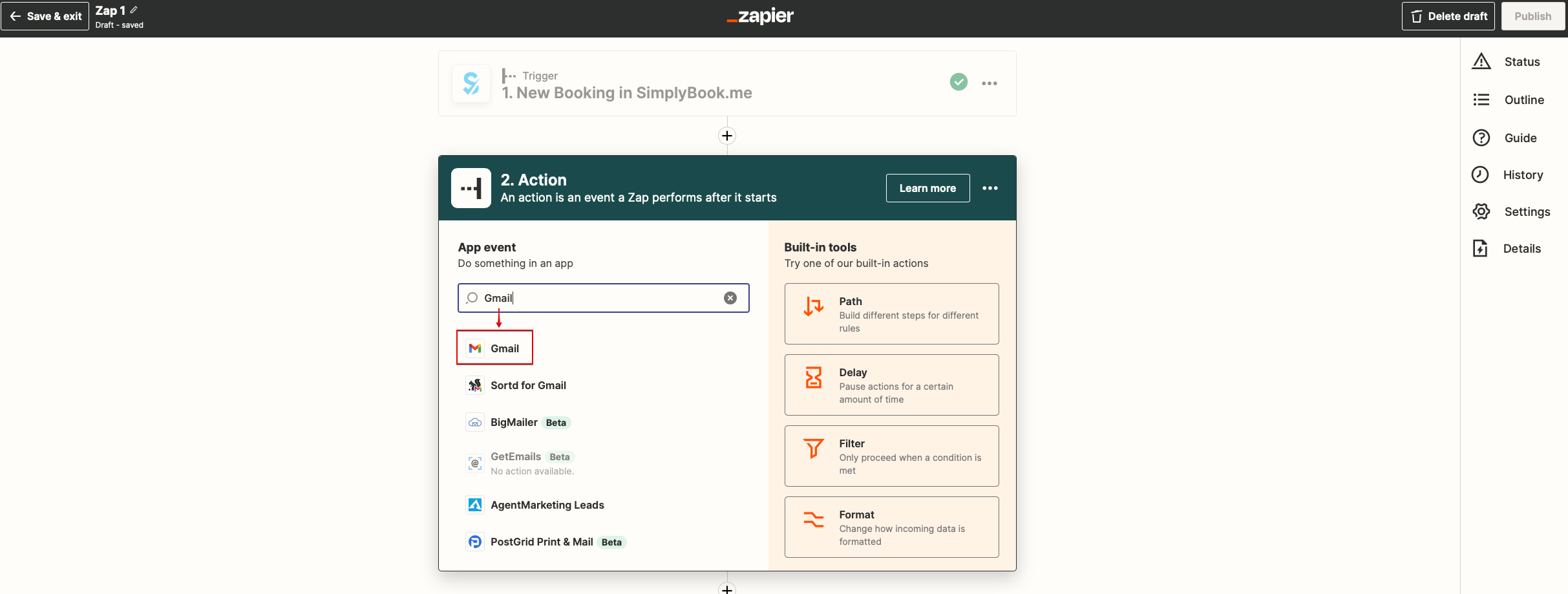
:'''4'''. Now you will be setting up actions step and as it is related to emails please find Gmail option using searchbox. | |||
[[File:Zapier redesigned gmail as action app.png|1200px|center|link=https://help.simplybook.me/images/0/01/Zapier_redesigned_gmail_as_action_app.png]] | |||
<br><br> | |||
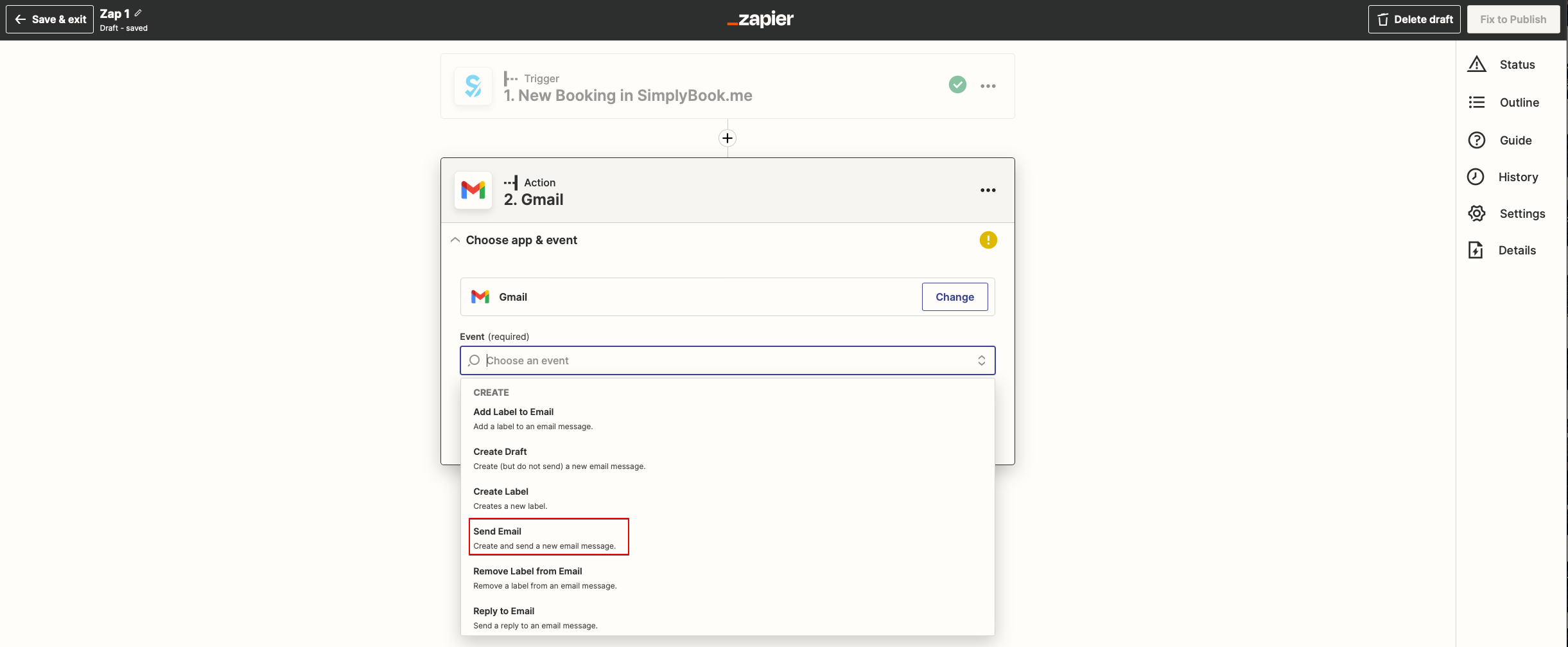
:'''5'''. From the list of available actions please choose "Send email" and connect Gmail account that will be used for sending notifications. | |||
[[File:Zapier redesigned send email action.png|1200px |center|link=https://help.simplybook.me/images/a/ac/Zapier_redesigned_send_email_action.png]] | |||
<br><br> | |||
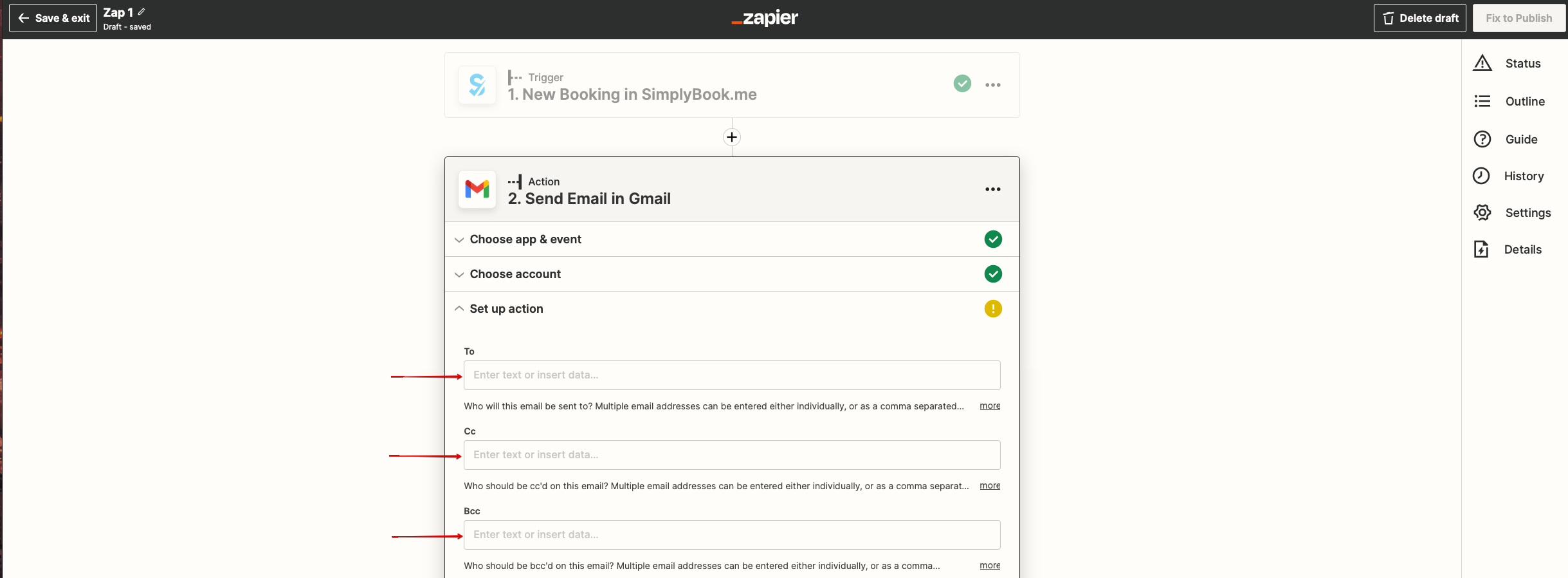
:'''6'''. On the next step please add email address(es) that you wish notification to be sent to. You may add only one address in "To(required)" email box or add some more addresses with the help of "Cc" and "Bcc" options or by clicking on "+" icon to add another email box. | |||
[[File:Zapier redesigned setup the email addresses.png|1200px |center|link=https://help.simplybook.me/images/5/5a/Zapier_redesigned_setup_the_email_addresses.png]] | |||
<br><br> | |||
</div> | |||
<div lang="en" dir="ltr" class="mw-content-ltr"> | |||
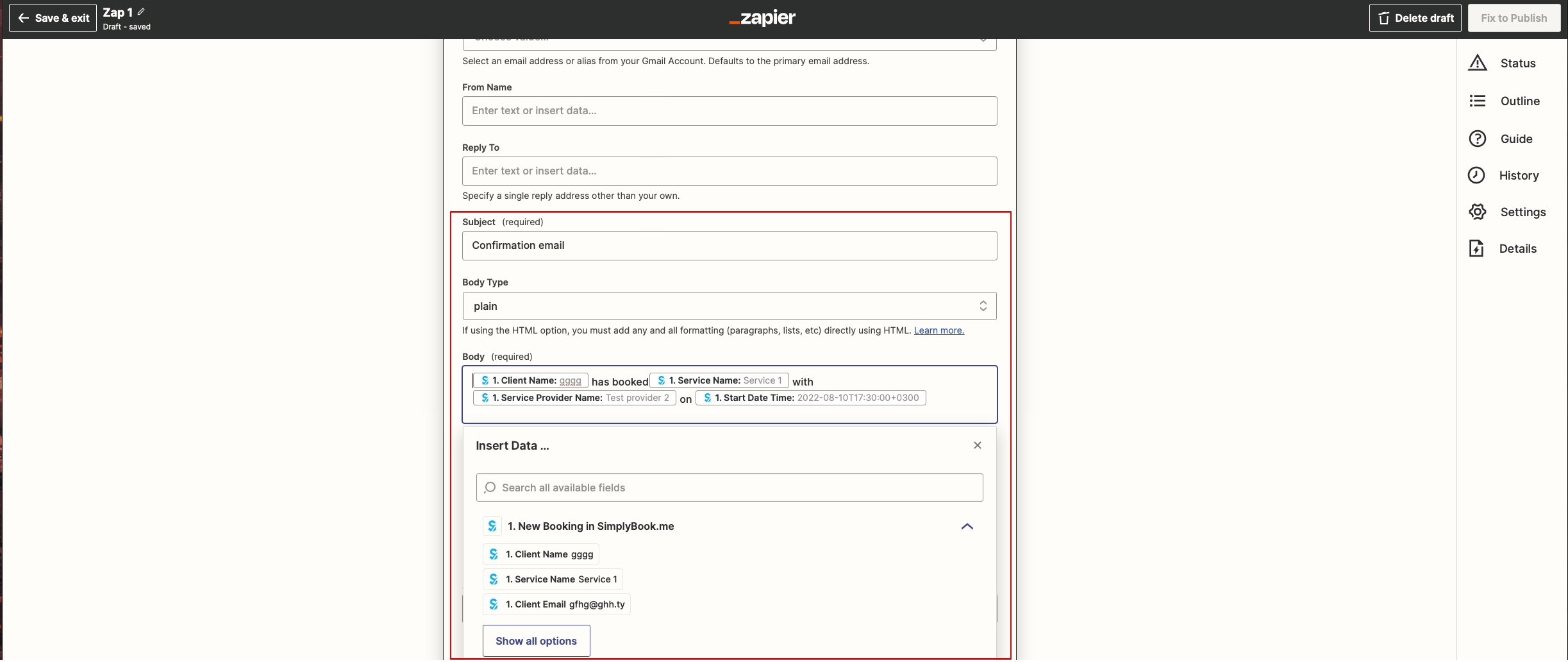
:'''7'''. Now you come to template step. | |||
:Please use available variables by clicking on the textbox ands selecting the necessary ones from the list.<br> | |||
:Here you can see the example how notification template can be set up. | |||
[[File:Zapier redesigned setup the email template.png|1200px | center|link=https://help.simplybook.me/images/5/5d/Zapier_redesigned_setup_the_email_template.png]] | |||
<br><br> | |||
</div> | |||
:8.'''Тепер''' ви можете увімкнути Zap. Він автоматично надсилатиме електронні листи на вказані адреси, коли система SimplyBook.me отримає нове бронювання. | :8.'''Тепер''' ви можете увімкнути Zap. Він автоматично надсилатиме електронні листи на вказані адреси, коли система SimplyBook.me отримає нове бронювання. | ||
[[File:Zapier redesigned enable zap.png|1200px|center|link=https://help.simplybook.me/images/9/9b/Zapier_redesigned_enable_zap.png]] | [[File:Zapier redesigned enable zap.png|1200px|center|link=https://help.simplybook.me/images/9/9b/Zapier_redesigned_enable_zap.png]] | ||
<br><br> | <br><br> | ||
Revision as of 07:45, 1 July 2025
Іноді може знадобитися надіслати підтверджувальні листи на кілька адрес електронної пошти.
Для цього можна скористатися Zapier.
Як налаштувати
- 1. Увійдіть у свій обліковий запис Zapier, перейдіть на сторінку «Zaps» і натисніть «Make a Zap» або «Make a New Zap»
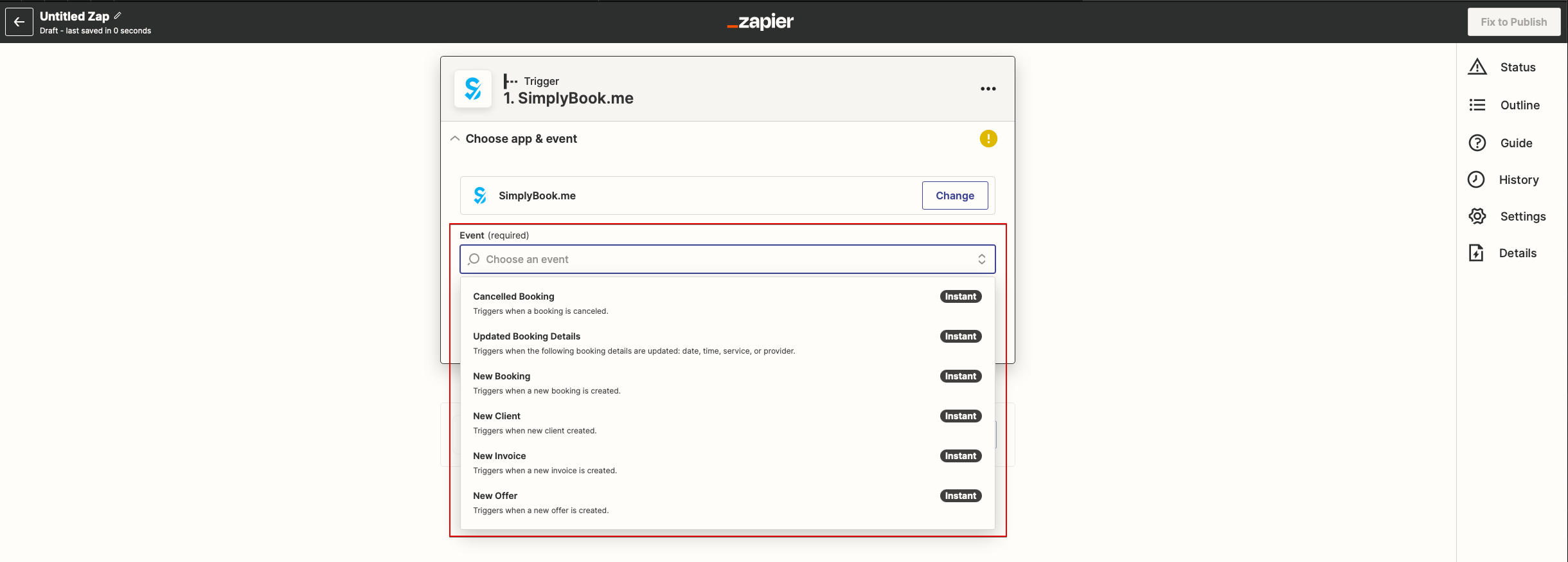
- 2.Тепер ви налаштуєте крок тригера. Сам тригер — це нове бронювання, тому введіть «SimplyBook» у поле пошуку та виберіть цей варіант. Збережіть цей крок.
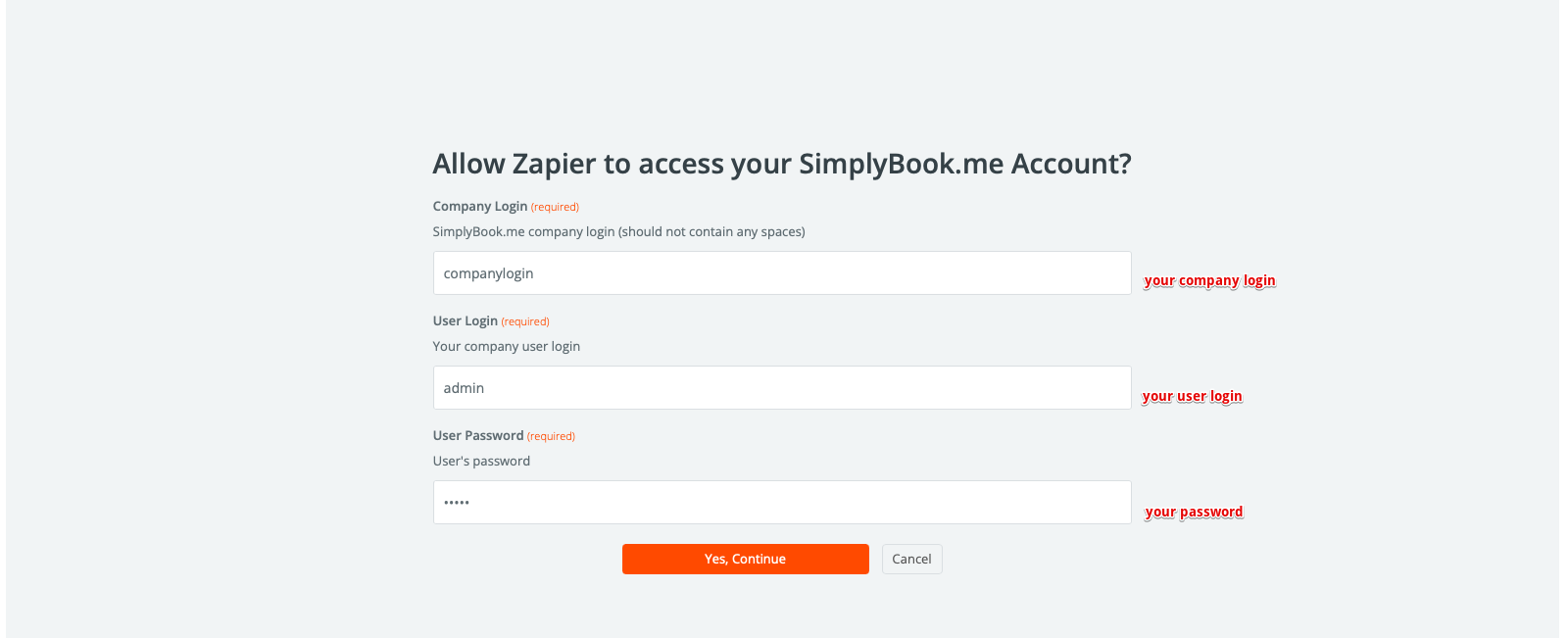
- 3.На наступному кроці підключіть свій обліковий запис SimplyBook.me. Увімкніть спеціальну функцію коннектора Zapier. У Zapier використовуйте ті самі облікові дані, що й для входу в обліковий запис SimplyBook.me. Збережіть цей крок.
Якщо Zapier показує помилку «Ми не змогли знайти бронювання» на кроці тестування, не хвилюйтеся, це може статися, якщо ваш обліковий запис новий або ви нещодавно не отримували нових бронювань.
Ви можете пропустити тестовий крок і продовжити налаштування.
- 4. Тепер ви будете налаштовувати кроки дій, і оскільки це стосується електронних листів, знайдіть опцію Gmail за допомогою пошукового вікна.
- 5. Зі списку доступних дій виберіть «Надіслати електронний лист» і підключіть обліковий запис Gmail, який буде використовуватися для надсилання повідомлень.
- 6. На наступному кроці додайте адресу (адреси) електронної пошти, на яку (які) ви хочете надсилати повідомлення. Ви можете додати тільки одну адресу в поле «Кому (обов'язково)» або додати кілька адрес за допомогою опцій «Копія» та «Прихована копія» або натиснувши на значок «+», щоб додати ще одне поле електронної пошти.
- 7. Тепер ви перейшли до кроку шаблону.
- Використовуйте доступні змінні, натиснувши на текстове поле та вибравши необхідні з переліку.
- Тут ви можете побачити приклад того, як можна налаштувати шаблон повідомлення.
- 4. Now you will be setting up actions step and as it is related to emails please find Gmail option using searchbox.
- 5. From the list of available actions please choose "Send email" and connect Gmail account that will be used for sending notifications.
- 6. On the next step please add email address(es) that you wish notification to be sent to. You may add only one address in "To(required)" email box or add some more addresses with the help of "Cc" and "Bcc" options or by clicking on "+" icon to add another email box.
- 7. Now you come to template step.
- Please use available variables by clicking on the textbox ands selecting the necessary ones from the list.
- Here you can see the example how notification template can be set up.
- 8.Тепер ви можете увімкнути Zap. Він автоматично надсилатиме електронні листи на вказані адреси, коли система SimplyBook.me отримає нове бронювання.