From SimplyBook.me
Marked this version for translation |
No edit summary |
||
| Line 7: | Line 7: | ||
|titlemode=append | |titlemode=append | ||
|keywords=faq, frequently asked questions, booking software, appointment system questions, appointments online, calendar software, booking system, booking calendar, scheduling software, online appointment scheduling, online scheduling, plugins, custom features, custom booking page link, domain name, custom domain name, custom url | |keywords=faq, frequently asked questions, booking software, appointment system questions, appointments online, calendar software, booking system, booking calendar, scheduling software, online appointment scheduling, online scheduling, plugins, custom features, custom booking page link, domain name, custom domain name, custom url | ||
}} | }}</translate> | ||
< | <translate> | ||
<br><br> | <br><br> | ||
| Line 15: | Line 15: | ||
[[File:Create new user path redesigned.png|1200px | center|link=https://help.simplybook.me/images/f/f0/Create_new_user_path_redesigned.png]] | [[File:Create new user path redesigned.png|1200px | center|link=https://help.simplybook.me/images/f/f0/Create_new_user_path_redesigned.png]] | ||
</translate> | |||
<translate> | |||
[[File:Relate user with provider redesined.png|1200px | center|link=https://help.simplybook.me/images/4/4b/Relate_user_with_provider_redesined.png]] | [[File:Relate user with provider redesined.png|1200px | center|link=https://help.simplybook.me/images/4/4b/Relate_user_with_provider_redesined.png]] | ||
| Line 26: | Line 27: | ||
Or you can manually send login and password to your users along with the link to your admin page after saving the user. | Or you can manually send login and password to your users along with the link to your admin page after saving the user. | ||
<br><br> | <br><br> | ||
</translate> | |||
Revision as of 07:58, 1 July 2025
You can create a separate user for the person who needs to access your admin page in Manage -> Users and assign the corresponding rights to him/her.
See the list of available user roles here.
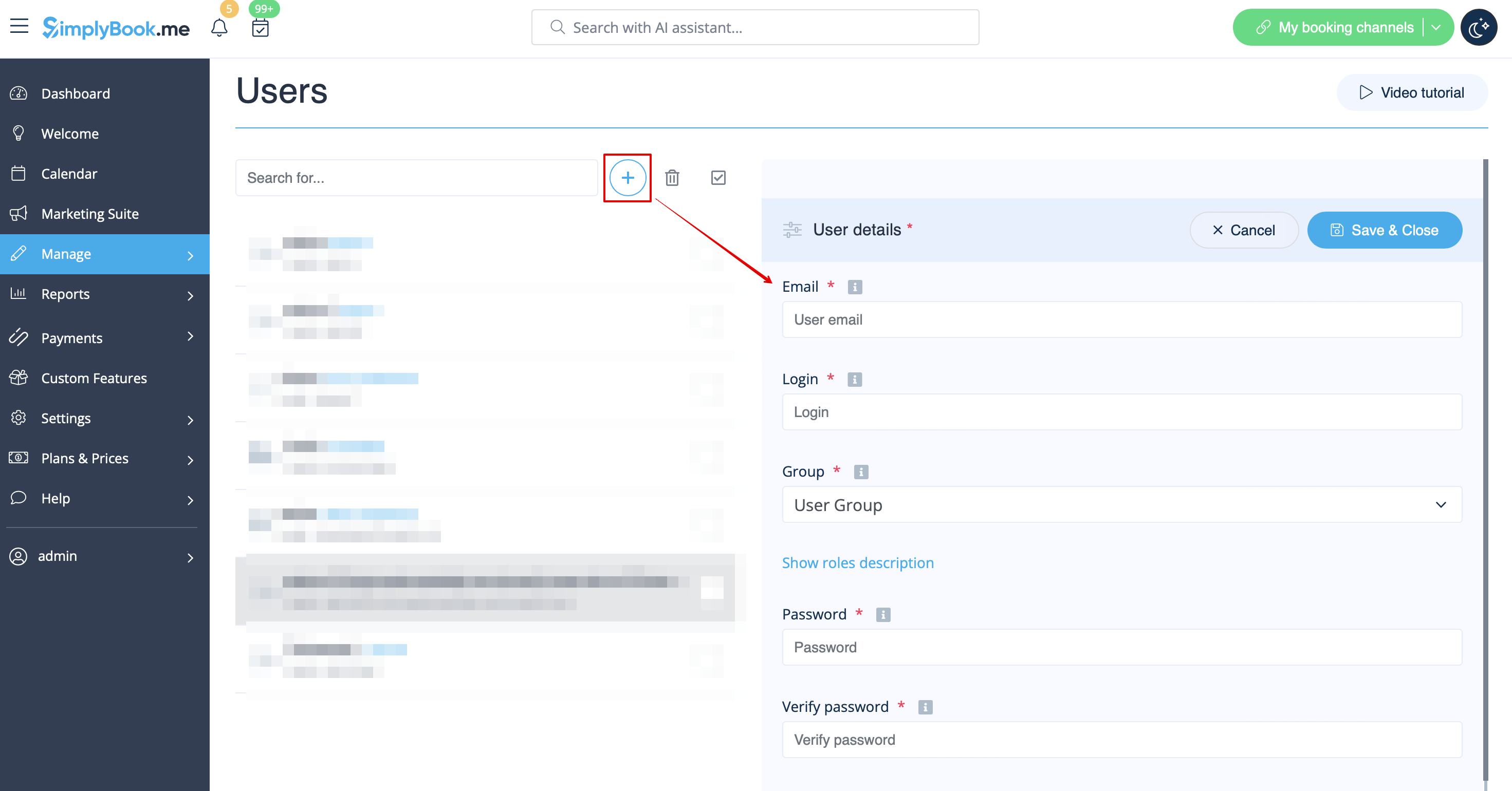
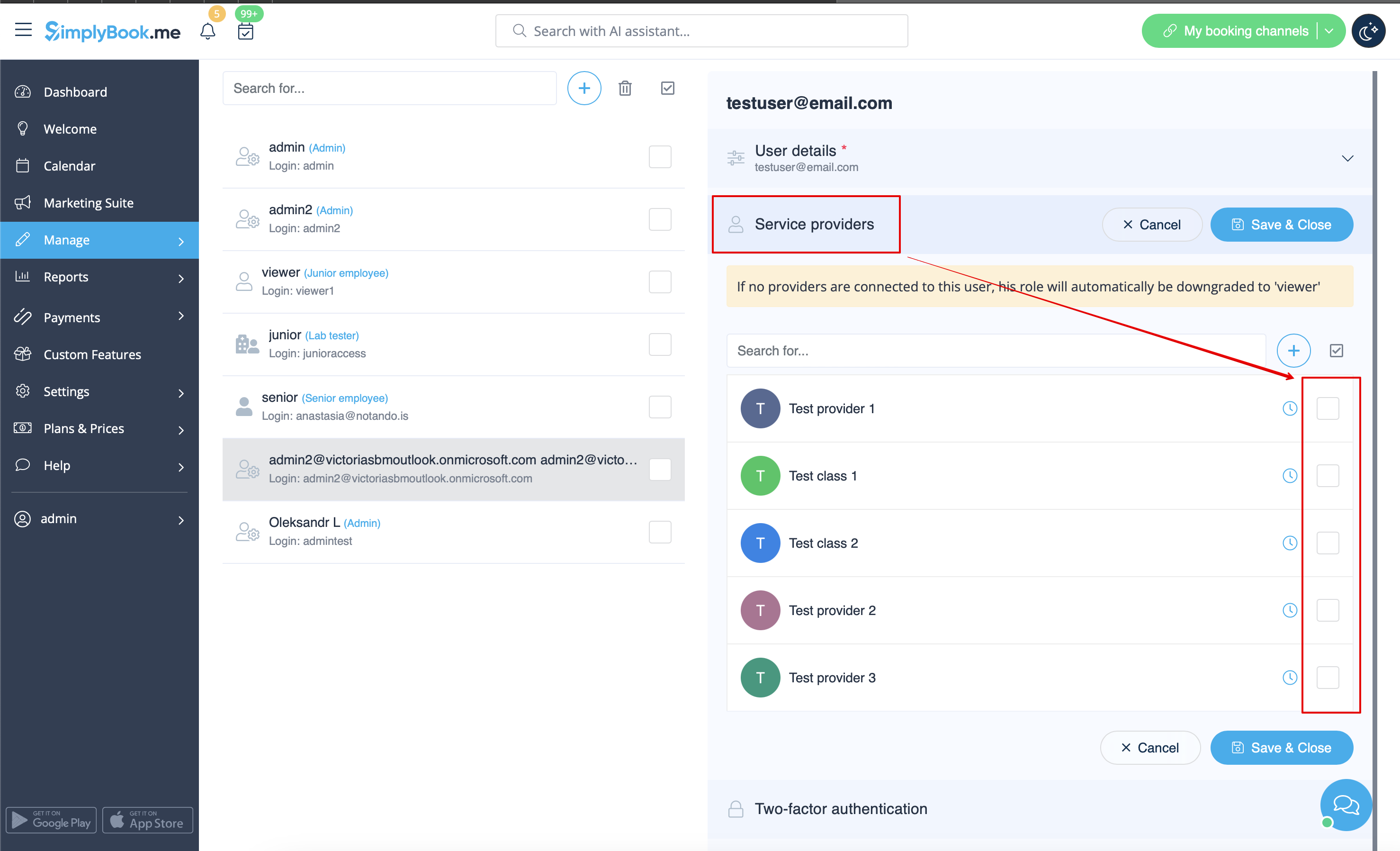
When adding new user details just enable the switch Send login information to user and save the user record.
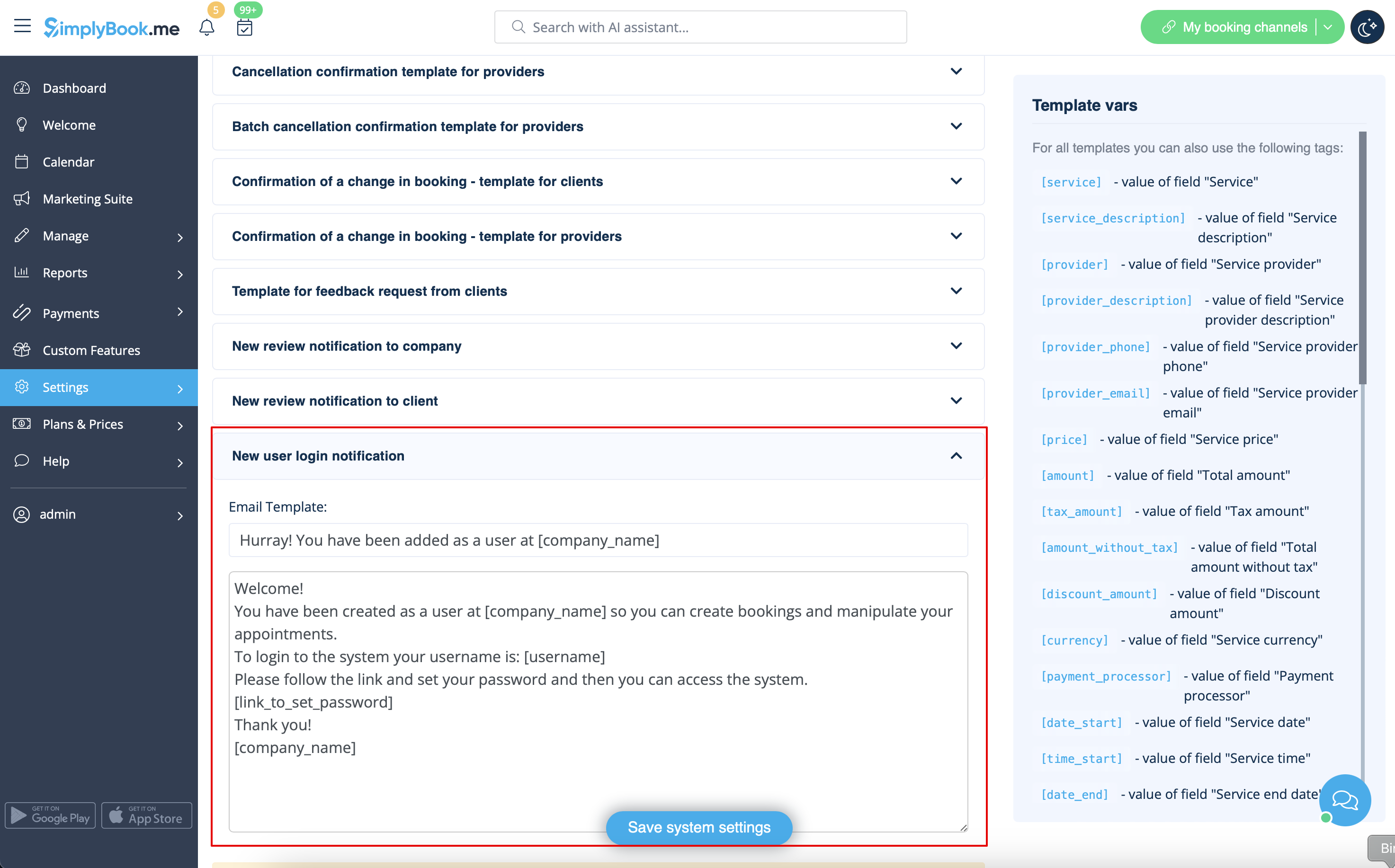
The system will automatically send the email with the login credentials according to the template you have set in Settings -> Email and SMS Settings -> New user login notification.
Or you can manually send login and password to your users along with the link to your admin page after saving the user.
