From SimplyBook.me
Created page with "Donner accès au système à d'autres personnes" |
Updating to match new version of source page |
||
| Line 2: | Line 2: | ||
{{#seo: |title=Donner accès au système à d'autres personnes - SimplyBook.me |description=Partagez l'accès au système en toute sécurité avec les membres de votre équipe. Gérez efficacement les autorisations et les rôles. Découvrez comment ici ! |titlemode=ajouter |keywords=faq, foire aux questions, logiciel de réservation, questions sur le système de rendez-vous, rendez-vous en ligne, logiciel de calendrier, système de réservation, calendrier de réservation, logiciel de planification, planification de rendez-vous en ligne, planification en ligne, plugins, fonctionnalités personnalisées, lien vers une page de réservation personnalisée, nom de domaine, nom de domaine personnalisé, URL personnalisée }} | {{#seo: |title=Donner accès au système à d'autres personnes - SimplyBook.me |description=Partagez l'accès au système en toute sécurité avec les membres de votre équipe. Gérez efficacement les autorisations et les rôles. Découvrez comment ici ! |titlemode=ajouter |keywords=faq, foire aux questions, logiciel de réservation, questions sur le système de rendez-vous, rendez-vous en ligne, logiciel de calendrier, système de réservation, calendrier de réservation, logiciel de planification, planification de rendez-vous en ligne, planification en ligne, plugins, fonctionnalités personnalisées, lien vers une page de réservation personnalisée, nom de domaine, nom de domaine personnalisé, URL personnalisée }} | ||
<div lang="en" dir="ltr" class="mw-content-ltr"> | |||
<br><br> | <br><br> | ||
You can create a separate user for the person who needs to access your admin page in <span style="background-color:#d4f8e5; padding:5px; border-radius:5px;">Manage</span> -> <span style="background-color:#d4f8e5; padding:5px; border-radius:5px;">Users</span> and assign the corresponding rights to him/her. <br>See the list of available user roles <span style="background-color:#cdeffc; padding:5px; border-radius:5px;">[[Adding_other_users_to_the_system#User_Roles| here]].</span> | You can create a separate user for the person who needs to access your admin page in <span style="background-color:#d4f8e5; padding:5px; border-radius:5px;">Manage</span> -> <span style="background-color:#d4f8e5; padding:5px; border-radius:5px;">Users</span> and assign the corresponding rights to him/her. <br>See the list of available user roles <span style="background-color:#cdeffc; padding:5px; border-radius:5px;">[[Adding_other_users_to_the_system#User_Roles| here]].</span> | ||
</div> | |||
<div lang="en" dir="ltr" class="mw-content-ltr"> | |||
[[File:Create new user path redesigned.png|1200px | center|link=https://help.simplybook.me/images/f/f0/Create_new_user_path_redesigned.png]] | [[File:Create new user path redesigned.png|1200px | center|link=https://help.simplybook.me/images/f/f0/Create_new_user_path_redesigned.png]] | ||
</div> | |||
<div lang="en" dir="ltr" class="mw-content-ltr"> | |||
[[File:Relate user with provider redesined.png|1200px | center|link=https://help.simplybook.me/images/4/4b/Relate_user_with_provider_redesined.png]] | [[File:Relate user with provider redesined.png|1200px | center|link=https://help.simplybook.me/images/4/4b/Relate_user_with_provider_redesined.png]] | ||
</div> | |||
<div lang="en" dir="ltr" class="mw-content-ltr"> | |||
<br><br> | <br><br> | ||
When adding new user details just enable the switch <span style="background-color:#d4f8e5; padding:5px; border-radius:5px;">Send login information to user</span> and save the user record.<br> | When adding new user details just enable the switch <span style="background-color:#d4f8e5; padding:5px; border-radius:5px;">Send login information to user</span> and save the user record.<br> | ||
| Line 18: | Line 24: | ||
Or you can manually send login and password to your users along with the link to your admin page after saving the user. | Or you can manually send login and password to your users along with the link to your admin page after saving the user. | ||
<br><br> | <br><br> | ||
</div> | |||
Revision as of 07:58, 1 July 2025
You can create a separate user for the person who needs to access your admin page in Manage -> Users and assign the corresponding rights to him/her.
See the list of available user roles here.
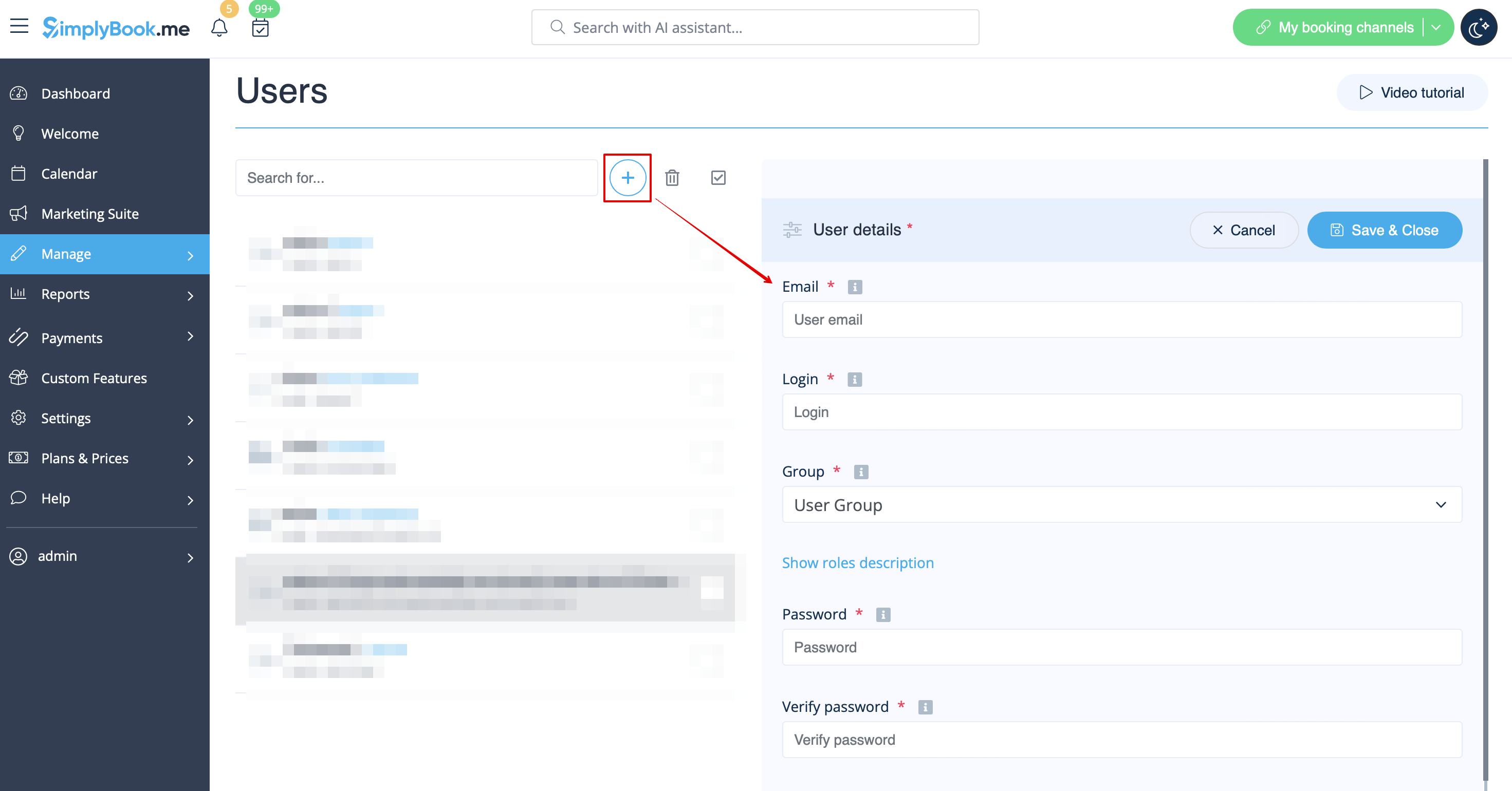
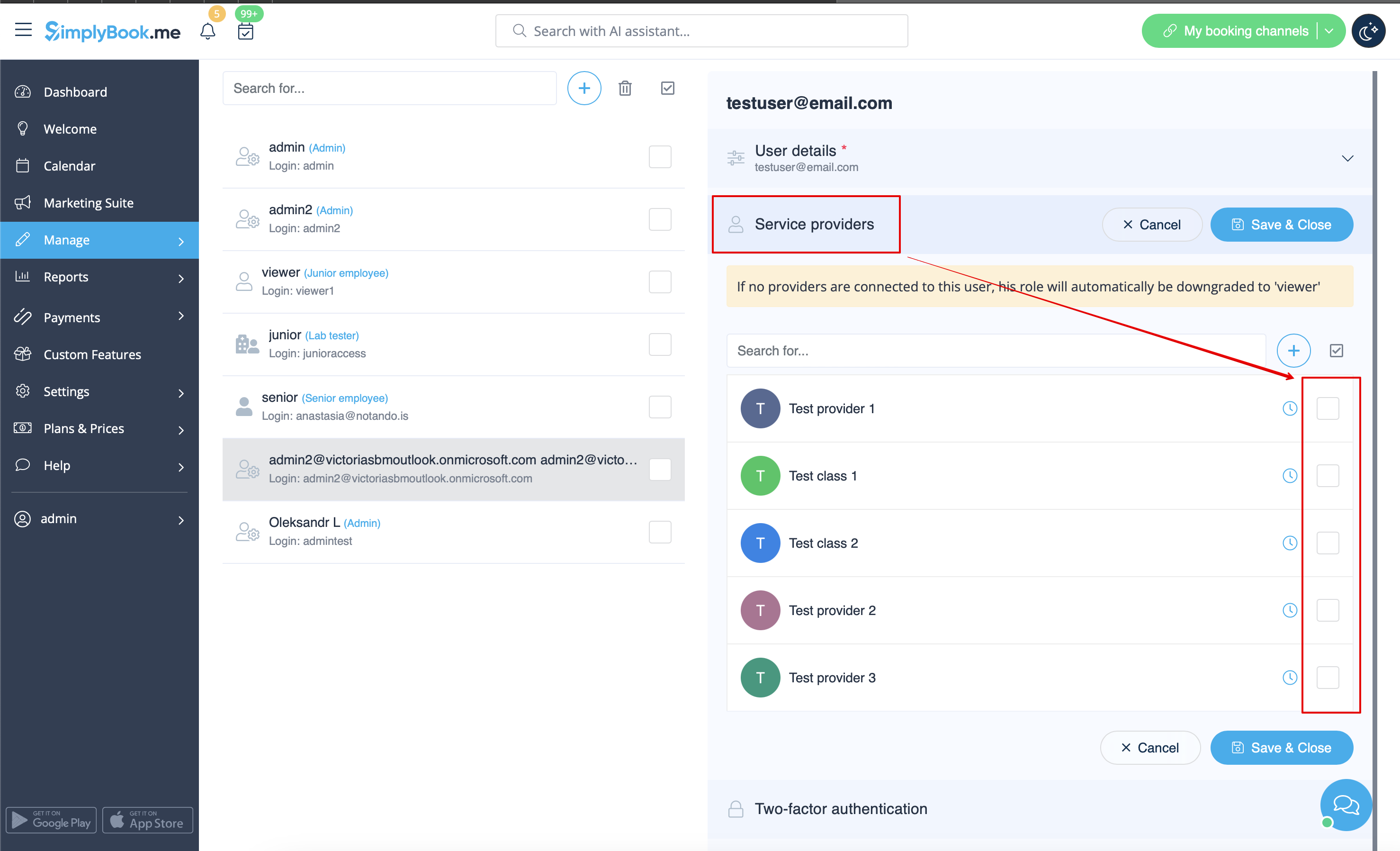
When adding new user details just enable the switch Send login information to user and save the user record.
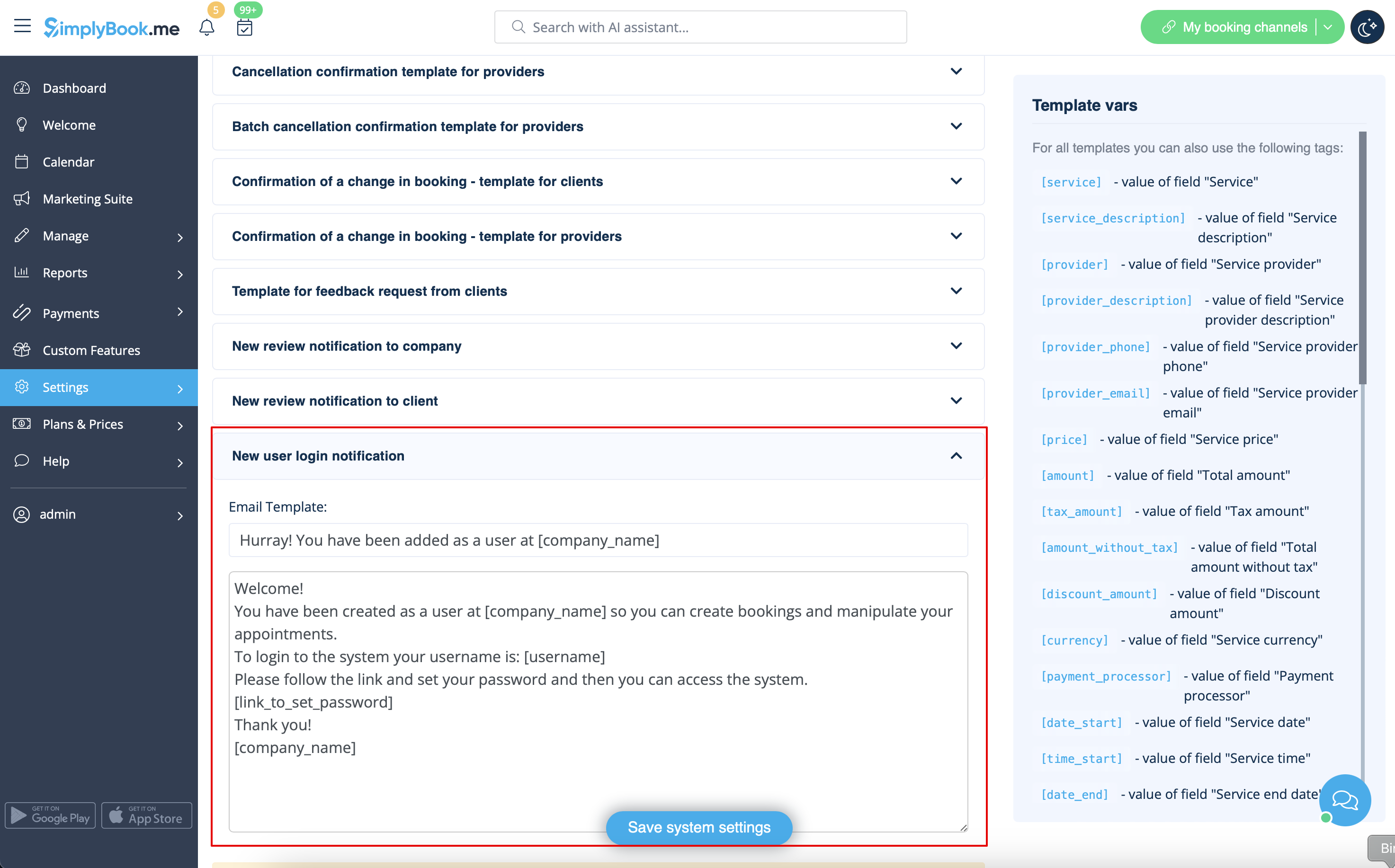
The system will automatically send the email with the login credentials according to the template you have set in Settings -> Email and SMS Settings -> New user login notification.
Or you can manually send login and password to your users along with the link to your admin page after saving the user.
