4. After that, when the meeting time comes, both provider and client will be redirected to the Zoom online meeting page.
4. After that, when the meeting time comes, both provider and client will be redirected to the Zoom online meeting page.
<br><br>
;How to remove integration
''From the Simplybook.me side''
* Navigate to the <span style="background-color:#d4f8e5; padding:5px; border-radius:5px;">Custom Features</span> page within your Simplybook.me admin interface and click on Online video meetings custom feature to open its settings.<br>
* In the feature settings locate Zoom and click <span style="background-color:#d4f8e5; padding:5px; border-radius:5px;">Logout.</span><br>
* After that Zoom integration will be removed from your Simplybook.me account.
<span style="background-color:#ffe9e9; padding:5px; border-radius:5px;">'''Please note!''' If you did not check the box “Allow this app to use my shared access permissions” OR you want to switch connected Zoom account to another one - there will be no option to do that from Simplybook.me side due to technical restrictions.</span><br>
<span style="background-color:#ffe9e9; padding:5px; border-radius:5px;">In order to do that you will need to disconnect Simplybook.me directly from Zoom and after that you will be able to connect new account on the Simplybook.me side.</span>
<br><br>
* To disconnect the integration from the Zoom side please follow [https://marketplace.zoom.us/user/installed this link].<br>
* Locate Simplybook.me in the list of connected apps (you can use search if needed).<br>
* Click on <span style="background-color:#d4f8e5; padding:5px; border-radius:5px;">Remove</span> button to disconnect.<br>
* Now the integration is removed and you can connect different account if needed.
[[File:Zoom disconnect from zoom side.png|1200px|center|link=https://help.simplybook.me/images/a/a4/Zoom_disconnect_from_zoom_side.png]]
<br><br><br><br>
Latest revision as of 08:01, 1 July 2025
How the meeting process works
1. After everything is set up and the client books the online meetings related service/class both the client and the provider (or company, depending on your settings) will get the links to the meeting.
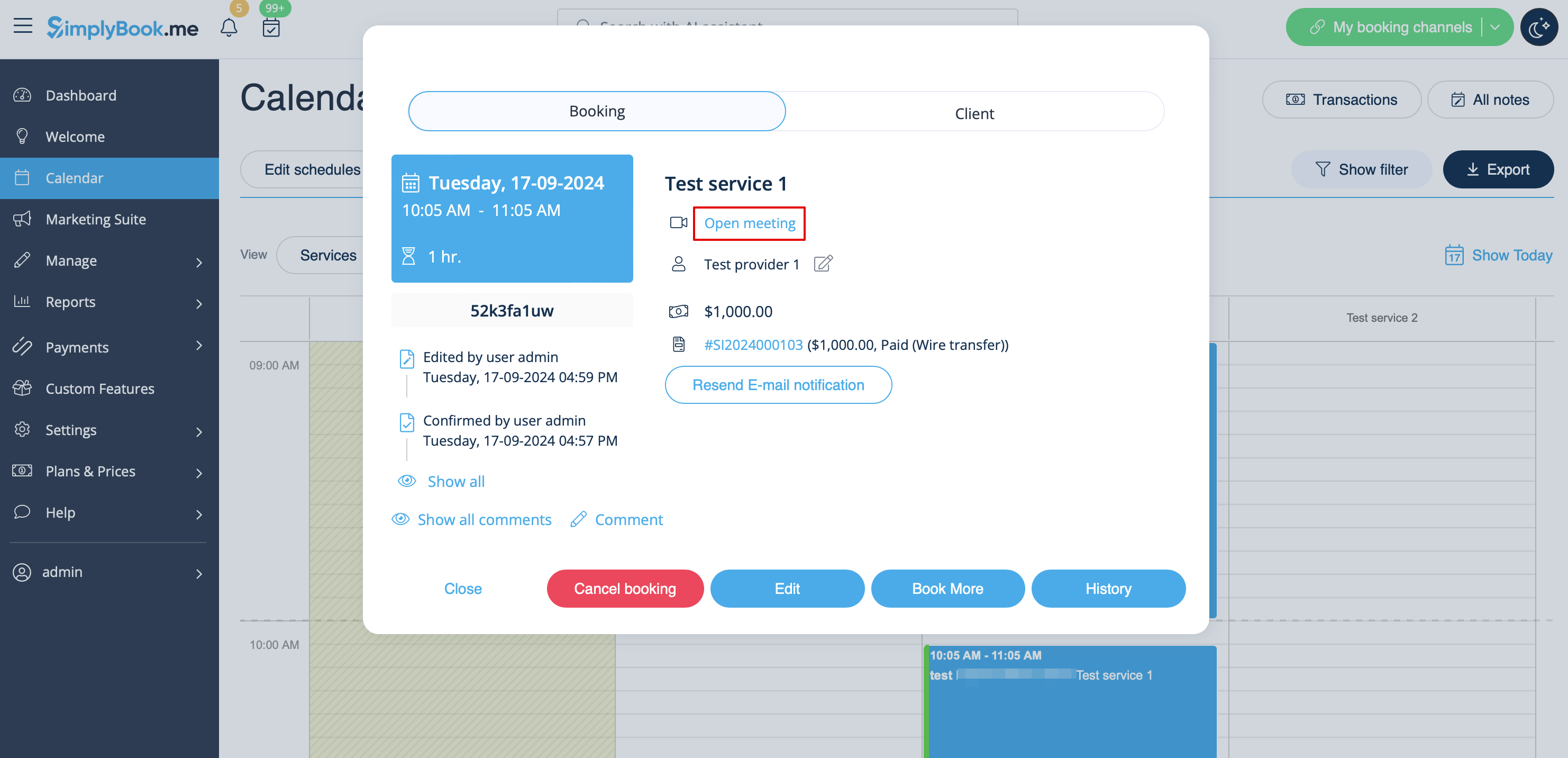
2. On the admin end provider can get to the meeting page right from the booking on "Calendar" by clicking on "Open meeting" link in the booking details popup.
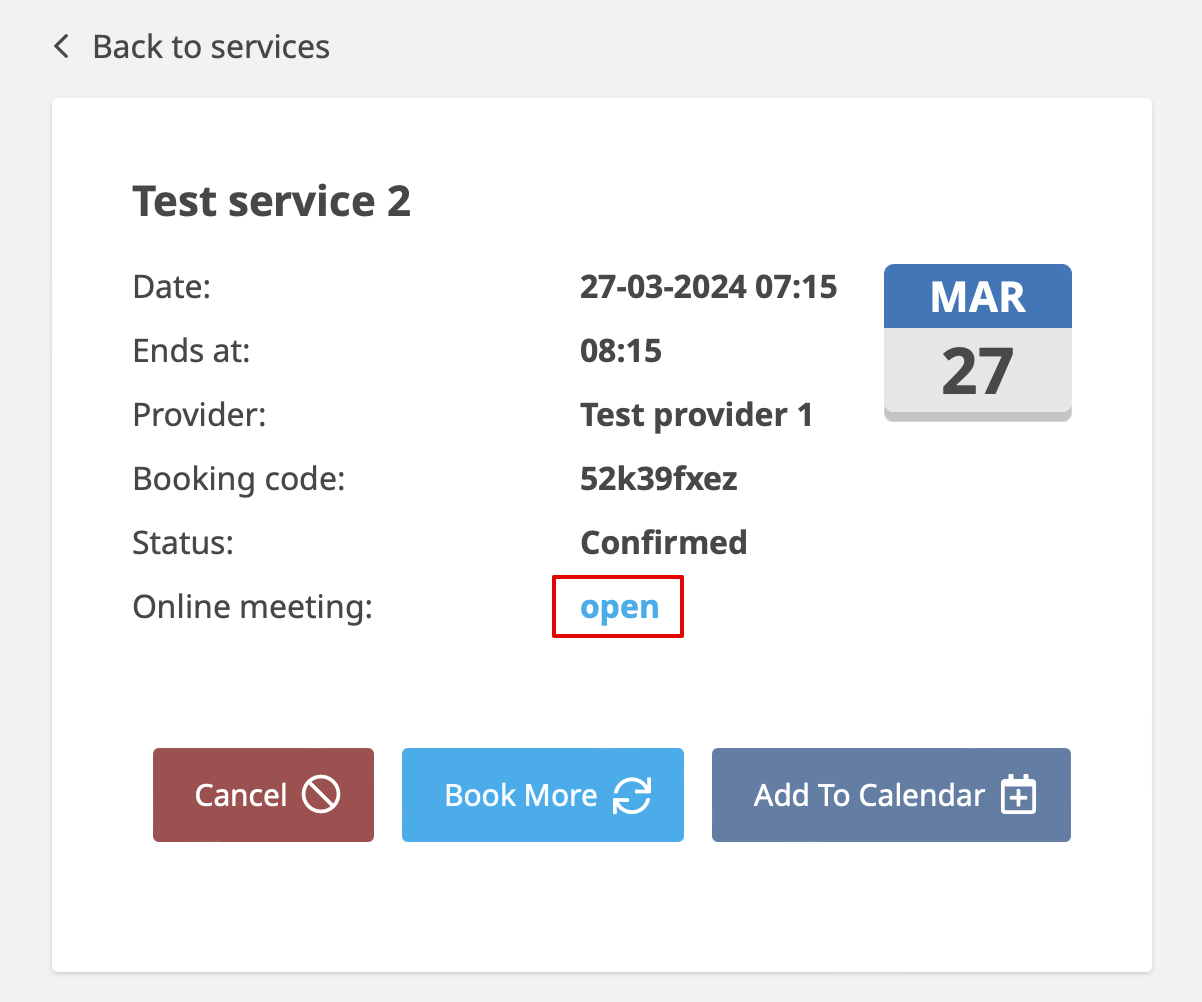
3. Clients can open meeting link from booking details on "My bookings" page of the booking site.
4. After that, when the meeting time comes, both provider and client will be redirected to the Zoom online meeting page.