From SimplyBook.me
Created page with ":1. Gå til <span style="background-color:#d4f8e5; padding:5px; border-radius:5px;">Onlinebutik</span> -> <span style="background-color:#d4f8e5; padding:5px; border-radius:5px;">Temaer</span> -> <span style="background-color:#d4f8e5; padding:5px; border-radius:5px;">Tilpas</span> i din <span style="background-color:#d4f8e5; padding:5px; border-radius:5px;">Shopify-konto.</span> border|center <br><br> :2. Vælg det afsnit, du vil..." |
Updating to match new version of source page |
||
| Line 4: | Line 4: | ||
Vores iFrame-widget giver dig mulighed for at forbinde Shopify-webstedet med SimplyBook.com og lade dine kunder booke direkte fra webstedet, både fra deres pc og fra deres mobile enheder. Denne løsning gør din bookingproces mere bekvem og nem. | Vores iFrame-widget giver dig mulighed for at forbinde Shopify-webstedet med SimplyBook.com og lade dine kunder booke direkte fra webstedet, både fra deres pc og fra deres mobile enheder. Denne løsning gør din bookingproces mere bekvem og nem. | ||
;Sådan indstilles | ;Sådan indstilles | ||
<div class="mw-translate-fuzzy"> | |||
:1. Gå til <span style="background-color:#d4f8e5; padding:5px; border-radius:5px;">Onlinebutik</span> -> <span style="background-color:#d4f8e5; padding:5px; border-radius:5px;">Temaer</span> -> <span style="background-color:#d4f8e5; padding:5px; border-radius:5px;">Tilpas</span> i din <span style="background-color:#d4f8e5; padding:5px; border-radius:5px;">Shopify-konto.</span> | :1. Gå til <span style="background-color:#d4f8e5; padding:5px; border-radius:5px;">Onlinebutik</span> -> <span style="background-color:#d4f8e5; padding:5px; border-radius:5px;">Temaer</span> -> <span style="background-color:#d4f8e5; padding:5px; border-radius:5px;">Tilpas</span> i din <span style="background-color:#d4f8e5; padding:5px; border-radius:5px;">Shopify-konto.</span> | ||
[[File:Shopify customize theme.png|border|center]] | [[File:Shopify customize theme.png|border|center]] | ||
| Line 32: | Line 32: | ||
[[File:Shopify widget result.png|border|center]] | [[File:Shopify widget result.png|border|center]] | ||
<br><br><br><br> | <br><br><br><br> | ||
</div> | |||
<div lang="en" dir="ltr" class="mw-content-ltr"> | |||
:4. Click on <span style="background-color:#d4f8e5; padding:5px; border-radius:5px;">Add content</span> and select <span style="background-color:#d4f8e5; padding:5px; border-radius:5px;">Custom HTML</span> | |||
[[File:Select html.png|border|center]] | |||
<br><br> | |||
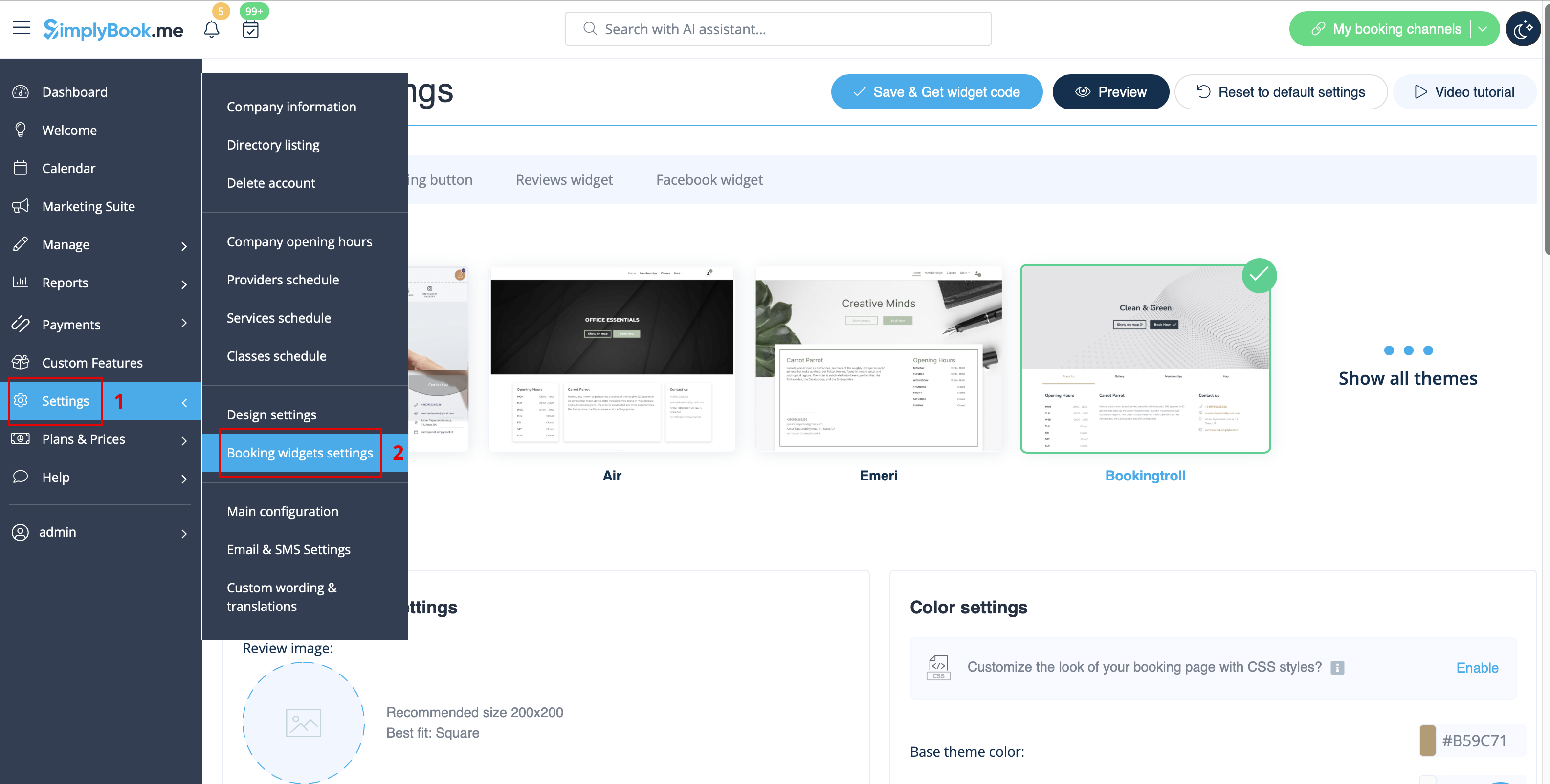
:5. Navigate to your <span style="background-color:#d4f8e5; padding:5px; border-radius:5px;">SimplyBook.me account</span> -> <span style="background-color:#d4f8e5; padding:5px; border-radius:5px;">Settings</span> -> <span style="background-color:#d4f8e5; padding:5px; border-radius:5px;">Booking widgets settings</span> -> <span style="background-color:#d4f8e5; padding:5px; border-radius:5px;">iFrame widget</span> | |||
[[File:Booking widget path redesigned.png|1200px|border|center|link=https://help.simplybook.me/images/6/68/Booking_widget_path_redesigned.png]] | |||
<br><br> | |||
:6. Adjust the design to your taste and needs, <span style="background-color:#d4f8e5; padding:5px; border-radius:5px;">get widget code.</span> | |||
[[File:Copy widget code redesigned.png|1200px|border|center|link=https://help.simplybook.me/images/b/b4/Copy_widget_code_redesigned.png]] | |||
<br><br> | |||
</div> | |||
<div lang="en" dir="ltr" class="mw-content-ltr"> | |||
:7. Copy the whole code from the popup and insert it to <span style="background-color:#d4f8e5; padding:5px; border-radius:5px;">HTML</span> field on Shopify side. Adjust container width if necessary. <span style="background-color:#d4f8e5; padding:5px; border-radius:5px;">Save</span> the changes | |||
[[File:Insert html to shopify side.png|border|center]] | |||
<br><br> | |||
:8. As the result you will see how the booking widget looks like right away. | |||
[[File:Shopify widget result.png|border|center]] | |||
<br><br><br><br> | |||
</div> | |||
Revision as of 08:04, 1 July 2025
Hvis du bruger Shopify og ønsker at tilføje muligheden for bookinger til din hjemmeside, har vi den rigtige løsning til dig!
Vores iFrame-widget giver dig mulighed for at forbinde Shopify-webstedet med SimplyBook.com og lade dine kunder booke direkte fra webstedet, både fra deres pc og fra deres mobile enheder. Denne løsning gør din bookingproces mere bekvem og nem.
- Sådan indstilles
- 1. Gå til Onlinebutik -> Temaer -> Tilpas i din Shopify-konto.

- 2. Vælg det afsnit, du vil redigere, til venstre, eller tilføj et nyt.

- 3. Vælg at tilføje Brugerdefineret indhold.

- 4. Klik på Tilføj indhold og vælg Brugerdefineret HTML

- 5. Gå til din SimplyBook.me-konto -> Indstillinger -> Indstillinger for bookingwidgets -> iFrame-widget
- 6. Tilpas designet efter din smag og dine behov, og hent widgetkoden.
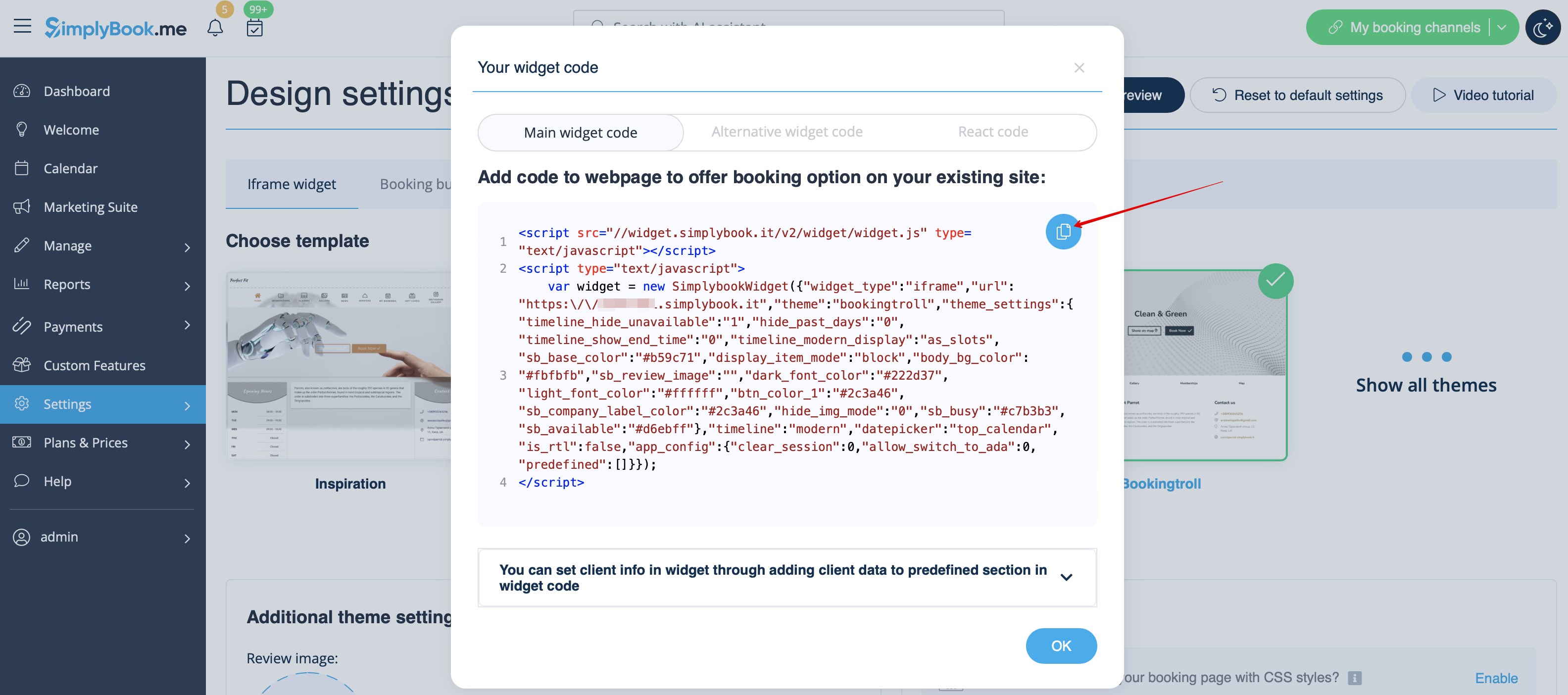
- 7. Kopier hele koden fra pop op-vinduet og indsæt den i HTML-feltet på Shopify-siden. Juster containerbredden, hvis det er nødvendigt. Gem ændringerne

- 8. Som resultat vil du straks kunne se, hvordan booking-widgeten ser ud.

- 4. Click on Add content and select Custom HTML
- 5. Navigate to your SimplyBook.me account -> Settings -> Booking widgets settings -> iFrame widget
- 6. Adjust the design to your taste and needs, get widget code.
- 7. Copy the whole code from the popup and insert it to HTML field on Shopify side. Adjust container width if necessary. Save the changes
- 8. As the result you will see how the booking widget looks like right away.
