From SimplyBook.me
No edit summary |
Created page with ":4. Klicken Sie auf <span style="background-color:#d4f8e5; padding:5px; border-radius:5px;">„Inhalt hinzufügen</span> ” und wählen Sie <span style="background-color:#d4f8e5; padding:5px; border-radius:5px;">„Benutzerdefinierter</span>border|center border|center <br><br> :5. Navigieren Sie zu Ihrem <span style="background-color:#d4f8e5; padding:5px; border-radius:5px;">SimplyBook.me-Konto</span> -> <span style="..." |
||
| Line 16: | Line 16: | ||
[[File:Shopify select custom content.png|border|center]] | [[File:Shopify select custom content.png|border|center]] | ||
<br><br> | <br><br> | ||
:4. Klicken Sie auf <span style="background-color:#d4f8e5; padding:5px; border-radius:5px;">„Inhalt hinzufügen</span> ” und wählen Sie <span style="background-color:#d4f8e5; padding:5px; border-radius:5px;">„Benutzerdefinierter</span>[[File:Select html.png|border|center]] | |||
:4. | |||
[[File:Select html.png|border|center]] | [[File:Select html.png|border|center]] | ||
<br><br> | <br><br> | ||
:5. | :5. Navigieren Sie zu Ihrem <span style="background-color:#d4f8e5; padding:5px; border-radius:5px;">SimplyBook.me-Konto</span> -> <span style="background-color:#d4f8e5; padding:5px; border-radius:5px;">Einstellungen</span> -> <span style="background-color:#d4f8e5; padding:5px; border-radius:5px;">Einstellungen für Buchungs-Widgets</span> -> <span style="background-color:#d4f8e5; padding:5px; border-radius:5px;">iFrame-Widget</span> | ||
[[File:Booking widget path redesigned.png|1200px|border|center|link=https://help.simplybook.me/images/6/68/Booking_widget_path_redesigned.png]] | [[File:Booking widget path redesigned.png|1200px|border|center|link=https://help.simplybook.me/images/6/68/Booking_widget_path_redesigned.png]] | ||
<br><br> | <br><br> | ||
:6. | :6. Passen Sie das Design nach Ihren Wünschen und Anforderungen an und <span style="background-color:#d4f8e5; padding:5px; border-radius:5px;">kopieren Sie den Widget-Code.</span> | ||
[[File:Copy widget code redesigned.png|1200px|border|center|link=https://help.simplybook.me/images/b/b4/Copy_widget_code_redesigned.png]] | [[File:Copy widget code redesigned.png|1200px|border|center|link=https://help.simplybook.me/images/b/b4/Copy_widget_code_redesigned.png]] | ||
<br><br> | <br><br> | ||
<div lang="en" dir="ltr" class="mw-content-ltr"> | <div lang="en" dir="ltr" class="mw-content-ltr"> | ||
:7. Copy the whole code from the popup and insert it to <span style="background-color:#d4f8e5; padding:5px; border-radius:5px;">HTML</span> field on Shopify side. Adjust container width if necessary. <span style="background-color:#d4f8e5; padding:5px; border-radius:5px;">Save</span> the changes | :7. Copy the whole code from the popup and insert it to <span style="background-color:#d4f8e5; padding:5px; border-radius:5px;">HTML</span> field on Shopify side. Adjust container width if necessary. <span style="background-color:#d4f8e5; padding:5px; border-radius:5px;">Save</span> the changes | ||
Revision as of 08:10, 1 July 2025
Wenn Sie Shopify verwenden und die Möglichkeit von Buchungen auf Ihrer Website hinzufügen möchten, haben wir die richtige Lösung für Sie!
Mit unserem iFrame-Widget können Sie die Shopify-Website mit SimplyBook.com verbinden und Ihren Kunden die Buchung direkt über die Website von ihrem PC oder ihren Mobilgeräten aus ermöglichen. Diese Lösung macht Ihren Buchungsprozess bequemer und einfacher.
- Einstellungen
- 1. Navigieren Sie in Ihrem Shopify-Konto zu „Online Store“ -> „Themes“ -> „Anpassen “.

- 2. Wählen Sie links den Abschnitt aus, den Sie bearbeiten möchten, oder fügen Sie einen neuen hinzu.

- 3. Wählen Sie „Benutzerdefinierten Inhalt hinzufügen “.

- 4. Klicken Sie auf „Inhalt hinzufügen ” und wählen Sie „Benutzerdefinierter
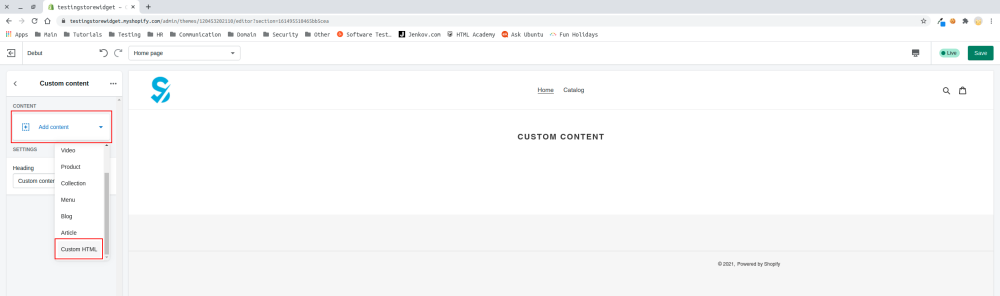

- 5. Navigieren Sie zu Ihrem SimplyBook.me-Konto -> Einstellungen -> Einstellungen für Buchungs-Widgets -> iFrame-Widget
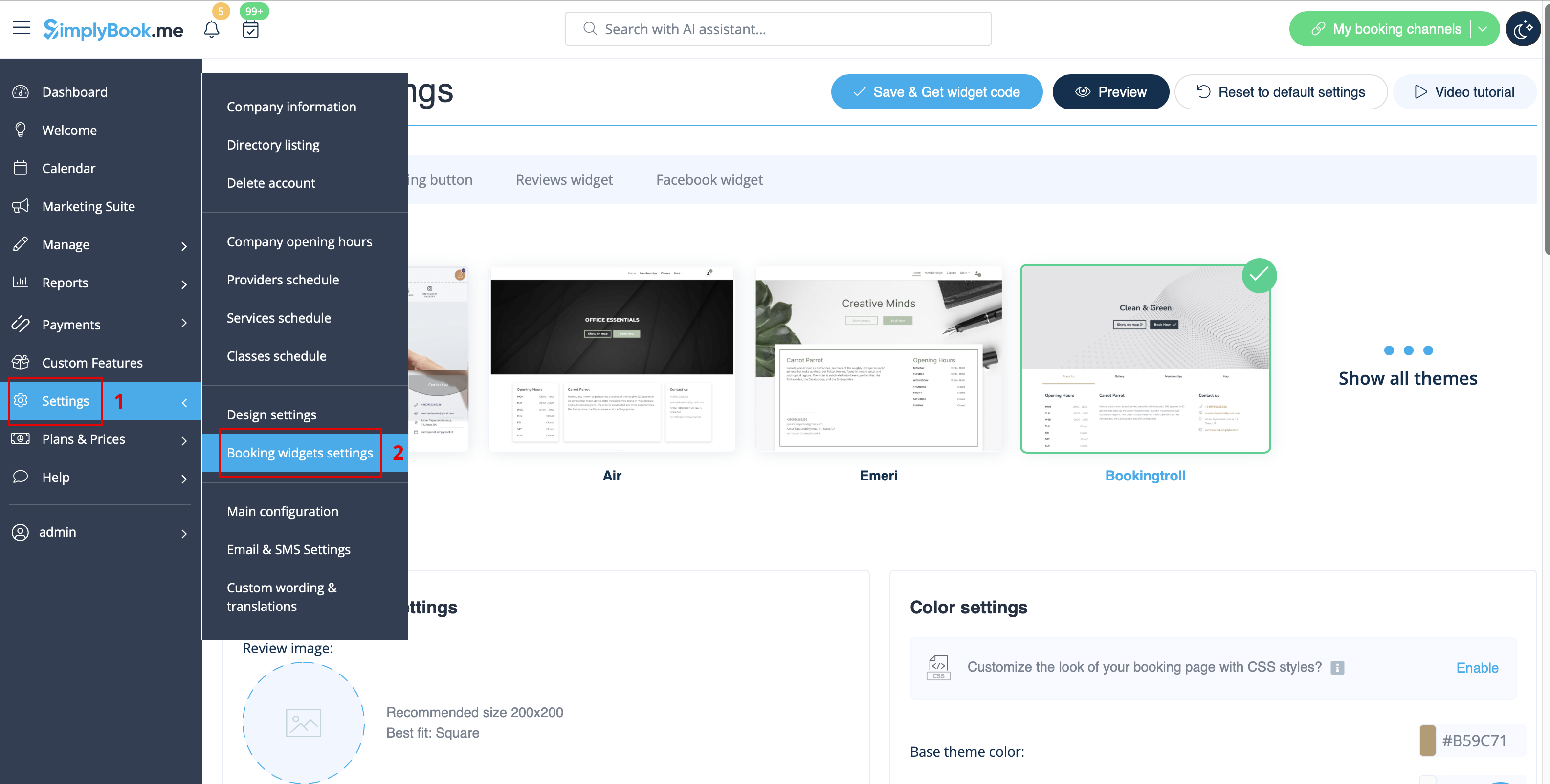
- 6. Passen Sie das Design nach Ihren Wünschen und Anforderungen an und kopieren Sie den Widget-Code.
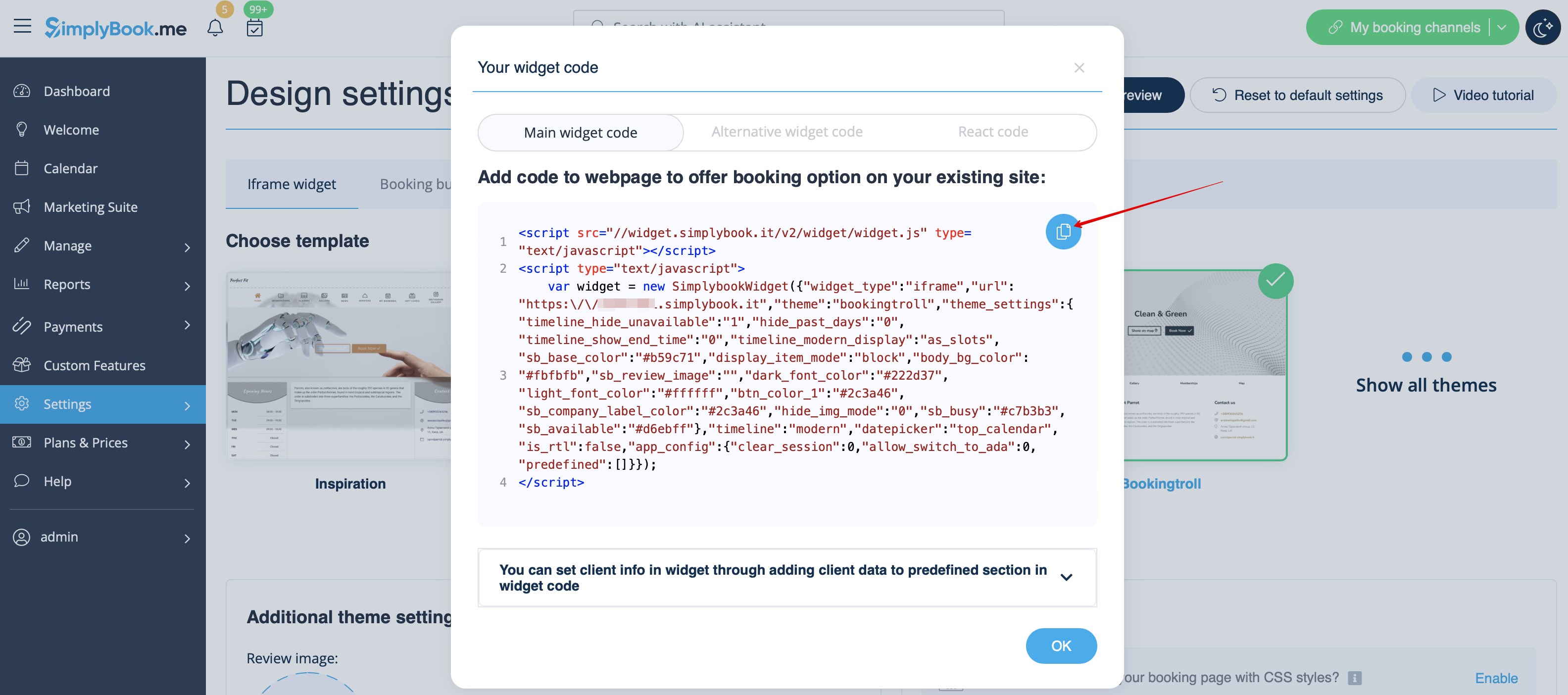
- 7. Copy the whole code from the popup and insert it to HTML field on Shopify side. Adjust container width if necessary. Save the changes

- 8. As the result you will see how the booking widget looks like right away.

