Created page with "== Champ Email == <span style="background-color:#cdeffc; padding:5px; border-radius:5px;">(</span> La fonction de<span style="background-color:#cdeffc; padding:5px; border-radius:5px;">connexion du client</span> est désactivée)<br> :1. Allez dans <span style="background-color:#d4f8e5; padding:5px; border-radius:5px;">Paramètres</span> -> <span style="background-color:#d4f8e5; padding:5px; border-radius:5px;">Paramètres e-mail et S..." |
Updating to match new version of source page |
||
| Line 8: | Line 8: | ||
Hide[[File:Hide images from booking steps redesigned.png|1200px|border| center|link=https://help.simplybook.me/images/d/db/Hide_images_from_booking_steps_redesigned.png]] | Hide[[File:Hide images from booking steps redesigned.png|1200px|border| center|link=https://help.simplybook.me/images/d/db/Hide_images_from_booking_steps_redesigned.png]] | ||
<div class="mw-translate-fuzzy"> | |||
= Possibilité de payer plus tard = | = Possibilité de payer plus tard = | ||
Veuillez naviguer vers <span style="background-color:#d4f8e5; padding:5px; border-radius:5px;">Payments</span> -> <span style="background-color:#d4f8e5; padding:5px; border-radius:5px;">Payment</span> <span style="background-color:#d4f8e5; padding:5px; border-radius:5px;">Processors</span> ou <span style="background-color:#d4f8e5; padding:5px; border-radius:5px;">Custom Features</span> -> <span style="background-color:#cdeffc; padding:5px; border-radius:5px;">[[Accept_payments_custom_feature|Accept payments]]</span> -> <span style="background-color:#d4f8e5; padding:5px; border-radius:5px;">Settings</span> -> <span style="background-color:#d4f8e5; padding:5px; border-radius:5px;">Payment system settings</span> pour accéder à l'interface SBPay.me et y désactiver l'option <span style="background-color:#d4f8e5; padding:5px; border-radius:5px;">Pay later</span>. | Veuillez naviguer vers <span style="background-color:#d4f8e5; padding:5px; border-radius:5px;">Payments</span> -> <span style="background-color:#d4f8e5; padding:5px; border-radius:5px;">Payment</span> <span style="background-color:#d4f8e5; padding:5px; border-radius:5px;">Processors</span> ou <span style="background-color:#d4f8e5; padding:5px; border-radius:5px;">Custom Features</span> -> <span style="background-color:#cdeffc; padding:5px; border-radius:5px;">[[Accept_payments_custom_feature|Accept payments]]</span> -> <span style="background-color:#d4f8e5; padding:5px; border-radius:5px;">Settings</span> -> <span style="background-color:#d4f8e5; padding:5px; border-radius:5px;">Payment system settings</span> pour accéder à l'interface SBPay.me et y désactiver l'option <span style="background-color:#d4f8e5; padding:5px; border-radius:5px;">Pay later</span>. | ||
[[File:Payment processors settings path redesigned.png|1200px| border|center|link=https://help.simplybook.me/images/6/6f/Payment_processors_settings_path_redesigned.png]] | [[File:Payment processors settings path redesigned.png|1200px| border|center|link=https://help.simplybook.me/images/6/6f/Payment_processors_settings_path_redesigned.png]] | ||
<br><br> | <br><br> | ||
</div> | |||
<div class="mw-translate-fuzzy"> | |||
= Étape de l'employé = | = Étape de l'employé = | ||
Activez le <span style="background-color:#cdeffc; padding:5px; border-radius:5px;">[[Custom_Features#Any_Employee_Selector|sélecteur de tout employé]]</span> dans la <span style="background-color:#d4f8e5; padding:5px; border-radius:5px;">section des fonctions personnalisées</span> et dans ses <span style="background-color:#d4f8e5; padding:5px; border-radius:5px;">paramètres</span>, sur le côté droit de la page, activez l'option <span style="background-color:#d4f8e5; padding:5px; border-radius:5px;">Masquer les autres prestataires de services dans l'interface de réservation</span><br/> | Activez le <span style="background-color:#cdeffc; padding:5px; border-radius:5px;">[[Custom_Features#Any_Employee_Selector|sélecteur de tout employé]]</span> dans la <span style="background-color:#d4f8e5; padding:5px; border-radius:5px;">section des fonctions personnalisées</span> et dans ses <span style="background-color:#d4f8e5; padding:5px; border-radius:5px;">paramètres</span>, sur le côté droit de la page, activez l'option <span style="background-color:#d4f8e5; padding:5px; border-radius:5px;">Masquer les autres prestataires de services dans l'interface de réservation</span><br/> | ||
[[File:Any employee hide provider redesigned.png|1200px| center|link=https://help.simplybook.me/images/6/68/Any_employee_hide_provider_redesigned.png]] | [[File:Any employee hide provider redesigned.png|1200px| center|link=https://help.simplybook.me/images/6/68/Any_employee_hide_provider_redesigned.png]] | ||
<br><br> | <br><br> | ||
</div> | |||
= Carte = | = Carte = | ||
| Line 41: | Line 45: | ||
<div class="mw-translate-fuzzy"> | |||
= Galerie = | = Galerie = | ||
Dans la section des <span style="background-color:#d4f8e5; padding:5px; border-radius:5px;">fonctions personnalisées</span>, désactivez la <span style="background-color:#cdeffc; padding:5px; border-radius:5px;">[[Custom_Features#Photo_Gallery| galerie de photos]].</span> | Dans la section des <span style="background-color:#d4f8e5; padding:5px; border-radius:5px;">fonctions personnalisées</span>, désactivez la <span style="background-color:#cdeffc; padding:5px; border-radius:5px;">[[Custom_Features#Photo_Gallery| galerie de photos]].</span> | ||
[[File:Photo gallery disable path redesigned.png|1200px | center|link=https://help.simplybook.me/images/5/5f/Photo_gallery_disable_path_redesigned.png]] | [[File:Photo gallery disable path redesigned.png|1200px | center|link=https://help.simplybook.me/images/5/5f/Photo_gallery_disable_path_redesigned.png]] | ||
<br><br> | <br><br> | ||
</div> | |||
| Line 53: | Line 59: | ||
<div class="mw-translate-fuzzy"> | |||
= Conditions générales de SimplyBook.me = | = Conditions générales de SimplyBook.me = | ||
:<span style="background-color:#ffe9e9; padding:5px; border-radius:5px;">'''Veuillez noter que''' vous devez confirmer que vous avez ajouté des informations sur SimplyBook.me Ltd. en tant que fournisseur à vos conditions générales.</span> | :<span style="background-color:#ffe9e9; padding:5px; border-radius:5px;">'''Veuillez noter que''' vous devez confirmer que vous avez ajouté des informations sur SimplyBook.me Ltd. en tant que fournisseur à vos conditions générales.</span> | ||
| Line 64: | Line 71: | ||
[[File:Terma and conditions consent redesigned.png|1200px | center|link=https://help.simplybook.me/index.php/File:Terma_and_conditions_consent_redesigned.png]] | [[File:Terma and conditions consent redesigned.png|1200px | center|link=https://help.simplybook.me/index.php/File:Terma_and_conditions_consent_redesigned.png]] | ||
<br><br> | <br><br> | ||
</div> | |||
| Line 72: | Line 80: | ||
<div class="mw-translate-fuzzy"> | |||
= Créneaux horaires non disponibles = | = Créneaux horaires non disponibles = | ||
Veuillez sélectionner un calendrier <span style="background-color:#d4f8e5; padding:5px; border-radius:5px;">moderne,</span> <span style="background-color:#d4f8e5; padding:5px; border-radius:5px;">moderne fournisseur,</span> <span style="background-color:#d4f8e5; padding:5px; border-radius:5px;">quotidien (disponible si [[Classes_custom_feature|la fonction Classes]] est activée)</span> ou <span style="background-color:#d4f8e5; padding:5px; border-radius:5px;">hebdomadaire pour les classes</span> dans le menu déroulant <span style="background-color:#d4f8e5; padding:5px; border-radius:5px;">Paramètres</span> -> <span style="background-color:#d4f8e5; padding:5px; border-radius:5px;">Paramètres de conception</span> -> <span style="background-color:#d4f8e5; padding:5px; border-radius:5px;">Disposition du calendrier -> Disposition</span> <span style="background-color:#d4f8e5; padding:5px; border-radius:5px;">du calendrier</span> -> <span style="background-color:#d4f8e5; padding:5px; border-radius:5px;">Disposition</span> <span style="background-color:#d4f8e5; padding:5px; border-radius:5px;">du</span> <span style="background-color:#d4f8e5; padding:5px; border-radius:5px;">calendrier</span>. | Veuillez sélectionner un calendrier <span style="background-color:#d4f8e5; padding:5px; border-radius:5px;">moderne,</span> <span style="background-color:#d4f8e5; padding:5px; border-radius:5px;">moderne fournisseur,</span> <span style="background-color:#d4f8e5; padding:5px; border-radius:5px;">quotidien (disponible si [[Classes_custom_feature|la fonction Classes]] est activée)</span> ou <span style="background-color:#d4f8e5; padding:5px; border-radius:5px;">hebdomadaire pour les classes</span> dans le menu déroulant <span style="background-color:#d4f8e5; padding:5px; border-radius:5px;">Paramètres</span> -> <span style="background-color:#d4f8e5; padding:5px; border-radius:5px;">Paramètres de conception</span> -> <span style="background-color:#d4f8e5; padding:5px; border-radius:5px;">Disposition du calendrier -> Disposition</span> <span style="background-color:#d4f8e5; padding:5px; border-radius:5px;">du calendrier</span> -> <span style="background-color:#d4f8e5; padding:5px; border-radius:5px;">Disposition</span> <span style="background-color:#d4f8e5; padding:5px; border-radius:5px;">du</span> <span style="background-color:#d4f8e5; padding:5px; border-radius:5px;">calendrier</span>. | ||
[[File:Calendar layout settings redesigned.png|1200px |border|center|link=https://help.simplybook.me/images/4/4d/Calendar_layout_settings_redesigned.png]]<br/><br/> | [[File:Calendar layout settings redesigned.png|1200px |border|center|link=https://help.simplybook.me/images/4/4d/Calendar_layout_settings_redesigned.png]]<br/><br/> | ||
</div> | |||
| Line 89: | Line 99: | ||
<div class="mw-translate-fuzzy"> | |||
= Suppression à l'aide d'un CSS personnalisé = | = Suppression à l'aide d'un CSS personnalisé = | ||
:<span style="background-color:#ffe9e9; padding:5px; border-radius:5px;">'''Attention !''' Ajoutez le(s) code(s) pour ajuster les styles dans l'onglet "Booking pages CSS" si vous souhaitez éditer le site de réservation</span><br> | :<span style="background-color:#ffe9e9; padding:5px; border-radius:5px;">'''Attention !''' Ajoutez le(s) code(s) pour ajuster les styles dans l'onglet "Booking pages CSS" si vous souhaitez éditer le site de réservation</span><br> | ||
| Line 97: | Line 108: | ||
<span style="background-color:#cdeffc; padding:5px; border-radius:5px;">(</span> La fonction de<span style="background-color:#cdeffc; padding:5px; border-radius:5px;">[[Custom_Features#Client_Login |connexion du client]]</span> est désactivée)<br> | <span style="background-color:#cdeffc; padding:5px; border-radius:5px;">(</span> La fonction de<span style="background-color:#cdeffc; padding:5px; border-radius:5px;">[[Custom_Features#Client_Login |connexion du client]]</span> est désactivée)<br> | ||
:1. Allez dans <span style="background-color:#d4f8e5; padding:5px; border-radius:5px;">Paramètres</span> -> <span style="background-color:#d4f8e5; padding:5px; border-radius:5px;">Paramètres e-mail et SMS</span> -> <span style="background-color:#d4f8e5; padding:5px; border-radius:5px;">Paramètres pour les notifications par e-mail et SMS</span> -> <span style="background-color:#d4f8e5; padding:5px; border-radius:5px;">Champs d'enregistrement obligatoires</span> -> <span style="background-color:#d4f8e5; padding:5px; border-radius:5px;">E-mail</span> (pour que le téléphone ne soit pas obligatoire). | :1. Allez dans <span style="background-color:#d4f8e5; padding:5px; border-radius:5px;">Paramètres</span> -> <span style="background-color:#d4f8e5; padding:5px; border-radius:5px;">Paramètres e-mail et SMS</span> -> <span style="background-color:#d4f8e5; padding:5px; border-radius:5px;">Paramètres pour les notifications par e-mail et SMS</span> -> <span style="background-color:#d4f8e5; padding:5px; border-radius:5px;">Champs d'enregistrement obligatoires</span> -> <span style="background-color:#d4f8e5; padding:5px; border-radius:5px;">E-mail</span> (pour que le téléphone ne soit pas obligatoire). | ||
</div> | |||
| Line 111: | Line 123: | ||
<div class="mw-translate-fuzzy"> | |||
== Champ Email == | == Champ Email == | ||
<span style="background-color:#cdeffc; padding:5px; border-radius:5px;">(</span> La fonction de<span style="background-color:#cdeffc; padding:5px; border-radius:5px;">[[Custom_Features#Client_Login |connexion du client]]</span> est désactivée)<br> | <span style="background-color:#cdeffc; padding:5px; border-radius:5px;">(</span> La fonction de<span style="background-color:#cdeffc; padding:5px; border-radius:5px;">[[Custom_Features#Client_Login |connexion du client]]</span> est désactivée)<br> | ||
:1. Allez dans <span style="background-color:#d4f8e5; padding:5px; border-radius:5px;">Paramètres</span> -> <span style="background-color:#d4f8e5; padding:5px; border-radius:5px;">Paramètres e-mail et SMS</span> -> <span style="background-color:#d4f8e5; padding:5px; border-radius:5px;">Paramètres pour les notifications par e-mail et SMS</span> -> <span style="background-color:#d4f8e5; padding:5px; border-radius:5px;">Champs d'enregistrement obligatoires</span> -> <span style="background-color:#d4f8e5; padding:5px; border-radius:5px;">Téléphone</span> (pour que l'e-mail ne soit pas obligatoire). | :1. Allez dans <span style="background-color:#d4f8e5; padding:5px; border-radius:5px;">Paramètres</span> -> <span style="background-color:#d4f8e5; padding:5px; border-radius:5px;">Paramètres e-mail et SMS</span> -> <span style="background-color:#d4f8e5; padding:5px; border-radius:5px;">Paramètres pour les notifications par e-mail et SMS</span> -> <span style="background-color:#d4f8e5; padding:5px; border-radius:5px;">Champs d'enregistrement obligatoires</span> -> <span style="background-color:#d4f8e5; padding:5px; border-radius:5px;">Téléphone</span> (pour que l'e-mail ne soit pas obligatoire). | ||
</div> | |||
Revision as of 10:24, 6 August 2025
Images pour les étapes Service, Prestataire de services, Catégorie et Lieu
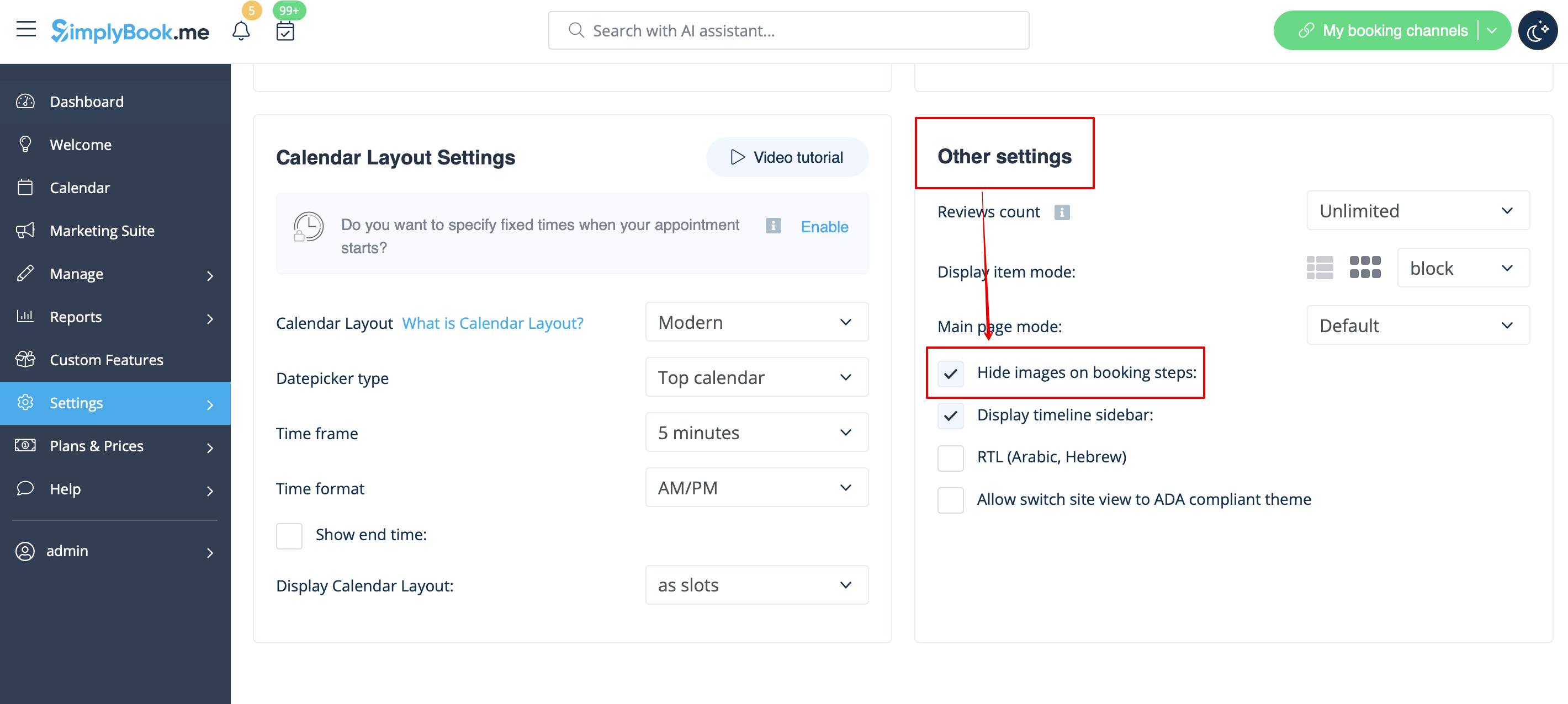
Allez dans Paramètres -> Paramètres de conception -> Autres paramètres et cochez la case Masquer les images sur les étapes de réservation. Enregistrez les paramètres.
Hide
Possibilité de payer plus tard
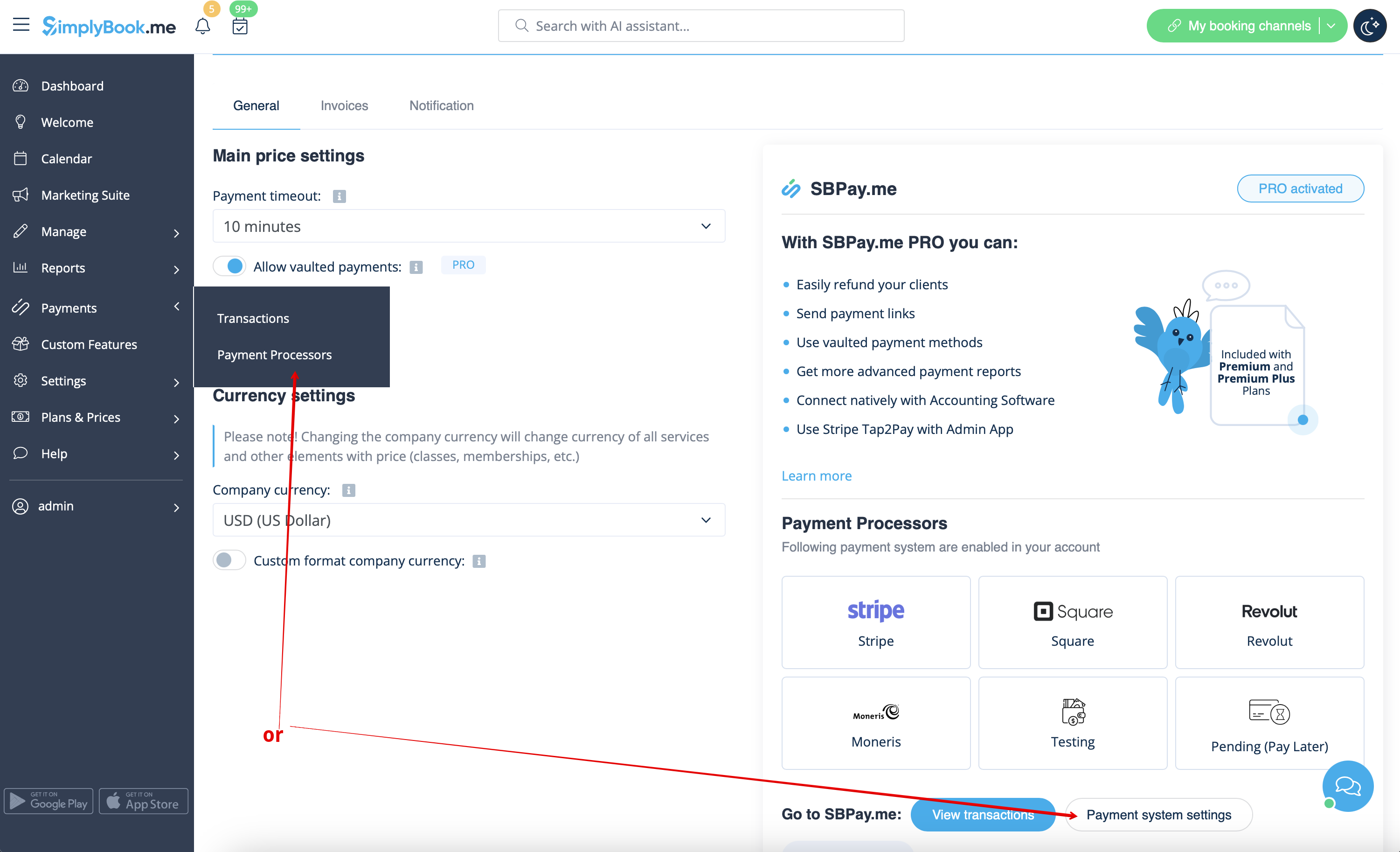
Veuillez naviguer vers Payments -> Payment Processors ou Custom Features -> Accept payments -> Settings -> Payment system settings pour accéder à l'interface SBPay.me et y désactiver l'option Pay later.
Étape de l'employé
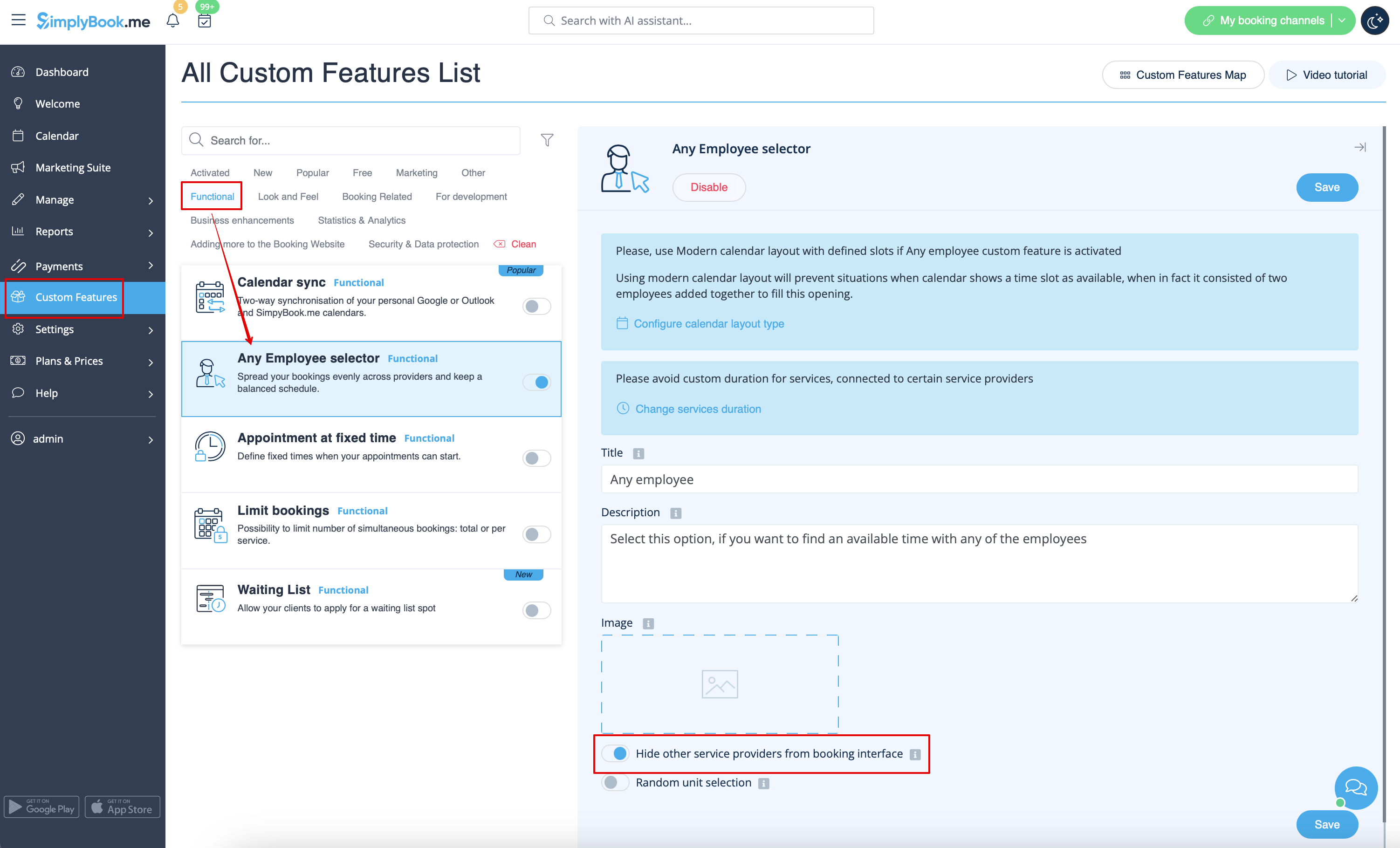
Activez le sélecteur de tout employé dans la section des fonctions personnalisées et dans ses paramètres, sur le côté droit de la page, activez l'option Masquer les autres prestataires de services dans l'interface de réservation
Carte
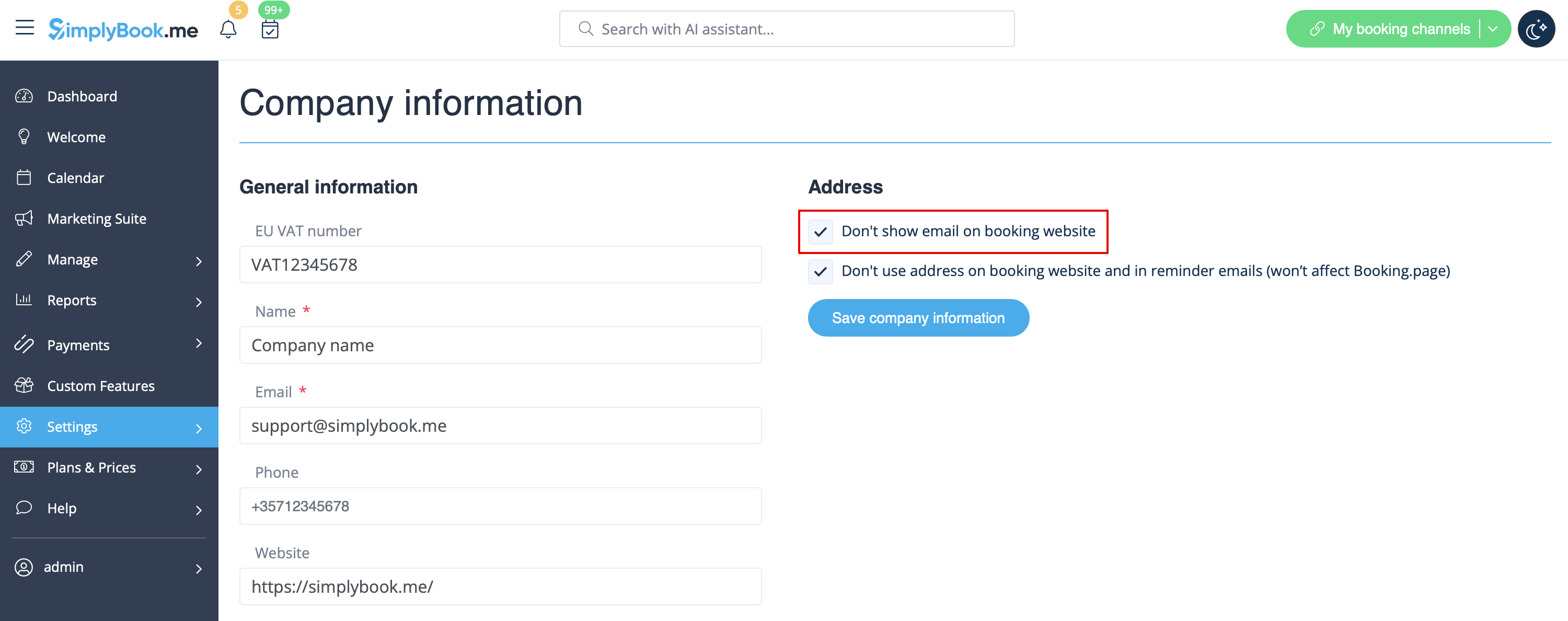
Dans Settings -> Company Information -> Don't use address checkbox.
Hide

Adresse électronique de l'entreprise
Dans Settings -> Company Information -> Don't show email on booking page checkbox.
Hide
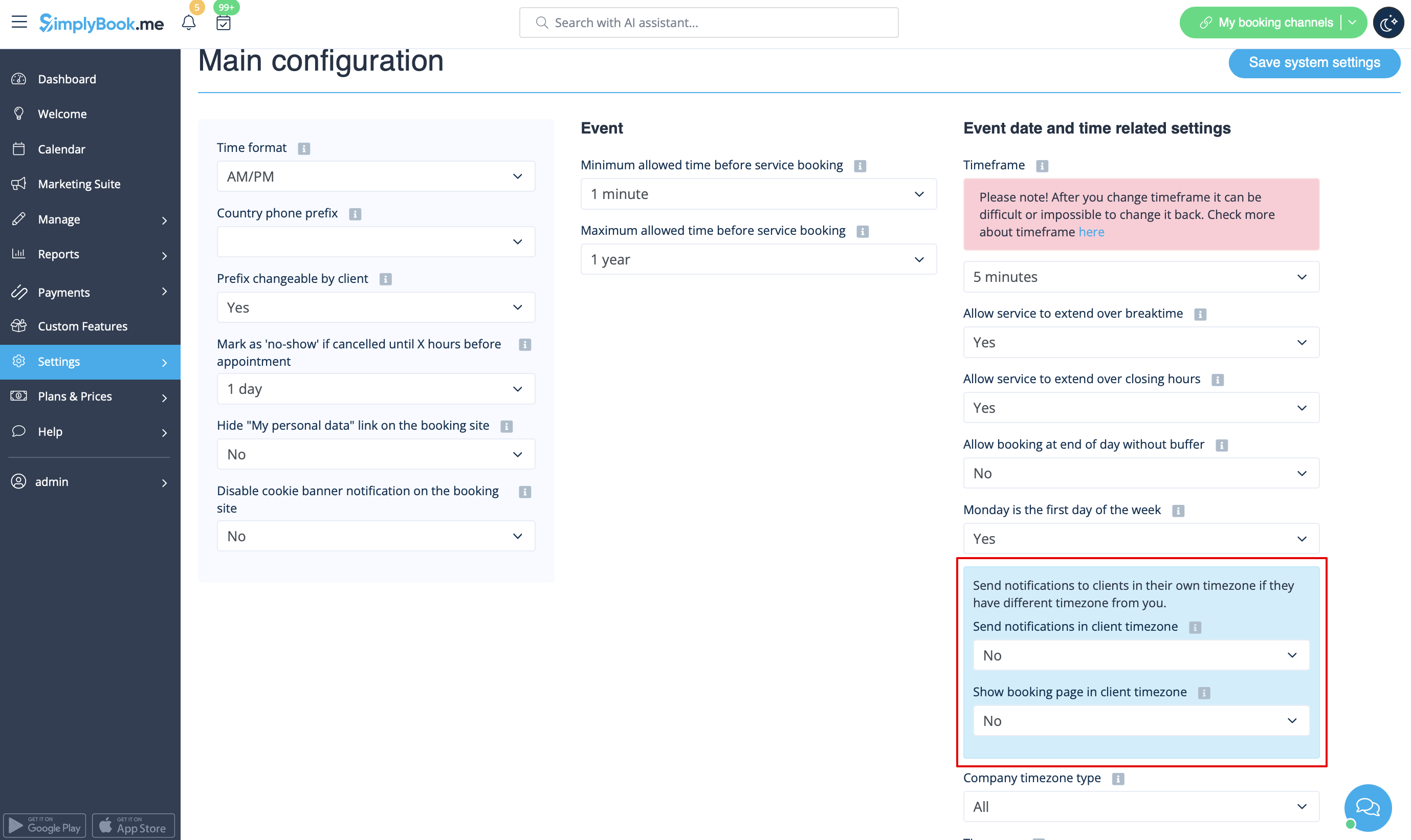
"Option "Modifier mon fuseau horaire
Dans Paramètres -> Configuration principale, réglez les options Afficher la page de réservation dans le fuseau horaire du client et Envoyer des notifications dans le fuseau horaire du client sur Non et enregistrez les paramètres.
Critiques
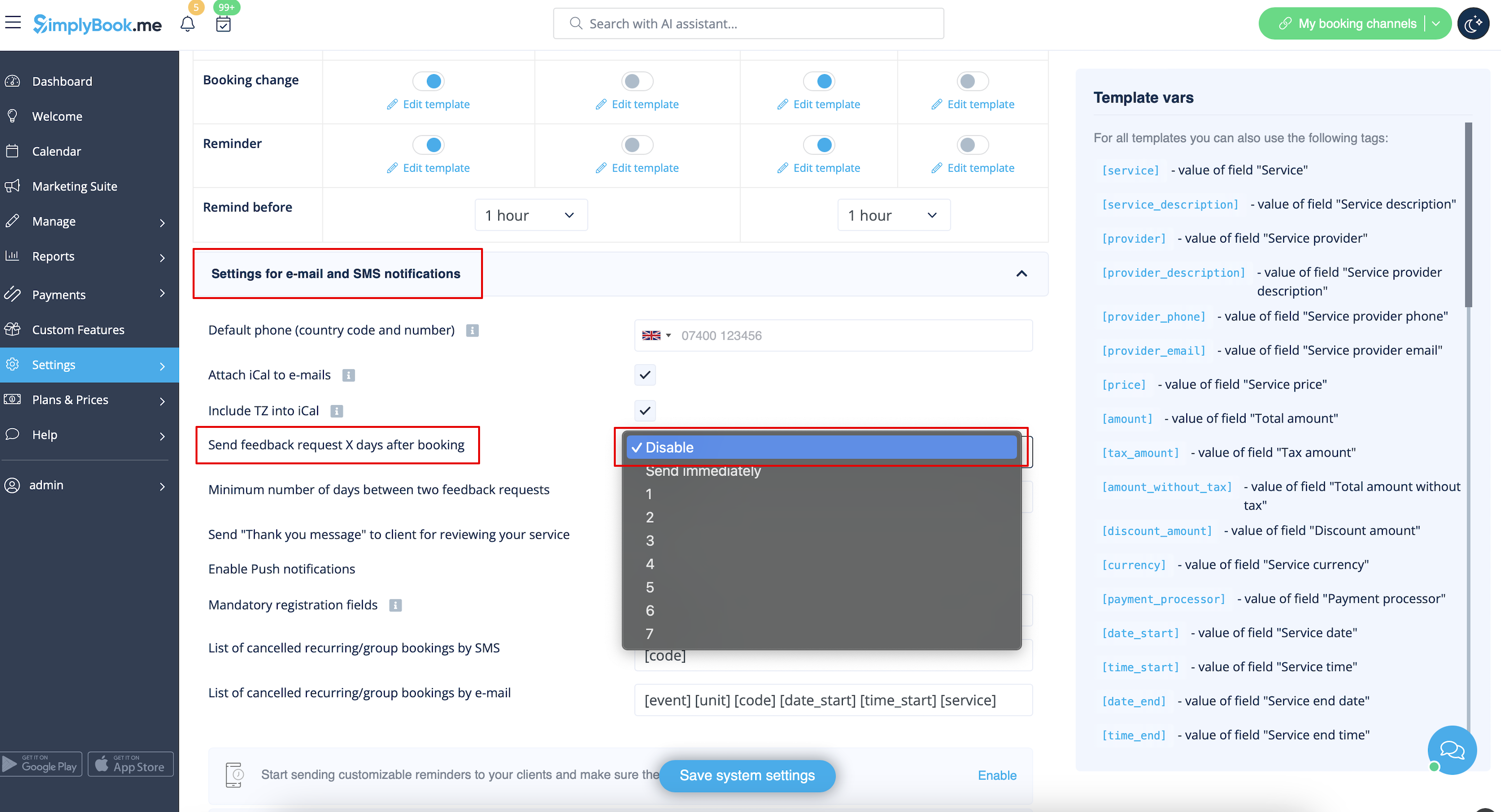
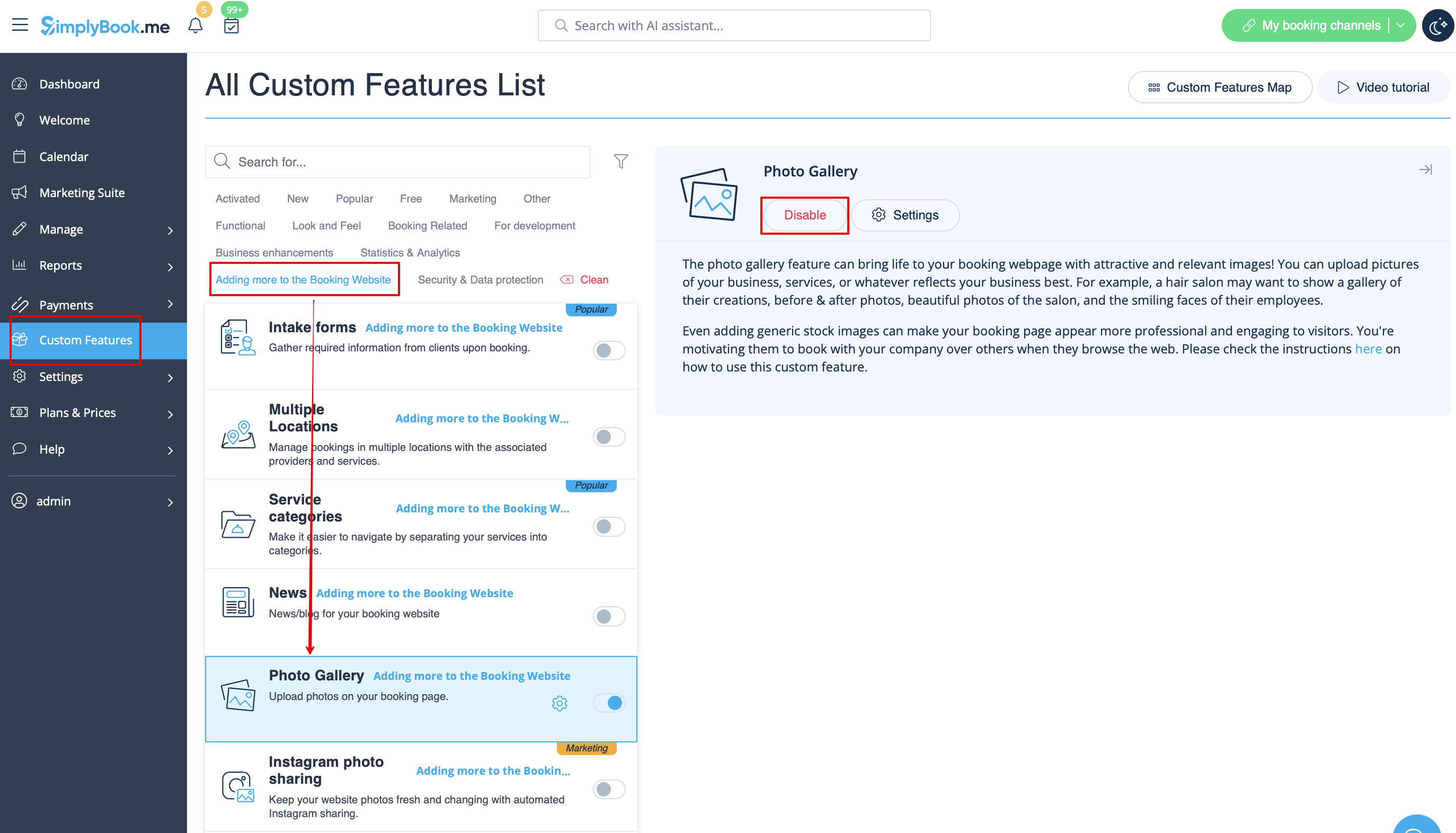
Vous pouvez consulter tous vos avis dans l'onglet Avis du menu de gauche, sous Rapports. Vous pouvez également y supprimer des commentaires si nécessaire. Si vous souhaitez supprimer l'option de laisser un avis sur votre site de réservation et ne pas envoyer de demande d'avis, dans Paramètres -> Paramètres d'e-mail et de SMS -> Paramètres pour les notifications par e-mail et par SMS -> réglez Envoyer une demande d'avis X jours après la réservation sur Désactiver
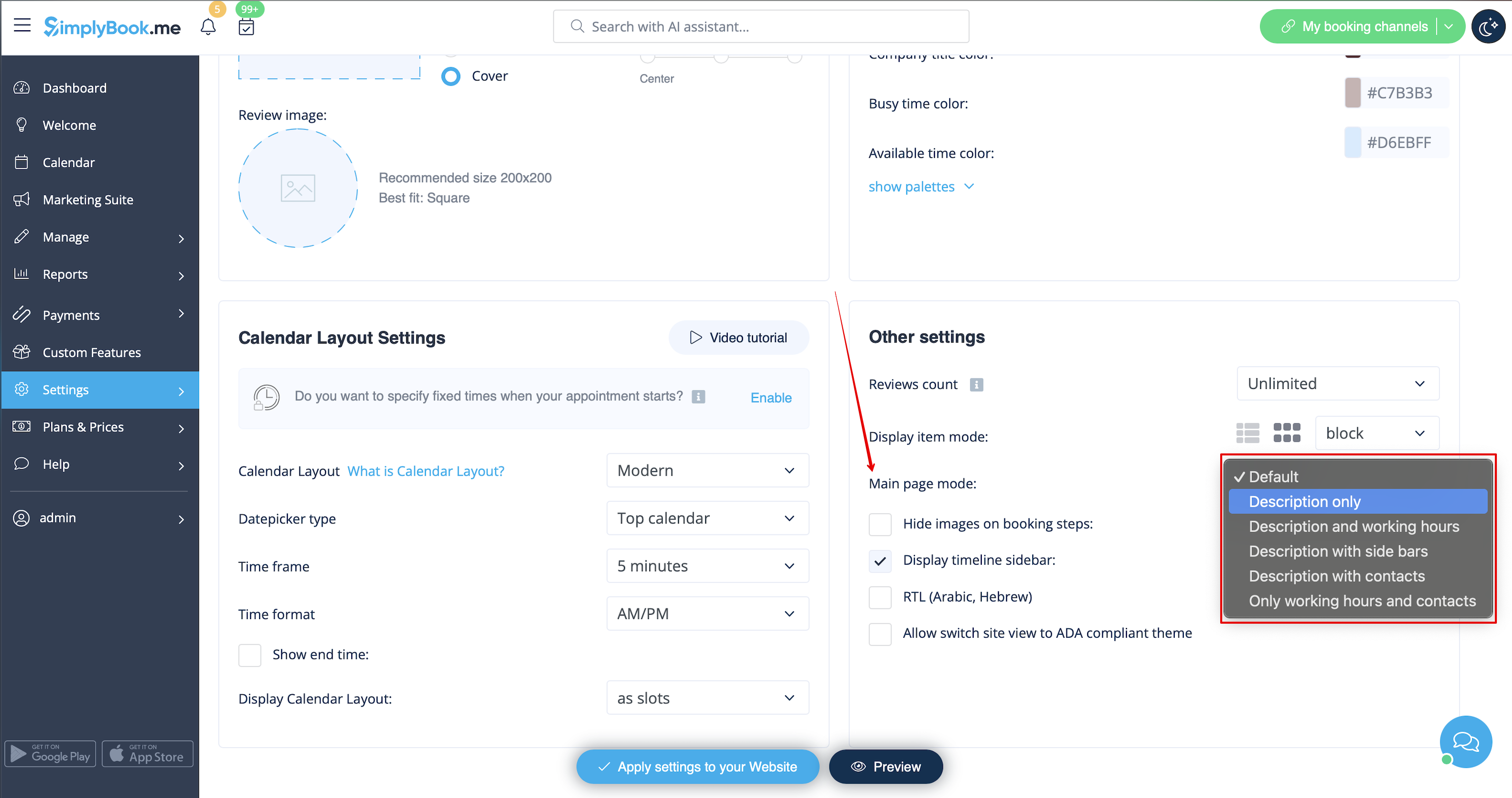
Heures de travail
Si vous souhaitez supprimer cette section pour les nouveaux thèmes, allez dans Paramètres -> Paramètres de conception -> Autres paramètres -> Mode de la page principale et choisissez le mode sans heures de travail.
Conditions générales de SimplyBook.me
- Veuillez noter que vous devez confirmer que vous avez ajouté des informations sur SimplyBook.me Ltd. en tant que fournisseur à vos conditions générales.
Pour supprimer la case à cocher, vous devez avoir activé et configuré correctement toutes les options mentionnées :
Soit :
1. SMTP + Domaine personnalisé + Conditions générales + Thème différent du blanc.
Soit : 1. SMTP + Domaine personnalisé + Conditions générales + thème différent de vide :
2. SMTP + Conditions générales + thème vierge + Widget sur votre site web.
Après cela, vous pourrez activer l'option Je confirme que j'ai ajouté des informations sur SimplyBook.me Ltd. en tant que fournisseur à mes conditions générales dans Caractéristiques personnalisées -> Conditions générales et après avoir sauvegardé les paramètres, la case à cocher des conditions générales de SimplyBook.me sera supprimée du site de réservation.

Lien vers mes données personnelles
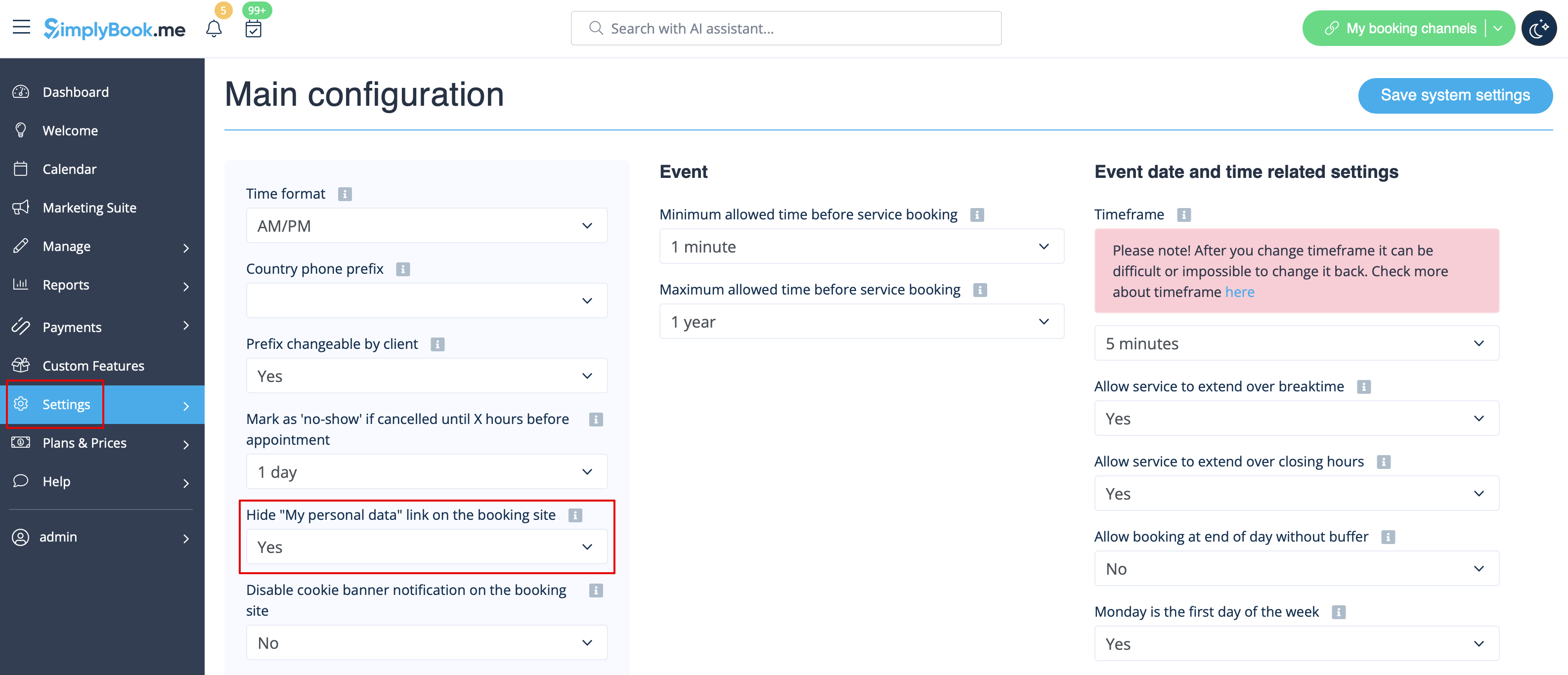
Allez dans Paramètres -> Configuration principale et sélectionnez Oui dans Masquer le lien "Mes données personnelles" sur le site de réservation. Sauvegardez les paramètres.
Hide
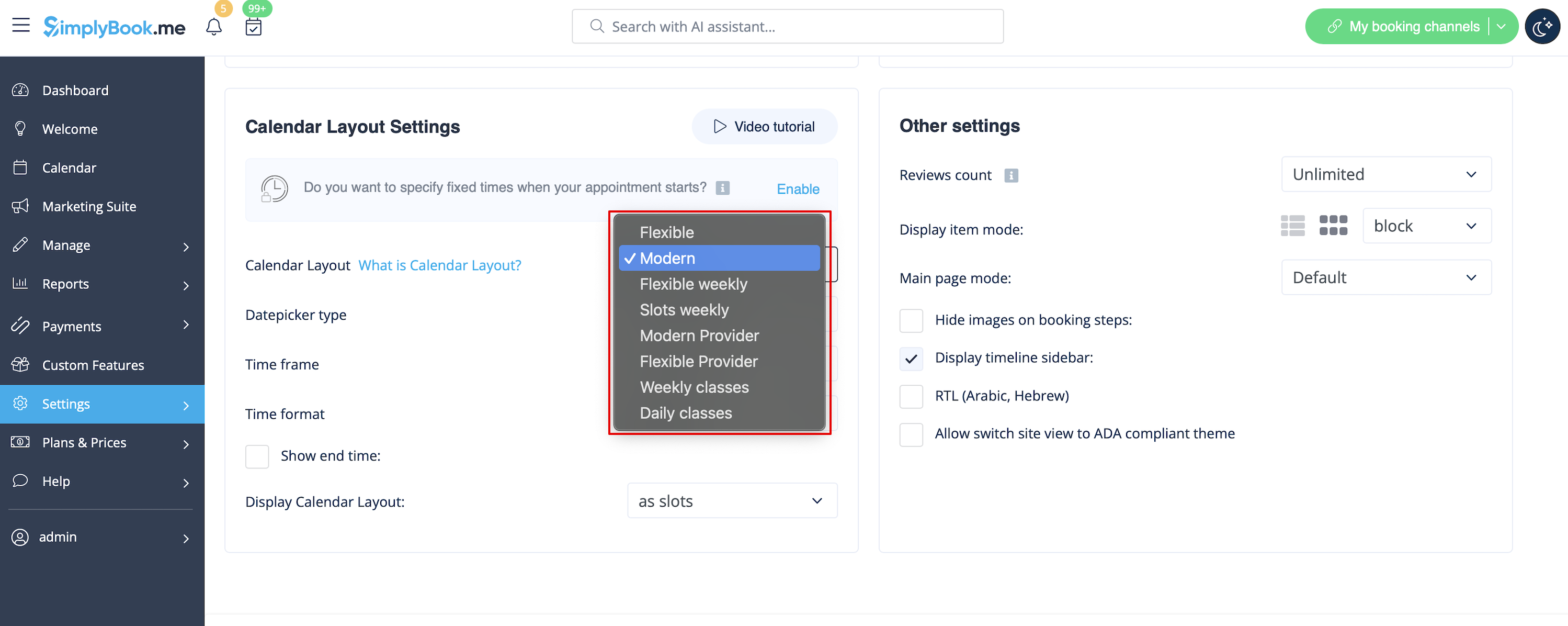
Créneaux horaires non disponibles
Veuillez sélectionner un calendrier moderne, moderne fournisseur, quotidien (disponible si la fonction Classes est activée) ou hebdomadaire pour les classes dans le menu déroulant Paramètres -> Paramètres de conception -> Disposition du calendrier -> Disposition du calendrier -> Disposition du calendrier.
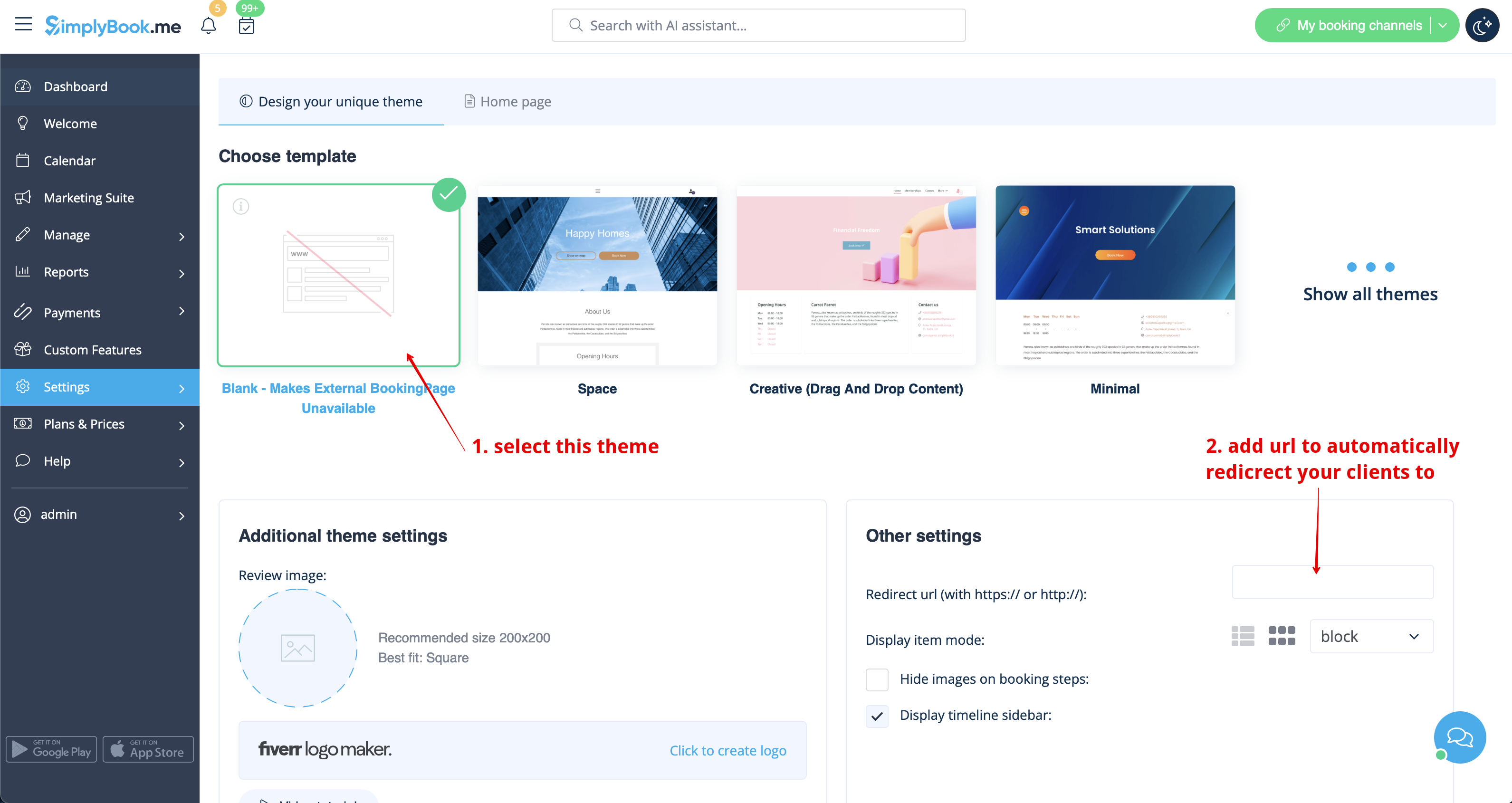
Désactiver la page de réservation (disponible uniquement pour les comptes payants)
Afin de ne pas afficher d'informations sur votre page de réservation (la rendre vide), vous pouvez mettre un thème vide sur votre page de réservation dans Paramètres -> Paramètres de conception.
Veuillez sélectionner l'affichage de tous les thèmes et choisissez le dernier sans image, ajoutez le lien vers la page vers laquelle vos clients doivent être redirigés s'ils ouvrent votre page de réservation et sauvegardez les paramètres.
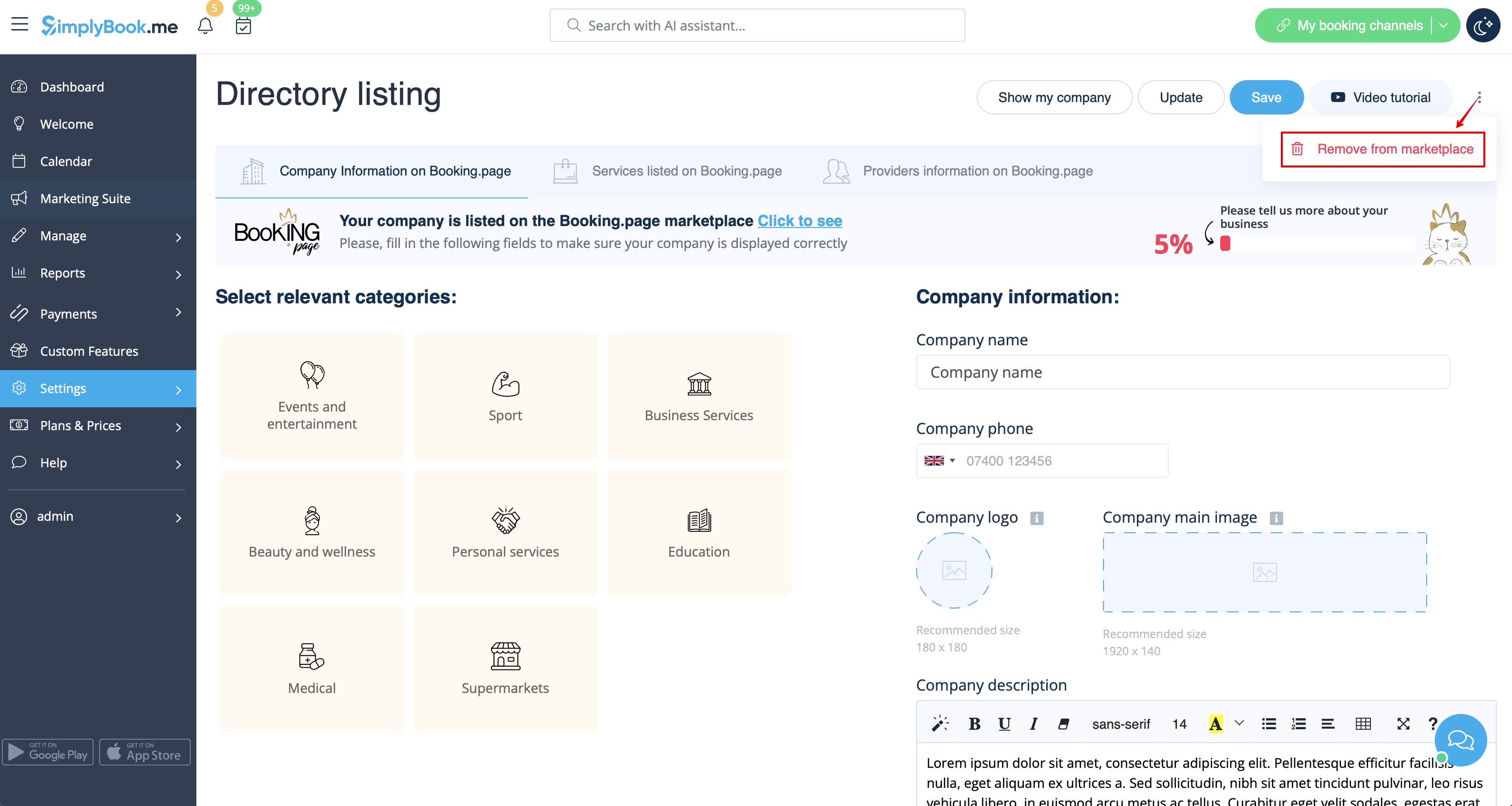
Attention ! Même avec un thème vide, votre page de réservation apparaîtra dans Google et les informations seront affichées dans l'annuaire Booking.Page. Pour supprimer votre entreprise de l'annuaire, veuillez cliquer sur le bouton Supprimer de la place de marché Paramètres -> Liste de l'annuaire.
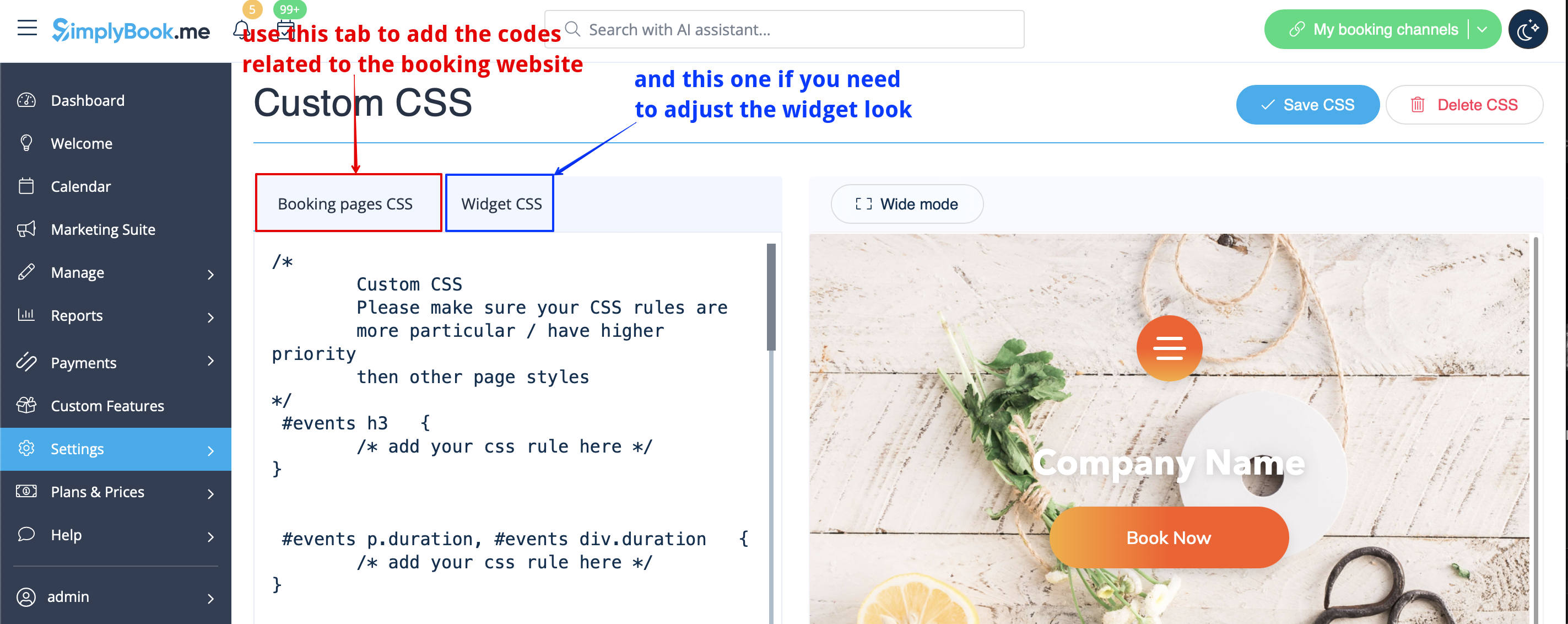
Suppression à l'aide d'un CSS personnalisé
- Attention ! Ajoutez le(s) code(s) pour ajuster les styles dans l'onglet "Booking pages CSS" si vous souhaitez éditer le site de réservation
- ou "Widget CSS" si vous éditez des widgets sur votre site web.
Champ téléphone
( La fonction deconnexion du client est désactivée)
- 1. Allez dans Paramètres -> Paramètres e-mail et SMS -> Paramètres pour les notifications par e-mail et SMS -> Champs d'enregistrement obligatoires -> E-mail (pour que le téléphone ne soit pas obligatoire).
- 2. Allez dans Custom Features -> Custom Features et activez la fonction Custom CSS. Ensuite, dans les paramètres de cette fonctionnalité ou dans Custom Features -> Custom CSS, collez le code suivant dans la fenêtre CSS des pages de réservation, tout en haut :
.form-group.form-client-phone{
 display : none ;
}
Champ Email
( La fonction deconnexion du client est désactivée)
- 1. Allez dans Paramètres -> Paramètres e-mail et SMS -> Paramètres pour les notifications par e-mail et SMS -> Champs d'enregistrement obligatoires -> Téléphone (pour que l'e-mail ne soit pas obligatoire).
- 2. Allez dans Custom Features -> Custom Features et activez la fonction Custom CSS. Ensuite, dans les paramètres de cette fonctionnalité ou dans Custom Features -> Custom CSS, collez dans la fenêtre CSS des pages de réservation, tout en haut, le code suivant :
.form-group.form-client-email{
 display : none ;
}
Notre temps
Allez dans Fonctions personnalisées -> Fonctions personnalisées et activez la fonction CSS personnalisée. Ensuite, dans les paramètres de cette fonction ou dans Fonctions personnalisées -> CSS personnalisé, collez le code suivant dans la fenêtre CSS de la page de réservation, tout en haut :
div#sb_booking_company_time {
 display : none ;
}
Nous pouvons vous envoyer des promotions et des informations pertinentes
Allez dans Fonctions personnalisées -> Fonctions personnalisées et activez la fonction CSS personnalisé. Ensuite, dans les paramètres de cette fonction ou dans Fonctions personnalisées -> CSS personnalisé, collez le code suivant dans la fenêtre CSS de la page de réservation, tout en haut :
- Fonctionnalité de connexion du client activée :
#main
#client-login .custom-form #sb_terms_and_conditions .promotions-letter-flag label[role=button]{
display : none ;
}
- Fonctionnalité de connexion du client désactivée :
#sb-main-container
#main #sb-timeline #steps #details .detail-step-wrap .detail-step .license-links-container .promotions-letter-flag label[role=button]{
display : none ;

}
Filtrer par services sur la page Adhésion
Allez dans Fonctions personnalisées -> Fonctions personnalisées et activez la fonction CSS personnalisé. Ensuite, dans les paramètres de cette fonction ou dans Fonctions personnalisées -> CSS personnalisé, collez le code suivant dans la fenêtre CSS de la page Booking, tout en haut :
#membership-view #membership-filters {
 display : none ;
}
Supprimer l'image de la bannière
- Veuillez noter que les boutons "Réservez maintenant" et autres boutons affichés en haut de la bannière seront également masqués. Le bouton "Réserver maintenant" et les autres boutons affichés en haut de la bannière seront également masqués. Le code peut ne pas fonctionner avec certains thèmes.
Allez dans Custom Features -> Custom Features et activez la fonction Custom CSS. Ensuite, dans les paramètres de cette fonctionnalité ou dans Custom Features -> Custom CSS, collez le code suivant dans la fenêtre CSS de la page Booking, tout en haut :
#main-buttons {
 display : none ;
}
Supprimer un élément spécifique
Si vous souhaitez supprimer un élément spécifique de votre page de réservation, vous devez utiliser la fonction Custom CSS et le code correspondant. Si vous ne connaissez pas le CSS, veuillez contacter le support qui créera une demande pour vérifier si un tel changement est possible.
Veuillez noter que les demandes importantes peuvent être payantes.
