Translations:Booking reports/26/en: Difference between revisions

From SimplyBook.me
FuzzyBot (talk | contribs)
Importing a new version from external source
 
FuzzyBot (talk | contribs)
Importing a new version from external source
 
Line 1: Line 1:
=Membership payments=
You can see it in Reports//Membership payments. Can be accessed if [[Custom_Features#Membership | Membership]] custom feature is on.<br>
You can see it in Reports//Membership payments. Can be accessed if [[Special:MyLanguage/Membership_custom_feature | Membership]] custom feature is on.<br>
This report can allow you to:
*see memberships purchased by your clients;

Latest revision as of 12:02, 13 August 2025

Information about message (contribute)
This message has no documentation. If you know where or how this message is used, you can help other translators by adding documentation to this message.
Message definition (Booking reports)
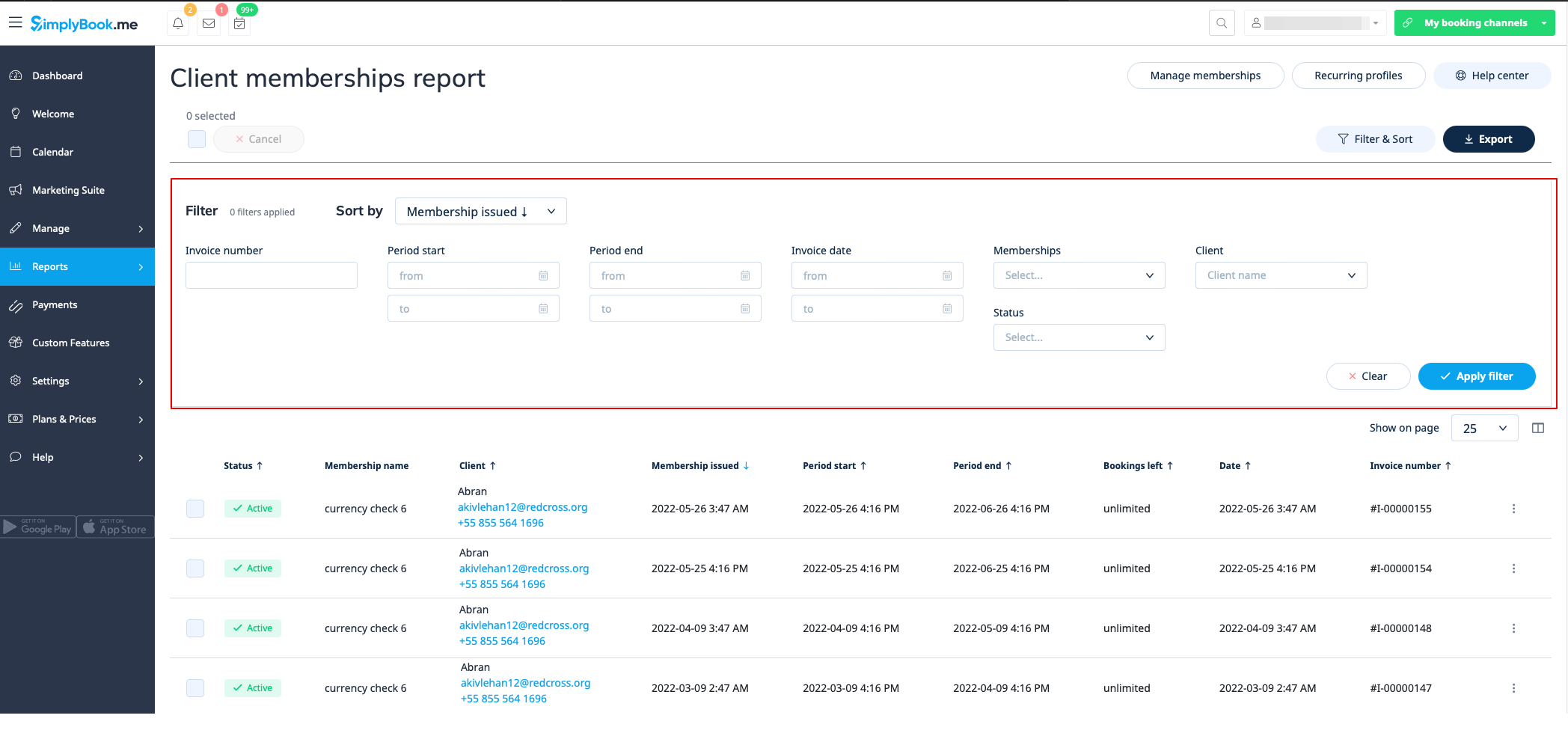
=Membership payments=
You can see it in Reports//Membership payments. Can be accessed if [[Special:MyLanguage/Membership_custom_feature | Membership]] custom feature is on.<br>
This report can allow you to:
*see memberships purchased by your clients;
*cancel memberships;
*approve pending memberships;
*view invoices related;
*filter memberships by:
<ol style="list-style-type: circle;">
<li>start date range;</li>
<li>end date range;</li>
<li>invoice date range;</li>
<li>invoice number;</li>
<li>membership name;</li>
<li>client name;</li>
<li>status(active, cancelled, error).</li></ol>
*export data to Excel(using the filters if needed).
[[File:Membership reeport new.png|1200px | center|link=https://help.simplybook.me/images/d/d5/Membership_reeport_new.png]]

Membership payments

You can see it in Reports//Membership payments. Can be accessed if Membership custom feature is on.
This report can allow you to:

  • see memberships purchased by your clients;
  • cancel memberships;
  • approve pending memberships;
  • view invoices related;
  • filter memberships by:
  1. start date range;
  2. end date range;
  3. invoice date range;
  4. invoice number;
  5. membership name;
  6. client name;
  7. status(active, cancelled, error).
  • export data to Excel(using the filters if needed).