From SimplyBook.me
Importing a new version from external source |
Importing a new version from external source |
||
| Line 1: | Line 1: | ||
===Payment links=== | |||
:1. Enable <span style="background-color:#d4f8e5; padding:5px; border-radius:5px;">Send payment link on Delay payment method</span> in the settings of Accept payments custom feature, inside the <span style="background-color:#d4f8e5; padding:5px; border-radius:5px;">Email template settings</span> block and adjust the template to your needs.<br> | :1. Enable <span style="background-color:#d4f8e5; padding:5px; border-radius:5px;">Send payment link on Delay payment method</span> in the settings of Accept payments custom feature, inside the <span style="background-color:#d4f8e5; padding:5px; border-radius:5px;">Email template settings</span> block and adjust the template to your needs.<br> | ||
:Please do not forget to add <span style="background-color:#d4f8e5; padding:5px; border-radius:5px;">[payment_link] variable</span> for the client to easily navigate to the payment. | :Please do not forget to add <span style="background-color:#d4f8e5; padding:5px; border-radius:5px;">[payment_link] variable</span> for the client to easily navigate to the payment. | ||
| Line 10: | Line 11: | ||
[[File:Send payment link options from pos.png|1200px|center|link=https://help.simplybook.me/images/e/ec/Send_payment_link_options_from_pos.png]] | [[File:Send payment link options from pos.png|1200px|center|link=https://help.simplybook.me/images/e/ec/Send_payment_link_options_from_pos.png]] | ||
<br><br> | <br><br> | ||
'''Easy mobile payments from the app''': video tutorial | '''Easy mobile payments from the app''': video tutorial <p><youtube>CSI-gWjKtm8</youtube></p> | ||
<br><br> | <br><br> | ||
Latest revision as of 08:30, 18 September 2025
Payment links
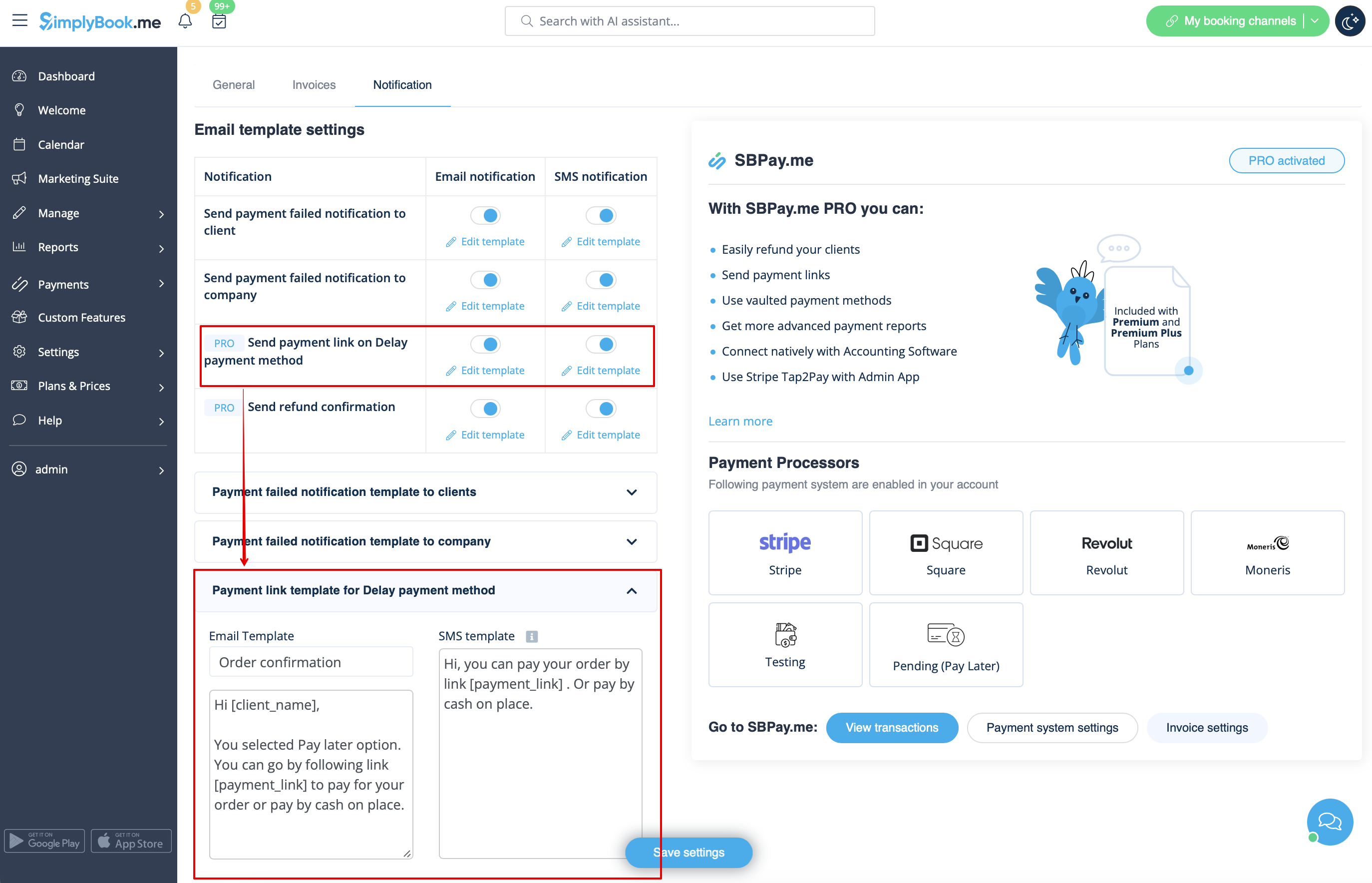
- 1. Enable Send payment link on Delay payment method in the settings of Accept payments custom feature, inside the Email template settings block and adjust the template to your needs.
- Please do not forget to add [payment_link] variable for the client to easily navigate to the payment.
- 2. After you create the order from admin side or from POS interface with Pay later selected as the payment method, or if the client selects Pay later at the checkout step on the booking website, the system will automatically send the email/SMS with the link to pay for the sale (saved payment methods can also be used in this case).
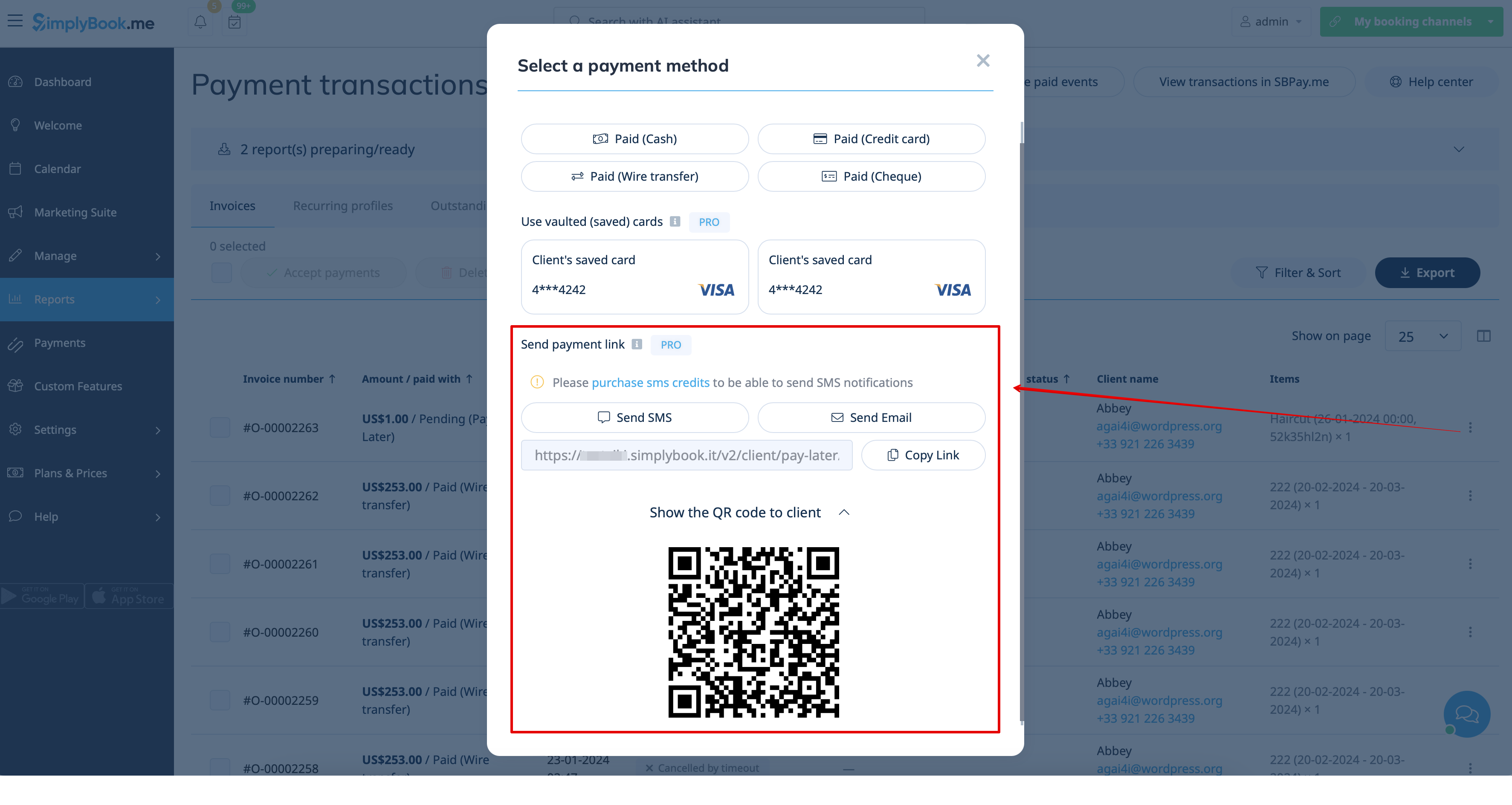
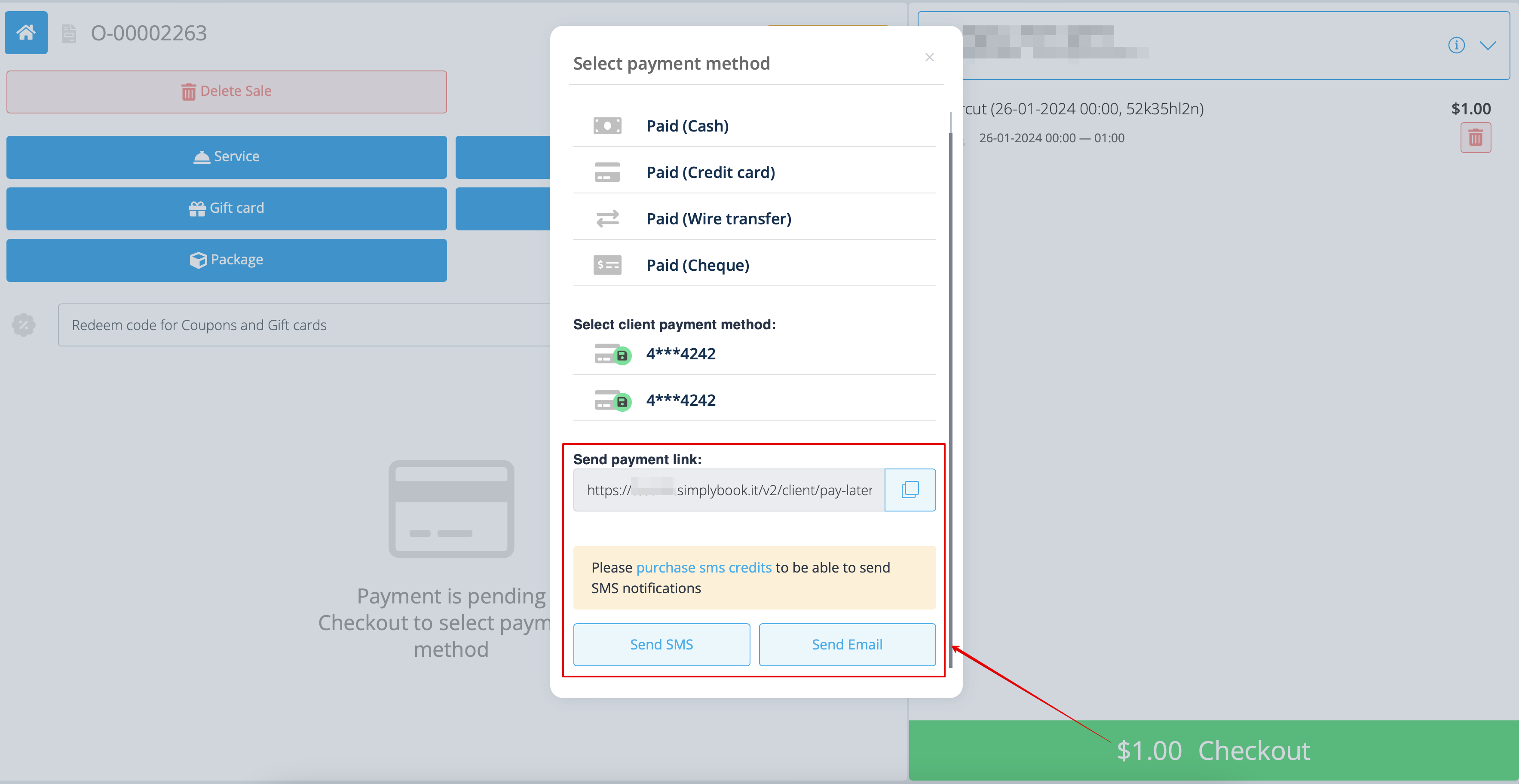
- 3. You can also trigger sending payment link from Payment transactions report or POS interface or simply copy the payment link per the specific order there and send it to your client using own communication channels.
- As well, if the client is at your place, you can show him/her the QR code to scan with his/her phone camera and be redirected to the payment page to complete the order. It can be found in Reports -> Payment transactions -> Receive payment.
Easy mobile payments from the app: video tutorial
