From SimplyBook.me
Importing a new version from external source |
Importing a new version from external source |
||
| Line 1: | Line 1: | ||
It may happen that you need to return the money back to your customer due to some reason and now it is possible to easily manage such cases with SBPay.me PRO integration. | It may happen that you need to return the money back to your customer due to some reason and now it is possible to easily manage such cases with SBPay.me PRO integration. | ||
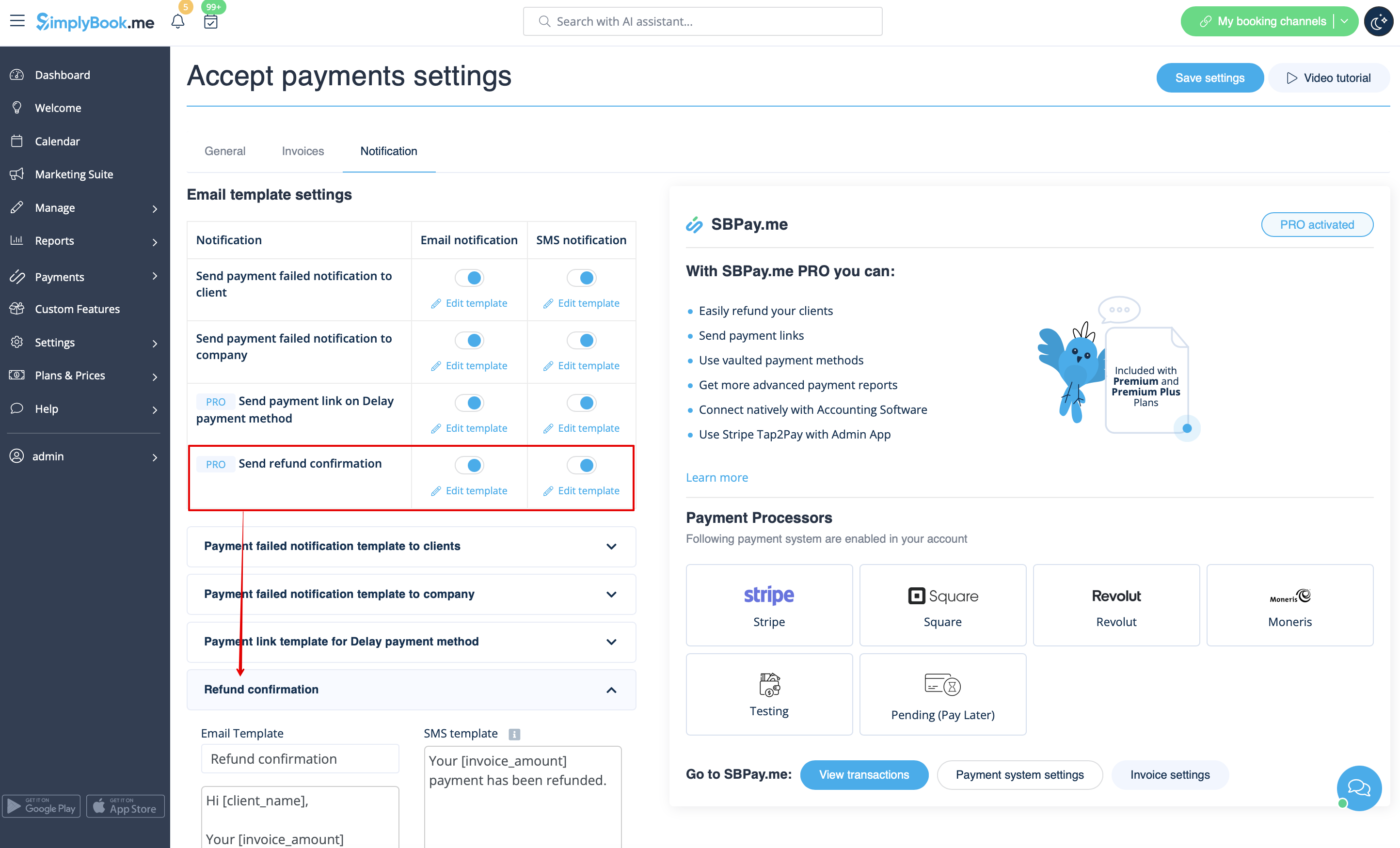
:1. After you activate SBPay.me integration in your [https://simplybook.me/ SimplyBook.me] account you can simply navigate to <span style="background-color:#d4f8e5; padding:5px; border-radius:5px;">Reports</span> -> <span style="background-color:#d4f8e5; padding:5px; border-radius:5px;">Payment transactions</span> -> find the necessary invoice -> click on <span style="background-color:#d4f8e5; padding:5px; border-radius:5px;">Actions</span> and select <span style="background-color:#d4f8e5; padding:5px; border-radius:5px;">Refund</span> from the drop down menu. Confirm the action and the refund will be automatically made to the corresponding client's account. | :1. After you activate SBPay.me integration in your [https://simplybook.me/en SimplyBook.me] account you can simply navigate to <span style="background-color:#d4f8e5; padding:5px; border-radius:5px;">Reports</span> -> <span style="background-color:#d4f8e5; padding:5px; border-radius:5px;">Payment transactions</span> -> find the necessary invoice -> click on <span style="background-color:#d4f8e5; padding:5px; border-radius:5px;">Actions</span> and select <span style="background-color:#d4f8e5; padding:5px; border-radius:5px;">Refund</span> from the drop down menu. Confirm the action and the refund will be automatically made to the corresponding client's account. | ||
[[File:Refund from report path redesigned.png|1200px|center|link=https://help.simplybook.me/images/7/71/Refund_from_report_path_redesigned.png]] | [[File:Refund from report path redesigned.png|1200px|center|link=https://help.simplybook.me/images/7/71/Refund_from_report_path_redesigned.png]] | ||
<br><br> | <br><br> | ||
| Line 7: | Line 6: | ||
[[File:Refund on sbpayme side.png|1200px|center|link=https://help.simplybook.me/images/8/86/Refund_on_sbpayme_side.png]] | [[File:Refund on sbpayme side.png|1200px|center|link=https://help.simplybook.me/images/8/86/Refund_on_sbpayme_side.png]] | ||
<br><br> | <br><br> | ||
:3. In the <span style="background-color:#cdeffc; padding:5px; border-radius:5px;">[[Accept payments custom feature|Accept payments]]</span> custom feature settings you can also enable <span style="background-color:#d4f8e5; padding:5px; border-radius:5px;">Send refund confirmation</span> option and adjust the templates to automatically notify your clients via email and/or sms about the refunds. | :3. In the <span style="background-color:#cdeffc; padding:5px; border-radius:5px;">[[Special:MyLanguage/Accept payments custom feature|Accept payments]]</span> custom feature settings you can also enable <span style="background-color:#d4f8e5; padding:5px; border-radius:5px;">Send refund confirmation</span> option and adjust the templates to automatically notify your clients via email and/or sms about the refunds. | ||
[[File:Send refund confirmation redesigned.png|1200px|center|link=https://help.simplybook.me/images/a/a9/Send_refund_confirmation_redesigned.png]] | [[File:Send refund confirmation redesigned.png|1200px|center|link=https://help.simplybook.me/images/a/a9/Send_refund_confirmation_redesigned.png]] | ||
<br><br> | <br><br> | ||
Latest revision as of 08:30, 18 September 2025
It may happen that you need to return the money back to your customer due to some reason and now it is possible to easily manage such cases with SBPay.me PRO integration.
- 1. After you activate SBPay.me integration in your SimplyBook.me account you can simply navigate to Reports -> Payment transactions -> find the necessary invoice -> click on Actions and select Refund from the drop down menu. Confirm the action and the refund will be automatically made to the corresponding client's account.
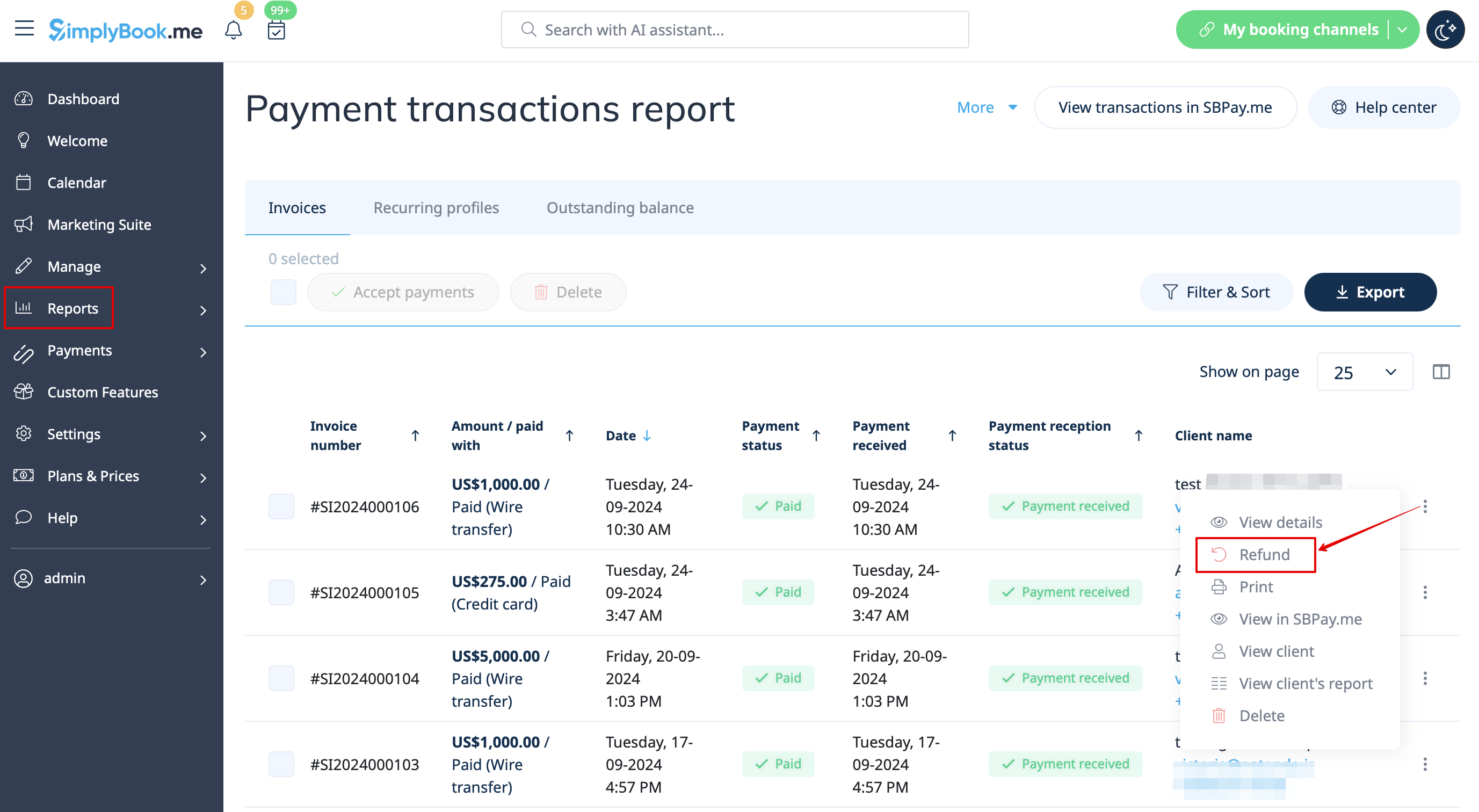
- 2. Or you can go directly to the SBPay.me interface -> Transactions -> open the necessary record and select Refund.
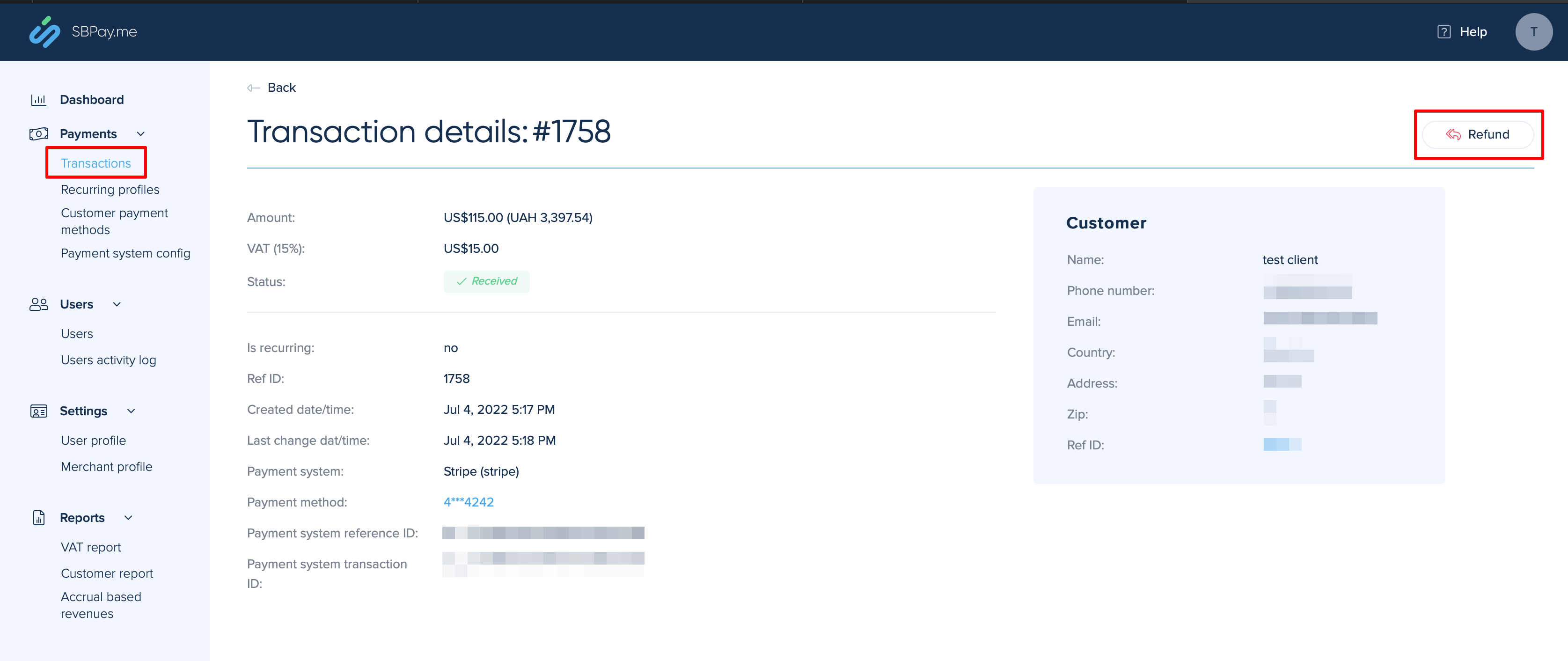
- 3. In the Accept payments custom feature settings you can also enable Send refund confirmation option and adjust the templates to automatically notify your clients via email and/or sms about the refunds.