From SimplyBook.me
Importing a new version from external source |
Importing a new version from external source |
||
| Line 4: | Line 4: | ||
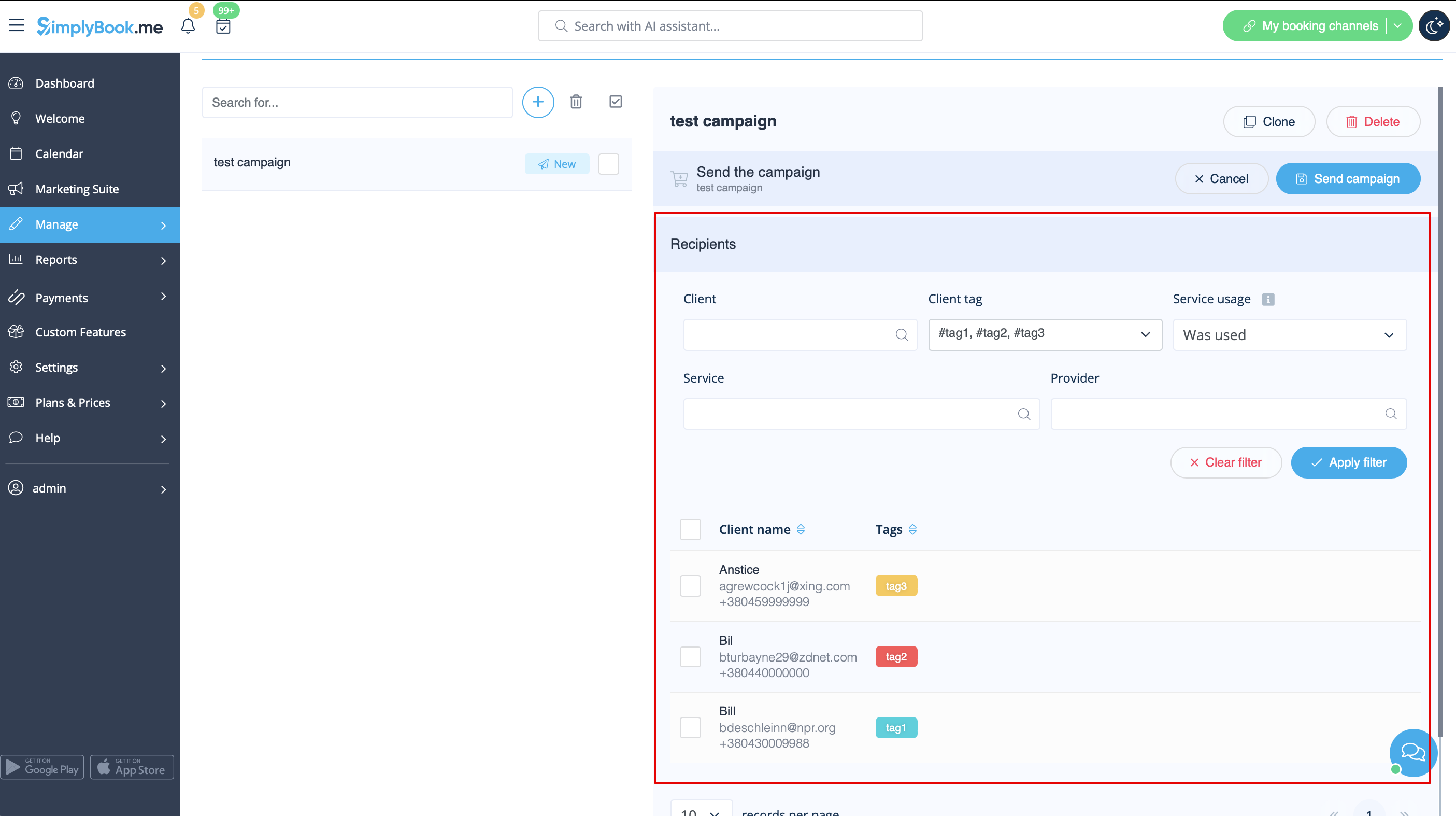
1. After all preparation is done, click on the " Save & send campaign" button to select the list of clients and send your campaign. | 1. After all preparation is done, click on the " Save & send campaign" button to select the list of clients and send your campaign. | ||
<br><br> | <br><br> | ||
2. You can manually select clients one by one, use filters, choose all clients at once, or send the campaign message to clients under specific tags if you're using the [[Tags Custom Feature|Tags]] feature. | 2. You can manually select clients one by one, use filters, choose all clients at once, or send the campaign message to clients under specific tags if you're using the [[Special:MyLanguage/Tags Custom Feature|Tags]] feature. | ||
[[File:Selecting campaign recipients redesigned.png|1200px|center|link=https://help.simplybook.me/images/9/94/Selecting_campaign_recipients_redesigned.png]] | [[File:Selecting campaign recipients redesigned.png|1200px|center|link=https://help.simplybook.me/images/9/94/Selecting_campaign_recipients_redesigned.png]] | ||
<br><br> | <br><br> | ||
Latest revision as of 09:17, 23 September 2025
2. After clicking the “Save & Close” button, this campaign appears on the left in the list with the status “New”.
Selecting Recipients and Launching Your Campaign:
1. After all preparation is done, click on the " Save & send campaign" button to select the list of clients and send your campaign.
2. You can manually select clients one by one, use filters, choose all clients at once, or send the campaign message to clients under specific tags if you're using the Tags feature.