From SimplyBook.me
Created page with "<br><br> ;Gebruiksaanwijzing: :1. Voeg uw Google Business-locatie(s) toe en controleer deze via <span style="background-color:#d4f8e5; padding:5px; border-radius:5px;">het SimplyBook.me-platform (vorig deel van deze tutorial)</span> of via uw <span style="background-color:#d4f8e5; padding:5px; border-radius:5px;">Google Business-interface</span> en sla deze opnieuw op in <span style="background-color:#d4f8e5; padding:5px; border-radius:5px;">de aangepaste instellingen va..." |
No edit summary |
||
| Line 9: | Line 9: | ||
:3. (optioneel) Als u de aangepaste functie <span style="background-color:#cdeffc; padding:5px; border-radius:5px;">[[Special:MyLanguage/Custom_Features#Multiple_Locations|'Meerdere locaties']]</span> gebruikt, koppelt u uw <span style="background-color:#d4f8e5; padding:5px; border-radius:5px;">Google Bedrijven</span> aan <span style="background-color:#d4f8e5; padding:5px; border-radius:5px;">de</span> gewenste <span style="background-color:#d4f8e5; padding:5px; border-radius:5px;">SimplyBook.me-locaties.</span> | :3. (optioneel) Als u de aangepaste functie <span style="background-color:#cdeffc; padding:5px; border-radius:5px;">[[Special:MyLanguage/Custom_Features#Multiple_Locations|'Meerdere locaties']]</span> gebruikt, koppelt u uw <span style="background-color:#d4f8e5; padding:5px; border-radius:5px;">Google Bedrijven</span> aan <span style="background-color:#d4f8e5; padding:5px; border-radius:5px;">de</span> gewenste <span style="background-color:#d4f8e5; padding:5px; border-radius:5px;">SimplyBook.me-locaties.</span> | ||
:<span style="background-color:#ffe9e9; padding:5px; border-radius:5px;">'''Let op!''' Het is mogelijk om één SimplyBook.me-locatie te koppelen aan één Google Bedrijven.</span> | :<span style="background-color:#ffe9e9; padding:5px; border-radius:5px;">'''Let op!''' Het is mogelijk om één SimplyBook.me-locatie te koppelen aan één Google Bedrijven.</span> | ||
:<span style="background-color:#ffe9e9; padding:5px; border-radius:5px;">Als u geen gebruik maakt van <span style="background-color:#cdeffc; padding:5px; border-radius:5px;">[[Special:MyLanguage/ | :<span style="background-color:#ffe9e9; padding:5px; border-radius:5px;">Als u geen gebruik maakt van <span style="background-color:#cdeffc; padding:5px; border-radius:5px;">[[Special:MyLanguage/Multiple Locations custom feature|meerdere locaties]]</span>, kan <span style="background-color:#cdeffc; padding:5px; border-radius:5px;">[[Special:MyLanguage/Multiple Locations custom feature|uw]]</span> hoofdlocatie worden gekoppeld aan één Google Bedrijven.</span> | ||
[[File:Reserve with google select location redesigned.png|1200px|border|center|link=https://help.simplybook.me/images/1/14/Reserve_with_google_select_location_redesigned.png]] | [[File:Reserve with google select location redesigned.png|1200px|border|center|link=https://help.simplybook.me/images/1/14/Reserve_with_google_select_location_redesigned.png]] | ||
<br><br> | <br><br> | ||
Latest revision as of 11:10, 23 September 2025
- Gebruiksaanwijzing
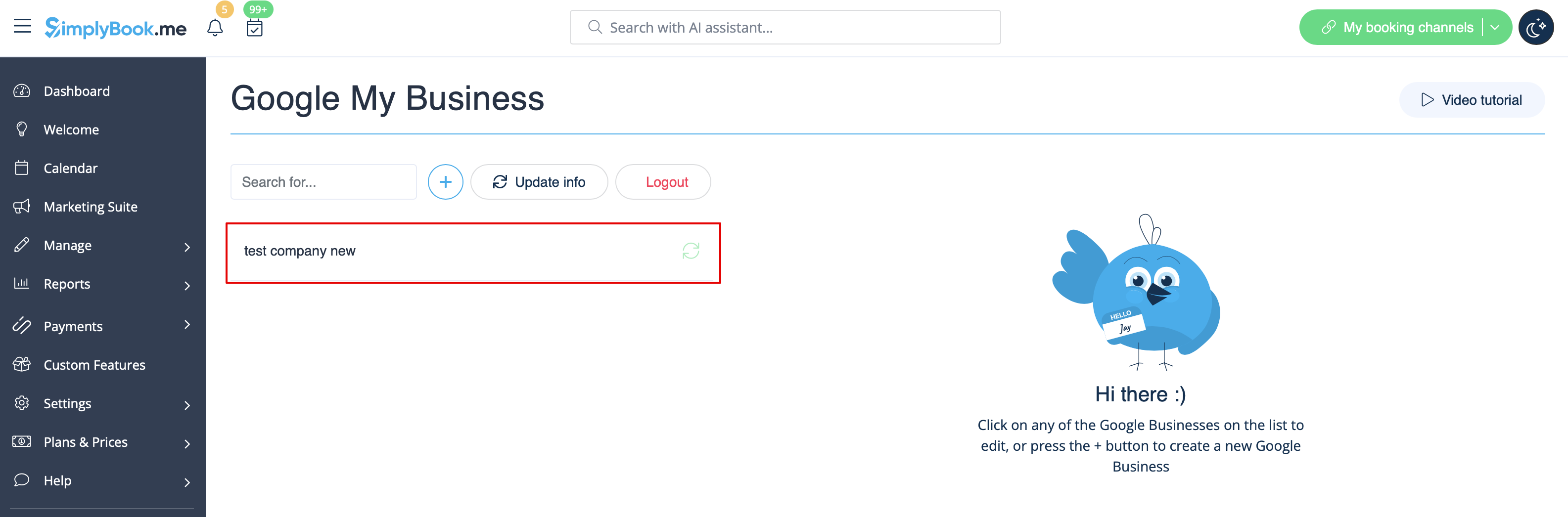
- 1. Voeg uw Google Business-locatie(s) toe en controleer deze via het SimplyBook.me-platform (vorig deel van deze tutorial) of via uw Google Business-interface en sla deze opnieuw op in de aangepaste instellingen van Google Business.
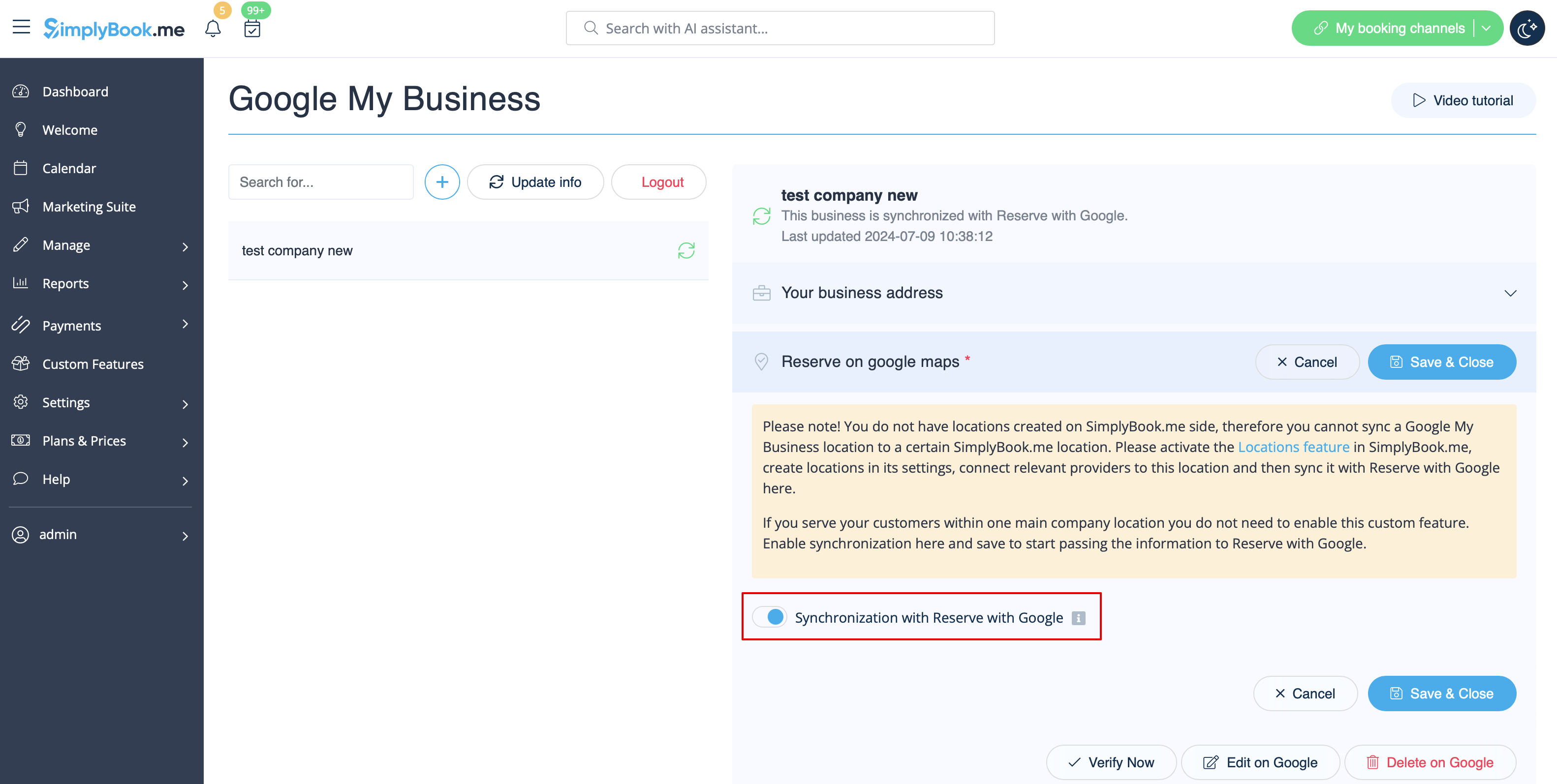
- 2. Ga naar het tabblad 'Reserveren op Google Maps' en zet de schakelaar 'Synchronisatie met Reserveren met Google' in de actieve stand.
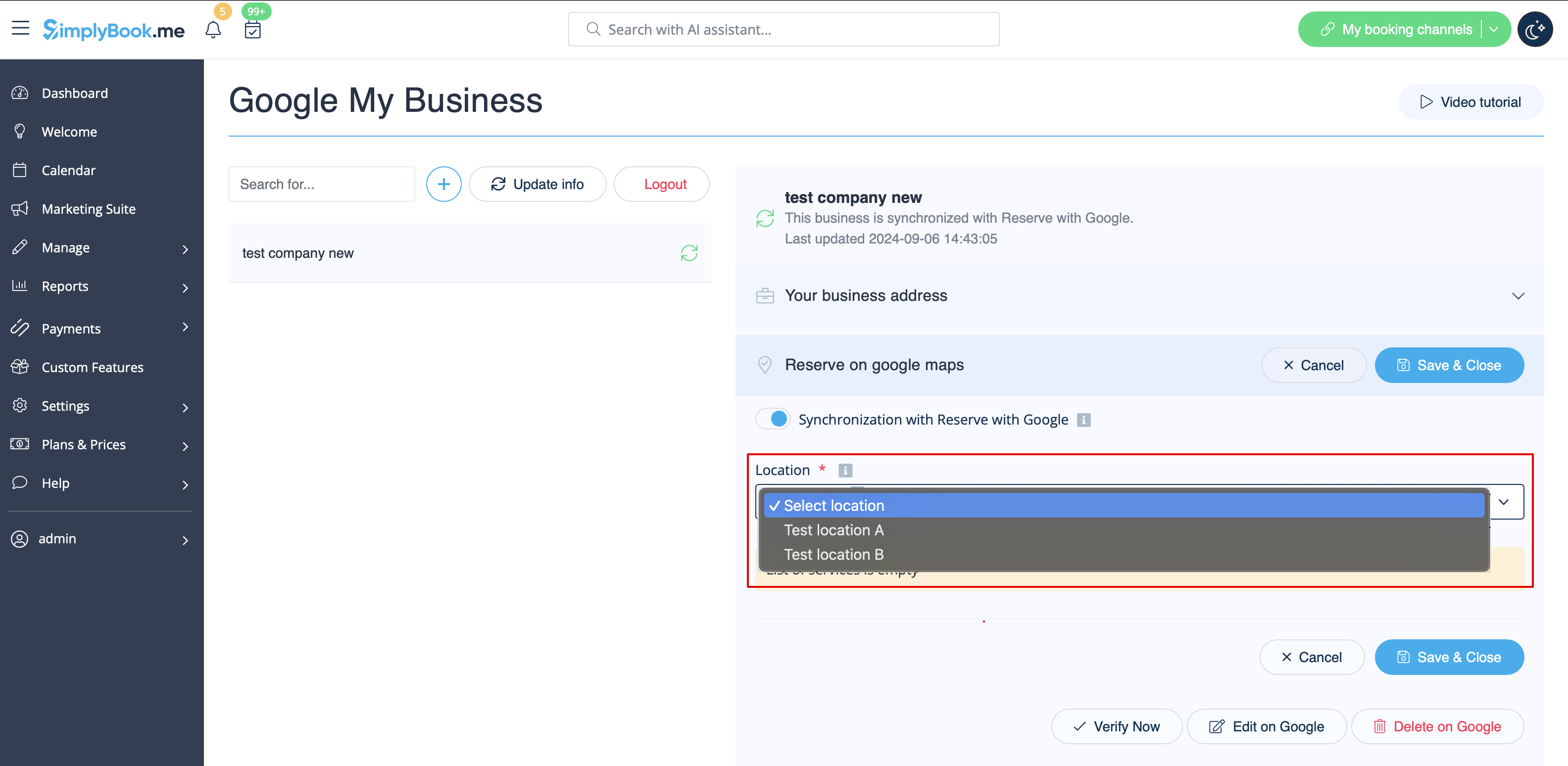
- 3. (optioneel) Als u de aangepaste functie 'Meerdere locaties' gebruikt, koppelt u uw Google Bedrijven aan de gewenste SimplyBook.me-locaties.
- Let op! Het is mogelijk om één SimplyBook.me-locatie te koppelen aan één Google Bedrijven.
- Als u geen gebruik maakt van meerdere locaties, kan uw hoofdlocatie worden gekoppeld aan één Google Bedrijven.
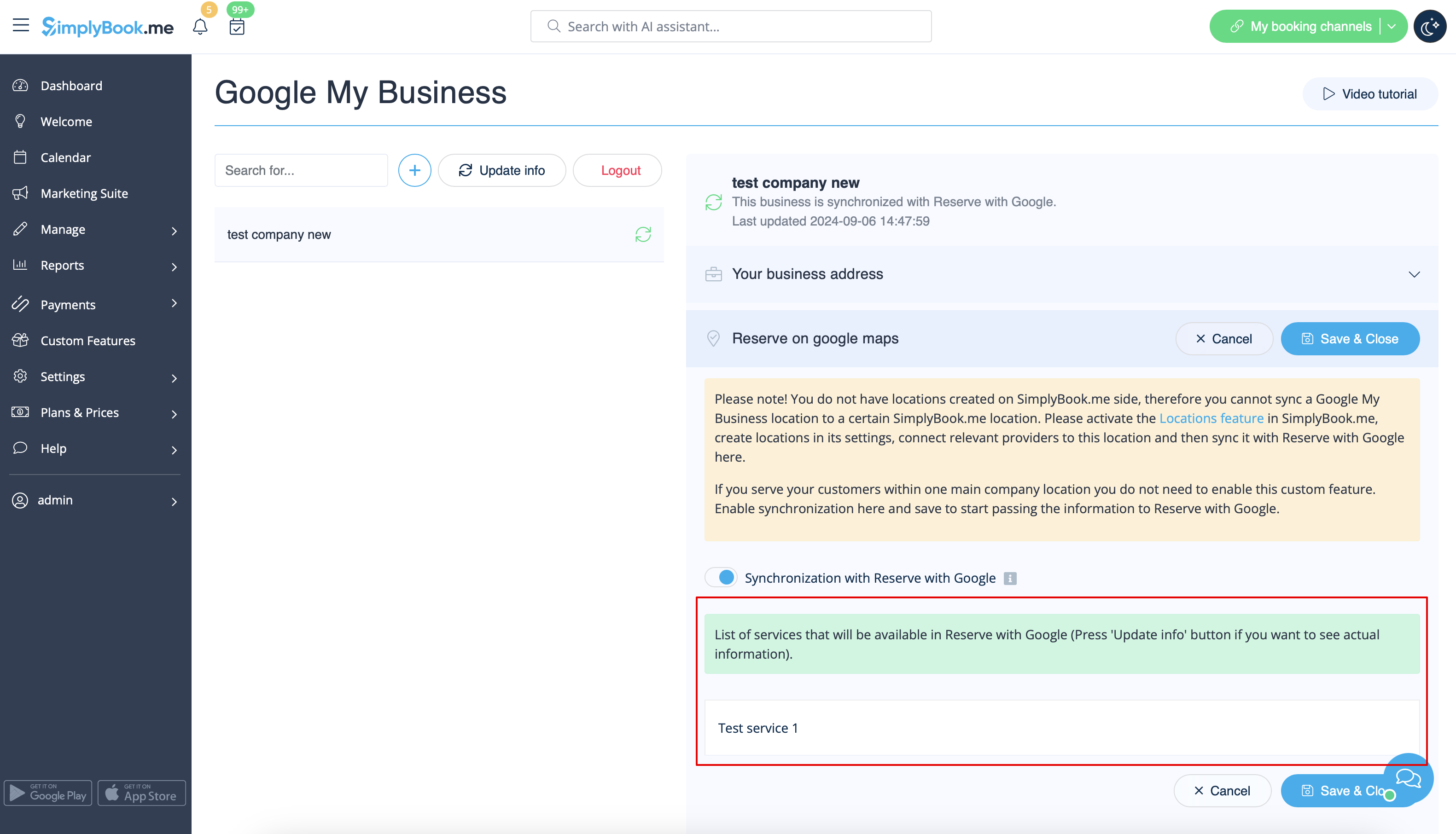
- 4. Sla de instellingen op. Nu vindt de synchronisatie plaats en nadat u de pagina opnieuw hebt geladen, kunt u de lijst met diensten zien die worden doorgegeven aan Reserve met Google voor boekingen.
- Standaard verzamelen we alle informatie en geven we de update één keer per dag door aan Google, maar u kunt de knop Info bijwerken gebruiken om de informatie handmatig voor te bereiden voor overdracht als er instellingen in uw account zijn gewijzigd (bijvoorbeeld als u een nieuwe dienst hebt aangemaakt).