From SimplyBook.me
Created page with "<br><br> comment utiliser : :1. Ajoutez et vérifiez votre ou vos emplacements Google Business via <span style="background-color:#d4f8e5; padding:5px; border-radius:5px;">la plateforme SimplyBook.me (partie précédente de ce tutoriel)</span> ou à l'aide de votre <span style="background-color:#d4f8e5; padding:5px; border-radius:5px;">interface Google Business</span>, puis enregistrez-les à nouveau dans <span style="background-color:#d4f8e5; padding:5px; border-radius:5..." |
No edit summary |
||
| Line 9: | Line 9: | ||
:3. (facultatif) Si vous utilisez la fonctionnalité personnalisée <span style="background-color:#cdeffc; padding:5px; border-radius:5px;">[[Special:MyLanguage/Custom_Features#Multiple_Locations|« Emplacements multiples]]</span> », connectez vos <span style="background-color:#d4f8e5; padding:5px; border-radius:5px;">Google Business</span> aux <span style="background-color:#d4f8e5; padding:5px; border-radius:5px;">emplacements SimplyBook.me</span> souhaités <span style="background-color:#d4f8e5; padding:5px; border-radius:5px;">.</span> | :3. (facultatif) Si vous utilisez la fonctionnalité personnalisée <span style="background-color:#cdeffc; padding:5px; border-radius:5px;">[[Special:MyLanguage/Custom_Features#Multiple_Locations|« Emplacements multiples]]</span> », connectez vos <span style="background-color:#d4f8e5; padding:5px; border-radius:5px;">Google Business</span> aux <span style="background-color:#d4f8e5; padding:5px; border-radius:5px;">emplacements SimplyBook.me</span> souhaités <span style="background-color:#d4f8e5; padding:5px; border-radius:5px;">.</span> | ||
:<span style="background-color:#ffe9e9; padding:5px; border-radius:5px;">'''Remarque importante !''' Il est possible de connecter un emplacement SimplyBook.me à un seul Google Business.</span> | :<span style="background-color:#ffe9e9; padding:5px; border-radius:5px;">'''Remarque importante !''' Il est possible de connecter un emplacement SimplyBook.me à un seul Google Business.</span> | ||
:<span style="background-color:#ffe9e9; padding:5px; border-radius:5px;">Si vous n'utilisez pas <span style="background-color:#cdeffc; padding:5px; border-radius:5px;">[[Special:MyLanguage/ | :<span style="background-color:#ffe9e9; padding:5px; border-radius:5px;">Si vous n'utilisez pas <span style="background-color:#cdeffc; padding:5px; border-radius:5px;">[[Special:MyLanguage/Multiple Locations custom feature|la fonctionnalité « Emplacements multiples »]]</span>, l'emplacement principal <span style="background-color:#cdeffc; padding:5px; border-radius:5px;">[[Special:MyLanguage/Multiple Locations custom feature|de votre]]</span> entreprise peut être connecté à un seul Google Business.</span> | ||
[[File:Reserve with google select location redesigned.png|1200px|border|center|link=https://help.simplybook.me/images/1/14/Reserve_with_google_select_location_redesigned.png]] | [[File:Reserve with google select location redesigned.png|1200px|border|center|link=https://help.simplybook.me/images/1/14/Reserve_with_google_select_location_redesigned.png]] | ||
<br><br> | <br><br> | ||
Latest revision as of 11:14, 23 September 2025
comment utiliser :
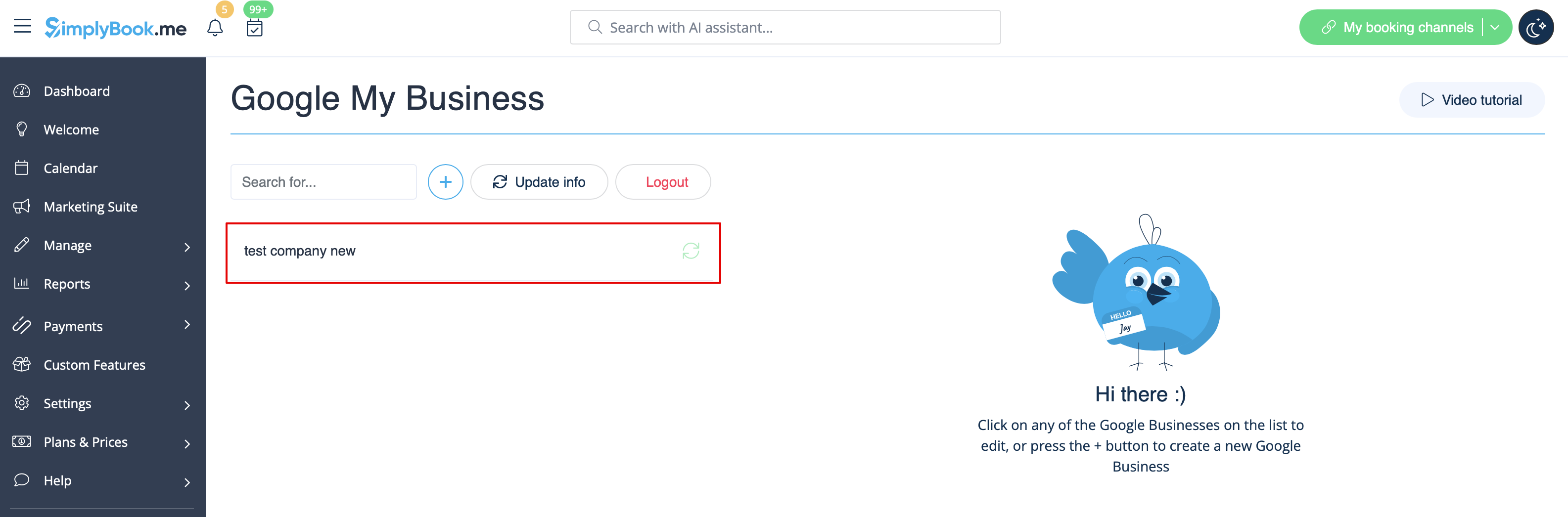
- 1. Ajoutez et vérifiez votre ou vos emplacements Google Business via la plateforme SimplyBook.me (partie précédente de ce tutoriel) ou à l'aide de votre interface Google Business, puis enregistrez-les à nouveau dans les paramètres personnalisés de Google Business.
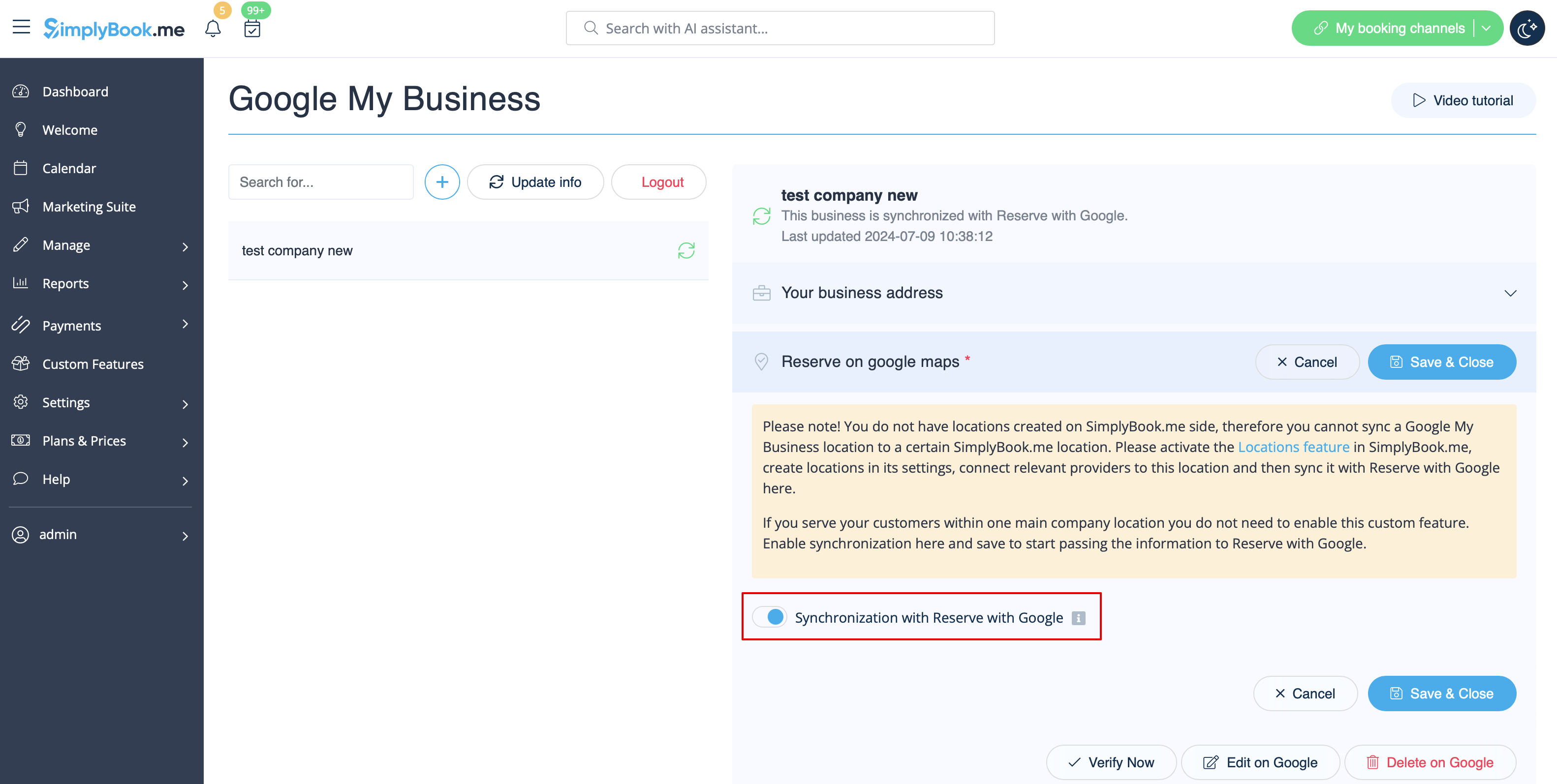
- 2. Accédez à l'onglet « Réserver sur Google Maps » et activez l'option « Synchronisation avec Réserver avec Google ».
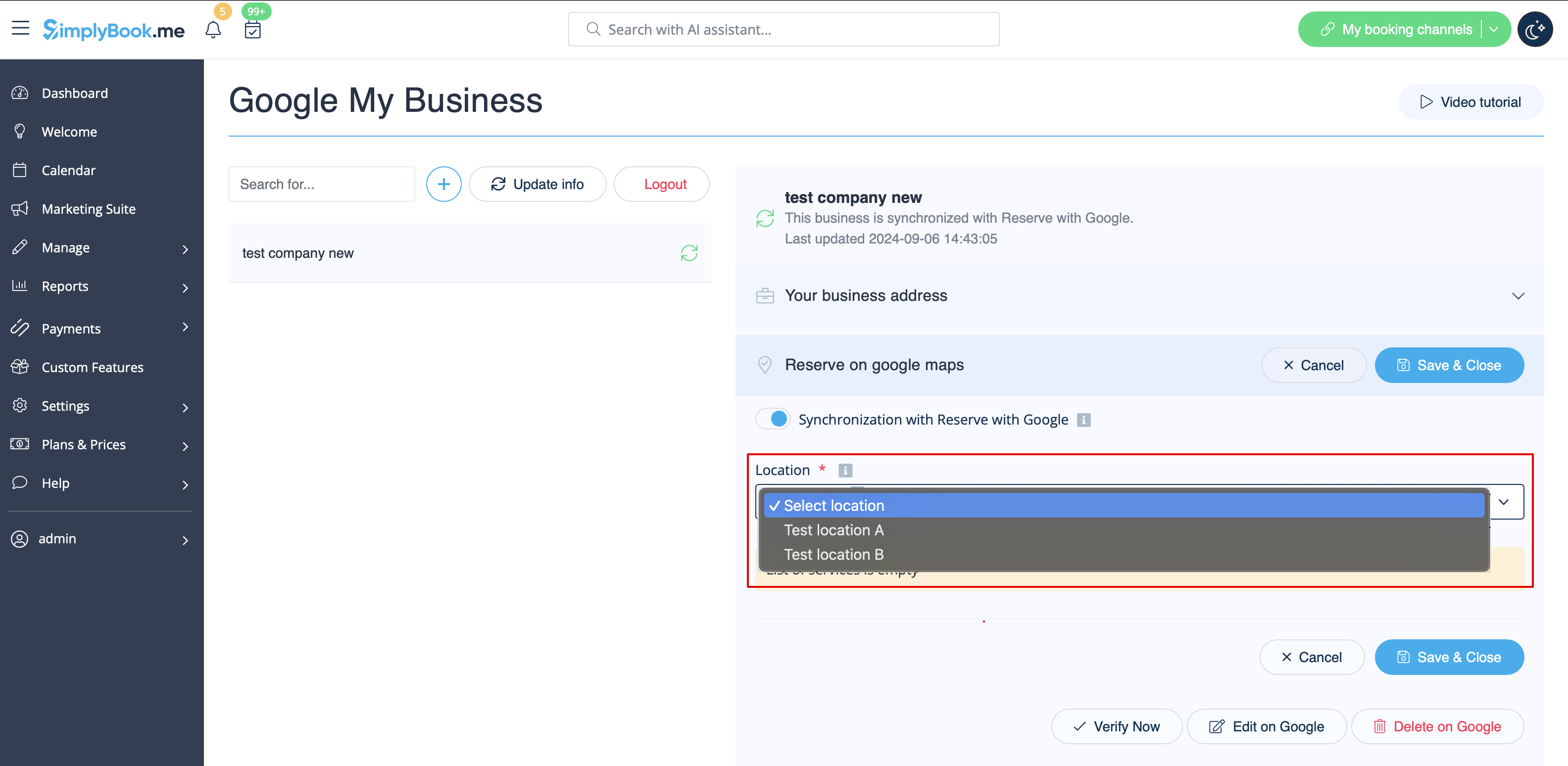
- 3. (facultatif) Si vous utilisez la fonctionnalité personnalisée « Emplacements multiples », connectez vos Google Business aux emplacements SimplyBook.me souhaités .
- Remarque importante ! Il est possible de connecter un emplacement SimplyBook.me à un seul Google Business.
- Si vous n'utilisez pas la fonctionnalité « Emplacements multiples », l'emplacement principal de votre entreprise peut être connecté à un seul Google Business.
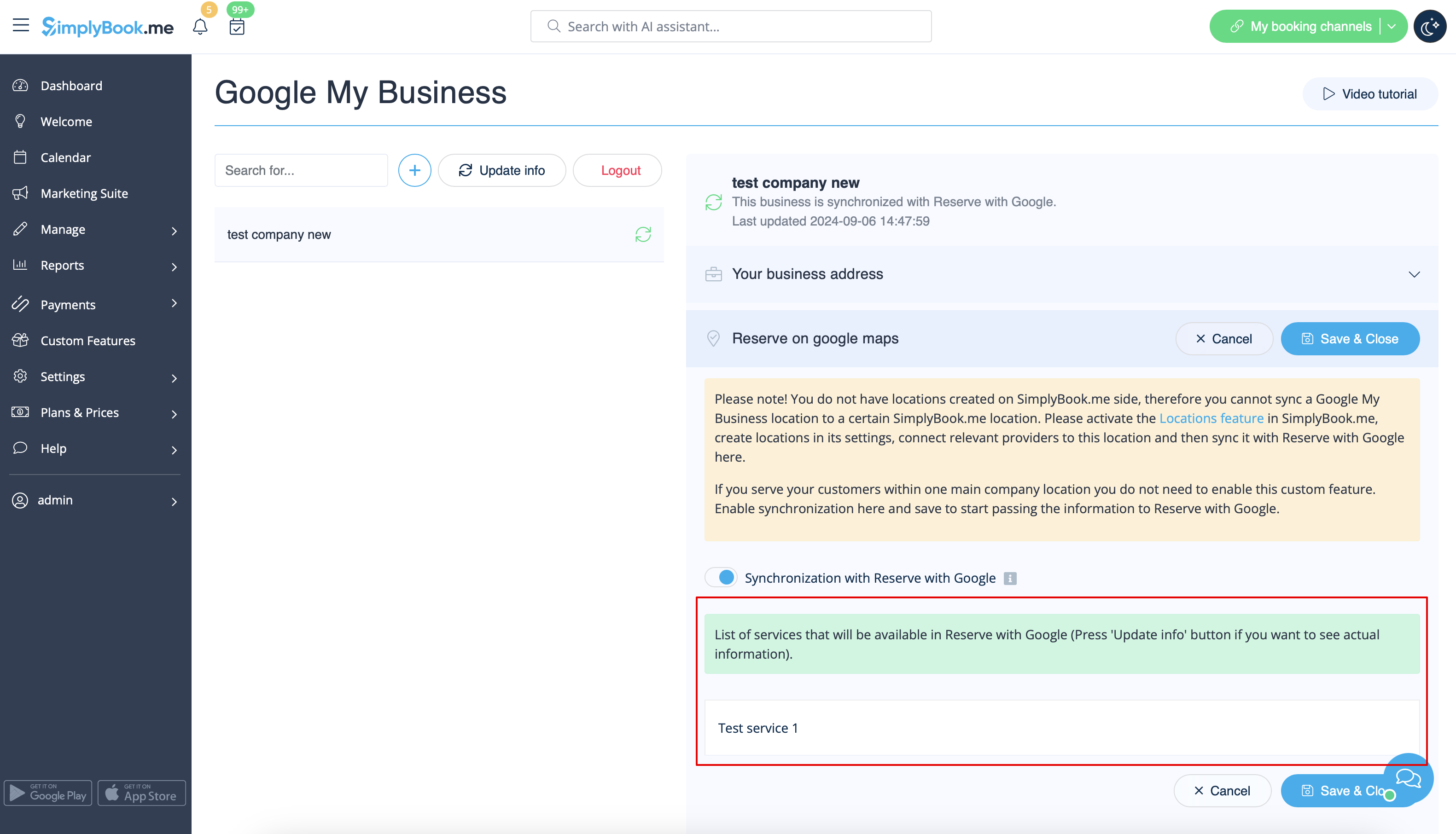
- 4. Enregistrez les paramètres. La synchronisation est maintenant en cours et, après avoir rechargé la page, vous pourrez voir la liste des services qui seront transmis à « Réserver avec Google » pour la réservation.
- Par défaut, nous recueillons toutes les informations et transmettons la mise à jour à Google une fois par jour, mais vous pouvez utiliser le bouton « Mettre à jour les informations » pour préparer manuellement les informations à transférer si des modifications ont été apportées à votre compte (par exemple, si vous avez créé un nouveau service).