From SimplyBook.me
No edit summary |
No edit summary |
||
| Line 19: | Line 19: | ||
*Works for the following [[Special:MyLanguage/How_to_change_the_way_time_slots_are_shown#Calendar_Layouts|calendar layouts]] only: slots weekly, modern, weekly and daily classes, modern provider. | *Works for the following [[Special:MyLanguage/How_to_change_the_way_time_slots_are_shown#Calendar_Layouts|calendar layouts]] only: slots weekly, modern, weekly and daily classes, modern provider. | ||
*The time blocked by [[Special:MyLanguage/Calendar_Sync_custom_feature|Calendar sync]] does not influence the number of timeslots. | *The time blocked by [[Special:MyLanguage/Calendar_Sync_custom_feature|Calendar sync]] does not influence the number of timeslots. | ||
*If you enable this feature together with [[Special:MyLanguage/Any Employee Selector custom feature|Any Employee]] and [[Special:MyLanguage/Appointment at Fixed Time custom feature|Appointment at fixed time]](with the interval less than service duration) the number of spaces may not be shown correctly when several providers are attached to the same service. | |||
<br><br> | <br><br> | ||
:Video tutorial available <p><youtube>Dn0tNJhOToE</youtube></p> | :Video tutorial available <p><youtube>Dn0tNJhOToE</youtube></p> | ||
Revision as of 07:34, 2 October 2025

Show how many spaces are left when you accept multiple clients per slot, such as for classes and events. You can also choose to show the total number of spaces as well as the number of spaces left.
Please note!
- This feature is not compatible with Limit Bookings;
- Works for the following calendar layouts only: slots weekly, modern, weekly and daily classes, modern provider.
- The time blocked by Calendar sync does not influence the number of timeslots.
- If you enable this feature together with Any Employee and Appointment at fixed time(with the interval less than service duration) the number of spaces may not be shown correctly when several providers are attached to the same service.
- Video tutorial available
- How to use
- 1. Enable Display Remaining Spaces in your Custom Features section.
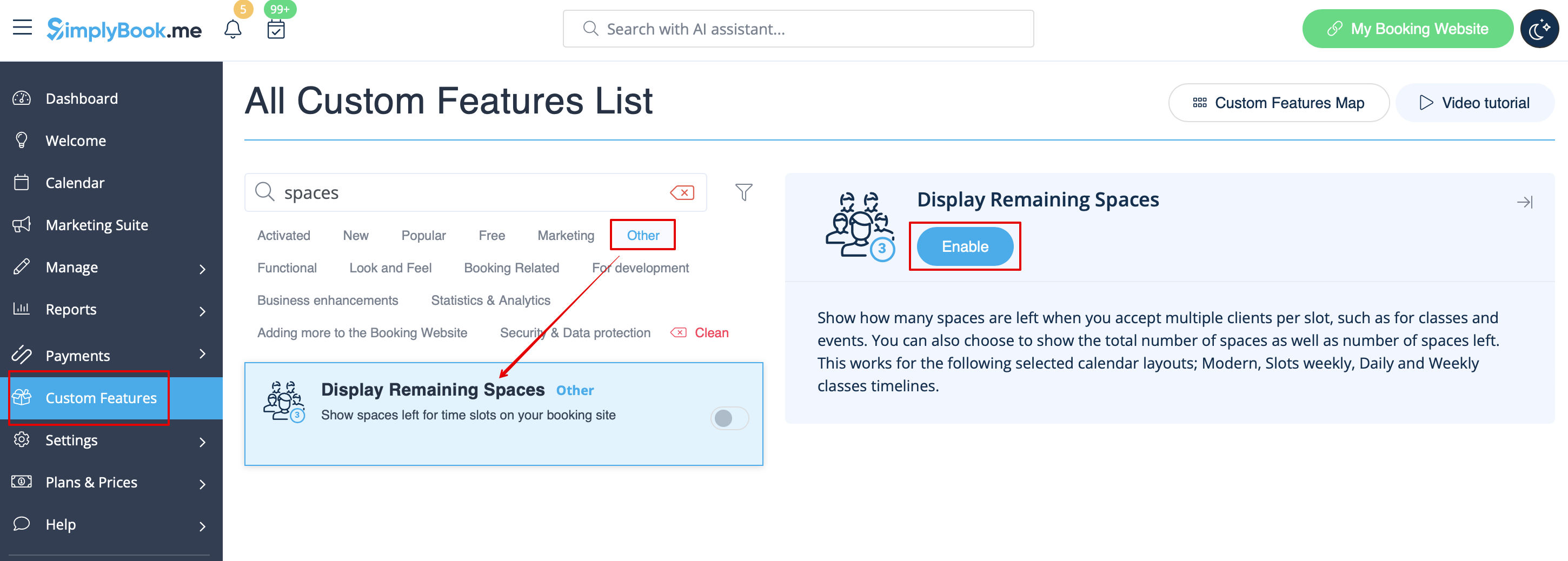
- 2. (optional) Enable the corresponding option to display the total number of spaces along with the remaining ones.
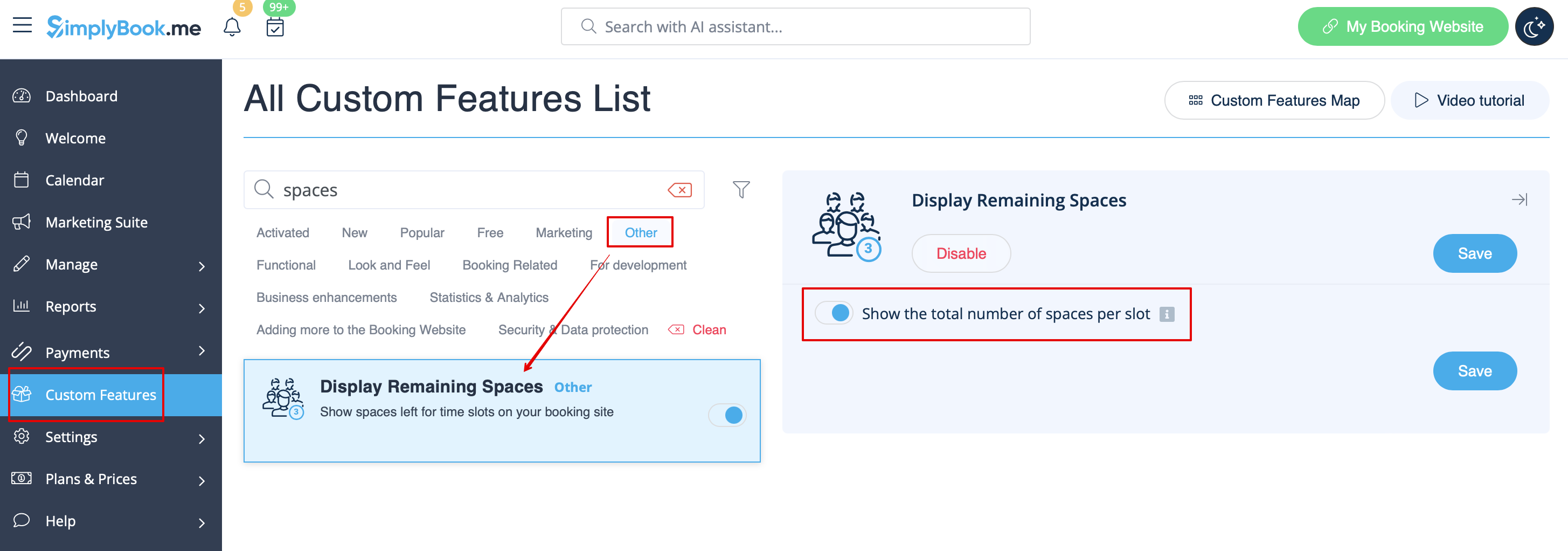
- 3. As the result the clients will be able to see the number of the spaces left per each timeslot(and total if "Show the total number of spaces per slot" is enabled).

