From SimplyBook.me
No edit summary |
No edit summary |
||
| Line 6: | Line 6: | ||
*Elle fonctionne uniquement avec [[Special:MyLanguage/How_to_change_the_way_time_slots_are_shown#Calendar_Layouts|les mises en page de calendrier]] suivantes : créneaux hebdomadaires, modernes, cours hebdomadaires et quotidiens, prestataire moderne. | *Elle fonctionne uniquement avec [[Special:MyLanguage/How_to_change_the_way_time_slots_are_shown#Calendar_Layouts|les mises en page de calendrier]] suivantes : créneaux hebdomadaires, modernes, cours hebdomadaires et quotidiens, prestataire moderne. | ||
*Le temps bloqué par [[Special:MyLanguage/Calendar_Sync_custom_feature|la synchronisation du calendrier]] n'a aucune incidence sur le nombre de créneaux horaires. | *Le temps bloqué par [[Special:MyLanguage/Calendar_Sync_custom_feature|la synchronisation du calendrier]] n'a aucune incidence sur le nombre de créneaux horaires. | ||
*Si vous activez cette fonctionnalité en même temps que [[Special:MyLanguage/Any Employee Selector custom feature|N’importe quel employé]] et [[Special:MyLanguage/Appointment at Fixed Time custom feature|Rendez-vous à heure fixe]] (avec un intervalle inférieur à la durée du service), le nombre de places disponibles peut ne pas s’afficher correctement lorsque plusieurs prestataires sont rattachés au même service. | |||
<br><br> | <br><br> | ||
:Tutoriel vidéo disponible <p><youtube>Dn0tNJhOToE</youtube></p> | :Tutoriel vidéo disponible <p><youtube>Dn0tNJhOToE</youtube></p> | ||
Latest revision as of 07:40, 2 October 2025

Affichez le nombre de places restantes lorsque vous acceptez plusieurs clients par créneau, par exemple pour des cours ou des événements. Vous pouvez également choisir d'afficher le nombre total de places ainsi que le nombre de places restantes.
Remarque importante !
- Cette fonctionnalité n'est pas compatible avec la limitation des réservations;
- Elle fonctionne uniquement avec les mises en page de calendrier suivantes : créneaux hebdomadaires, modernes, cours hebdomadaires et quotidiens, prestataire moderne.
- Le temps bloqué par la synchronisation du calendrier n'a aucune incidence sur le nombre de créneaux horaires.
- Si vous activez cette fonctionnalité en même temps que N’importe quel employé et Rendez-vous à heure fixe (avec un intervalle inférieur à la durée du service), le nombre de places disponibles peut ne pas s’afficher correctement lorsque plusieurs prestataires sont rattachés au même service.
- Tutoriel vidéo disponible
- Comment utiliser
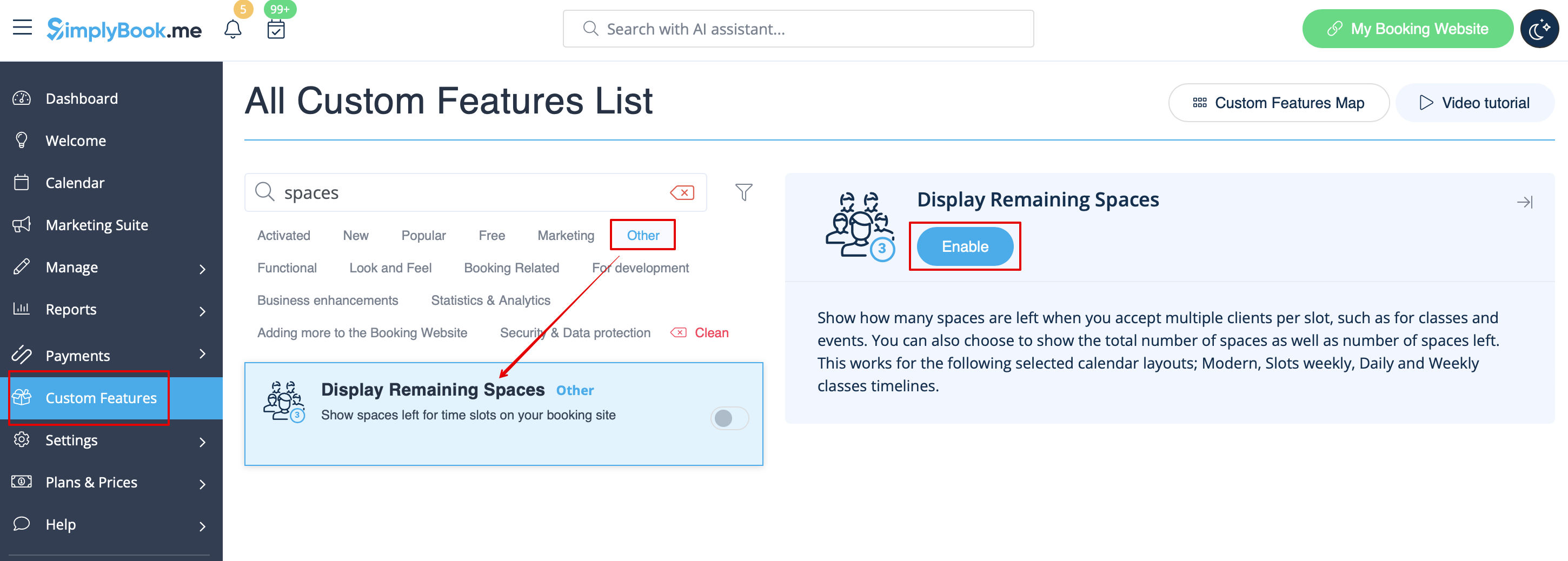
- 1. Activez l'option Afficher les places restantes dans la section Fonctionnalités personnalisées.
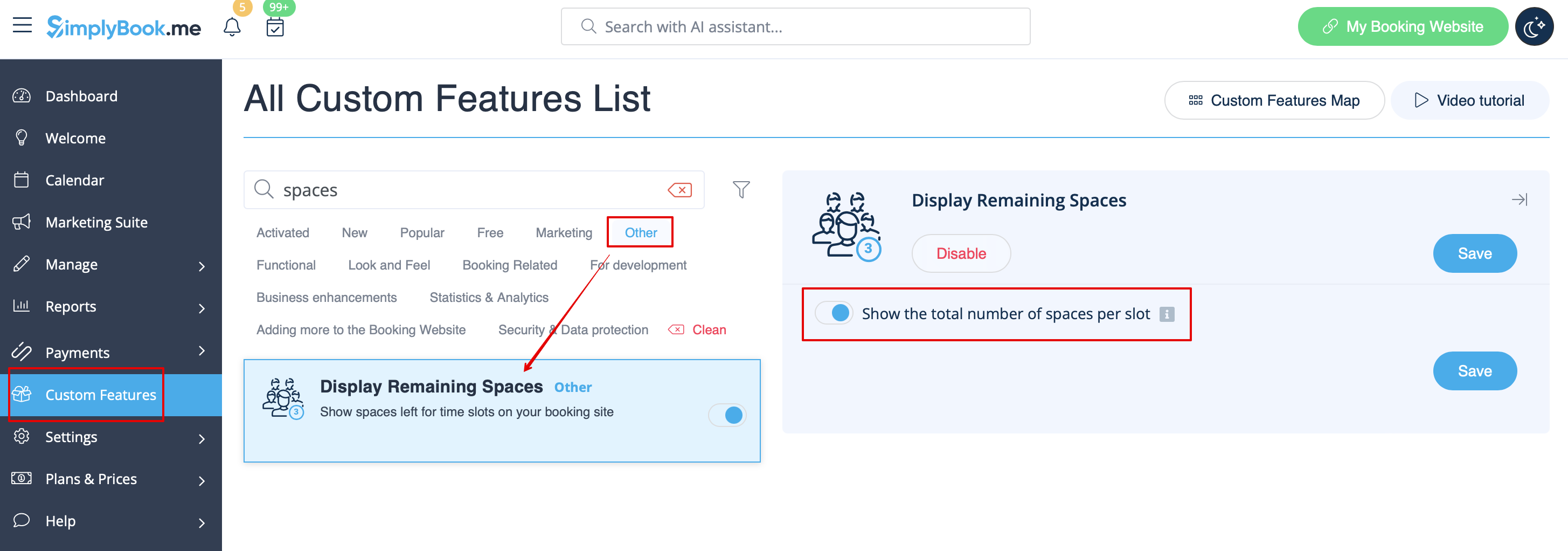
- 2. (facultatif) Activez l'option correspondante pour afficher le nombre total d'espaces ainsi que ceux restants.
- 3. Les clients pourront alors voir le nombre d'espaces restants pour chaque créneau horaire (et le nombre total si l'option « Afficher le nombre total d'espaces par créneau » est activée).

