Translations:WordPress integration/6/en: Difference between revisions

From SimplyBook.me
FuzzyBot (talk | contribs)
Importing a new version from external source
 
FuzzyBot (talk | contribs)
Importing a new version from external source
Tags: Mobile edit Mobile web edit
 
Line 1: Line 1:
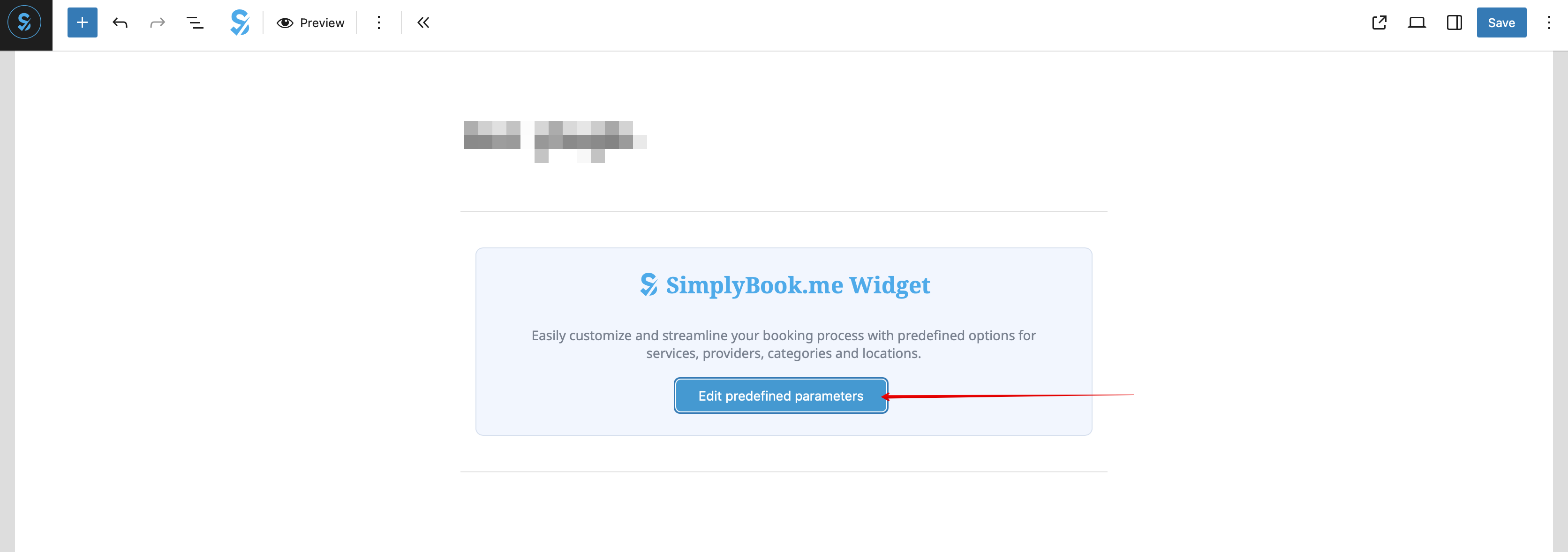
:The page with the booking widget is already pre-created for you - you can edit, remove or keep it as it is.<br>
:8. (optional) If you need to have the booking functionality only for some service/provider/location/category you can use <span style="background-color:#d4f8e5; padding:5px; border-radius:5px;">Edit predefined parameters</span> option there.
:Or you can create a new page and paste <span style="background-color:#d4f8e5; padding:5px; border-radius:5px;">[simplybook_widget]</span> tag to its body and publish the page.<br><br>
[[File:Wp edit predefined path.png|1200px|center|link=https://help.simplybook.me/images/d/d7/Wp_edit_predefined_path.png]]
:From here you can also easily access various pages on SimplyBook.me side to add or edit your services and providers, enable some additional functionality for the booking process with the Custom features.
<br><br>
[[File:Wordress plugin general tab useful links.png|1200px|center|link=https://help.simplybook.me/images/7/7d/Wordress_plugin_general_tab_useful_links.png]]
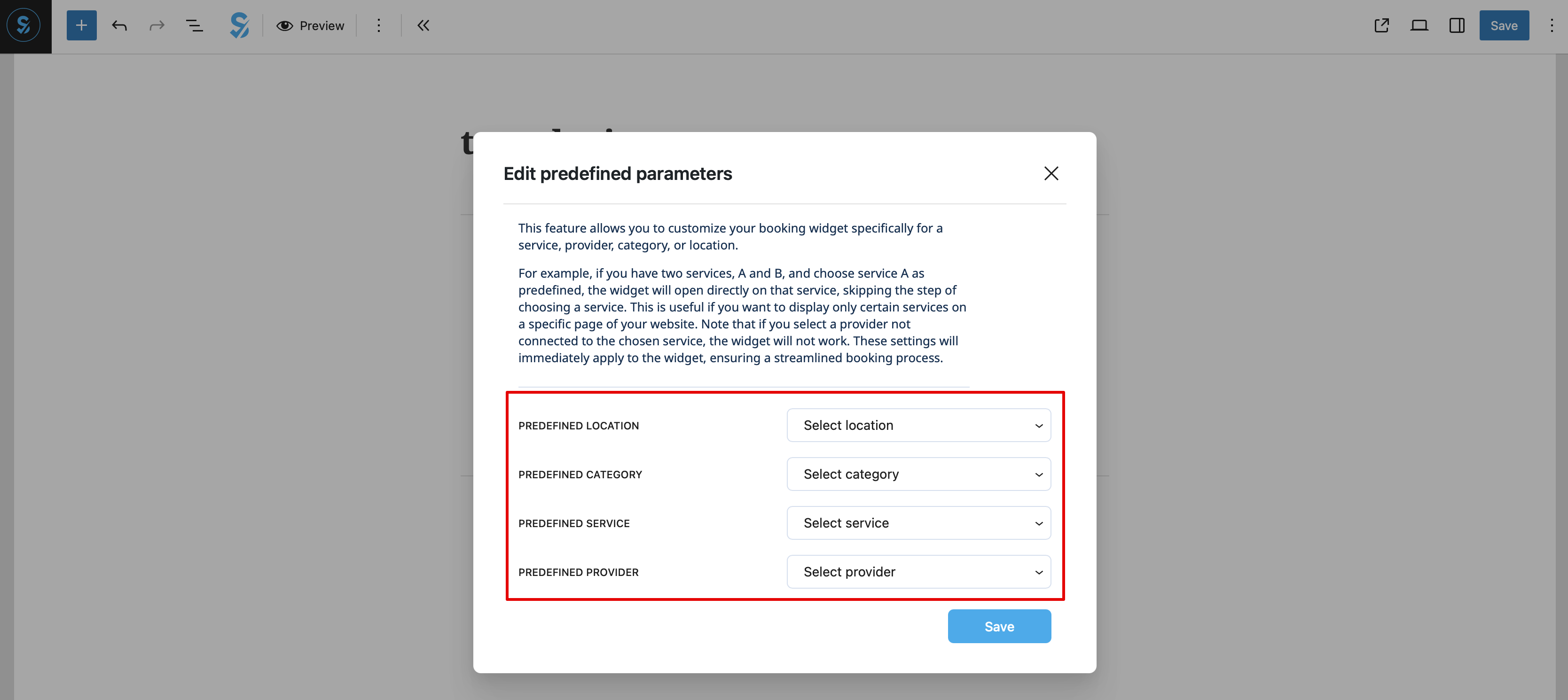
:And select the necessary one(s) in the popup that appears.
<br><br><br><br>
[[File:Wp new predefined options.png|1200px|center|link=https://help.simplybook.me/images/7/70/Wp_new_predefined_options.png]]
<br><br>
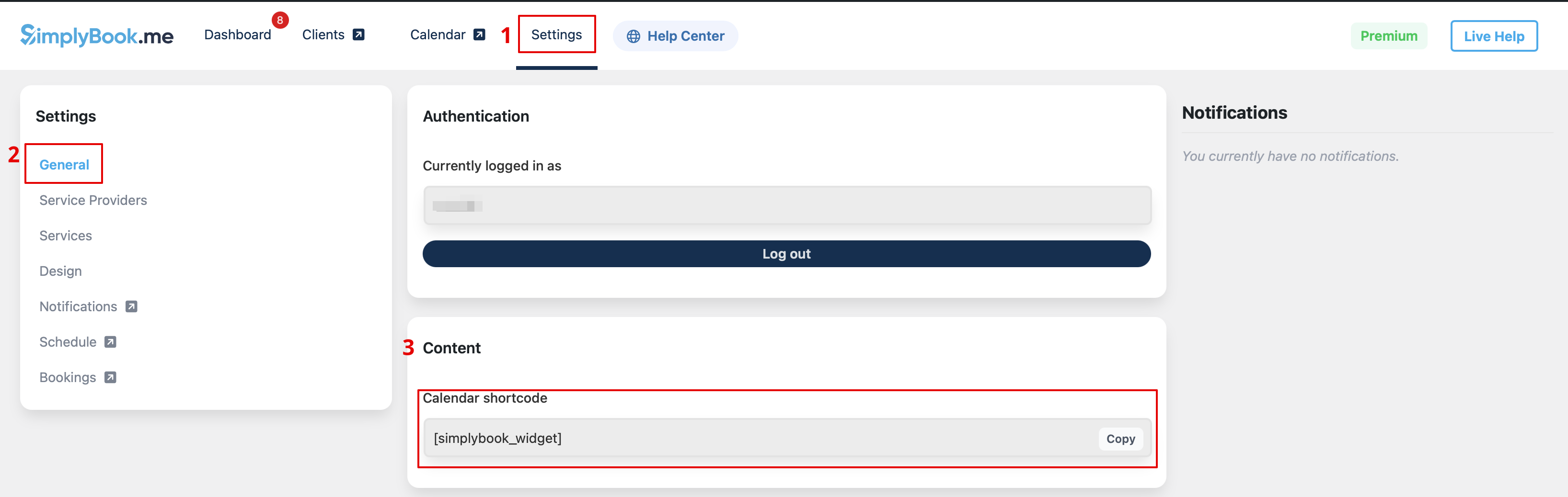
:9. As alternative way to add the functionality to the page you can use the shortcode.
:Copy the calendar shortcode from the plugin <span style="background-color:#d4f8e5; padding:5px; border-radius:5px;">Settings</span> page.
[[File:Wp new shortcode for widget.png|1200px|center|link=https://help.simplybook.me/images/e/e5/Wp_new_shortcode_for_widget.png]]
<br><br>
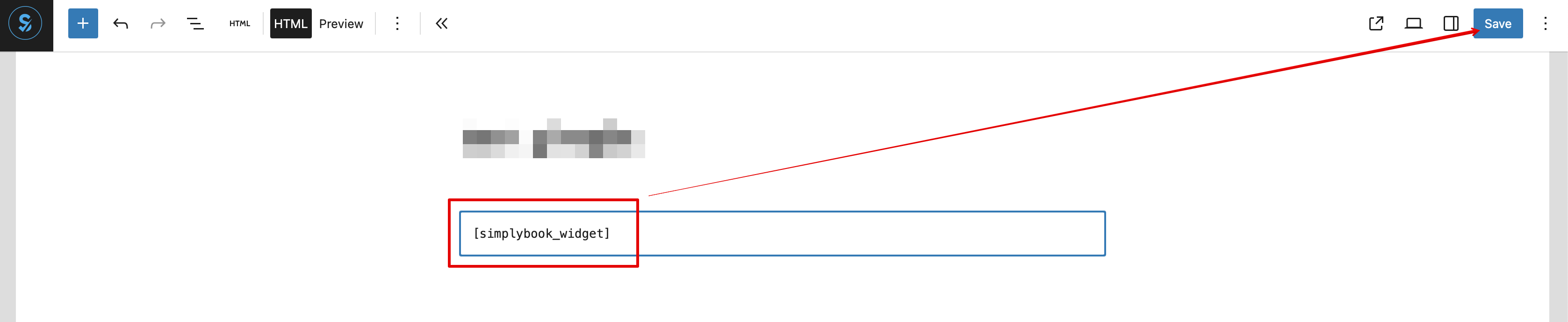
:And simply paste it to the HTML part on the desired page
[[File:Wp new paste shortcode.png|1200px|center|link=https://help.simplybook.me/images/0/0a/Wp_new_paste_shortcode.png]]
<br><br>

Latest revision as of 12:54, 17 October 2025

Information about message (contribute)
This message has no documentation. If you know where or how this message is used, you can help other translators by adding documentation to this message.
Message definition (WordPress integration)
:8. (optional) If you need to have the booking functionality only for some service/provider/location/category you can use <span style="background-color:#d4f8e5; padding:5px; border-radius:5px;">Edit predefined parameters</span> option there.
[[File:Wp edit predefined path.png|1200px|center|link=https://help.simplybook.me/images/d/d7/Wp_edit_predefined_path.png]]
<br><br>
:And select the necessary one(s) in the popup that appears.
[[File:Wp new predefined options.png|1200px|center|link=https://help.simplybook.me/images/7/70/Wp_new_predefined_options.png]]
<br><br>
:9. As alternative way to add the functionality to the page you can use the shortcode.
:Copy the calendar shortcode from the plugin <span style="background-color:#d4f8e5; padding:5px; border-radius:5px;">Settings</span> page.
[[File:Wp new shortcode for widget.png|1200px|center|link=https://help.simplybook.me/images/e/e5/Wp_new_shortcode_for_widget.png]]
<br><br>
:And simply paste it to the HTML part on the desired page
[[File:Wp new paste shortcode.png|1200px|center|link=https://help.simplybook.me/images/0/0a/Wp_new_paste_shortcode.png]]
<br><br>
8. (optional) If you need to have the booking functionality only for some service/provider/location/category you can use Edit predefined parameters option there.


And select the necessary one(s) in the popup that appears.


9. As alternative way to add the functionality to the page you can use the shortcode.
Copy the calendar shortcode from the plugin Settings page.


And simply paste it to the HTML part on the desired page