Translations:Integration with Mailchimp/2/en: Difference between revisions

From SimplyBook.me
FuzzyBot (talk | contribs)
Importing a new version from external source
FuzzyBot (talk | contribs)
Importing a new version from external source
Line 10: Line 10:
<br><br>
<br><br>
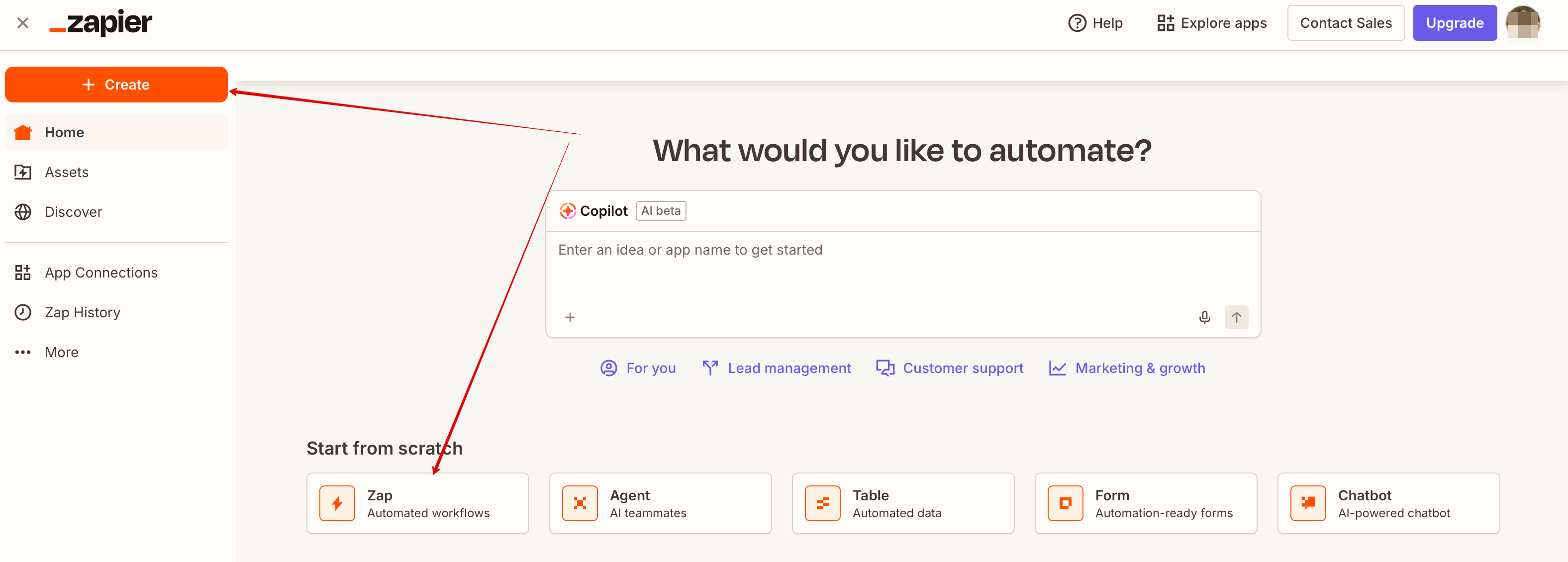
:4. After logging into Zapier select to create a new ZAP by clicking on <span style="background-color:#d4f8e5; padding:5px; border-radius:5px;">Make a Zap</span> button at the top.
[[File:Add new zap in zapier path upd.png|border|center]]
[[File:Create new zap updated.png|1200px|border| center|link=https://help.simplybook.me/images/6/60/Create_new_zap_updated.png]]
<br><br>
<br><br>

Revision as of 10:35, 16 March 2026

Information about message (contribute)
This message has no documentation. If you know where or how this message is used, you can help other translators by adding documentation to this message.
Message definition (Integration with Mailchimp)
<br><br>
You can now add various functionality to the bookings that you receive in SimplyBook.me through the use of Zapier.com.<br>
Here follows the detailed instruction on how to create a new zap that connects SimplyBook.me bookings to your email list at MailChimp.com.
<br><br>
:1. First of all, make sure you have an account at <span style="background-color:#cdeffc; padding:5px; border-radius:5px;">[https://mailchimp.com/ MailChimp.com].</span>
<br><br>
:2. Create an account at <span style="background-color:#cdeffc; padding:5px; border-radius:5px;">[https://zapier.com/ Zapier.com],</span> it only takes 1 minute.
<br><br>
:3. Enable <span style="background-color:#d4f8e5; padding:5px; border-radius:5px;">Zapier connector</span> custom feature on your <span style="background-color:#d4f8e5; padding:5px; border-radius:5px;">Custom features</span> page on SimplyBook.me side.
[[File:Zapier enable path redesigned.png|1200px|border | center|link=https://help.simplybook.me/images/b/b9/Zapier_enable_path_redesigned.png]]
<br><br>
:4. Connect to your Zapier account using the ‘’’Quick connect’’’ option
[[File:Quick connect zapier.png|1200px|border | center|link=https://help.simplybook.me/images/8/84/Quick_connect_zapier.png]]
<br><br>


You can now add various functionality to the bookings that you receive in SimplyBook.me through the use of Zapier.com.
Here follows the detailed instruction on how to create a new zap that connects SimplyBook.me bookings to your email list at MailChimp.com.

1. First of all, make sure you have an account at MailChimp.com.


2. Create an account at Zapier.com, it only takes 1 minute.


3. As well make sure you have Zapier Connector custom feature turned on in your SimplyBook.me account.


4. After logging into Zapier select to create a new ZAP by clicking on Make a Zap button at the top.