Translations:Email notifications with Zapier/4/en: Difference between revisions

From SimplyBook.me
FuzzyBot (talk | contribs)
Importing a new version from external source
Tags: Mobile edit Mobile web edit
FuzzyBot (talk | contribs)
Importing a new version from external source
 
Line 1: Line 1:
:'''3'''. On the next step please connect your SimplyBook.me account. Enable [[Custom_Features#Zapier_Connector |Zapier connector]] custom feature.<br>
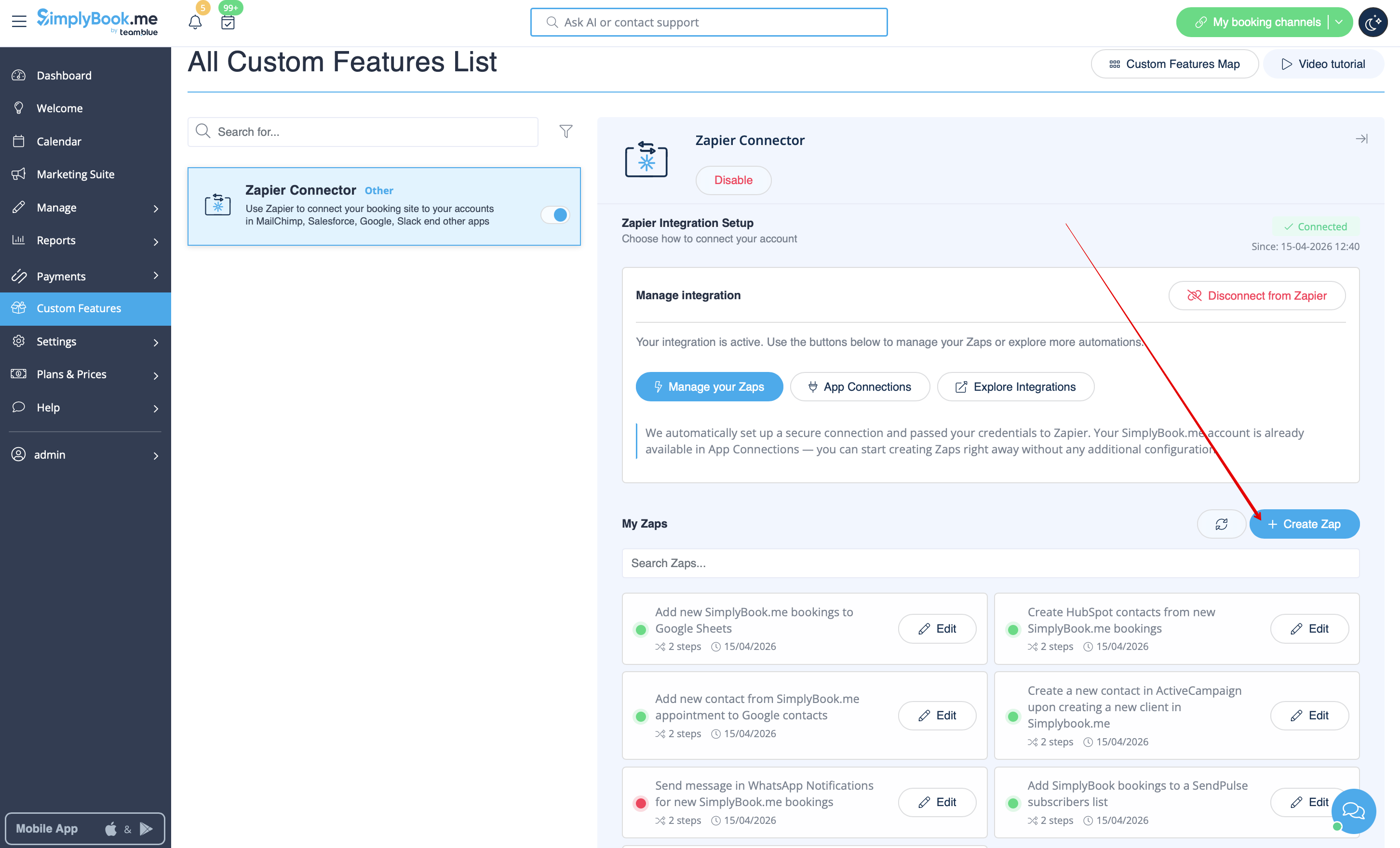
:3. Click on '''+ Create Zap''' button.
Connect to your Zapier account using the ‘’’Quick connect’’’ option
[[File:Create zap path.png|1200px|border | center|link=https://help.simplybook.me/images/2/24/Create_zap_path.png]]
[[File:Quick connect zapier.png|1200px|border | center|link=https://help.simplybook.me/images/8/84/Quick_connect_zapier.png]]
<br><br>
<br><br>
Or you can choose a manual connection by credentials.
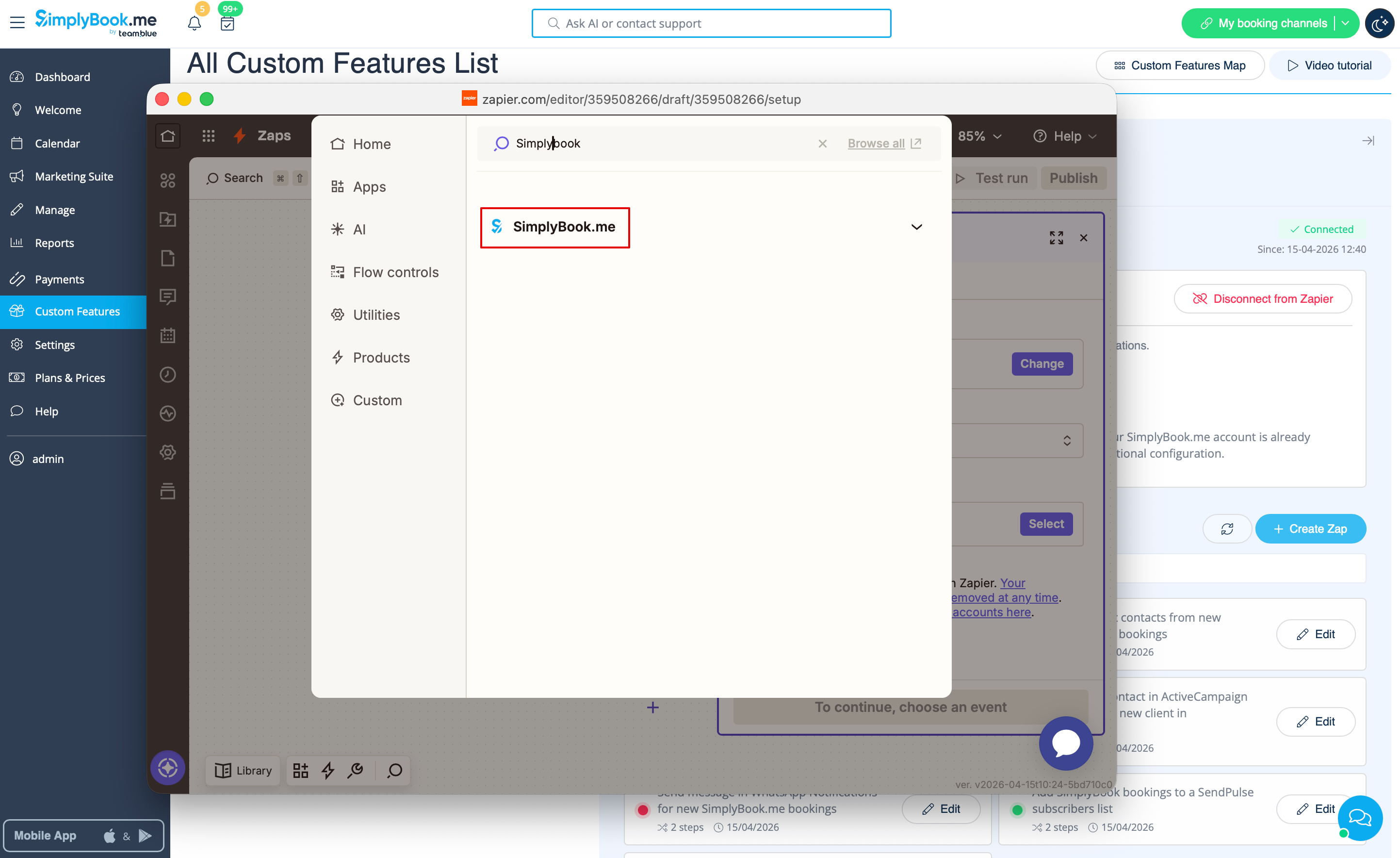
:4. In the popup that appears find SimplyBook.me in the list of apps to connect to.
:- Go to Zapier.com -> App connections page and click on “Add connection” button<br>
[[File:Zapier new sb as trigger.png|1200px|border | center|link=https://help.simplybook.me/images/1/13/Zapier_new_sb_as_trigger.png]]
[[File:Add connection zapeir side.png|1200px|border | center|link=https://help.simplybook.me/images/c/c2/Add_connection_zapeir_side.png]]
<br><br>
<br><br>
:- Select SimplyBook.me<br>
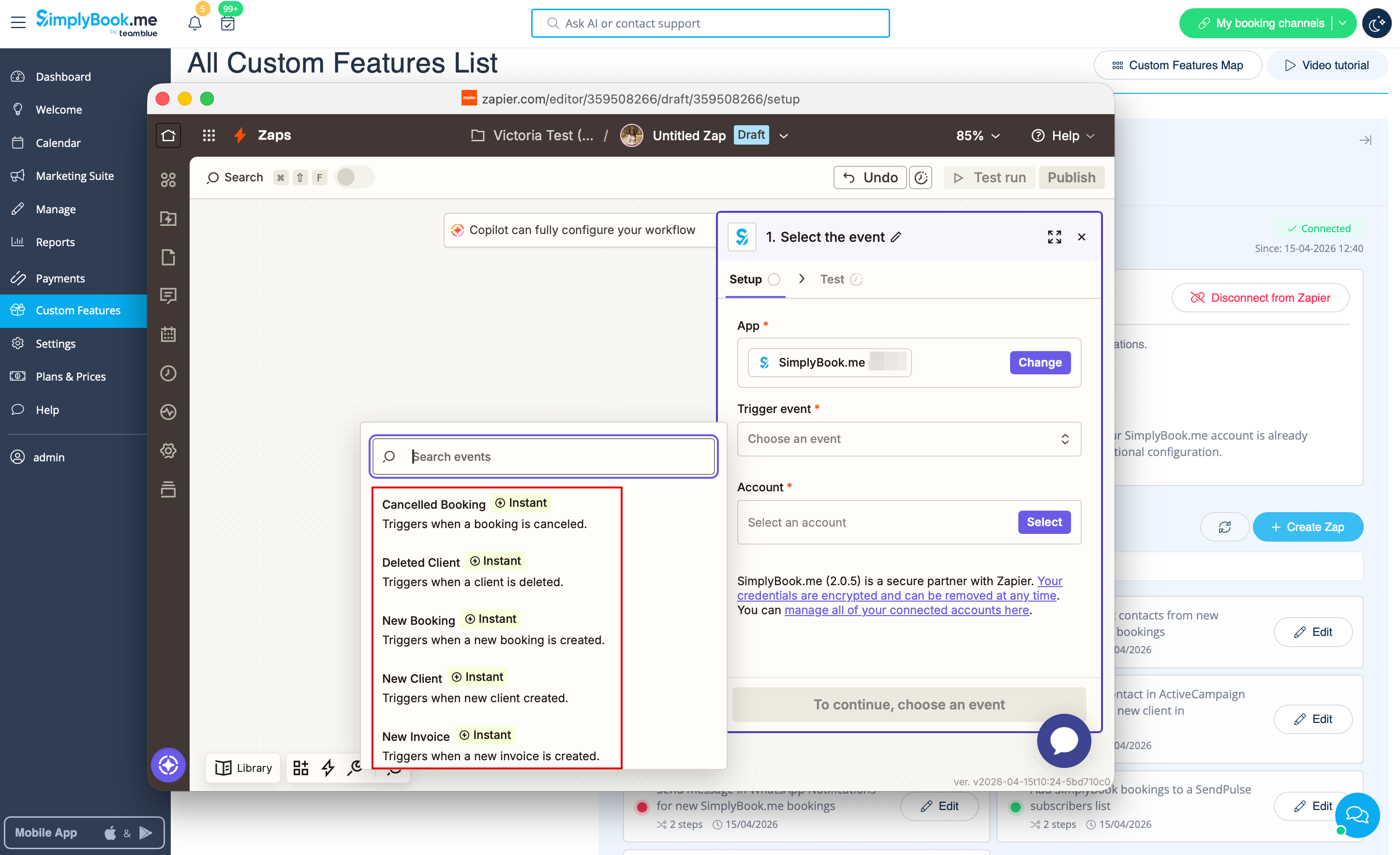
:5. Choose "New booking" trigger and the account that you have previously connected. Click "Continue".  
:- Copy company login, user login, generate and copy API key from your SimpyBook.me account<br>
[[File:Zapier new choose trigger event.png|1200px|border | center|link=https://help.simplybook.me/images/4/45/Zapier_new_choose_trigger_event.png]]
[[File:Zapier manual connection new.png|1200px|border | center|link=https://help.simplybook.me/images/c/c3/Zapier_manual_connection_new.png]]
<br><br>
:- Paste them to the corresponding fields on Zapier.com side and click on “Continue” option there. The account gets connected.
[[File:Credentials on zapier side new.png|1200px|border | center|link=https://help.simplybook.me/images/e/e9/Credentials_on_zapier_side_new.png]]
<br><br>
<br><br>
:6. Test your trigger, select the sample record and proceed to the action step.
<br><br>
<br><br>
''If Zapier shows an error "We could not find the booking" on test step don't worry, it may occur when your account is new or you have not got new bookings recently.<br>
You can skip test step and continue with setup.''
<br><br>
<br><br>

Latest revision as of 14:54, 17 April 2026

Information about message (contribute)
This message has no documentation. If you know where or how this message is used, you can help other translators by adding documentation to this message.
Message definition (Email notifications with Zapier)
:3. Click on '''+ Create Zap''' button.
[[File:Create zap path.png|1200px|border | center|link=https://help.simplybook.me/images/2/24/Create_zap_path.png]]
<br><br>
:4. In the popup that appears find SimplyBook.me in the list of apps to connect to.
[[File:Zapier new sb as trigger.png|1200px|border | center|link=https://help.simplybook.me/images/1/13/Zapier_new_sb_as_trigger.png]]
<br><br>
:5. Choose "New booking" trigger and the account that you have previously connected. Click "Continue". 
[[File:Zapier new choose trigger event.png|1200px|border | center|link=https://help.simplybook.me/images/4/45/Zapier_new_choose_trigger_event.png]]
<br><br>
:6. Test your trigger, select the sample record and proceed to the action step. 
<br><br>
''If Zapier shows an error "We could not find the booking" on test step don't worry, it may occur when your account is new or you have not got new bookings recently.<br>
You can skip test step and continue with setup.''
<br><br>
3. Click on + Create Zap button.


4. In the popup that appears find SimplyBook.me in the list of apps to connect to.


5. Choose "New booking" trigger and the account that you have previously connected. Click "Continue".


6. Test your trigger, select the sample record and proceed to the action step.


If Zapier shows an error "We could not find the booking" on test step don't worry, it may occur when your account is new or you have not got new bookings recently.
You can skip test step and continue with setup.