No edit summary |
No edit summary |
||
| Line 4: | Line 4: | ||
;How to use | ;How to use | ||
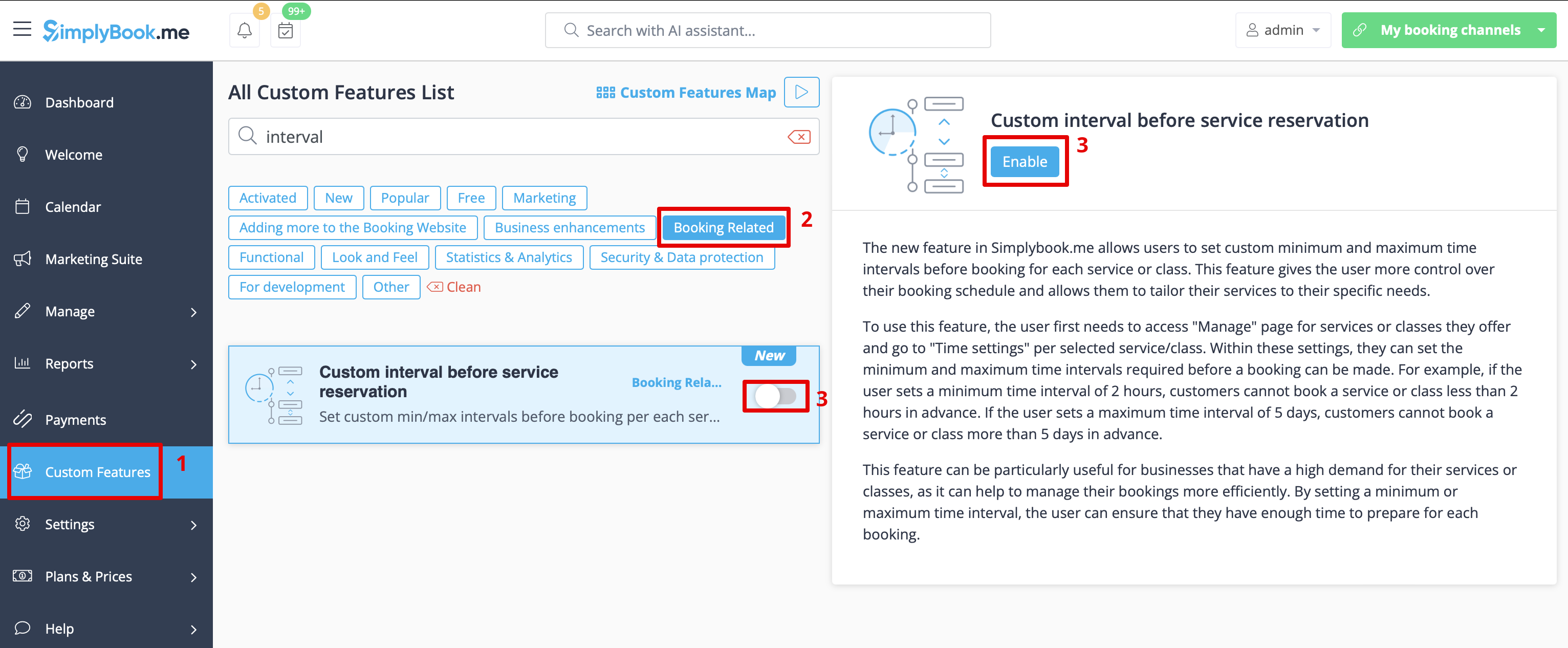
1. Enable Custom interval before service reservation custom feature in the Custom Feature section | 1. Enable Custom interval before service reservation custom feature in the '''Custom Feature''' section -> '''Booking Related'''. | ||
[[File:Custom interval before service enable path.png|1200px|center|link=https://help.simplybook.me/images/2/23/Custom_interval_before_service_enable_path.png]] | [[File:Custom interval before service enable path.png|1200px|center|link=https://help.simplybook.me/images/2/23/Custom_interval_before_service_enable_path.png]] | ||
<br><br> | <br><br> | ||
2. Go to Manage | 2. Go to '''Manage''' -> '''Services''' and choose the service you wish to adjust. Click on '''Time details''' tab and within these settings, you can set the minimum and maximum time intervals required before a booking can be made. | ||
[[File:Custom interval before service setup path.png|1200px|center|link=https://help.simplybook.me/images/7/77/Custom_interval_before_service_setup_path.png]] | [[File:Custom interval before service setup path.png|1200px|center|link=https://help.simplybook.me/images/7/77/Custom_interval_before_service_setup_path.png]] | ||
<br><br> | <br><br> | ||
For example, if you set a minimum time interval of 2 hours, your customers cannot book a service or class less than 2 hours in advance. If you set a maximum time interval of 5 days, your customers cannot book a service or class more than 5 days in advance. | For example, if you set a minimum time interval of 2 hours, your customers cannot book a service or class less than 2 hours in advance. If you set a maximum time interval of 5 days, your customers cannot book a service or class more than 5 days in advance. | ||
<br><br> | <br><br> | ||
3. After all adjustments done, click on Save&Close button. | 3. After all adjustments done, click on '''Save&Close''' button. | ||
<br><br> | <br><br> | ||
This feature can be particularly useful for businesses that have a high demand for their services or classes, as it can help to manage their bookings more efficiently. By setting a minimum or maximum time interval, the user can ensure that they have enough time to prepare for each booking.<br><br><br><br> | This feature can be particularly useful for businesses that have a high demand for their services or classes, as it can help to manage their bookings more efficiently. By setting a minimum or maximum time interval, the user can ensure that they have enough time to prepare for each booking.<br><br><br><br> | ||
Revision as of 16:01, 11 March 2024
This new feature allows users to set custom minimum and maximum time intervals before booking for each service or class. This feature gives the user more control over their booking schedule and allows them to tailor their services to their specific needs.
- How to use
1. Enable Custom interval before service reservation custom feature in the Custom Feature section -> Booking Related.
2. Go to Manage -> Services and choose the service you wish to adjust. Click on Time details tab and within these settings, you can set the minimum and maximum time intervals required before a booking can be made.
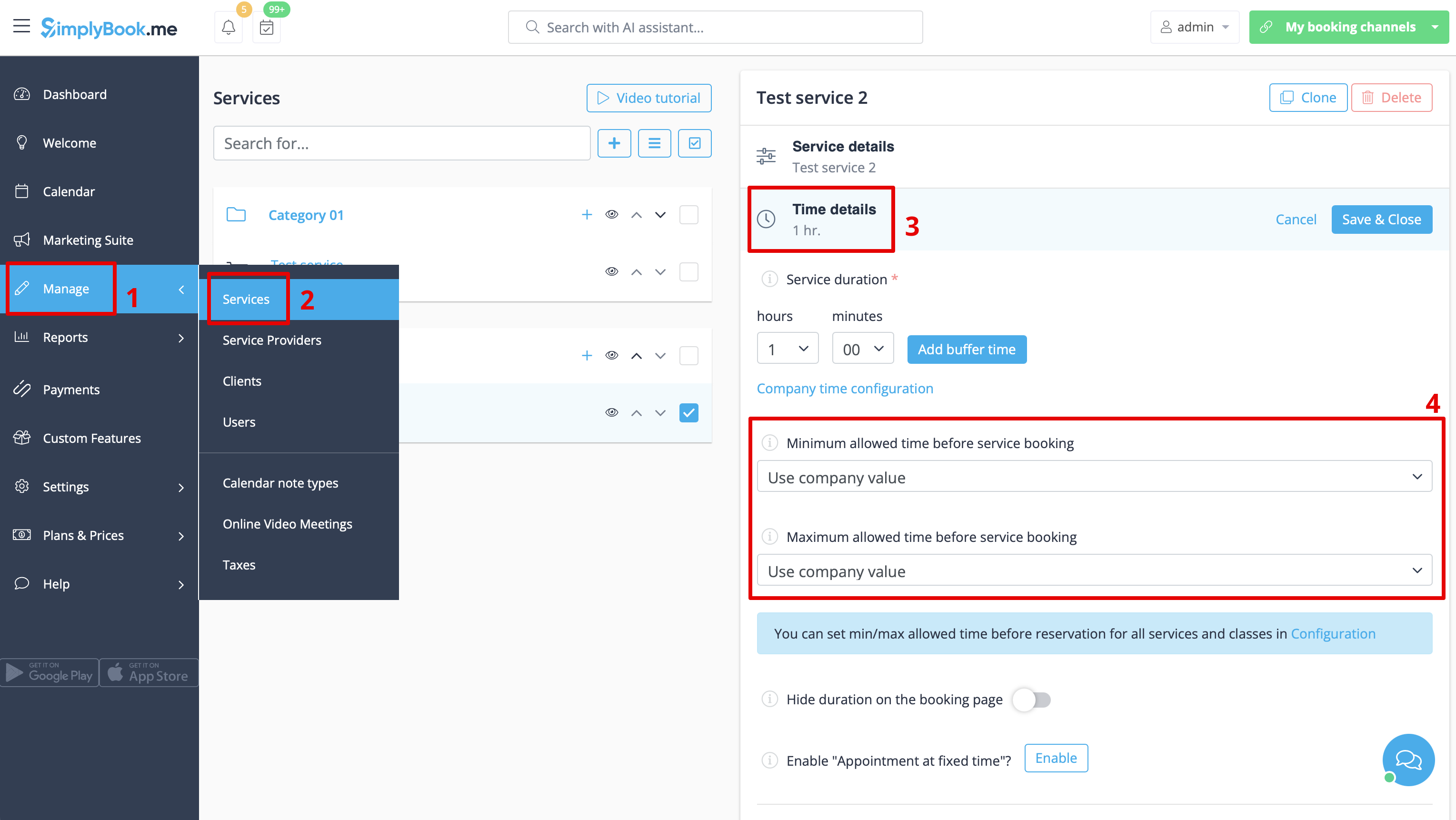
For example, if you set a minimum time interval of 2 hours, your customers cannot book a service or class less than 2 hours in advance. If you set a maximum time interval of 5 days, your customers cannot book a service or class more than 5 days in advance.
3. After all adjustments done, click on Save&Close button.
This feature can be particularly useful for businesses that have a high demand for their services or classes, as it can help to manage their bookings more efficiently. By setting a minimum or maximum time interval, the user can ensure that they have enough time to prepare for each booking.
