Hur ställer jag in min tillgänglighet?

Videohandledning 
Jag är ensam och utför endast 1 tjänst
I det här fallet kan du ange din tillgänglighet i Inställningar//Företagets öppettider (för vanligt veckoschema) och i Inställningar//Företagets öppettider//Schema för särskilda dagar (för schema för specifika datum). Använd skjutreglagen för att justera tillgänglig tid (ljusblå linje).
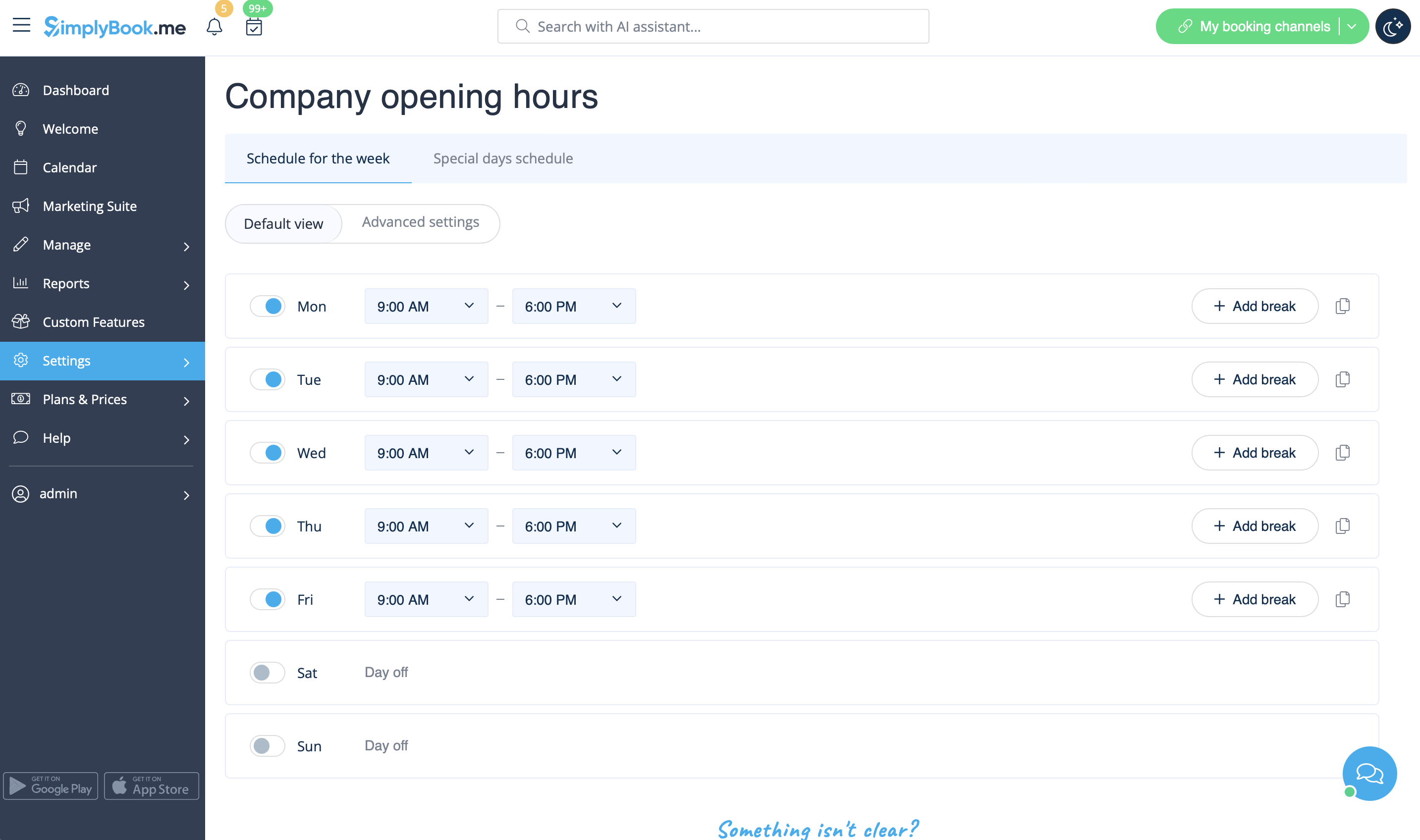
- Du kan också behöva
Jag har scheman för tjänster
I fliken Hantera//Tjänster//Tjänstschema flyttar du reglagen för att ställa in öppettider för denna tjänst om de skiljer sig från företagets vanliga schema.
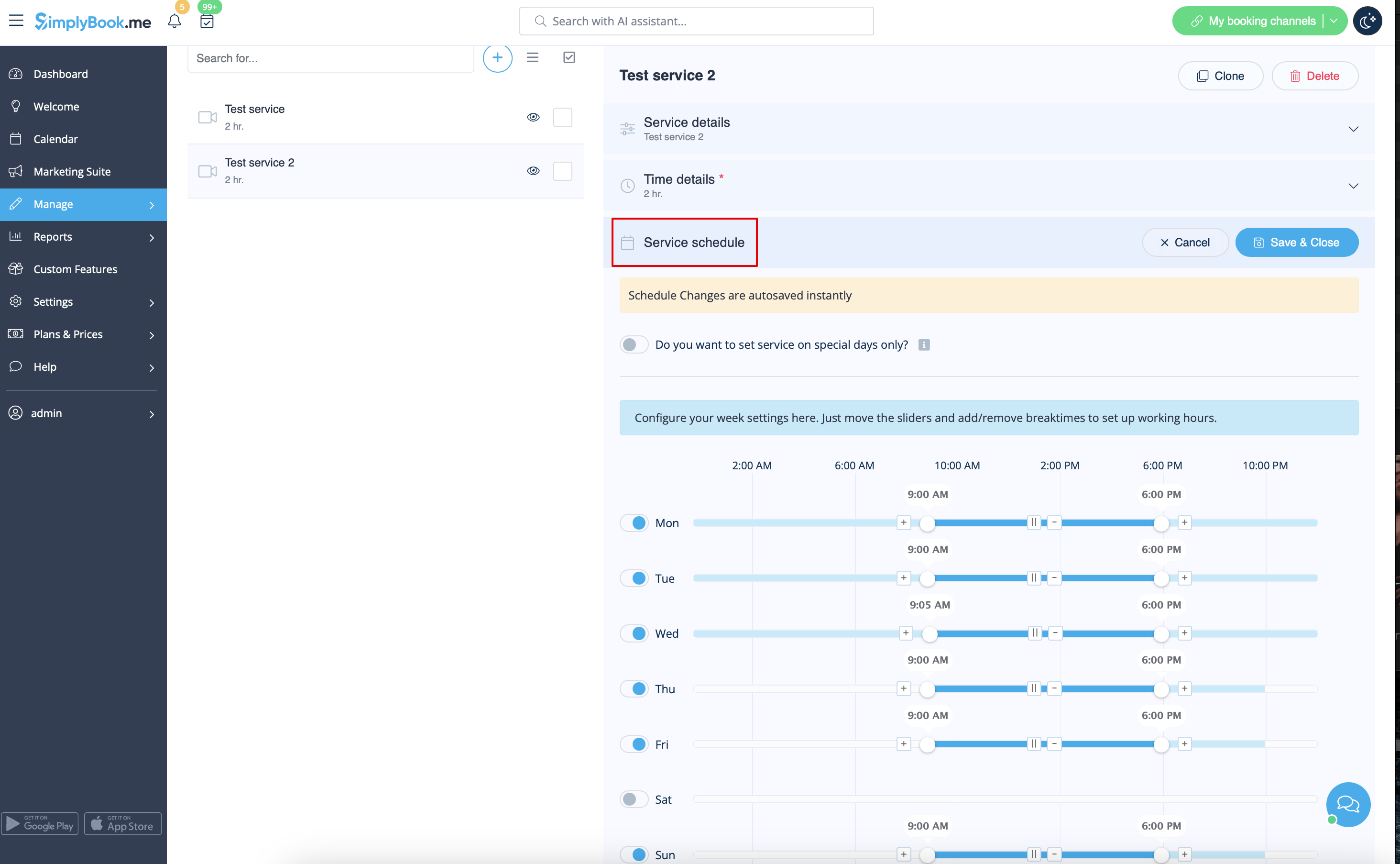
Om tjänsten har samma schema som företaget behöver du inte ändra något där, det tillämpas automatiskt.
Om du behöver ställa in några undantag i tjänstschemat för helgdagar eller andra behov, välj "Visa avancerade inställningar" och sedan fliken "Schema för särskilda dagar".

;Du kan också behöva:
Jag har scheman för leverantörer
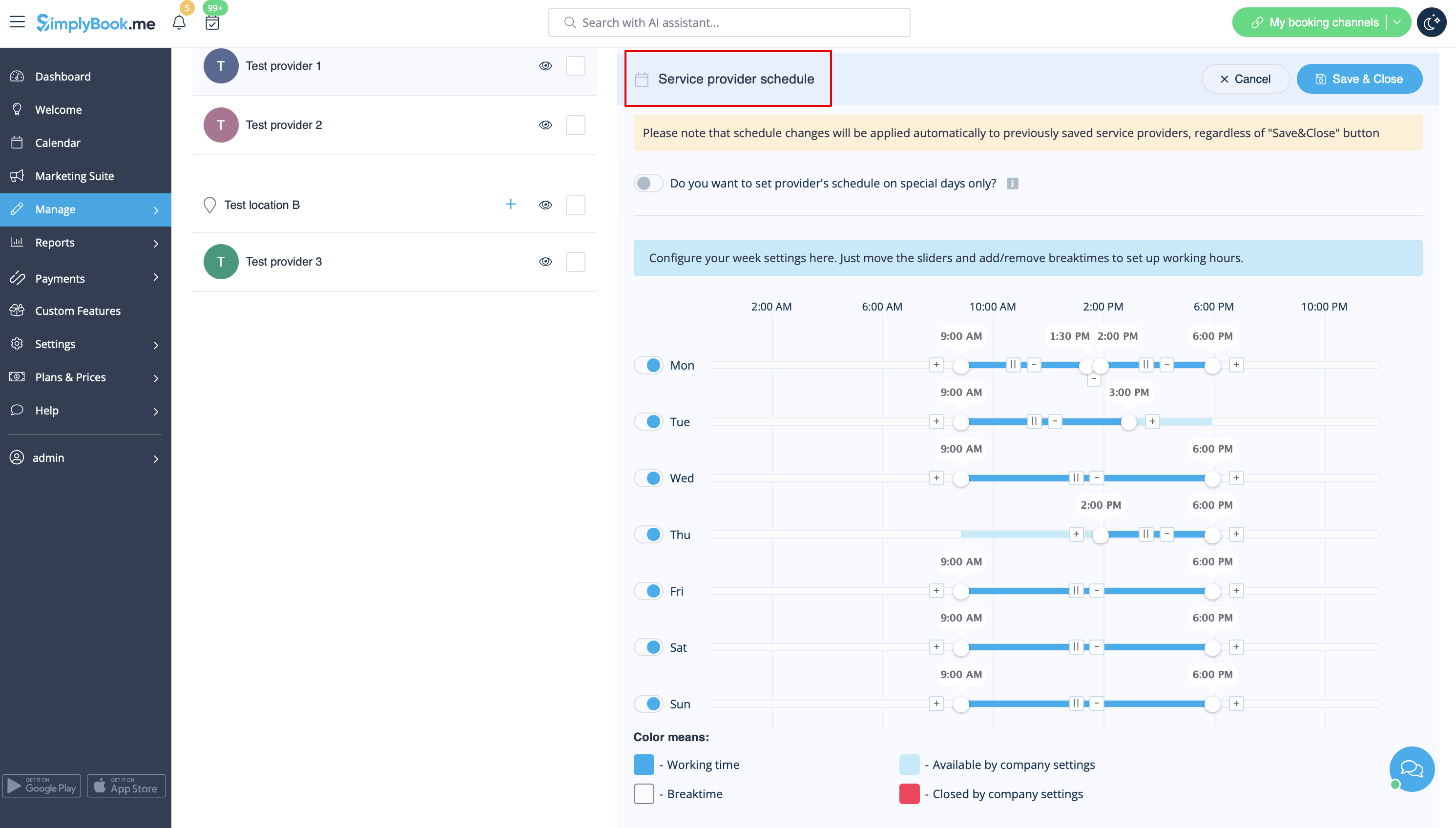
Du kan ställa in regelbundna scheman för leverantörer i Hantera//Tjänsteleverantörer//Tjänsteleverantörsschema eller i Inställningar // Leverantörsschema. Om du till exempel arbetar måndag–fredag kl. 9–17 ställer du helt enkelt in schemat för dessa datum genom att klicka på motsvarande tidsluckor för att göra dem tillgängliga (ljusblå) eller otillgängliga (ljusblå eller vita). För att göra en veckodag till arbetsdag eller ledig dag använder du växlaren bredvid veckodagens namn
You can set schedule for some specific date for providers in Settings // Providers schedule // Special days schedule tab. For example, if you work differently on certain date or have day off, you can click on the date and set schedule by clicking on the corresponding slots to make them available (bright blue)/not available (light blue or white).
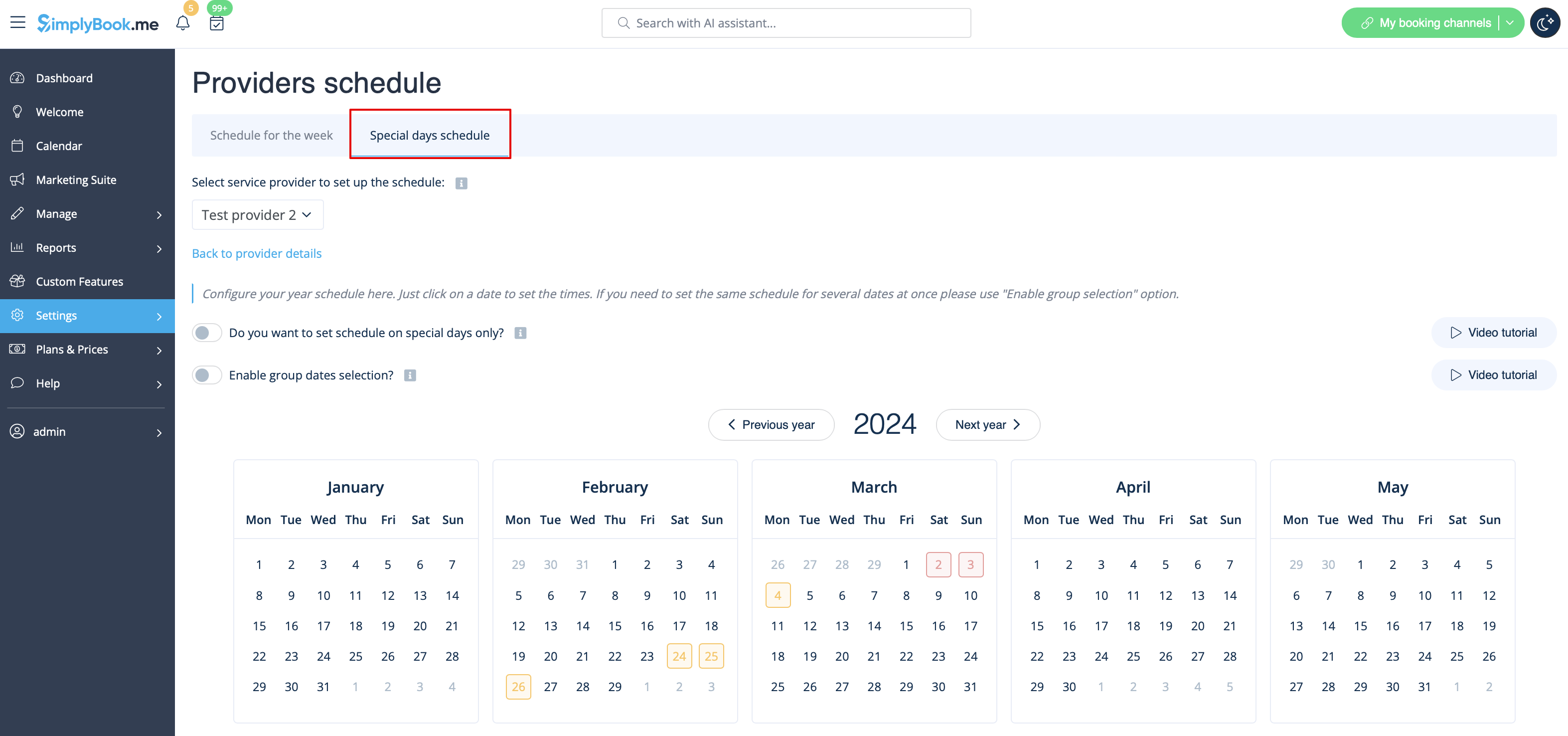
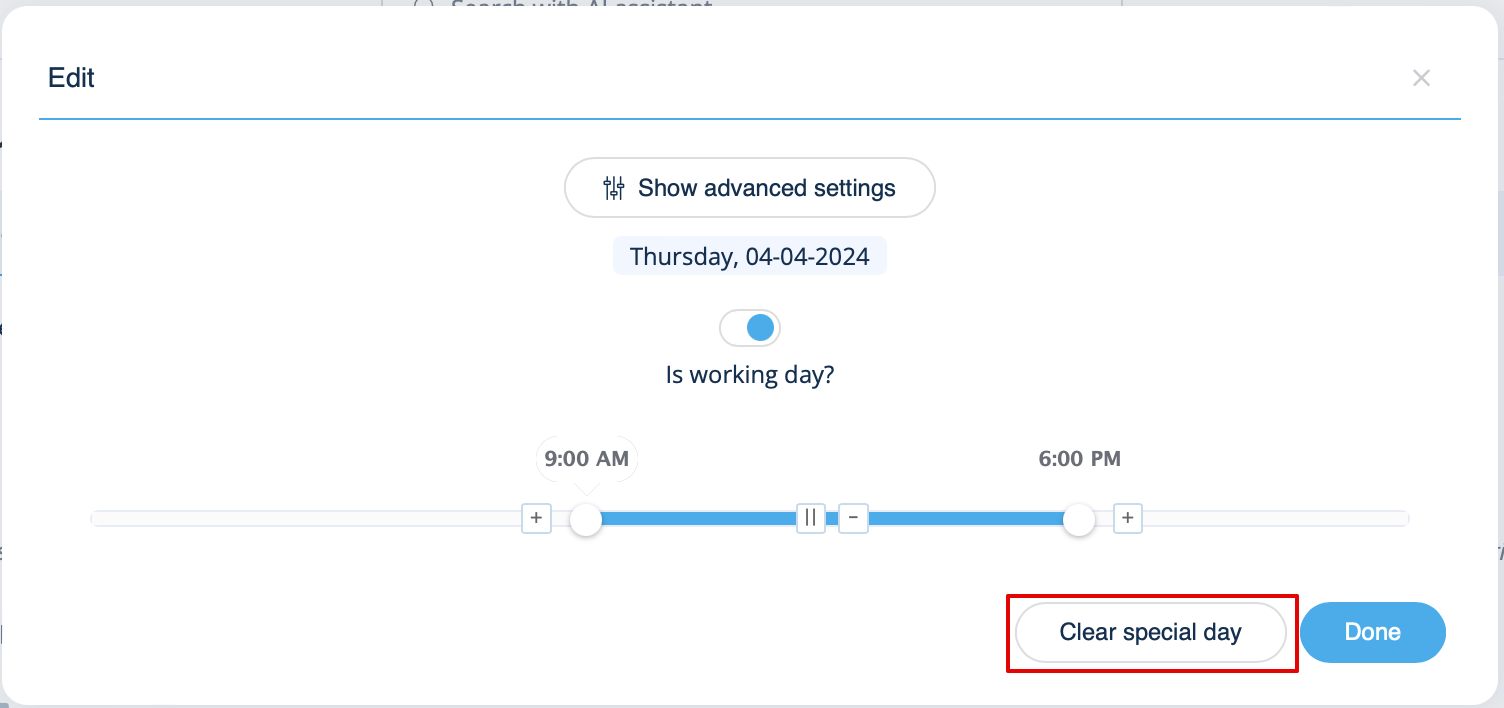
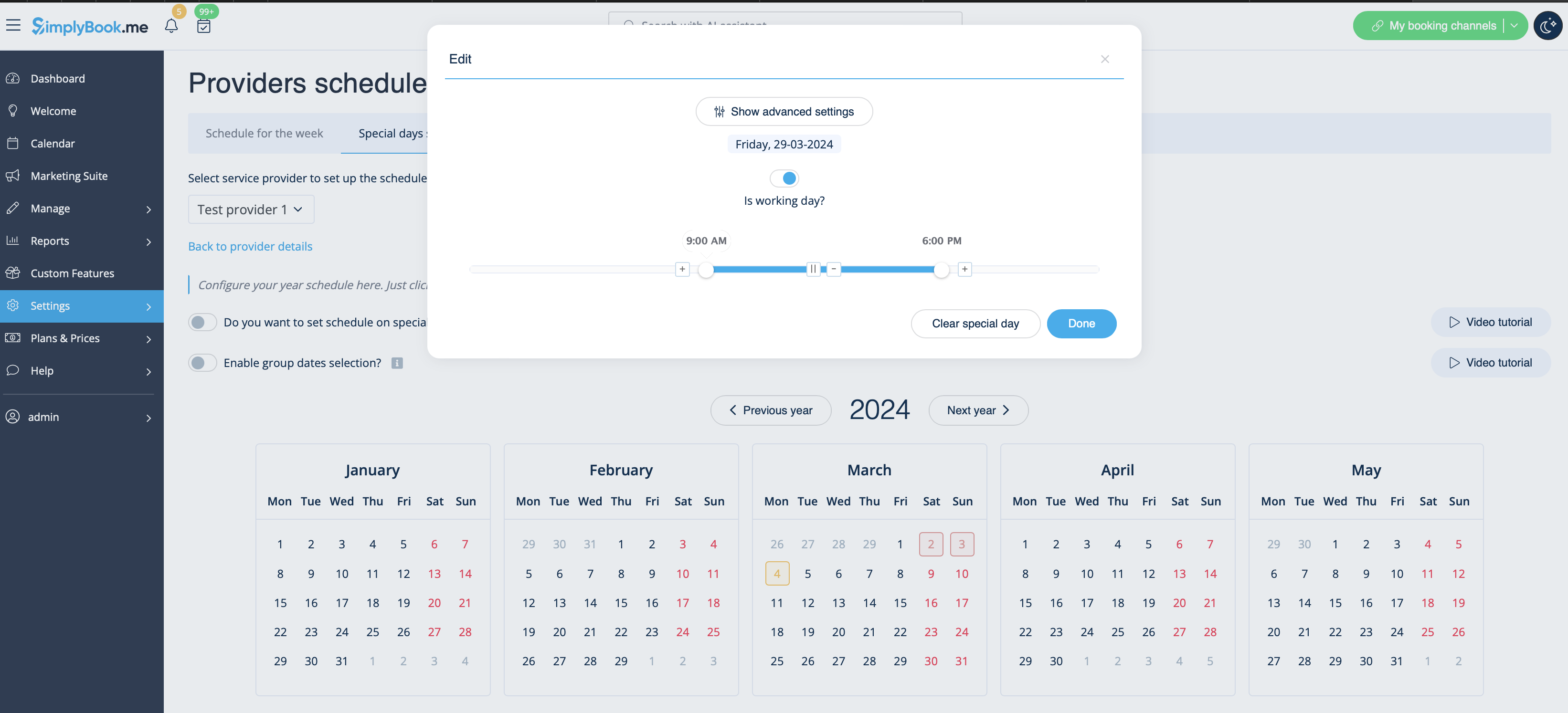
To make some date working/offday, click on the date and use switcher "Is working day?". If you need to remove special day settings for some date, click on the date and press white button "clear special day".
I have both schedules for services and for providers
If you have both schedules for services and for providers, then only intersection of available time for service and for provider will be available for booking. For example, service is available 9-12, provider is available 11-17, then only time 11-12 will be available for booking because earlier provider is not working and no one can perform the service and later, the service is not available.
Please note! Providers'/Services' working hours should be within opening hours of the company! If you can't open specific times for provider/service, please open those times for the company first and then for provider/service.
- Please check our video tutorial on setting up the availability
Opening hours vs special days
There are 2 types of time settings:
- Opening hours.
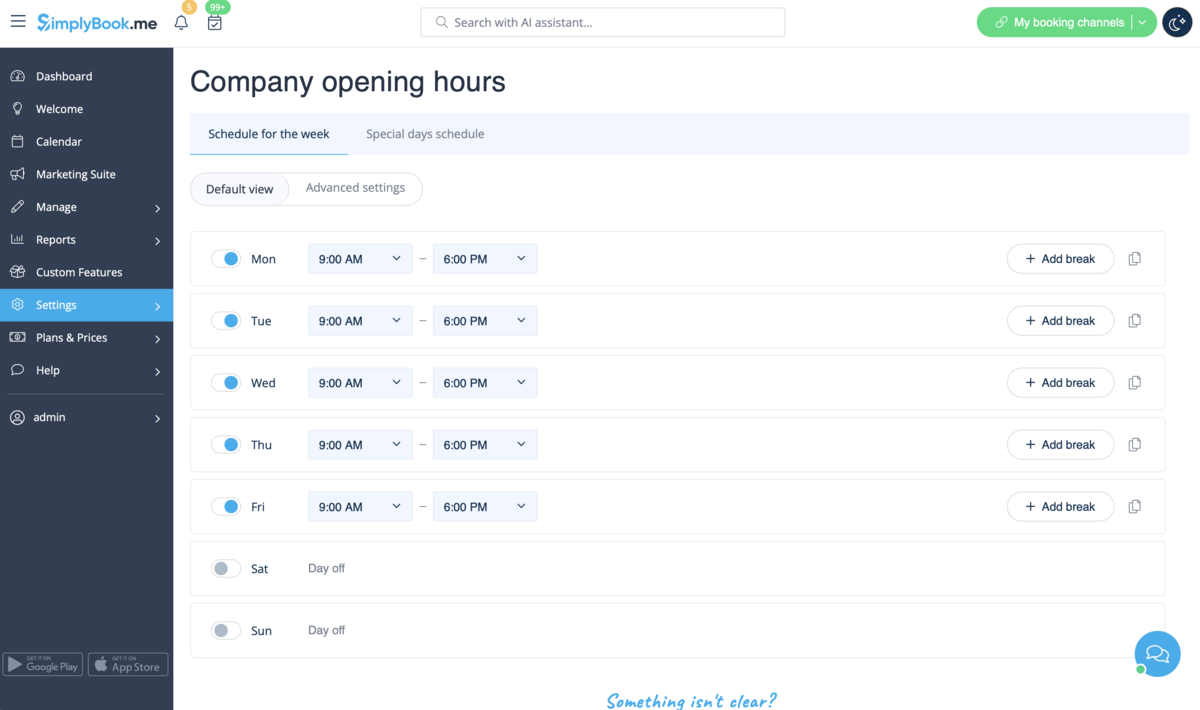
It is regular schedule you have on a weekly basis. If you are the only provider, you can set it in Settings // Company opening hours. If you have several providers, you can set their regular schedule in Settings // Provider schedule. For example, if you work Monday-Friday 9a.m - 5p.m you simply set schedule for those dates by clicking on the corresponding slots. To make day of the week working/off use switchers near weekday names.
- Special days
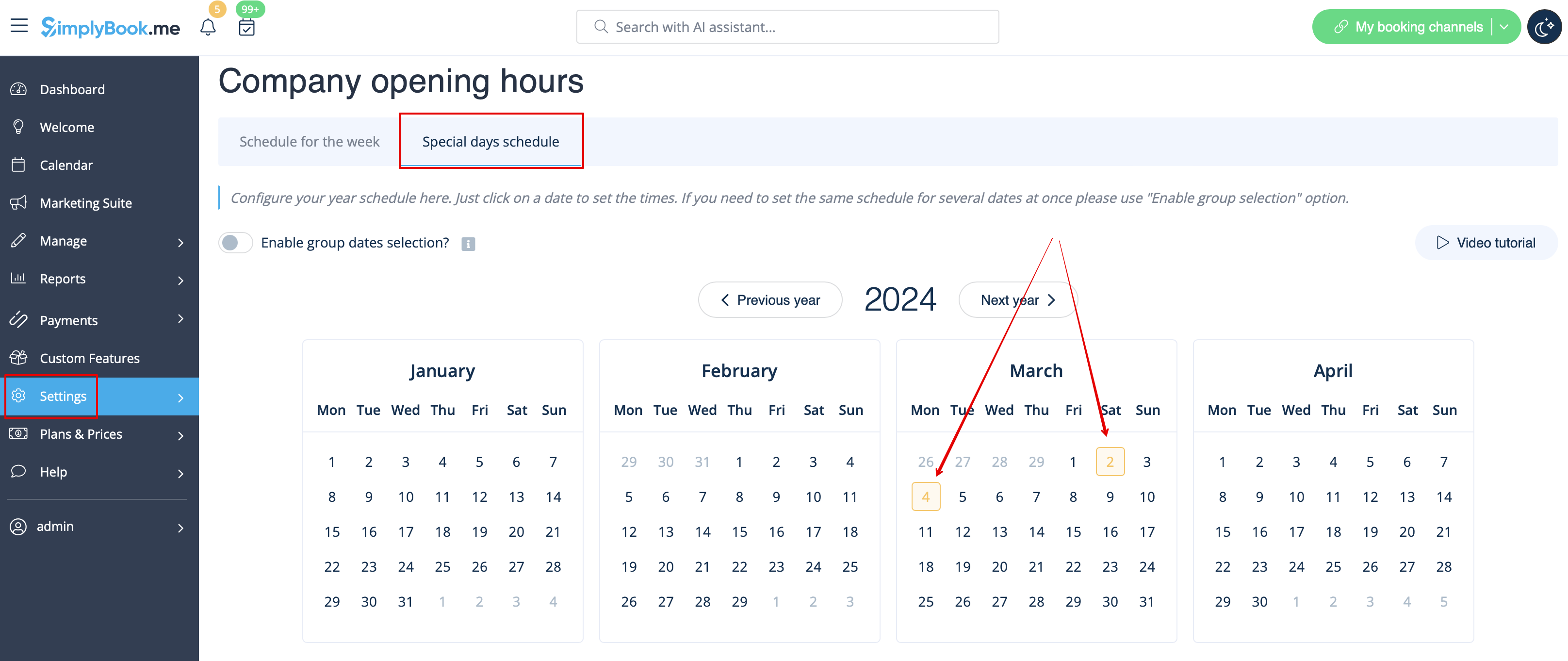
Contrary to Opening hours, which is regular schedule, Special Days is schedule by date. If you do not have regular schedule or plan one-time event, you can use Special days to open/close only specific dates. To set specific schedule for company (Settings // Company opening hours // Special days schedule) or provider (Settings // Providers schedule // Special days schedule) click on the date and insert the schedule you need or make it a day off. This feature can be used if you plan to open in months and want to prevent bookings until then (make all days off before the opening date) or to insert national holidays in your schedule. Special days of the company are highlighted with yellow, providers' special days are highlighted with red.
Please note! Providers'/Services' working hours should be within opening hours of the company! If you can't open specific times for provider/service, please open those times for the company first and then for provider/service.
Special Days Use Guide
There are cases where you or one of your employees may need a day off or wish to adjust working hours for a specific date without affecting other scheduled days.
Simplybook.me provides a simple solution for this.
- How to use
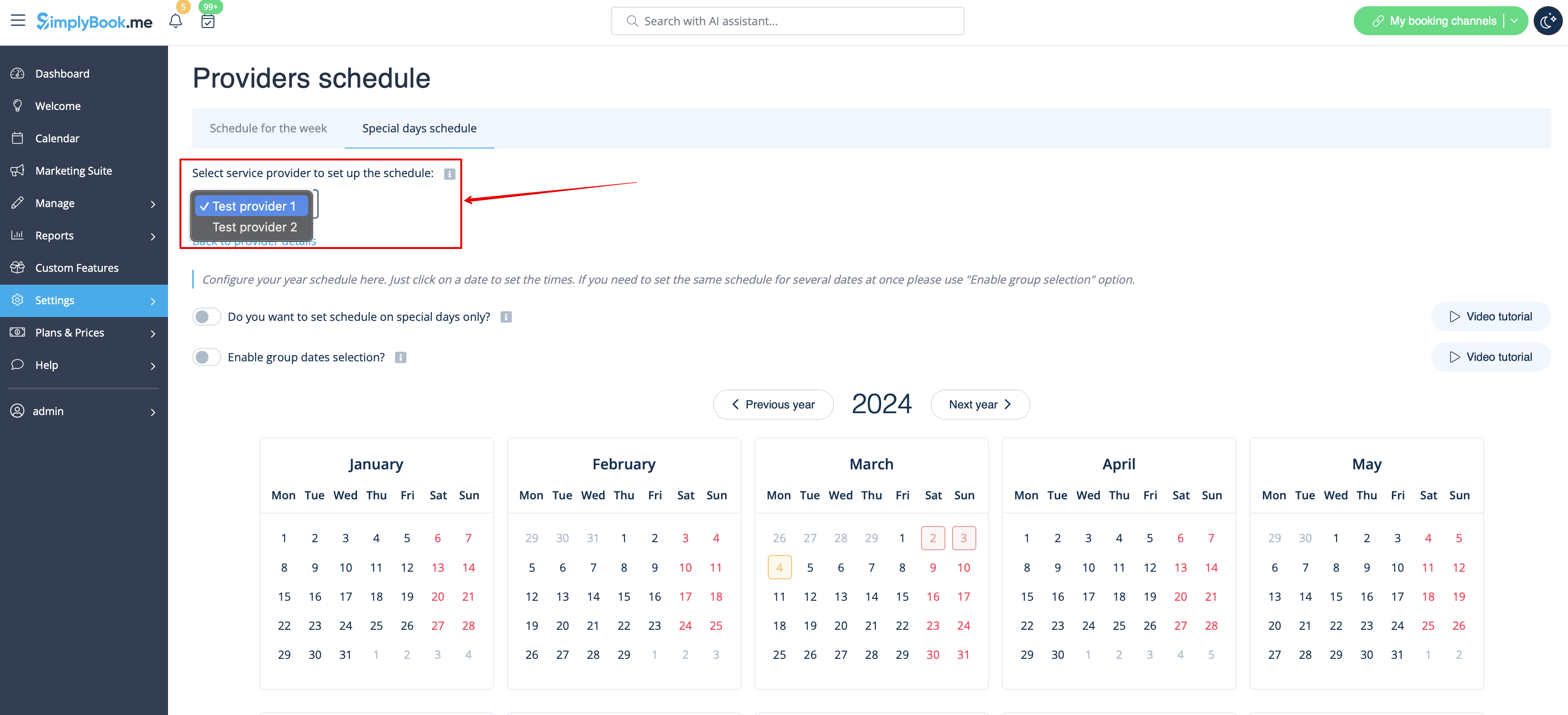
1. To set up a special day schedule for a specific provider, navigate to Settings > Providers schedule > Special days schedule section (located at the top of the page).
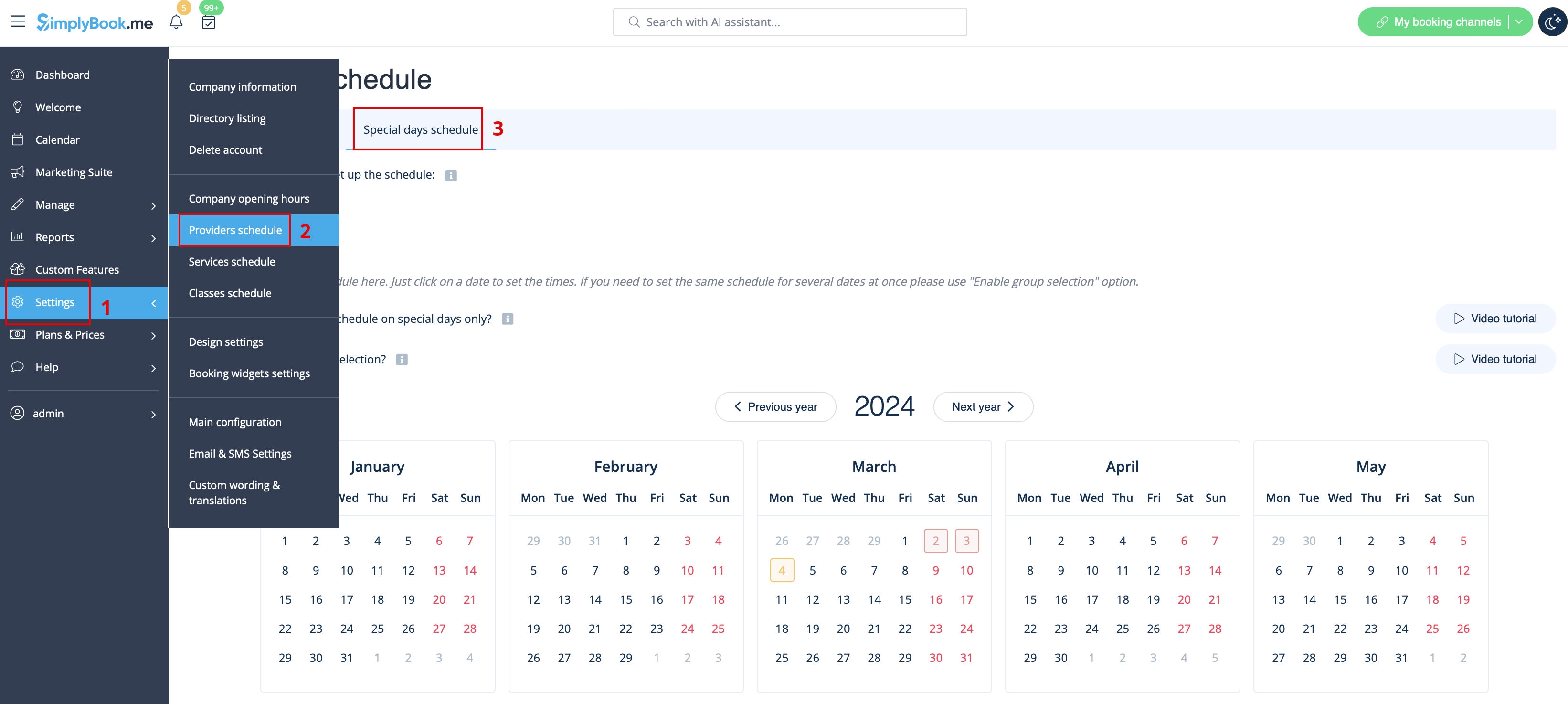
2. Choose the service provider on this page to set up the special days schedule.
3. Clicking on the desired date opens a window for setting up the schedule for that provider on a specific date. You can adjust the working hours or create a day-off by toggling “Is working day?” and clicking the “Done” button.
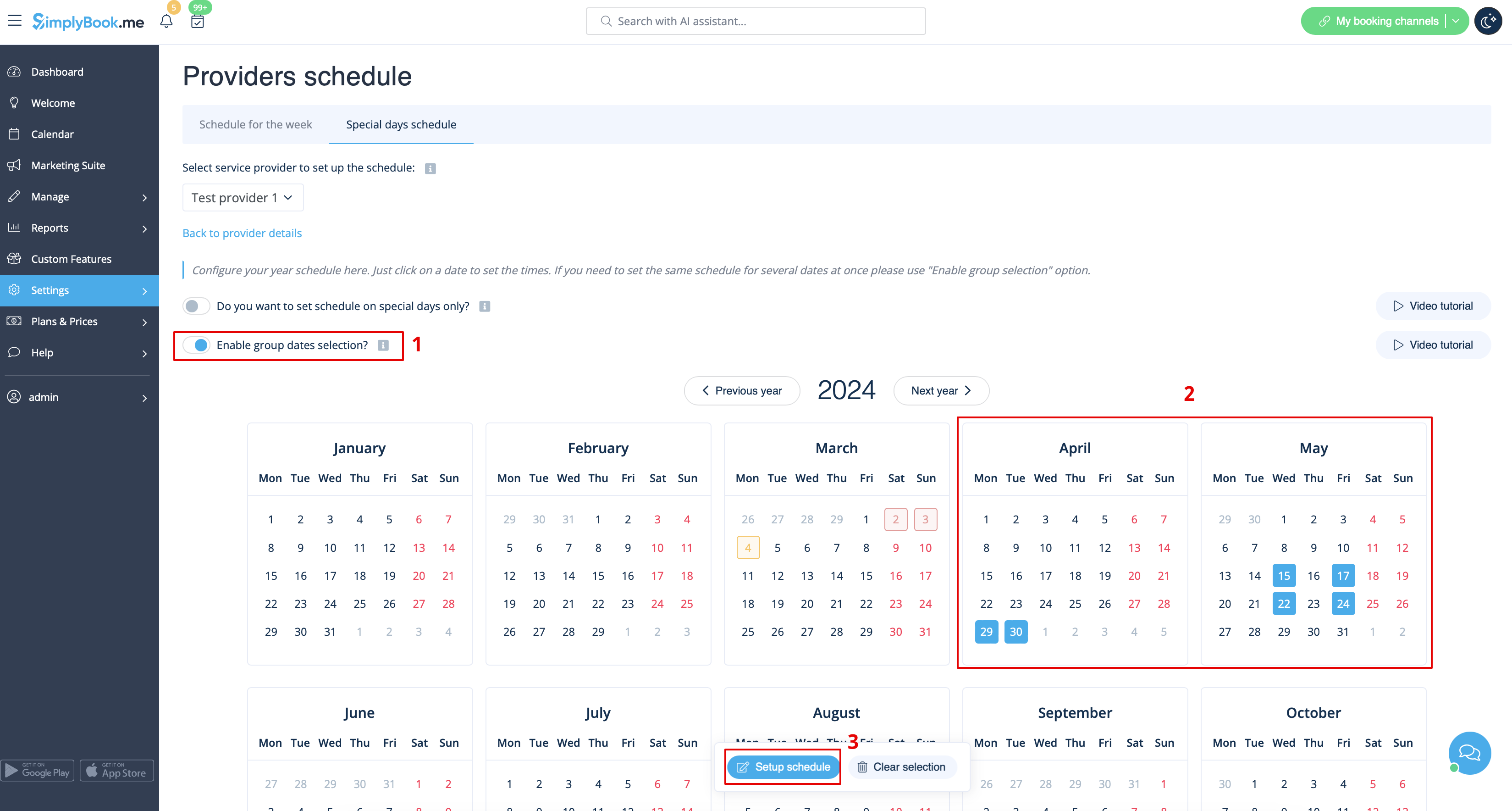
4. If there's a need to adjust several dates for a particular provider with the same schedule, use the toggle “Enable group dates selection.” Click on it, choose the dates, and click the “Edit schedule” button.
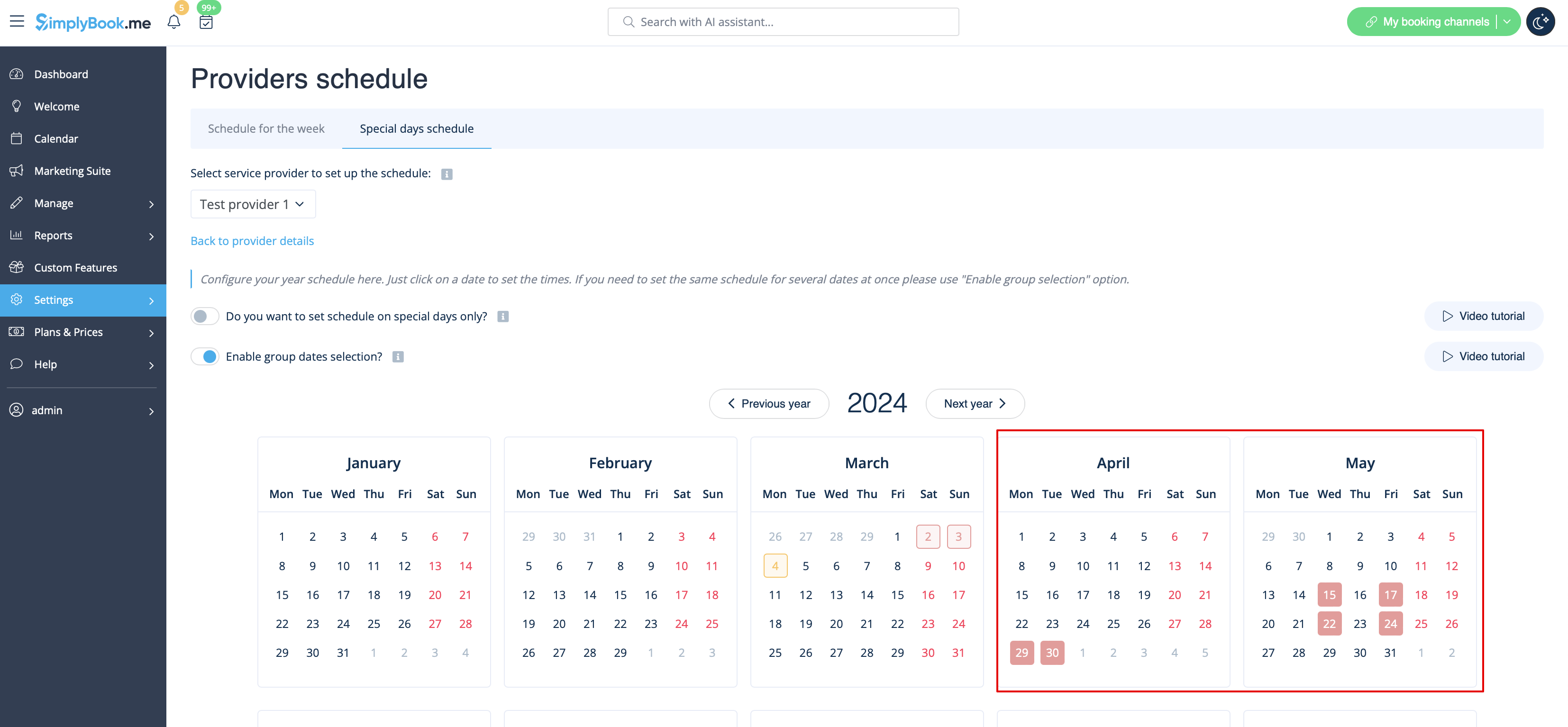
You'll see the same window with options to adjust the schedule or create a day-off for the provider. The calendar will display special days highlighted in red.
Similar actions can be performed for a particular service on a special day in Settings > Service schedule > Special days schedule section, following the steps described in this guide.