Kort overzicht van het systeem
U kunt beginnen met het bekijken van de twee onderstaande video's. Deze geven u een snel overzicht van hoe u het systeem kunt gebruiken.
- Een korte video over enkele dingen die het SimplyBook.me-systeem voor u kan doen
- En hier is nog een korte video over hoe u aan de slag kunt gaan
Nadat u uw account bij SimplyBook.me heeft geregistreerd, is de volgende stap het organiseren van uw werkschema, het configureren van aanbieders, diensten en tal van andere zaken.
We raden u aan ons videokanaal te bekijken, waar u tal van video's vindt om u op weg te helpen. https://www.youtube.com/@SimplyBook-me
Wanneer u een account aanmaakt, maakt het systeem automatisch 2 pagina's voor u aan: de beheerdersinterface en de boekingspagina.
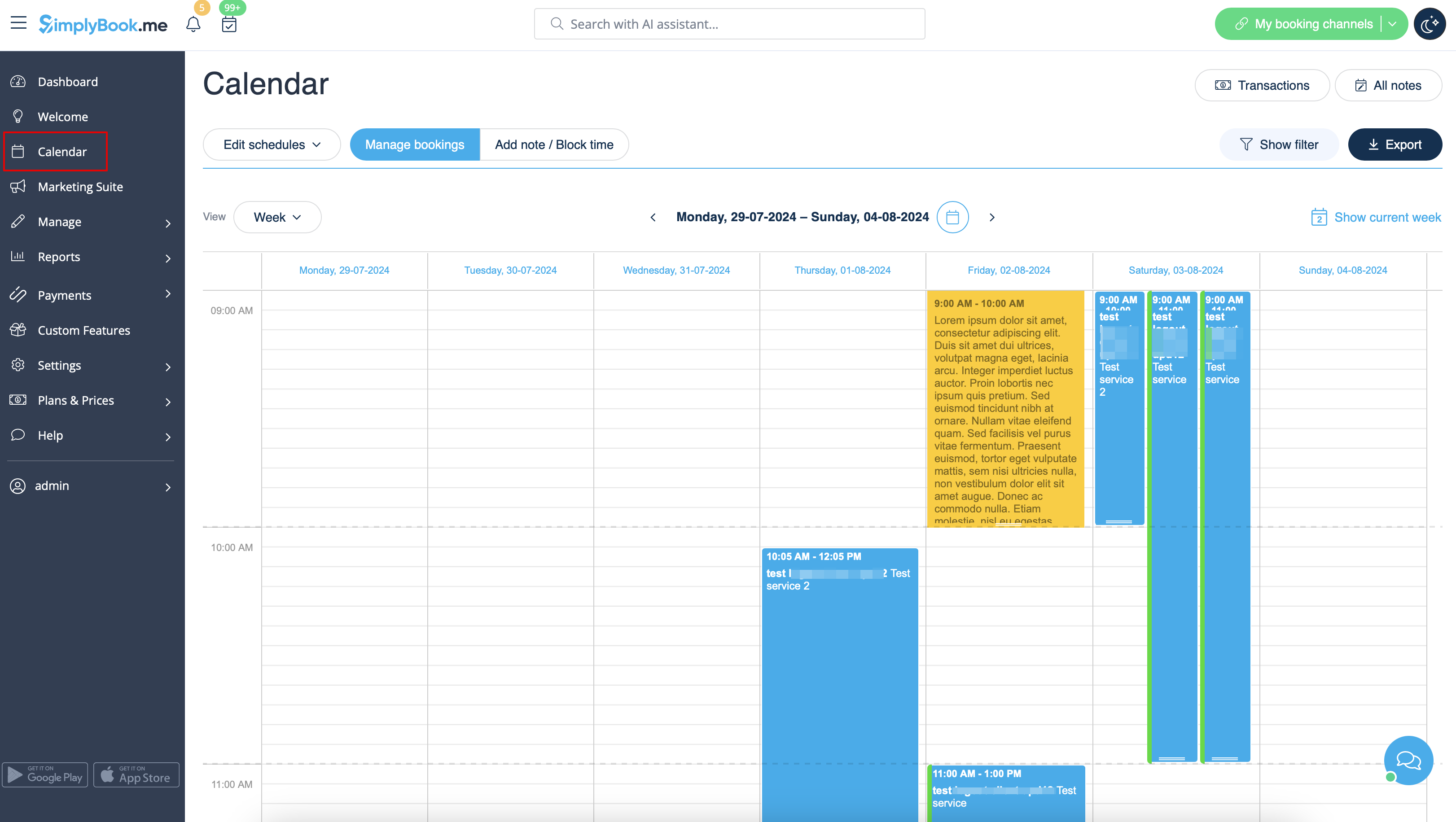
De beheerdersinterface is waar u inlogt en uw boekingen, instellingen, ontwerp enz. beheert. Klanten hebben geen toegang tot die pagina. (Voorbeeld)
De boekingspagina is de interface voor uw klanten. Daar kunnen zij uw diensten boeken en contactgegevens achterlaten. U kunt uw boekingspagina altijd openen door op de knop "Mijn boekingswebsite" in de rechterbovenhoek van uw beheerderspagina te klikken. U wordt dan naar de boekingspagina geleid en u kunt de url ook naar uw klanten sturen, zodat zij uw bedrijf gemakkelijk kunnen vinden. (Voorbeelden)


- 1. Bovenste balk. Met de knop met drie streepjes kunt u het volledige menu aan de linkerkant weergeven/verbergen. Het laatste nieuws wordt gemarkeerd als gele meldingen. Berichten worden gemarkeerd met rood en meldingen met groen.
- 2. Het eerste tabblad dat u ziet, is Dashboard. Hier vindt u statistieken over uw prestaties, uw huidige abonnement, boekingen, uitvoerders, activiteiten van klanten, enz. Door de informatie te analyseren, kunt u conclusies trekken over uw bedrijf en bedenken wat u kunt doen om het te verbeteren. Als u meer wilt weten over elke sectie, drukt u gewoon op het "i"-teken.
- 3. Op de welkomstpagina kunt u algemene informatie over uw account bekijken, zoals links naar de beheer- en klantpagina's, uw huidige abonnement en uw saldo. U vindt er ook enkele handige videohandleidingen over hoe u het systeem kunt instellen.
- 4. Calendar is a section where you can add, edit and delete your bookings and quickly add break times.
- 5. Marketing Suite tab contains various tools that allow to develop your business and increase its visibility for the customers.
- 6. Manage tab contains several sections:
- Services - add, delete and edit services + create events
- Service Providers - add, delete and edit providers
- Clients - add, edit and delete clients
- Users - add, edit and delete users.
- Classes option appears when you enable Classes custom feature and allows to create classes. You can use classes option only or combine them with services. They will be displayed together on the booking site.
- Packages section appears if the corresponding custom feature is enabled and allows to sell packages containing different services, products and add-ons.
- Membership tab appears if you use Membership custom feature and allows you to create different kinds of memberships for your clients.
- Service add-ons tab will appear if you enable Service Add-Ons feature. It is one more up-selling option to enhance your business.
- Products for sale can be accessed when Products for Sale custom feature is switched on. This functionality allows you to create additional items to sell to the customers when they book.
- Coupons and gift cards section appears if you are using Coupons and Gift cards custom feature for issuing gift cards and allowing your clients to have some discounts.
- Related resources tab appears when Related Resources custom feature is enabled and allows to manage appointment related equipment.
- Intake forms tab can be seen when Intake forms custom feature is enabled. Here you can create additional questions you wish to ask your clients during the booking process.
- Client fields tab is present when the corresponding custom feature is on and allows to manage the fields for the registration form on the booking website.
- News tab appears when News custom feature is enabled and allows to create and edit the posts for the booking website.
- Status is available when the corresponding custom feature is enabled and gives access to managing the bookings statuses.
- Flexible notifications option is there when Flexible notifications is on and allows to create service and/or provider specific booking notifications.
- Book soon notification system tab s there when you have the corresponding custom feature enabled. Here you can create reminders to book your services again.
- Calendar note types submenu allows to create various color-coded notes types to be afterwards used on the Calendar page.
- Calendar sync tab appears when Calendar sync custom feature is on and allows to manage the connected Google/Outlook calendars sync options.
- Online video meetings submenu is present when the corresponding feature is enabled and allows to edit the video tool connections per system providers.
- Taxes tab appears if you are using Accept payments custom feature and allows to create different tax options.
- Custom page option is present when you have Custom page feature enabled and gives the possibility to create additional pages and links for the booking website.
- 7. Reports tab contains different kinds of statistics you may wish to analyze and reviews from your clients
- 8. Custom Features. Custom Features are used to enhance the system and customize it in line with your needs. Please see the list of all Custom Features and their functions here.
- 9. Settings section allows to set schedules for the whole company, as well as the separate services/classes and providers. It also contains various general options for your account starting from date format and notifications templates to website widgets creation.
- 10. Plans&Prices.
- Subscriptions. Here you can view different tariffs available for you and purchase or upgrade subscriptions.
- Additional items. Here you can purchase SMS credits, additional bookings and other items.
