Online videovergaderingen via Zoom
Om verbinding te maken met Zoom, hebt u een Zoom-account nodig. Elke medewerker met de rechten van een planningbeheerder kan Simplybook.me verbinden met Zoom.
SimplyBook.me kan slechts verbinding maken met één Zoom-account.
Let op:
- Zoom-boekingen worden niet toegevoegd aan uw Zoom-vergaderpagina in Zoom. Om online vergaderingen te controleren, gebruikt u filters per dienst in de Simplybook.me-beheerdersagenda om alleen boekingen voor de gewenste dienst te zien.
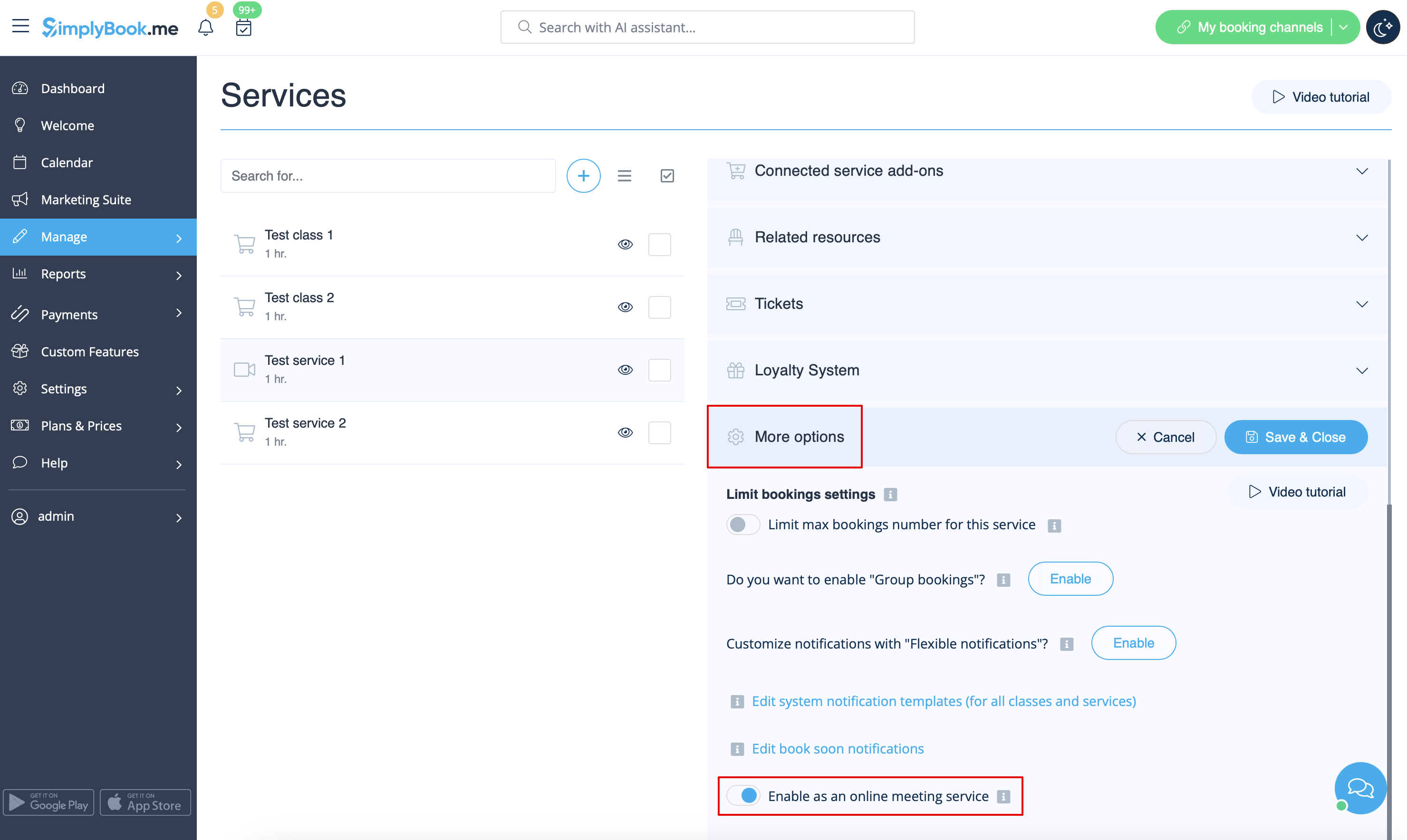
- Zelfs nadat het Zoom-account is verbonden, is videoconferencing standaard uitgeschakeld voor nieuwe diensten. Om videoconferenties toe te voegen aan een nieuwe dienst, gaat u in Beheer ->Diensten/Lessen naar Meer opties perdienst/les en schakelt u deze in als online vergaderdienst.
- Klanten die een groepsles bijwonen, ontvangen unieke Zoom-links, maar deze links leiden allemaal naar dezelfde Zoom-vergadering.
- Hoe instellen
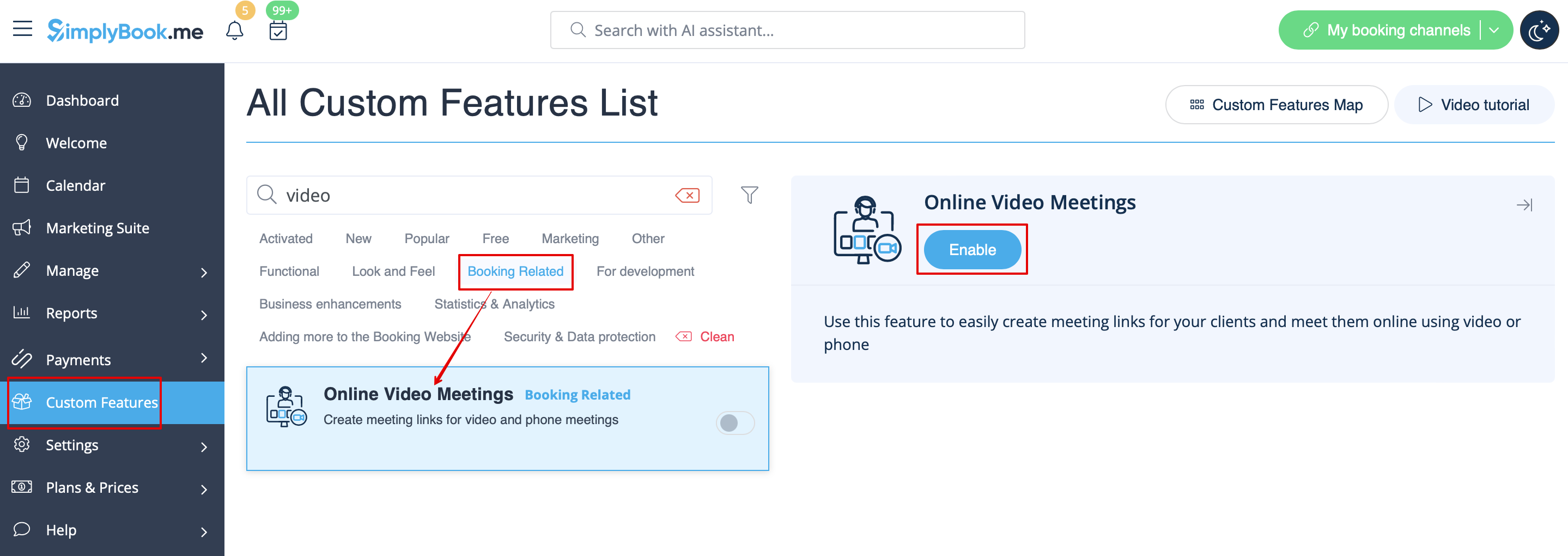
1. Schakel de aangepaste functie Online vergaderingen in uw SimplyBook.me-account in door naar de pagina Aangepaste functies in uw Simplybook.me-beheerdersinterface te gaan en op de knop Inschakelen naast de aangepaste functie Online videovergaderingen te klikken.
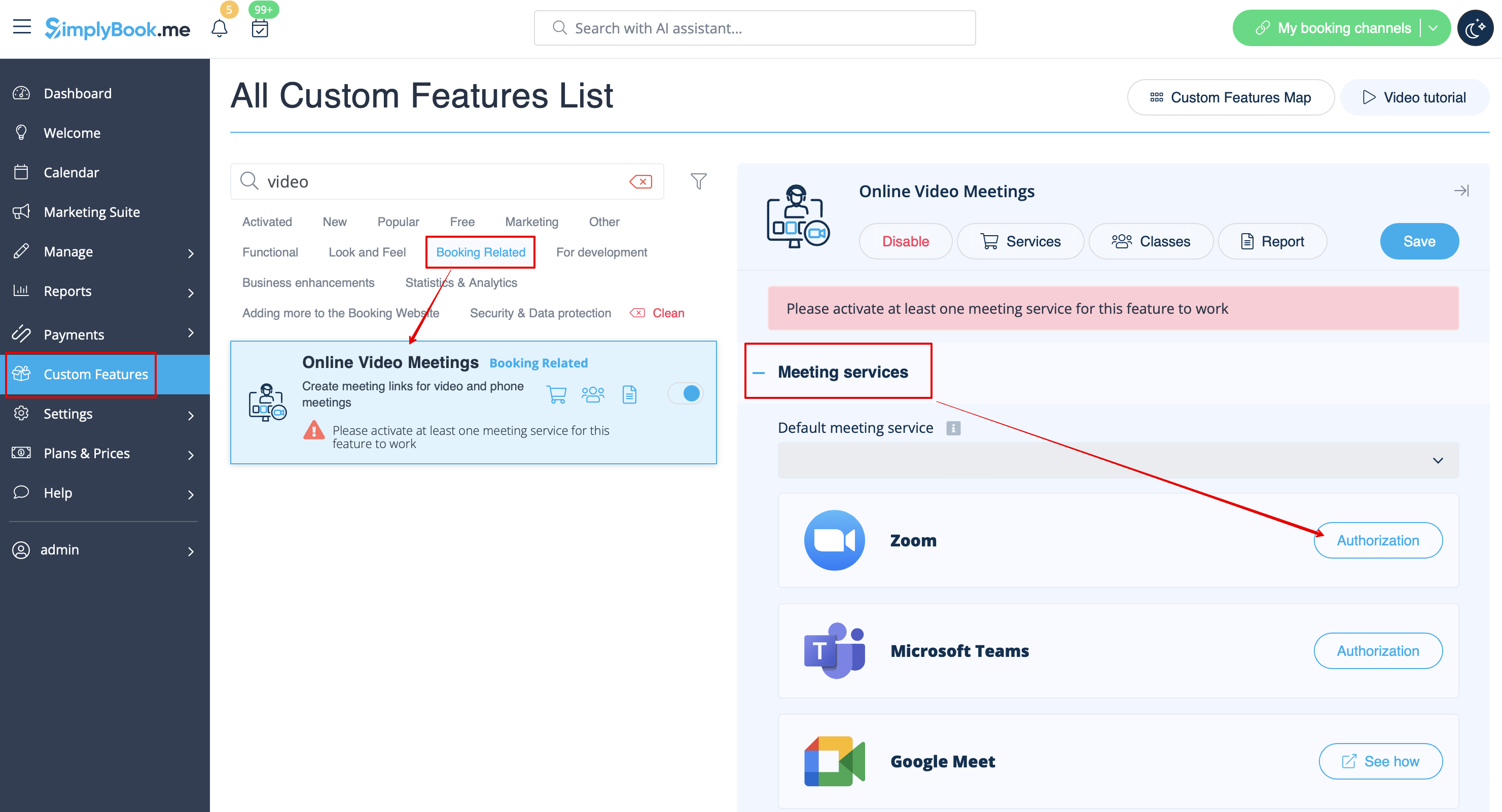
2. In the feature settings click on Authorization button near Zoom option to connect your Zoom account.
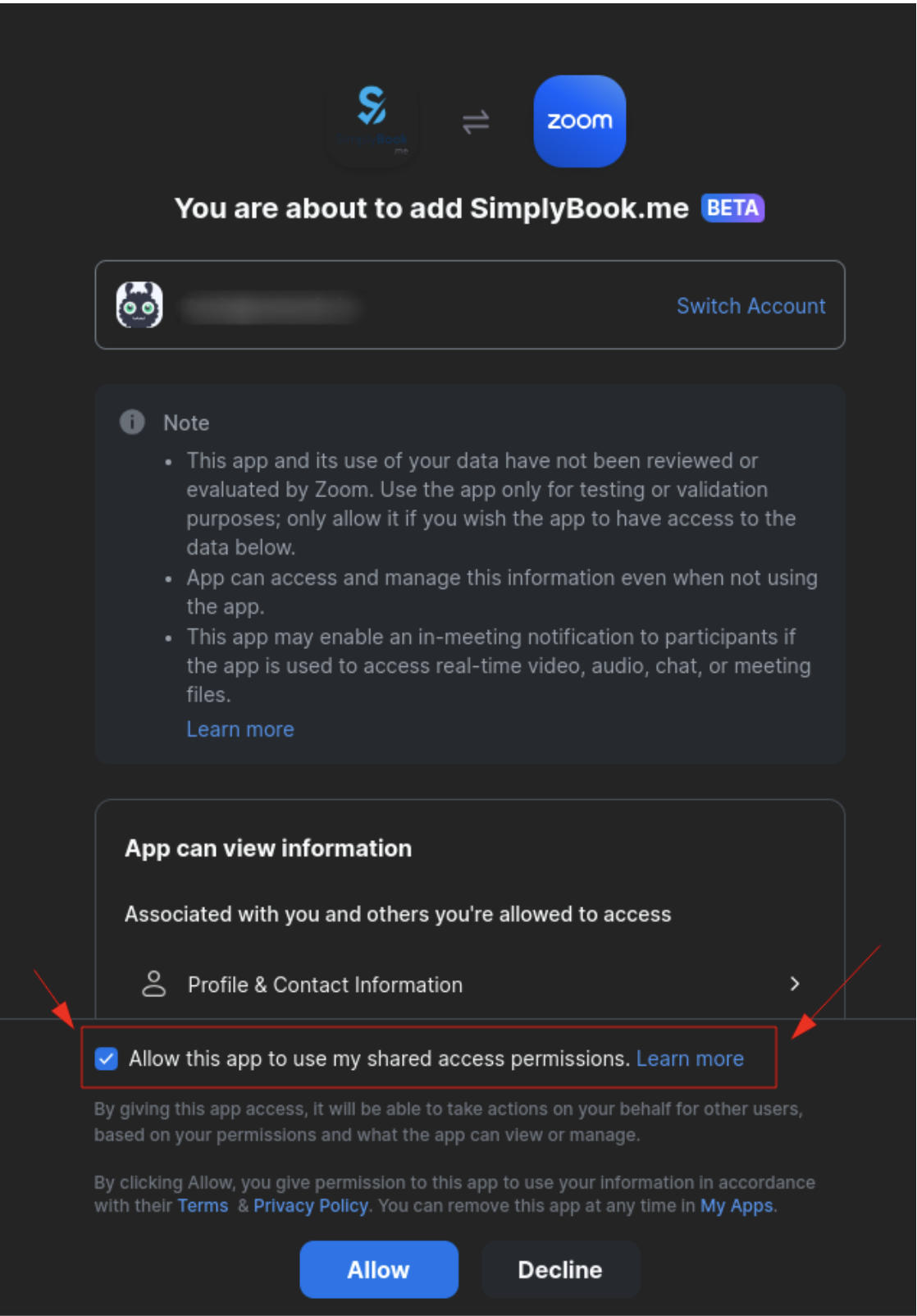
3. Enter your credentials to log into Zoom, or click SSO, Google, or Facebook to log in through those services.
You can connect one zoom account per company OR connect all zoom users added to your account by checking the checkbox Allow this app to use my shared access permissions
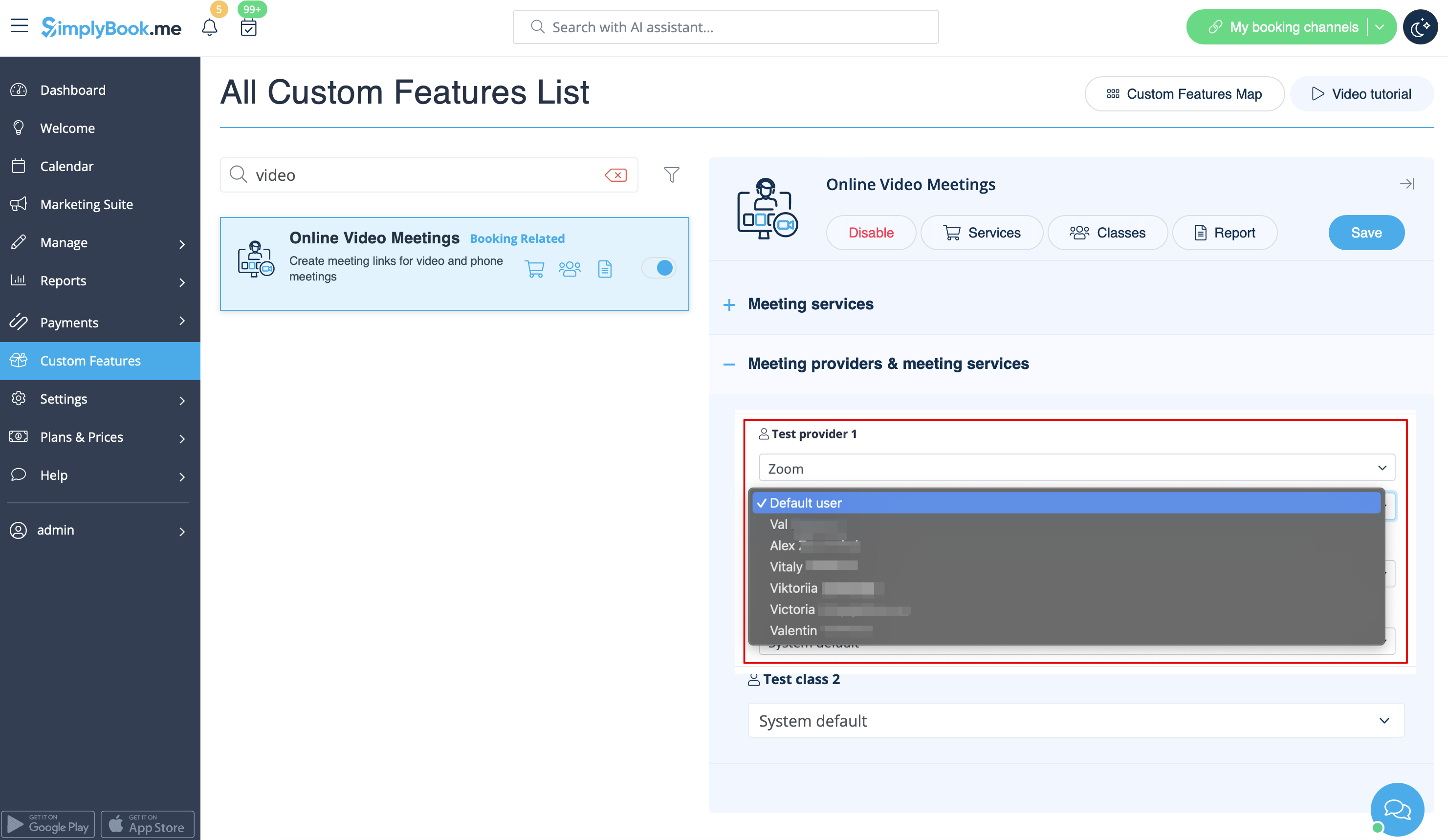
4. After Zoom is authorized, click on Meeting Providers and Meeting Services and choose providers that should be connected to Zoom by selecting Zoom option from the respective drop down. In the next drop-down please select Zoom user (if you have several users under your Zoom account) that should be connected to that provider.
5. After your Zoom connection is set, the last thing you need to do is enable online meeting option for your services. To do that please navigate to Manage -> Services -> click on needed Service name -> scroll down to More options. (in Manage -> Classes -> click on Class name -> More options if you are using Classes feature) and switch on the option Enable as online meeting service/class.
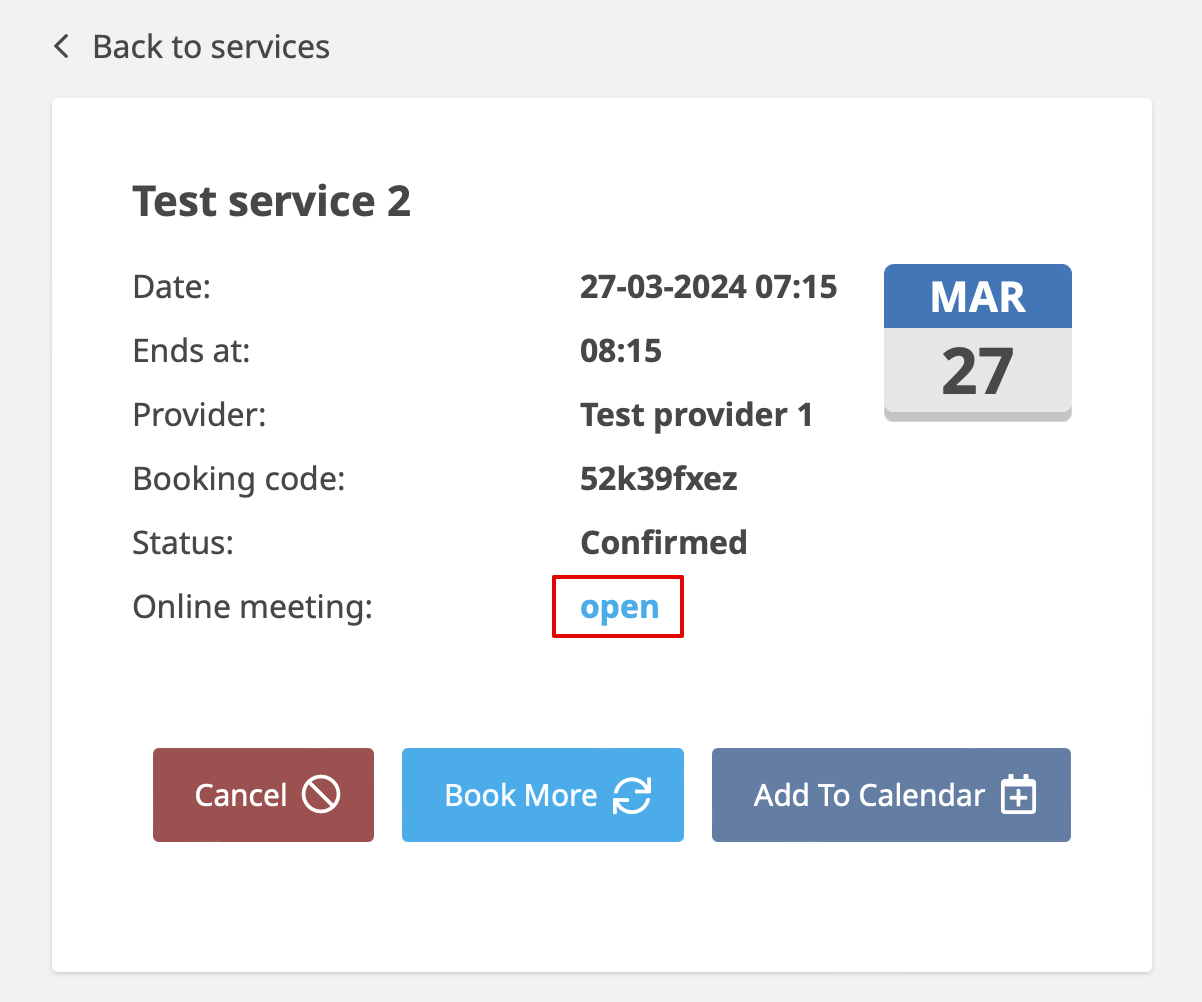
6. When the clients book such a service/class there will be online meeting link on My bookings page for the associated booking. When the appointment time comes the clients will be able to follow it to access the meeting.
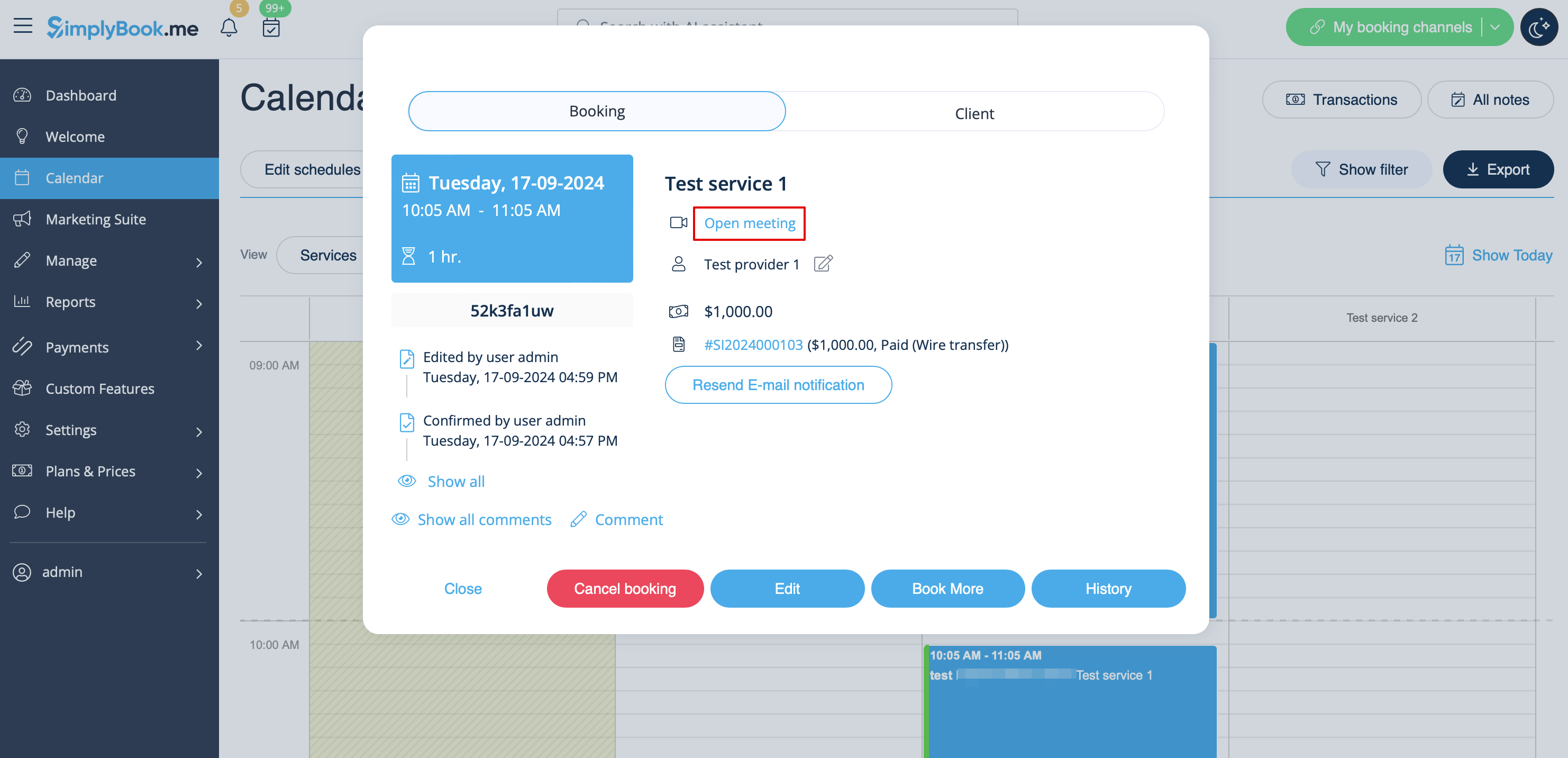
For admin side it will be possible to follow the link from booking info popup form in Calendar or in Reports -> Booking details, or in Reports -> Online video meetings.
7. (optional) As well you can add online meetings link to provider and client notification templates so that both sides receive them with the booking details.
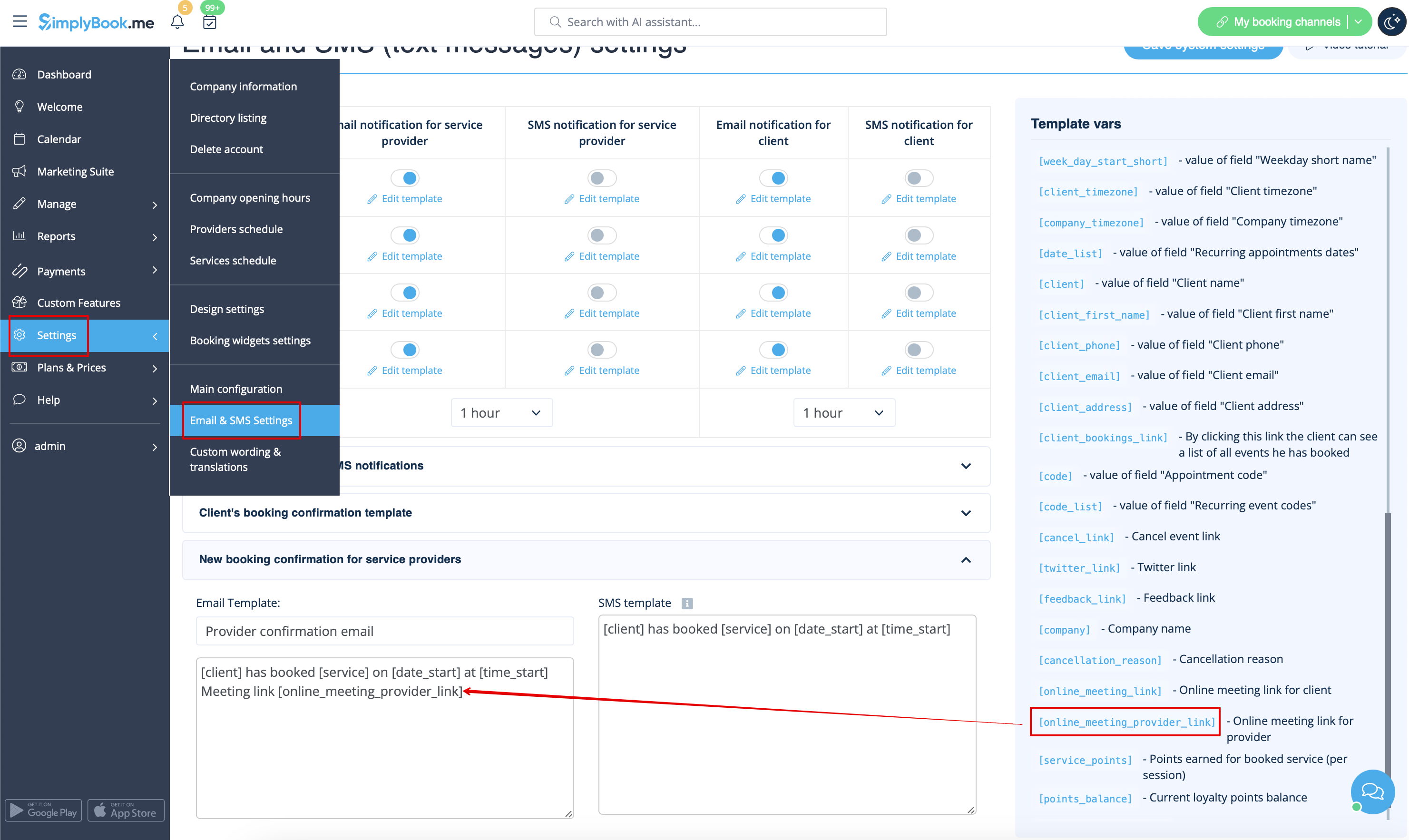
- To do that for your client notifications please navigate to Settings -> Email and SMS settings (or Custom features -> Flexible notifications -> Manage if you have customized notifications per service and/or provider) and edit your Client's booking confirmation template to add [online_meeting_link] variable to send Zoom links to your clients.
To make everything work simply paste [online_meeting_link] variable to the desired place in your "Client's booking confirmation template" so when a client books a service, a Zoom meeting link will be automatically generated at the place of a variable.
- To let your service providers receive Zoom links in their confirmations please add [online_meeting_provider_link] variable to your New booking confirmation for service providers in Settings -> Email and sms settings (or Custom features -> Flexible notifications -> Manage if you have customized notifications per service and/or provider).
hoe het vergaderproces werkt
1. Nadat alles is ingesteld en de klant de onlinevergaderdienst/les heeft geboekt, ontvangen zowel de klant als de aanbieder (of het bedrijf, afhankelijk van uw instellingen) de links naar de vergadering.
2. Aan de beheerderskant kan de aanbieder rechtstreeks vanuit de boeking in de "Agenda" naar de vergaderpagina gaan door op de link "Vergadering openen" in het pop-upvenster met boekingsdetails te klikken.
3. Klanten kunnen de vergaderlink openen vanuit de boekingsdetails op de pagina 'Mijn boekingen' van de boekingssite.
4. Wanneer het tijd is voor de vergadering, worden zowel de aanbieder als de klant doorgestuurd naar de online vergaderpagina van Zoom.
- Integratie verwijderen
Vanuit Simplybook.me
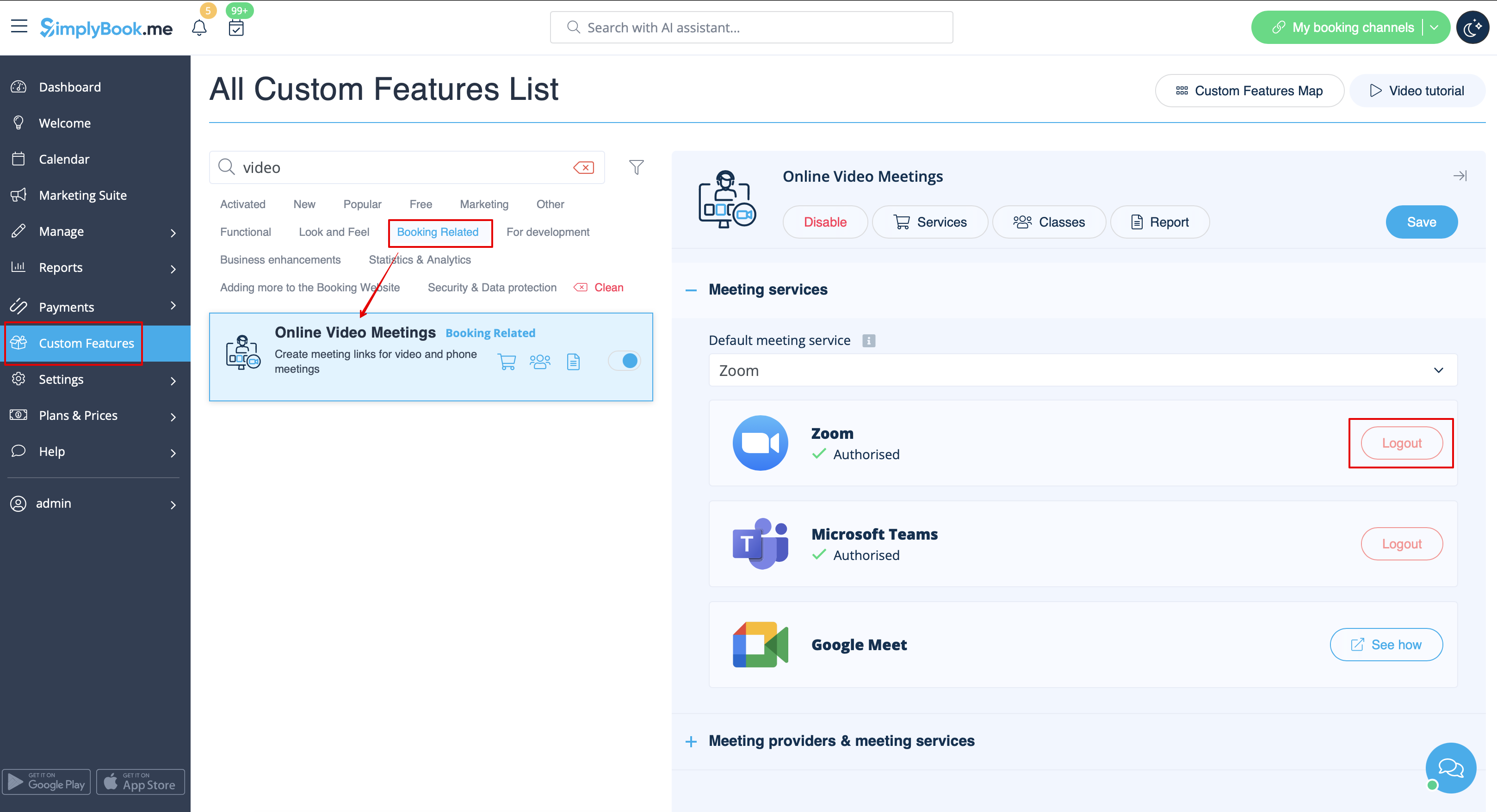
- Ga naar de pagina 'Aangepaste functies' in uw Simplybook.me-beheerdersinterface en klik op 'Aangepaste functie voor online videovergaderingen' om de instellingen te openen.
- Zoek in de functie-instellingen Zoom en klik op Afmelden.
- Daarna wordt de Zoom-integratie verwijderd uit uw Simplybook.me-account.
Vanuit Zoom
Let op! Als u het vakje 'Deze app toestemming geven voor mijn gedeelde toegangsrechten' niet hebt aangevinkt OF als u het verbonden Zoom-account wilt wijzigen naar een ander account, is dit vanwege technische beperkingen niet mogelijk vanuit Simplybook.me.
Om dit te doen, moet u Simplybook.me rechtstreeks loskoppelen van Zoom. Daarna kunt u een nieuw account koppelen aan Simplybook.me.
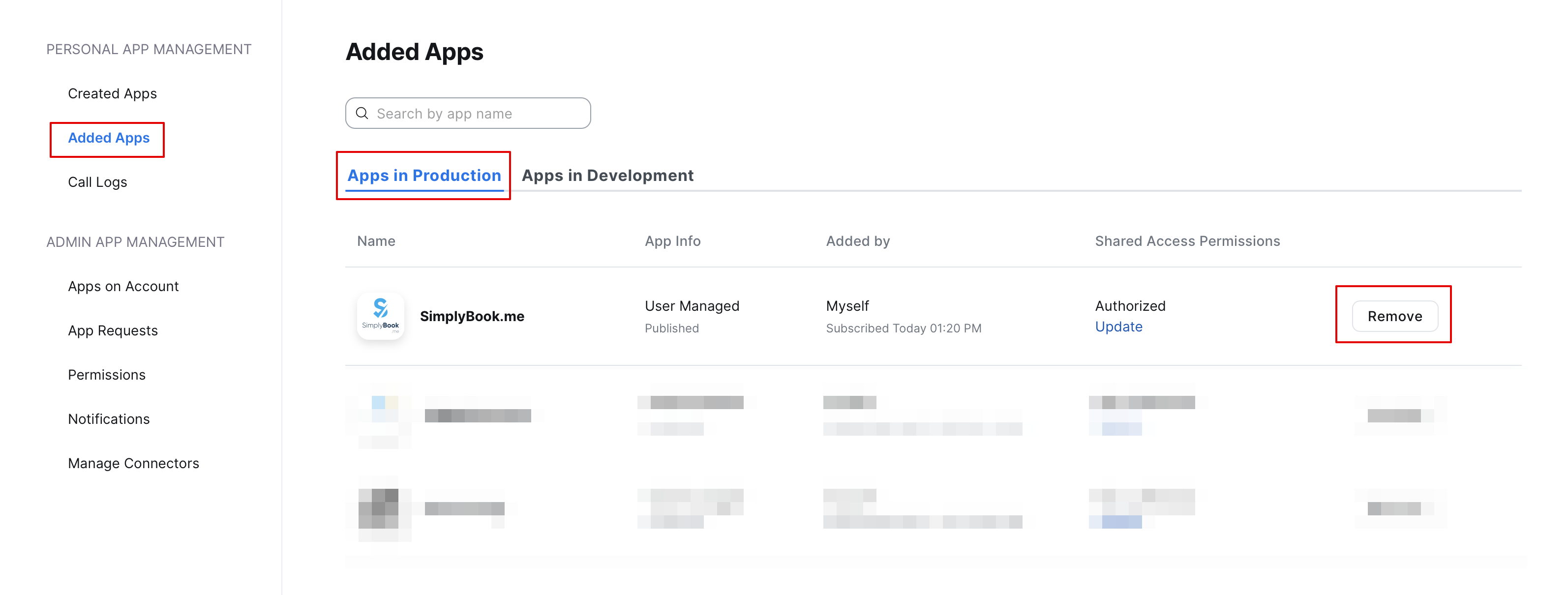
- Volg deze link om de integratie los te koppelen aan de Zoom-kant.
- Zoek Simplybook.me in de lijst met gekoppelde apps (u kunt indien nodig zoeken).
- Klik op de knop Verwijderen om de koppeling te verbreken.
- De integratie is nu verwijderd en u kunt indien nodig een ander account koppelen.
- How to remove integration
From the Simplybook.me side
- Navigate to the Custom Features page within your Simplybook.me admin interface and click on Online video meetings custom feature to open its settings.
- In the feature settings locate Zoom and click Logout.
- After that Zoom integration will be removed from your Simplybook.me account.
From the Zoom side
Please note! If you did not check the box “Allow this app to use my shared access permissions” OR you want to switch connected Zoom account to another one - there will be no option to do that from Simplybook.me side due to technical restrictions.
In order to do that you will need to disconnect Simplybook.me directly from Zoom and after that you will be able to connect new account on the Simplybook.me side.
- To disconnect the integration from the Zoom side please follow this link.
- Locate Simplybook.me in the list of connected apps (you can use search if needed).
- Click on Remove button to disconnect.
- Now the integration is removed and you can connect different account if needed.
