Waar kan ik mijn gegevens wijzigen?
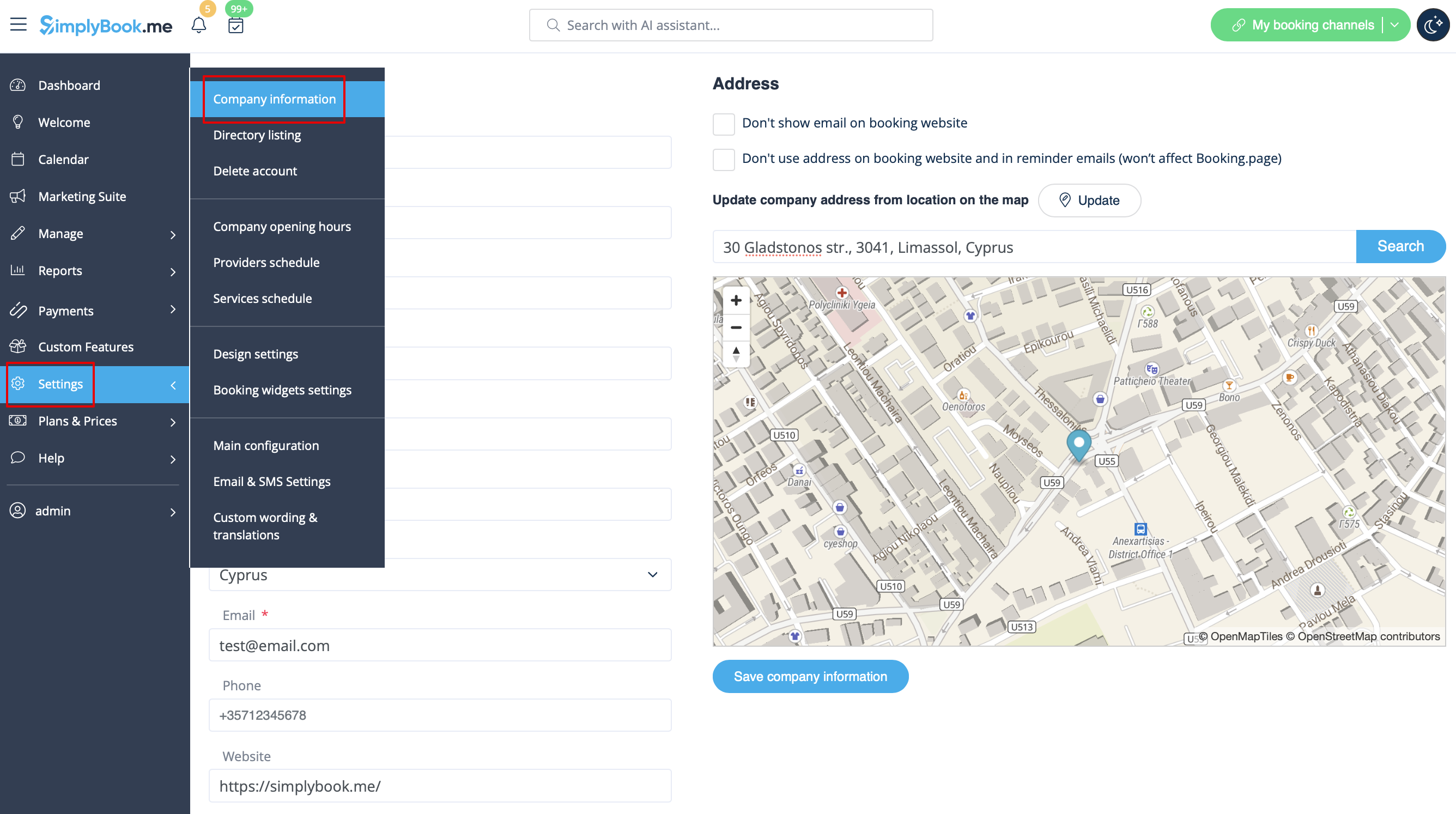
Bedrijfstitel
In Instellingen // Bedrijfsgegevens // Naam.
Company url
Helaas is er geen optie om de url in het systeem te wijzigen. Om deze te wijzigen, moet je een nieuw bedrijf registreren met de gewenste url.
Gratis:
Je kunt een nieuw bedrijf aanmaken met de gewenste naam in de url en daar handmatig alle gegevens en instellingen naartoe overzetten. Je kunt diensten en providers aanmaken en een lijst met klanten naar het nieuwe systeem kopiëren met de functie Klanten importeren (zie instructies hier). Boekingen en andere instellingen kunnen niet worden overgezet.
Betaald:
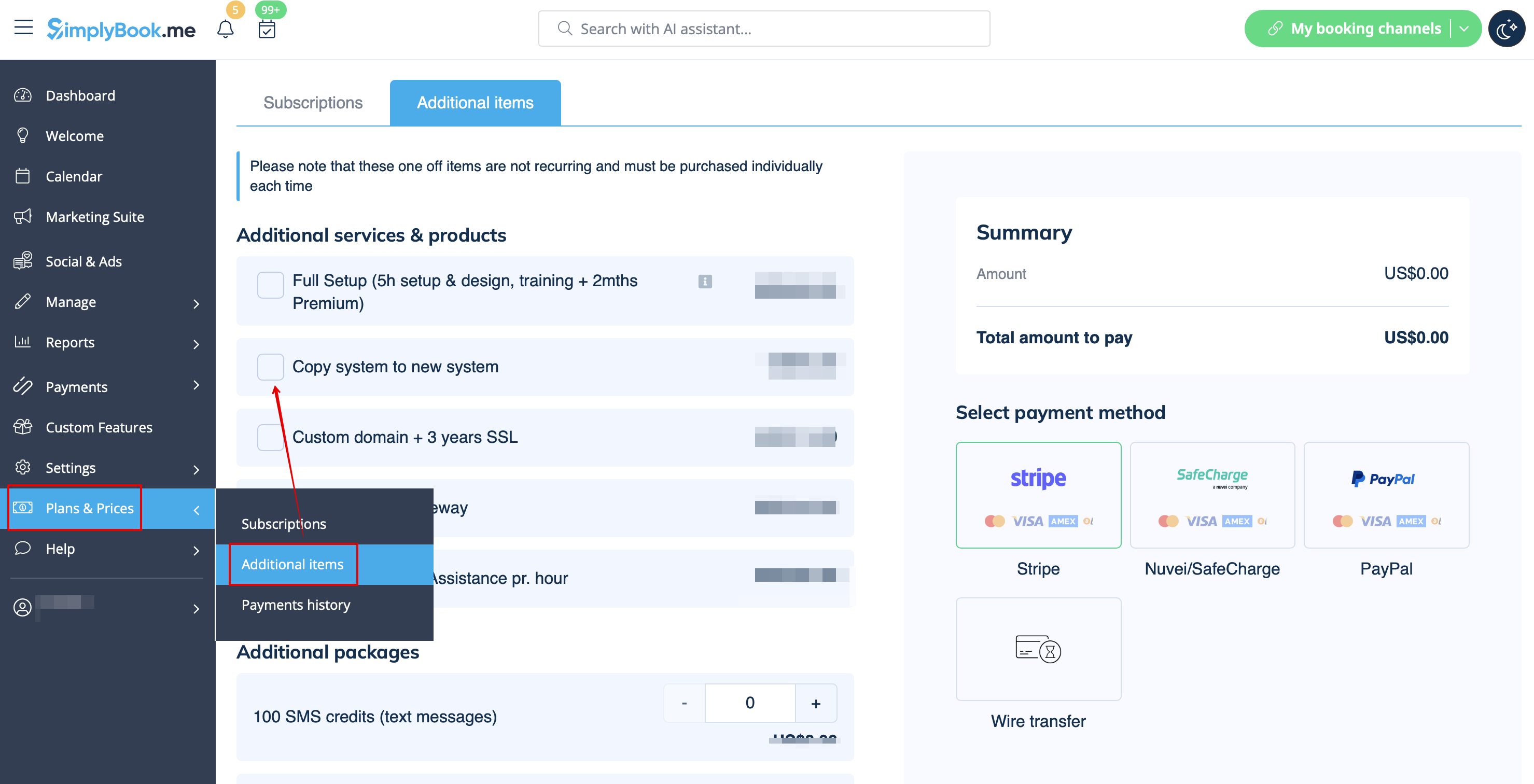
Maak een nieuw systeem aan met de gewenste naam in de url, ga naar Plans&Prices // Additional items en selecteer "Copy system to new system" , doe de betaling en onze ontwikkelaars zullen uw gegevens overzetten. Nadat u een betaling hebt gedaan, moet u contact opnemen met support, vertel hen de oude bedrijfsnaam en de nieuwe bedrijfsnaam (bevestig het eigendom van beide accounts) en vraag om overdracht van het systeem.
Let op! Recensies en HTML-opmaak in beschrijvingen worden niet gekopieerd naar het nieuwe systeem.
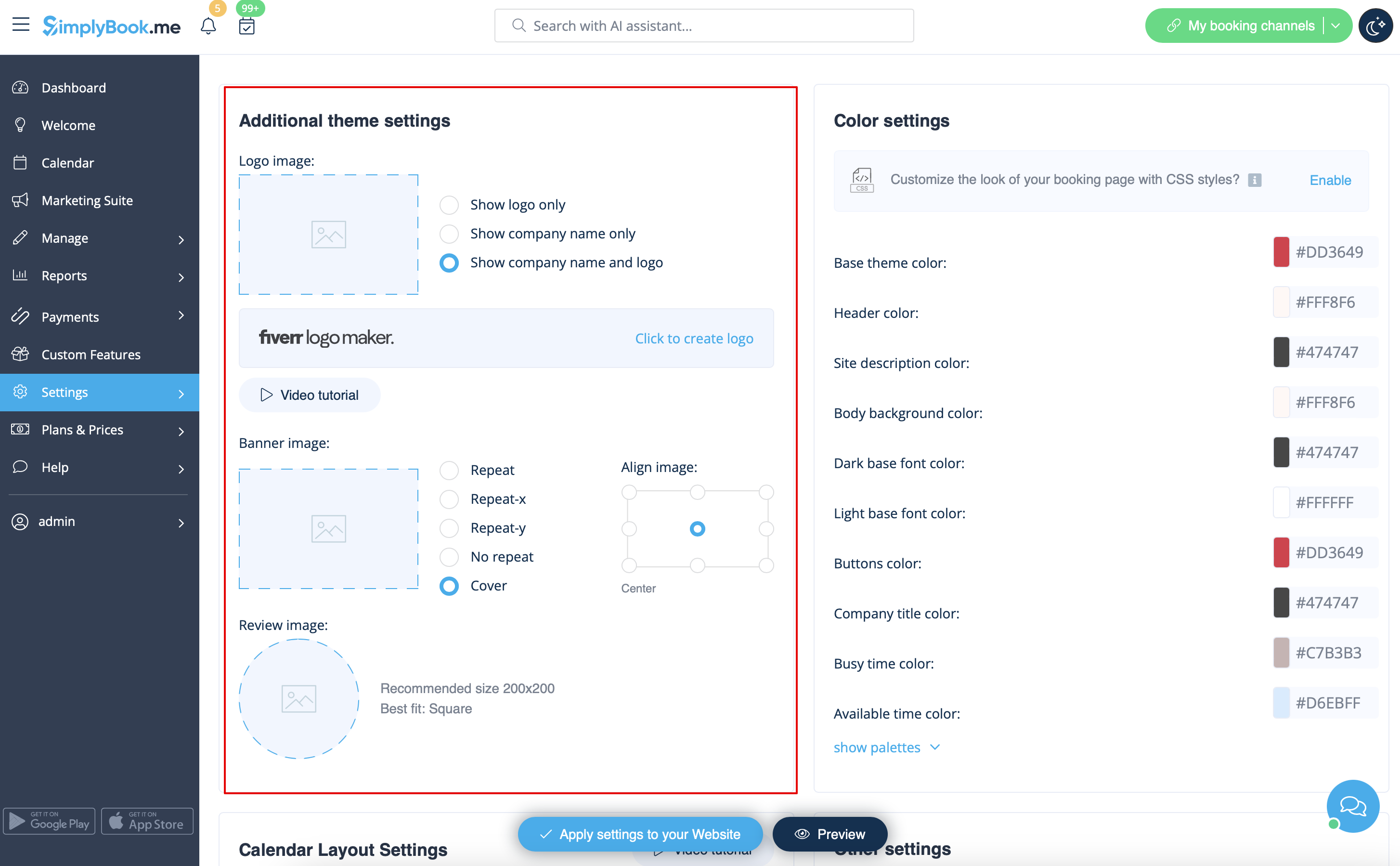
Bedrijfslogo en achtergrond
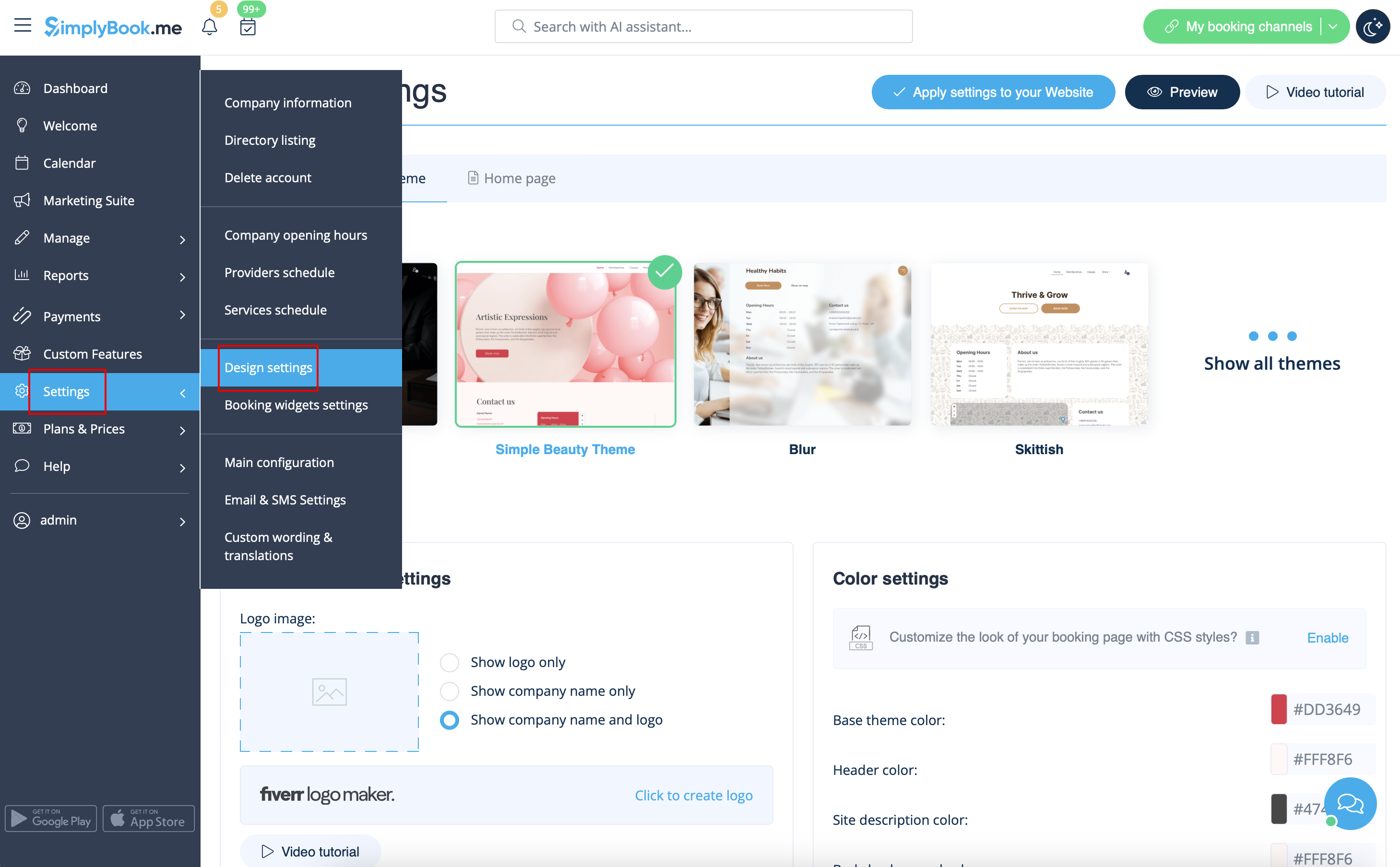
In instellingen // Ontwerpinstellingen // Extra thema-instellingen.
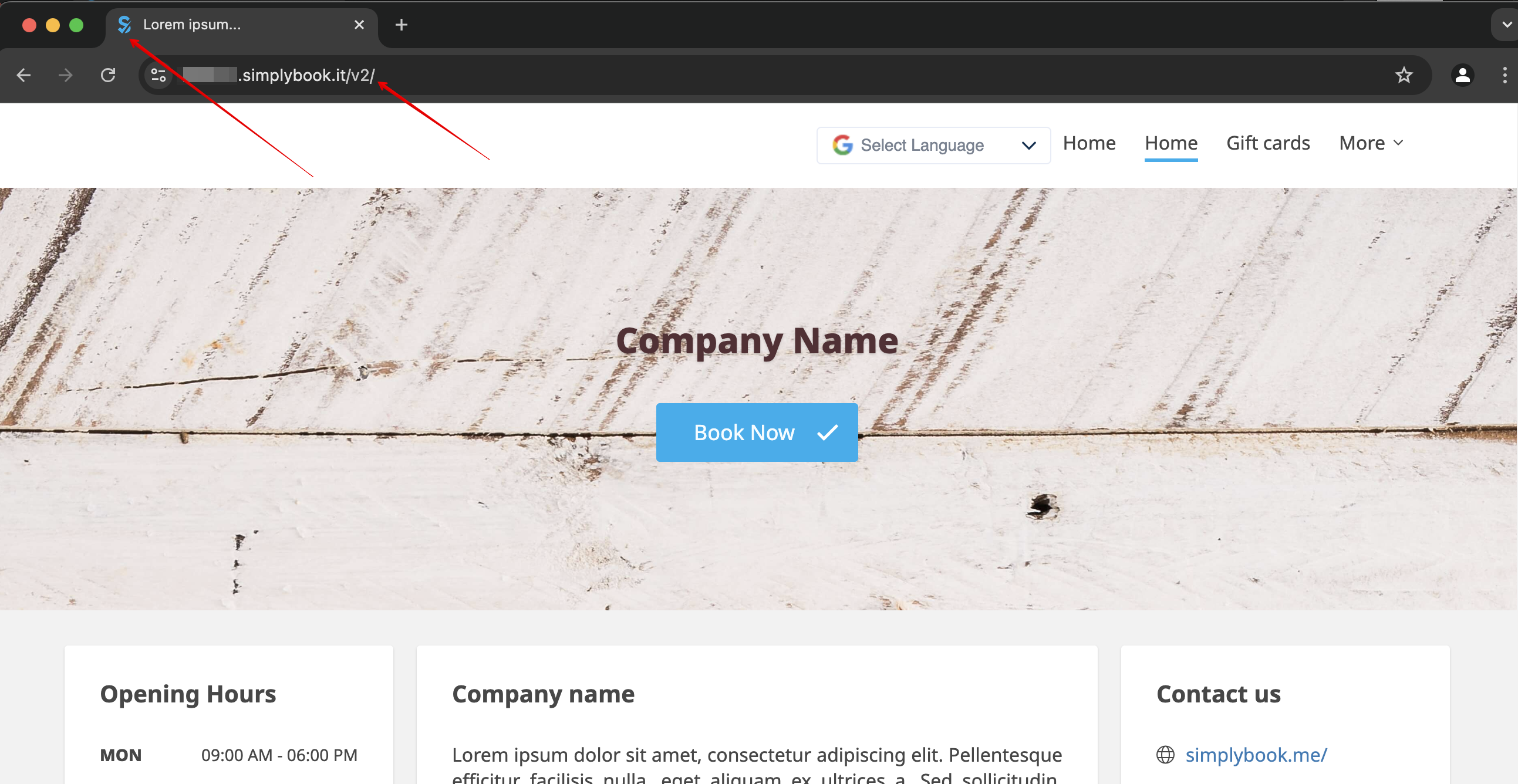
Favicon
Het /v2/ gedeelte in de URL van de boekingswebsite kan niet worden verwijderd of gewijzigd.
Dit element staat vast en kan niet worden gewijzigd.
Favicon (logo dat in de browsertab wordt getoond) kan alleen op ondernemingsniveau worden gewijzigd.
Design
In Instellingen // Ontwerpinstellingen.
- Aanbevolen thema's
- Alle nieuwe
Deze thema's ondersteunen alle nieuwe functionaliteit en hebben de optie om de kleuren van je boekingspagina aan te passen.
Teksten en taal
Als je teksten op je boekingspagina wilt aanpassen (bijvoorbeeld Werknemer wijzigen in Therapeut, Coach of Kamer), kun je dit doen via Instellingen // Aangepaste teksten & vertalingen.
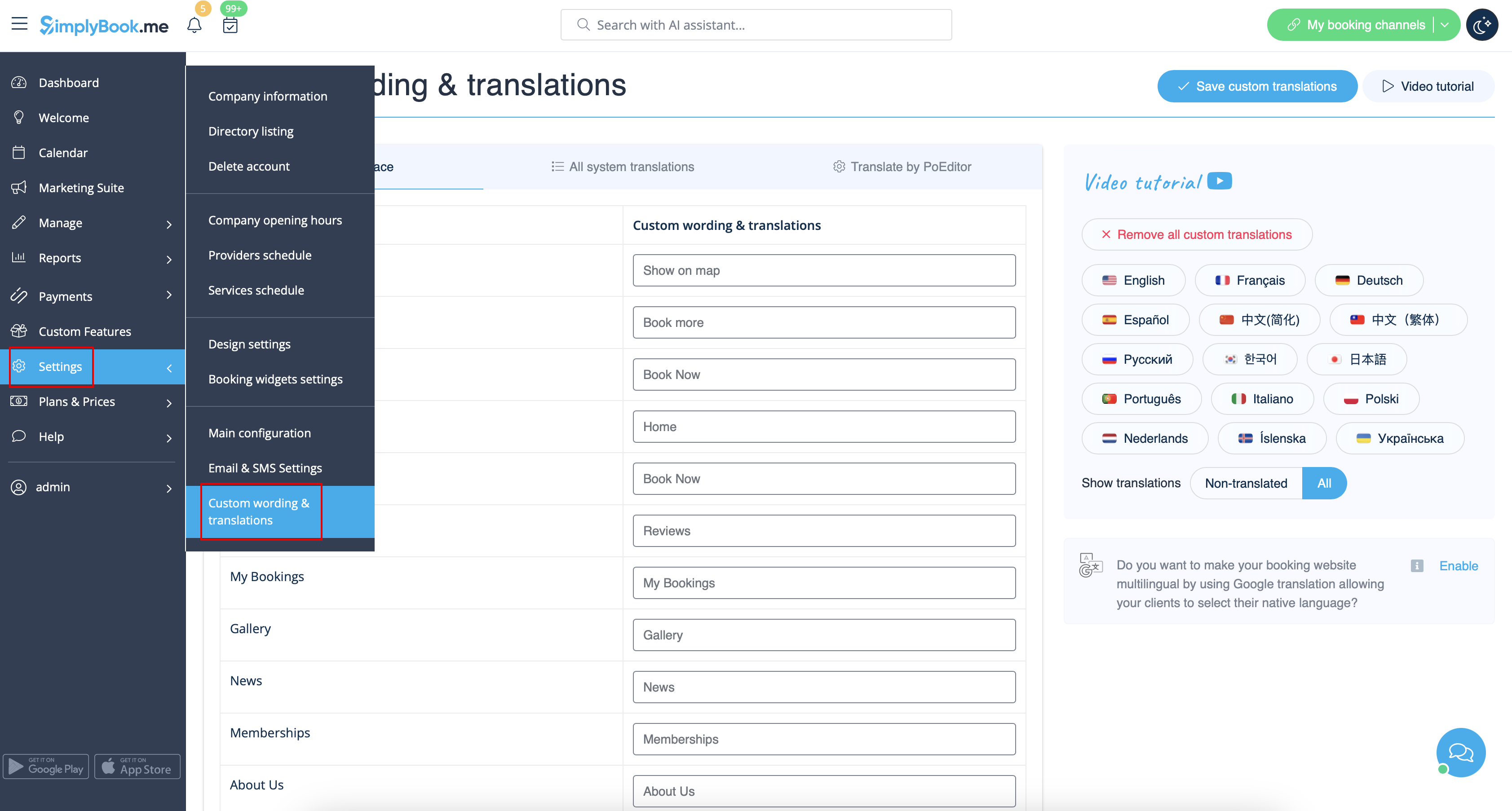
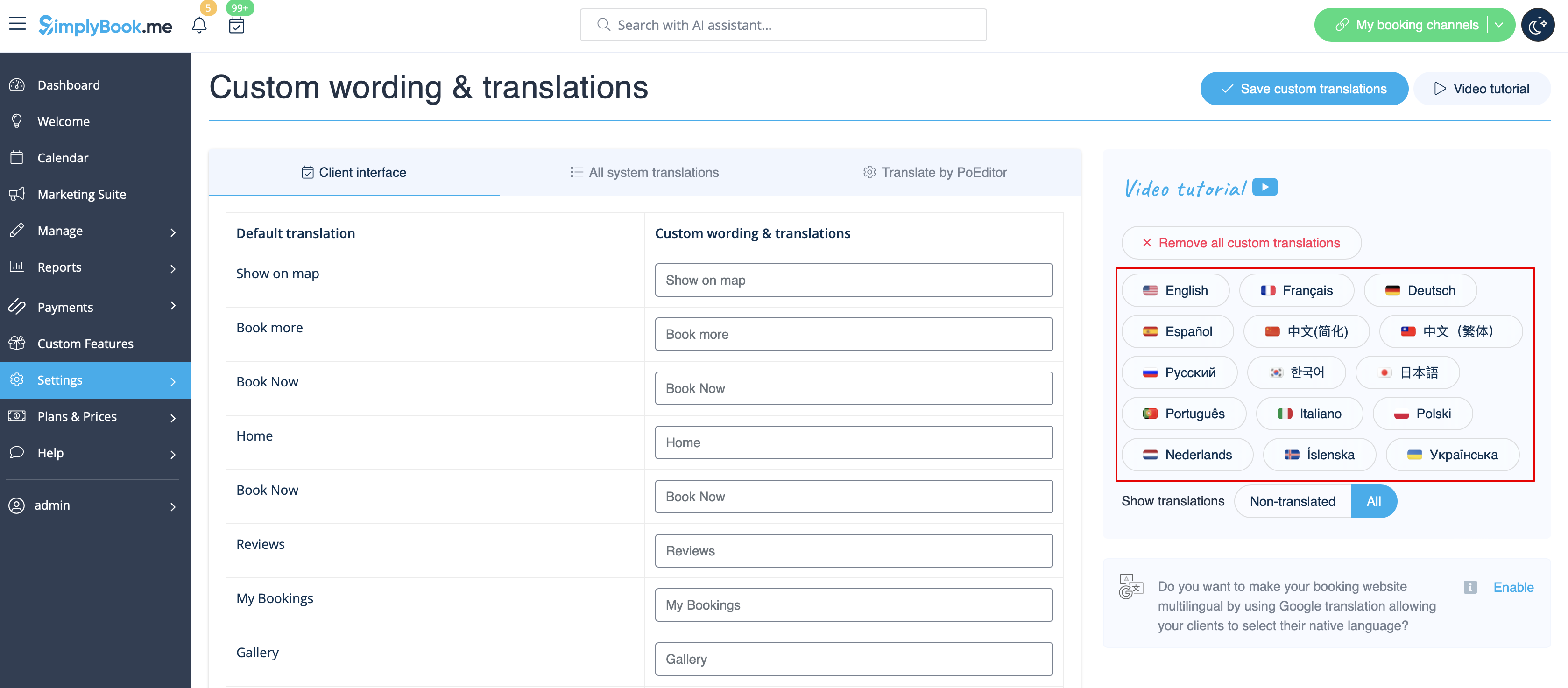
Daar kun je ook de taal van je boekingspagina wijzigen door op de betreffende vlag te klikken en op "Aangepaste vertalingen opslaan" te drukken. Als je taal niet in de lijst staat, kun je het systeem zelf vertalen.
SEO Settings
By default the Title tag is represented by your company name that you have inserted in Settings -> Company information -> Name and automatic addition of Scheduling and Booking Website text.
Meta description is taken from the text that you have added in Settings -> Design settings -> Home page -> description text for About Us booking website block.
If you need you can set these two options to contain different data and thus influence your booking website SEO.
To set own Title tag and Meta description please navigate to Settings -> Design settings -> Home page and add the desired texts to the corresponding fields there.
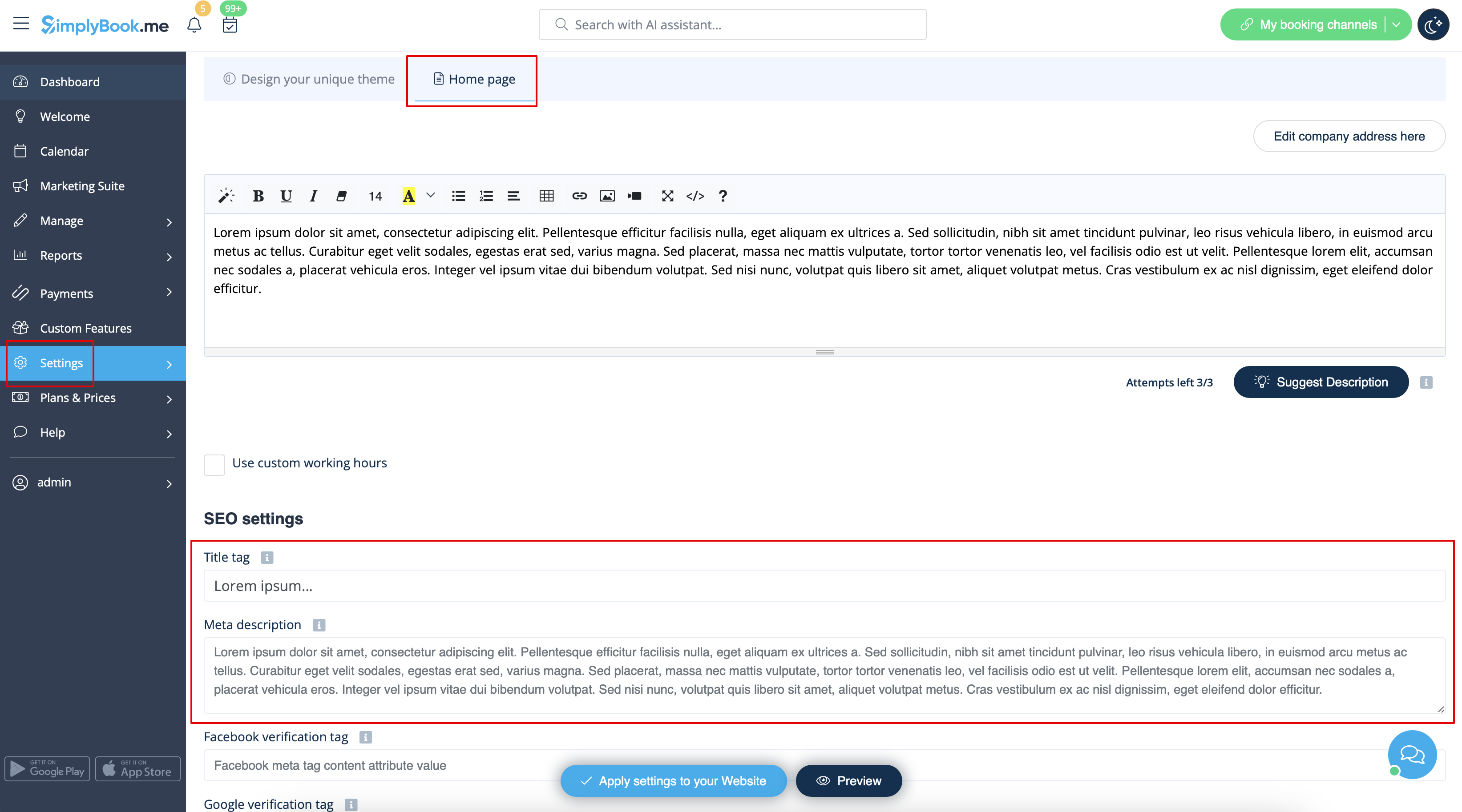
Please note!We recommend using no more than 60 symbols for Title tag.
Meta description is limited to 400 characters and if you try to add a longer abstract it will be automatically cut when saving the settings.
Our Time
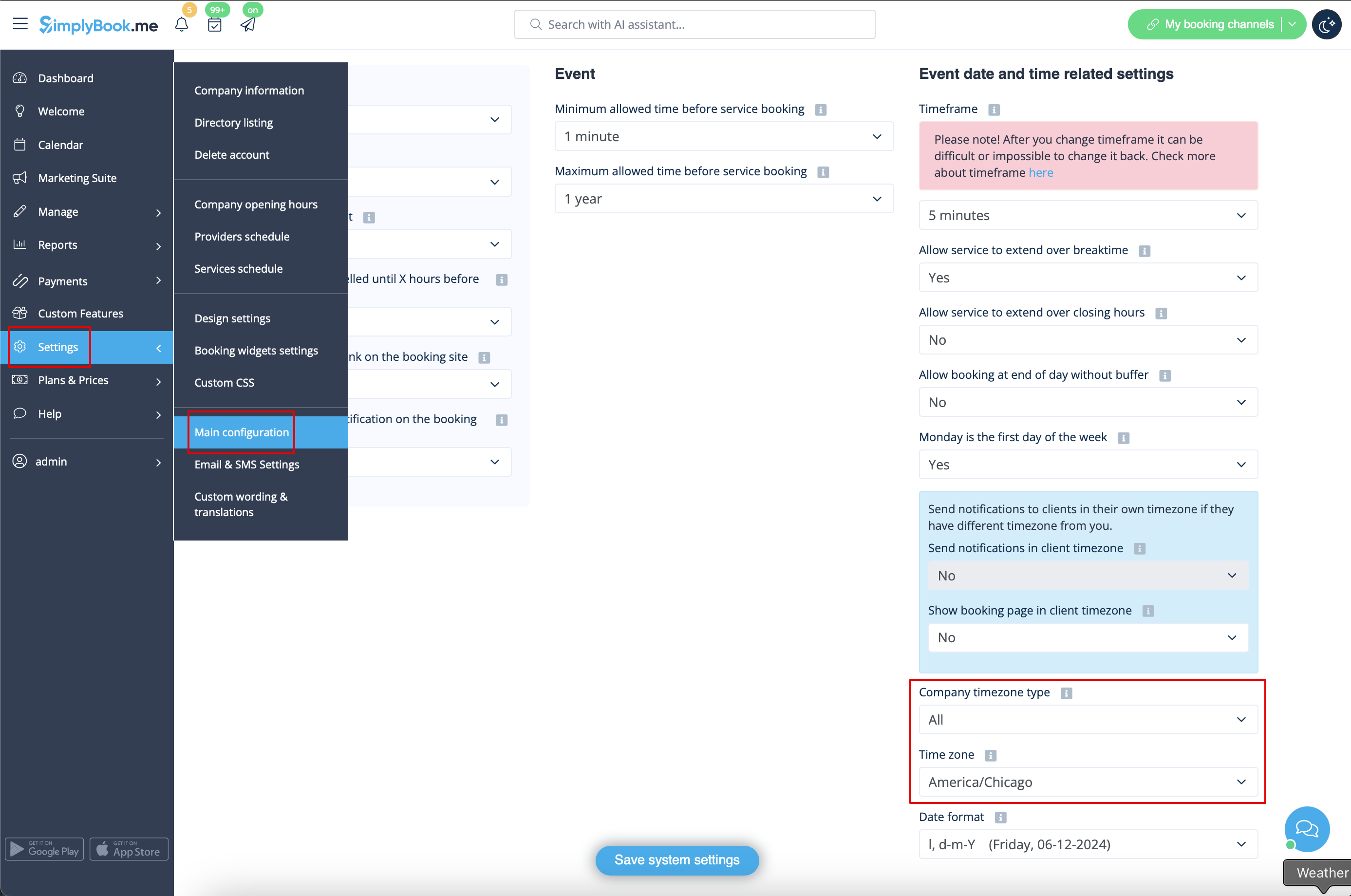
Your time on the booking page is the time of the company's time zone. You can change your time zone in Settings -> Main configuration -> Time zone.
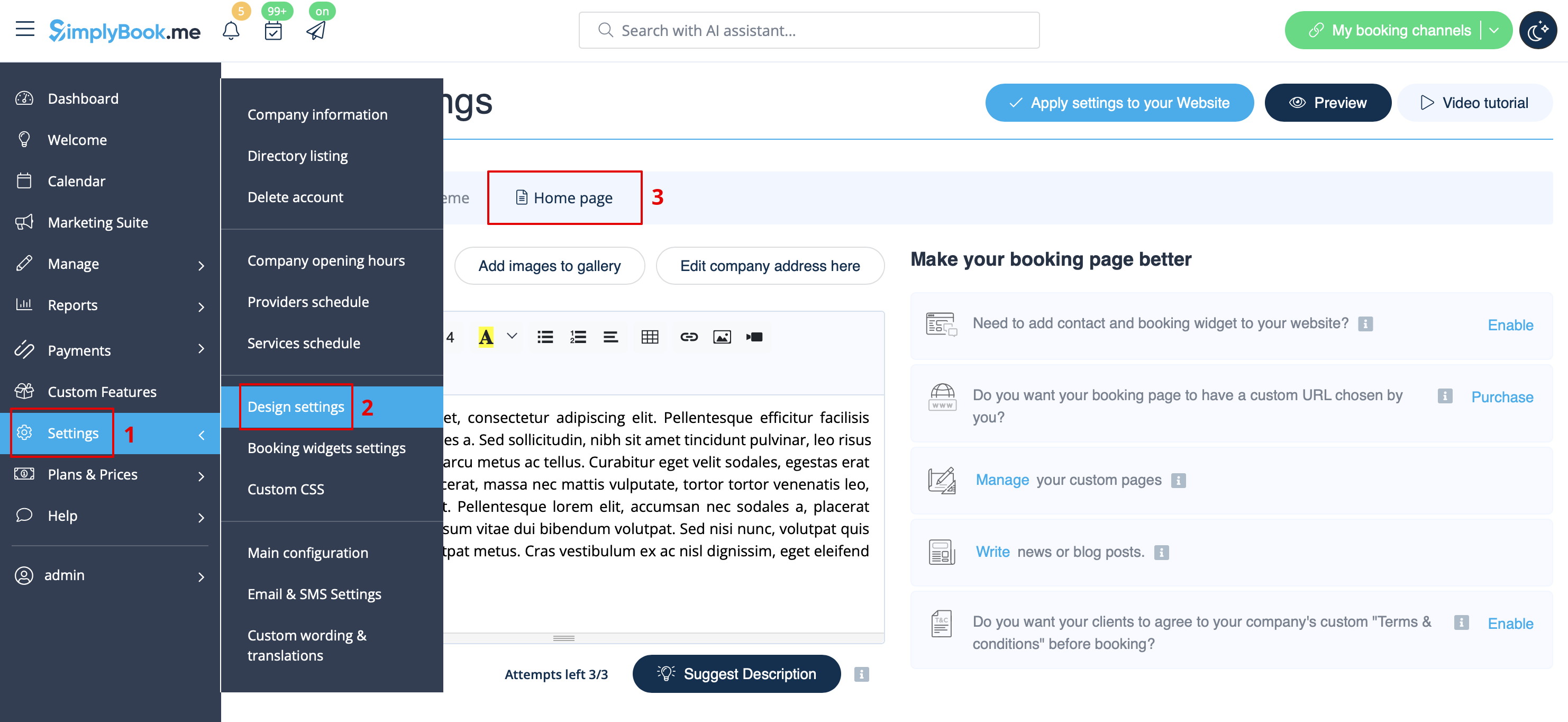
About section
In Settings // Design settings // Home page // Company description.
Address
In Settings // Company Information // Address.
Company Contacts
You can edit them in Settings -> Company information
The following details can be added/edited:
- Email address
- Phone number
- Website address
- WhatsApp phone
- Facebook profile url
- X.com (Twitter) page link
- Instagram page url
- LinkedIn page
An example of the client side look.
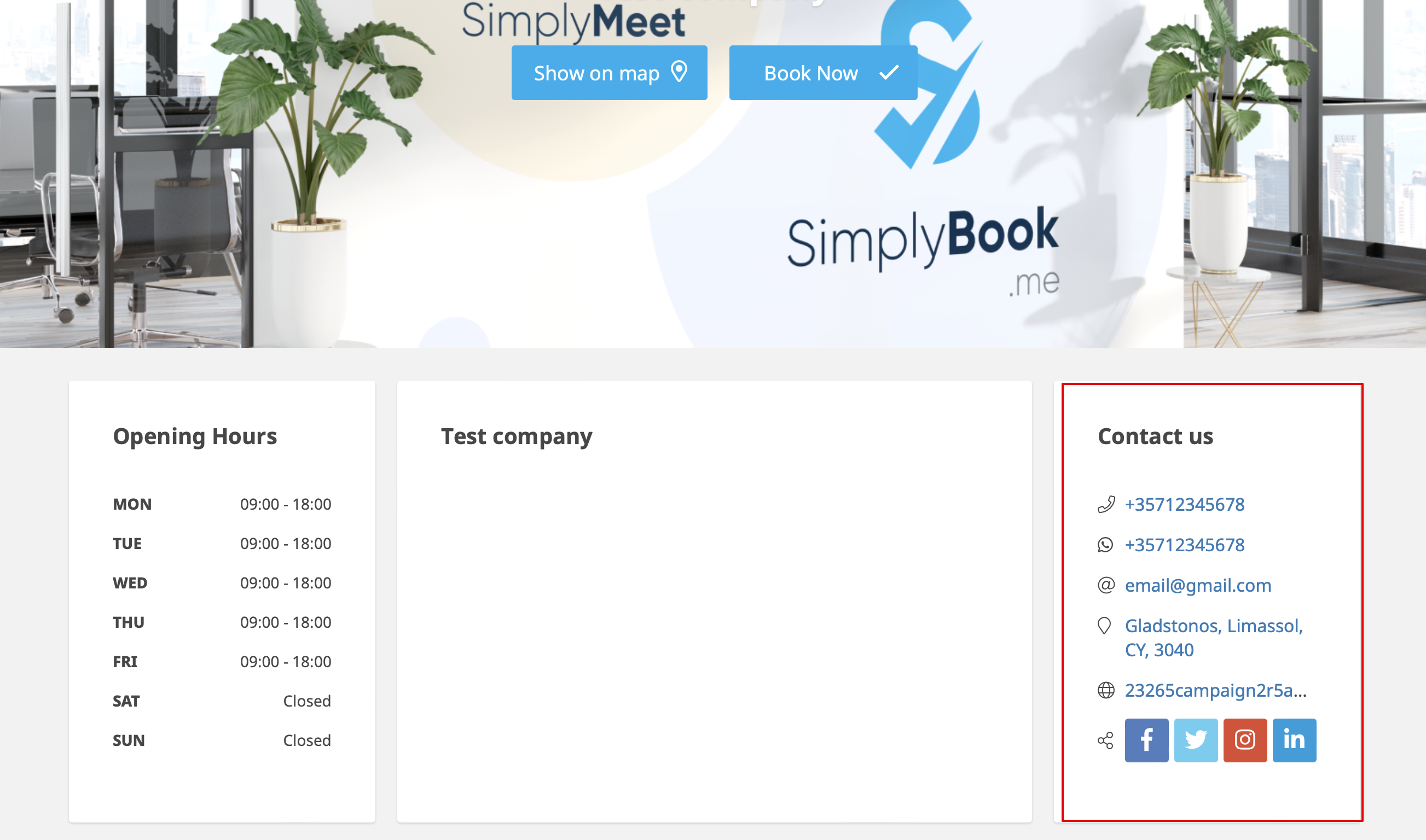
The clients will be able to, for example, click on WhatsApp number and be redirected to the WhatsApp messenger to easily contact you there.
Working hours
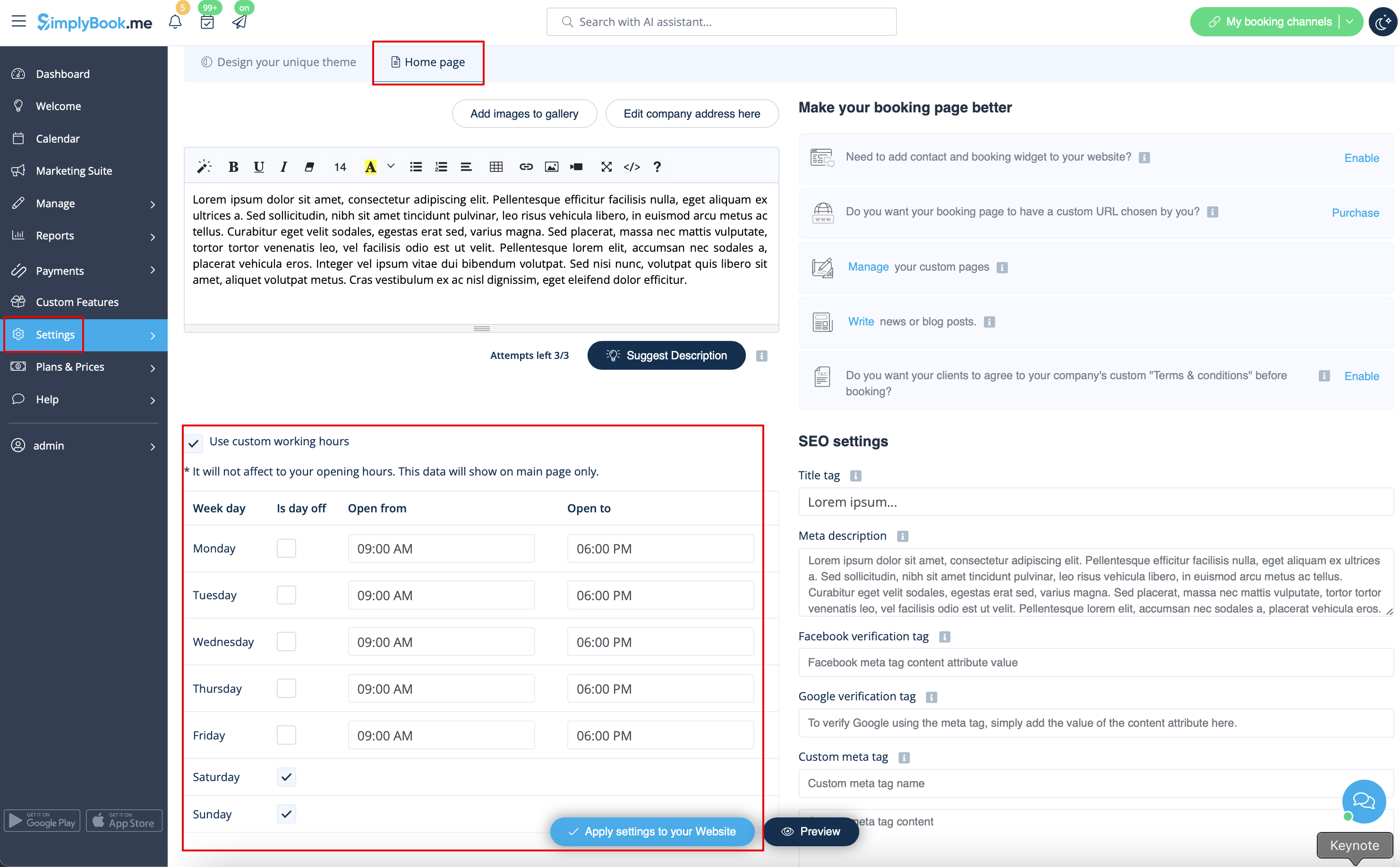
Working hours block on the booking page:

To change working hours block go to Settings // Company opening hours.
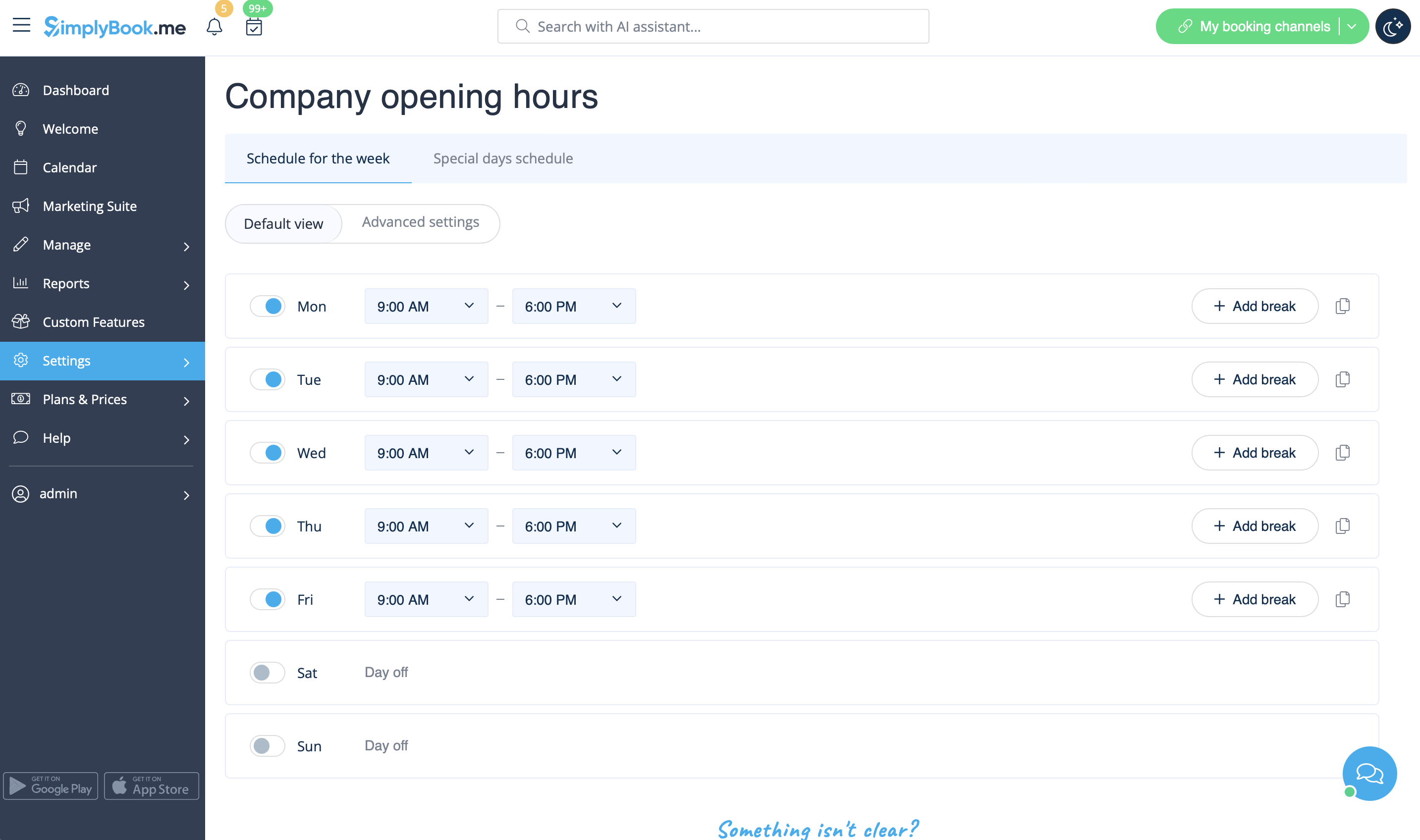
If you wish to display times different from real working hours there you can use "Use custom working hours" in Settings//Design settings//Home page.
Calendar Layout
You can change calendar layout in Settings // Design settings // Calendar Layout settings // Calendar Layout drop-down
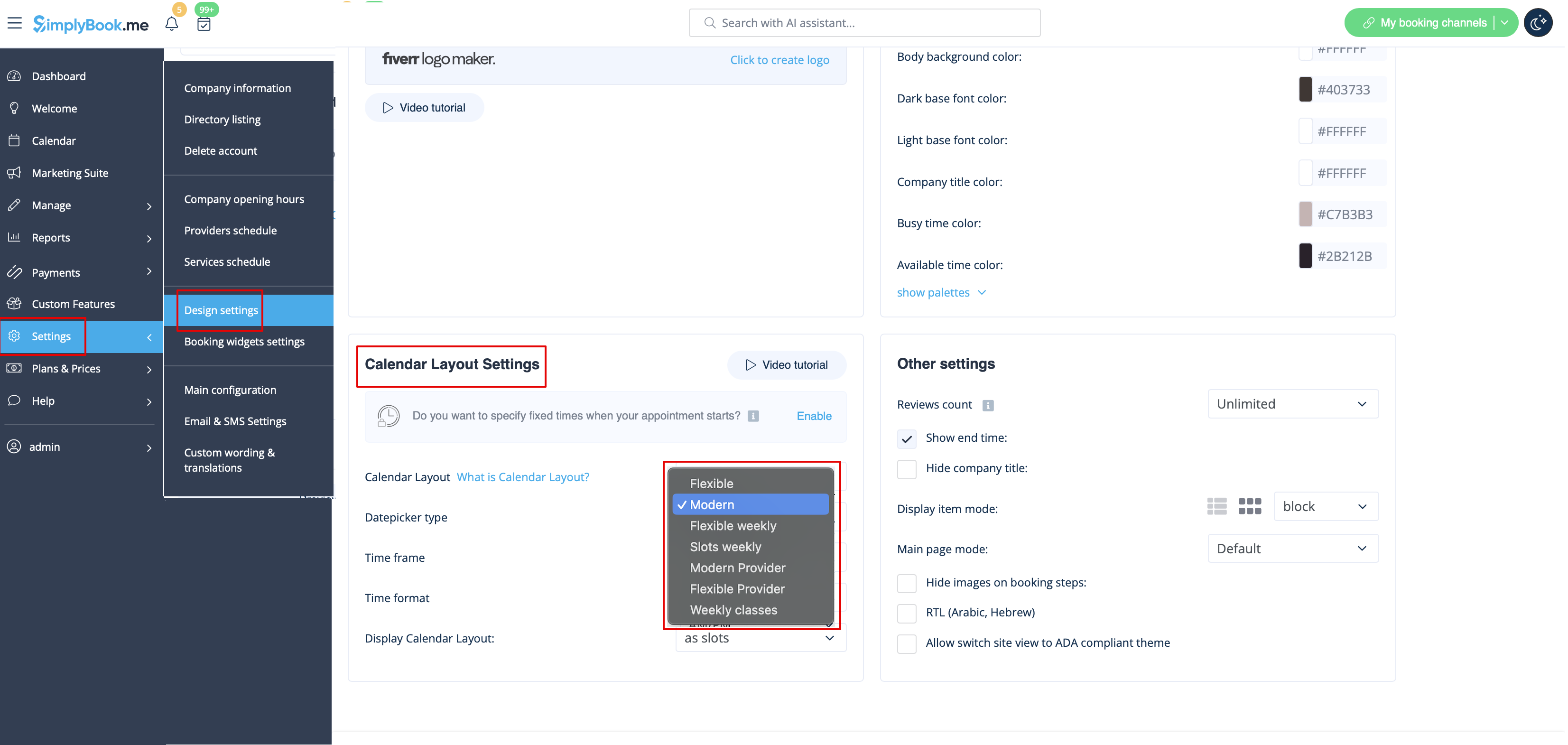
There are 9 types of calendar layout:
- Slots weekly - shows available time in the intervals equal to your service duration for a week. Starts counting from the first available time.
- Modern - shows available time in the intervals equal to your service duration for a day. Starts counting from the first available time.
- Flexible weekly - shows available time in the intervals equal to your timeframe duration for a week. Starts counting from the first available time.
- Flexible - shows available time in the intervals equal to your timeframe duration for a day. Starts counting from the first available time.
- Modern provider - shows available time for providers for chosen date. Starts counting from the first available time of all providers.
- Flexible provider- shows available times for providers in the intervals equal to your timeframe duration. Starts counting from the first available time on selected date.
- Daily Classes- shows available times for classes in the intervals equal to class duration. Starts counting from the first available time.
- Please note! Multiple Bookings custom feature currently does not work with Classes layout.
- Weekly Classes shows available times for classes in the intervals equal to class duration with weekly options. Starts counting from the first available time for a date. Only available times are displayed, unavailable slots are hidden.
If you have services that have fixed start times, you can try using Appointment at fixed time Custom Feature.
Interval
You can change it in Settings // Main configuration // Timeframe.
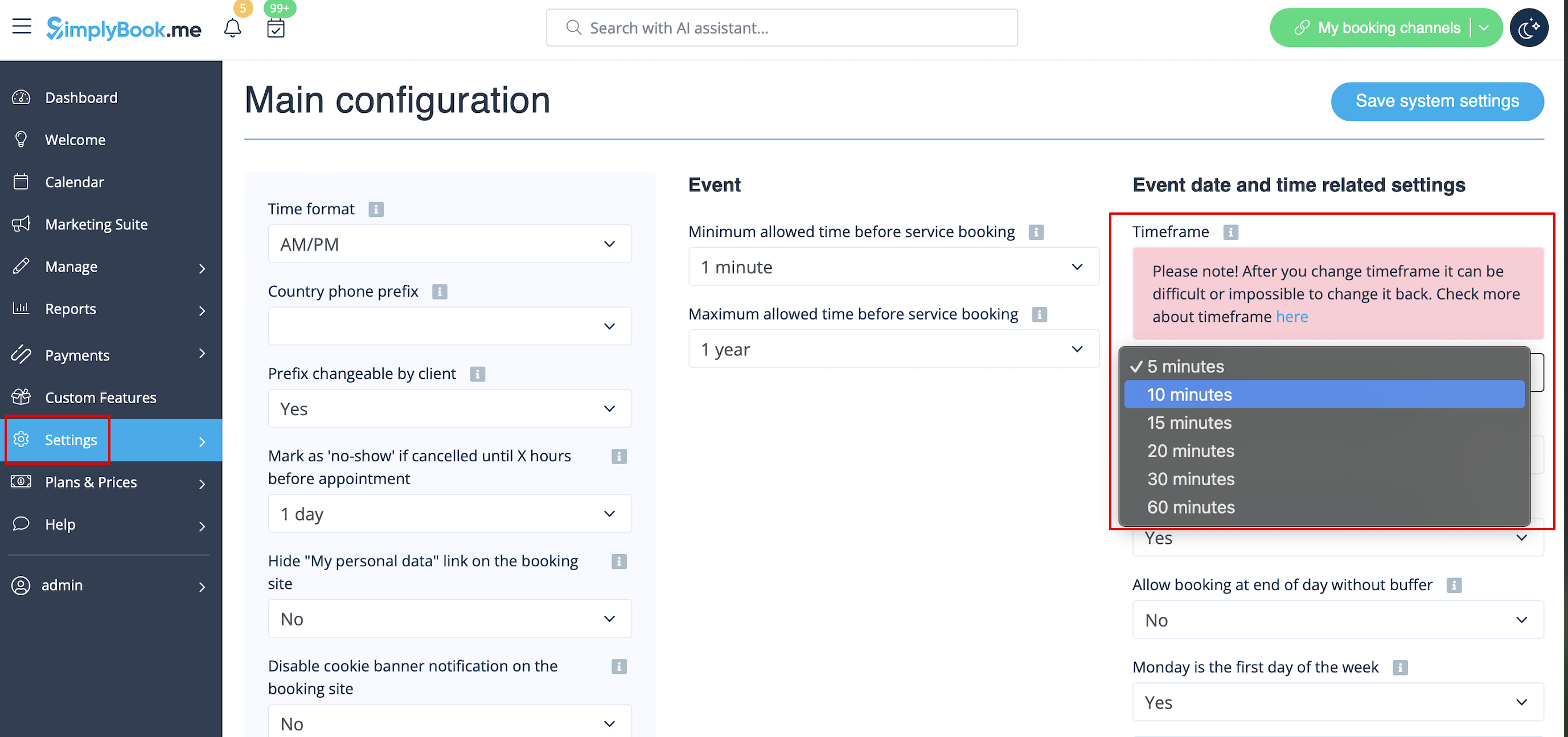
You can also try to change calendar layout to flexible in order to show availability according to your interval. Check types of Calendar Layouts here.

