Fjern elementer fra bookingsiden
Billeder til trin for service, serviceudbyder, kategori og sted
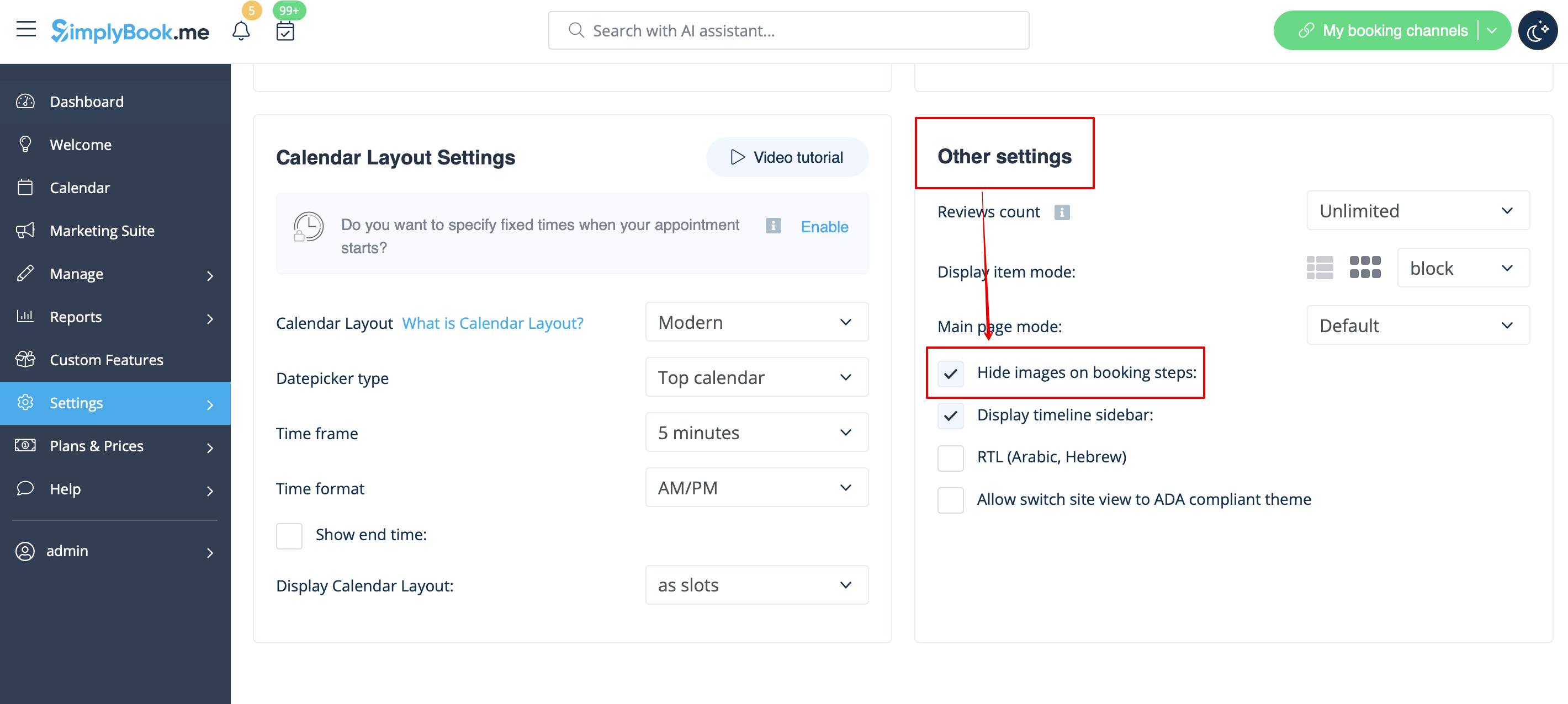
Gå til Indstillinger -> Designindstillinger -> Andre indstillinger, og marker afkrydsningsfeltet Skjul billeder på bookingtrin. Gem indstillingerne.
Mulighed for at betale senere
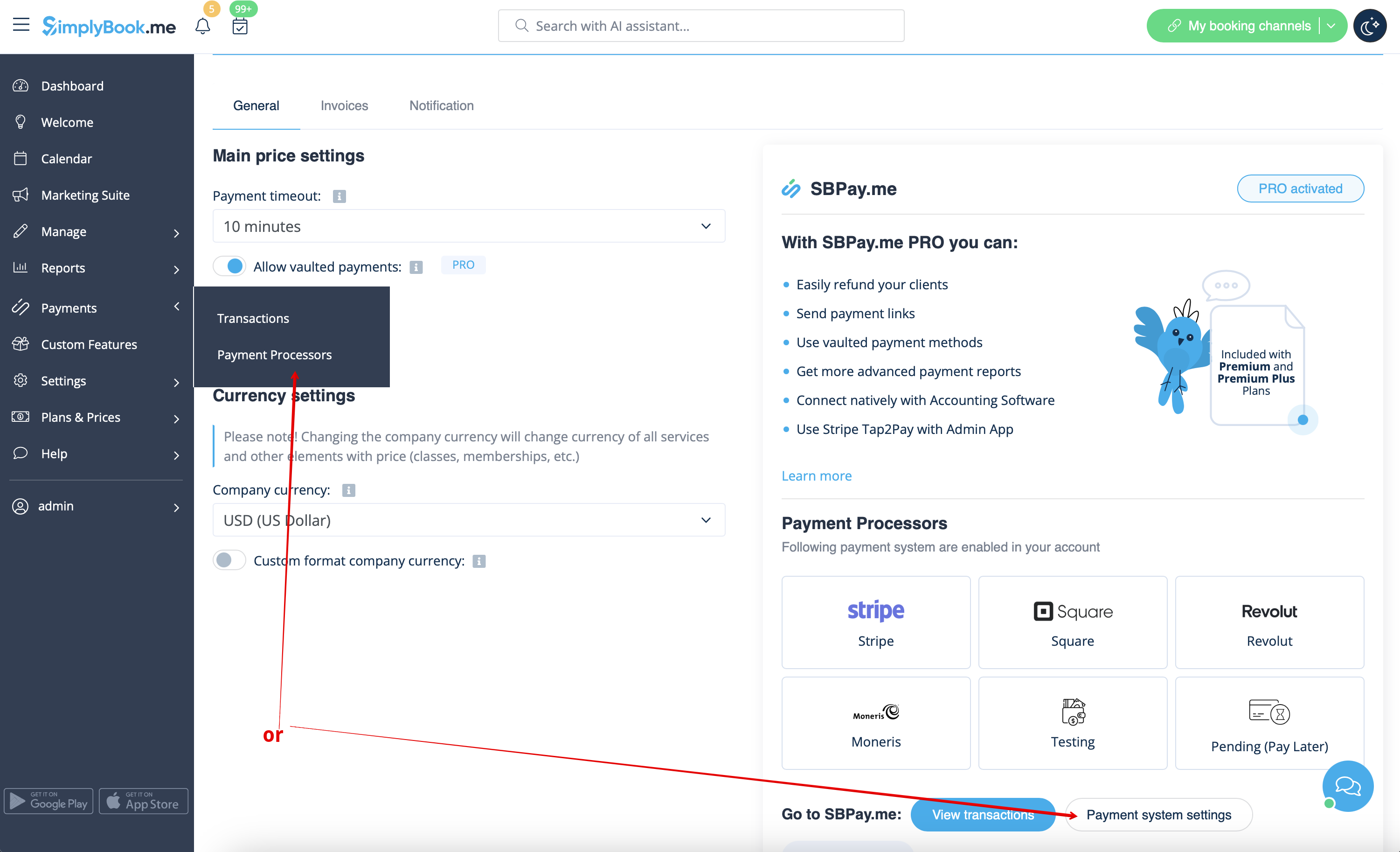
Gå til Payments -> Payment Processors eller Custom Features -> Accept payments -> Settings -> Payment system settings for at gå til SBPay.me-grænsefladen og deaktivere muligheden for at betale senere der.
Medarbejder-trin
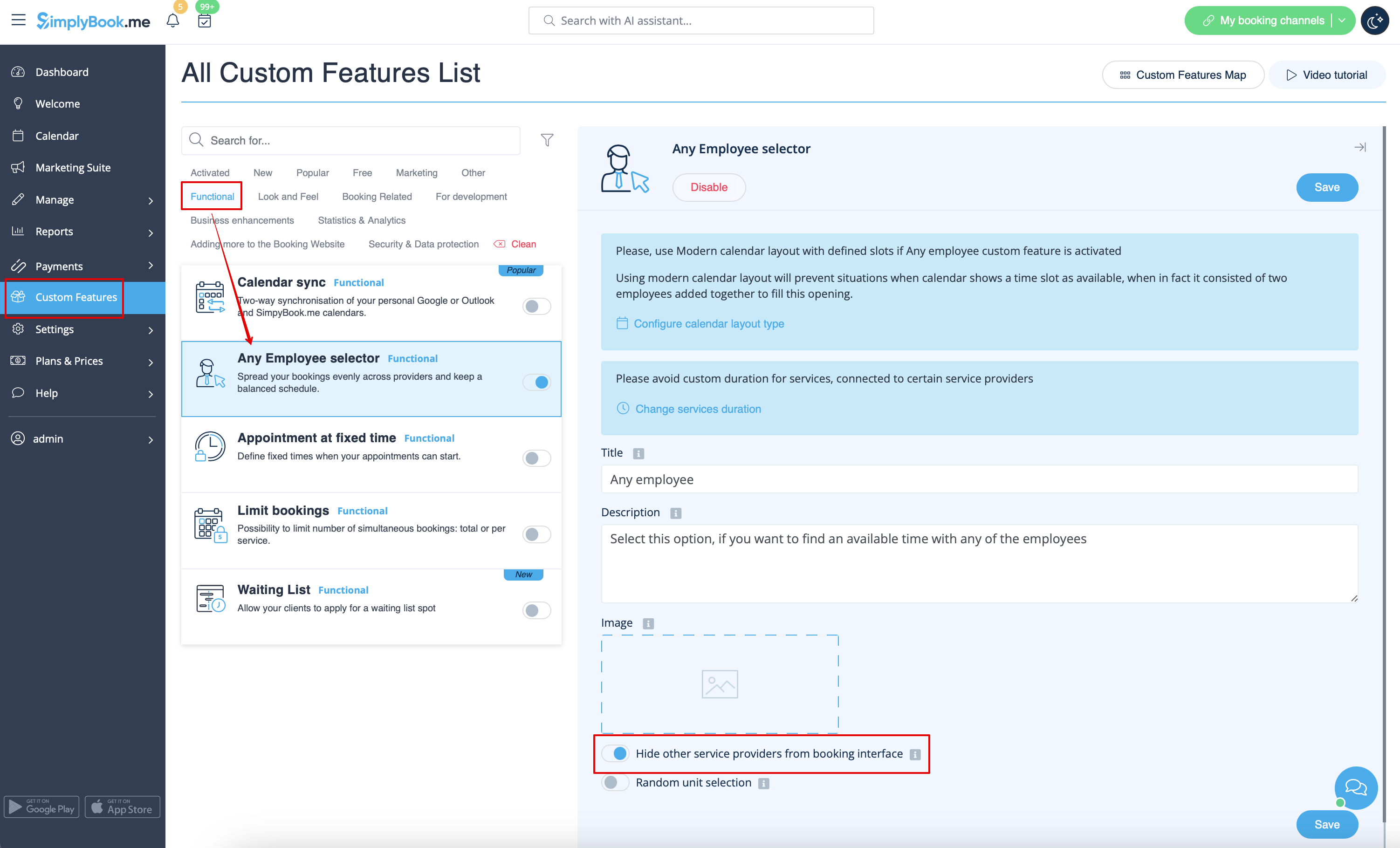
Aktivér Any Employee Selector i afsnittet Brugerdefinerede funktioner, og i indstillingerne til højre på siden skal du aktivere indstillingen Skjul andre tjenesteudbydere fra bookinggrænsefladen
Kort
I Indstillinger -> Virksomhedsoplysninger -> Brug ikke adresse-afkrydsningsfeltet.

Virksomhedens e-mailadresse
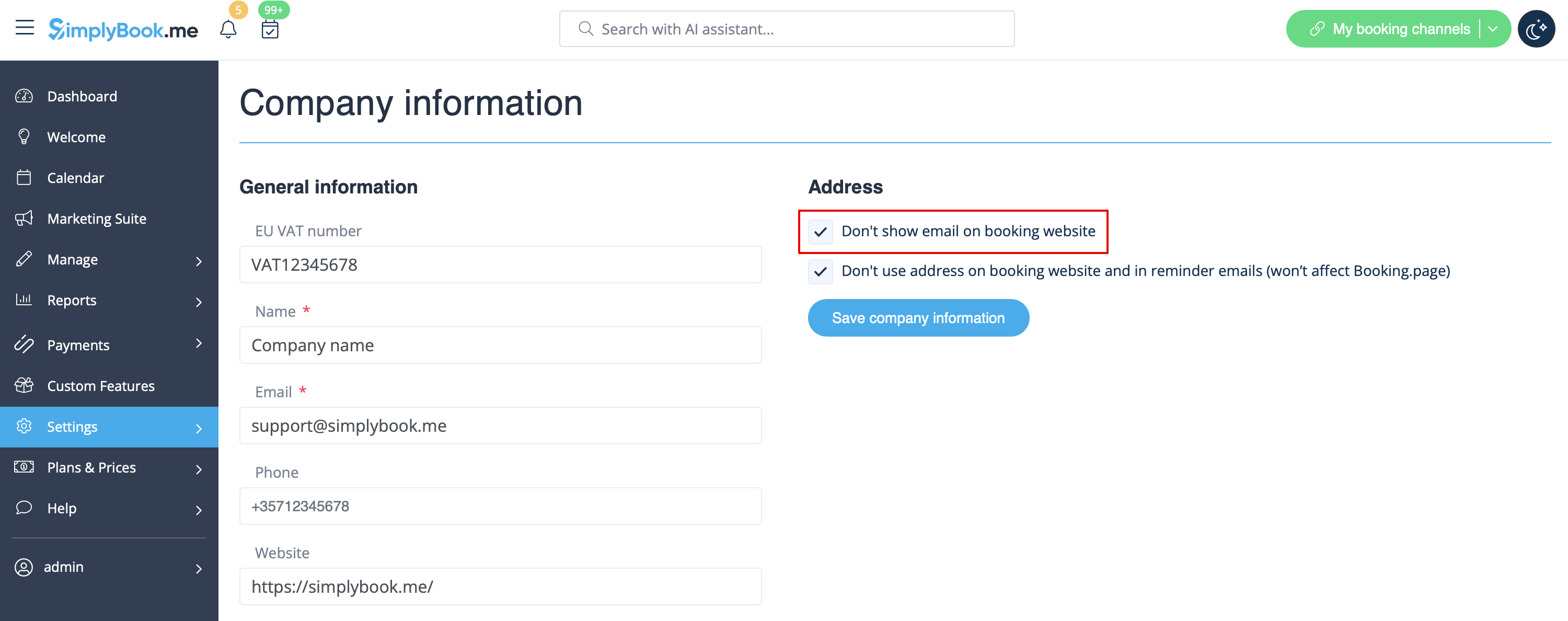
I Indstillinger -> Virksomhedsoplysninger -> Vis ikke e-mail på bookingsiden.
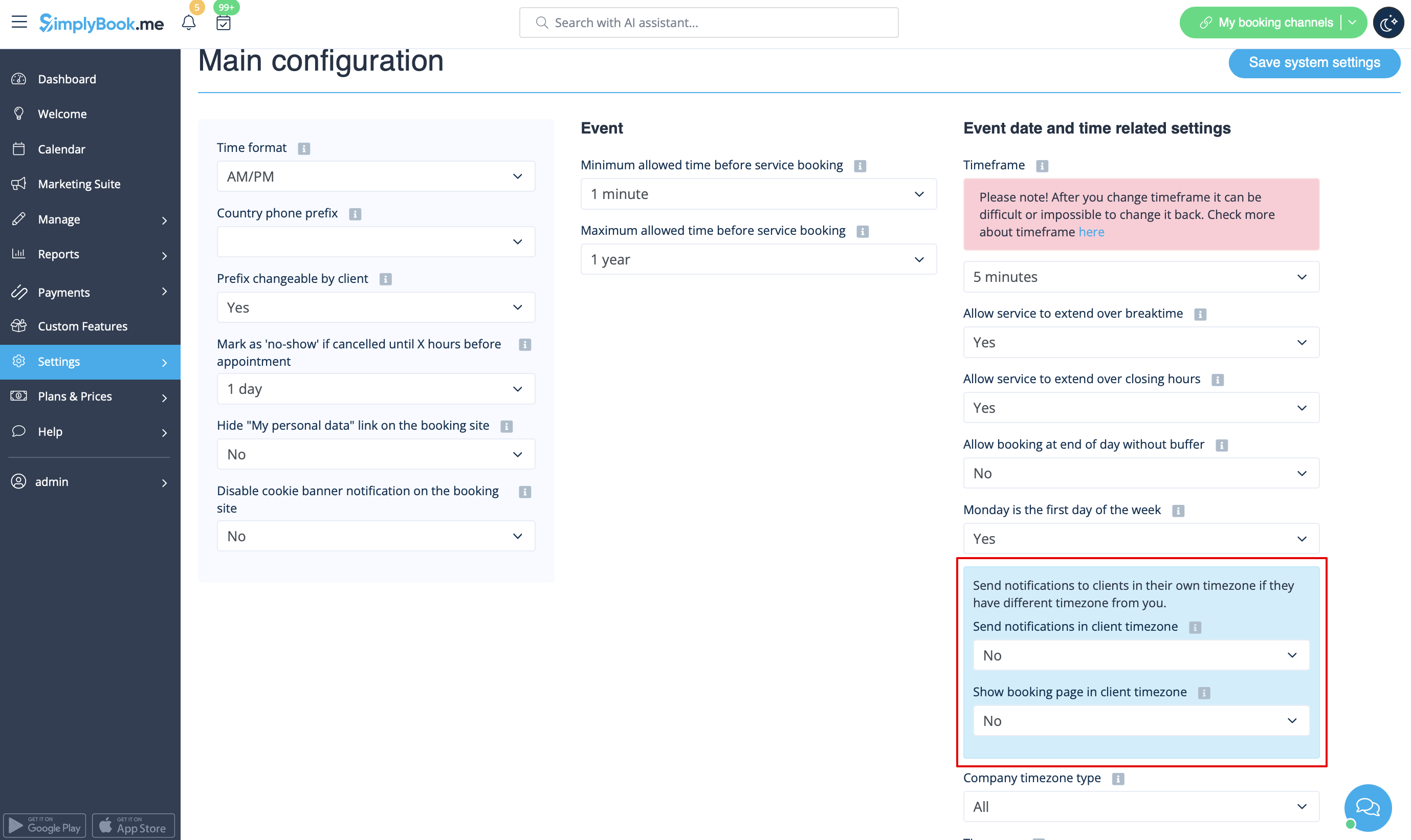
Indstillingen "Skift min tidszone"
I Indstillinger -> Hovedkonfiguration skal du sætte Vis bookingside i kundens tidszone og Send meddelelser i kundens tidszone til Nej og gemme indstillingerne.
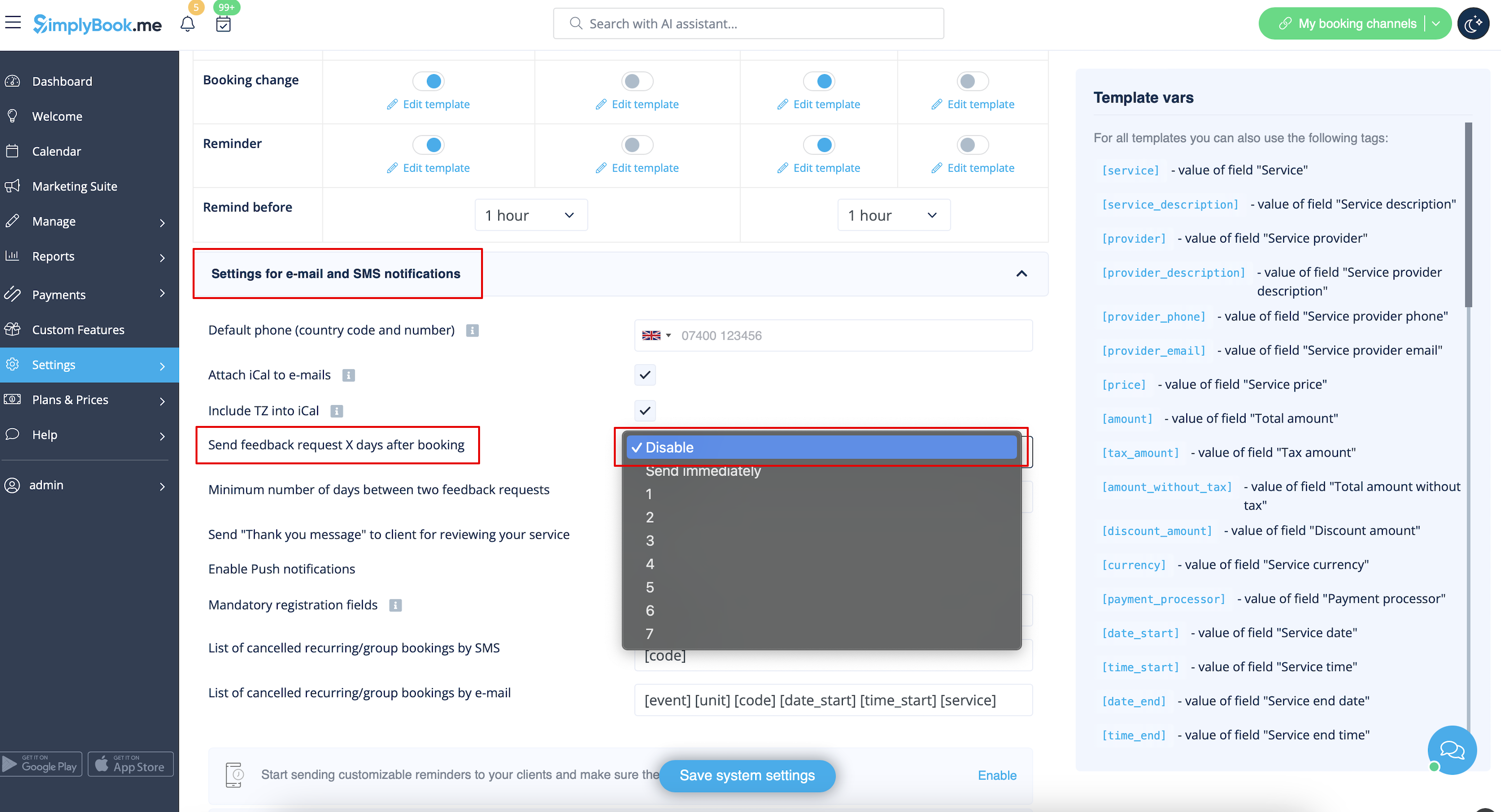
Anmeldelser
Du kan se alle dine anmeldelser på fanen Anmeldelser i menuen til venstre under Rapporter. Du kan også slette anmeldelser der, hvis det er nødvendigt. Hvis du ønsker at fjerne muligheden for at efterlade en anmeldelse på dit bookingsite og ikke sende en feedbackanmodning, skal du i Indstillinger -> E-mail- og SM S-indstillinger -> Indstillinger for e-mail- og SMS-meddelelser -> sætte Send feedbackanmodning X dage efter booking til Deaktiver
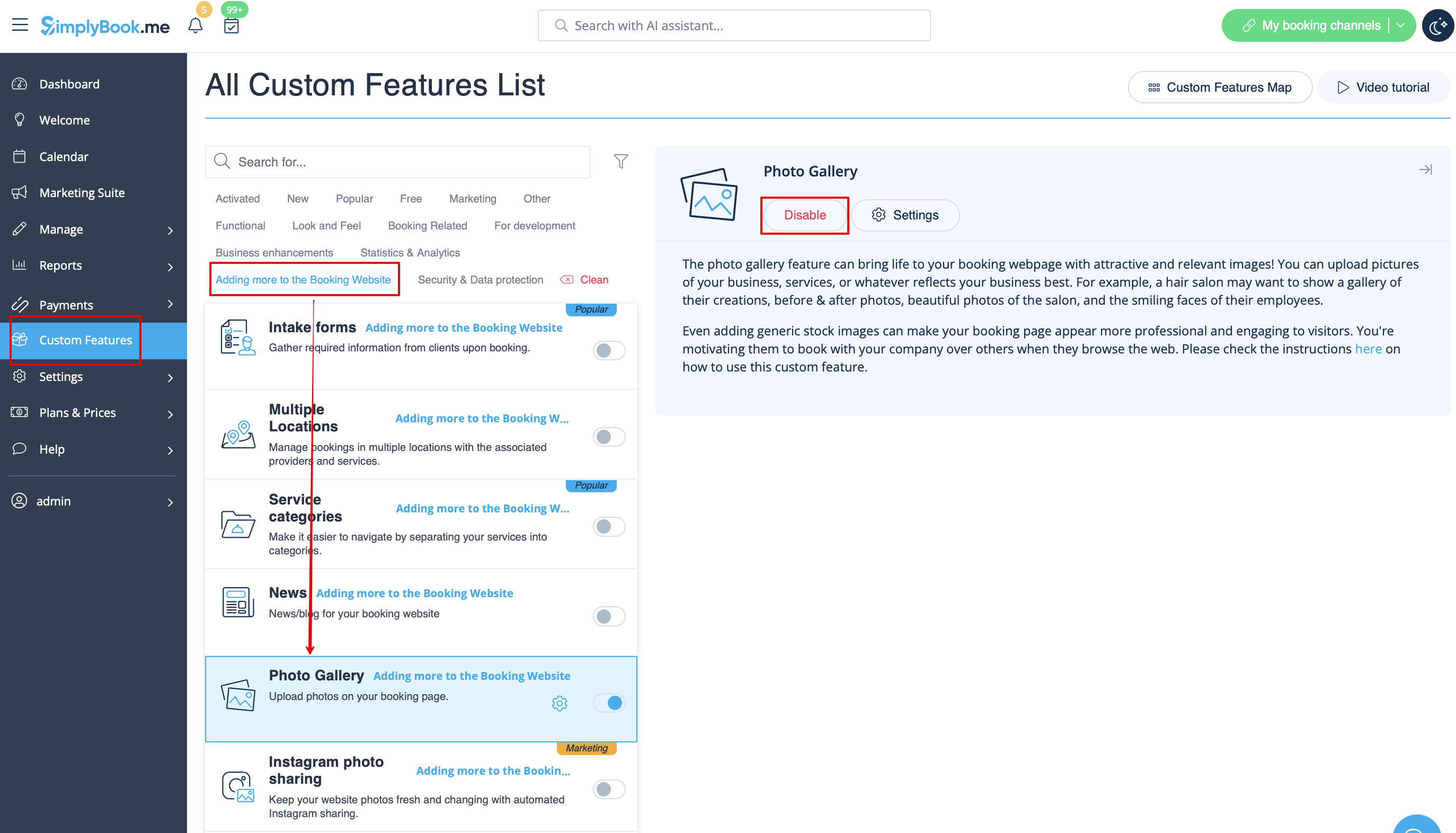
Working hours
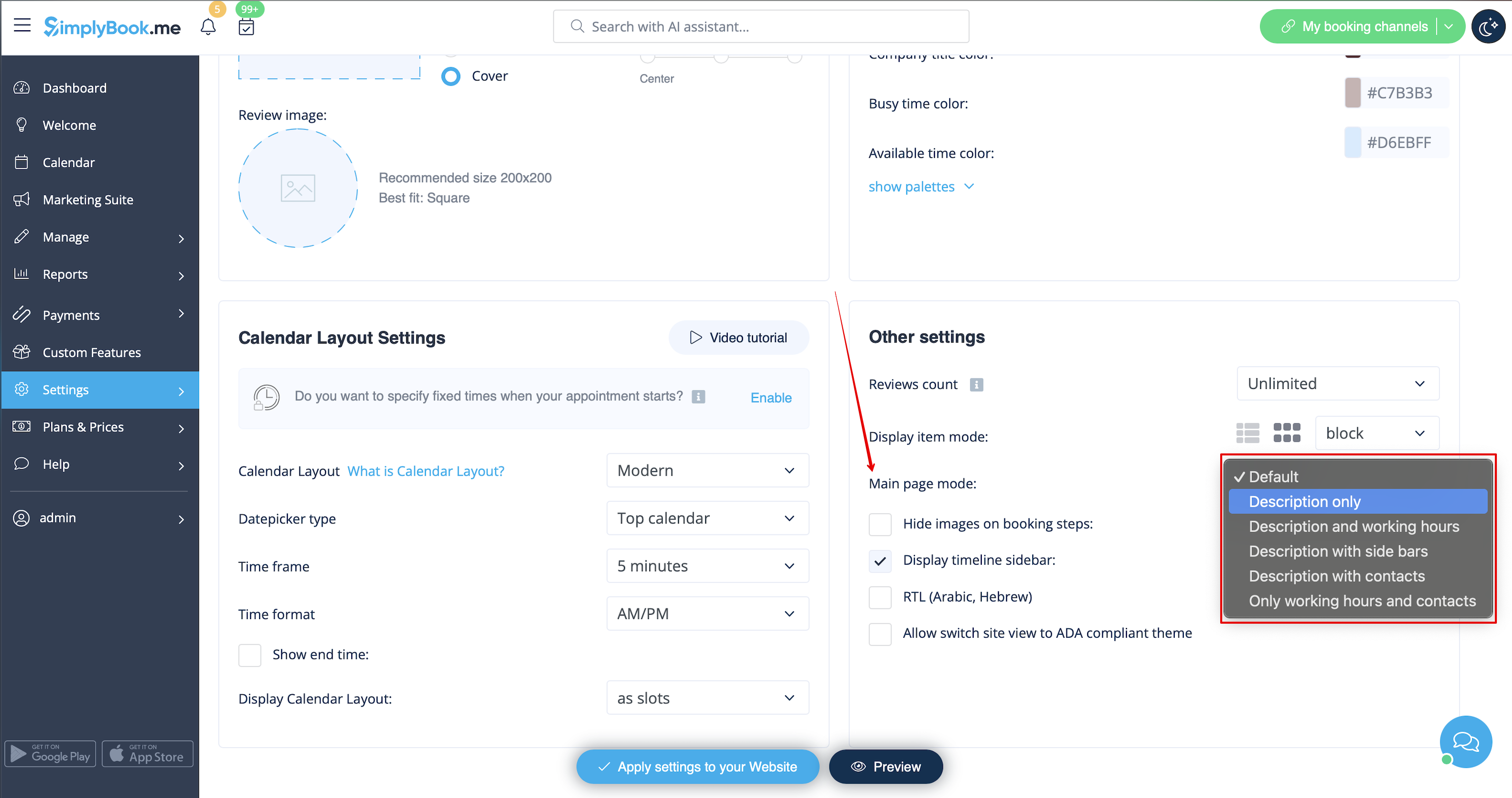
If you want to remove this section for new themes please go to Settings -> Design settings -> Other settings -> Main page mode and choose mode without working hours.
SimplyBook.me Terms and Conditions
- Please note, that you need to confirm that you've added information about SimplyBook.me Ltd. as a supplier to your Terms&Conditions.
To remove the checkbox you need to have enabled and correctly set all the options mentioned:
Either:
1. SMTP + Custom domain + Terms and Conditions + theme different from blank.
Or:
2. SMTP + Terms and Conditions + blank theme + Widget on your website.
After that you will be able to enable I confirm that I've added information about SimplyBook.me Ltd. as a supplier to my T&C option in Custom features -> Terms&Conditions and after you save settings there the SimplyBook.me terms and conditions checkbox will be removed from the booking site.

My personal data link
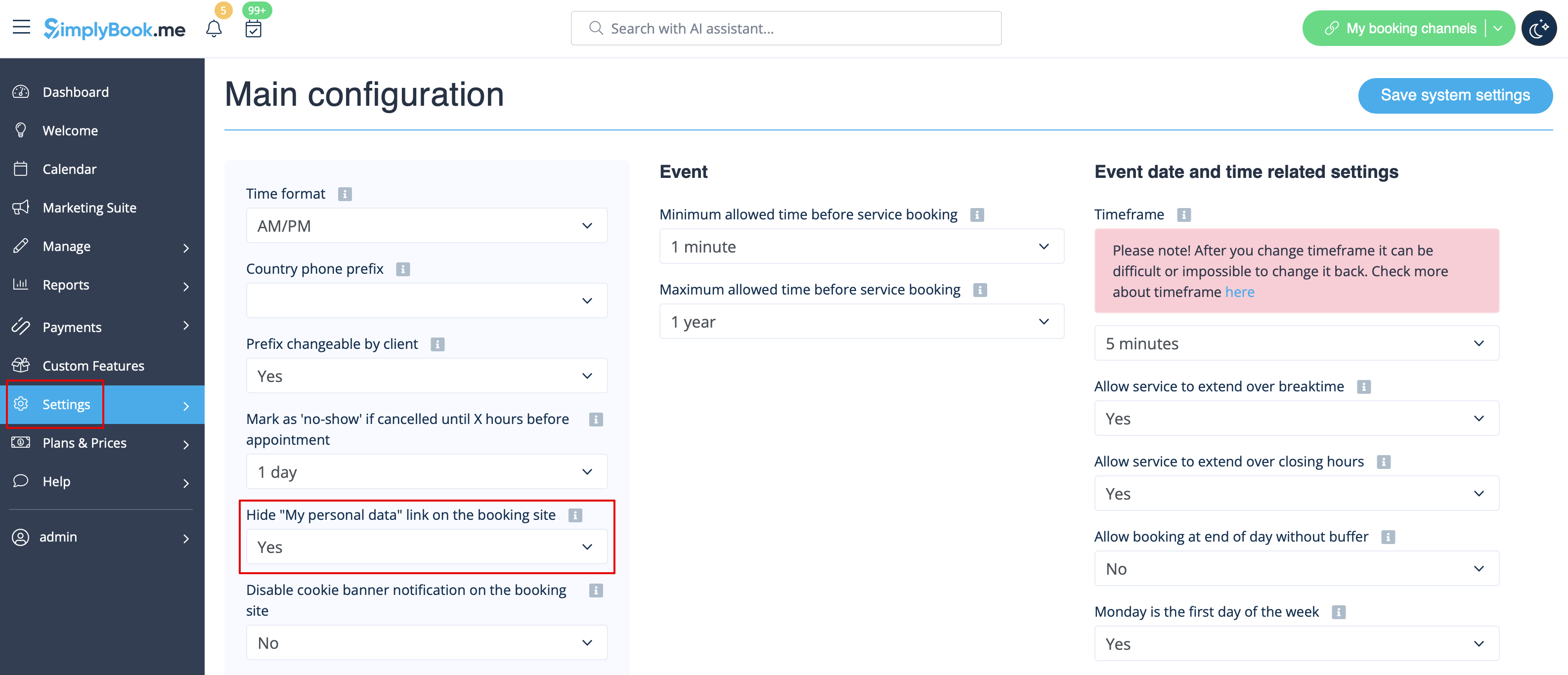
Go to Settings -> Main configuration and select Yes in Hide "My personal data" link on the booking site. save settings.
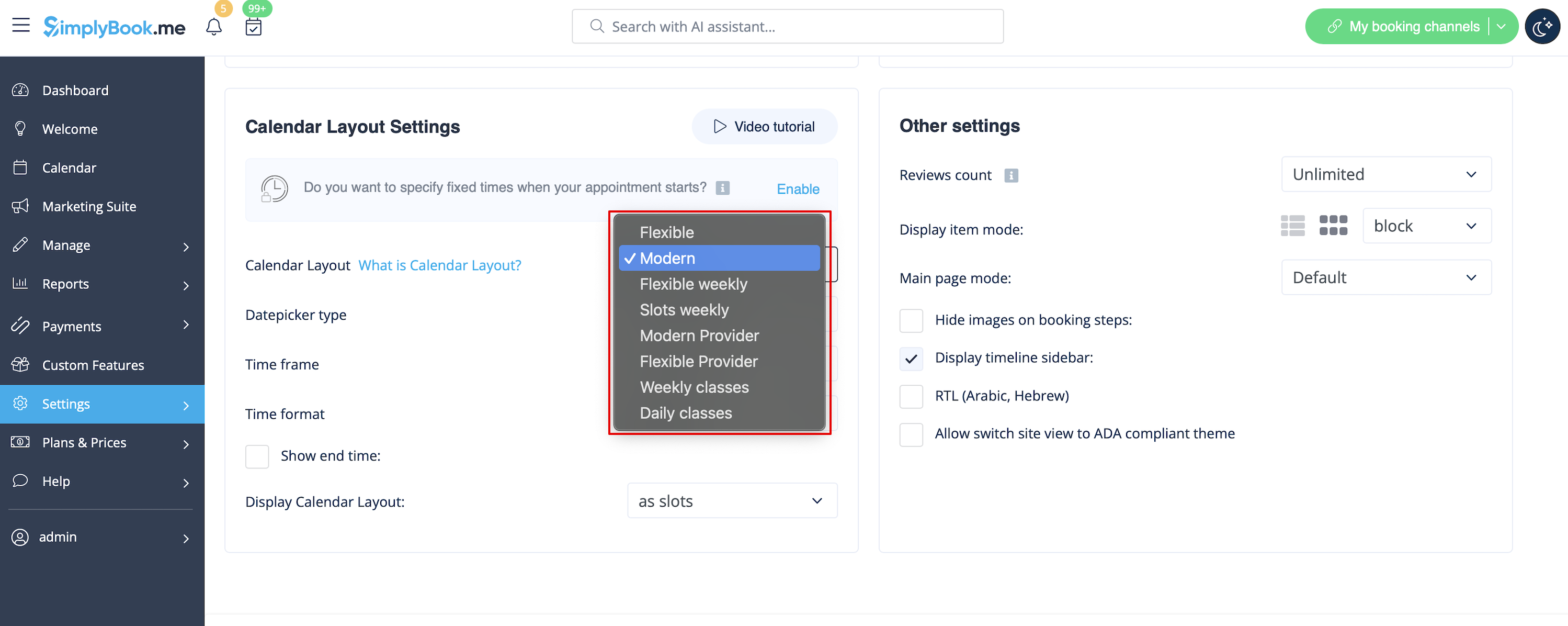
Please select modern, modern provider, daily(available with Classes feature enabled) or weekly classes calendar layout in Settings -> Design settings -> Calendar Layout -> Calendar Layout settings -> Calendar Layout drop-down.
Disable booking page(available for paid accounts only)
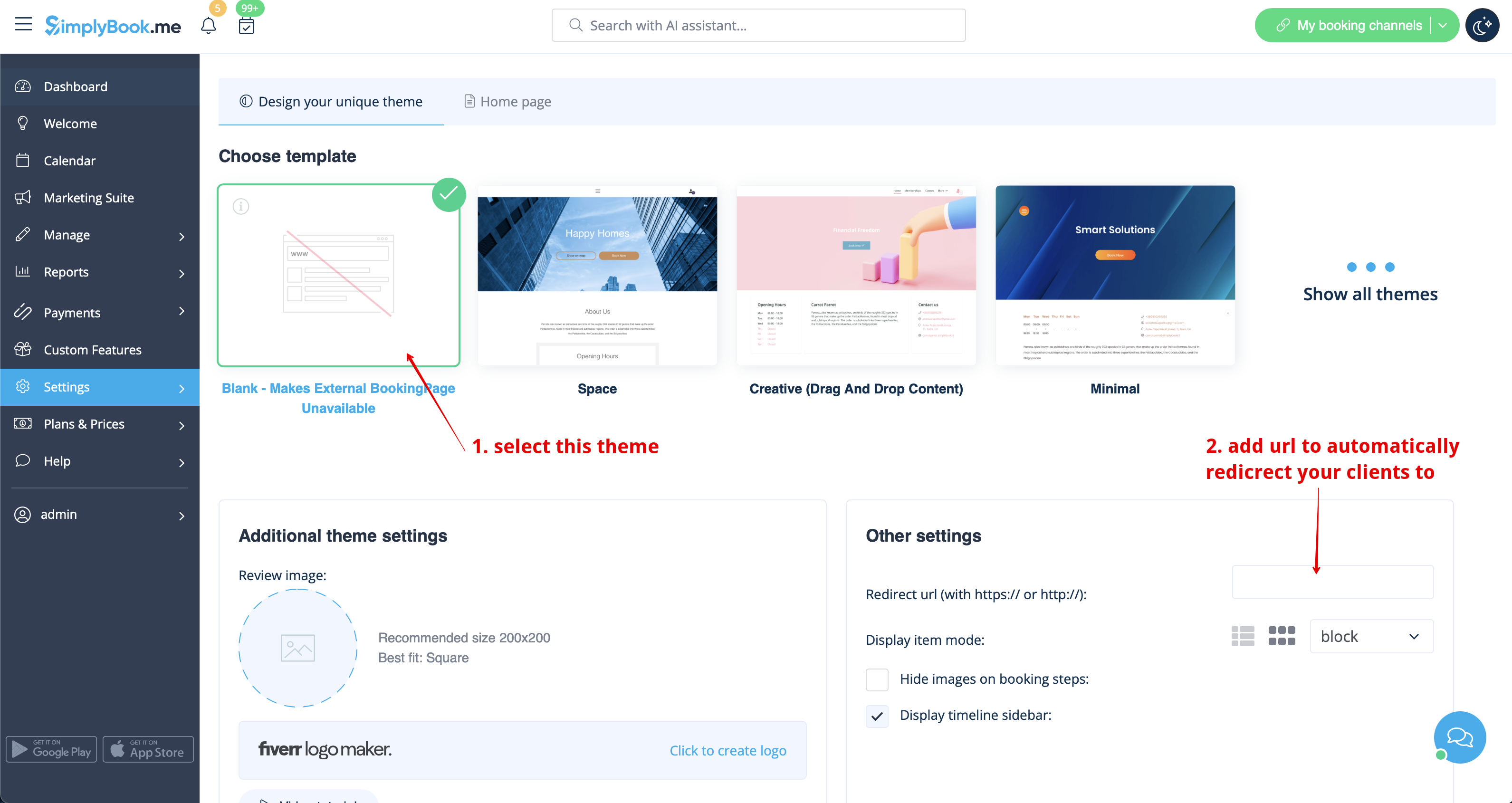
In order not to show any info on your booking page (make it blank), you can put blank theme on your booking page in Settings -> Design settings.
Please select to show all themes and choose the last one without image, add the link to the page your clients should be redirected to in case they open your booking page and save settings.
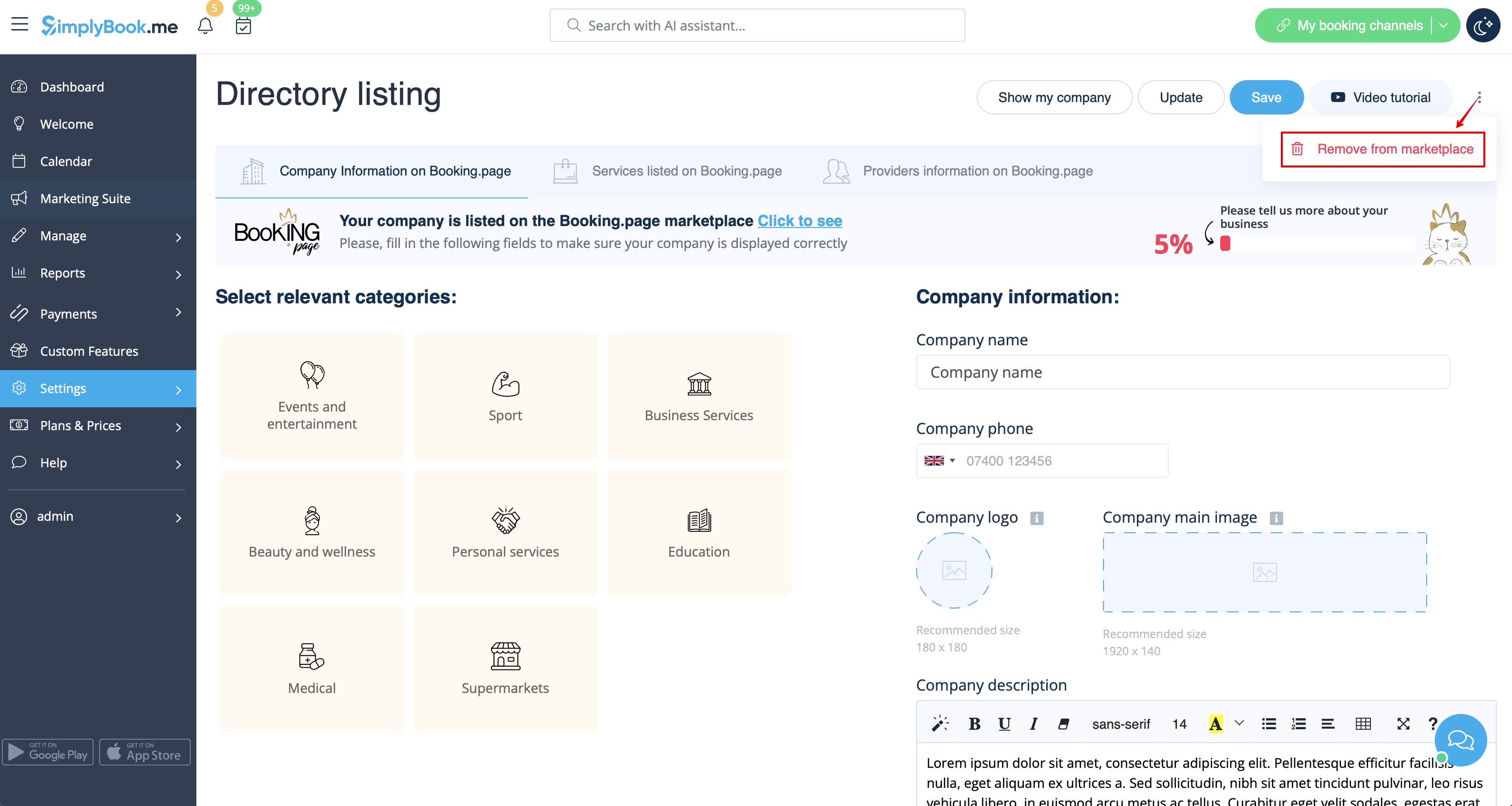
Please note! Even with blank theme your booking page will appear in Google and information will be shown in Booking.Page directory. To remove your company from directory, please click on Remove from marketplace button Settings -> Directory listing.
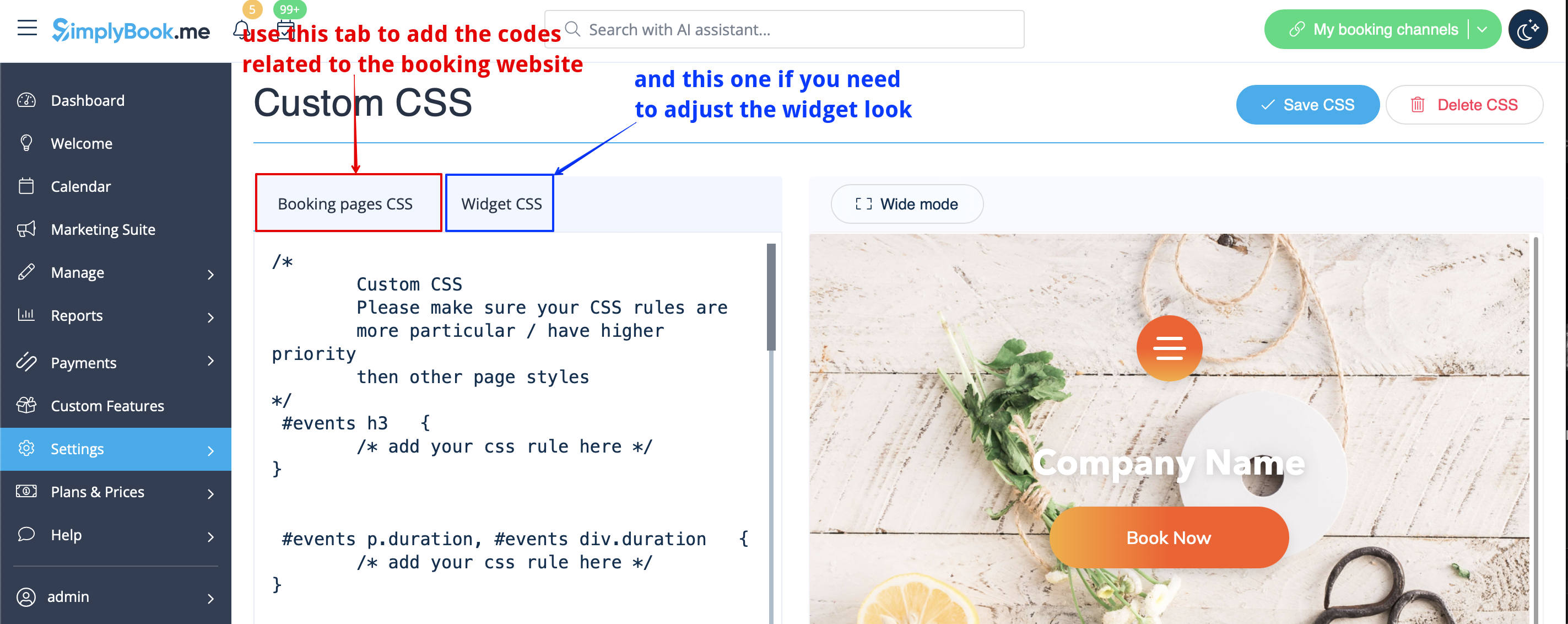
Removing with Custom CSS
- Please note! Add the code(s) to adjust the styles to "Booking pages CSS" tab if you wish to edit the booking website
- or "Widget CSS" if you are editing widget on your website.
Phone field
(Client login feature is disabled)
- 1. Go to Settings -> Email and SMS settings -> Settings for email and SMS notifications -> Mandatory registration fields -> Email (to make phone not mandatory).
- 2. Please go to Custom Features -> Custom Features and enable Custom CSS feature. Then in this feature Settings or in Custom Features -> Custom CSS paste to Booking pages CSS window at the very top the following code:
.form-group.form-client-phone{
    display: none;
}
Email field
(Client login feature is disabled)
- 1. Go to Settings -> Email and SMS settings -> Settings for email and SMS notifications -> Mandatory registration fields -> Phone (to make email not mandatory).
- 2. Please go to Custom Features -> Custom Features and enable Custom CSS feature. Then in this feature Settings or in Custom Features -> Custom CSS paste to Booking pages CSS window at the very top the following code:
.form-group.form-client-email{
    display: none;
}
Our time
Please go to Custom Features -> Custom Features and enable Custom CSS feature. Then in this feature Settings or in Custom Features -> Custom CSS paste to Booking page CSS window at the very top the following code:
div#sb_booking_company_time {
    display: none;
}
May we send you promotions and relevant information
Please go to Custom Features -> Custom Features and enable Custom CSS feature. Then in this feature Settings or in Custom Features -> Custom CSS paste to Booking page CSS window at the very top the following code:
- Client login feature enabled:
#main #client-login .custom-form #sb_terms_and_conditions .promotions-letter-flag label[role=button]{
    display: none;
}
- Client login feature disabled:
#sb-main-container #main #sb-timeline #steps #details .detail-step-wrap .detail-step .license-links-container .promotions-letter-flag label[role=button]{
    display: none;
}
Filter by Services on Membership page
Please go to Custom Features -> Custom Features and enable Custom CSS feature. Then in this feature Settings or in Custom Features -> Custom CSS paste to Booking page CSS window at the very top the following code:
#membership-view #membership-filters {
   display: none;
}
Remove banner image
- Please note! "Book now" and other buttons that are displayed on top of banner will be hidden as well. The code may not work with some themes.
Please go to Custom Features -> Custom Features and enable Custom CSS feature. Then in this feature Settings or in Custom Features -> Custom CSS paste to Booking page CSS window at the very top the following code:
#main-buttons {
    display: none;
}
Remove some specific element
If you need to remove a specific element from your booking page, you will need to use Custom CSS feature and the corresponding code. If you don't know CSS, please contact support and they will create a request to check whether such change is possible.
Please note, that big requests may be done on a paid basis.