Ta bort element från bokningssidan
Bilder för stegen Tjänst, Tjänsteleverantör, Kategori och Plats
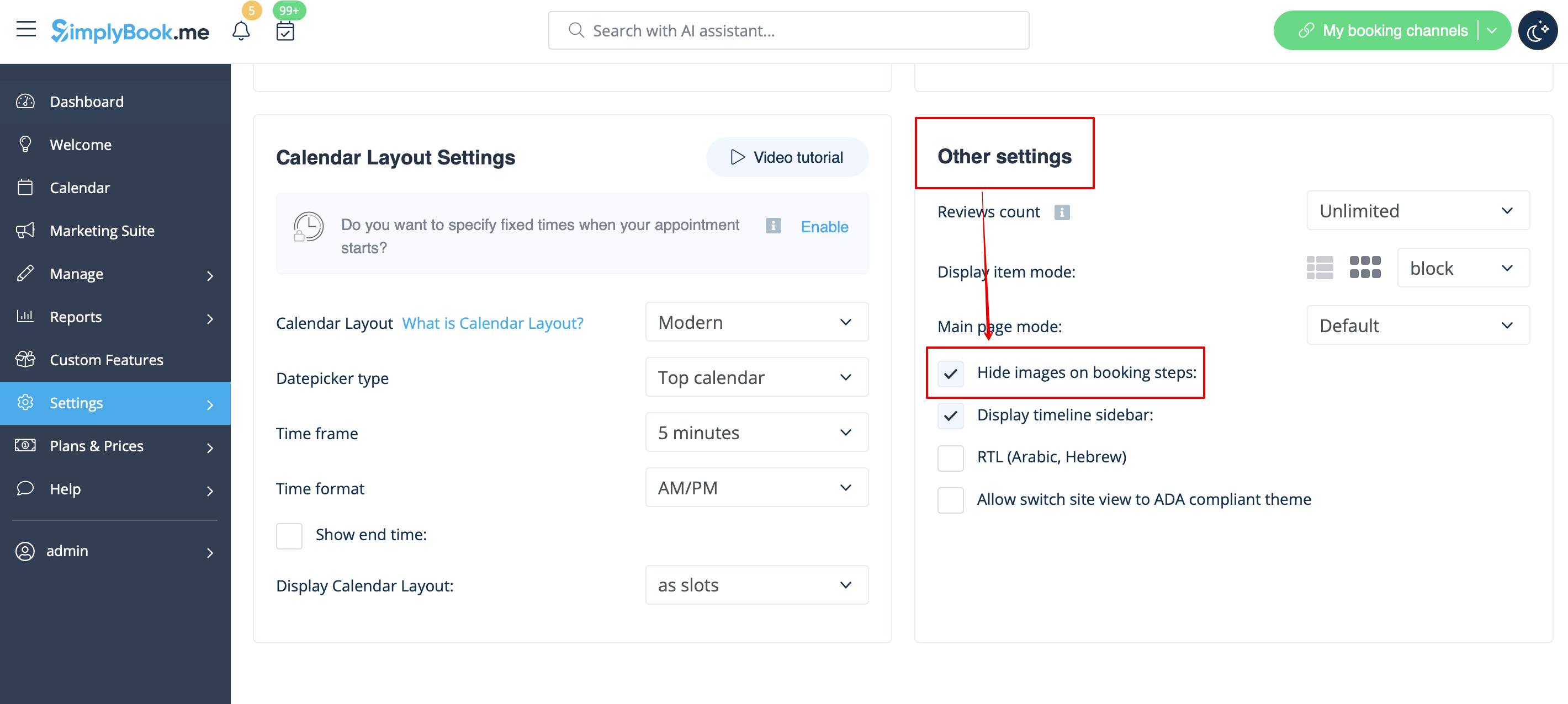
Gå till Inställningar -> Designinställningar -> Övriga inställningar och markera rutan Dölj bilder i bokningsstegen. Spara inställningarna.
Möjlighet att betala senare
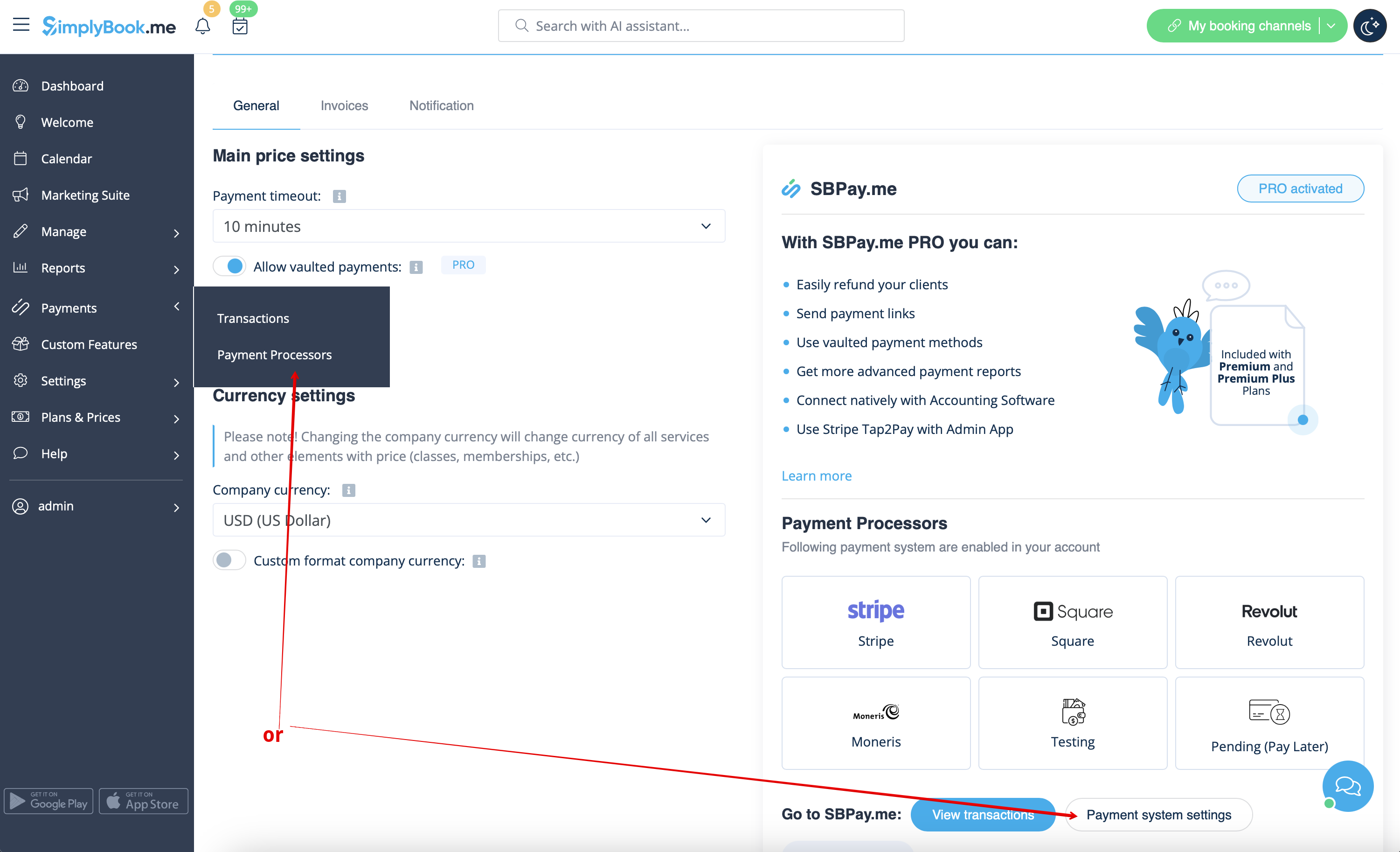
Vänligen navigera till Betalningar -> Betalningsprocessorer eller Anpassade funktioner -> Acceptera betalningar -> Inställningar -> Inställningar för betalningssystem för att gå till SBPay.me-gränssnittet och inaktivera alternativet Betala senare där.
Anställd steg
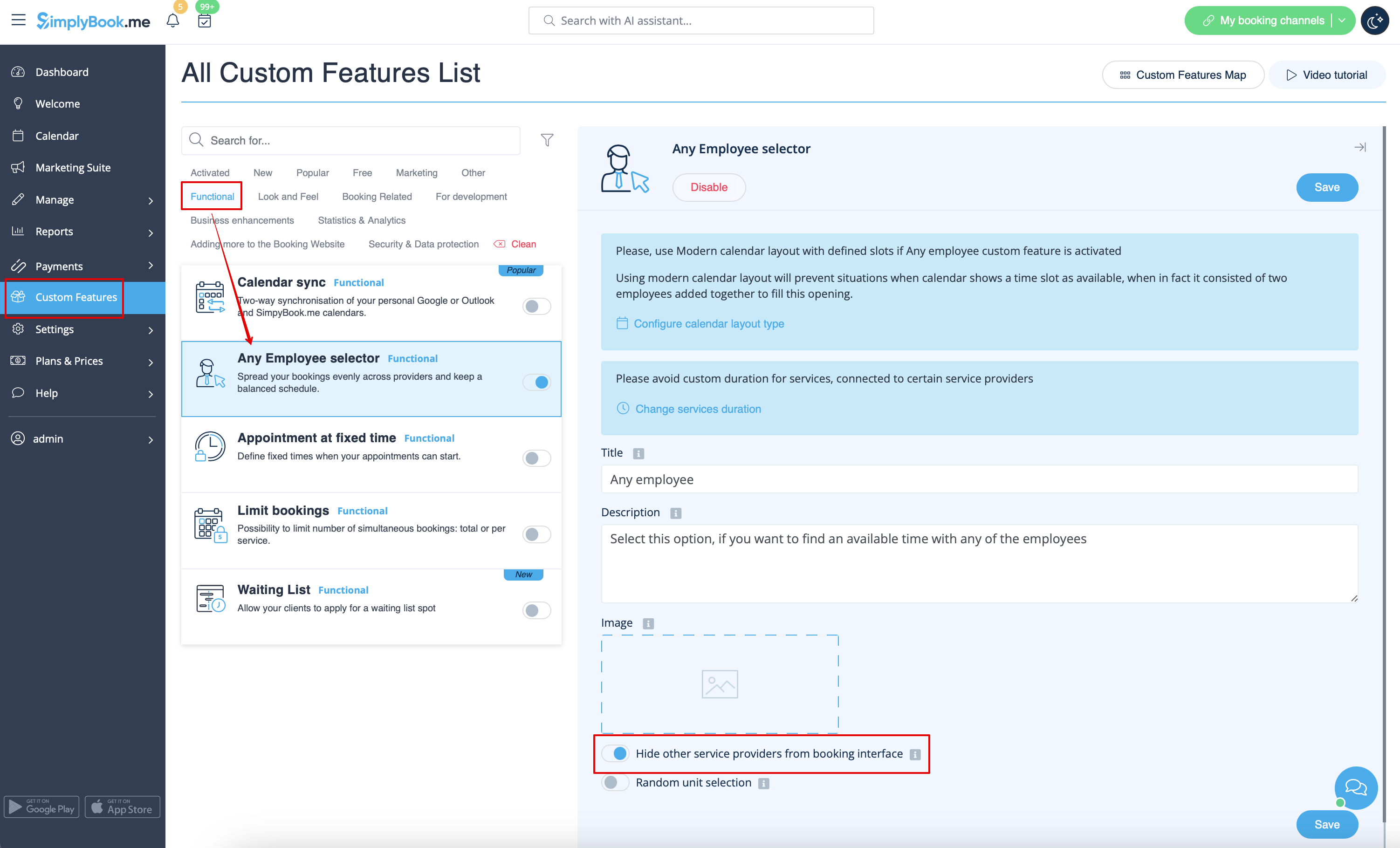
Aktivera Alla anställda väljare i avsnittet Anpassade funktioner och i dess inställningar på höger sida av sidan aktivera Dölj andra tjänsteleverantörer från bokningsgränssnittet alternativ
Karta
I Inställningar -> Företagsinformation -> Använd inte adress kryssrutan.

Företagets e-postadress
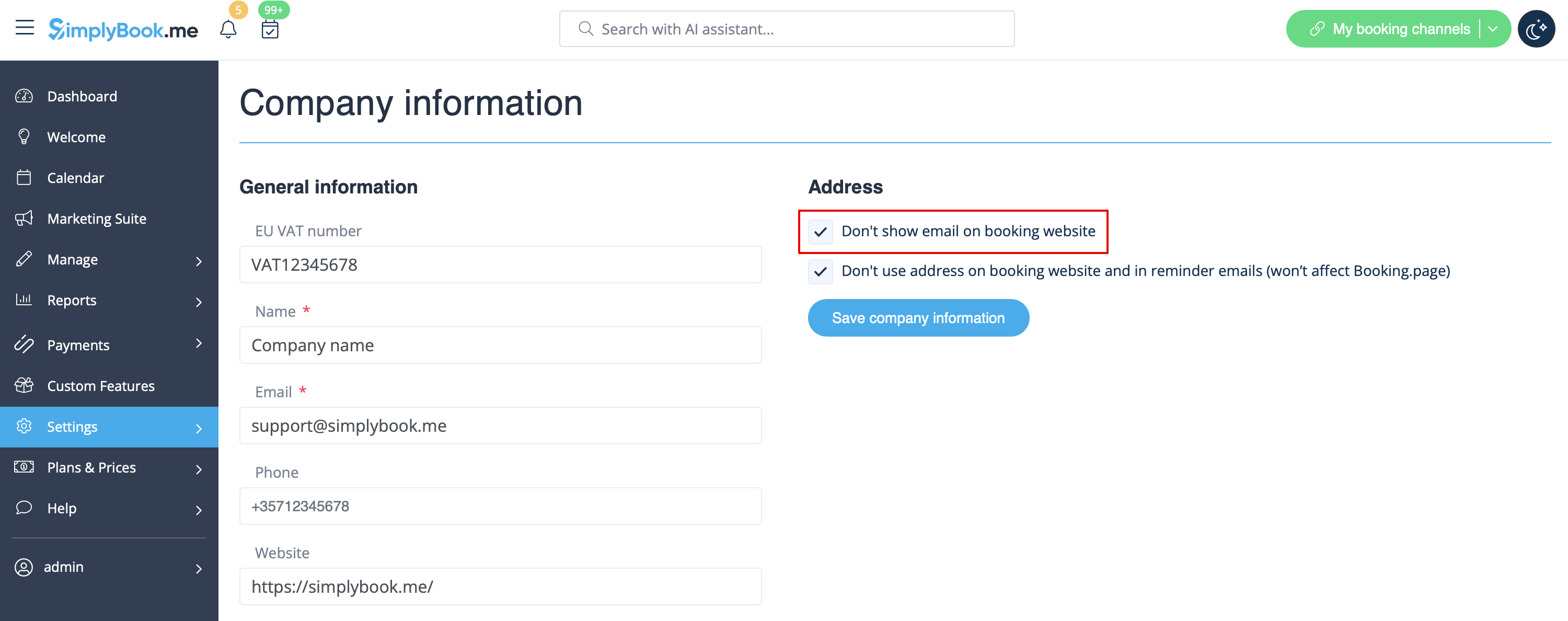
I Inställningar -> Företagsinformation -> Visa inte e-post på bokningssidan kryssruta.
Alternativet "Ändra min tidszon"
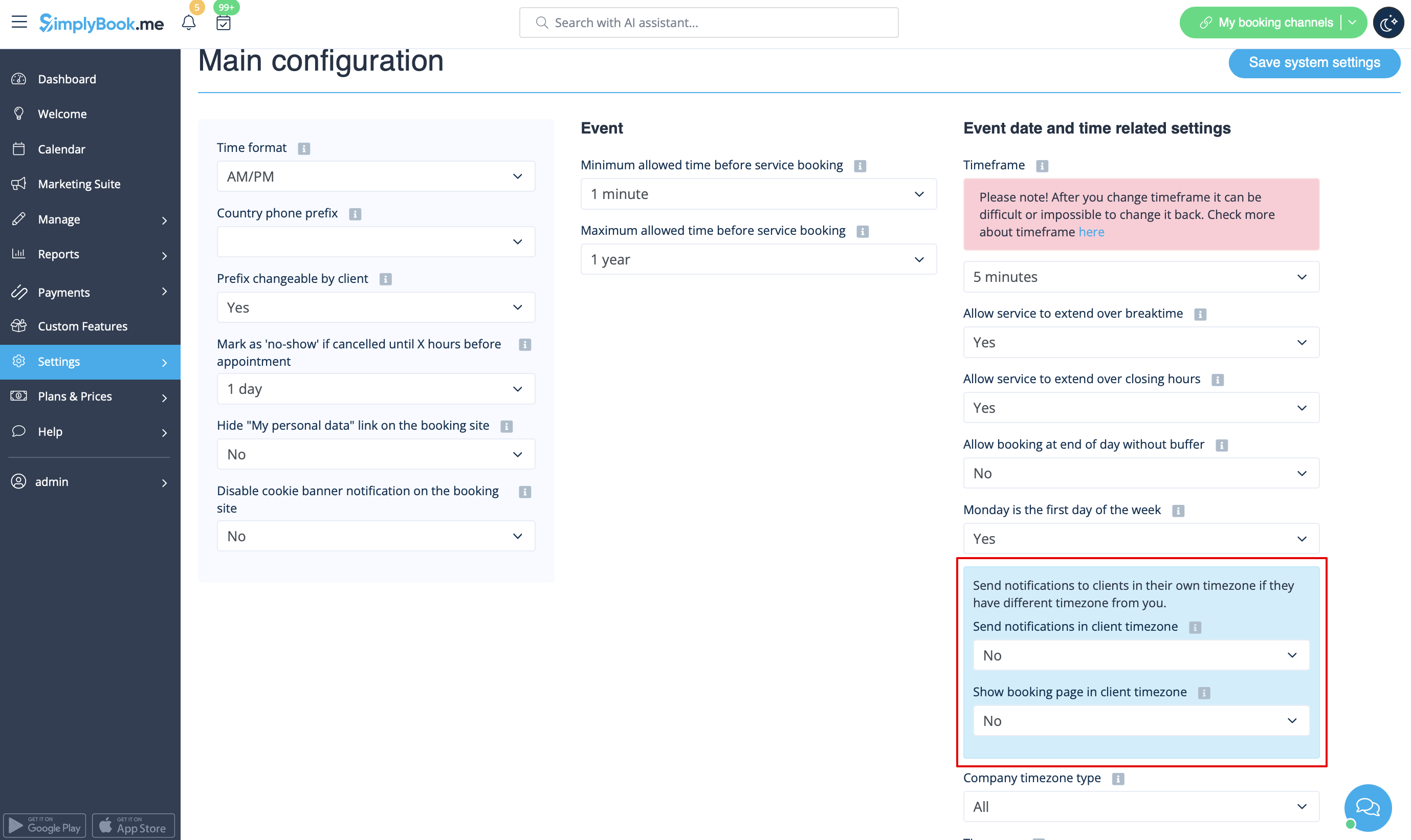
I Inställningar -> Huvudkonfiguration ställer du in Visa bokningssida i kundens tidszon och Skicka meddelanden i kundens tidszon till Nej och sparar inställningarna.
Recensioner
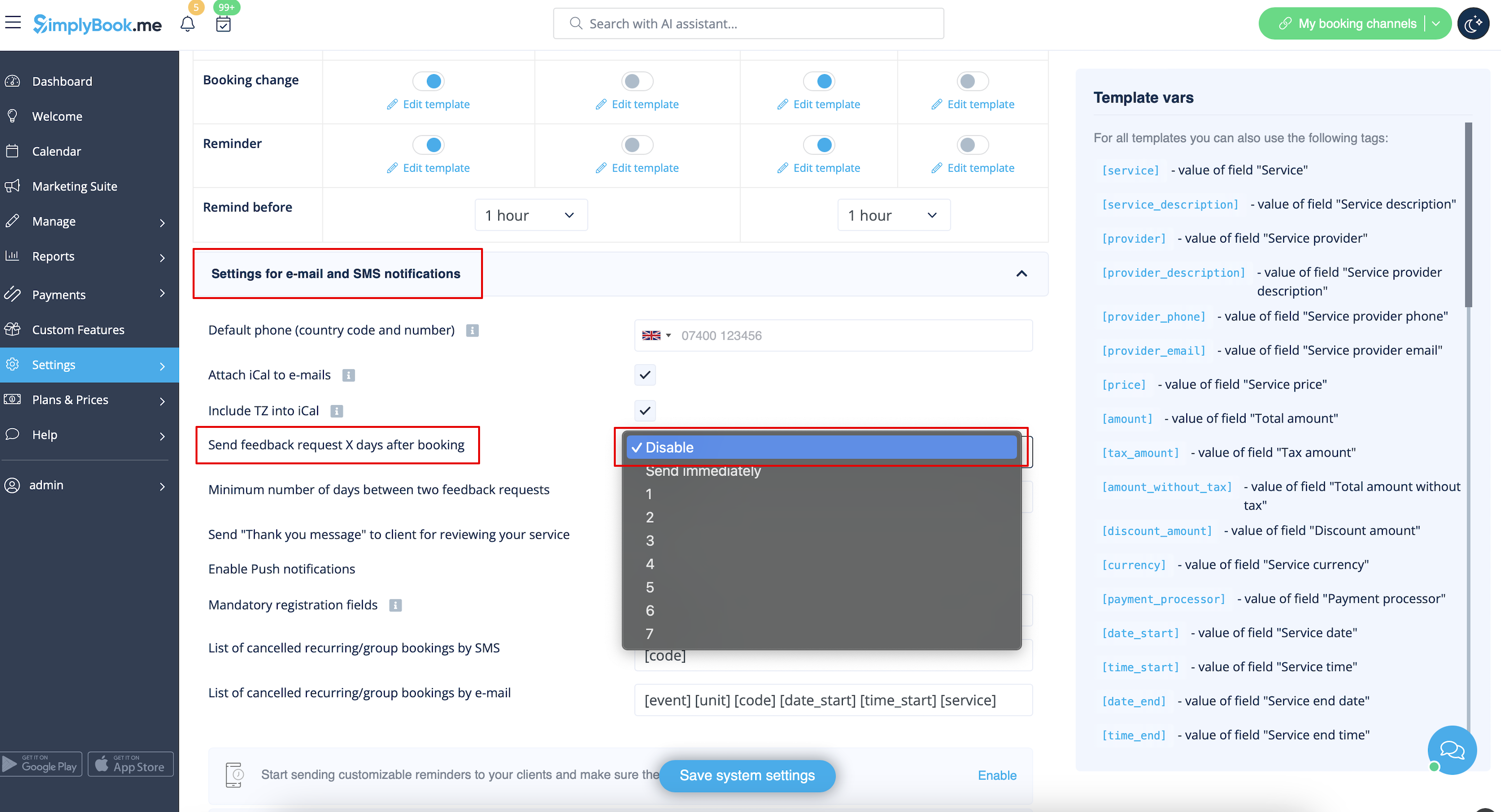
Du kan se alla dina recensioner på fliken Recensioner i menyn till vänster, under Rapporter. Du kan också ta bort recensioner där om det behövs. Om du vill ta bort möjligheten att lämna en recension på din bokningssida och inte skicka feedbackbegäran, i Inställningar -> E-post- och SMS-inställningar -> Inställningar för e-post- och SMS-aviseringar -> ställ in Skicka feedbackbegäran X dagar efter bokningen till Inaktivera
Galleri
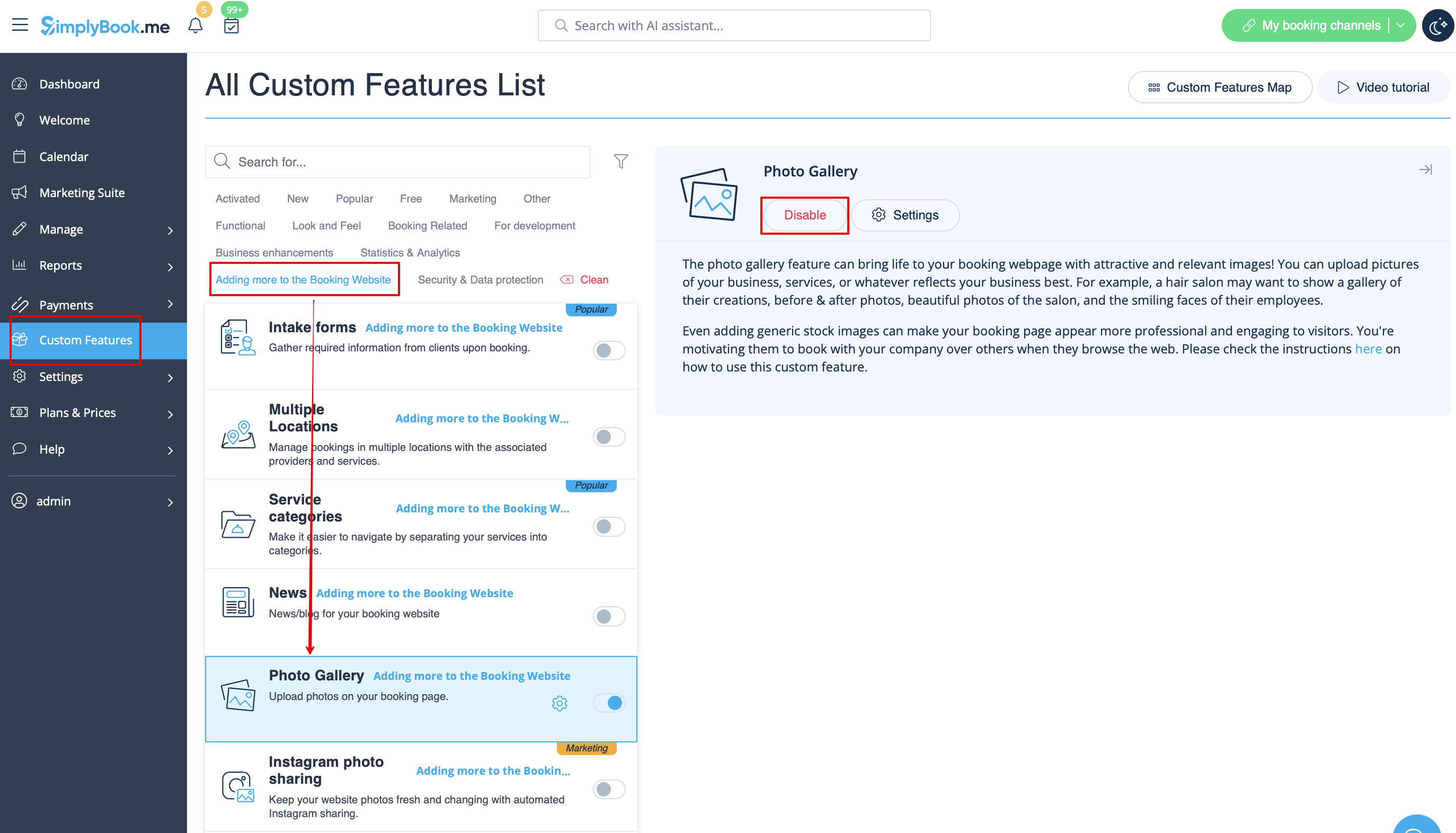
I avsnittet Anpassade funktioner inaktiverar du fotogalleri.
Arbetstid
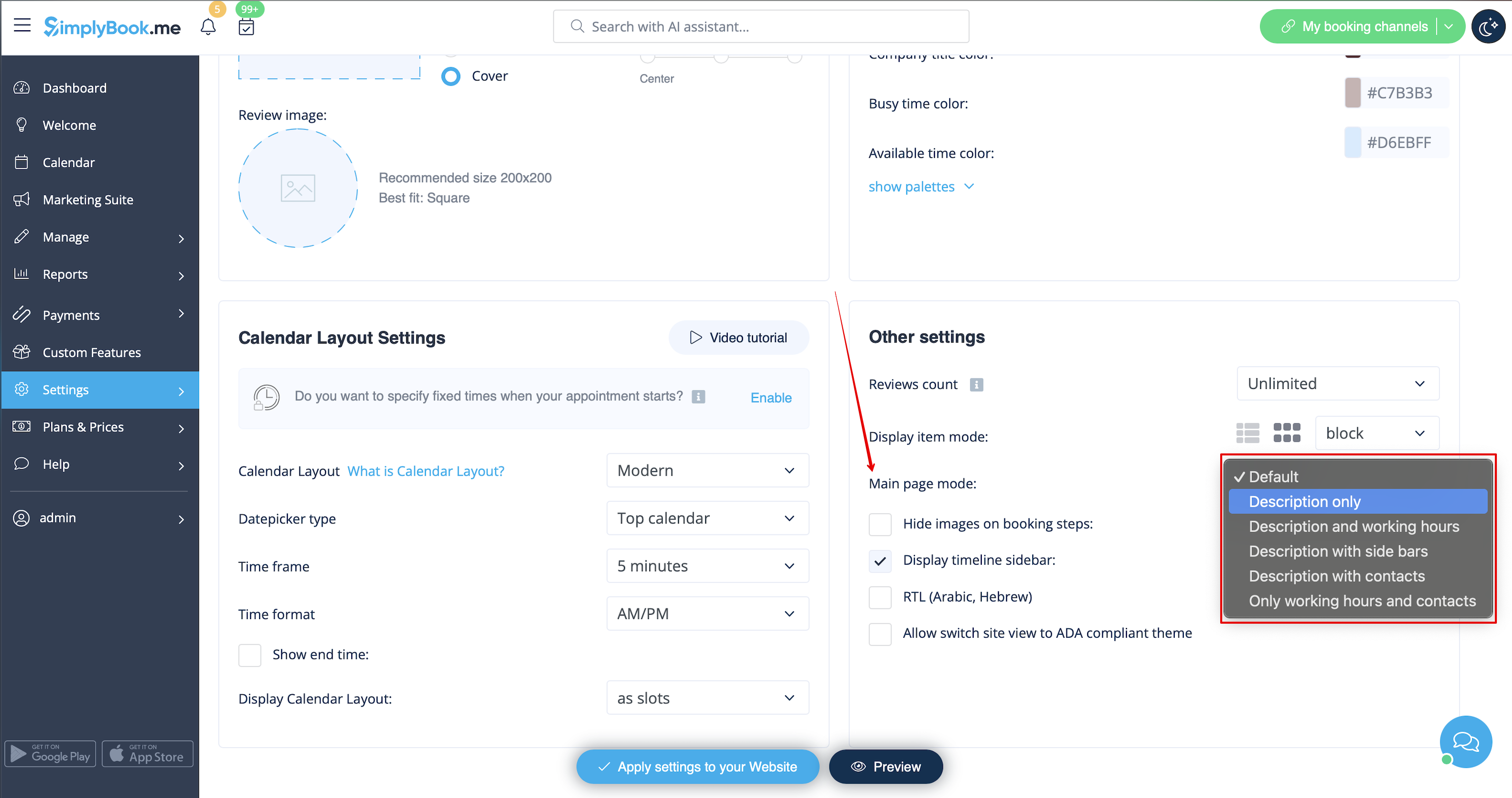
Om du vill ta bort det här avsnittet för nya teman, gå till Inställningar -> Designinställningar -> Andra inställningar -> Huvudsidans läge och välj läge utan arbetstid.
SimplyBook.me Villkor och bestämmelser
- Observera att du måste bekräfta att du har lagt till information om SimplyBook.me Ltd. som leverantör till dina villkor.
För att ta bort kryssrutan måste du ha aktiverat och korrekt ställt in alla de alternativ som nämns:
Antingen:
1. SMTP + Anpassad domän + Villkor + tema som skiljer sig från tomt.
Eller:
2. SMTP + Villkor + tomt tema + Widget på din webbplats.
Efter det kommer du att kunna aktivera Jag bekräftar att jag har lagt till information om SimplyBook.me Ltd. som leverantör till mitt T & C-alternativ i Anpassade funktioner -> Villkor och villkor och efter att du har sparat inställningarna där kommer kryssrutan SimplyBook.me villkor att tas bort från bokningssidan.

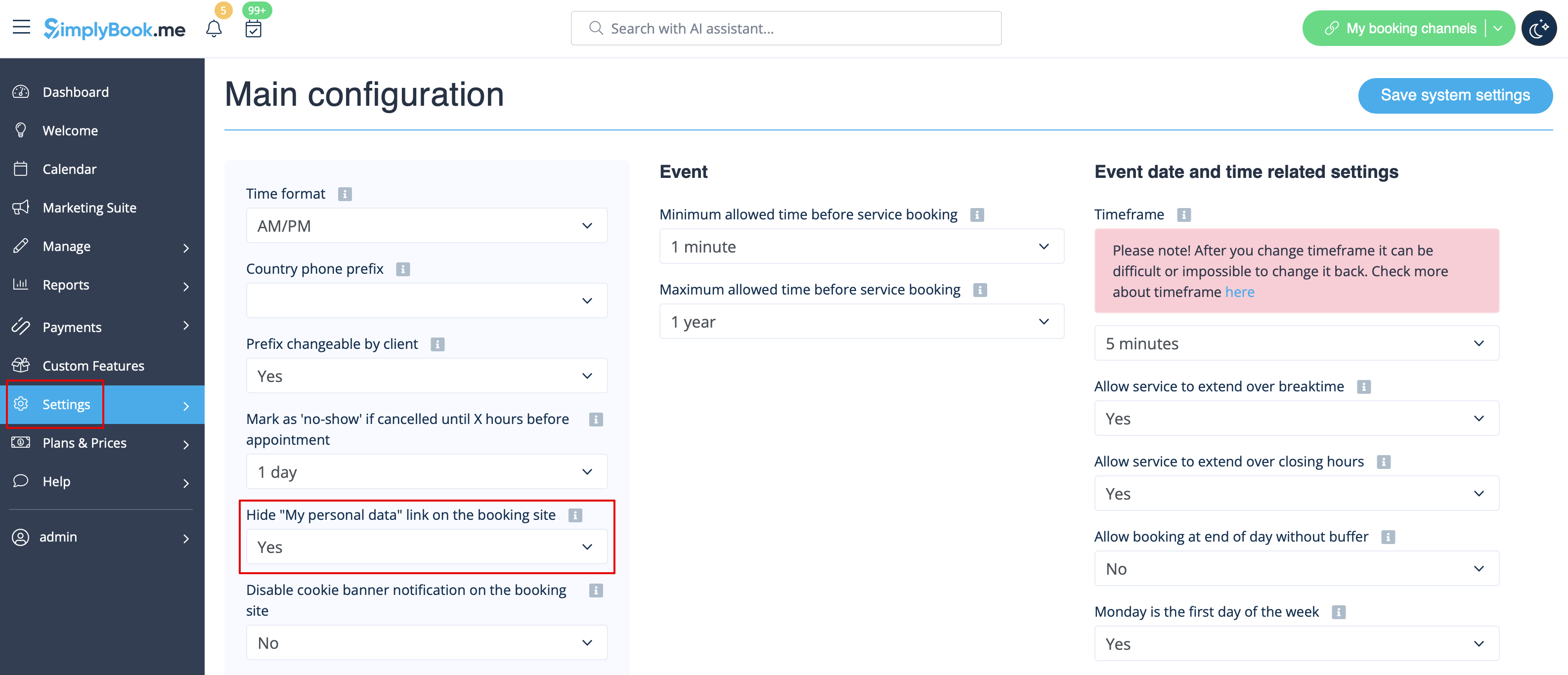
Länk till mina personuppgifter
Gå till Inställningar -> Huvudkonfiguration och välj Ja i Dölj länken "Mina personuppgifter" på bokningssidan. spara inställningarna.
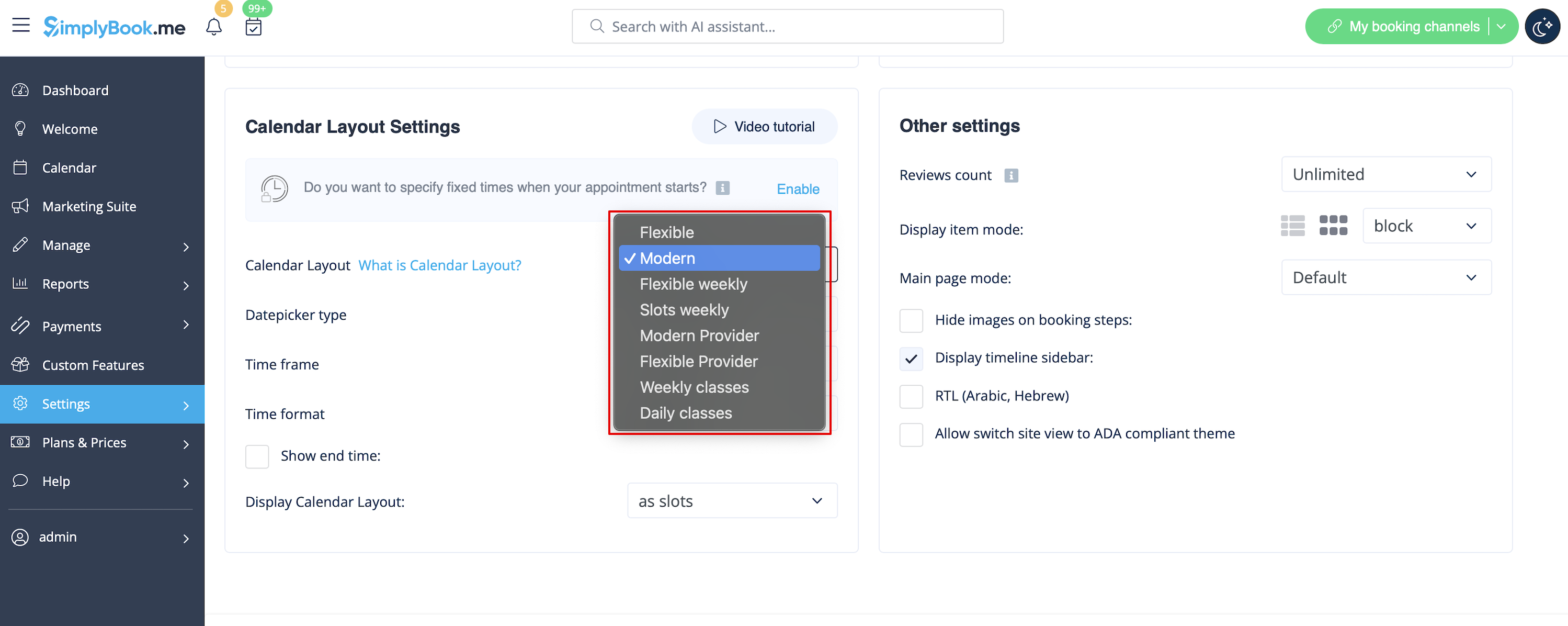
Otillgängliga tidsluckor
Välj modern, modern leverantör, daglig (tillgänglig med funktionen Klasser aktiverad) eller veckovis kalenderlayout för klasser i rullgardinsmenyn Inställningar -> Designinställningar -> Kalenderlayout -> Kalenderlayoutinställningar -> Kalenderlayout.
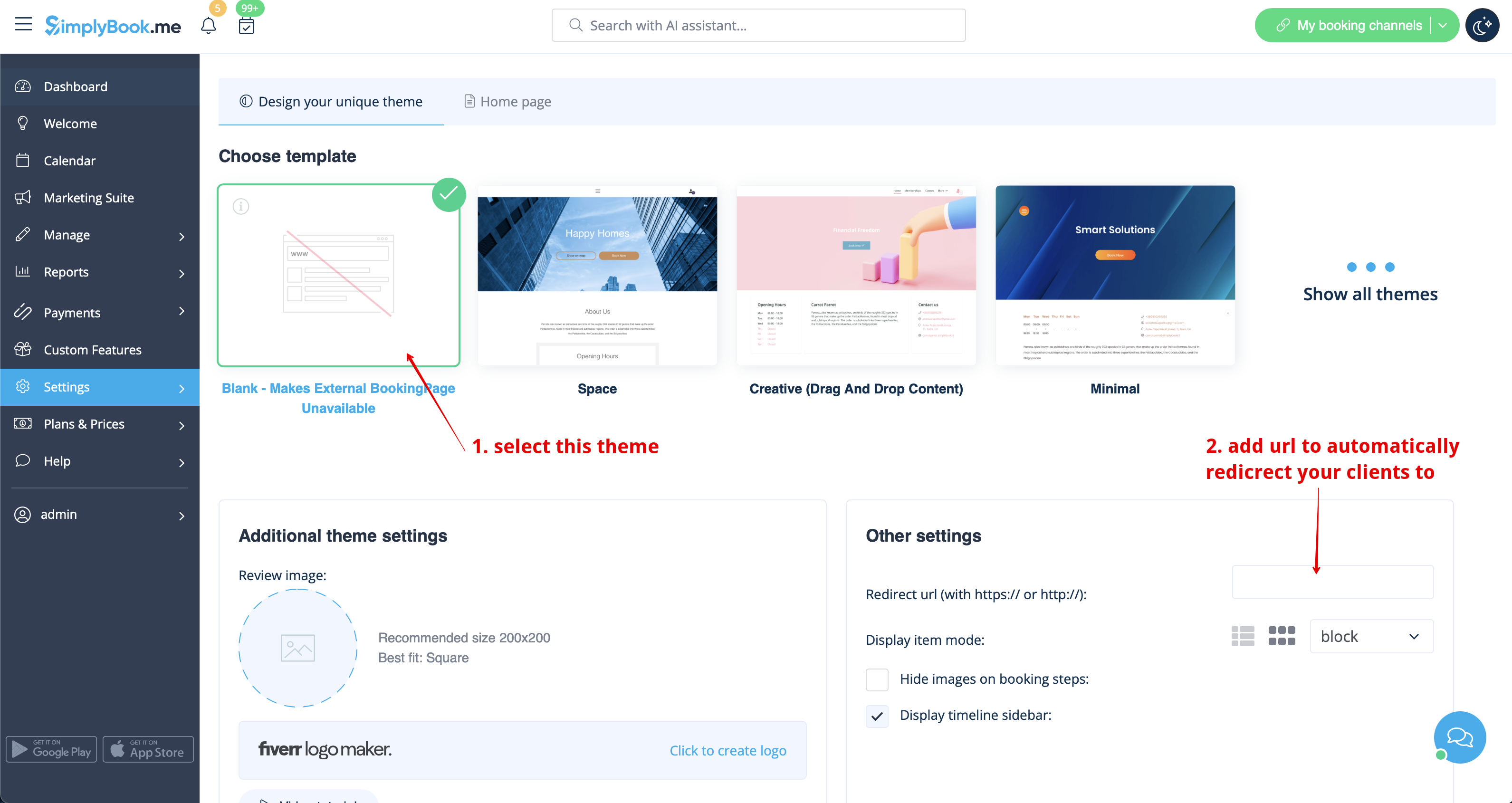
Inaktivera bokningssidan (endast tillgängligt för betalkonton)
För att inte visa någon information på din bokningssida (göra den tom) kan du lägga till ett tomt tema på din bokningssida i Inställningar -> Designinställningar.
Välj att visa alla teman och välj det sista utan bild, lägg till länken till den sida som dina kunder ska omdirigeras till om de öppnar din bokningssida och spara inställningarna.
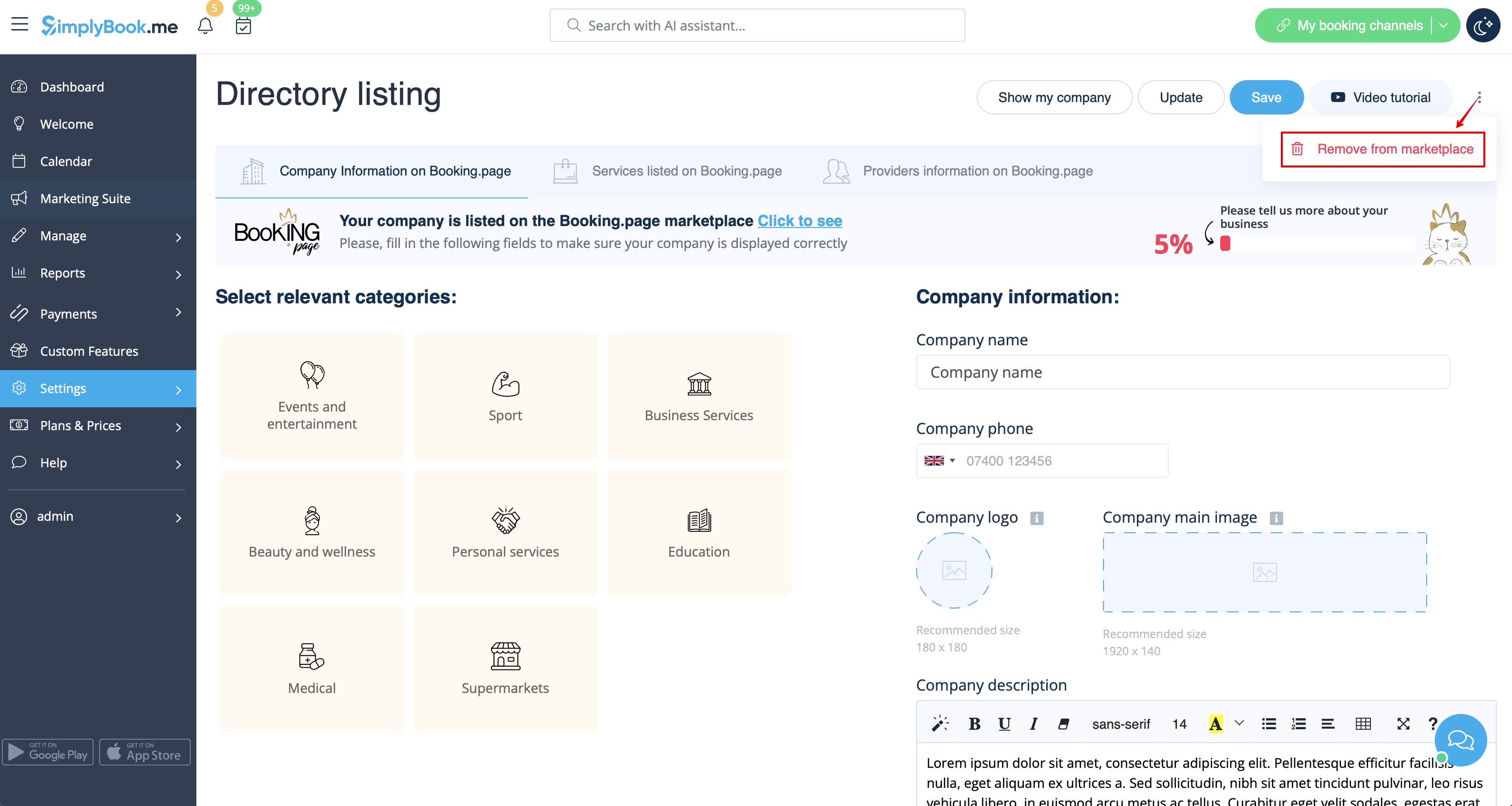
Please note! Even with blank theme your booking page will appear in Google and information will be shown in Booking.Page directory. To remove your company from directory, please click on Remove from marketplace button Settings -> Directory listing.
Removing with Custom CSS
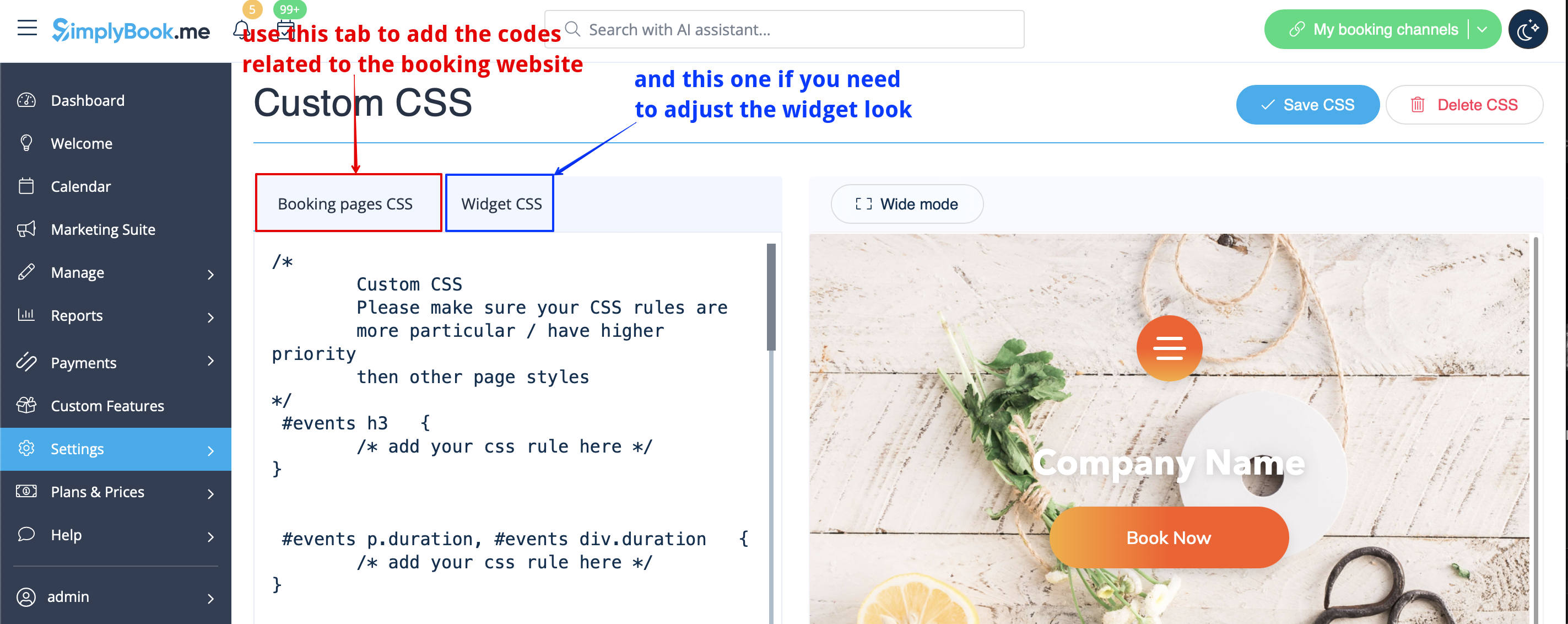
- Please note! Add the code(s) to adjust the styles to "Booking pages CSS" tab if you wish to edit the booking website
- or "Widget CSS" if you are editing widget on your website.
Phone field
(Client login feature is disabled)
- 1. Go to Settings -> Email and SMS settings -> Settings for email and SMS notifications -> Mandatory registration fields -> Email (to make phone not mandatory).
- 2. Please go to Custom Features -> Custom Features and enable Custom CSS feature. Then in this feature Settings or in Custom Features -> Custom CSS paste to Booking pages CSS window at the very top the following code:
.form-group.form-client-phone{
    display: none;
}
Email field
(Client login feature is disabled)
- 1. Go to Settings -> Email and SMS settings -> Settings for email and SMS notifications -> Mandatory registration fields -> Phone (to make email not mandatory).
- 2. Please go to Custom Features -> Custom Features and enable Custom CSS feature. Then in this feature Settings or in Custom Features -> Custom CSS paste to Booking pages CSS window at the very top the following code:
.form-group.form-client-email{
    display: none;
}
Our time
Please go to Custom Features -> Custom Features and enable Custom CSS feature. Then in this feature Settings or in Custom Features -> Custom CSS paste to Booking page CSS window at the very top the following code:
div#sb_booking_company_time {
    display: none;
}
May we send you promotions and relevant information
Please go to Custom Features -> Custom Features and enable Custom CSS feature. Then in this feature Settings or in Custom Features -> Custom CSS paste to Booking page CSS window at the very top the following code:
- Client login feature enabled:
#main #client-login .custom-form #sb_terms_and_conditions .promotions-letter-flag label[role=button]{
    display: none;
}
- Client login feature disabled:
#sb-main-container #main #sb-timeline #steps #details .detail-step-wrap .detail-step .license-links-container .promotions-letter-flag label[role=button]{
    display: none;
}
Filter by Services on Membership page
Please go to Custom Features -> Custom Features and enable Custom CSS feature. Then in this feature Settings or in Custom Features -> Custom CSS paste to Booking page CSS window at the very top the following code:
#membership-view #membership-filters {
   display: none;
}
Remove banner image
- Please note! "Book now" and other buttons that are displayed on top of banner will be hidden as well. The code may not work with some themes.
Please go to Custom Features -> Custom Features and enable Custom CSS feature. Then in this feature Settings or in Custom Features -> Custom CSS paste to Booking page CSS window at the very top the following code:
#main-buttons {
    display: none;
}
Remove some specific element
If you need to remove a specific element from your booking page, you will need to use Custom CSS feature and the corresponding code. If you don't know CSS, please contact support and they will create a request to check whether such change is possible.
Please note, that big requests may be done on a paid basis.
