Elementen verwijderen van boekingspagina
Afbeeldingen voor stappen Service, Serviceprovider, Categorie en Locatie
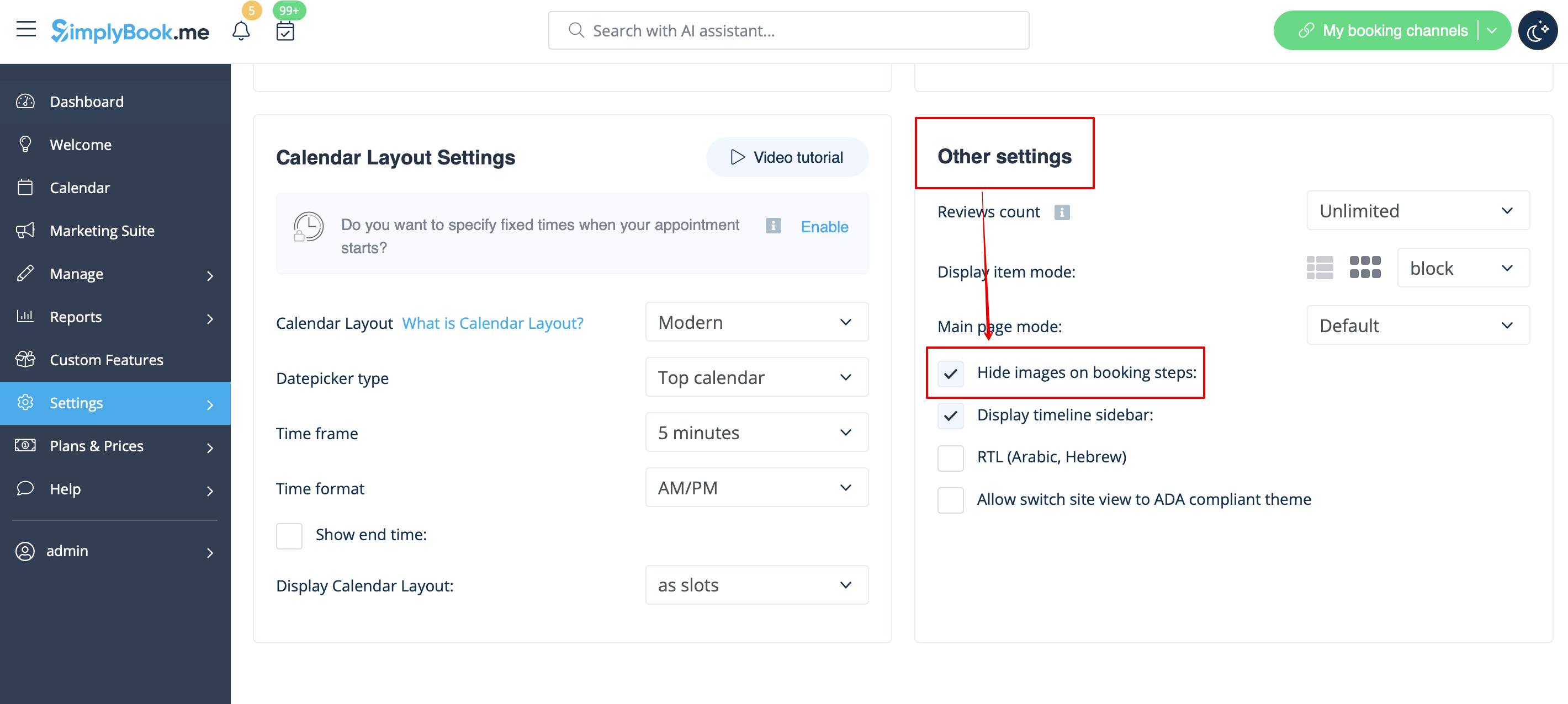
Ga naar Instellingen -> Ontwerpinstellingen -> Overige instellingen en schakel het selectievakje Afbeeldingen op boekingsstappen verbergen in. Sla de instellingen op.
Mogelijkheid later betalen
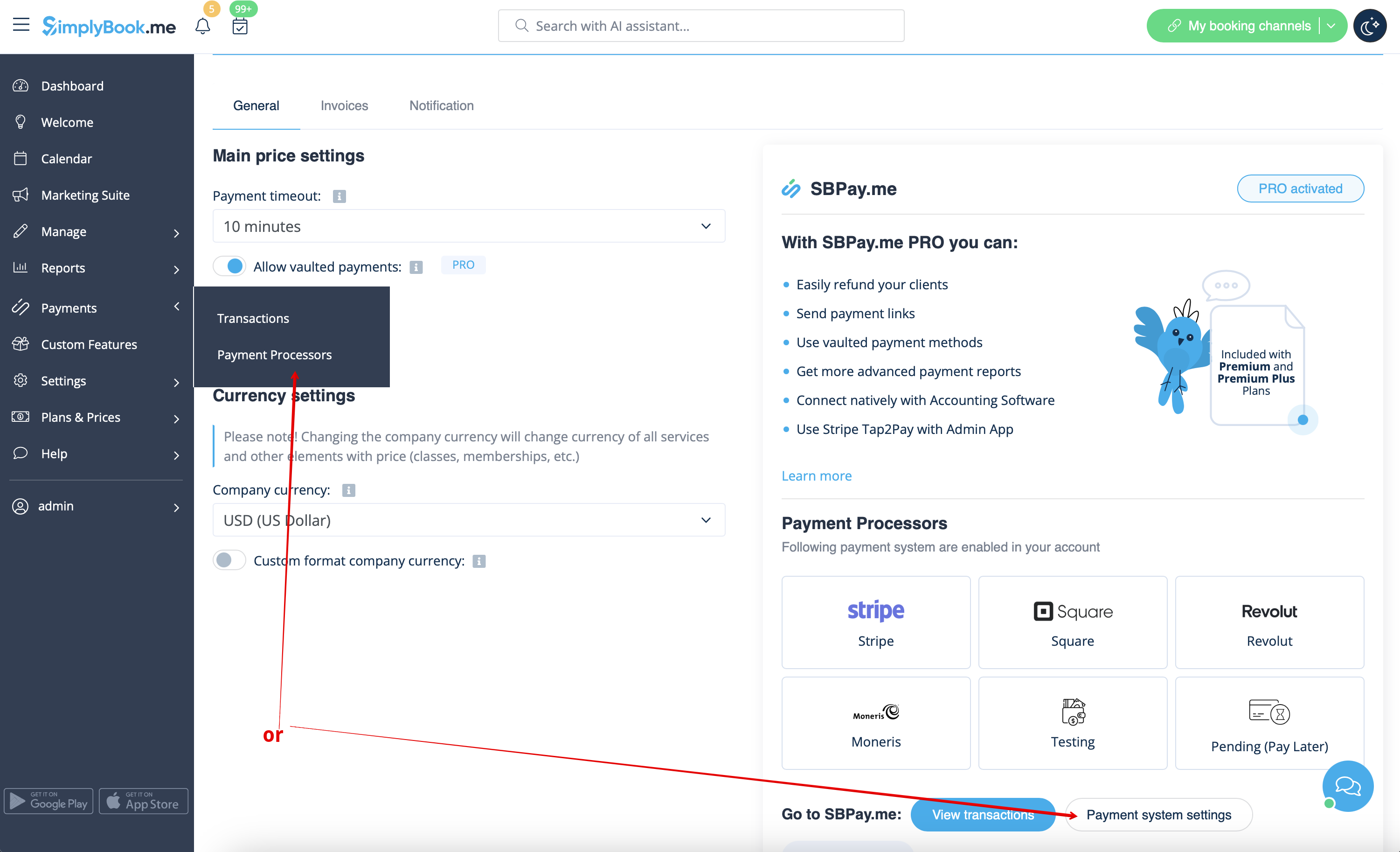
Navigeer naar Betalingen -> Betalingsverwerkers of Aangepaste functies -> Accepteer betalingen -> Instellingen -> Instellingen betalingssysteem om naar de interface van SBPay.me te gaan en schakel daar de optie Later betalen uit.
Werknemer stap
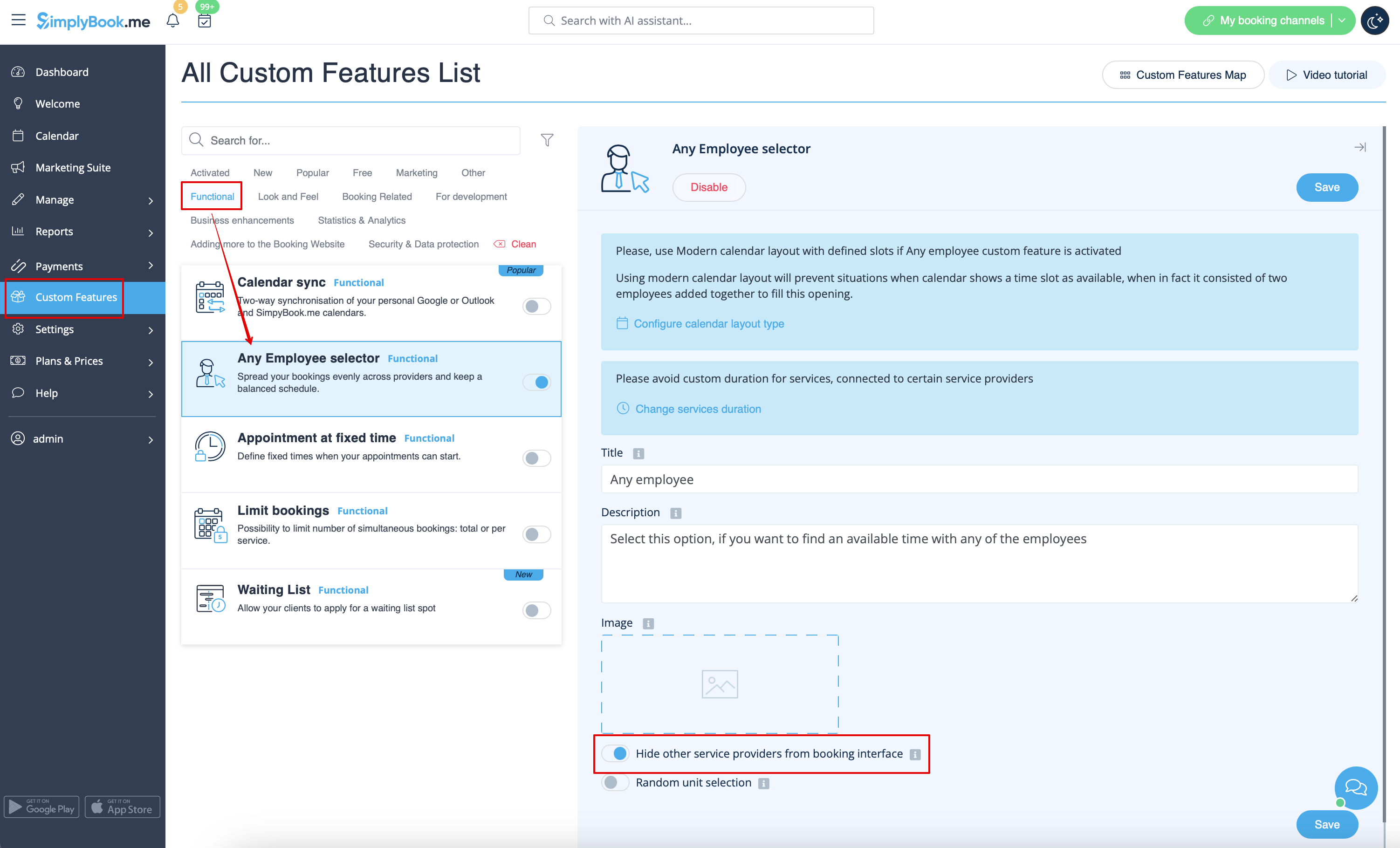
Schakel de optie Elke werknemer selecteren in in de sectie Aangepaste functies en schakel in de instellingen aan de rechterkant van de pagina de optie Andere dienstverleners verbergen in de boekingsinterface in
Kaart
In Instellingen -> Bedrijfsgegevens -> Adres niet gebruiken checkbox.

E-mailadres bedrijf
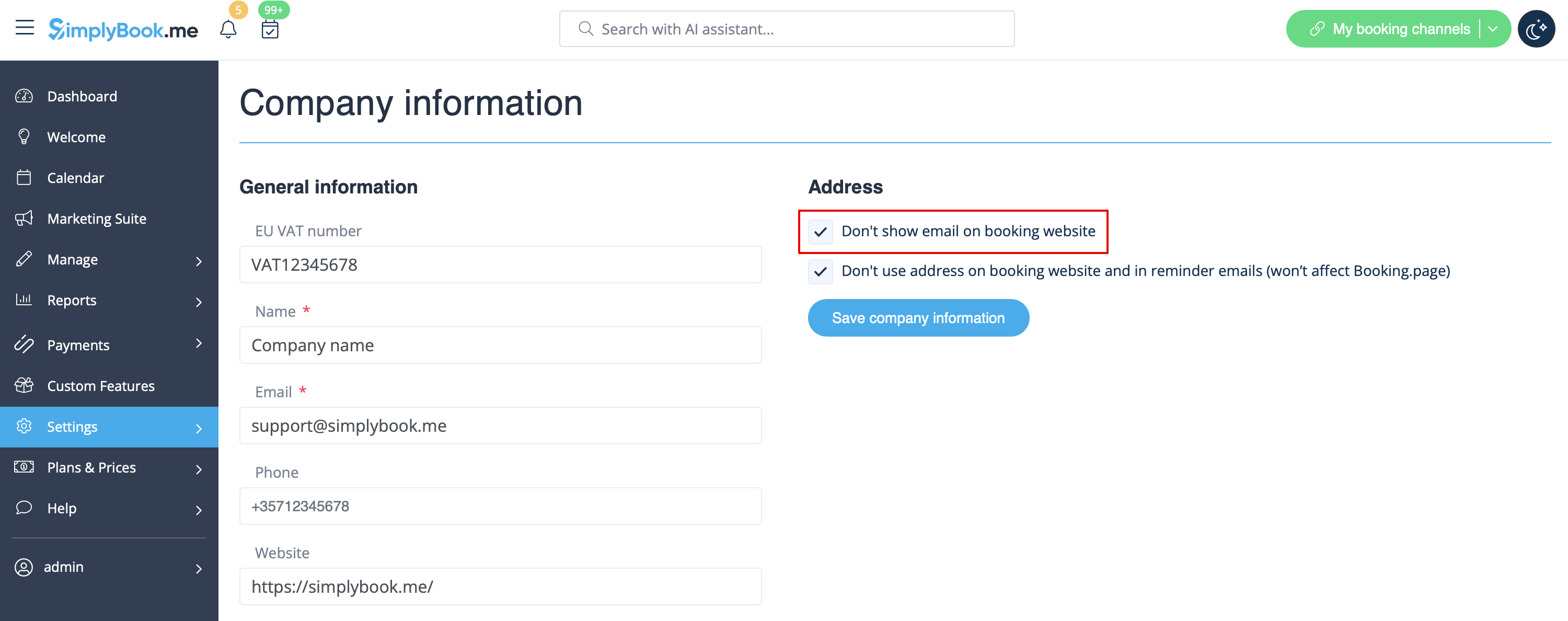
In Instellingen -> Bedrijfsinformatie -> E-mail niet weergeven op boekingspagina aanvinken.
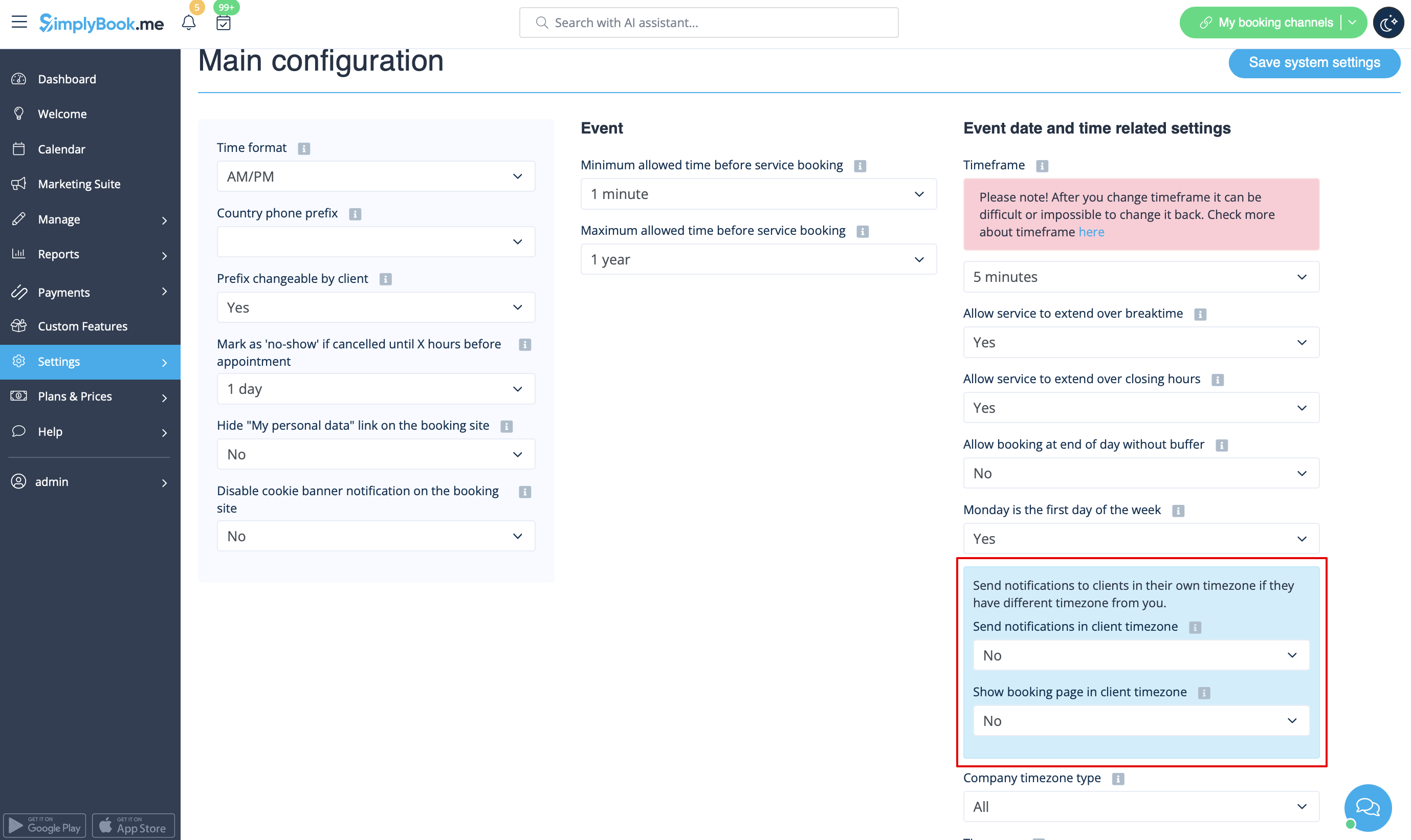
"Optie "Mijn tijdzone wijzigen
In Instellingen -> Hoofdconfiguratie zet u Toon boekingspagina in klanttijdzone en Stuur meldingen in klanttijdzone op Nee en slaat u de instellingen op.
Beoordelingen
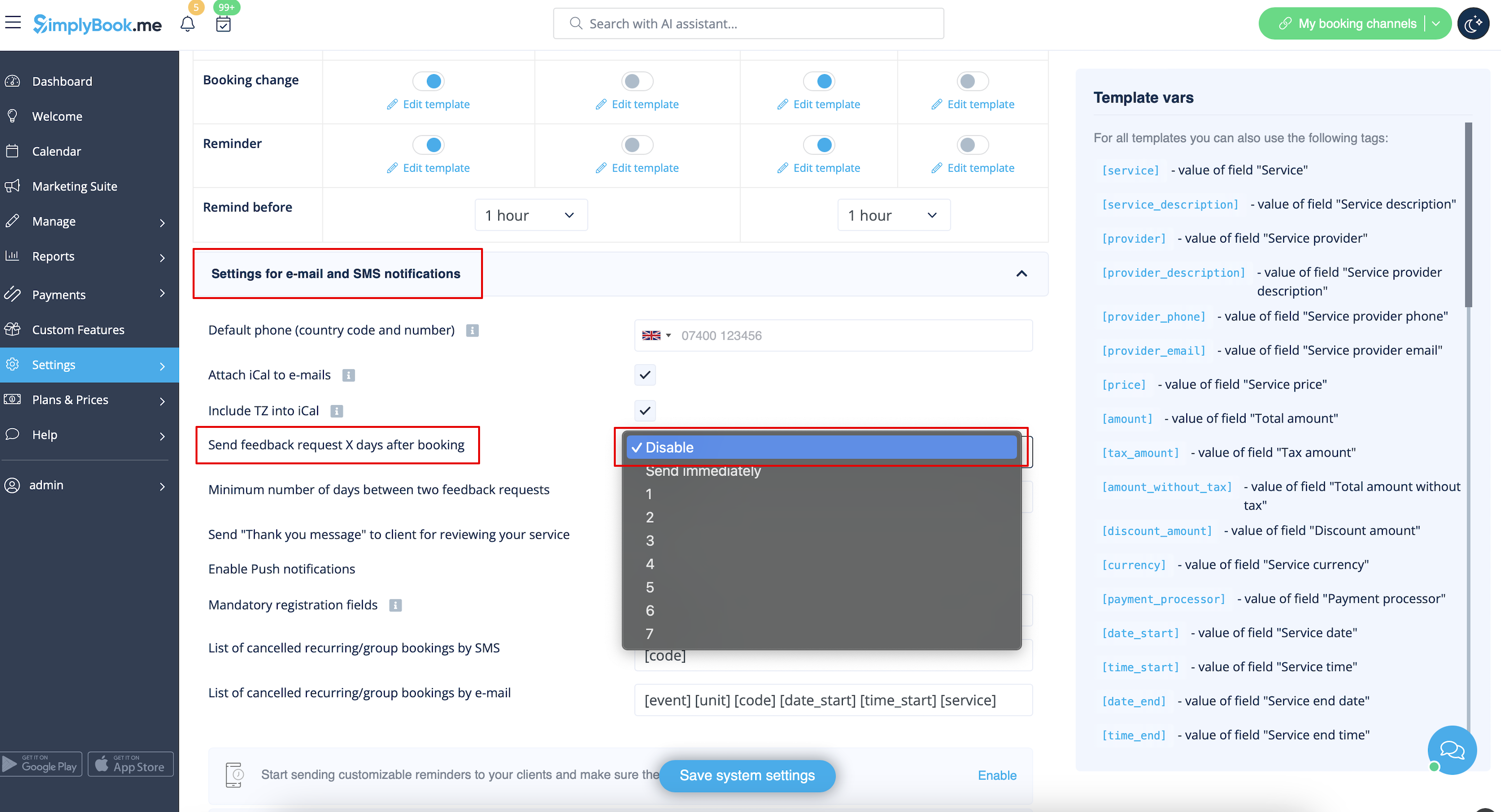
Je kunt al je beoordelingen bekijken op het tabblad Beoordelingen in het menu aan de linkerkant, onder Rapporten. Je kunt daar ook beoordelingen verwijderen als dat nodig is. Als je de optie om een beoordeling achter te laten op je boekingssite wilt verwijderen en geen feedbackverzoek wilt sturen, zet je bij Instellingen -> E-mail- en sms-instellingen -> Instellingen voor e-mail- en sms-berichten -> Stuur feedbackverzoek X dagen na boeking op Uitschakelen.
Galerij
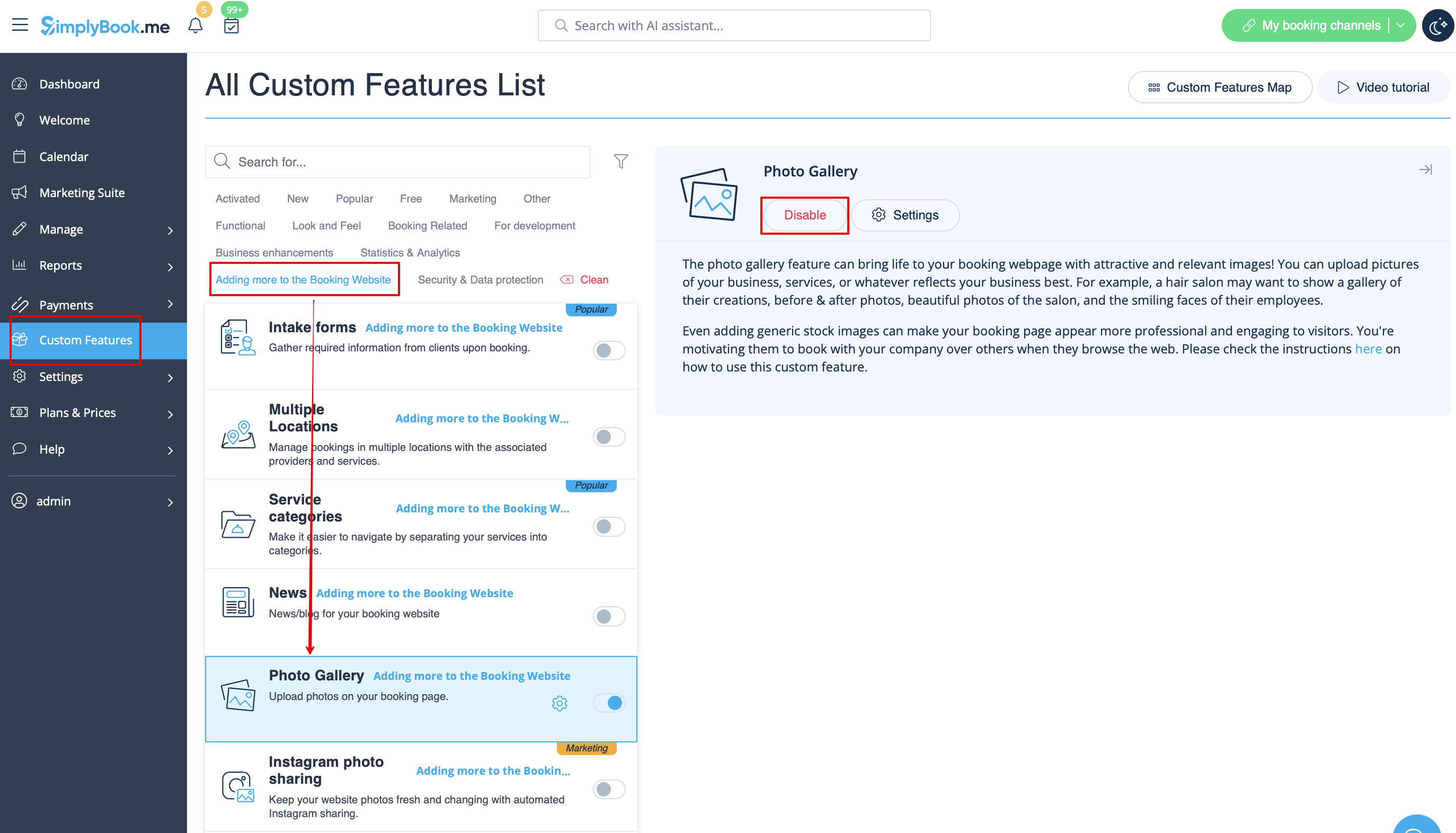
Schakel in het gedeelte Aangepaste functies de Fotogalerie uit .
Werkuren
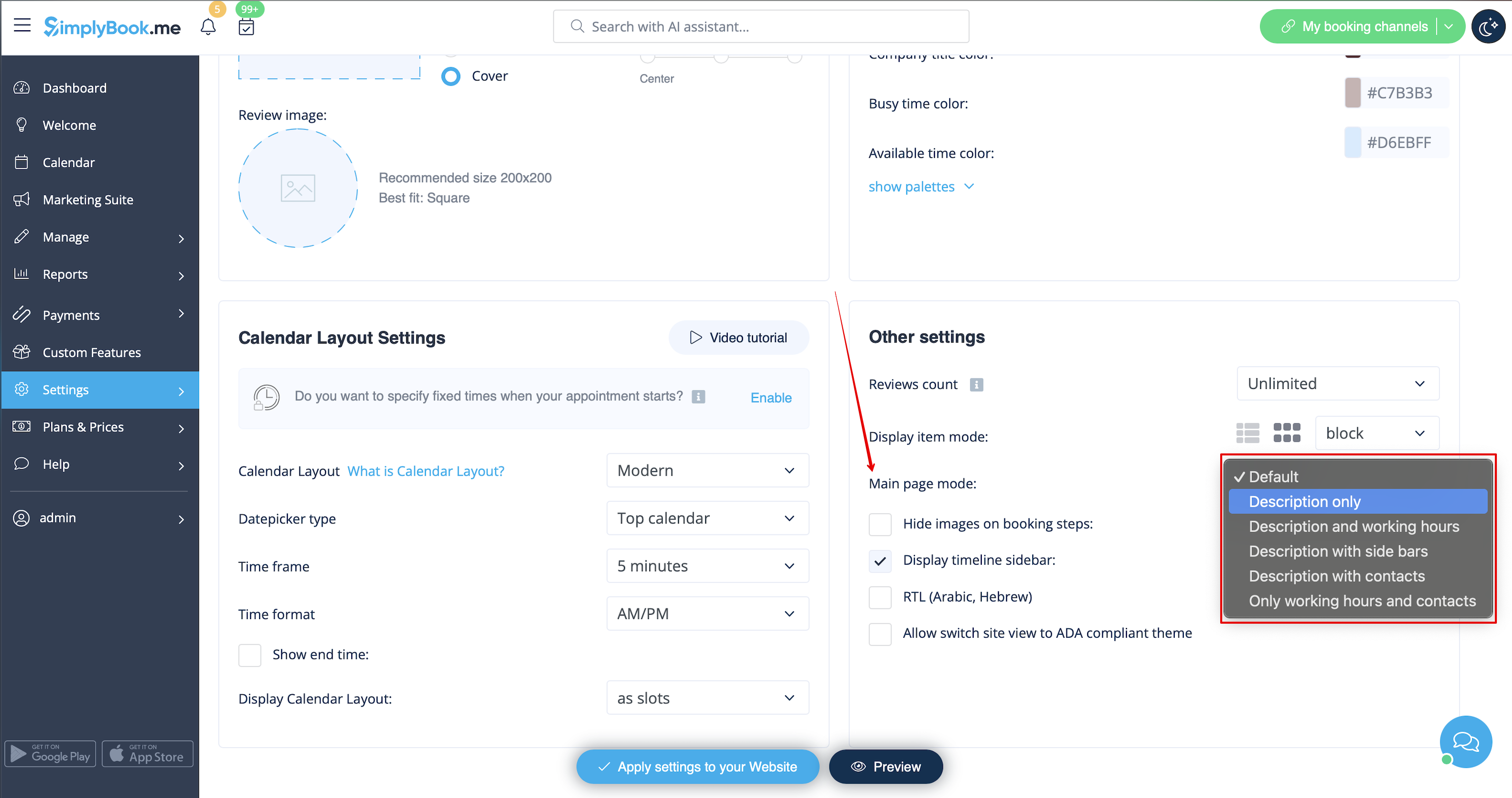
Als je dit gedeelte voor nieuwe thema's wilt verwijderen, ga dan naar Instellingen -> Ontwerpinstellingen -> Overige instellingen -> Hoofdpaginamodus en kies modus zonder werktijden.
Algemene voorwaarden van SimplyBook.me
- Houd er rekening mee dat u moet bevestigen dat u informatie over SimplyBook.me Ltd. als leverancier hebt toegevoegd aan uw Algemene voorwaarden.
Om het selectievakje te verwijderen, moet u alle genoemde opties hebben ingeschakeld en correct hebben ingesteld:
Ofwel:
1. SMTP + Aangepast domein + Algemene voorwaarden + thema anders dan leeg.
Of:
2. SMTP + Algemene voorwaarden + blanco thema + Widget op uw website.
Daarna kunt u de optie Ik bevestig dat ik informatie over SimplyBook.me Ltd. als leverancier heb toegevoegd aan mijn T&C inschakelen in Aangepaste functies -> Algemene voorwaarden en nadat u de instellingen daar hebt opgeslagen, wordt het selectievakje SimplyBook.me algemene voorwaarden verwijderd van de boekingssite.

Mijn persoonlijke gegevens
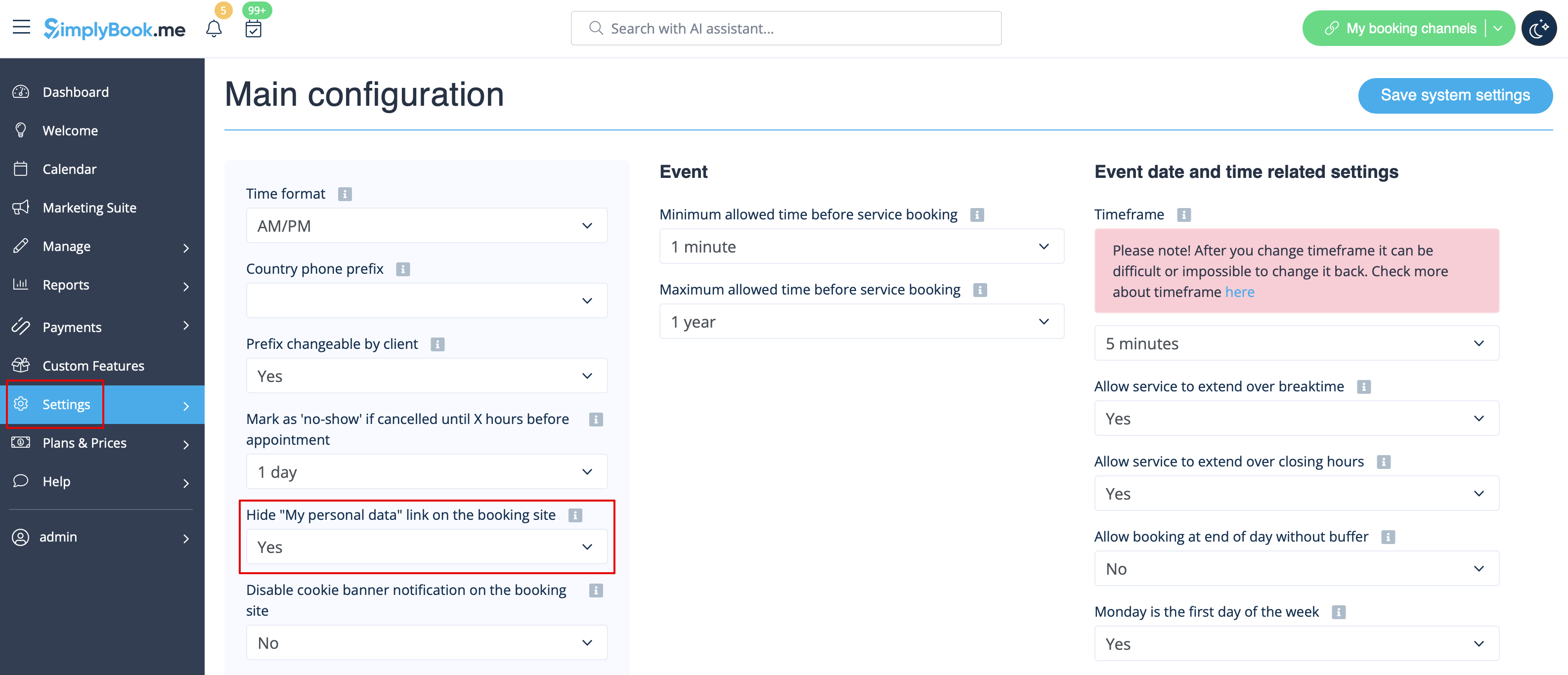
Ga naar Instellingen -> Hoofdconfiguratie en selecteer Ja bij Verberg "Mijn persoonlijke gegevens" link op de boekingssite. instellingen opslaan.
Niet-beschikbare tijden
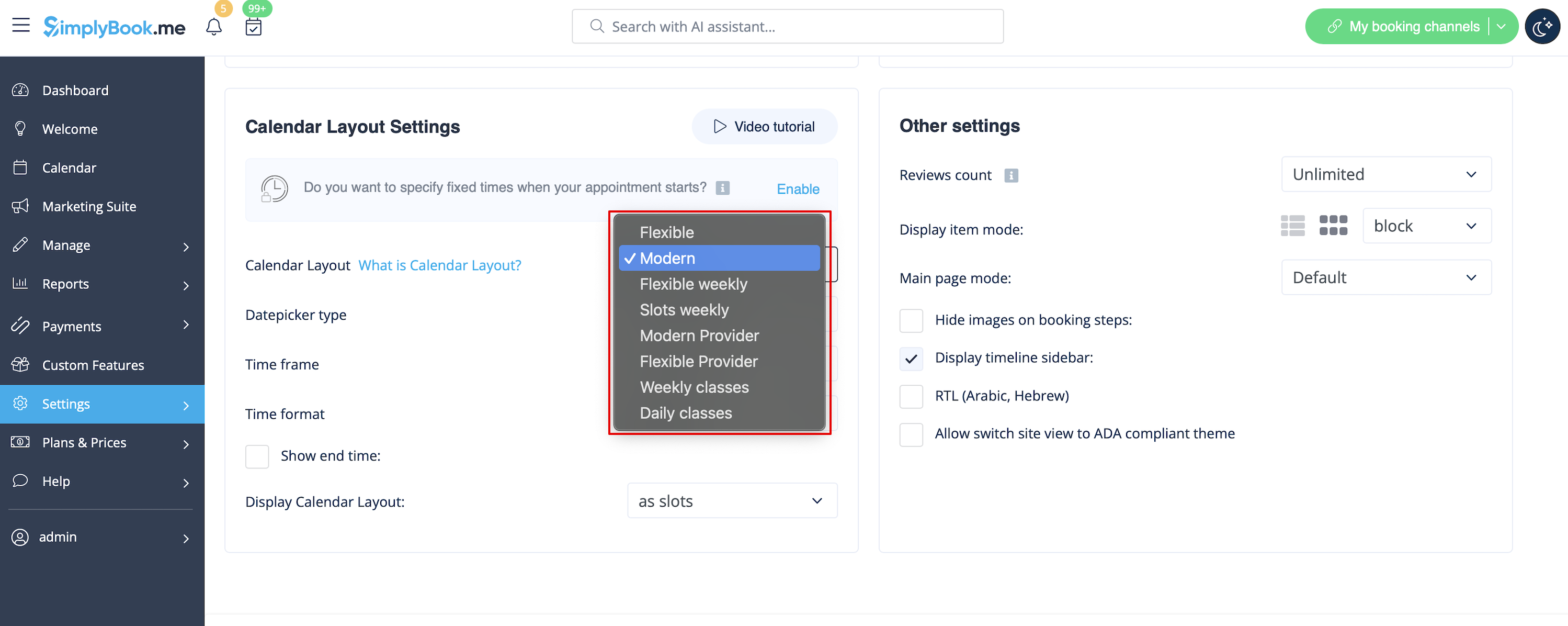
Selecteer moderne, moderne provider, dagelijkse (beschikbaar met de functie Klassen ingeschakeld) of wekelijkse klassen kalenderindeling in Instellingen -> Ontwerpinstellingen -> Kalenderindeling -> Kalenderindeling instellingen -> Kalenderindeling drop-down.
Boekingspagina uitschakelen (alleen beschikbaar voor betaalde accounts)
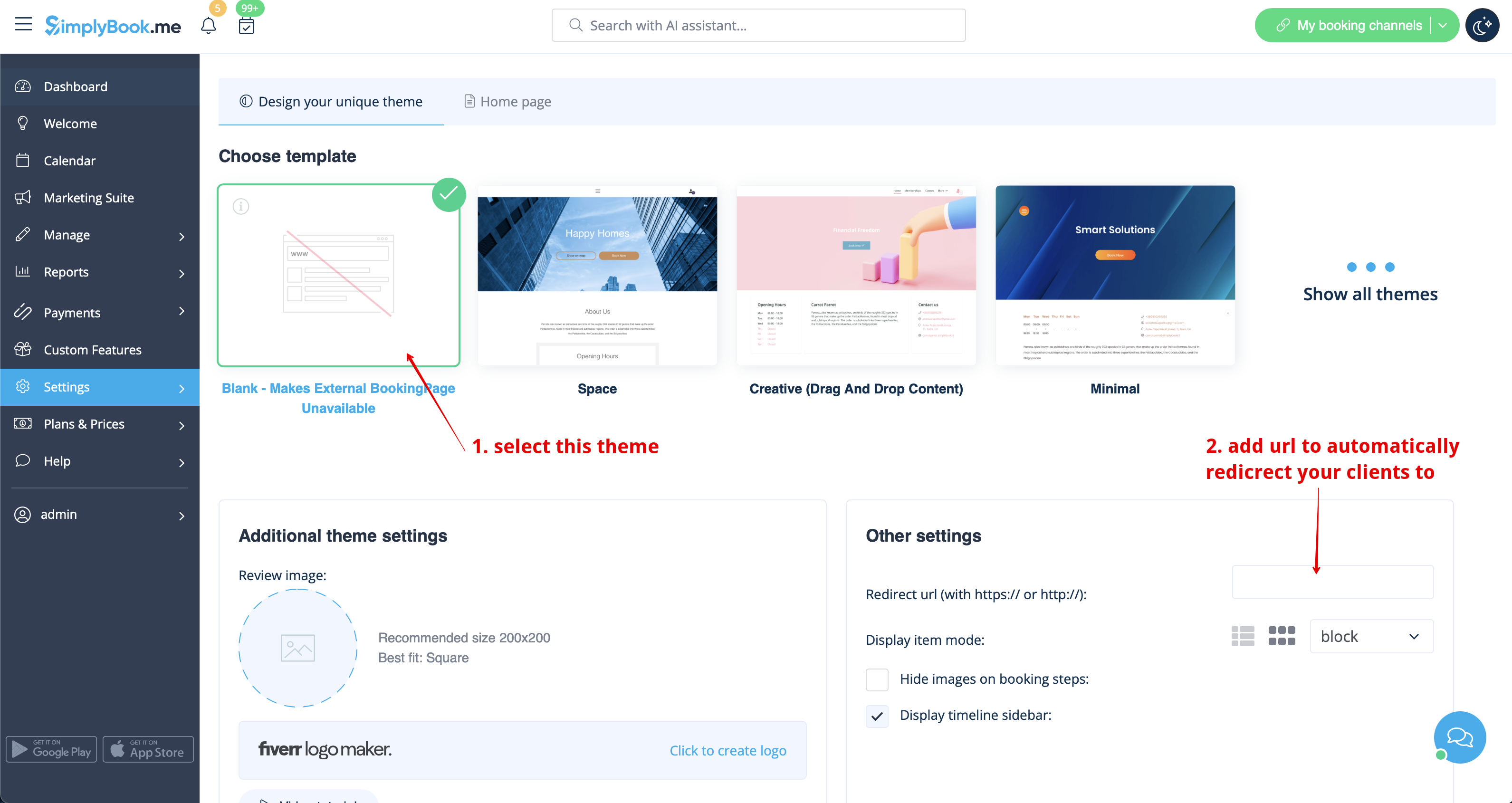
Om geen informatie te tonen op uw boekingspagina (maak het leeg), kunt u een leeg thema op uw boekingspagina zetten in Instellingen -> Ontwerpinstellingen.
Selecteer om alle thema's te tonen en kies de laatste zonder afbeelding, voeg de link toe naar de pagina waar uw klanten naartoe moeten worden geleid als ze uw boekingspagina openen en sla de instellingen op.
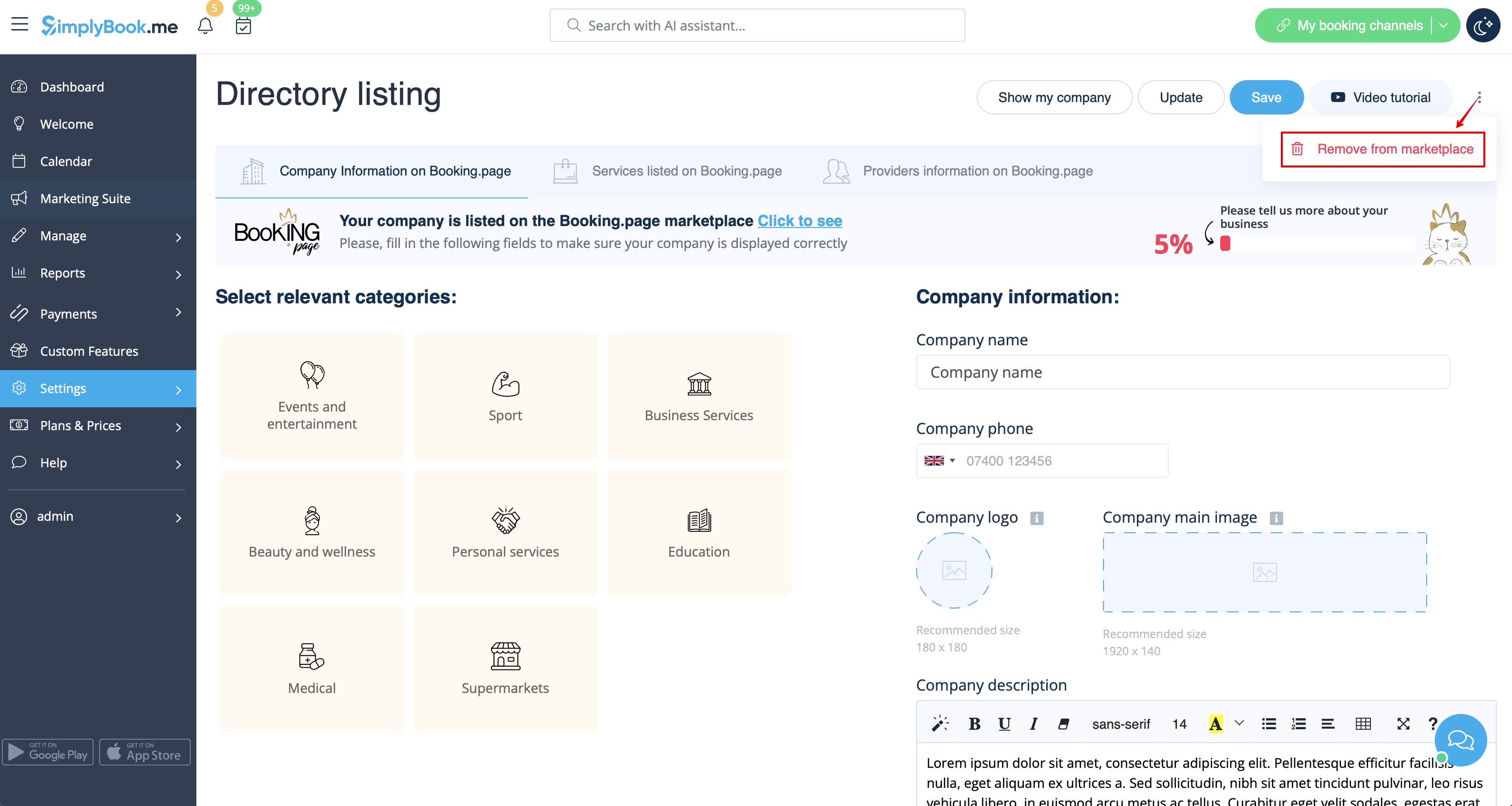
Let op! Zelfs met een leeg thema verschijnt uw boekingspagina in Google en wordt de informatie weergegeven in Booking.Page directory. Om uw bedrijf uit de directory te verwijderen, klikt u op de knop Verwijderen uit marktplaats Instellingen -> Vermelding in directory.
Removing with Custom CSS
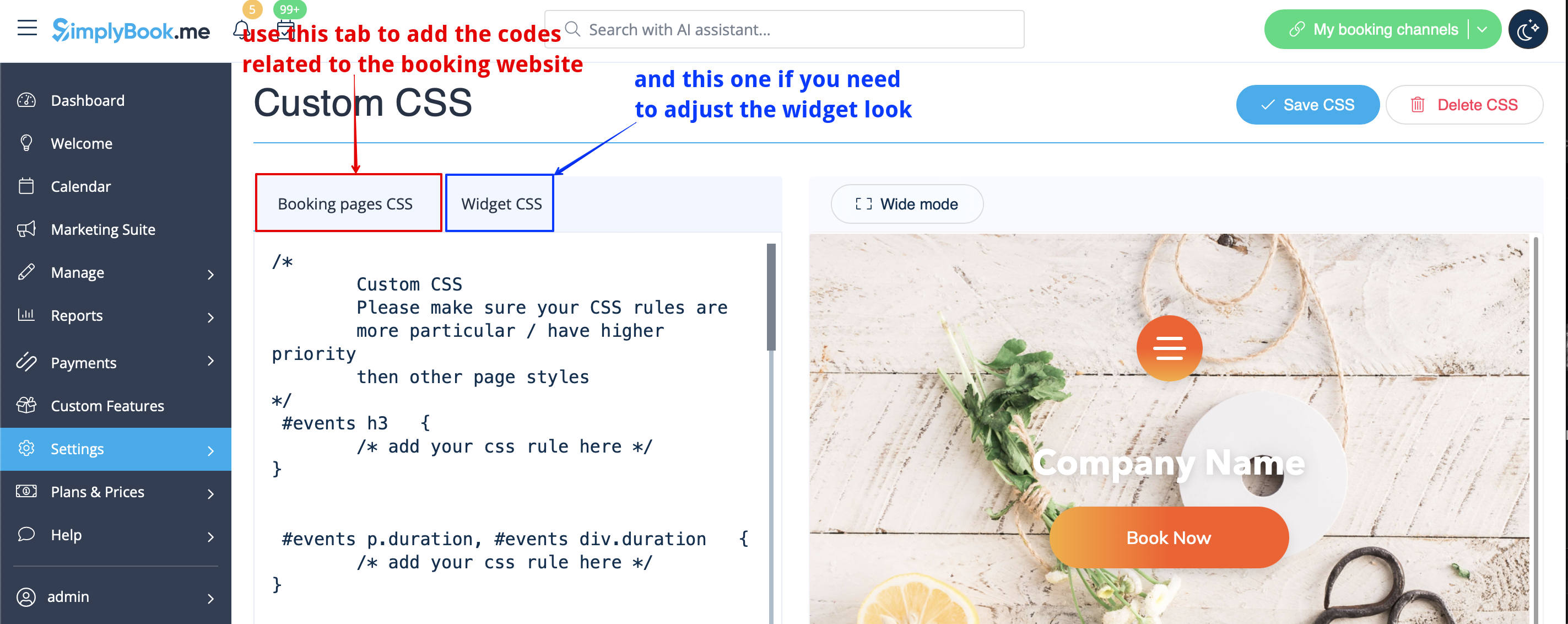
- Please note! Add the code(s) to adjust the styles to "Booking pages CSS" tab if you wish to edit the booking website
- or "Widget CSS" if you are editing widget on your website.
Phone field
(Client login feature is disabled)
- 1. Go to Settings -> Email and SMS settings -> Settings for email and SMS notifications -> Mandatory registration fields -> Email (to make phone not mandatory).
- 2. Please go to Custom Features -> Custom Features and enable Custom CSS feature. Then in this feature Settings or in Custom Features -> Custom CSS paste to Booking pages CSS window at the very top the following code:
.form-group.form-client-phone{
    display: none;
}
Email field
(Client login feature is disabled)
- 1. Go to Settings -> Email and SMS settings -> Settings for email and SMS notifications -> Mandatory registration fields -> Phone (to make email not mandatory).
- 2. Please go to Custom Features -> Custom Features and enable Custom CSS feature. Then in this feature Settings or in Custom Features -> Custom CSS paste to Booking pages CSS window at the very top the following code:
.form-group.form-client-email{
    display: none;
}
Our time
Please go to Custom Features -> Custom Features and enable Custom CSS feature. Then in this feature Settings or in Custom Features -> Custom CSS paste to Booking page CSS window at the very top the following code:
div#sb_booking_company_time {
    display: none;
}
May we send you promotions and relevant information
Please go to Custom Features -> Custom Features and enable Custom CSS feature. Then in this feature Settings or in Custom Features -> Custom CSS paste to Booking page CSS window at the very top the following code:
- Client login feature enabled:
#main #client-login .custom-form #sb_terms_and_conditions .promotions-letter-flag label[role=button]{
    display: none;
}
- Client login feature disabled:
#sb-main-container #main #sb-timeline #steps #details .detail-step-wrap .detail-step .license-links-container .promotions-letter-flag label[role=button]{
    display: none;
}
Filter by Services on Membership page
Please go to Custom Features -> Custom Features and enable Custom CSS feature. Then in this feature Settings or in Custom Features -> Custom CSS paste to Booking page CSS window at the very top the following code:
#membership-view #membership-filters {
   display: none;
}
Remove banner image
- Please note! "Book now" and other buttons that are displayed on top of banner will be hidden as well. The code may not work with some themes.
Please go to Custom Features -> Custom Features and enable Custom CSS feature. Then in this feature Settings or in Custom Features -> Custom CSS paste to Booking page CSS window at the very top the following code:
#main-buttons {
    display: none;
}
Remove some specific element
If you need to remove a specific element from your booking page, you will need to use Custom CSS feature and the corresponding code. If you don't know CSS, please contact support and they will create a request to check whether such change is possible.
Please note, that big requests may be done on a paid basis.
