Sådan angiver du din tilgængelighed

Video-tutorial 
Jeg er alene og udfører kun 1 service
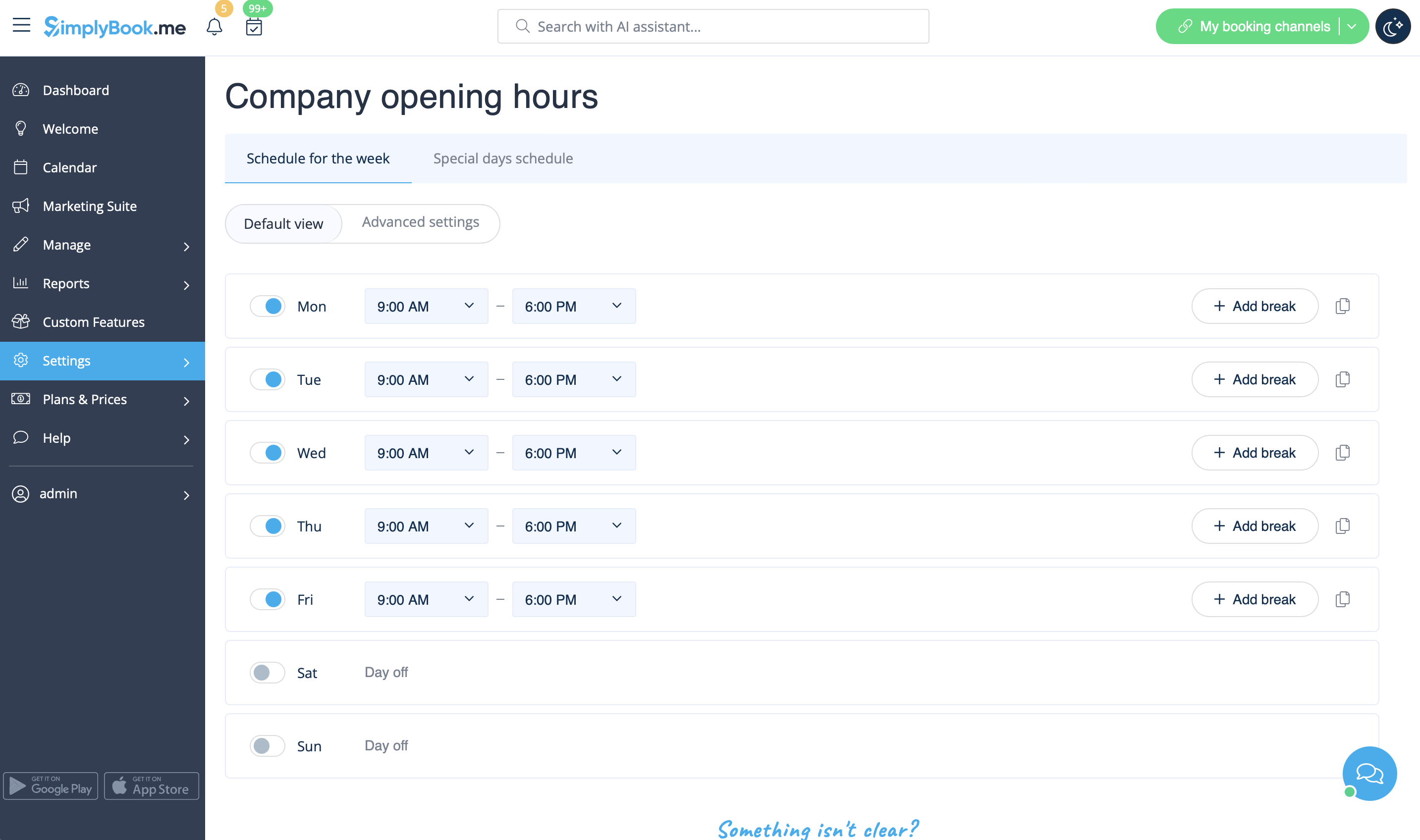
I dette tilfælde kan du angive din tilgængelighed i Indstillinger//Virksomhedens åbningstider (for almindelig ugentlig tidsplan) og i Indstillinger//Virksomhedens åbningstider//Særlige dage (for specifik dato). Brug skyderne til at justere den tilgængelige tid (lyseblå linje).
- Du har muligvis også brug for
Jeg har tidsplaner for tjenester
I fanen Administrer//Tjenester//Tjenesteplan skal du flytte skyderne for at indstille åbningstider for denne tjeneste, hvis de adskiller sig fra virksomhedens normale tidsplan.
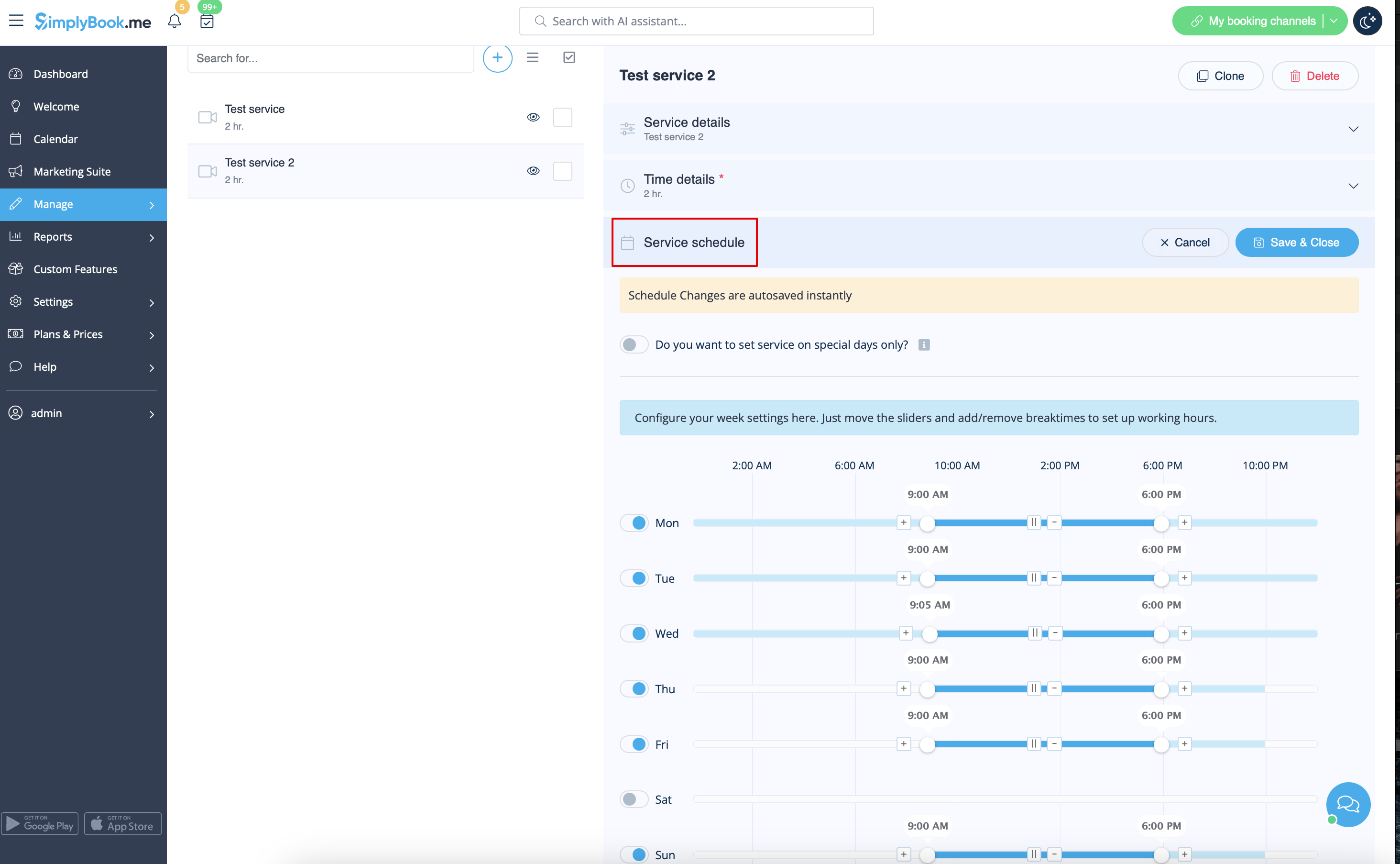
Hvis tjenesten har samme tidsplan som virksomheden, behøver du ikke ændre noget der, det vil blive anvendt automatisk.
Hvis du har brug for at indstille nogle undtagelser i tjenesteplanen for helligdage eller andre behov, skal du vælge "Vis avancerede indstillinger" og derefter fanen "Særlige dage".

;Du har muligvis også brug for:
Jeg har tidsplaner for udbydere
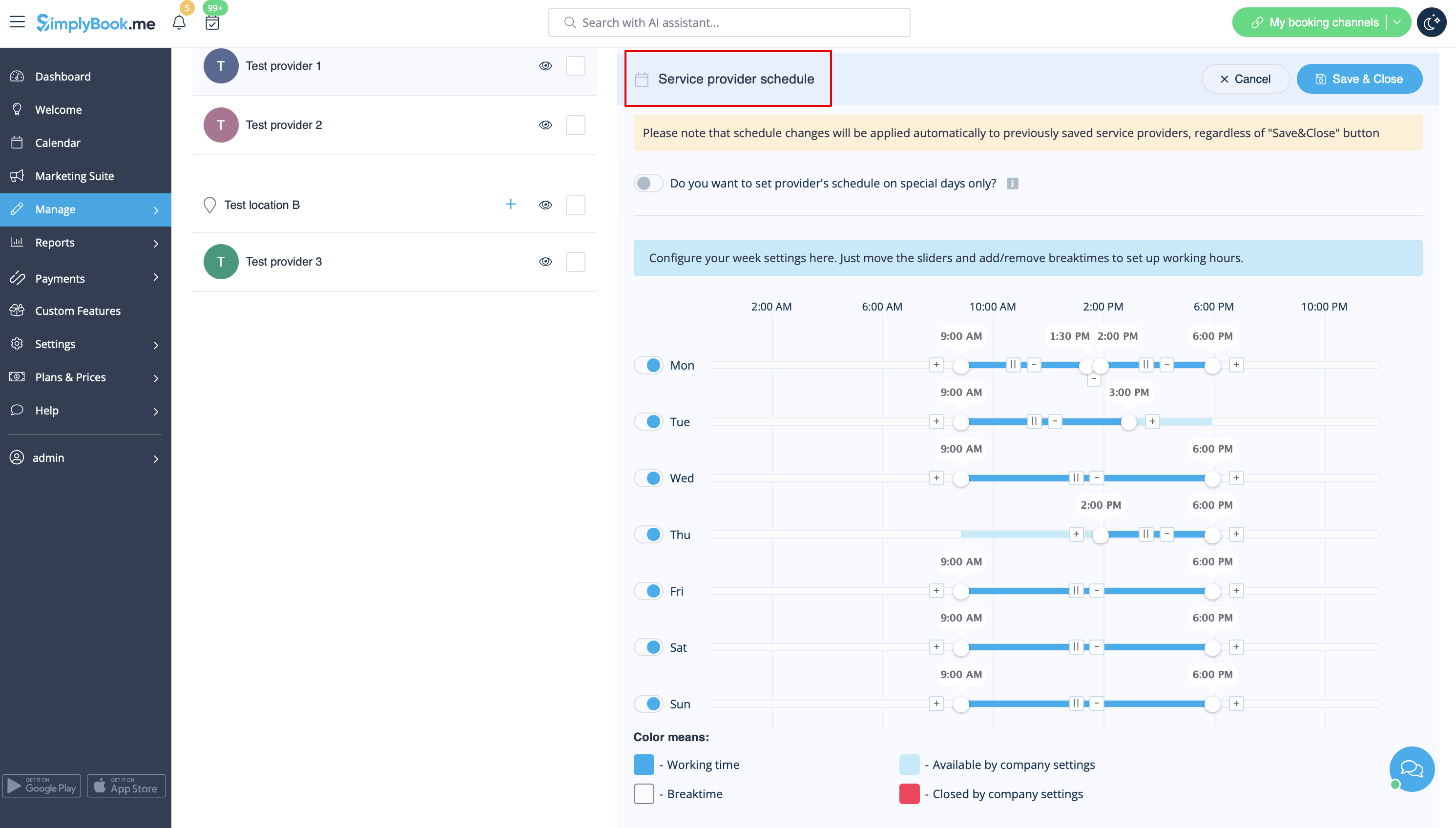
Du kan indstille en fast tidsplan for udbydere i Administrer//Tjenesteudbydere//Tidsplan for tjenesteudbydere eller i Indstillinger // Tidsplan for udbydere. Hvis du f.eks. arbejder mandag-fredag kl. 9-17, skal du blot indstille tidsplanen for disse datoer ved at klikke på de relevante felter for at gøre dem tilgængelige (lyseblå) eller utilgængelige (lyseblå eller hvide). For at gøre en ugedag til en arbejdsdag/fridag skal du bruge knappen ved siden af ugedagens navn
Du kan indstille tidsplanen for en bestemt dato for udbydere i Indstillinger // Udbyderes tidsplan // fanen Særlige dage. Hvis du f.eks. arbejder anderledes på bestemte datoer eller har fri, kan du klikke på datoen og indstille tidsplanen ved at klikke på de tilsvarende felter for at gøre dem tilgængelige (lyseblå) eller ikke tilgængelige (lyseblå eller hvide).
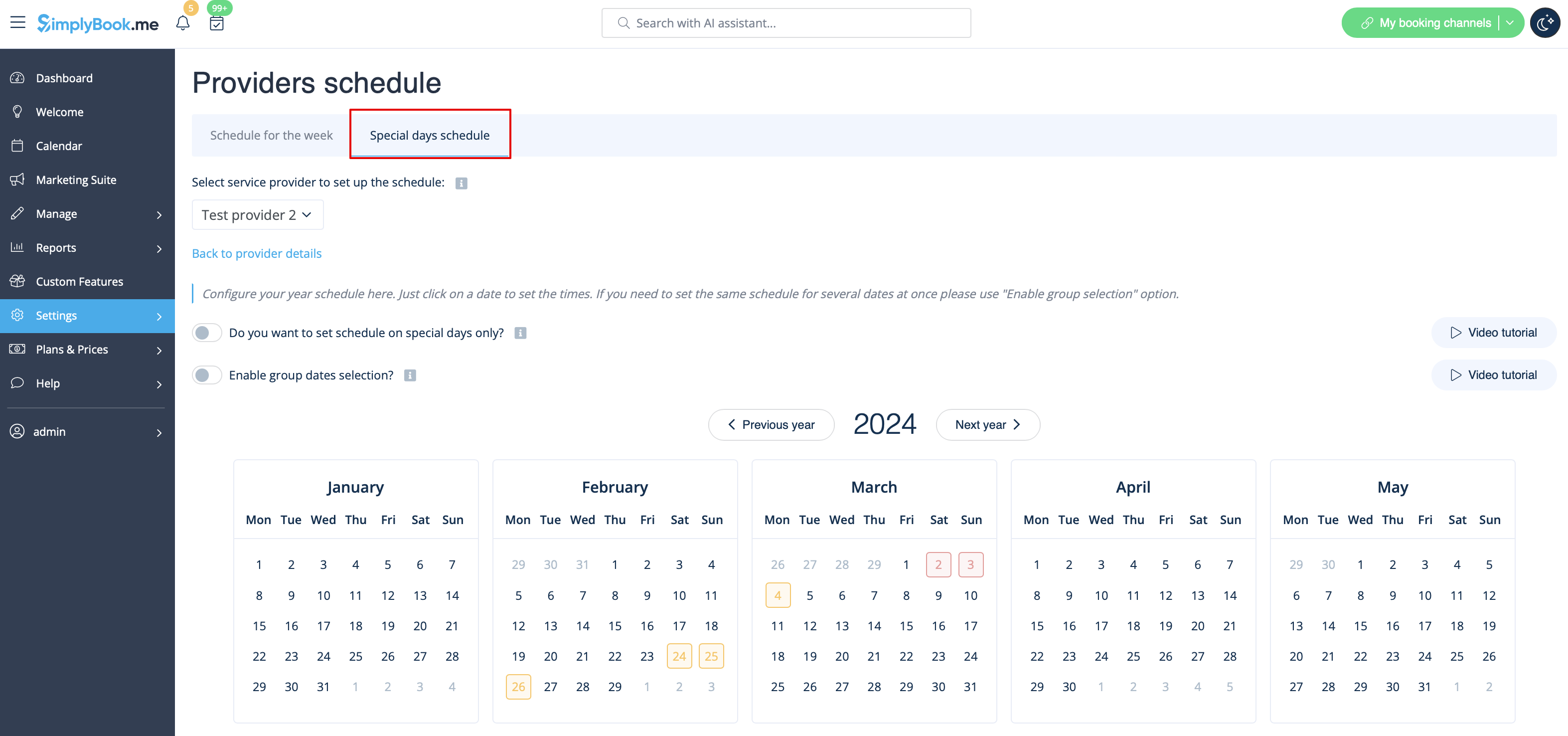
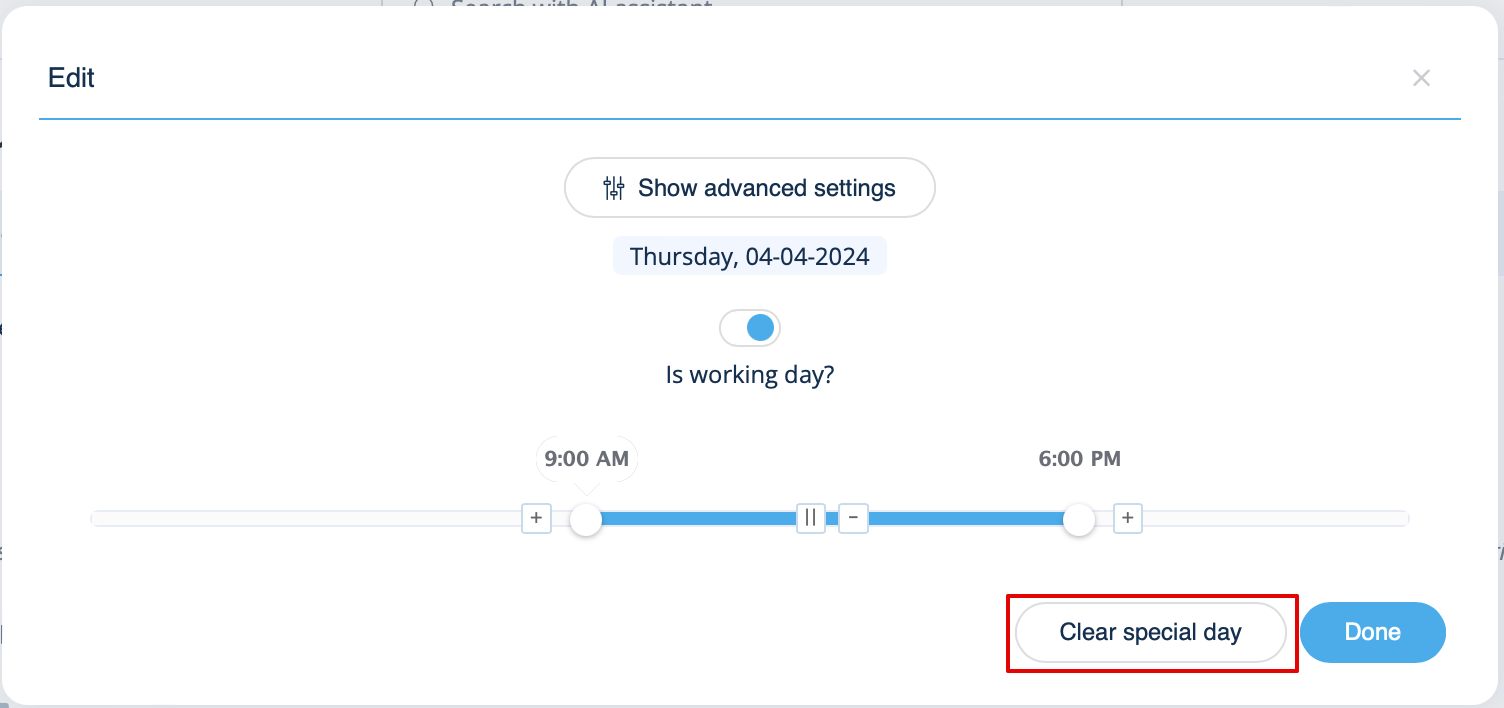
For at gøre en dato til en arbejdsdag/fridag skal du klikke på datoen og bruge knappen "Er det en arbejdsdag?". Hvis du vil fjerne indstillingerne for en speciel dag for en dato, skal du klikke på datoen og trykke på den hvide knap "Ryd speciel dag".
I have both schedules for services and for providers
If you have both schedules for services and for providers, then only intersection of available time for service and for provider will be available for booking. For example, service is available 9-12, provider is available 11-17, then only time 11-12 will be available for booking because earlier provider is not working and no one can perform the service and later, the service is not available.
Please note! Providers'/Services' working hours should be within opening hours of the company! If you can't open specific times for provider/service, please open those times for the company first and then for provider/service.
- Please check our video tutorial on setting up the availability
Opening hours vs special days
There are 2 types of time settings:
- Opening hours.
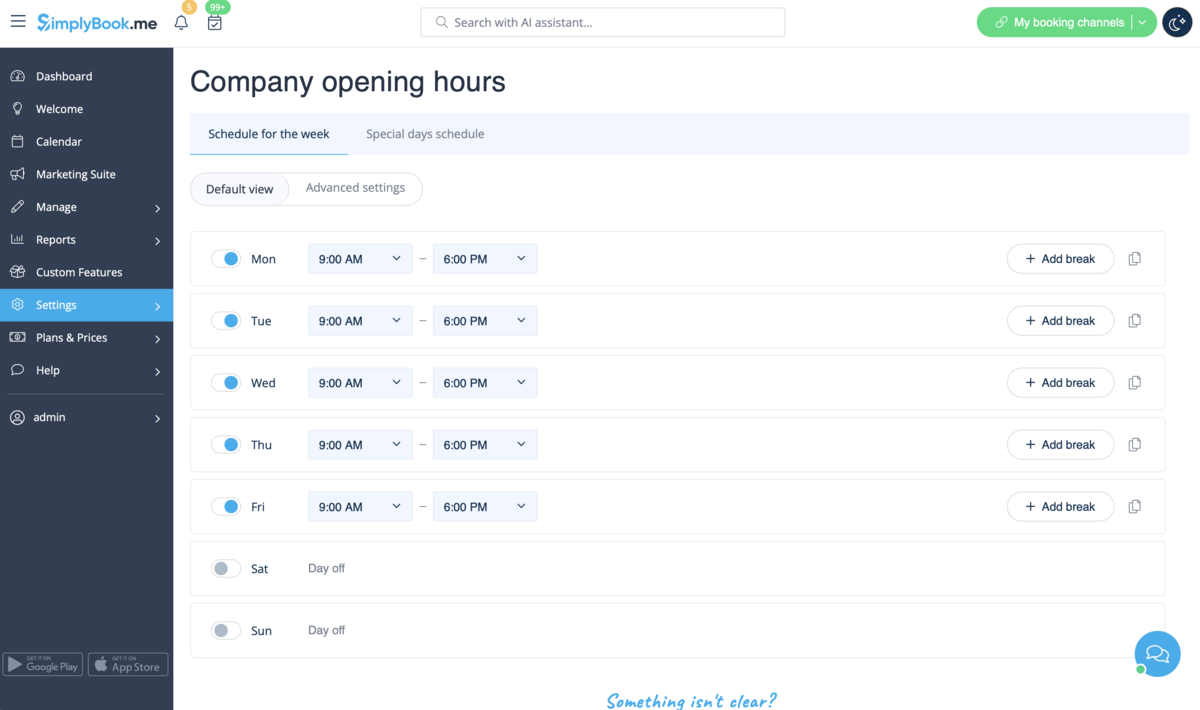
It is regular schedule you have on a weekly basis. If you are the only provider, you can set it in Settings // Company opening hours. If you have several providers, you can set their regular schedule in Settings // Provider schedule. For example, if you work Monday-Friday 9a.m - 5p.m you simply set schedule for those dates by clicking on the corresponding slots. To make day of the week working/off use switchers near weekday names.
- Special days
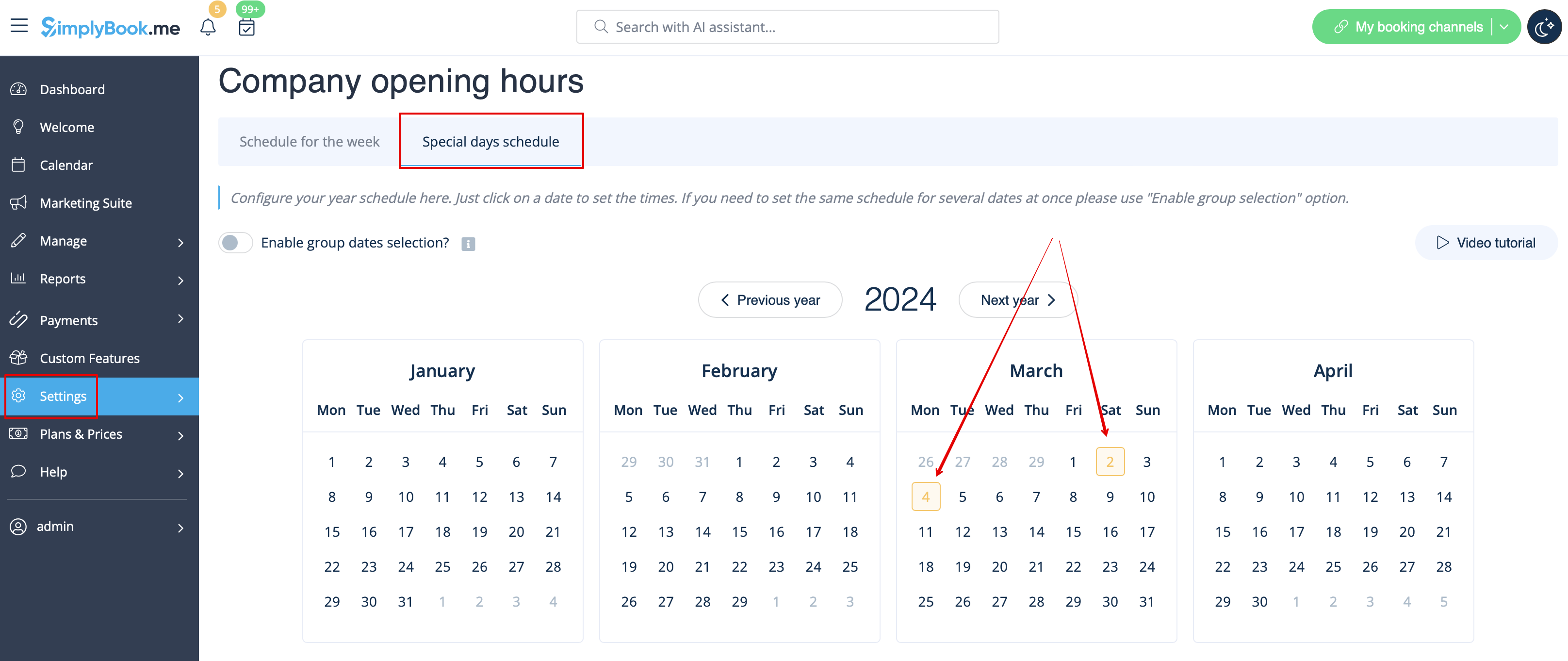
Contrary to Opening hours, which is regular schedule, Special Days is schedule by date. If you do not have regular schedule or plan one-time event, you can use Special days to open/close only specific dates. To set specific schedule for company (Settings // Company opening hours // Special days schedule) or provider (Settings // Providers schedule // Special days schedule) click on the date and insert the schedule you need or make it a day off. This feature can be used if you plan to open in months and want to prevent bookings until then (make all days off before the opening date) or to insert national holidays in your schedule. Special days of the company are highlighted with yellow, providers' special days are highlighted with red.
Please note! Providers'/Services' working hours should be within opening hours of the company! If you can't open specific times for provider/service, please open those times for the company first and then for provider/service.
Special Days Use Guide
There are cases where you or one of your employees may need a day off or wish to adjust working hours for a specific date without affecting other scheduled days.
Simplybook.me provides a simple solution for this.
- How to use
1. To set up a special day schedule for a specific provider, navigate to Settings > Providers schedule > Special days schedule section (located at the top of the page).
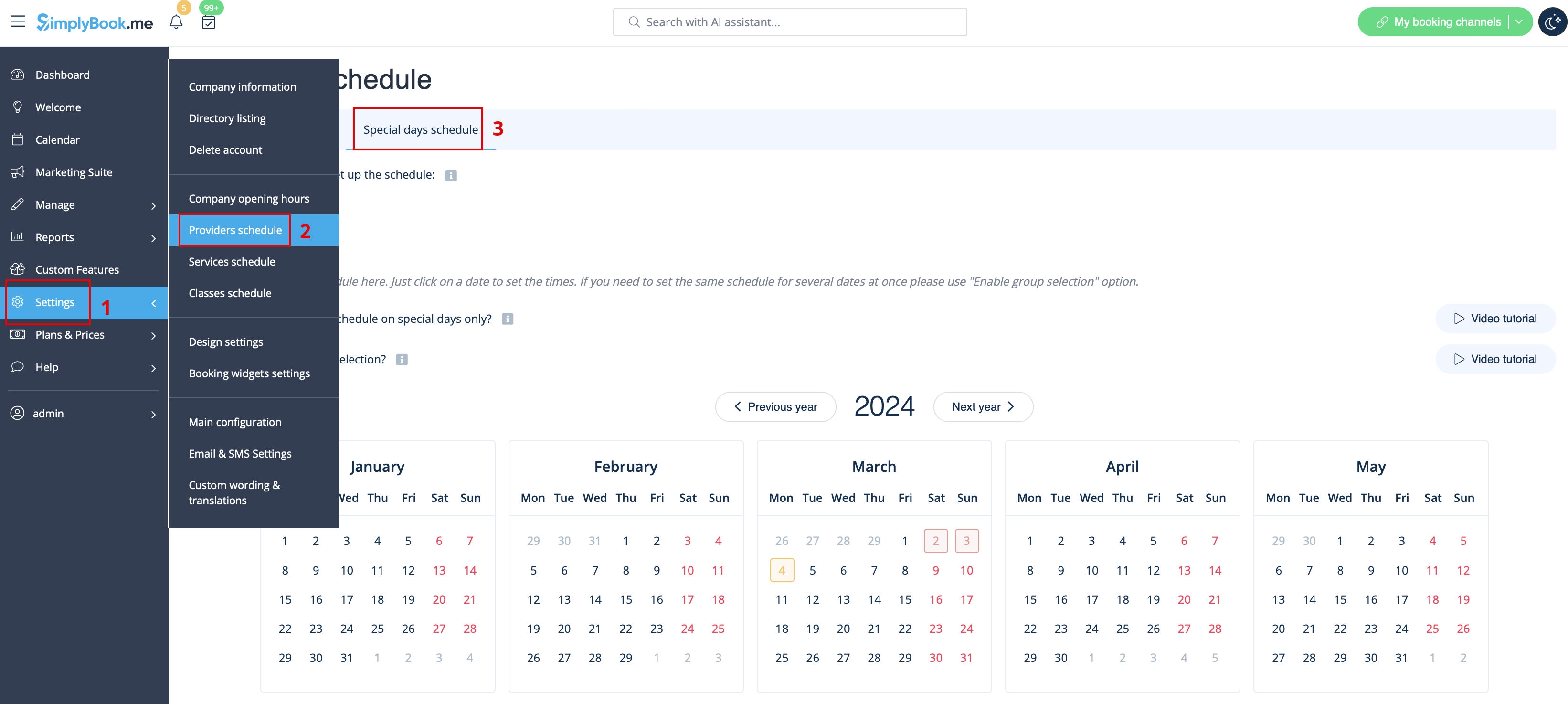
2. Choose the service provider on this page to set up the special days schedule.
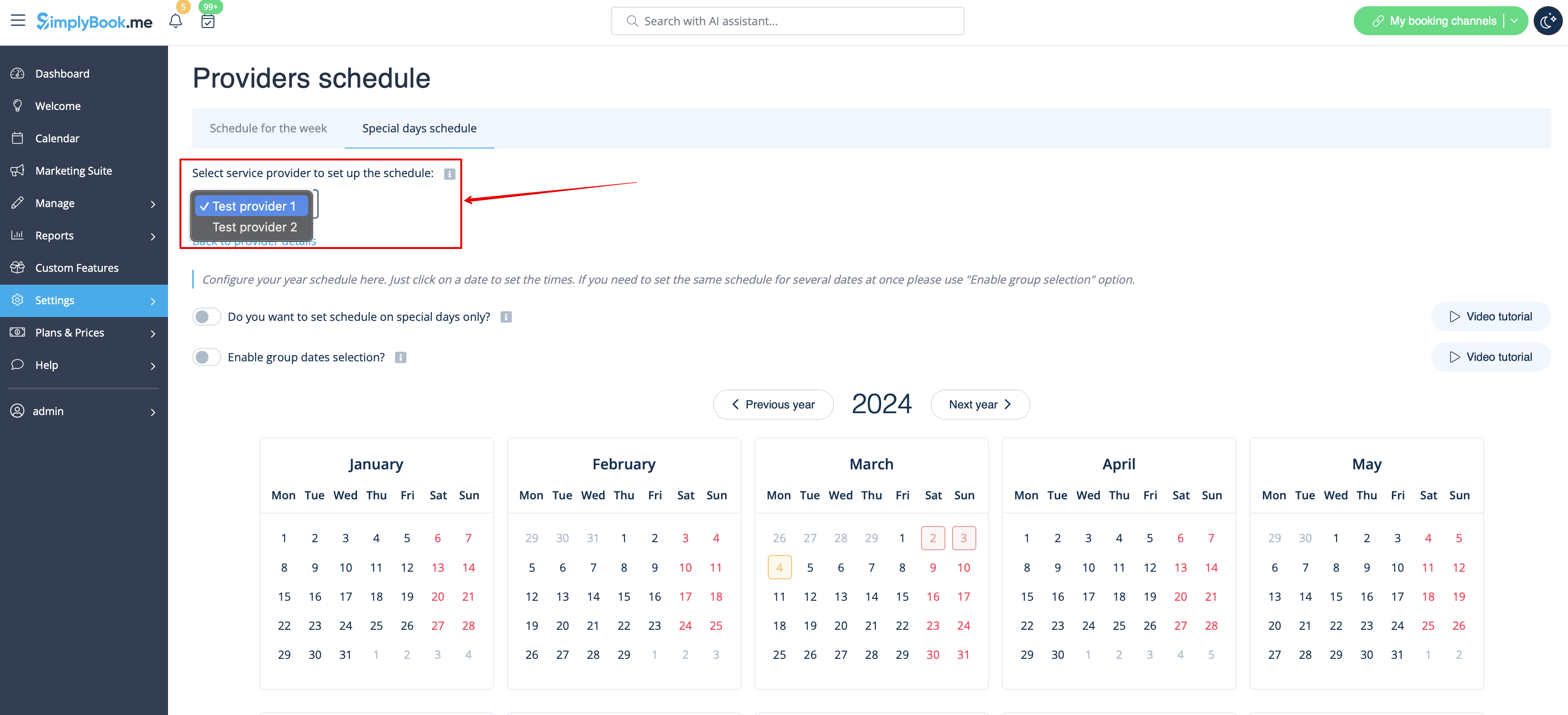
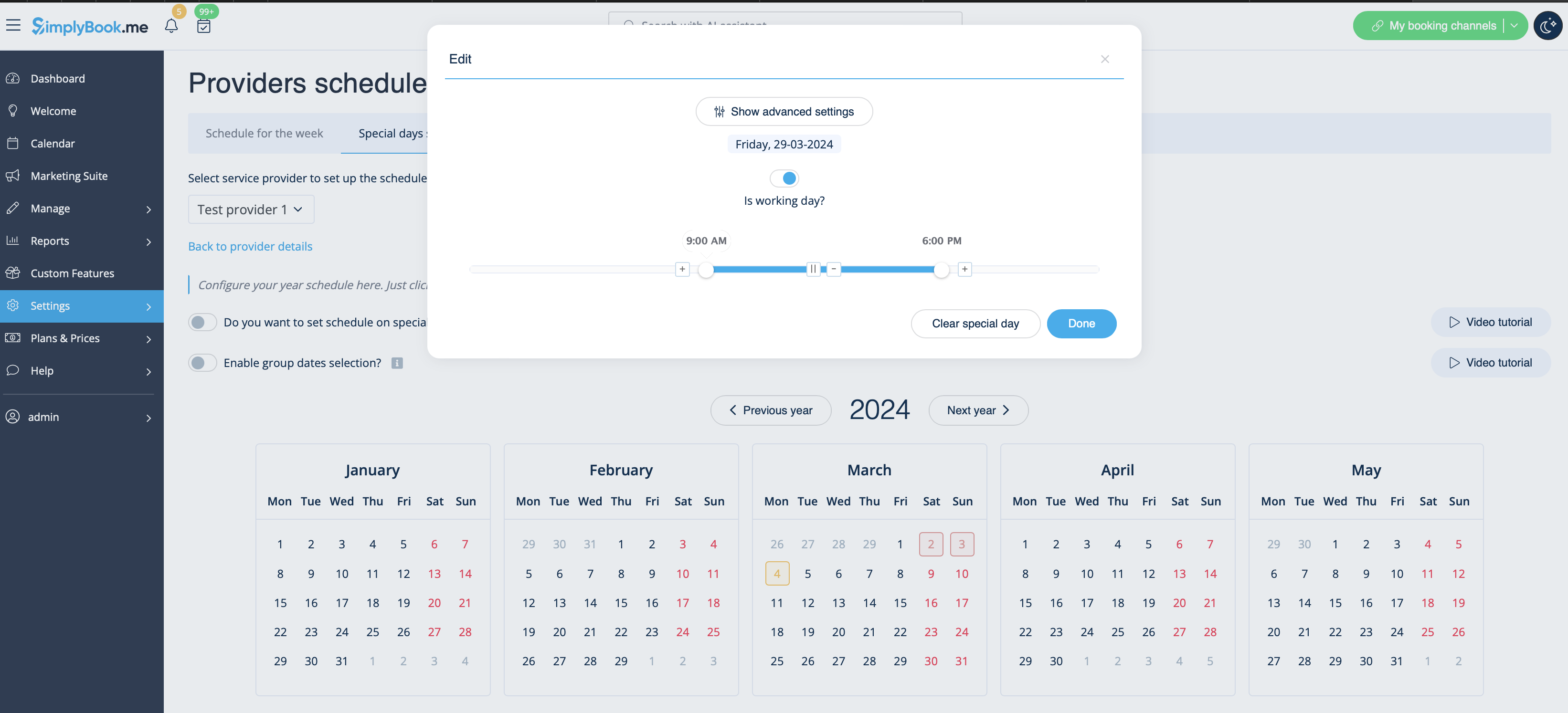
3. Clicking on the desired date opens a window for setting up the schedule for that provider on a specific date. You can adjust the working hours or create a day-off by toggling “Is working day?” and clicking the “Done” button.
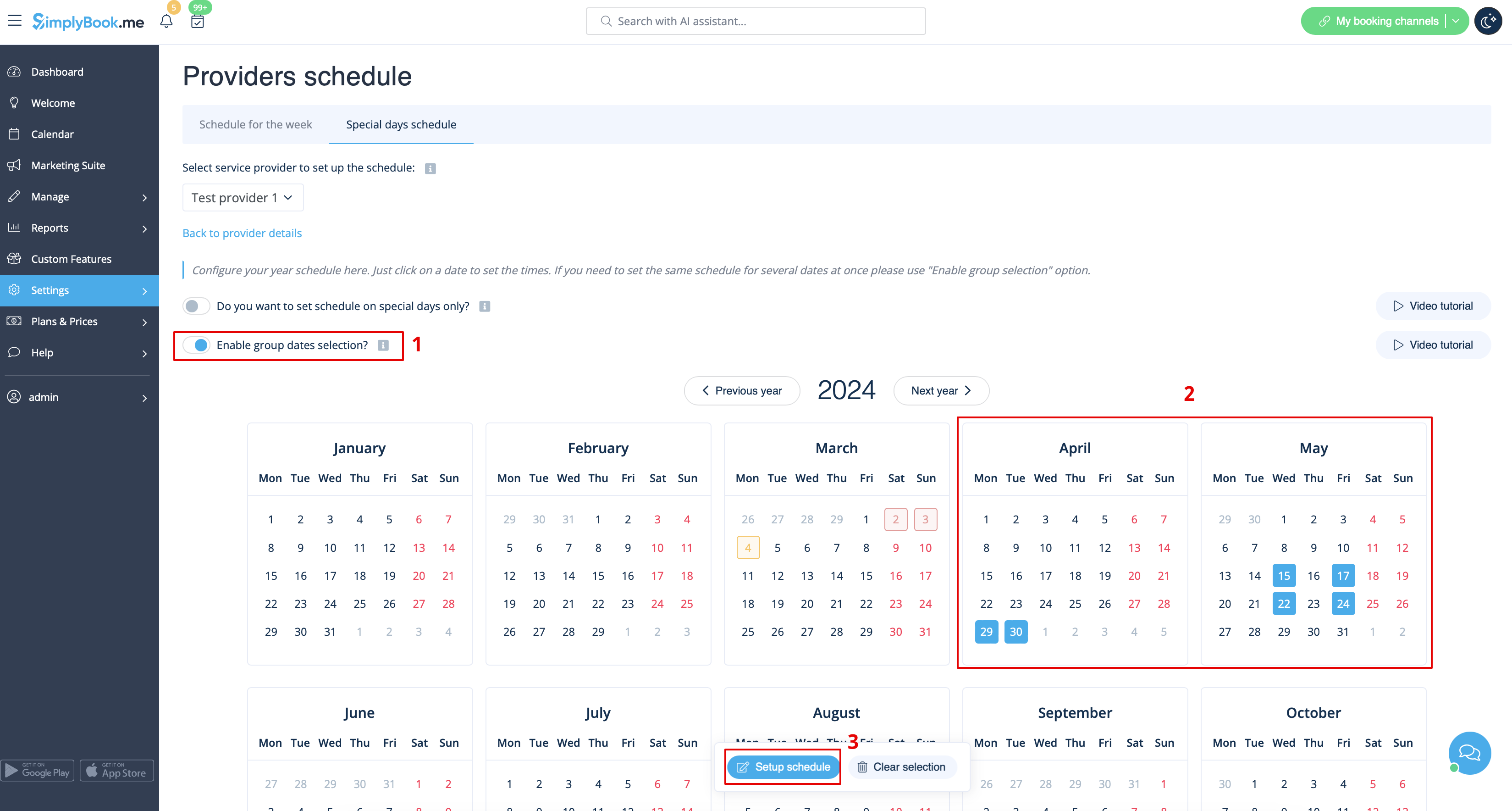
4. If there's a need to adjust several dates for a particular provider with the same schedule, use the toggle “Enable group dates selection.” Click on it, choose the dates, and click the “Edit schedule” button.
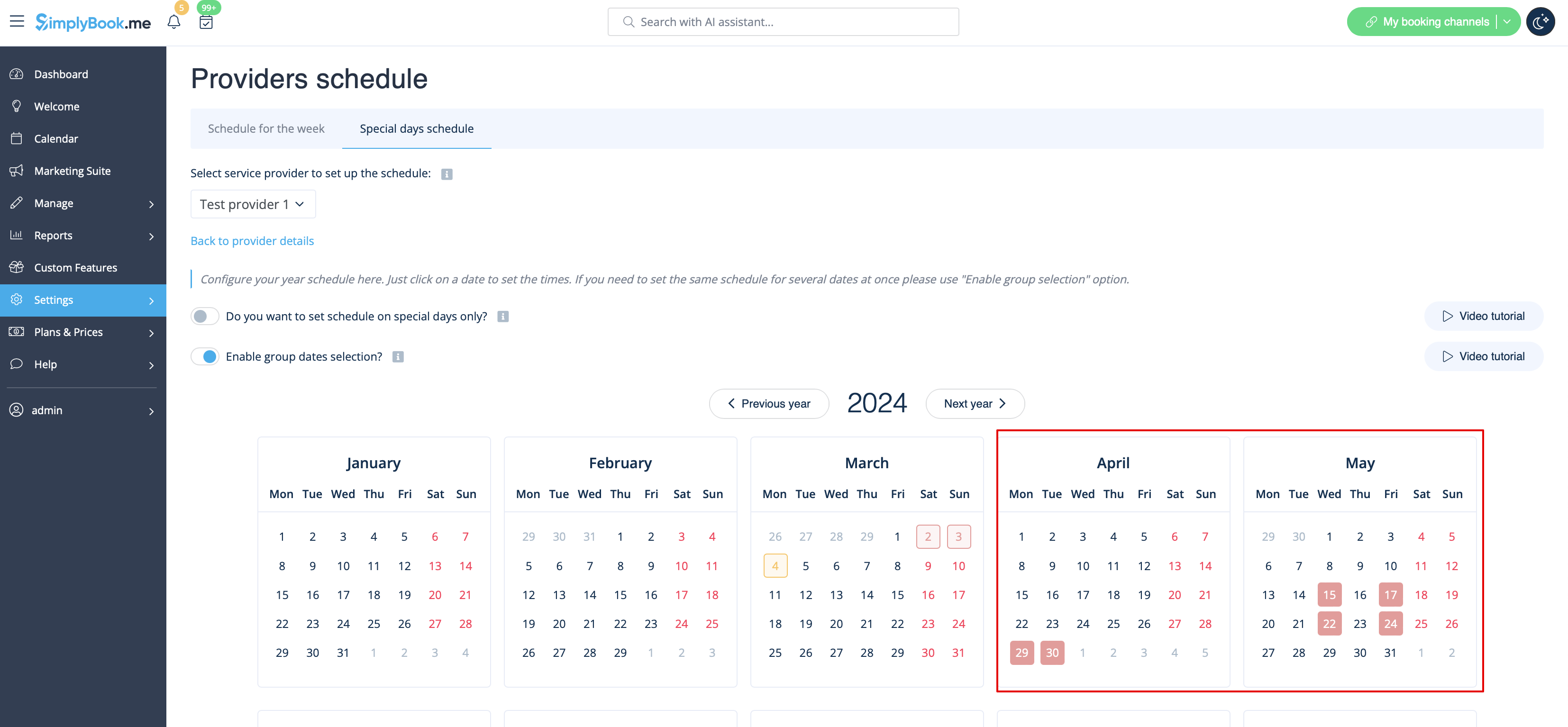
You'll see the same window with options to adjust the schedule or create a day-off for the provider. The calendar will display special days highlighted in red.
Similar actions can be performed for a particular service on a special day in Settings > Service schedule > Special days schedule section, following the steps described in this guide.