Inställningar för tid och datum

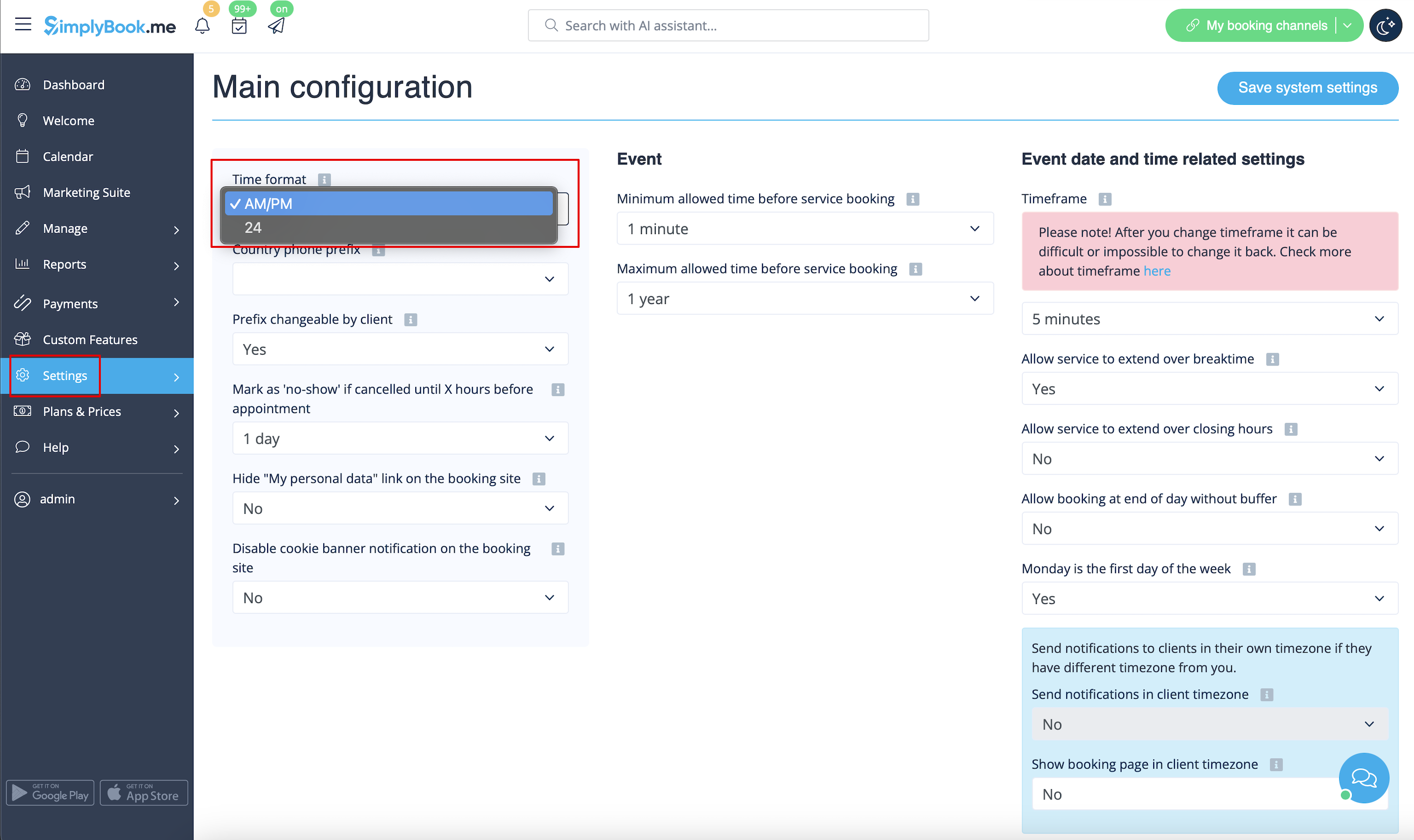
Ändra tidsformat AM/PM - 24
- För att justera detta, gå till Inställningar // Huvudkonfiguration // Tidsformat
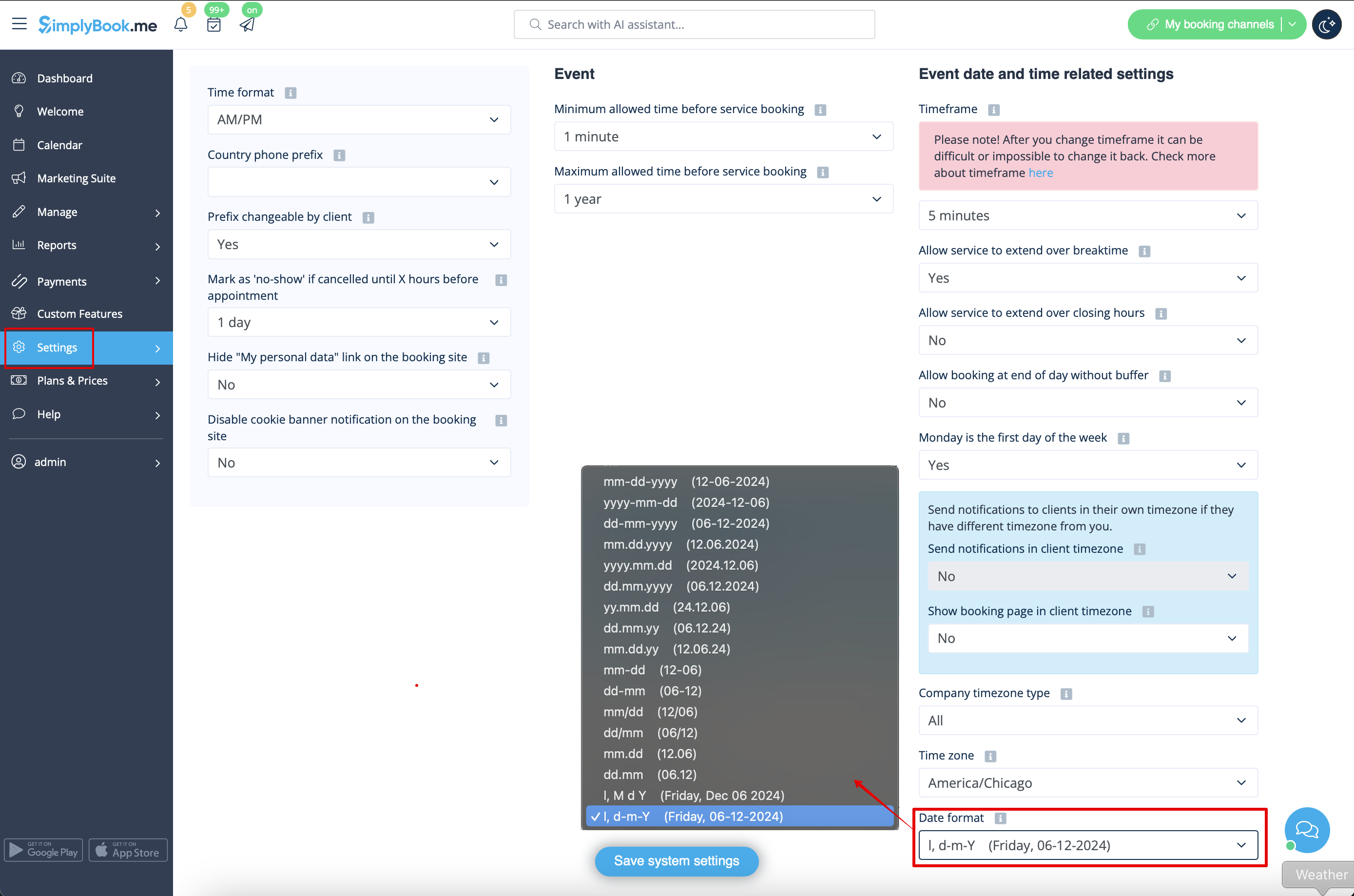
Ändra datumformat
- För att ställa in önskat format, gå till Inställningar // Huvudkonfiguration // Datumformat.
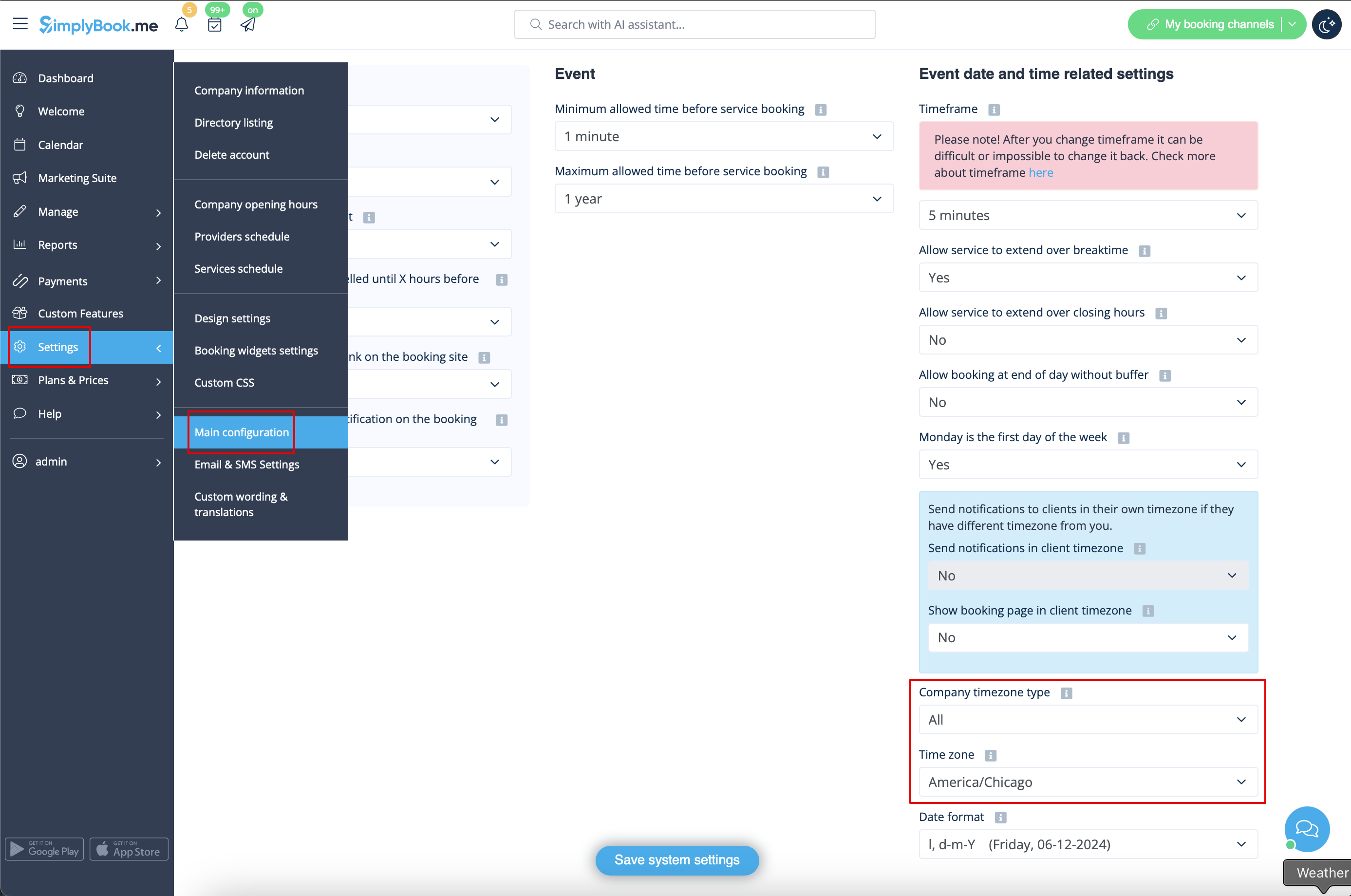
Ändra tidszon
- Tiden på bokningssidan är tiden i företagets tidszon. Du kan ändra din tidszon i Inställningar // Huvudkonfiguration // Tidszon.
- Observera! Företagets tidszon definierar tidszonen för alla leverantörer som skapats inom kontot. Det är inte möjligt att ställa in separata tidszoner för varje leverantör.
Starta kalendern från söndag
- För att ställa in detta, gå till Inställningar // Huvudkonfiguration // Måndag är veckans första dag // Nej.

Minimum allowed time before service reservation
- If you need to restrict how far in advance your clients can book, you can set Minimum allowed time before service reservation in Settings // Main configuration. For example, if now is 2pm and you have minimum time before reservation set to 3 hours, the first available time for clients will be only after 5pm. This setting can help you to better prepare for your service and avoid clients booking at the last minute before the service.

Maximum allowed time before service reservation
- If you need to restrict how far ahead your clients can book, you can set Maximum allowed time before service reservation in Settings // Main configuration. For example, if now is Monday 2pm and you have maximum time before reservation set to 3 days, the last available time for clients will be only from Thursday after 2pm.
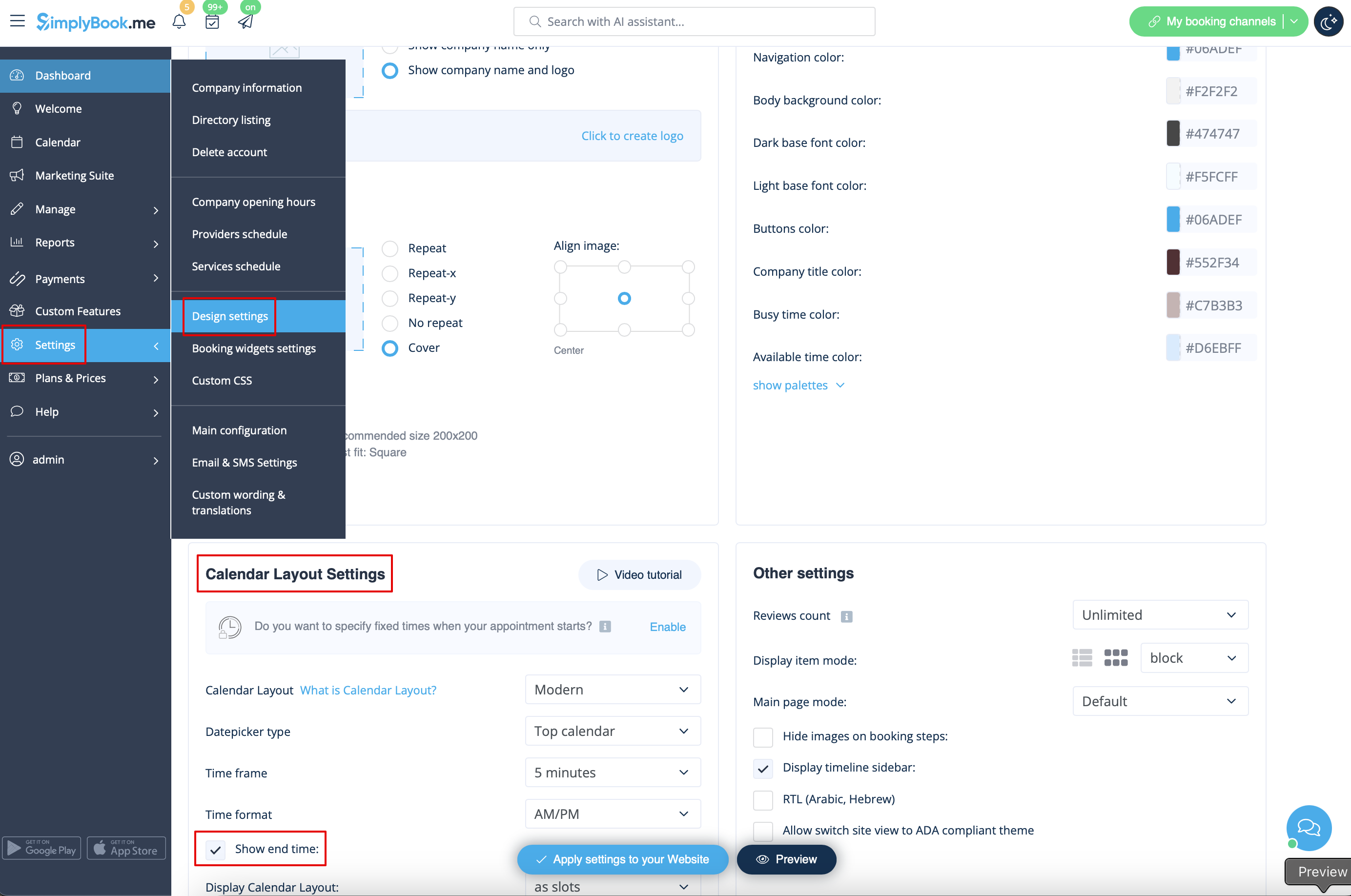
Show end time
- You can decide to show or hide the timeslot end time on the booking website. It is available for the following calendar layouts:
- modern
- slots weekly
- modern provider
- weekly classes
- To enable the end time display please navigate to Settings -> Design settings -> Calendar layout settings -> Show end time. Save settings.
- Daily classes calendar layout shows end time on the each timeslot by default and is defined by the status of "Hide duration on the booking page" setting in Manage -> Services/Classes -> select the service/class -> Time details.