Час перерв
From SimplyBook.me
Швидке блокування часу в календарі
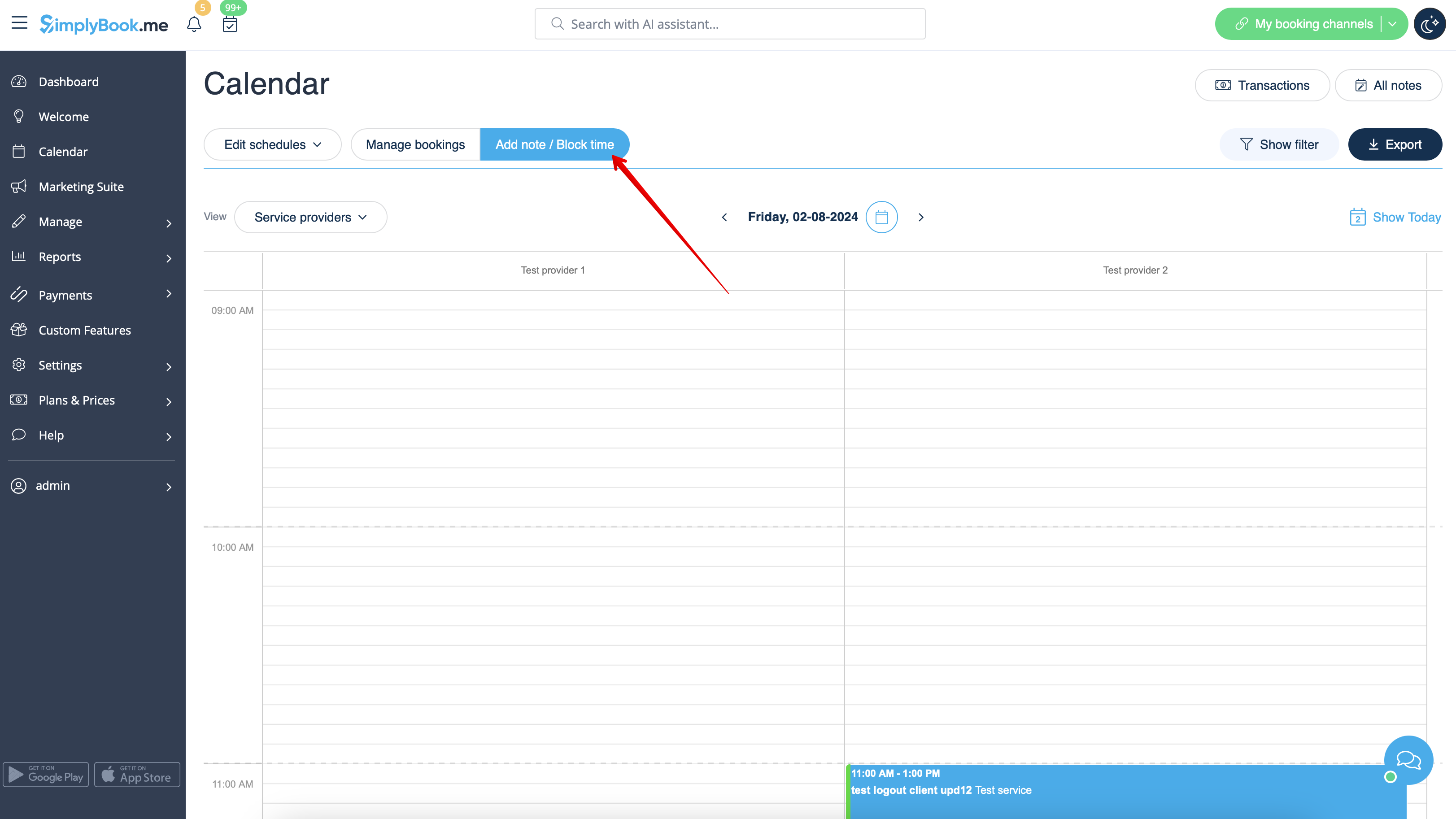
Ви можете закрити доступність на сторінці Календаря, використовуючи режим «Додати примітку/Заблокувати час». Перейдіть до нього та натисніть на часовий проміжок, який ви хочете закрити.
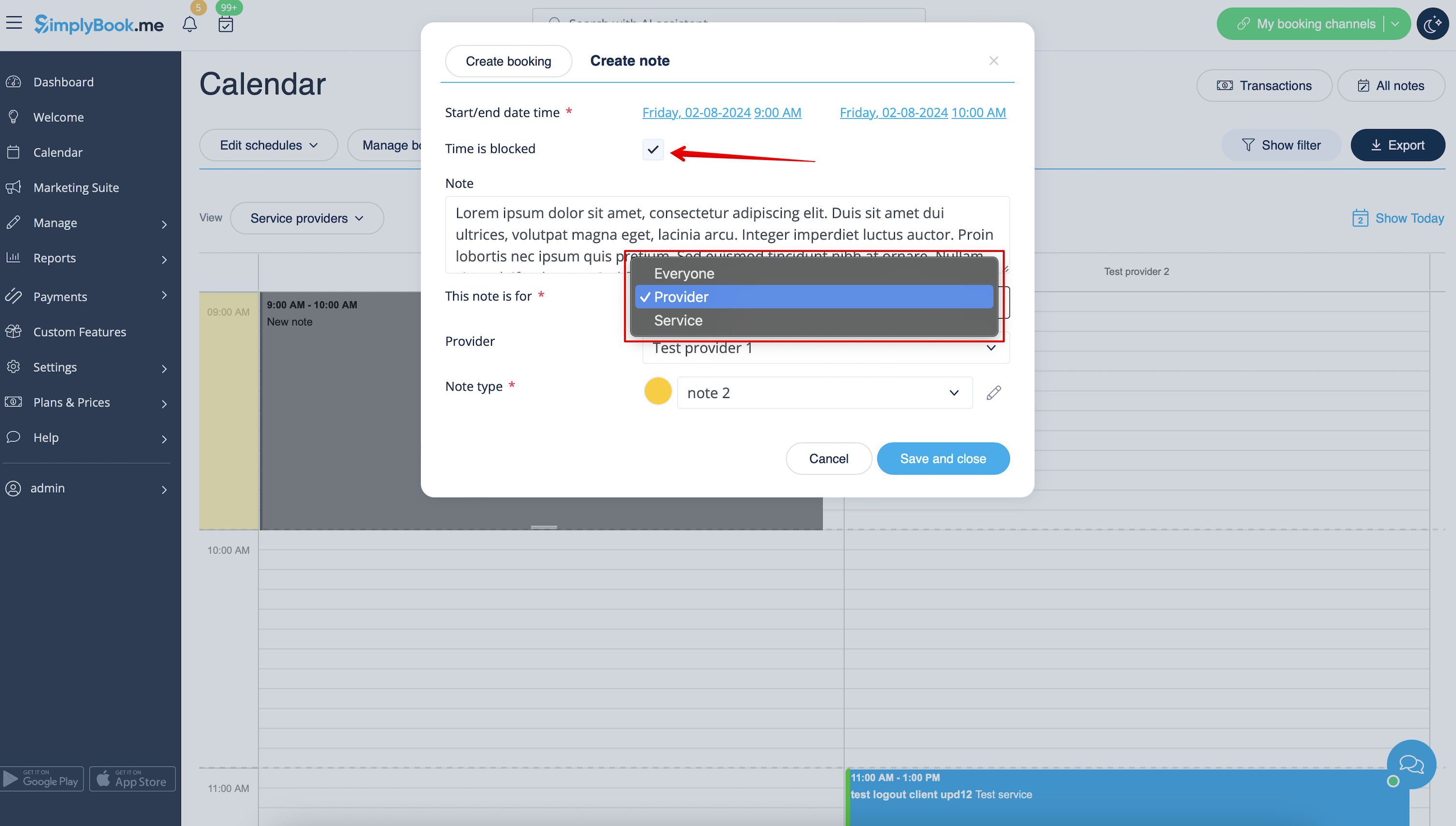
У спливаючому вікні примітки встановіть опцію «Час заблоковано» та виберіть, чи потрібно заблокувати час для всіх у вашій компанії або тільки для певного постачальника чи служби.
За необхідності додайте причину блокування.
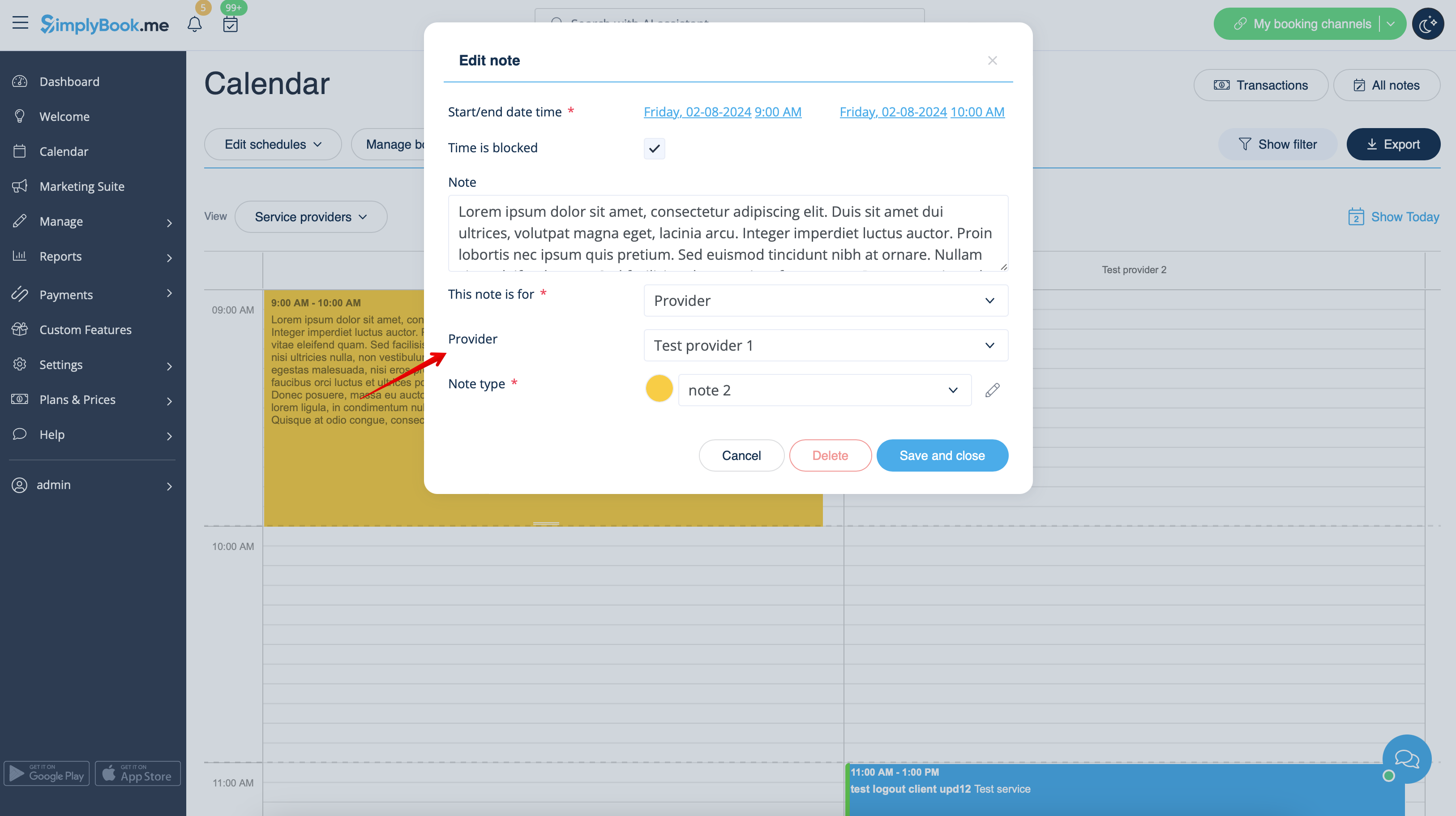
Щоб видалити або редагувати заблокований час, просто натисніть на відповідну примітку та видаліть її або оновлюйте та зберігайте.
Інші варіанти оновлення доступності
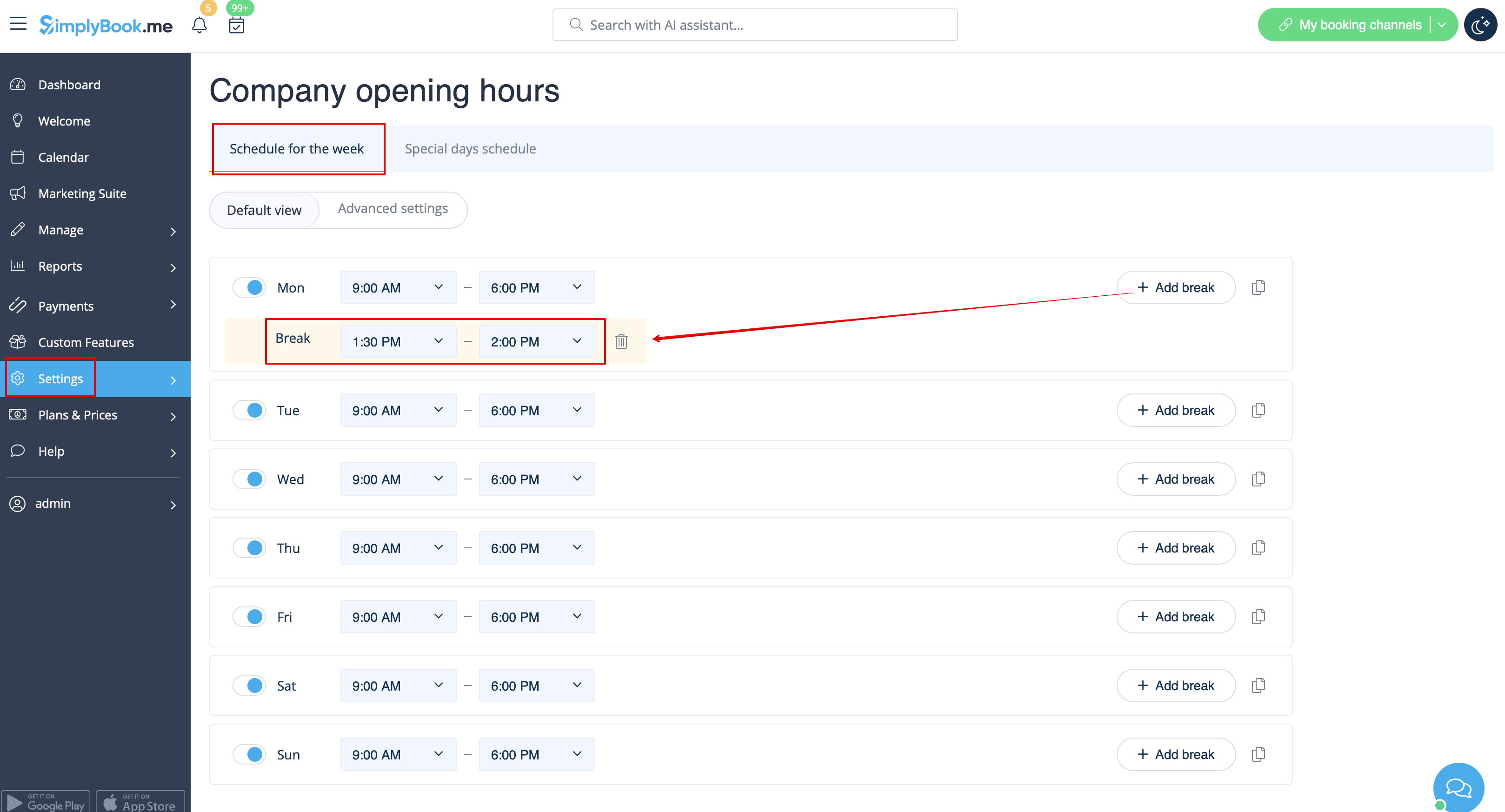
- 1. If you wish to add breaktime or day off for all providers/services, you can also do it in Settings//Company opening hours for weekly schedule (if it is regular off time)
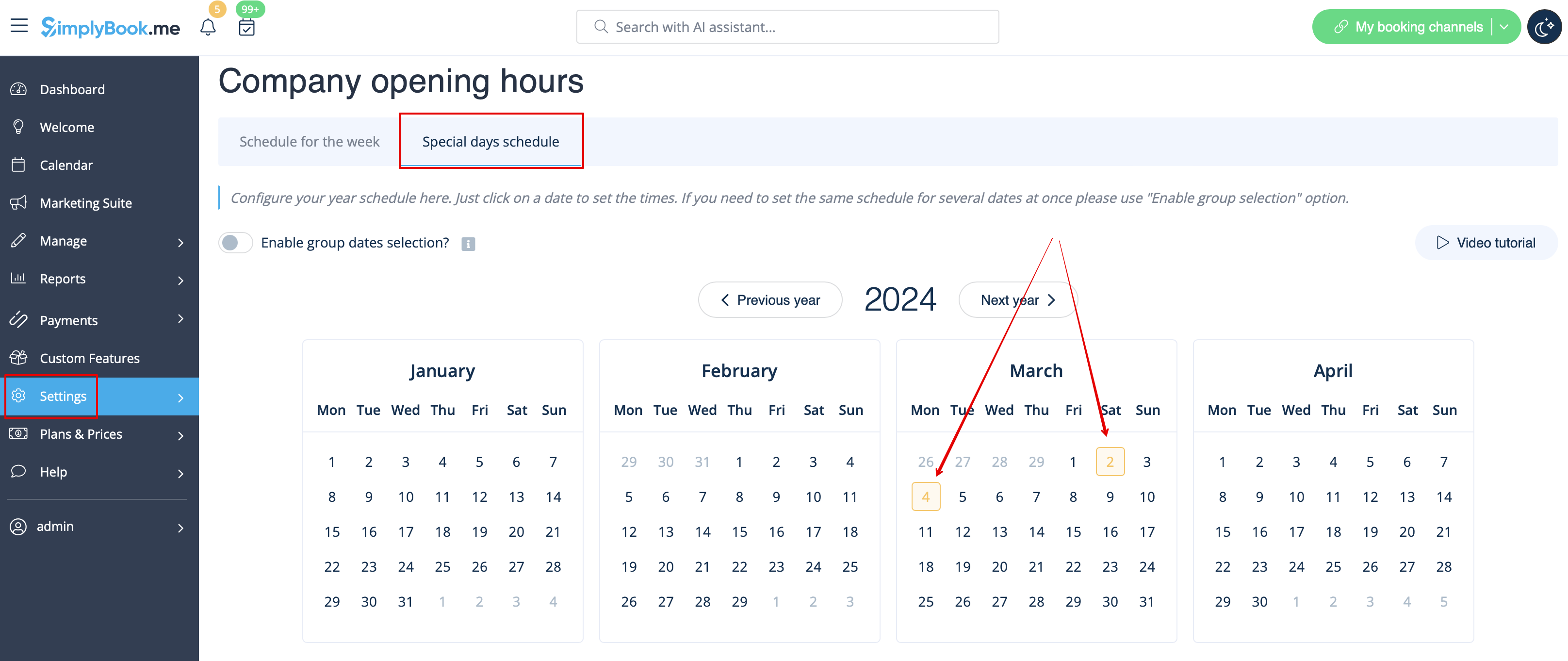
- or in Settings//Company opening hours//Special days schedule(if you need to add it only for particular date).
- Use
 "add breaktime" icon to add breaktime or
  remove breaktime icon to delete it.


- 2. If you wish to add breaktime or day off for certain provider, you can do it in Settings//Providers schedule for weekly schedule (if it is regular off time) or in Settings//Providers schedule//Special days tab (if you need to add it only for particular date).
- 3. If you wish to add breaktime or day off for certain service, you can do it in Settings//Services schedule for weekly schedule (if it is regular off time) or in Settings//Services schedule//Special days tab (if you need to add it only for particular date).
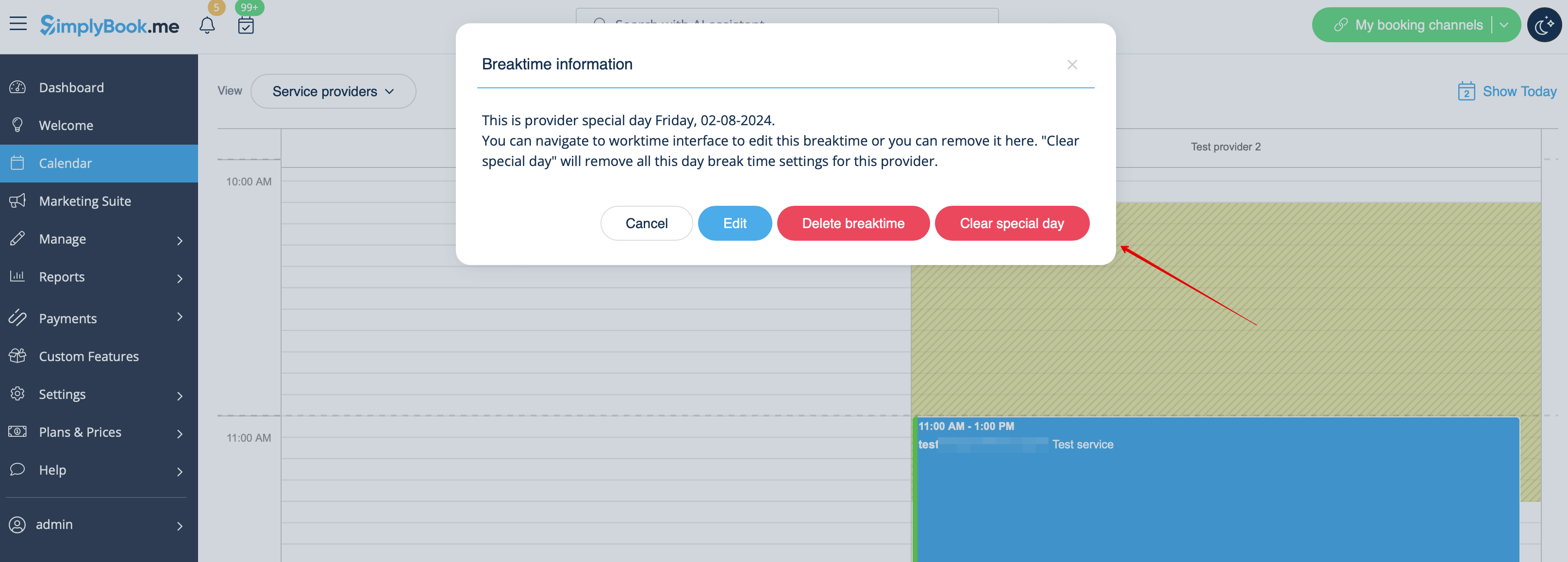
- These breaktimes will also be seen on Calendar page and can be removed either at the page where you have added them or in some cases directly from calendar page by clicking on them and selecting the corresponding option.