Pauser
From SimplyBook.me
Blockera tider snabbt från kalendern
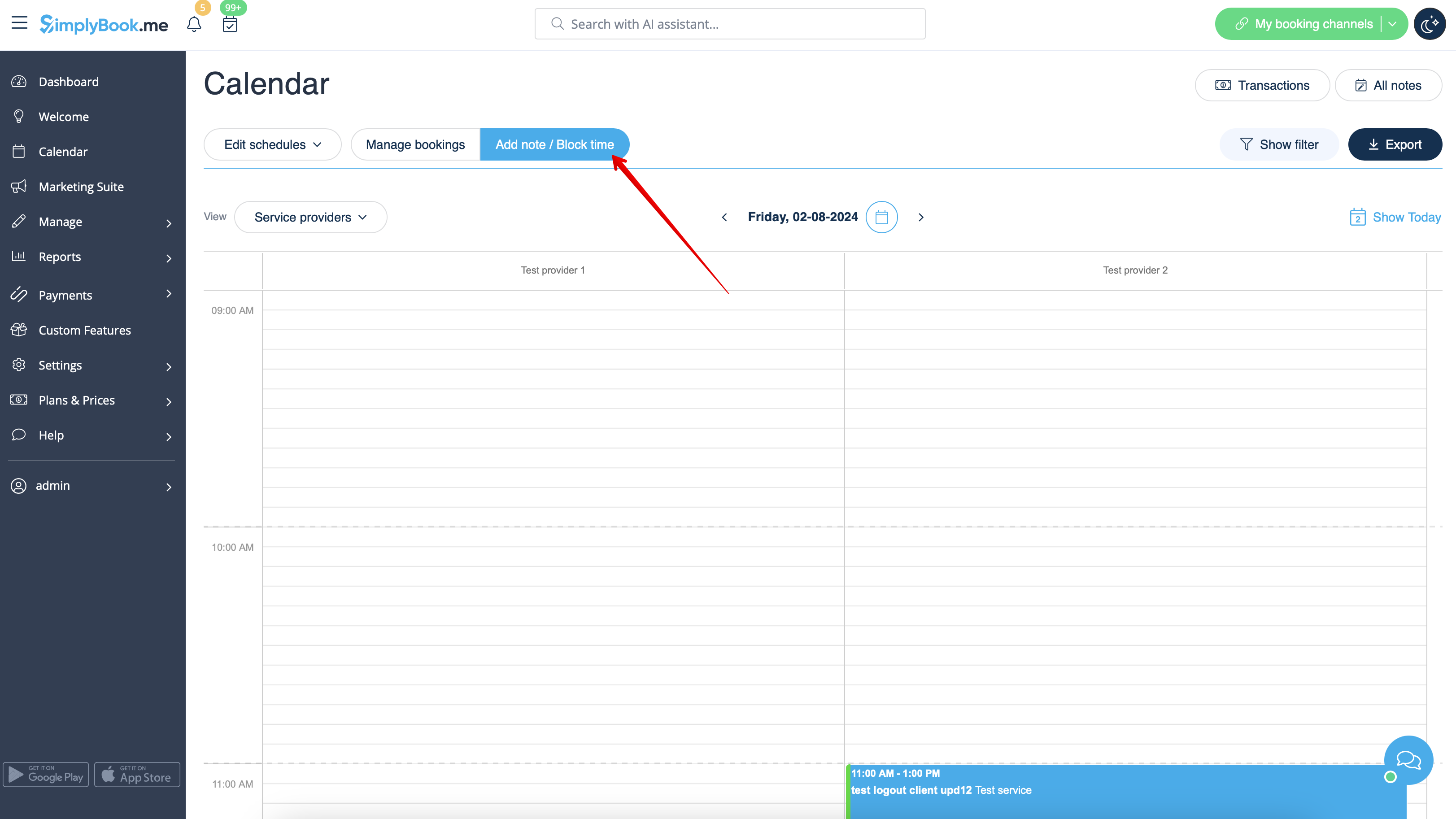
Du kan stänga tillgängligheten från kalendersidan med hjälp av läget "Lägg till anteckning/Blockera tid". Växla till det och klicka på den tidslucka du vill stänga.
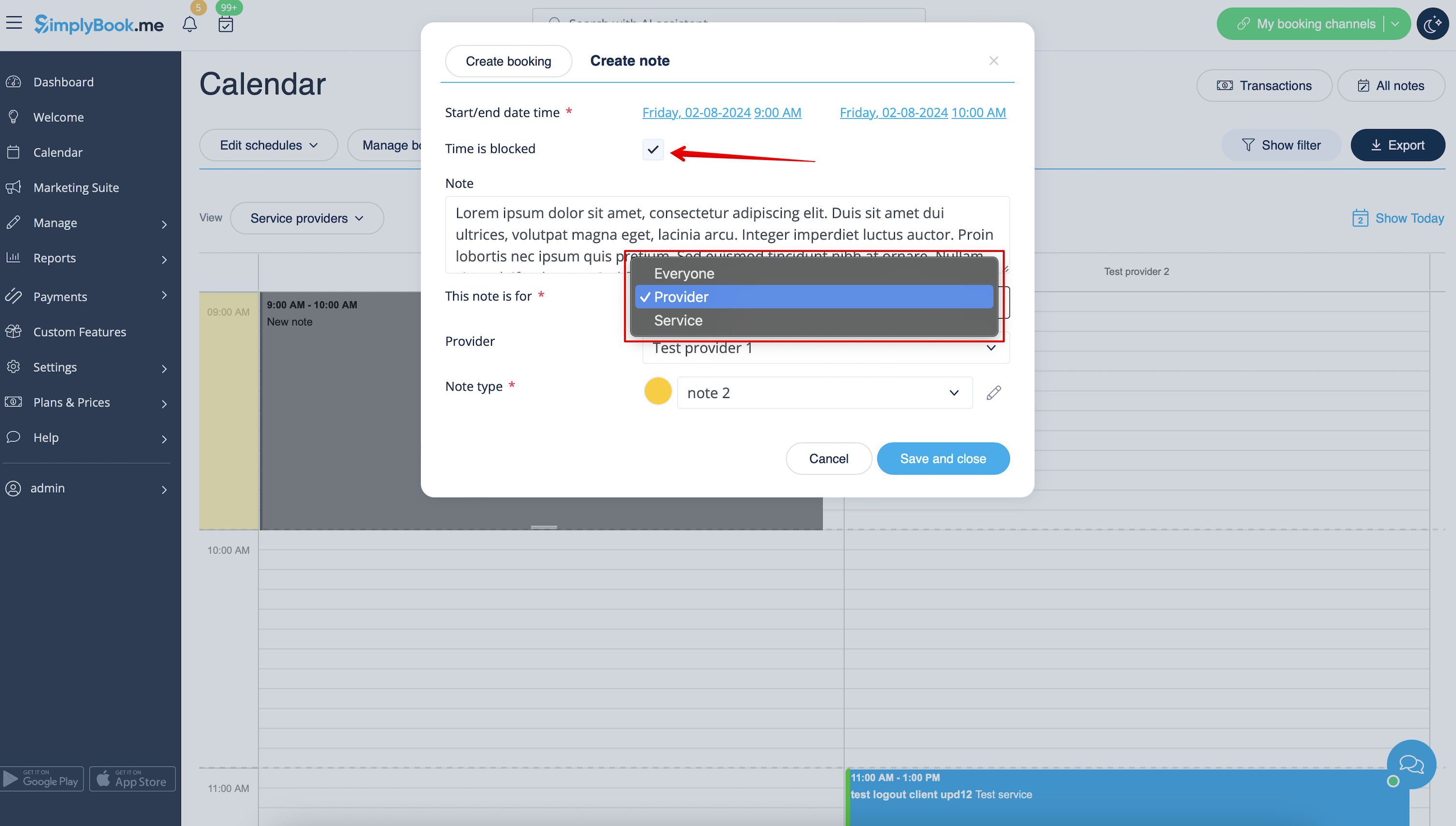
I anteckningsfönstret markerar du alternativet "Tiden är blockerad" och väljer om du vill blockera tidsperioden för alla i ditt företag eller endast för en specifik leverantör eller tjänst.
Lägg till orsaken till blockeringen om det behövs.
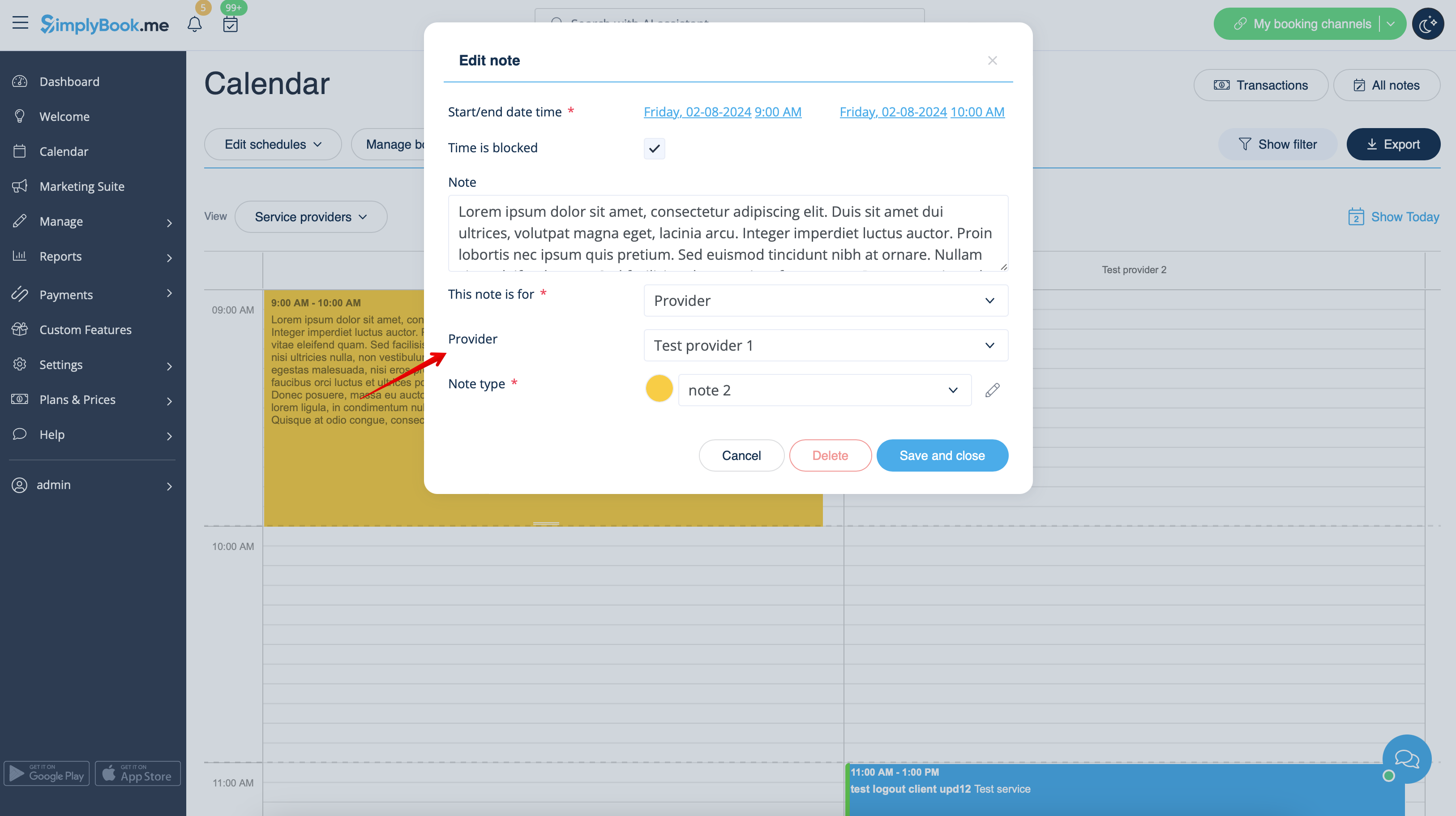
För att ta bort eller redigera blockerad tid kan du helt enkelt klicka på motsvarande anteckning och ta bort den eller uppdatera och spara.
Andra alternativ för att uppdatera tillgängligheten
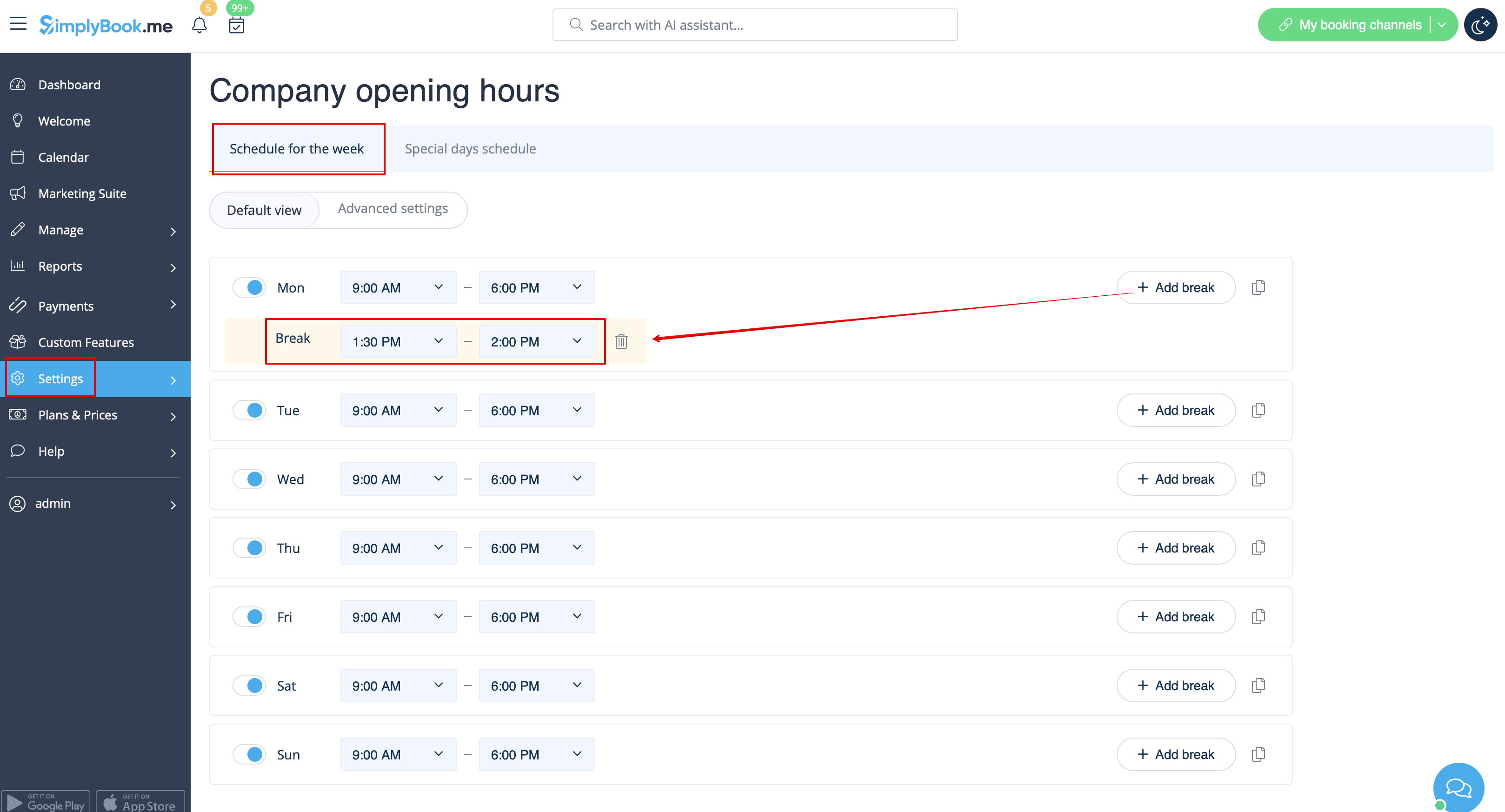
- 1. If you wish to add breaktime or day off for all providers/services, you can also do it in Settings//Company opening hours for weekly schedule (if it is regular off time)
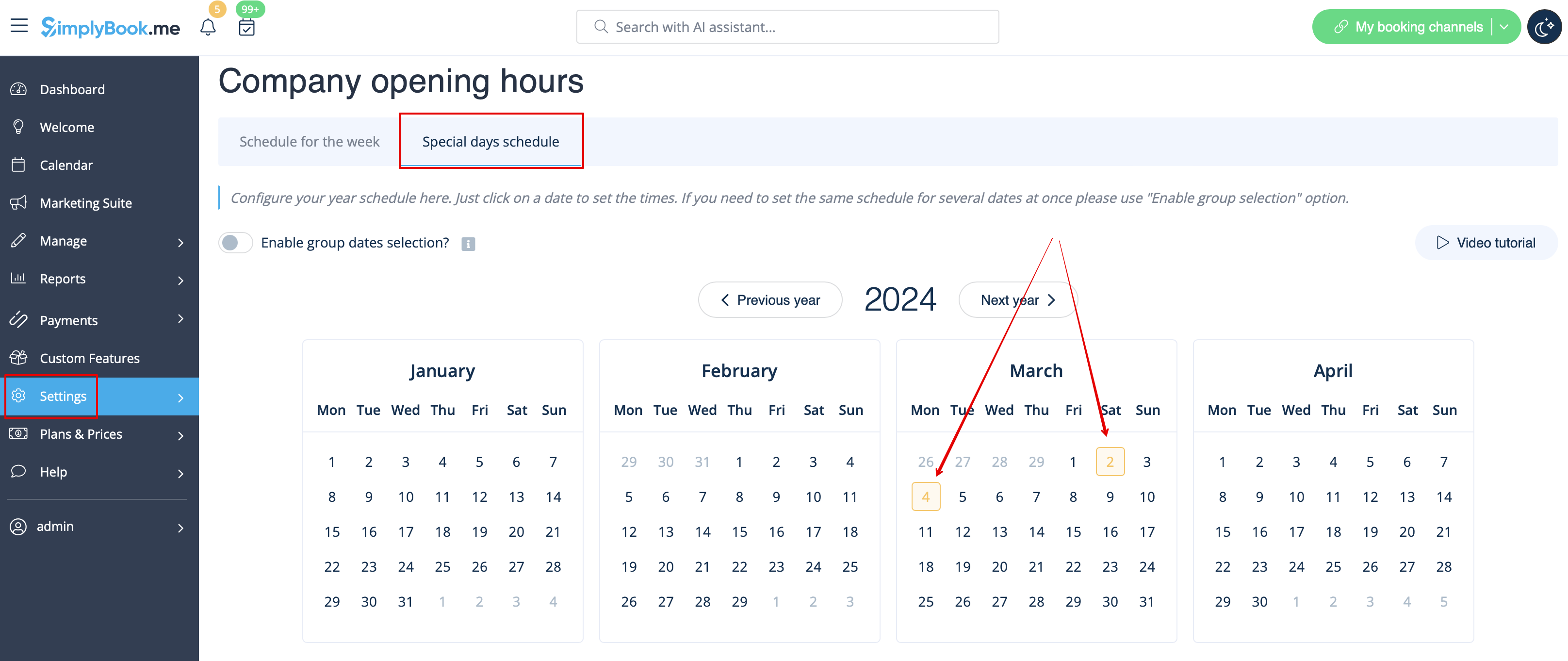
- or in Settings//Company opening hours//Special days schedule(if you need to add it only for particular date).
- Use
 "add breaktime" icon to add breaktime or
  remove breaktime icon to delete it.


- 2. If you wish to add breaktime or day off for certain provider, you can do it in Settings//Providers schedule for weekly schedule (if it is regular off time) or in Settings//Providers schedule//Special days tab (if you need to add it only for particular date).
- 3. If you wish to add breaktime or day off for certain service, you can do it in Settings//Services schedule for weekly schedule (if it is regular off time) or in Settings//Services schedule//Special days tab (if you need to add it only for particular date).
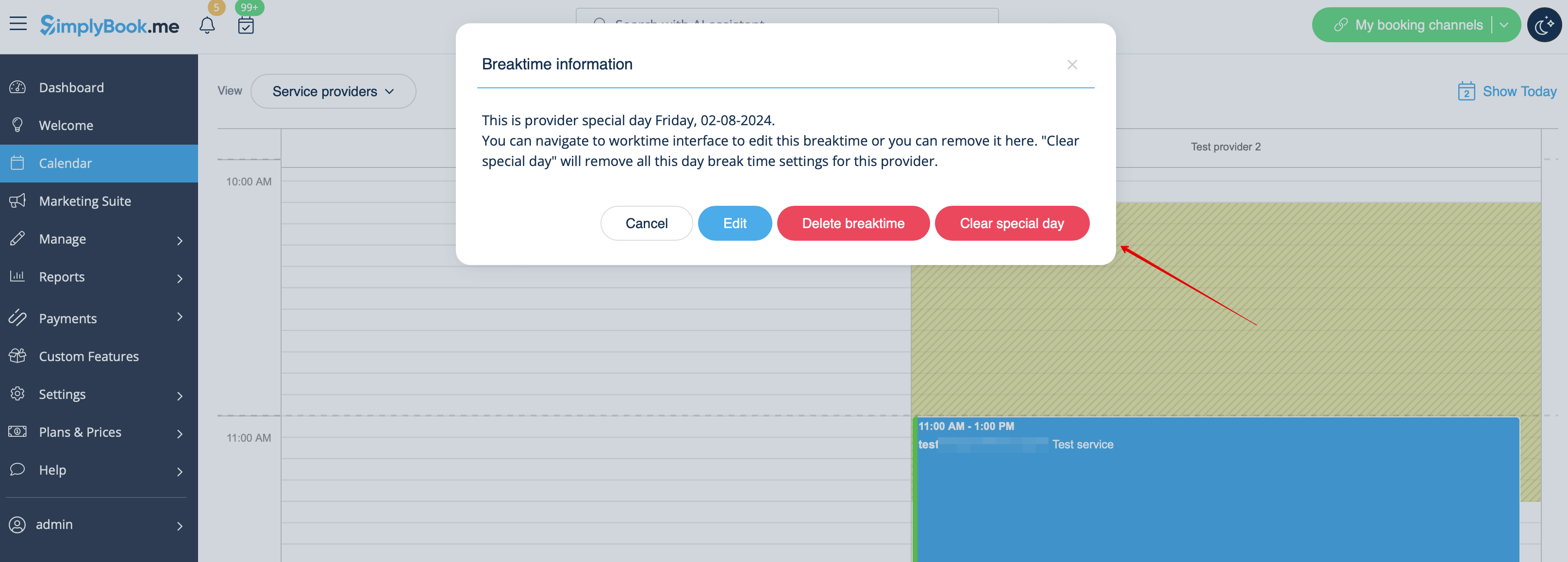
- These breaktimes will also be seen on Calendar page and can be removed either at the page where you have added them or in some cases directly from calendar page by clicking on them and selecting the corresponding option.