Boka dagar
SimplyBook.me har ingen möjlighet att boka dagar, men det finns en lösning. Kontrollera om dessa alternativ passar ditt företag.
- Videohandledning tillgänglig

Flera tjänster
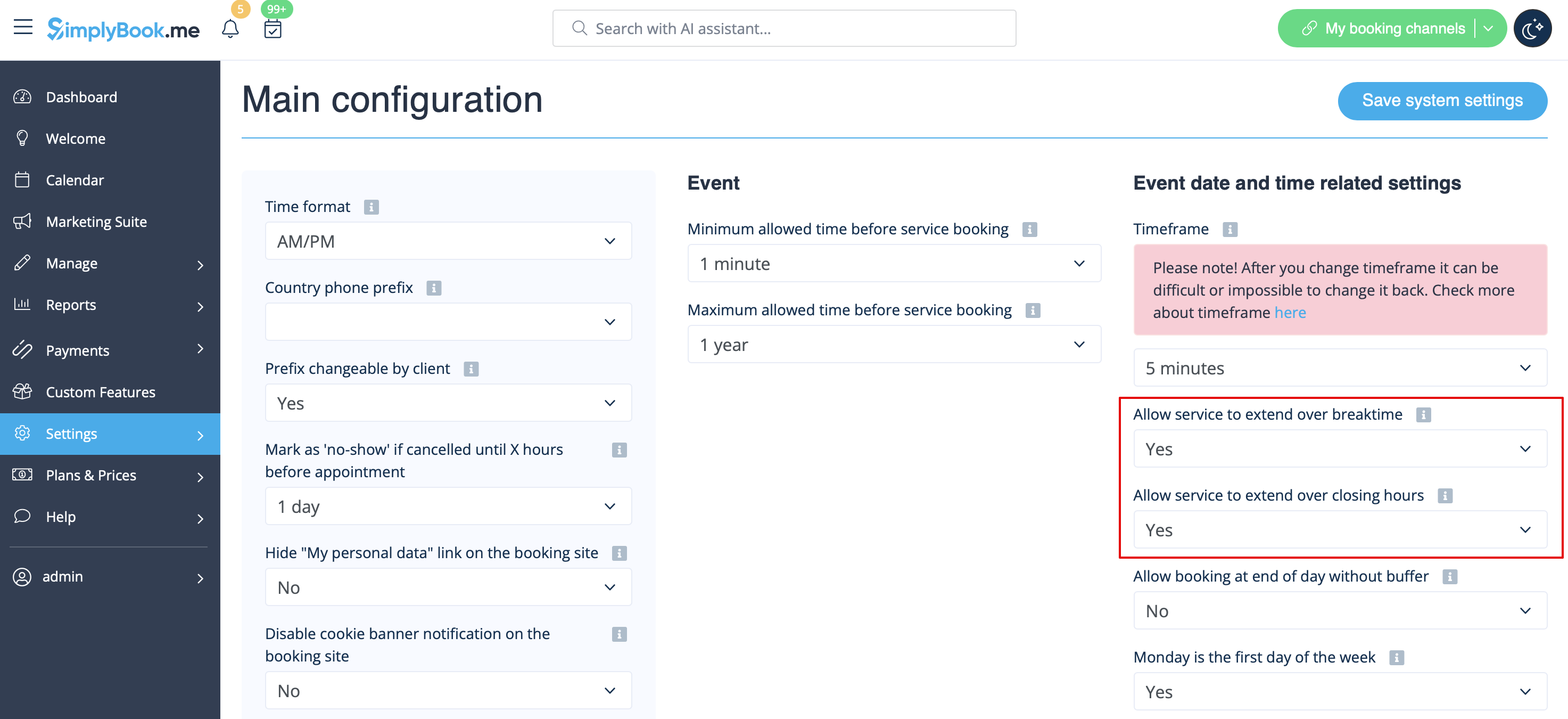
1. I Inställningar -> Huvudkonfiguration -> ställ in både Tillåt tjänsten att fortsätta under pauser och Tillåt tjänsten att fortsätta efter stängningstid till Ja och spara .
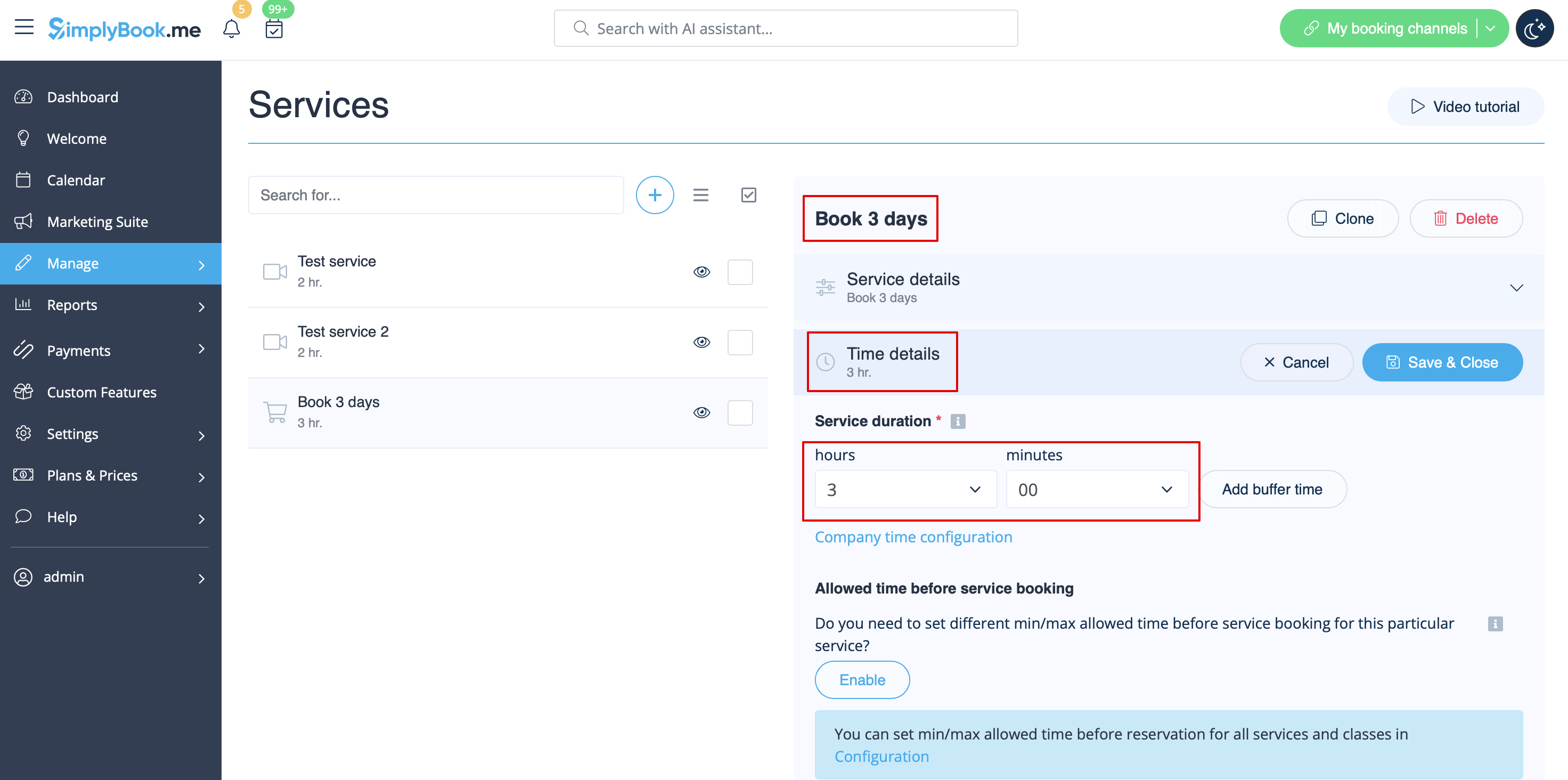
2. I Hantera -> Tjänster -> +-knappen skapar du en tjänst med den varaktighet som motsvarar antalet dagar som din tjänst kommer att erbjudas (3 dagar = 3 timmar, 7 dagar = 7 timmar).
3. In the Settings -> Company opening hours (when you have only 1 service) or in the working hours of this service (Settings -> Services schedule or Manage -> Services -> select the service -> Services schedule) open only 1 hour each day.

4. The system will then book the number of hours indicated in service duration as the number of days.

5. For your clients this setup will look in the following way:

Single service with the use of Add-ons
1. In Settings -> Main configuration -> set both Allow service to extend over breaktime and Allow service to extend over closing hours. to Yes and save.

2. In Manage -> Services -> + button create service with the duration corresponding to the amount of days your service will initially be offered for (3 days=3 hours, 7 days=7 hours).

3. Enable Service add-ons custom feature inside the tab on the Services page or in Custom features section.

4. In Manage -> Service add-ons create all the desired additional duration options.

5. (optional) Relate the Add-ons to the desired services if necessary and you have some specific additional duration options per service.

6. In Settings -> Company opening hours (when you have only 1 service) or in the working hours of this service (Settings -> Services schedule or Manage -> Services -> select the service -> Services schedule) open only 1 hour each day.
7. Here you can see how this way will look like on the client side
(they will select the main service first and then choose the additional duration if they need to):

