Налаштування сповіщень
Як увімкнути/вимкнути сповіщення про бронювання та налаштувати шаблони
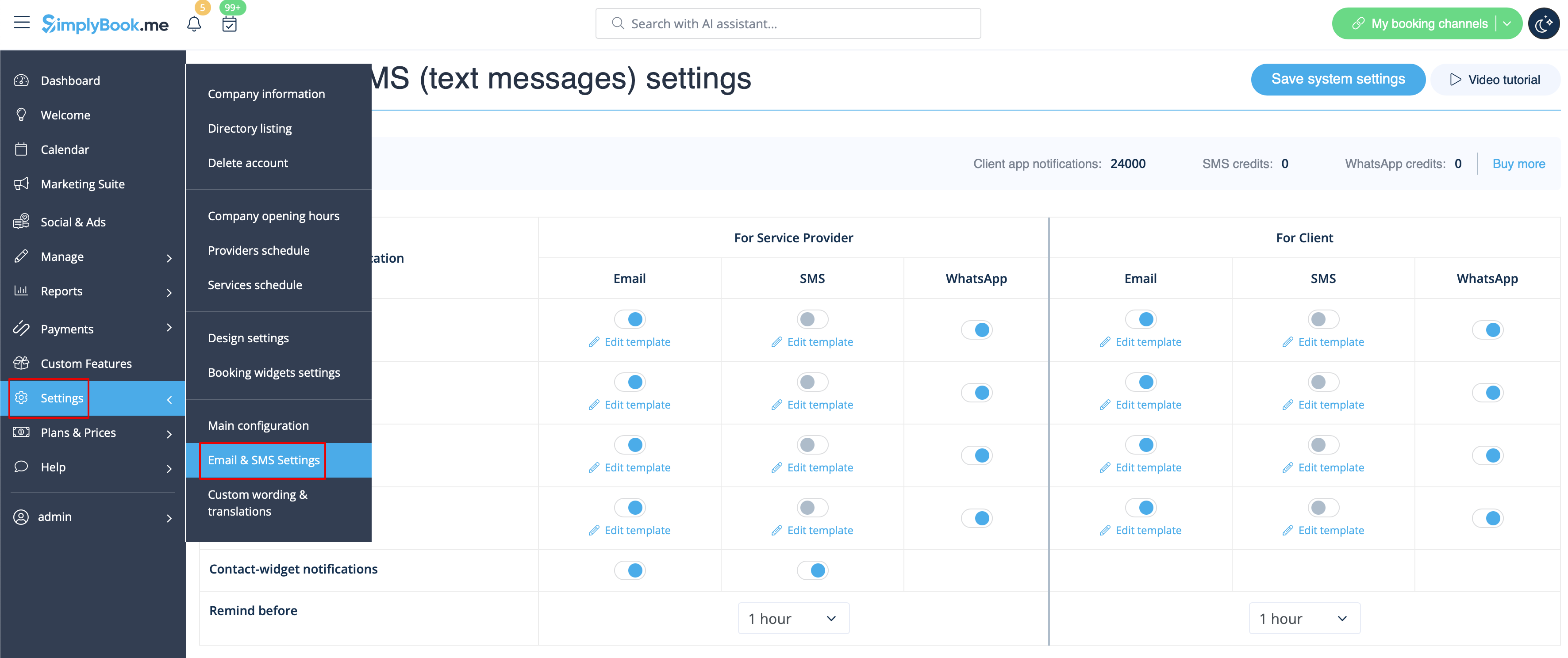
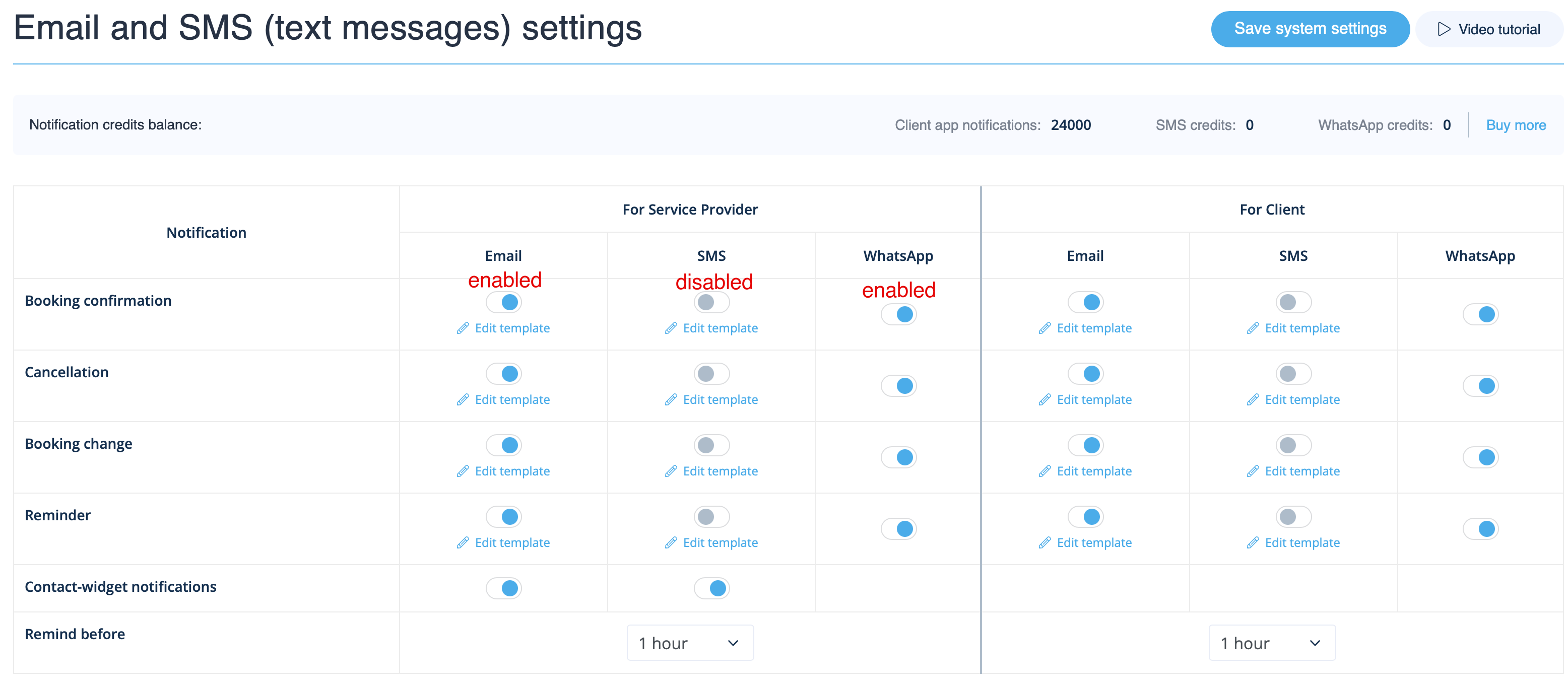
Перейдіть до Налаштування -> Налаштування електронної пошти та SMS і встановіть/зніміть відповідні прапорці, щоб надсилати/не надсилати сповіщення. Ви можете змінити тексти сповіщень відповідно до своїх потреб, натиснувши кнопку «Редагувати шаблон», внести зміни та зберегти системні налаштування.
Повідомлення WhatsApp
Якщо ви та ваші клієнти активно користуєтеся месенджером WhatsApp, ви можете отримувати там повідомлення, пов'язані з бронюваннями.
- Як користуватися
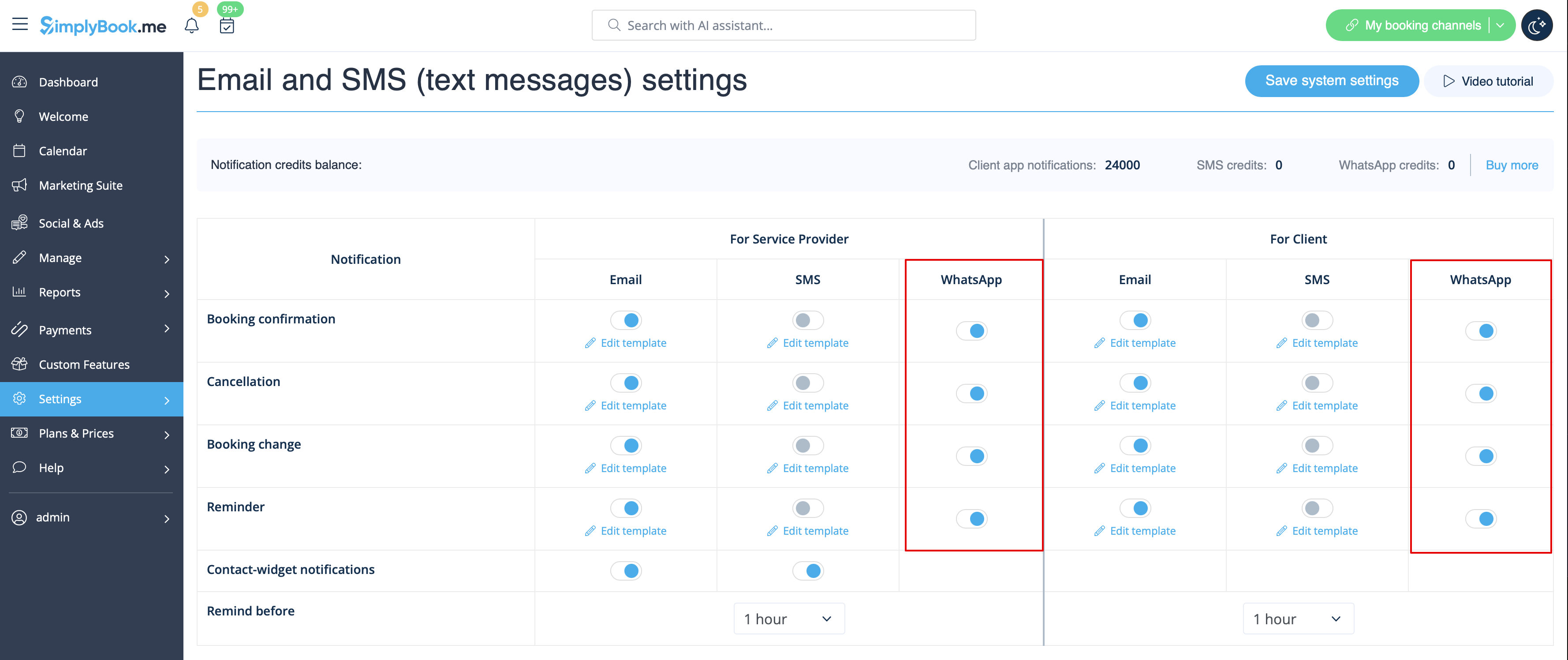
1. Увімкніть потрібні типи повідомлень WhatsApp у налаштуваннях -> Налаштування електронної пошти та SMS
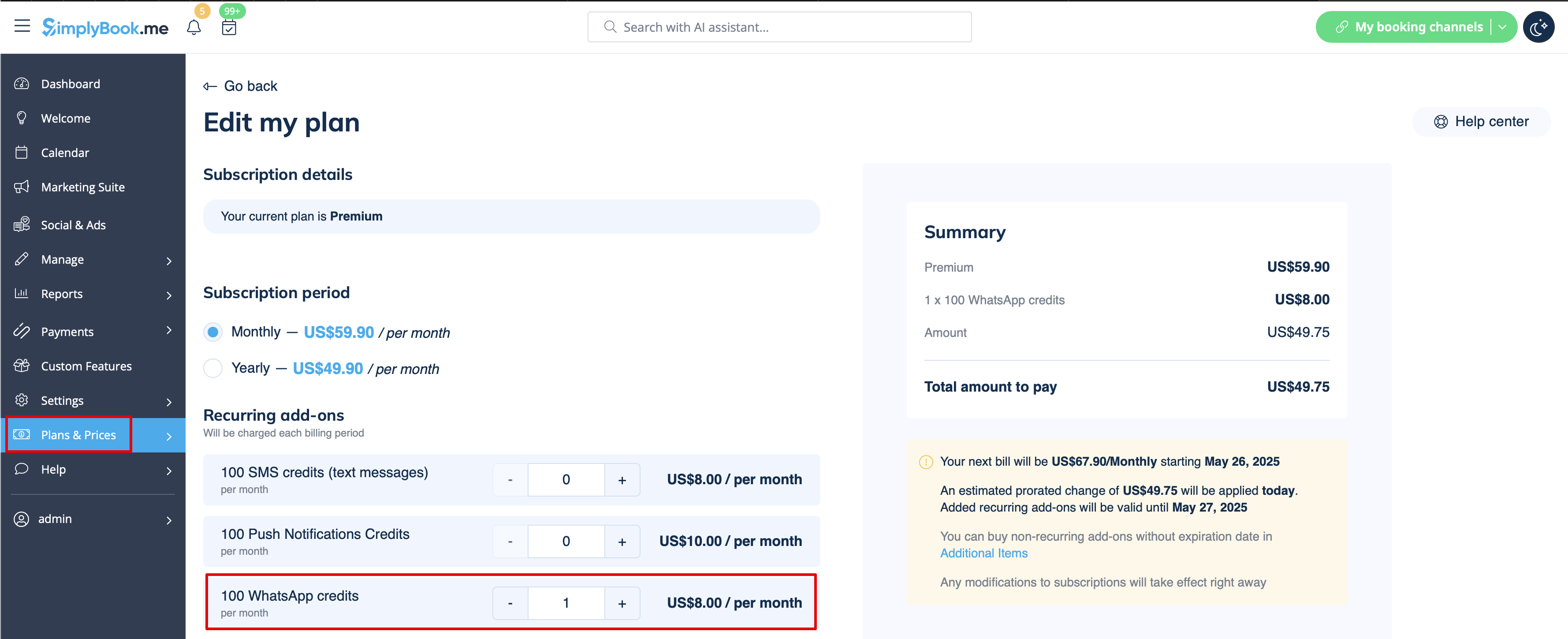
2. Придбайте кредити WhatsApp у розділі «Плани та ціни» -> «Підписки» або «Додаткові елементи», залежно від того, чи хочете ви, щоб кредити автоматично поновлювалися разом із підпискою, чи віддаєте перевагу одноразовій покупці.
(Ви також зможете переглянути повідомлення, надіслані з системи, а також кількість використаних кредитів у розділі «Звіти» -> «SMS (текстові повідомлення)» -> «Сповіщення WhatsApp»)
Зверніть увагу! Відповідно до політики WhatsApp, повідомлення використовують заздалегідь затверджені шаблони і не можуть бути налаштовані. Ці шаблони містять необхідну інформацію у чіткій та професійній формі.
Мобільний додаток для адміністраторів
Якщо ви використовуєте мобільний додаток для адміністратора, ви можете отримувати повідомлення, пов'язані з бронюваннями, такі як підтвердження бронювання, нагадування, повідомлення про зміну та скасування бронювання.
Щоб увімкнути/вимкнути ці повідомлення, перейдіть на вкладку «Налаштування» -> «Керувати повідомленнями» в мобільному додатку адміністратора.
Як вимкнути відгуки
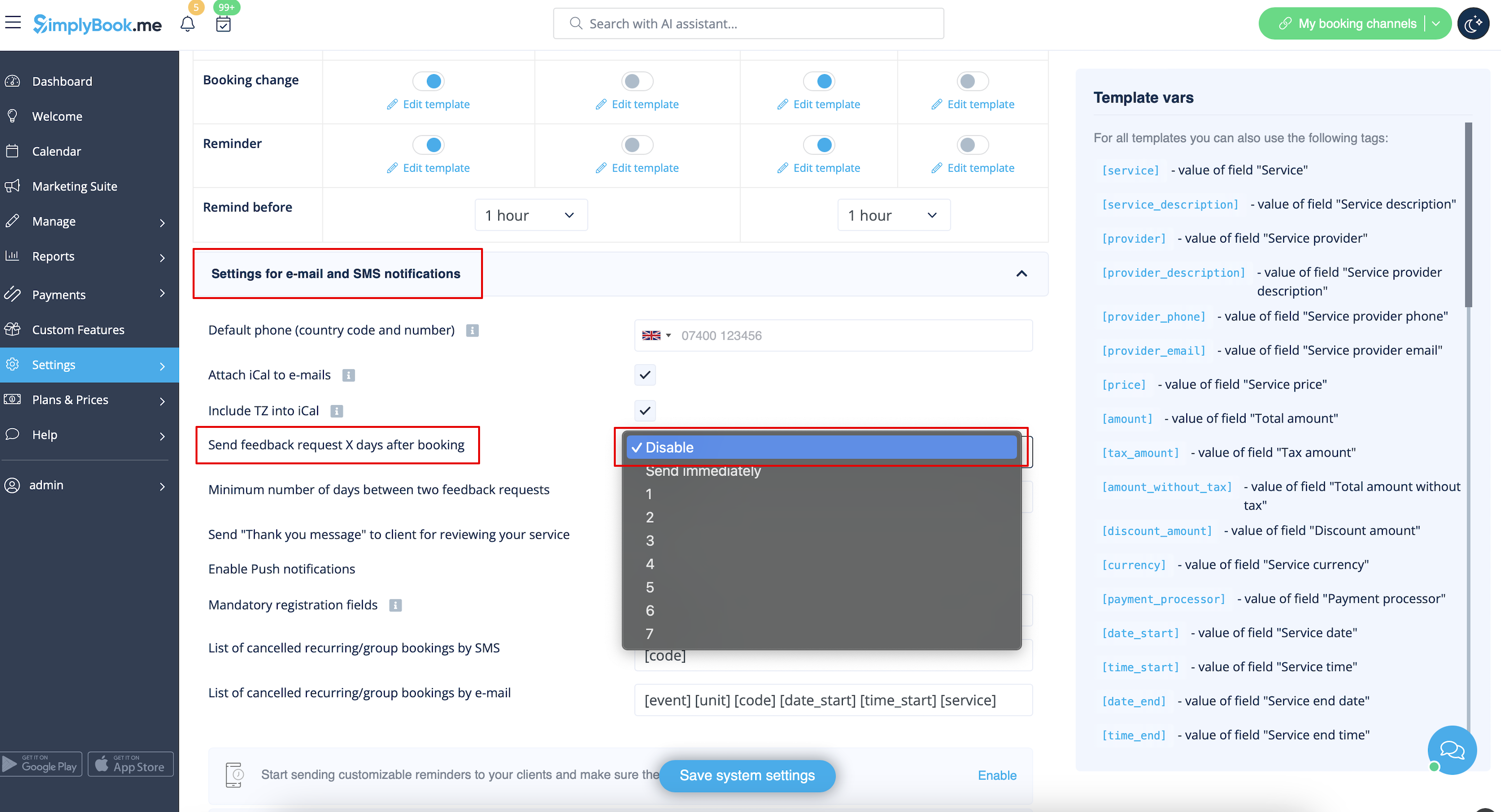
Ви можете переглянути всі свої відгуки у вкладці «Звіти» -> «Відгуки» в меню зліва, видалити їх або відповісти на них. Якщо ви бажаєте видалити можливість залишати відгуки та не надсилати запит на відгук, у налаштуваннях «Налаштування електронної пошти та SMS» -> «Налаштування для повідомлень електронною поштою та SMS» -> «Кількість днів до надсилання запиту на відгук клієнту » встановіть значення «Вимкнути».
Повідомлення, пов'язані зкористувацькими функціями
Наступні спеціальні функції мають власні типи повідомлень або можуть впливати на повідомлення, що надсилаються системою:
Приймати платежі
Дозволяє надсилати:
- Рахунки клієнтам (шаблон електронного листа)
- Повідомлення про невдалі платежі клієнтам (шаблон електронного листа)
- Повідомлення про невдалі платежі компанії (шаблон електронного листа)
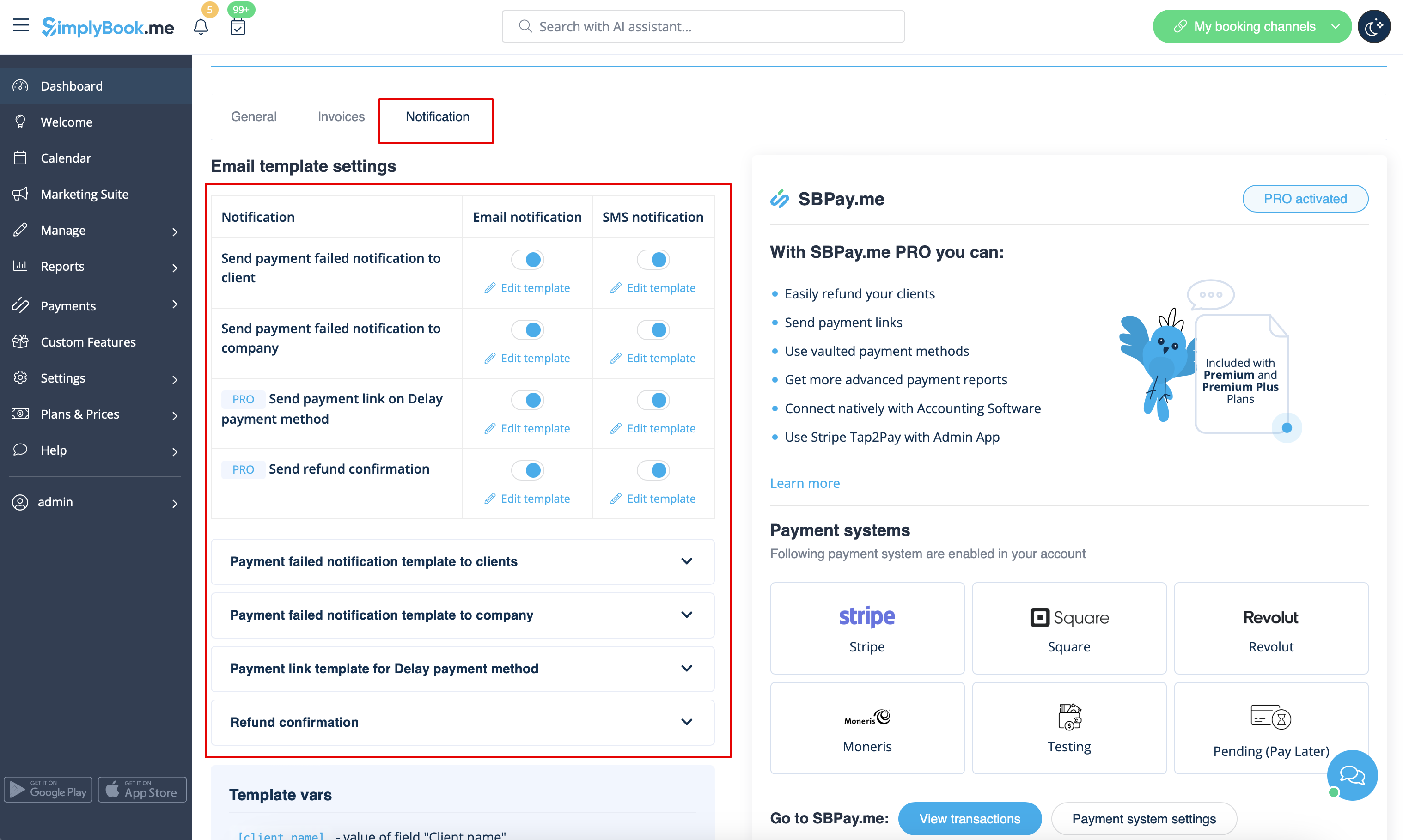
Усі ці шаблони можна редагувати в розділі «Налаштування» -> «Приймати платежі» -> «Налаштування» -> «Налаштування шаблонів електронних листів
- Дізнайтеся більше про використання цієї налаштованої функції.
Кілька бронювань
Має власні шаблони для:
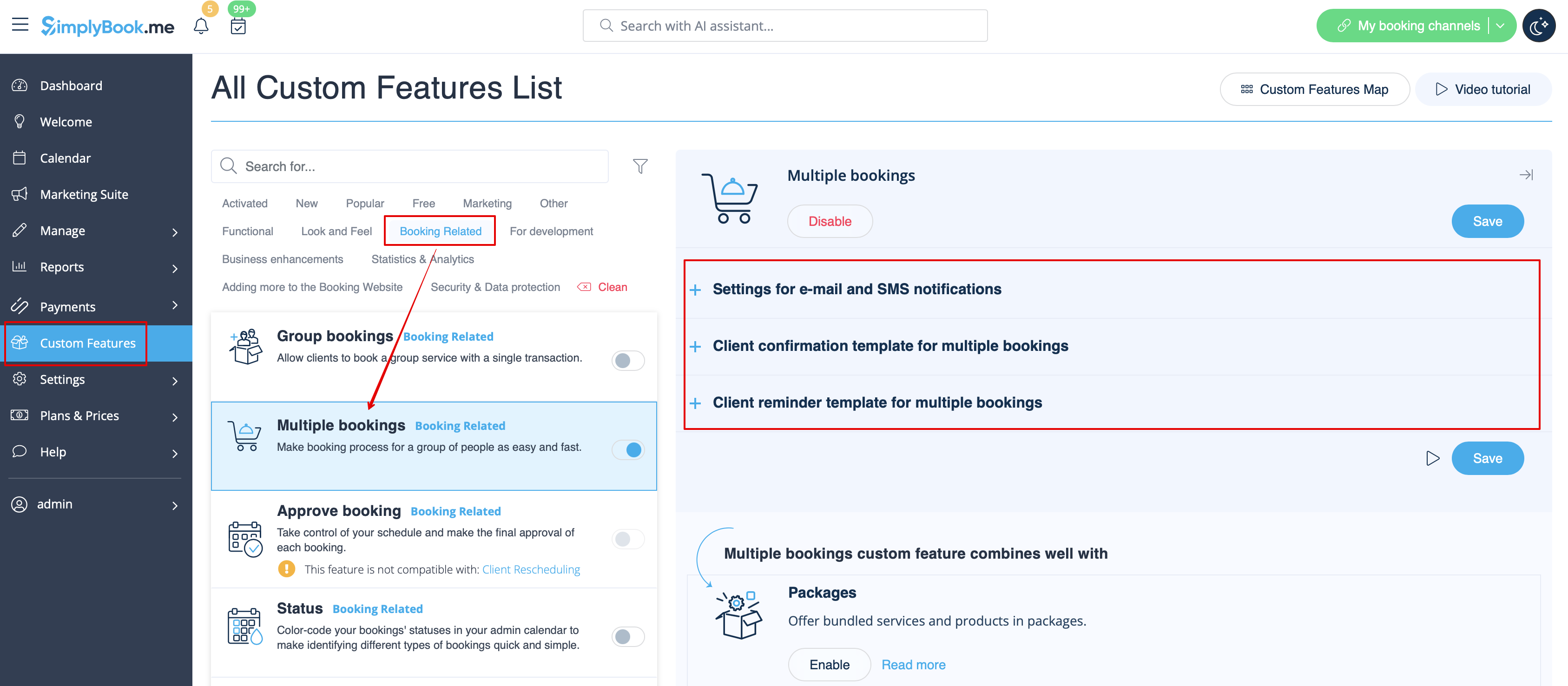
- Повідомлення про підтвердження бронювання клієнту (шаблони електронних листів та SMS)
- Повідомлення про нагадування про бронювання клієнту (шаблони електронних листів та SMS)
Обидва типи застосовуються автоматично, коли ця спеціальна функція увімкнена і клієнти роблять кілька бронювань одночасно за допомогою кнопки «Додати іншу послугу» під час оформлення замовлення. Тексти шаблонів можна налаштувати в розділі «Спеціальні функції» -> «Кілька бронювань» -> у правій частині сторінки.
- Дізнайтеся більше про використання цієї спеціальної функції.
Групові бронювання
Мають спеціальні шаблони для таких типів:
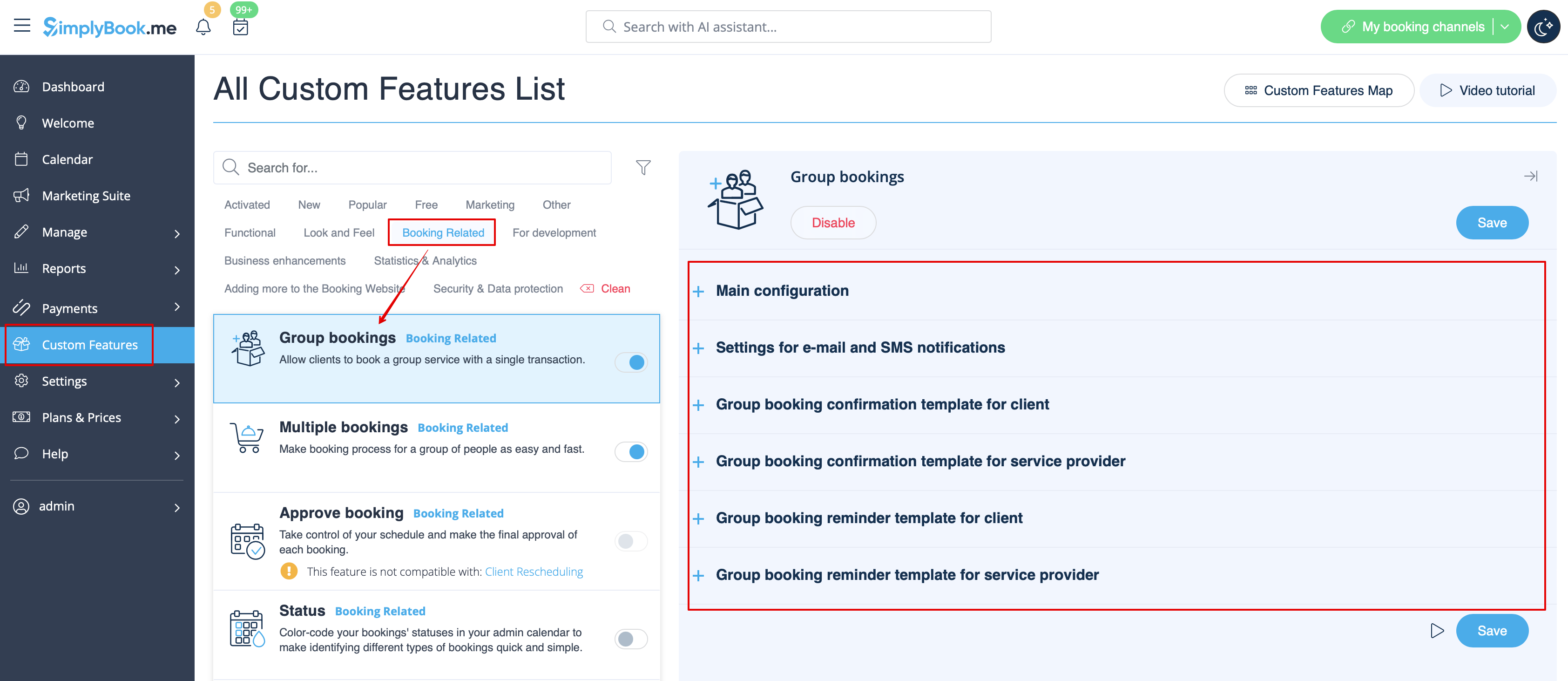
- Повідомлення про підтвердження бронювання клієнту (шаблони електронних листів та SMS)
- Повідомлення про нагадування про бронювання клієнту (шаблони електронних листів та SMS)
- Повідомлення про підтвердження бронювання постачальнику (шаблони електронних листів та SMS)
- Повідомлення про нагадування про бронювання постачальнику (шаблони електронних листів та SMS)
Вони будуть автоматично застосовані, коли ця спеціальна функція буде увімкнена і клієнт забронює зустріч, вибравши декількох учасників на етапі бронювання послуги. Усі шаблони можна налаштувати в розділі «Налаштовані функції» -> «Групові бронювання» -> у правій частині сторінки.
- Дізнайтеся більше про використання цієї налаштованої функції.
Система сповіщень «Забронюйте скоро»
Дозволяє надсилати нагадування про повторний візит клієнтам, які раніше зробили замовлення.
Шаблони можна налаштувати в розділі «Налаштування» -> «Система повідомлень «Забронюйте зараз»» -> «Налаштування» -> «Додати новий», щоб створити новий шаблон (електронна пошта та SMS).
Ви можете створити безліч конкретних шаблонів для певних послуг/постачальників, і вони будуть надіслані, коли минув зазначений час від моменту призначення клієнта.
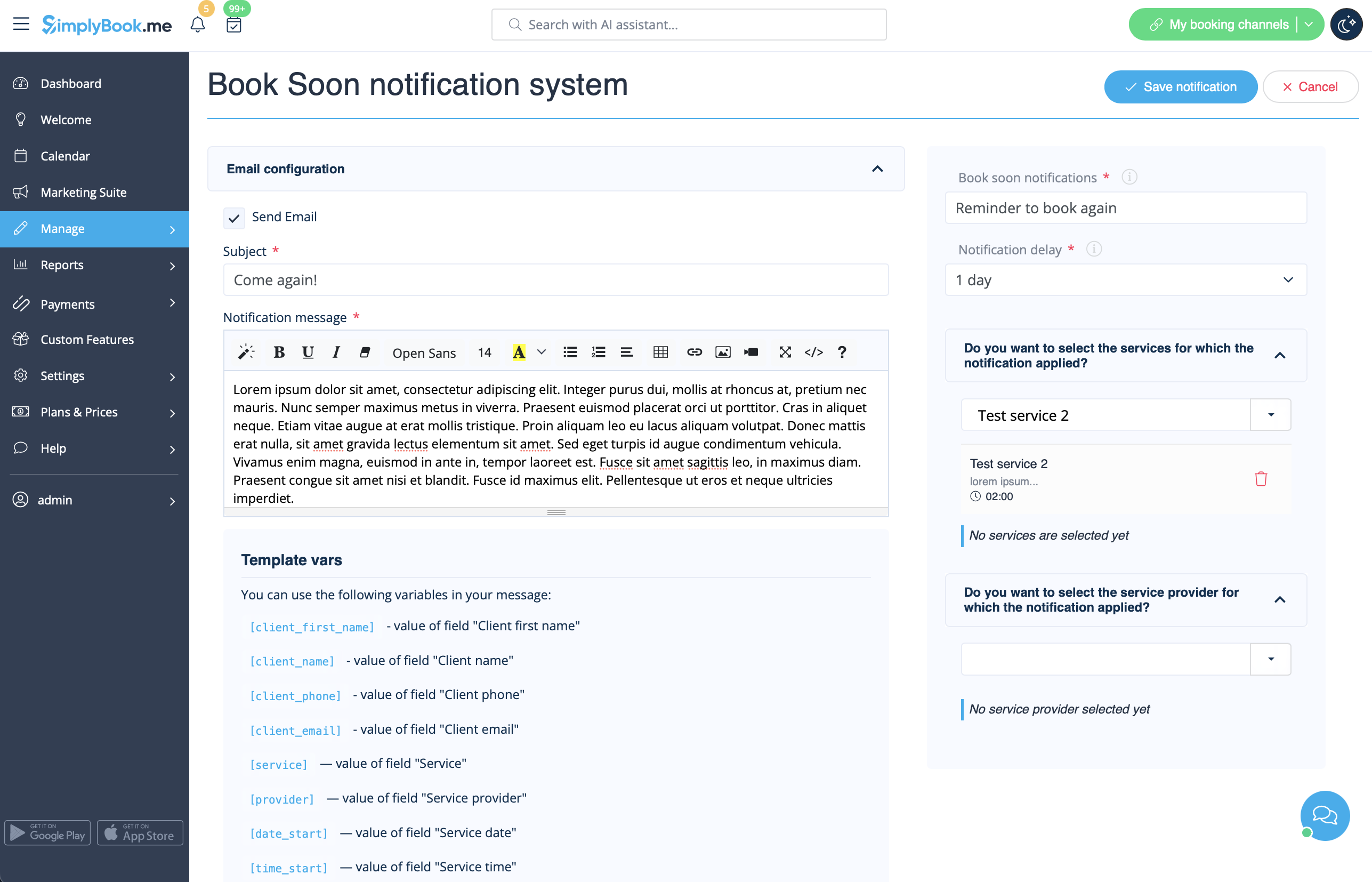
- Дізнайтеся більше про використання цієї налаштованої функції.
Купони та подарункові картки
Ви можете надсилати спеціальні повідомлення в таких випадках, коли використовуєте цю спеціальну функцію:
- клієнт купує подарункову картку на веб-сайті бронювання (шаблони електронних листів та SMS)
Цей шаблон повідомлення можна ввімкнути/вимкнути та редагувати в розділі «Спеціальні функції » -> «Купони та подарункові картки» -> у правій частині сторінки.
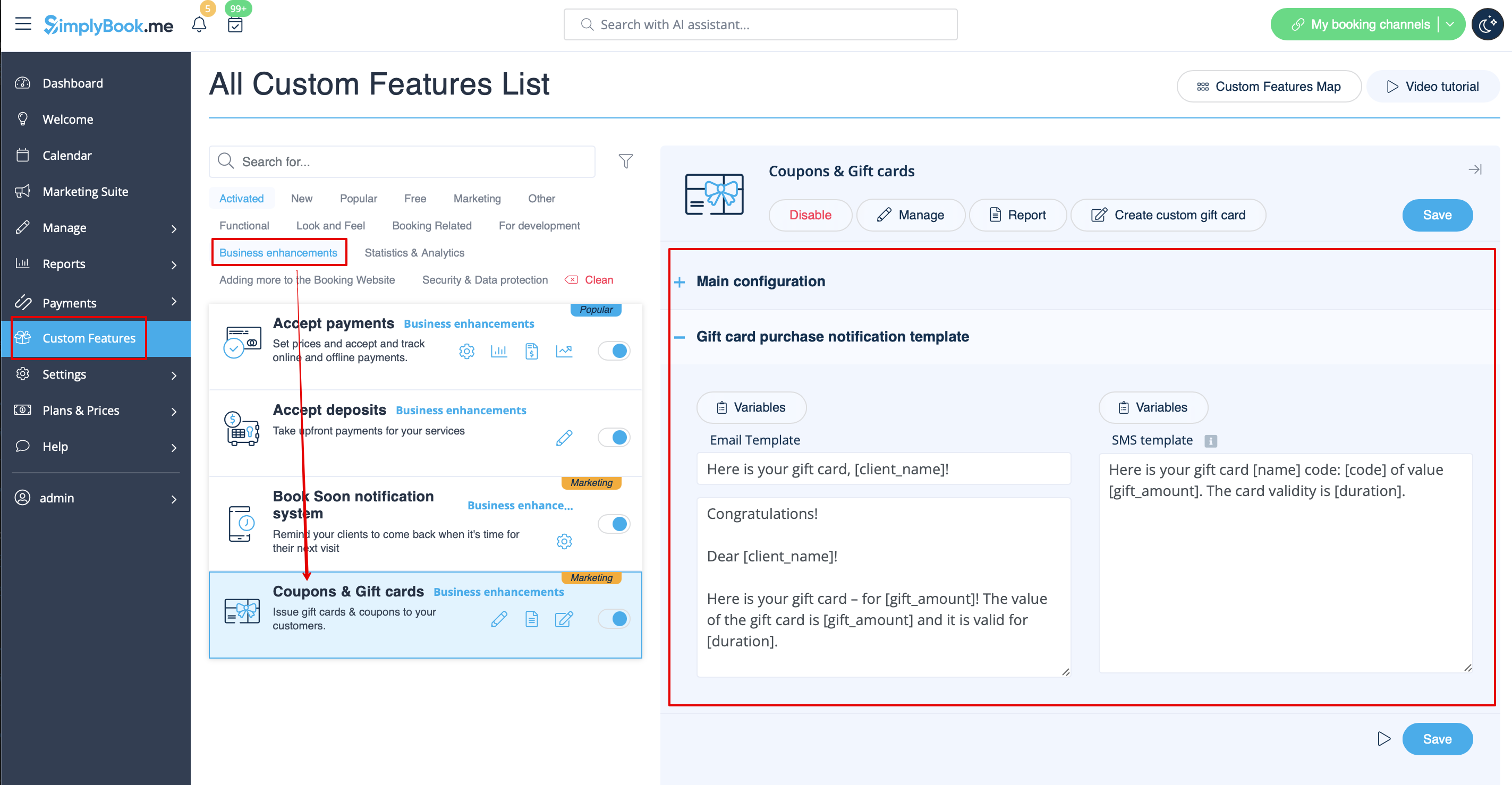
Крім того, якщо ви вручну видаєте подарункову картку або купон своїм клієнтам, шаблон, який буде використовуватися в цьому випадку, можна знайти в розділі «Управління» -> «Купони та подарункові картки» - > «Видати подарункову картку / Надіслати повідомлення про купон для бажаної подарункової картки / купона» -> «Надіслати електронний лист / Надіслати SMS».
- Дізнайтеся більше про використання цієї налаштованої функції.
Мобільний додаток для клієнтів
Якщо ця функція увімкнена і клієнт дозволив сповіщення, мобільний додаток надсилатиме push-сповіщення, пов'язані з бронюваннями.
Шаблон не можна редагувати, але ви можете переглянути звіт про сповіщення в розділі «Звіти» -> «Звіт про push-сповіщення».
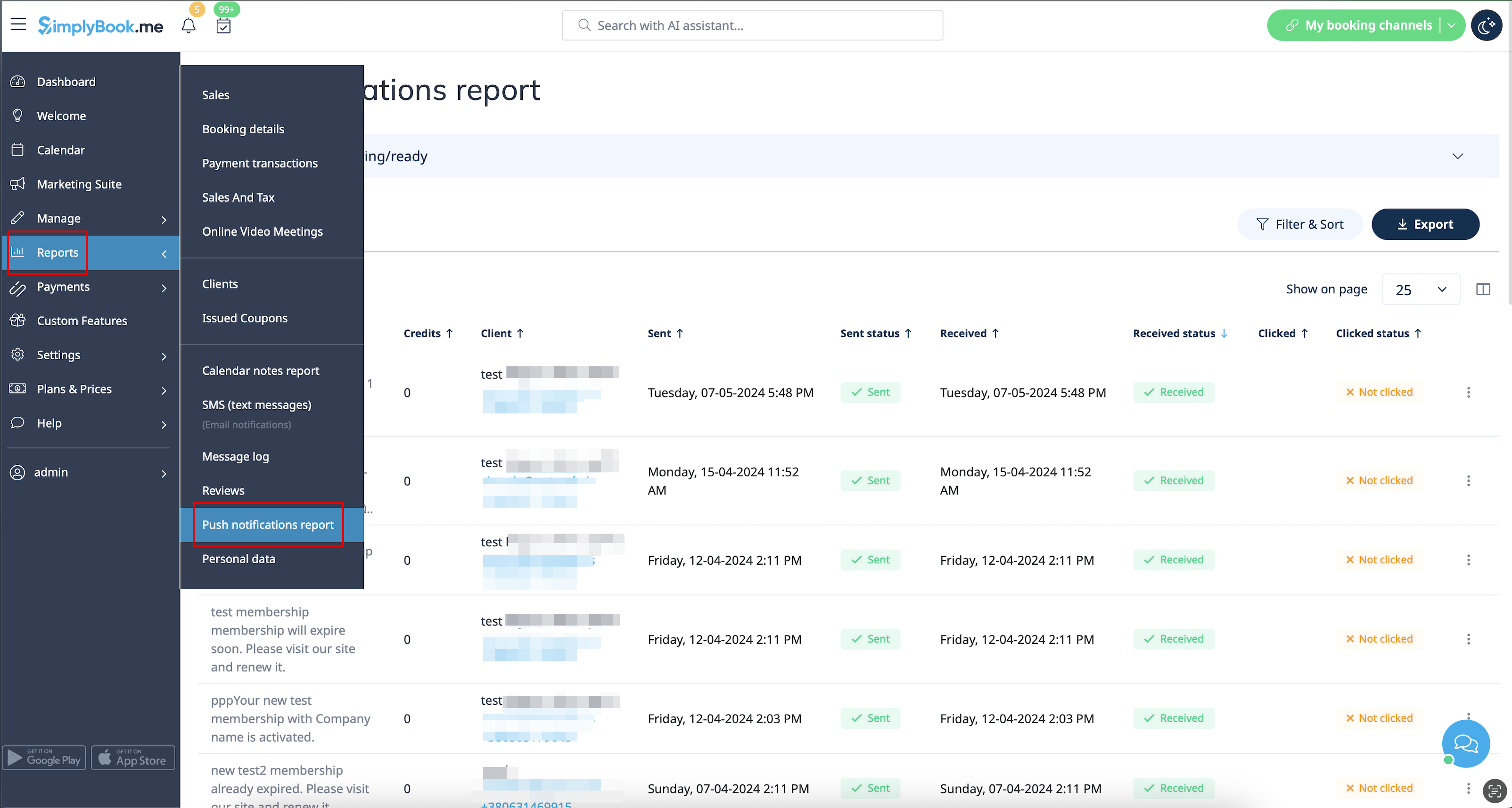
Зверніть увагу! Щоб мати можливість надсилати такі повідомлення клієнтам, вам потрібно мати достатньо кредитів для push-повідомлень.
- Дізнайтеся більше про використання цієї спеціальної функції.
Вхід клієнта
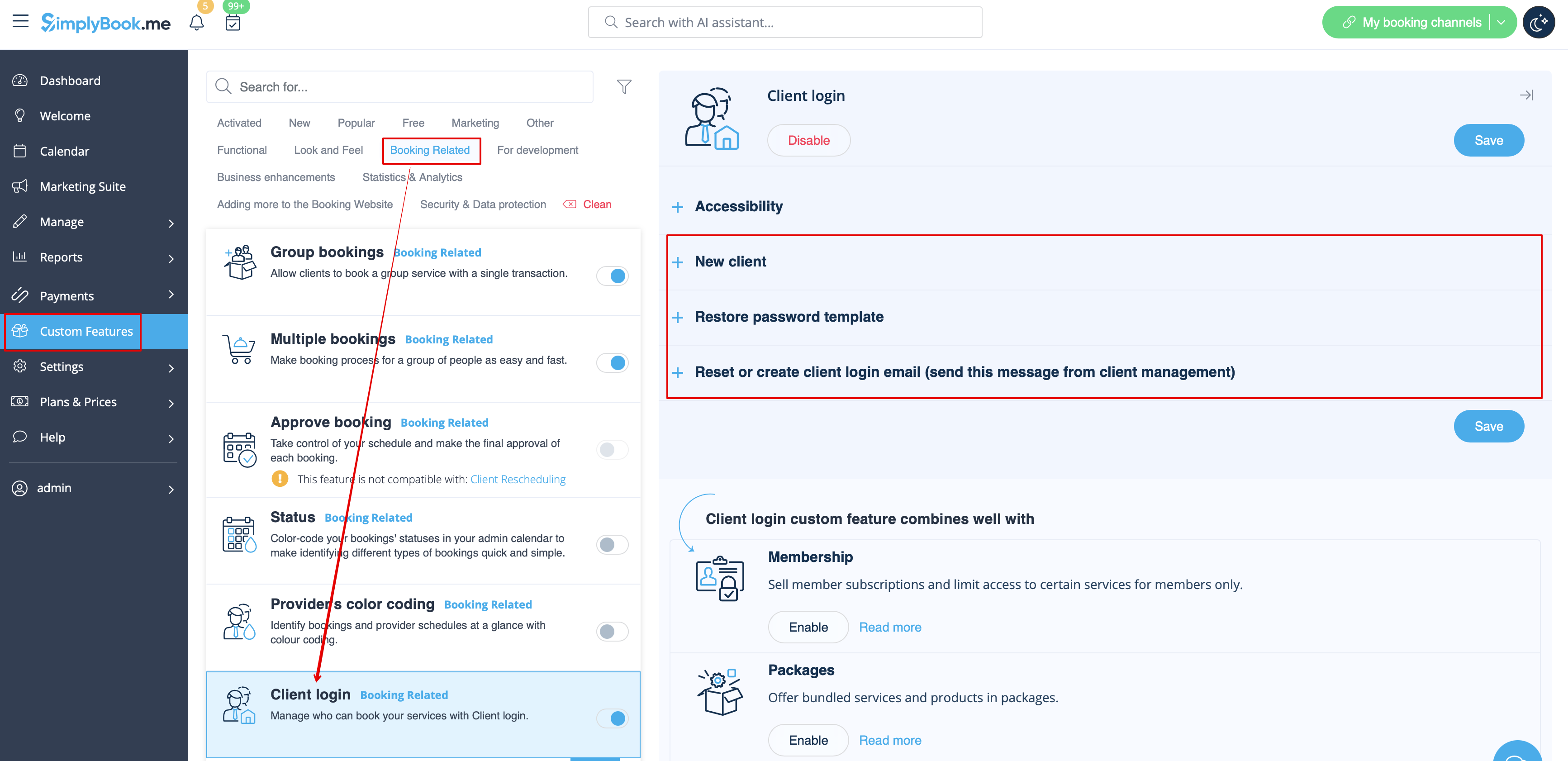
Якщо ви вимагаєте від клієнтів входити/реєструватися, щоб вони могли бронювати зустрічі або робити покупки на вашому веб-сайті бронювання, і у вас увімкнено спеціальну функцію входу клієнта,
існує три типи повідомлень, які можна надіслати клієнтам (їх не можна вимкнути):
- реєстрація нового клієнта (електронна пошта)
- відновлення пароля (електронна пошта)
- скидання пароля або створення клієнта з інтерфейсу адміністратора (електронна пошта)
Ви можете редагувати шаблони в розділі «Налаштування» -> «Вхід клієнта » -> у правій частині сторінки.
- Дізнайтеся більше про використання цієї налаштованої функції.
Членство
Коли ви продаєте членство на веб-сайті бронювання, вам також може знадобитися повідомити своїх клієнтів про різні моменти.
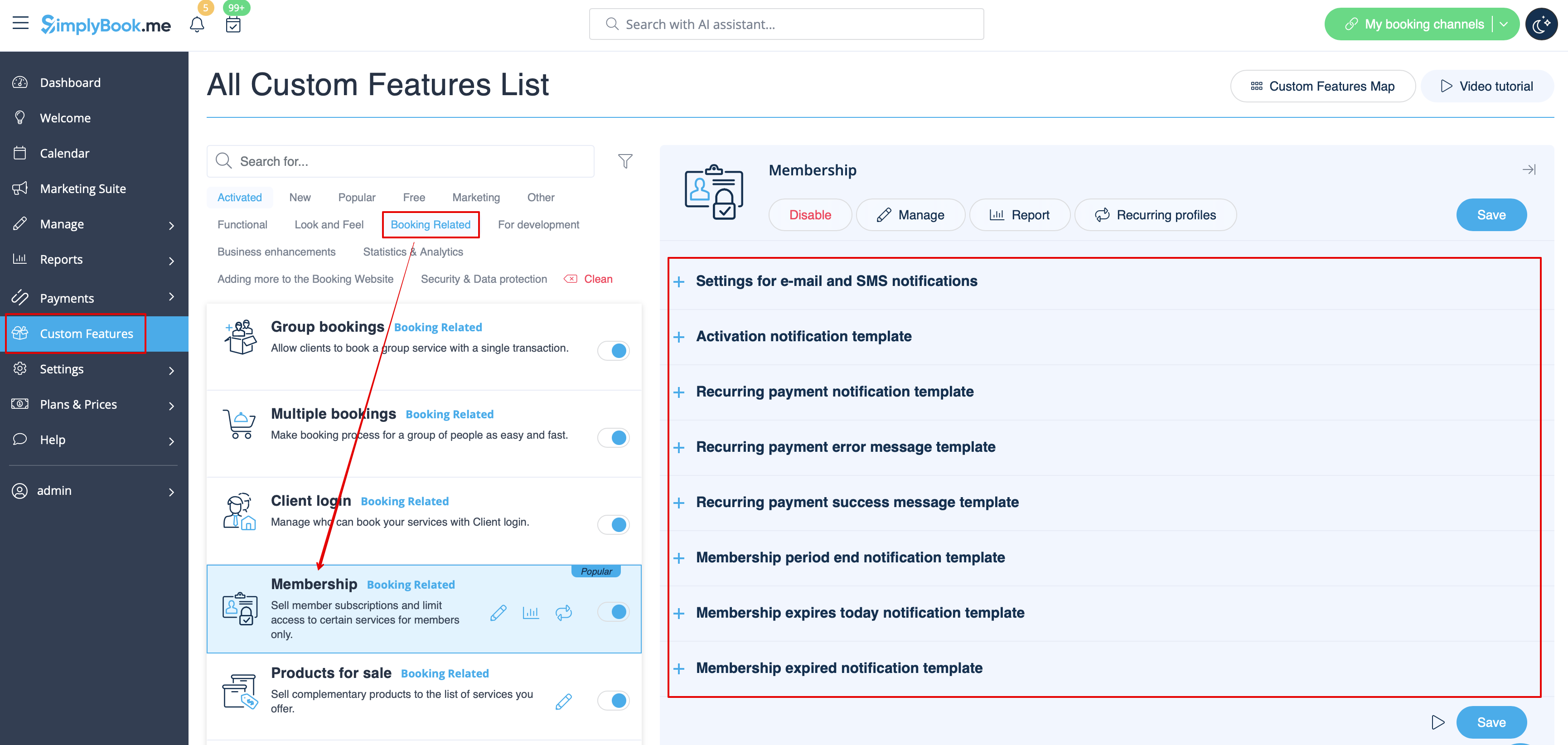
Ця спеціальна функція дозволяє надсилати:
- повідомлення про активацію членства (шаблони електронних листів та SMS)
- повідомлення про періодичний платіж (шаблони електронних листів та SMS)
- повідомлення про помилку періодичного платежу (шаблони електронних листів та SMS)
- повідомлення про успішне здійснення періодичного платежу (шаблони електронних листів та SMS)
- повідомлення про закінчення терміну членства (шаблони електронних листів та SMS)
- повідомлення про закінчення терміну членства сьогодні (шаблони електронних листів та SMS)
- повідомлення про закінчення терміну членства (шаблони електронних листів та SMS)
Ви можете редагувати шаблони, а також увімкнути/вимкнути певні типи повідомлень у розділі «Налаштування» -> «Членство» -> у правій частині сторінки.
- Дізнайтеся більше про використання цієї налаштованої функції.
Flexible notifications
This custom feature allows to customize the booking related notification per certain service/provider or both.
The following types can be used:
- booking confirmation to client(Email and SMS templates)
- booking confirmation to provider(Email and SMS templates)
- reminder to client(Email and SMS templates)
- reminder to provider(Email and SMS templates)
- cancellation notification to client(Email and SMS templates)
- cancellation notification for provider(Email and SMS templates)
- booking change notification to client(Email and SMS templates)
- booking change notification to provider(Email and SMS templates)
- recurring event confirmation to client(Email and SMS templates)
- recurring event confirmation to provider(Email and SMS templates)
- batch cancellation notification to client(Email and SMS templates)
- batch cancellation notification to provider(Email and SMS templates)
- multiple bookings batch booking confirmation to client(Email and SMS templates)
- multiple bookings event reminder to client(Email and SMS templates)
- group bookings batch booking confirmation to client(Email and SMS templates)
- group bookings batch booking confirmation to provider(Email and SMS templates)
- group bookings reminder to client(Email and SMS templates)
- group bookings reminder to provider(Email and SMS templates)
You can create all the desired templates in Custom features -> Flexible notifications -> Manage.
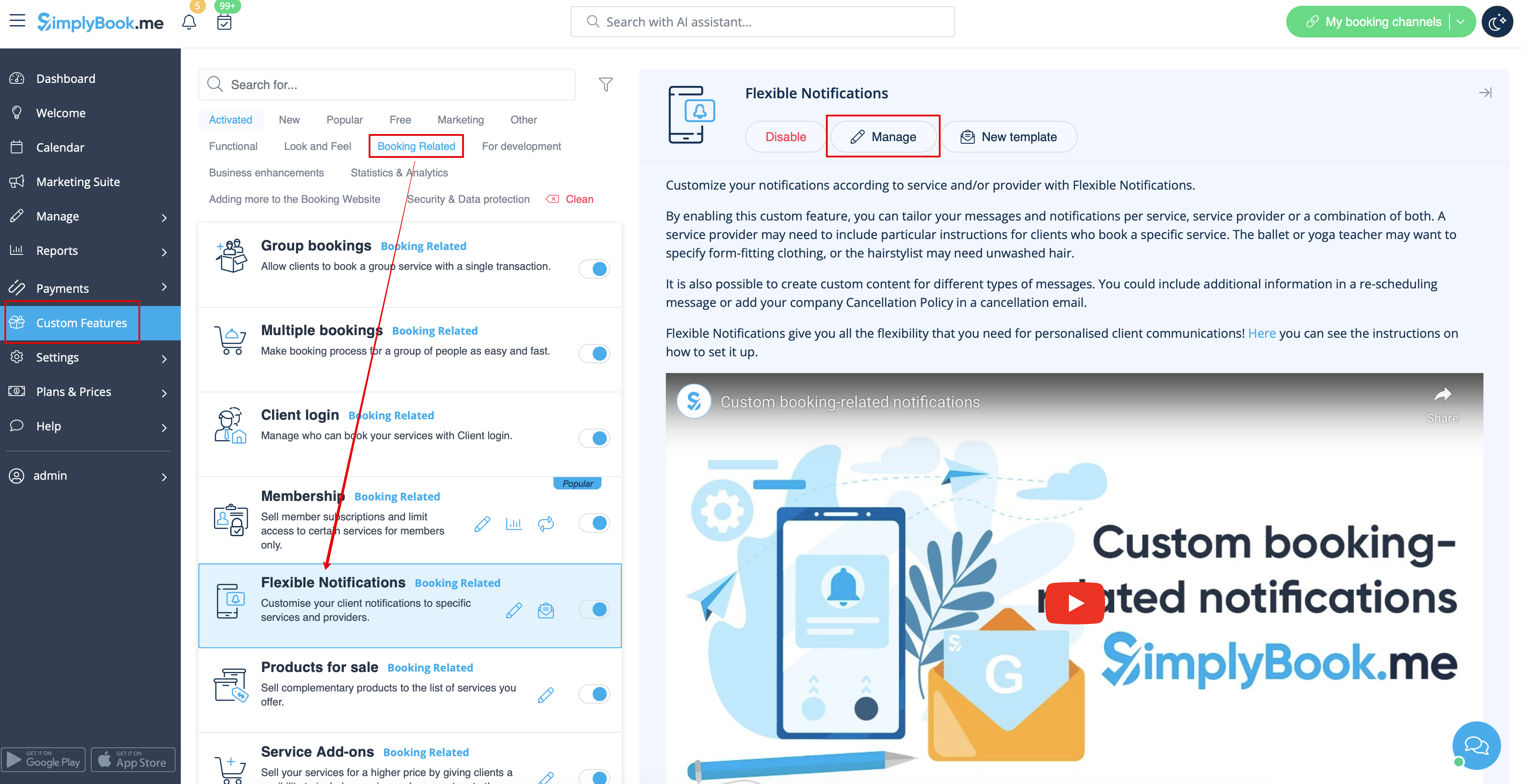
In case you need to enable/disable some of these notification types please navigate to Settings -> Email and SMS settings -> and use the table at the top of the page.
Please note! These are general booking notifications settings so if you turn some of them off it will also influence similar types related to other features(i.e. if you disable booking confirmations to providers there then common confirmations, as well as group, recurring batches confirmation notifications will become off)
- Read more about his custom feature use.
Packages
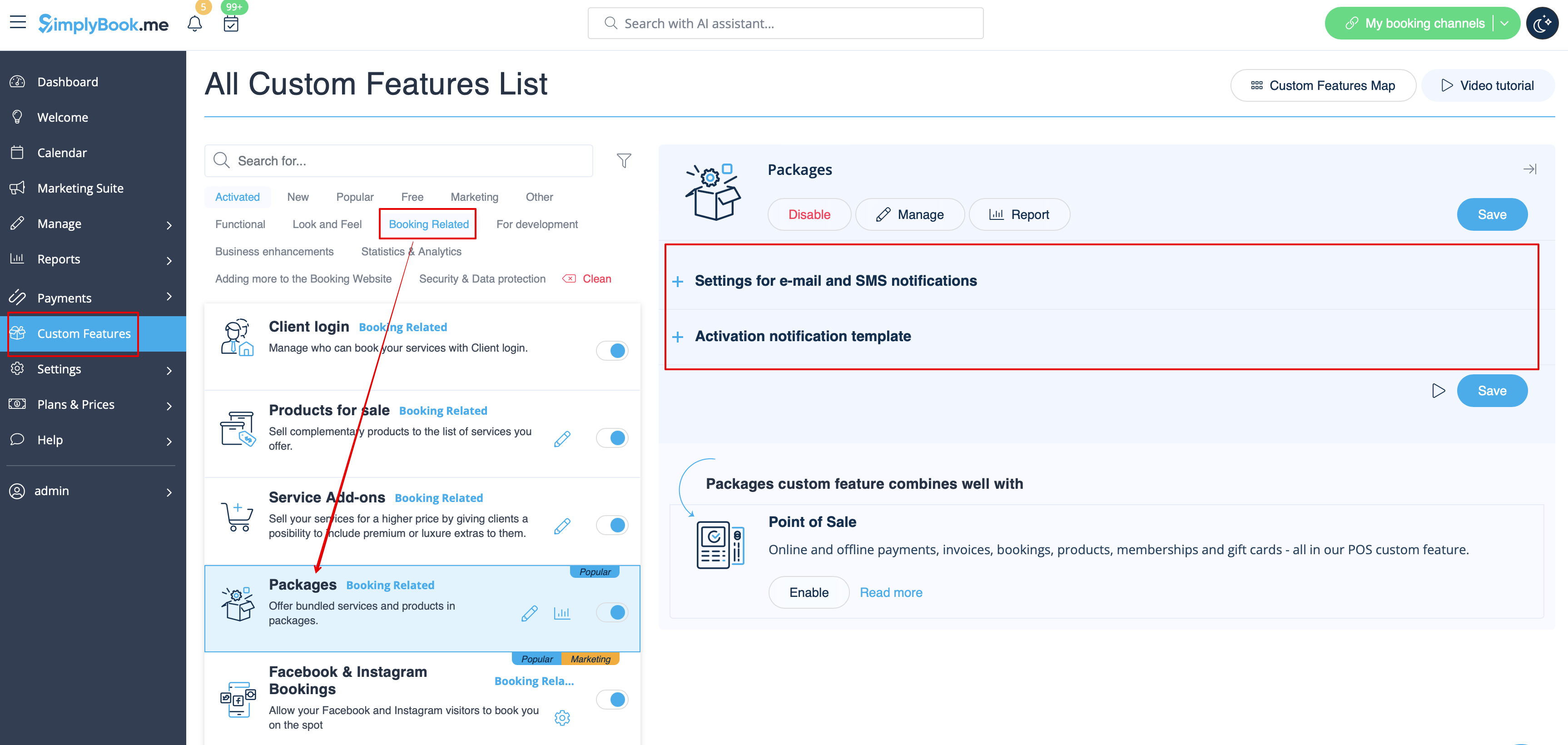
When you sell the packages of services/classes/products/service add-ons or issue the packages from admin side it is also possible to automatically send the clients the package activation notification(Email and/or SMS).
To edit the template text or enable/disable the notifications please navigate to Custom features -> Packages -> right side of the page.
- Read more about his custom feature use.
Tickets
By default the ticket is automatically sent to client email together with the corresponding service confirmation email.
But in case you are using online payments and allow to choose pay later option on the booking website and the client select it,
in this case the ticket will be sent with the separate email.
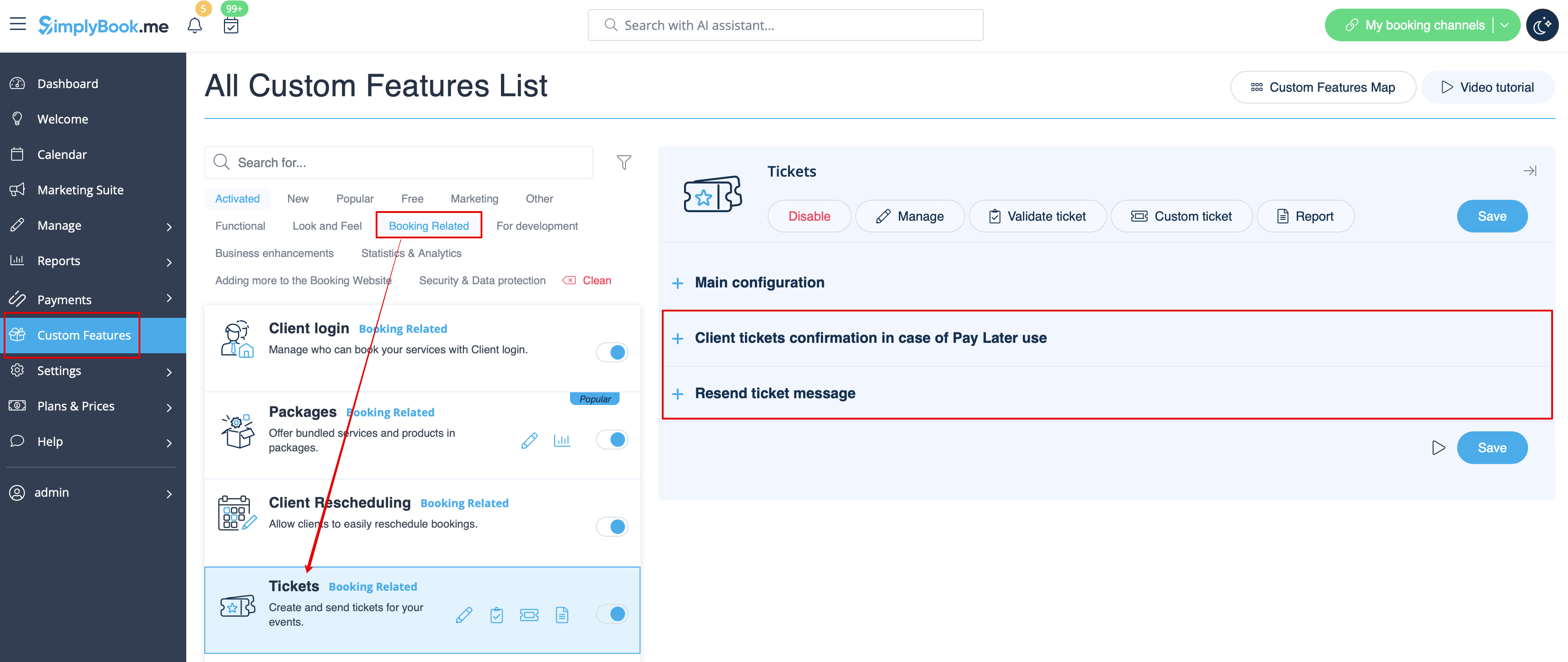
As well you may wish to re-send the ticket to the client in certain cases(it is possible in Reports -> Tickets report).
Both notification templates case be edited in Custom features -> Tickets -> on the right side or the page. There are Email types available only.
- Read more about his custom feature use.
Custom email
Allows to customize the design of the email notifications to match your branding and taste.
To create your designs please go to Custom features -> Custom email -> Create template.
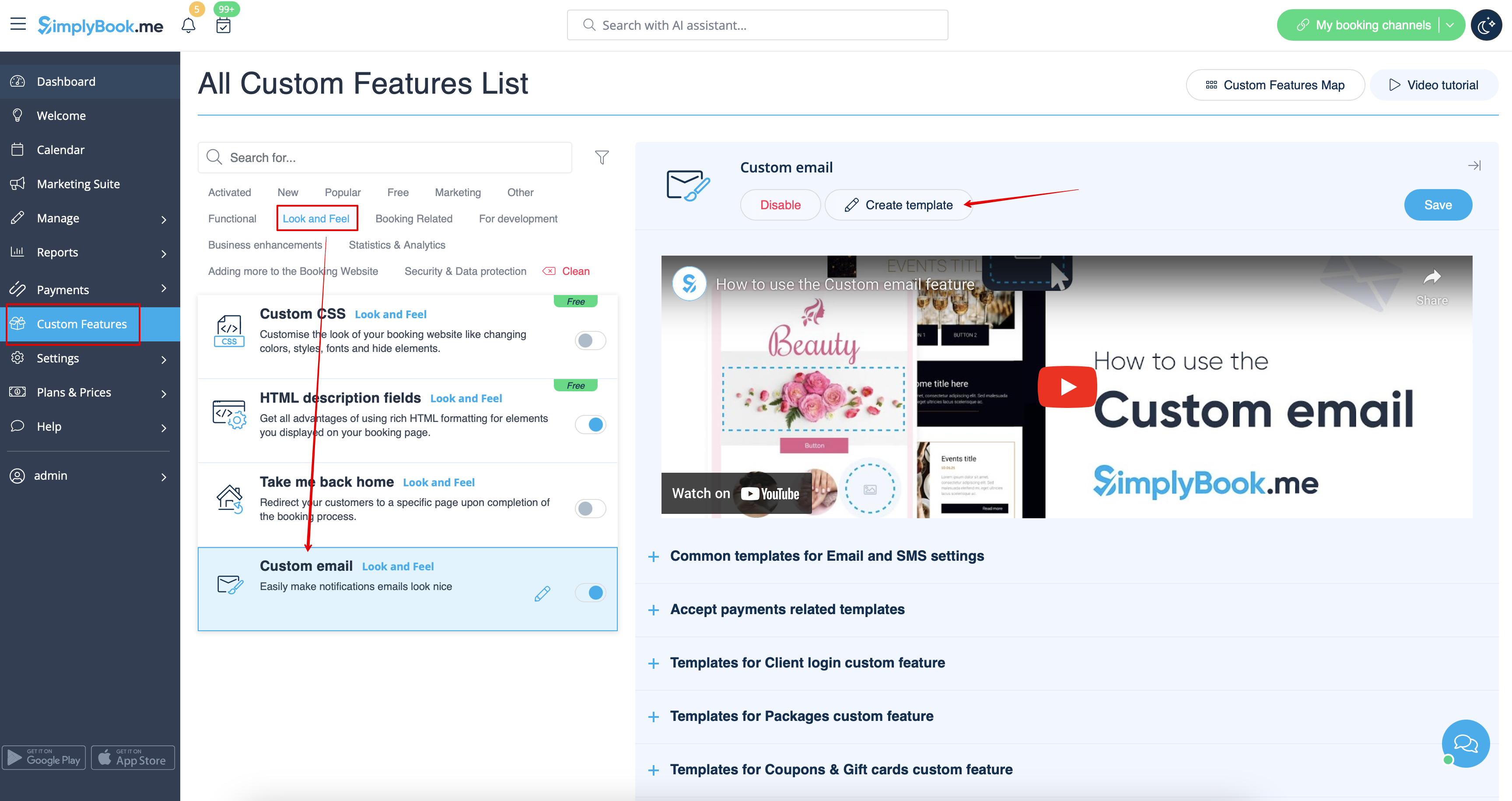
With the help of this custom feature you can influence the look of the following notification types:
- common booking related notifications from Settings -> Email and SMS Settings;
- invoices emails from accept payments custom feature;
- group bookings custom feature notifications;
- multiple bookings custom feature notifications;
- client login custom feature notifications;
- membership custom feature notifications;
- packages custom feature notifications;
- tickets custom feature notifications;
- coupons & gift cards custom feature notifications
- medical test custom feature notifications;
- book soon notification system custom feature notifications.
This feature allows to test each notification type with the pre-created design.
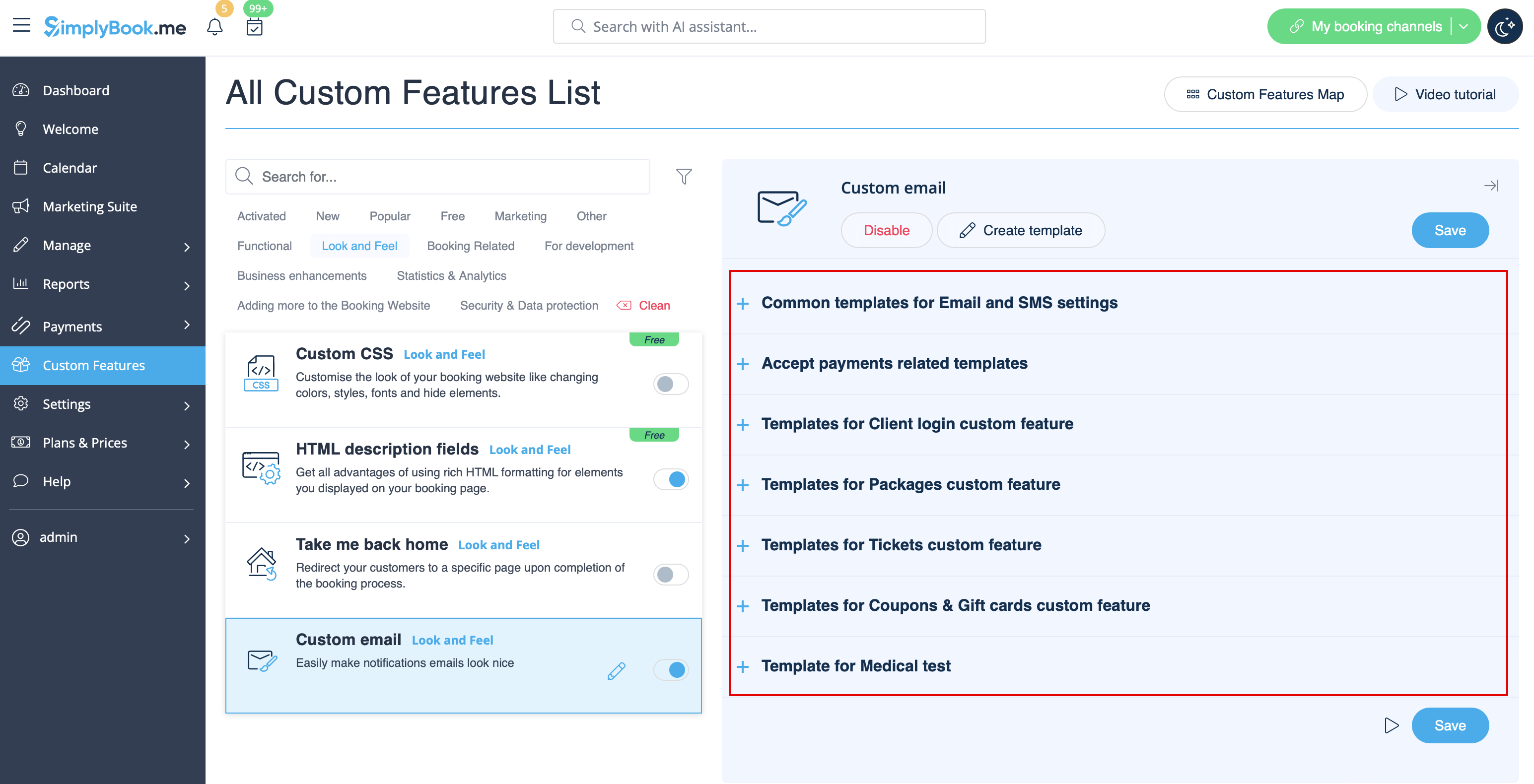
The {{content}} tag that contains the booking/purchase information can be edited in the corresponding feature settings.
- Read more about his custom feature use.
SMTP
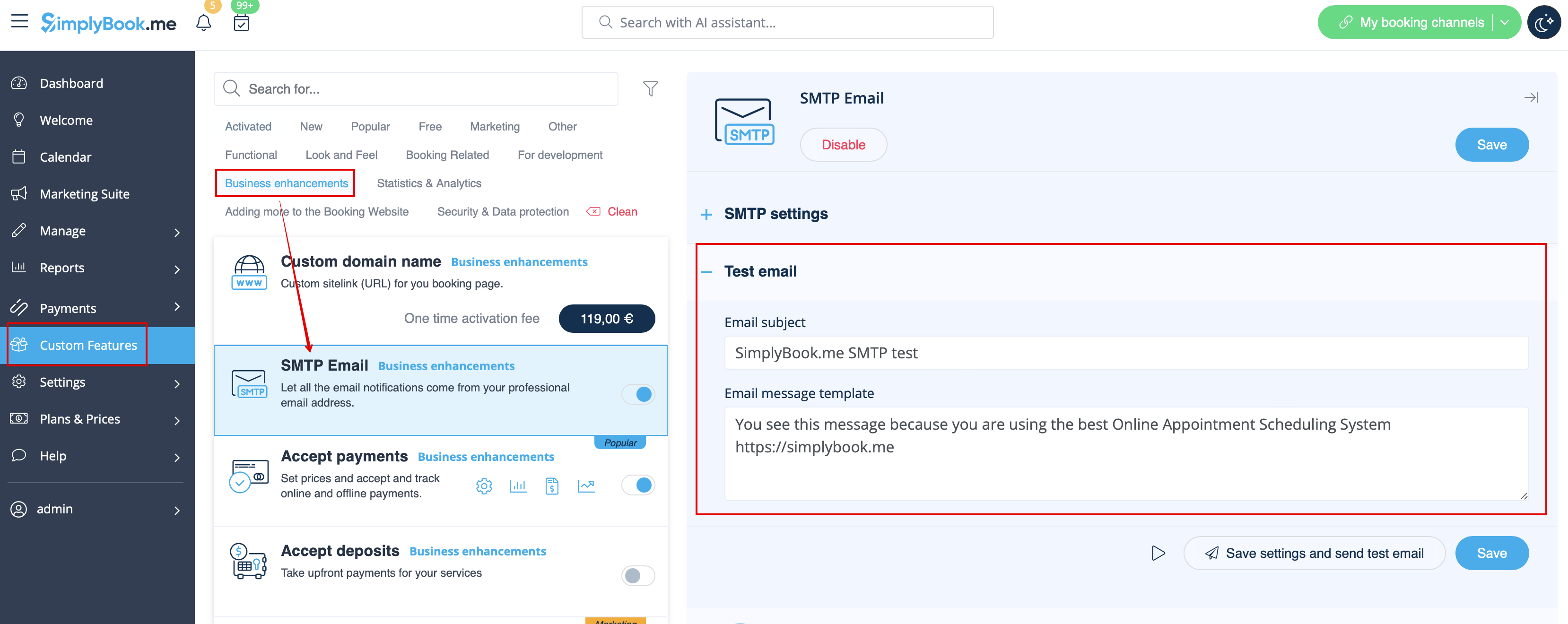
This feature allows you to use your own SMTP server for sending the emails.
It has only one template for testing this feature after you have entered the settings.
You can edit and use the test email template in Custom features -> SMTP -> on the right side of the page.
- Read more about his custom feature use.
Daily report
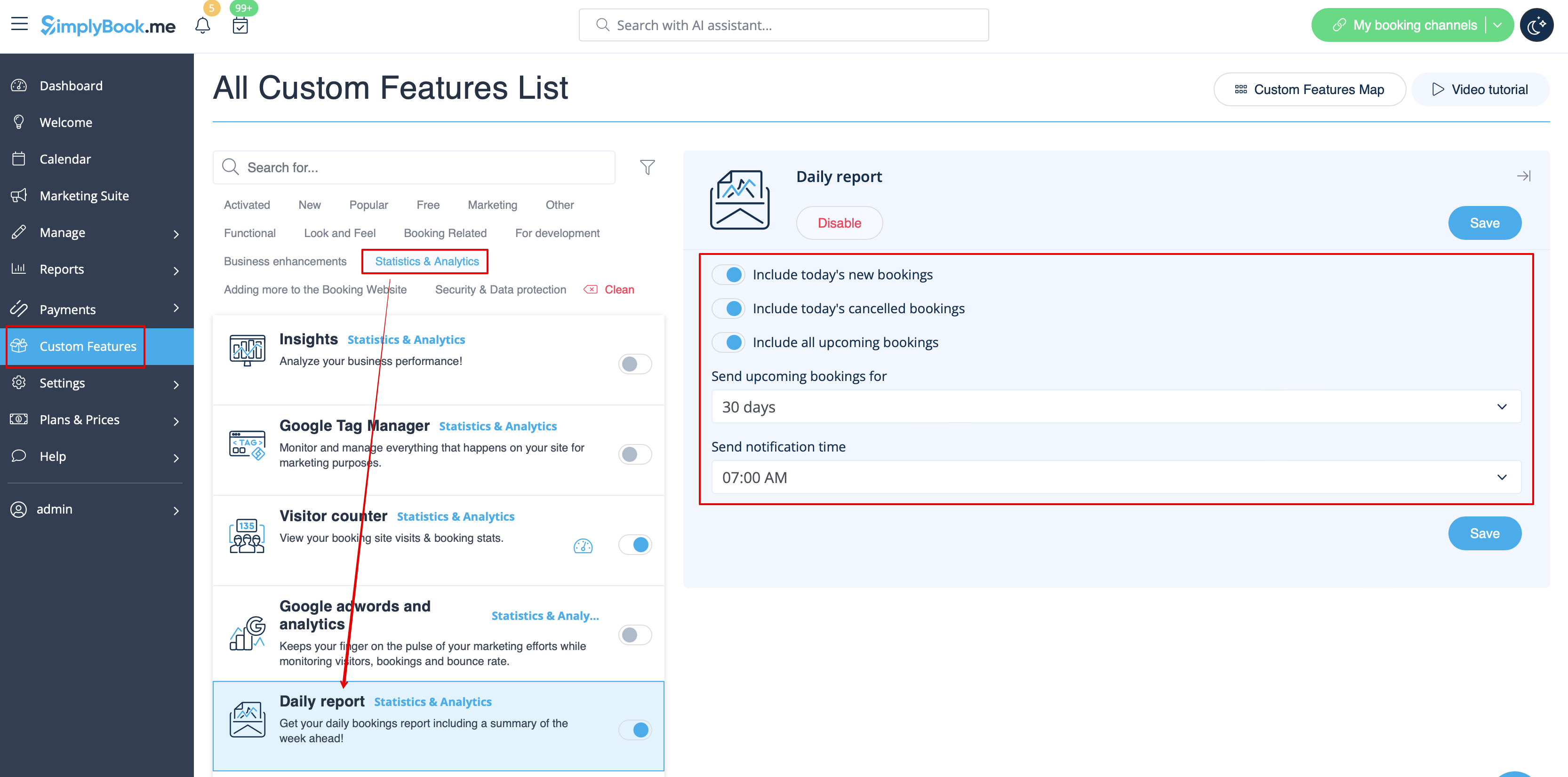
When you enable and set this custom feature it will automatically send the email report about new, upcoming and cancelled appointments to your company email address.
There is not template to edit as such, but you can adjust the items included in Custom features -> Daily report -> on the right side of the page.
- Read more about his custom feature use.
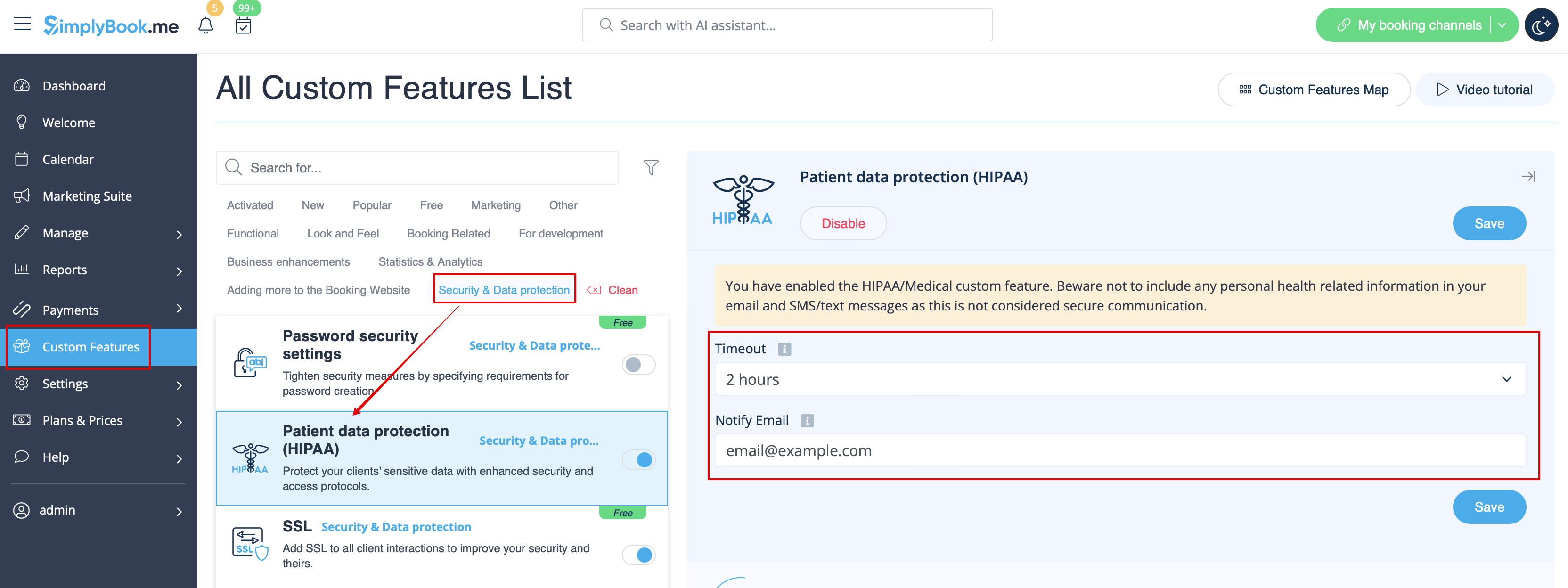
HIPAA
This is security-related custom feature and allows to send email notifications when somebody logs in to your system.
It does not contain any email template to be edited and can be enabled/disabled by adding/removing the email address in Custom features -> HIPAA -> right side of the page -> Notify email.
- Read more about his custom feature use.
Contact widget
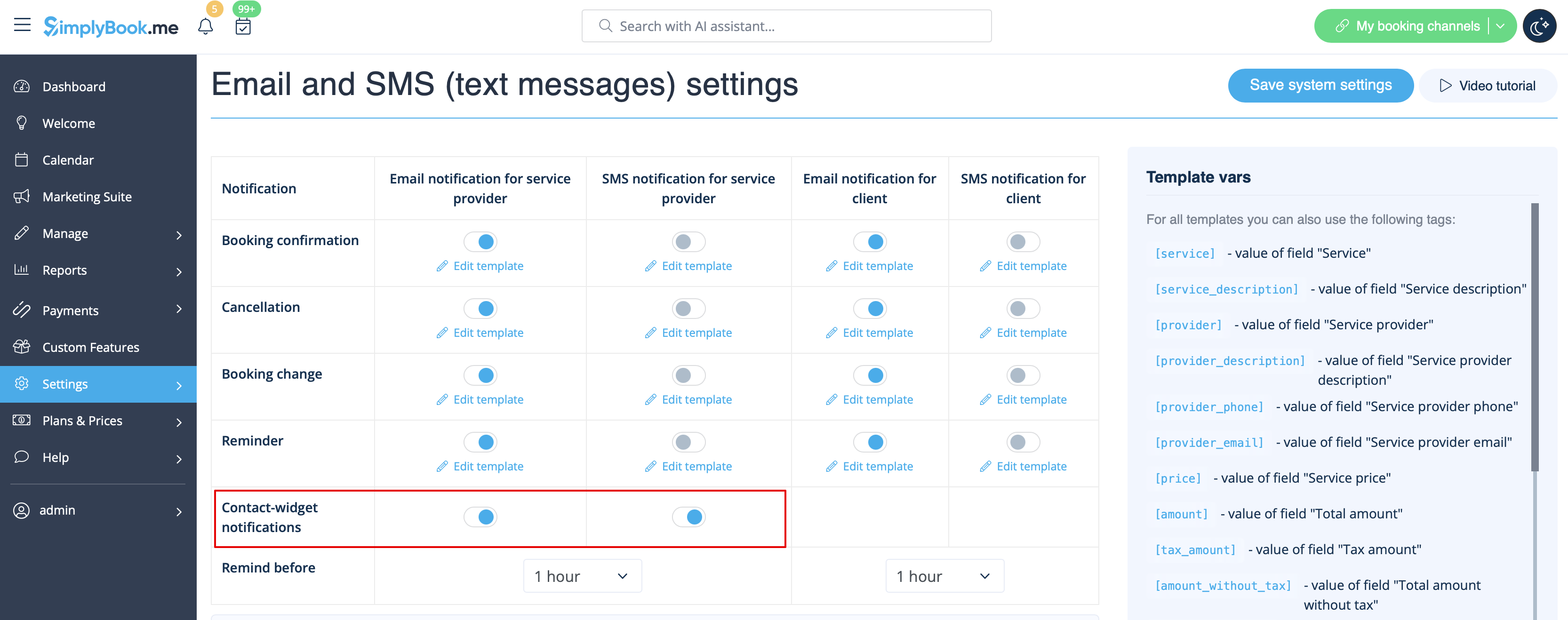
As this custom feature allows to add a contact form to your booking website or create the contact button widget, there is also the email/SMS notification to company that is sent when somebody leaves a message on the booking site or widget so that you will be able to respond right away. There is no template to edit but you can disable such notifications in Settings -> Email and SMS settings -> Contact widget notifications.
- Read more about his custom feature use.
Medical test
When you are using this custom feature you definitely need to send the test results to patients' emails.
In Custom features -> Medical test -> on the right side of the page you can enable/disable or edit the following templates:
- positive results(Email and SMS templates);
- negative results(Email and SMS templates);
- inconclusive results(Email and SMS templates).
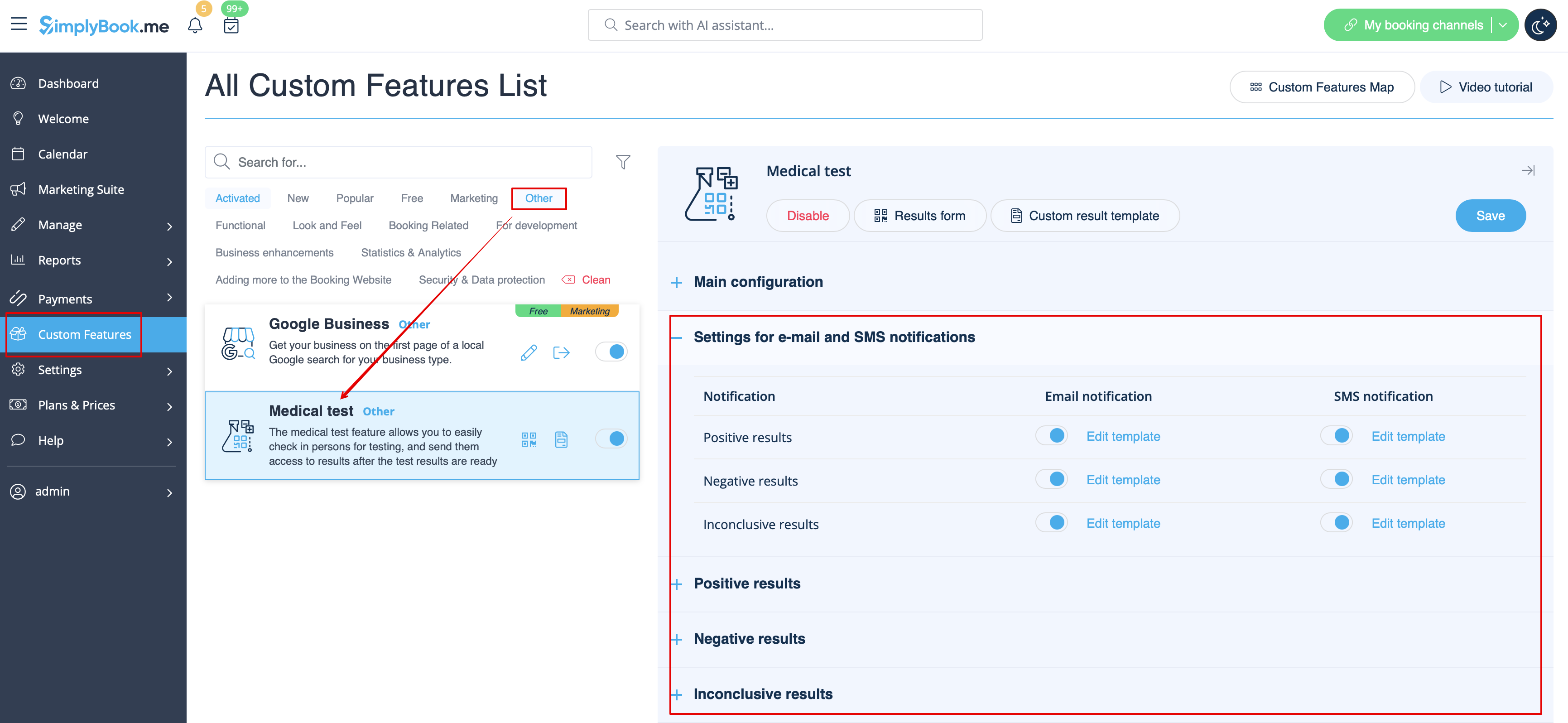
In case you need to adjust the test result template please use Custom result template option above the templates.
- Read more about his custom feature use.
What are variables
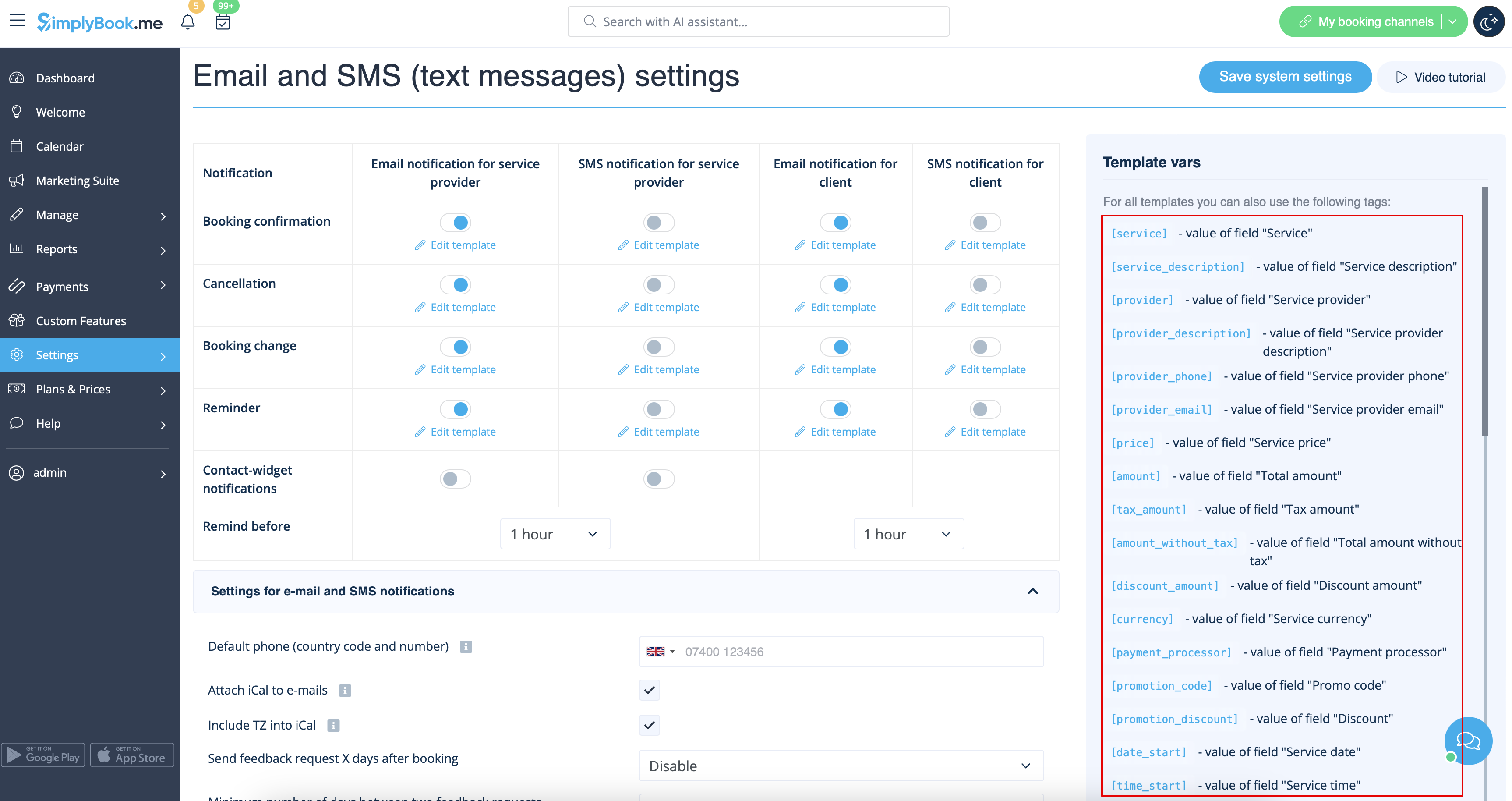
Variables are elements that can be inserted in email and sms templates (Settings -> Email and SMS settings). These variables will denote the chosen item after the booking is made. For example you have 2 providers: Mary and John. In email template you insert text "You have booked a service with [provider]". If the client chose on the booking page provider Mary, they would receive the following text "You have booked a service with Mary", if they chose John, they would receive the text "You have booked a service with John."
You can always find the variables that can be used with the certain notification type near the template either on the right side of the page or in the popup that can be access by click on "Variables" button.
iCals and how to use them
In Settings -> Email and SMS settings you can check the box Attach iCal to e-mails and then emails will contain file of .isc format. After clicking that file, it will open in one of your calendars (Google calendar, iCalendar,etc)
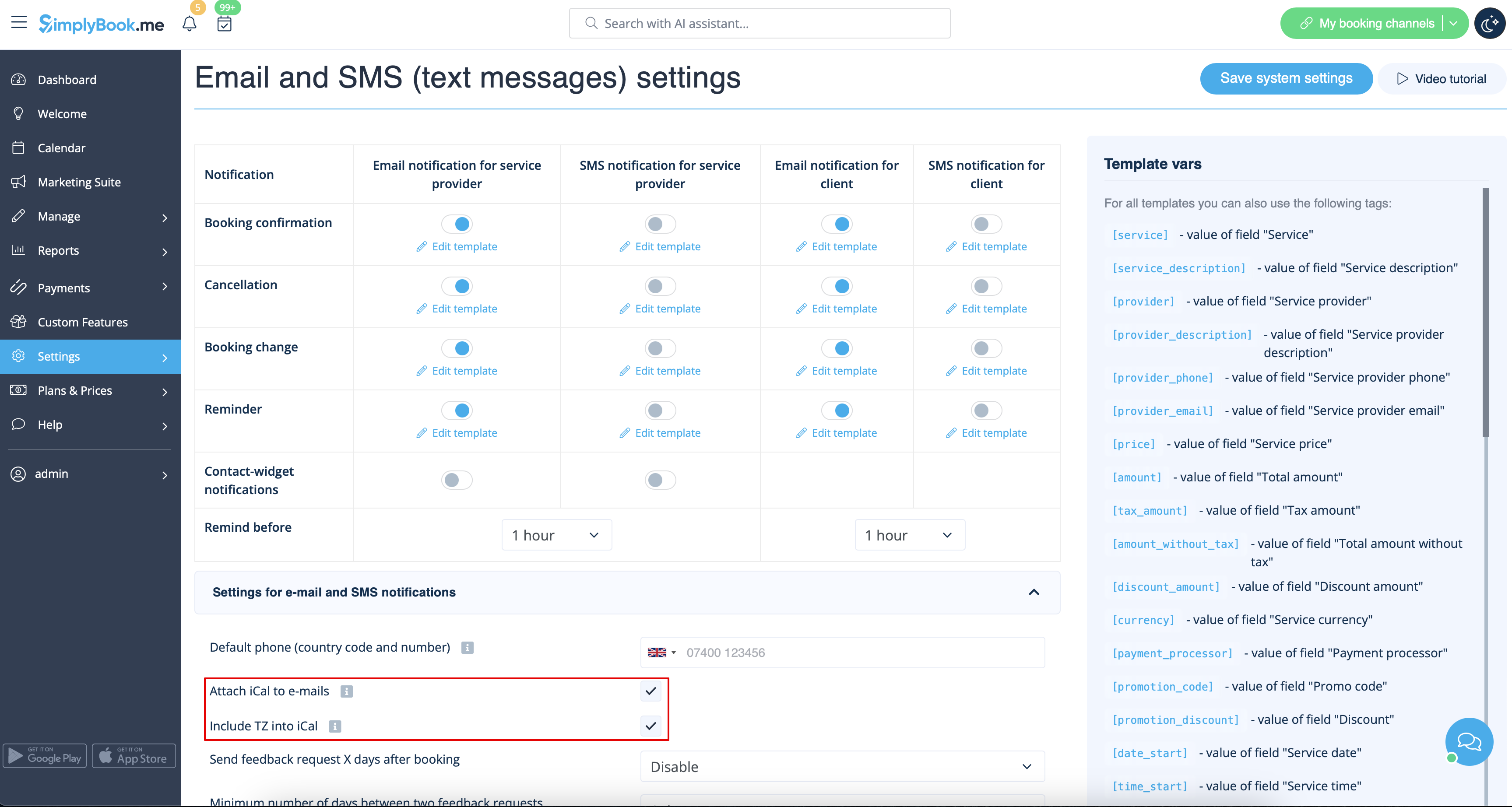
- Please note, that iCal files do not have set timezone so the time in that file will be displayed according to the IP address/device settings.
Clients/Providers do not receive notifications
- Possible reasons
- 1. Corresponding boxes in Settings -> Email and SMS settings are not checked.
- 2. Client/provider entered wrong email or phone.
- 3. Email went to junk (Spam) folder or to Social tab. Please check Whitelisting instructions here.
- 4. SMTP custom feature is not set correctly.
- 5. If sms are not coming, check your sms balance in Plans&Prices -> Subscriptions at the bottom of the page.
Clients/Providers receive wrong notifications
- 1. Please check if you have Multiple Bookings or Group Bookings Custom Feature enabled. These Custom Features have their own templates.
- Multiple bookings template (Custom Features -> Multiple bookings -> on the right side of the page)
- Group bookings template (Custom Features -> Group bookings -> on the right side of the page)
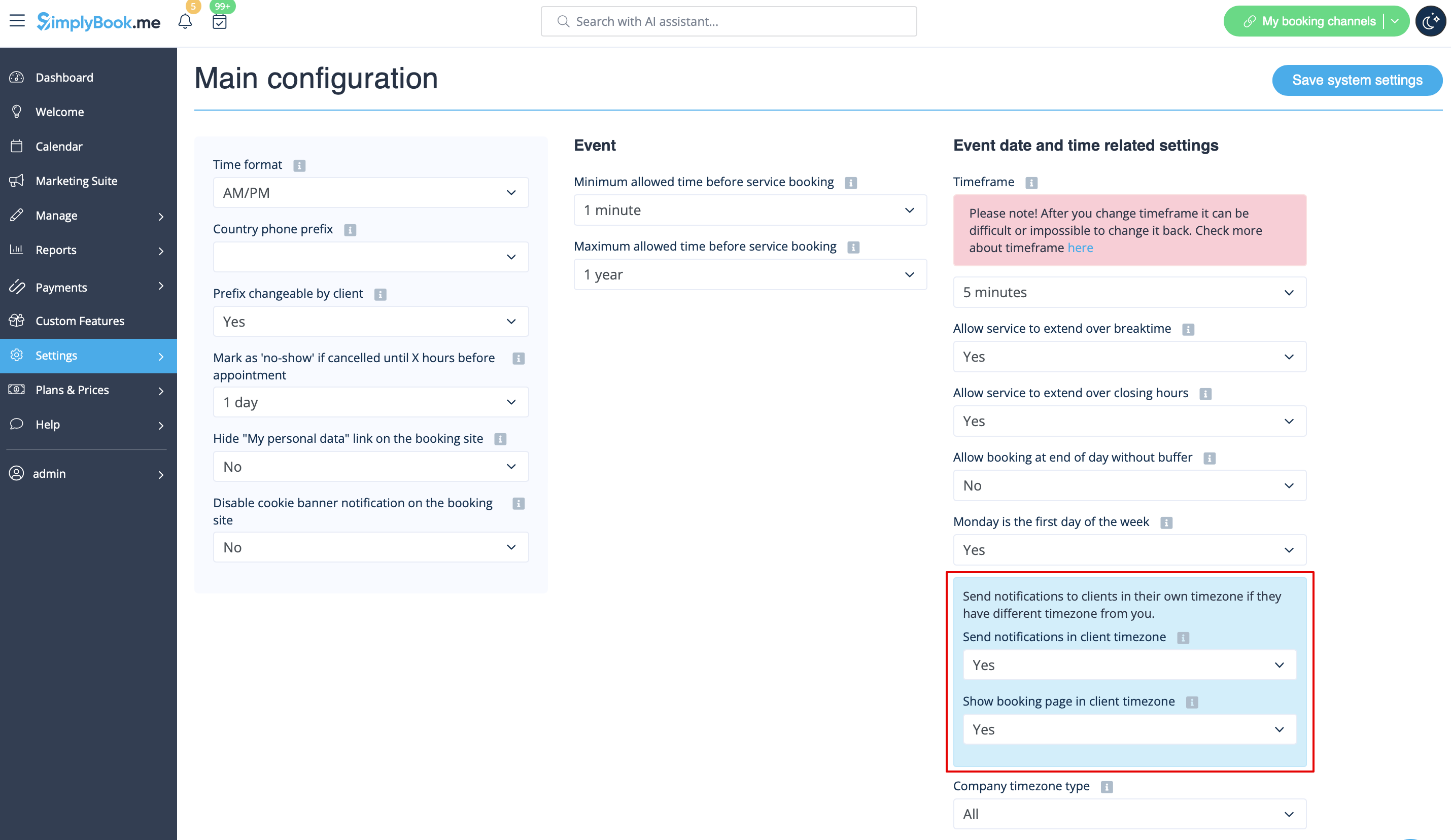
- 2. Check if you have Time Zone settings on in Settings -> Main configuration, in this case client may have selected wrong time zone and received notification in wrong time zone too.
Email whitelisting instructions
So here are a few things that you can do to make sure you get those all important emails from the team here at SimplyBook.me.
You can expect system notifications such as when your subscription is up for renewal, notices about bookings, and helpful information on various things such as how to get the most out of your SimplyBook.me service.
As great as technology is, it isn’t perfect, and sometimes email systems and internet service providers mistake legitimate email for spam. To ensure that you don’t miss important communication from us, please take the following steps:
Please whitelist any emails that come from the @simplybook.me domain.
Why? Because that tells your email service or program that you actually want emails from this domain, so that they can then make sure you get them.
How? Well, this differs between email services and programs but below you can see information about some of the main ones. If you aren’t using one of these, please refer to the help section for yourservice for information.
Using Gmail or Gsuite
Filter messages from @simplybook.me and tell the system to never send it to spam:
- 1. Go to Settings (click the gear icon at the top to the right)

- 2. Select the Filters and Blocked Addresses tab

- 3. Towards the bottom of the tab, click the Create a new filter link

- 4. In the From field write @simplybook.me
- 5. Click Create filter with this search to the bottom right of the window

- 6. Tick the box next to Never send it to Spam
- 7. Click the blue button that says Create filter

Great! Now you won’t miss anything from us!
And to ensure that our emails don’t get lost in that Updates or Promotions tab:
- 1. Find an email from SimplyBook.me in your inbox
- 2. Click and drag it to the Primary tab in your inbox

- 3. You’ll be asked whether you want to do this for future emails, so tell them yes

Using Yahoo! mail
- 1. When you open an email message, hover your mouse on the Sender's name.
- 2. Click the the three dots in the Sender's info window that appears and click Add to contacts.

- 3. When Add Contact form comes up, click Save.

Using Mac Mail
- 1. From the top menu select Mail -> Preferences

- 2. Then select the Rules icon, click Add Rule and type a name for the rule in the description field. Use the following settings:

- 3. “If any of the following conditions are met: From Contains”. In the text field besides Contains type @simplybook.me

- 4. Select Move Message and Inbox from the drop down menus and then click OK to save the rule.
Using Outlook
- 1. Right-click on the message in your inbox.
- 2. Select Junk E-mail from the menu.
- 3. Click Never Block Sender or Never Block Sender's Domain (@example.com).

Great, you’re all set! We look forward to being in touch and seeing your business blossom!
