Додавання інших користувачів до системи
Як створити нового користувача системи
Ви можете створити окремого користувача для особи, яка потребує доступу до вашої адміністративної сторінки, на сторінці «Управління» -> «Користувачі» та призначити цьому користувачеві відповідні права.
Перегляньте список доступних ролей користувачів нижче.
- Щоб створити нового користувача, натисніть кнопку + у верхній частині:
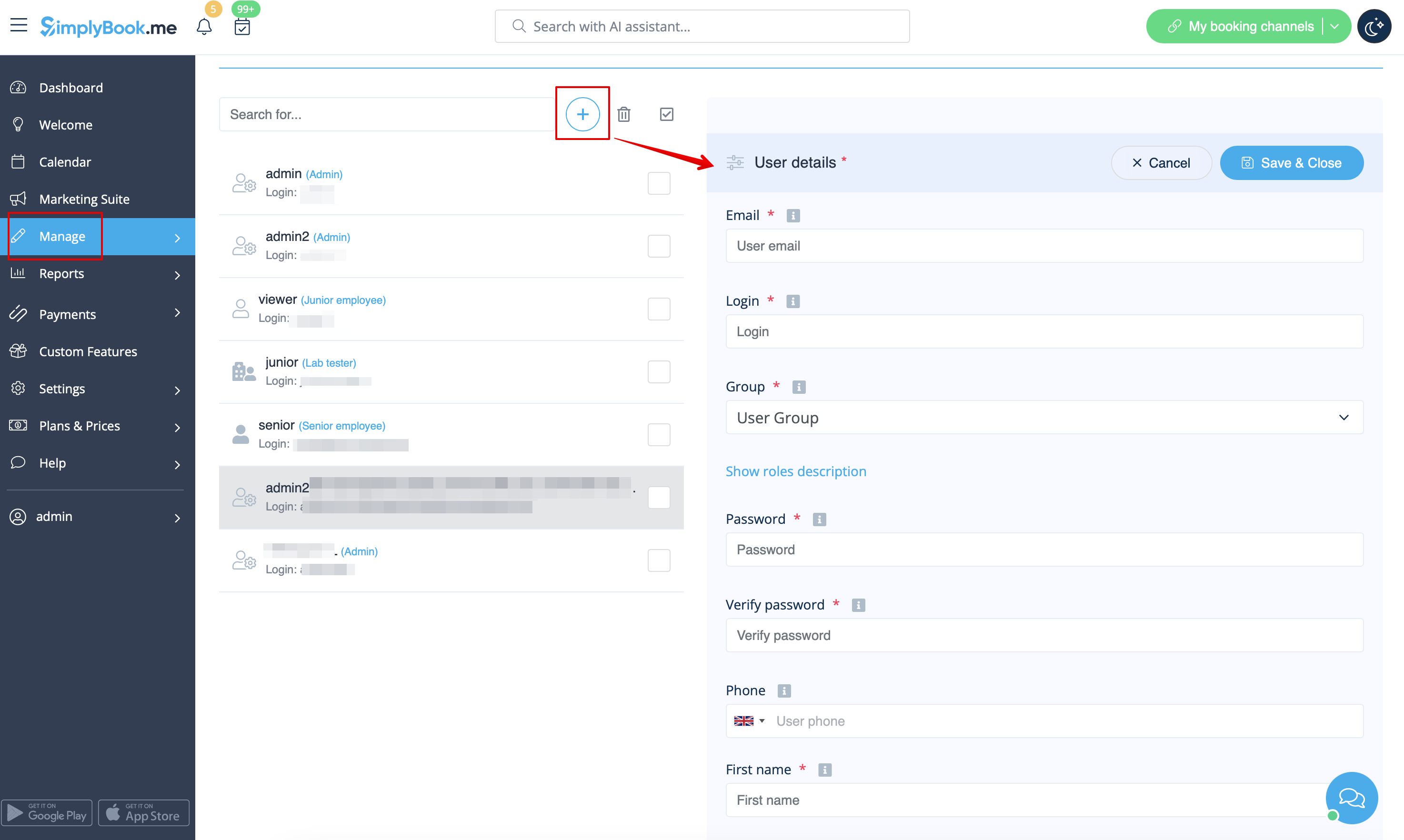
- Введіть логін, адресу електронної пошти, виберіть групу рівня користувача, встановіть перший пароль, при необхідності пов'яжіть з постачальником, додайте ім'я та прізвище, номер телефону.
- Зверніть увагу! Логін є унікальним для кожного користувача. Якщо ви видалите якогось користувача, неможливо буде повторно використати той самий логін для іншого користувача.
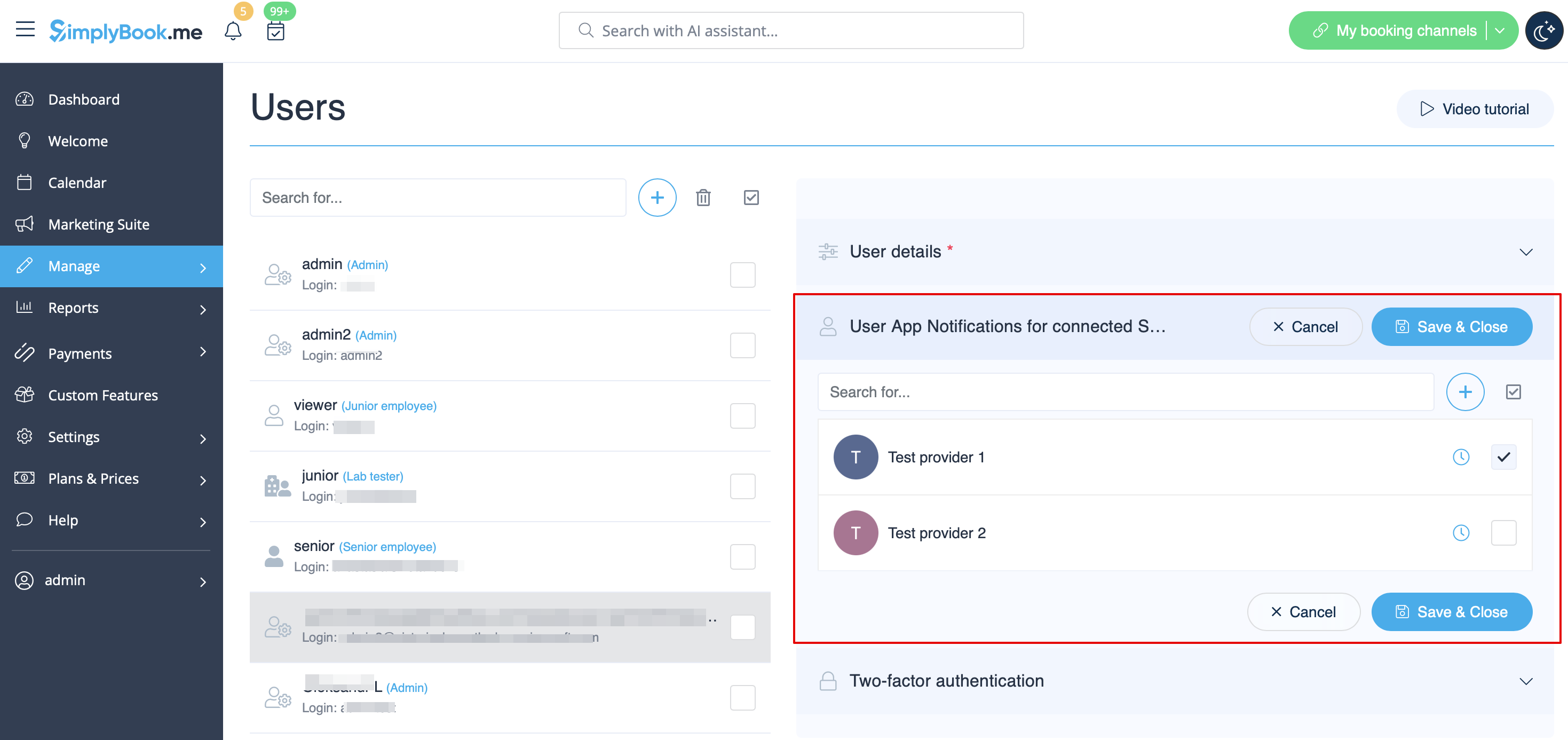
Після цього просто увімкніть перемикач Надіслати інформацію для входу користувачеві та збережіть запис користувача.
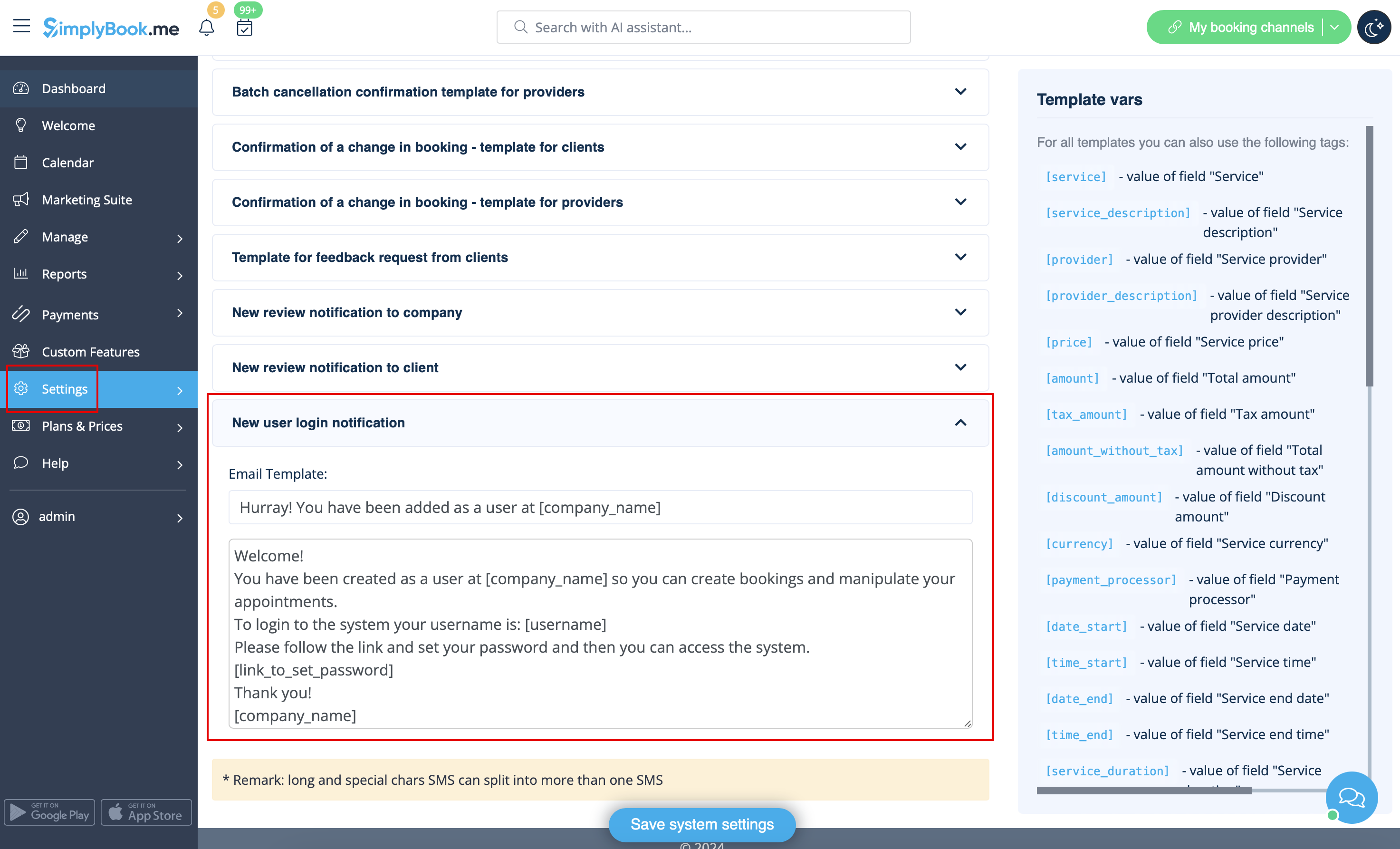
Система автоматично надішле електронний лист з даними для входу відповідно до шаблону, який ви встановили в Налаштування -> Налаштування електронної пошти та SMS -> Повідомлення про вхід нового користувача.
Або ви можете вручну надіслати логін та пароль своїм користувачам разом із посиланням на вашу адміністративну сторінку після збереження користувача.
Ролі користувачів
- Адміністратор
Якщо ви створили систему для своєї компанії на SimplyBook.me, то ви маєте права адміністратора за замовчуванням. Це означає найвищий рівень доступу серед усіх користувачів, і ви можете створювати інших адміністраторів з таким самим рівнем доступу.
Зверніть увагу! Щоб захистити вашу систему від помилок, ми не дозволяємо видаляти адміністратора за замовчуванням, тому якщо він/вона більше не має прав адміністратора, вам потрібно змінити його/її електронну адресу та пароль, щоб обмежити доступ. Другий та наступні адміністратори можуть бути видалені.
Ви можете пов'язати кожного користувача з одним або декількома постачальниками (співробітниками), щоб вони могли переглядати та/або керувати бронюваннями, розкладами тощо залежно від їхнього рівня доступу.
- Старший співробітник
Рівень старшого співробітника дозволяє користувачам бачити робоче навантаження інших, але вони можуть вносити зміни лише в налаштування, що стосуються постачальників. Ці користувачі не мають доступу до налаштувань конфігурації компанії. Старші співробітники не прив'язані до конкретних постачальників послуг. Вони мають повний доступ до всіх постачальників послуг, доданих до системи, що дозволяє їм переглядати, додавати, редагувати, змінювати розклади та видаляти постачальників.
Ось перелік функцій, до яких вони не мають доступу:
- Панель інструментів
- Управління користувачами
- Тарифи та оплата
- Статистика
- Налаштування
- Управління робочим часом компанії
- Основна інформація та адреса компанії
- Управління вмістом головної сторінки
- Налаштування дизайну
- Налаштування CSS
- Налаштування маркетплейсу
- Створення віджетів
(детальніше див. таблицю нижче)
- Junior Employee
In cases, company has many employees with roles primarily focused on their own tasks, the Junior employee user can be created. This user level grants employees the ability to view their own workload and make modifications to their own schedule and bookings. When creating a Junior employee, the option to select the associated service provider/s is available. Notably, it is possible to connect more than 1 service provider to a Junior employee user, enhancing flexibility and control across various setup scenarios.
The functionality of selecting multiple service providers for Junior employee is particularly advantageous in situations where a team member requires access to specific providers' schedules or several providers connected to multiple locations.
Junior employee has access to the following functions:
- Calendar (can manage only own bookings and notes)
- Worktime (can change only own schedules)
- Service providers (can see only associated service provider/s)
(for more details see table below)
*On the enterprise level it is possible to hide client contact details from Junior Employees, as well as prohibit editing and cancelling bookings, statuses updates.
Please note! If a Junior employee user is not assigned to any service provider then his level of access will be automatically downgraded to Viewer level.
- Viewer
In some cases you may want to allow someone to see what is going on with company bookings but not be able to make any changes. This user should be set as Viewer. Viewers can not change anything, and they can not add any bookings.
The following functions are available for this access group:
- Calendar (view only)
- Services (view only)
(for more details see table below)
*On the enterprise level it is possible to hide client contact details from Viewers.
- Operator POS
This level was created mainly for managing POS interface and sell services, classes, packages, memberships, products and add-ons,
but also has access to Calendar, Clients, some reports and view only access to Memberships, Coupons&Gift Cards, Services/Classes and Providers.
- Doorman
Only has the ability to validate Tickets.
- Lab tester
This access level was created mainly for work with Medical Test custom feature and validate tickets, print test tube labels, update test result statuses and print results.
| Options list | Senior Employee | Junior Employee | Viewer
| |
|---|---|---|---|---|
| Dashboard | ||||
| View charts / Enable custom features | − |
− |
− | |
| Welcome | ||||
| View page / Change own password / Connect Google Authenticator* | ✔ |
✔ |
✔ | |
| Change own email address | − |
− |
− | |
| Create booking from dashboard | ✔ |
✔ |
− | |
| Get personal data report link | ✔ |
✔ |
✔ | |
| Calendar | ||||
| Different view options | ✔ |
✔ |
✔ | |
| Export to Excel/PDF | ✔ |
− |
− | |
| View & Manage bookings View & Manage calendar notes |
✔ |
own only |
view only | |
| Access Transactions* Access Pending bookings* |
✔ |
− |
− | |
| Edit booking comments | ✔ |
✔ in own bookings |
− | |
| Edit client info from the booking | ✔ |
✔ in own bookings |
view only | |
| Add/Edit SOAPnotes* | with correct key |
with correct key own only |
with correct key view only | |
| Update booking statuses* | ✔ |
own only |
− | |
| Edit Intake forms* in the bookings Edit products for sale* in the bookings Edit service add-ons* in the bookings |
✔ |
own only |
view only | |
| Marketing Suite | ||||
| View page & Enable custom features | − |
− |
− | |
| Manage | ||||
| View/Add/Edit/Change schedule/Delete services | ✔ |
− |
− | |
| View/Add/Edit/Change schedule/Delete providers | ✔ |
own and existing only |
− | |
| View/Add/Edit/Merge*/Delete clients | ✔ |
− |
− | |
| View/Add/Edit/Delete users | − |
− |
− | |
| View/Add/Edit/Change schedule/Delete classes* | ✔ |
− |
− | |
| View/Add/Edit/Delete packages* View/Add/Edit/Delete memberships* View/Add/Edit/Delete coupons and gift cards* |
✔ |
− |
− | |
| View/Add/Edit/Delete service add-ons* View/Add/Edit/Delete products for sale* View/Add/Edit/Delete related resources* |
✔ |
− |
− | |
| View/Add/Edit/Delete intake forms* View/Add/Edit/Delete client fields* |
✔ |
− |
− | |
| View/Add/Edit/Delete news* View/Add/Edit/Delete custom pages* |
− |
− |
− | |
| View/Add/Edit/Delete statuses* | ✔ |
− |
− | |
| View/Add/Edit/Delete flexible notifications* View/Add/Edit/Delete book soon reminders* |
✔ |
− |
− | |
| View/Add/Edit/Delete calendar notes types | ✔ |
view only |
view only | |
| View/Update calendar sync* | ✔ |
own only |
− | |
| Connect own tool for online video meetings* | ✔ |
✔ |
− | |
| View/Add/Edit/Delete taxes* | − |
− |
− | |
| Reports | ||||
| View sales* report | − |
− |
− | |
| View/Export/Send email/Mass cancel in booking details report | ✔ |
− |
− | |
| View/Accept/Delete payment transactions* View/Approve/Decline pending* bookings |
✔ |
− |
− | |
| View sales & tax report* | ✔ |
− |
− | |
| View/Export online video meetings* report | ✔ |
− |
− | |
| View/Export/Send email from client report | ✔ |
− |
− | |
| View/Export classes* bookings | ✔ |
− |
− | |
| View/Export membership payments* View/Export issued packages* View/Export issued coupons* |
✔ |
− |
− | |
| View/Export/Print tickets* report | ✔ |
− |
− | |
| View calendar notes report | ✔ |
view only |
view only | |
| View/Export SMS report View/Export/Reply to contact messages* |
✔ |
− |
− | |
| View/Export/Delete reviews & add/edit answers | ✔ |
− |
− | |
| View/Export client app* reports | ✔ |
− |
− | |
| View vaccination* report | ✔ |
− |
− | |
| View personal data reports | own only |
own only |
own only | |
| Custom Features
| ||||
| View page/Enable/Disable custom features | − |
− |
− | |
| Edit Accept payments* settings | − |
− |
− | |
| Change Intake forms* export settings | − |
− |
− | |
| Set color for provider with Provider color coding* | ✔ |
− |
− | |
| Set bookings limits for services* | ✔ |
− |
− | |
| View/Add/Edit/Delete service categories* | ✔ |
− |
− | |
| View/Add/Edit/Delete locations* | ✔ |
view the list only | − | |
| Edit Daily report* settings Edit Google Adwords&Analytics* settings |
− |
− |
− | |
| Add/delete images in Photo gallery* Connect account in Instagram gallery* |
− |
− |
− | |
| Edit SMTP* settings Edit SMS Gateway* settings |
− |
− |
− | |
| Edit Terms and Conditions* Edit Cancellation policy* settings |
− |
− |
− | |
| Edit Coupons and Gift Cards* notifications settings
|
− |
− |
− | |
| Edit Appointment at fixed time* settings | ✔ |
− |
− | |
| Edit Custom Domain* settings | − |
− |
− | |
| Edit API* settings | − |
− |
− | |
| Edit Multiple bookings* settings Edit Group bookings* settings |
− |
− |
− | |
| Edit Clean history* settings | − |
− |
− | |
| Edit Client login* settings Edit Strict password* settings* |
− |
− |
− | |
| Edit Any employee settings* | − | − |
− | |
| Edit Google translate settings* | − |
− |
− | |
| Edit HIPAA* settings Edit Google authenticator* settings |
− |
− |
− | |
| Settings | ||||
| Company information Directory listing Delete account |
− |
− |
− | |
| Company opening hours | − |
− |
− | |
| Providers schedule | ✔ |
own only |
− | |
| Services schedule Classes* schedule |
✔ |
− |
− | |
| Design settings Booking widgets settings Custom CSS* |
− |
− |
− | |
| Main configuration Email & SMS settings Custom wording & translations |
− |
− |
− | |
| Plans&Prices | ||||
| View & Buy subscriptions View & Buy additional items See payment history |
− |
− |
− | |
- * - corresponding custom feature should be already enabled by admin.
