Kalendernoter
From SimplyBook.me
Det kan være nødvendigt at tilføje vigtige oplysninger til kalendersiden, som vises sammen med bookinger, eller du skal hurtigt blokere et tidsrum og angive årsagen.
Derfor har vi lanceret en ny mulighed, Kalender-noter, med tidsblokeringsfunktion, der gør det muligt, og nu kan du have alle de nødvendige ting ved hånden.
- Sådan bruges det
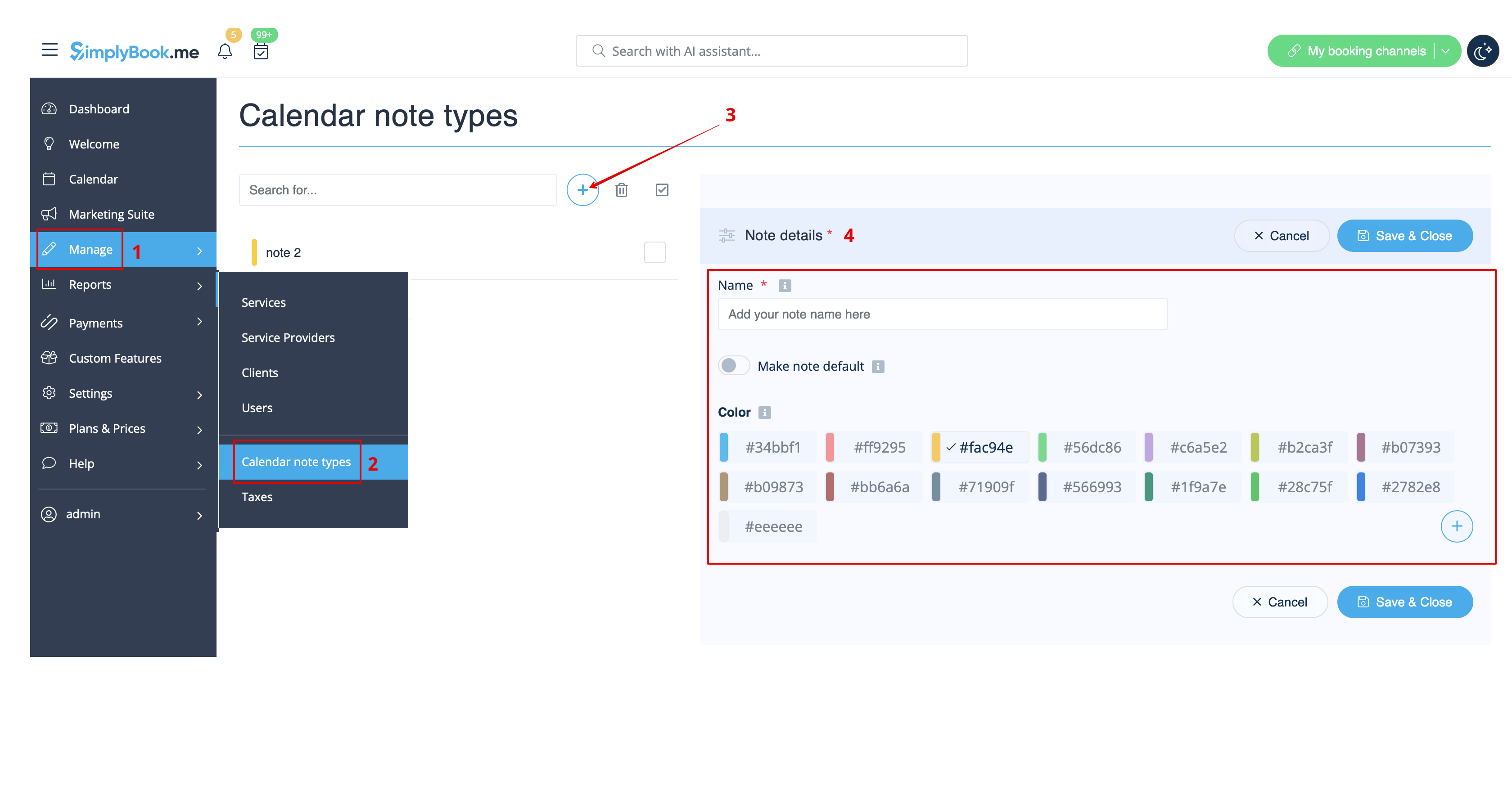
- 1. Som standard er der tilføjet én notetype til dig i systemet, men du kan gå til Administrer -> Kalendernotetyper for at tilføje nye notetyper og indstille de ønskede farver for dem.
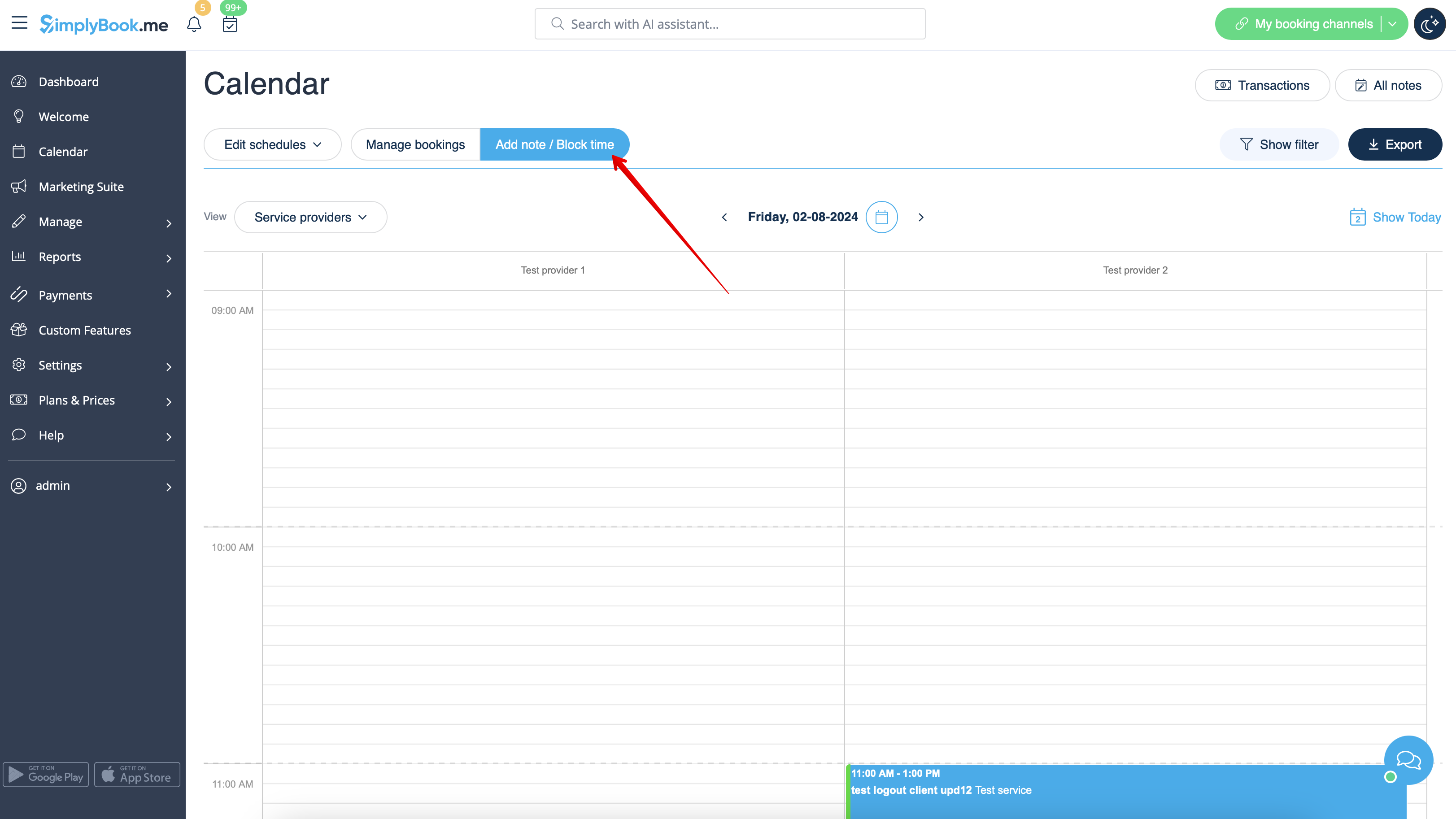
- 2. When all types are ready for use navigate to Calendar page using the left-side menu.
- 3. Switch to Add note/Block time mode above the calendar.
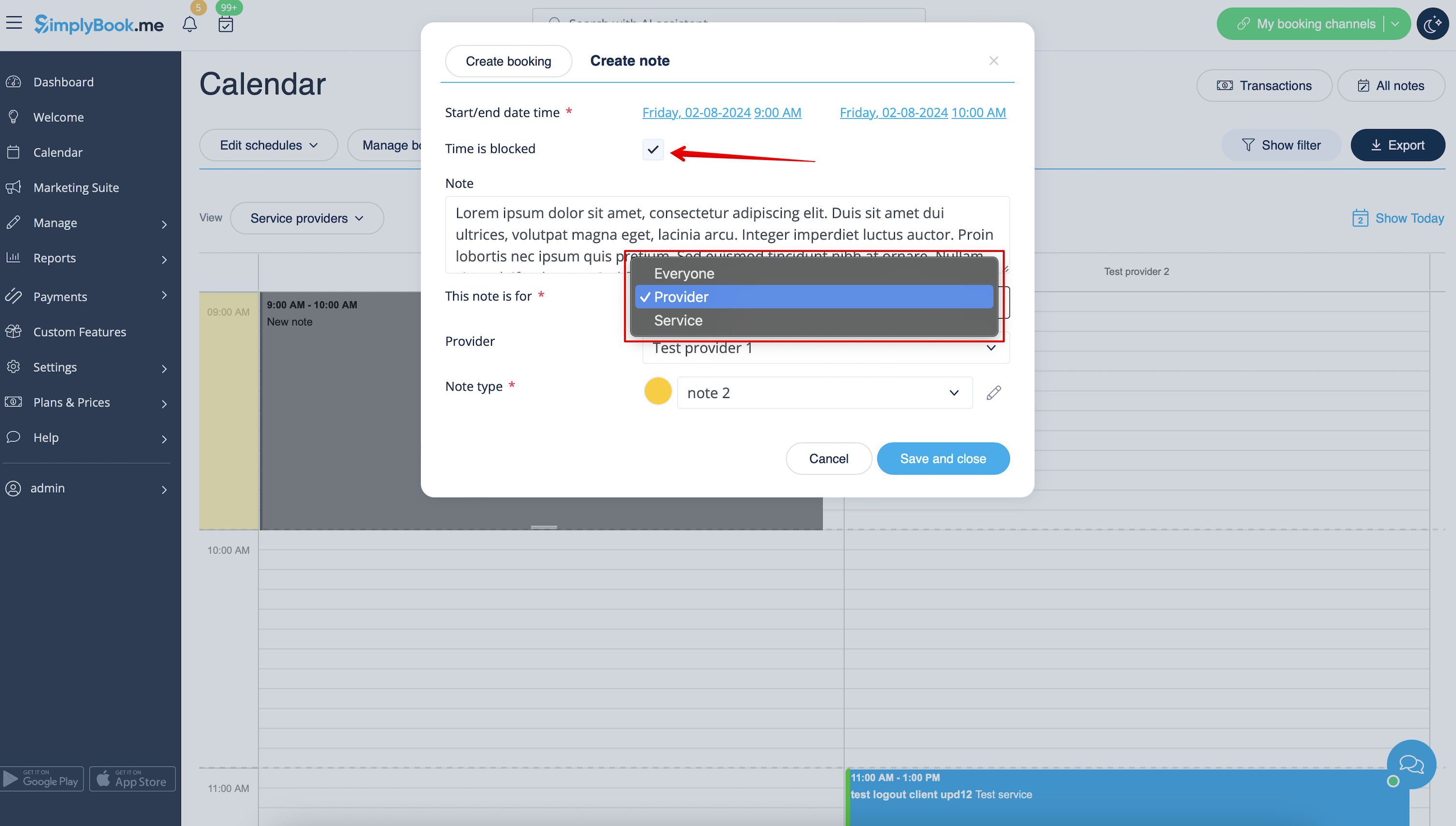
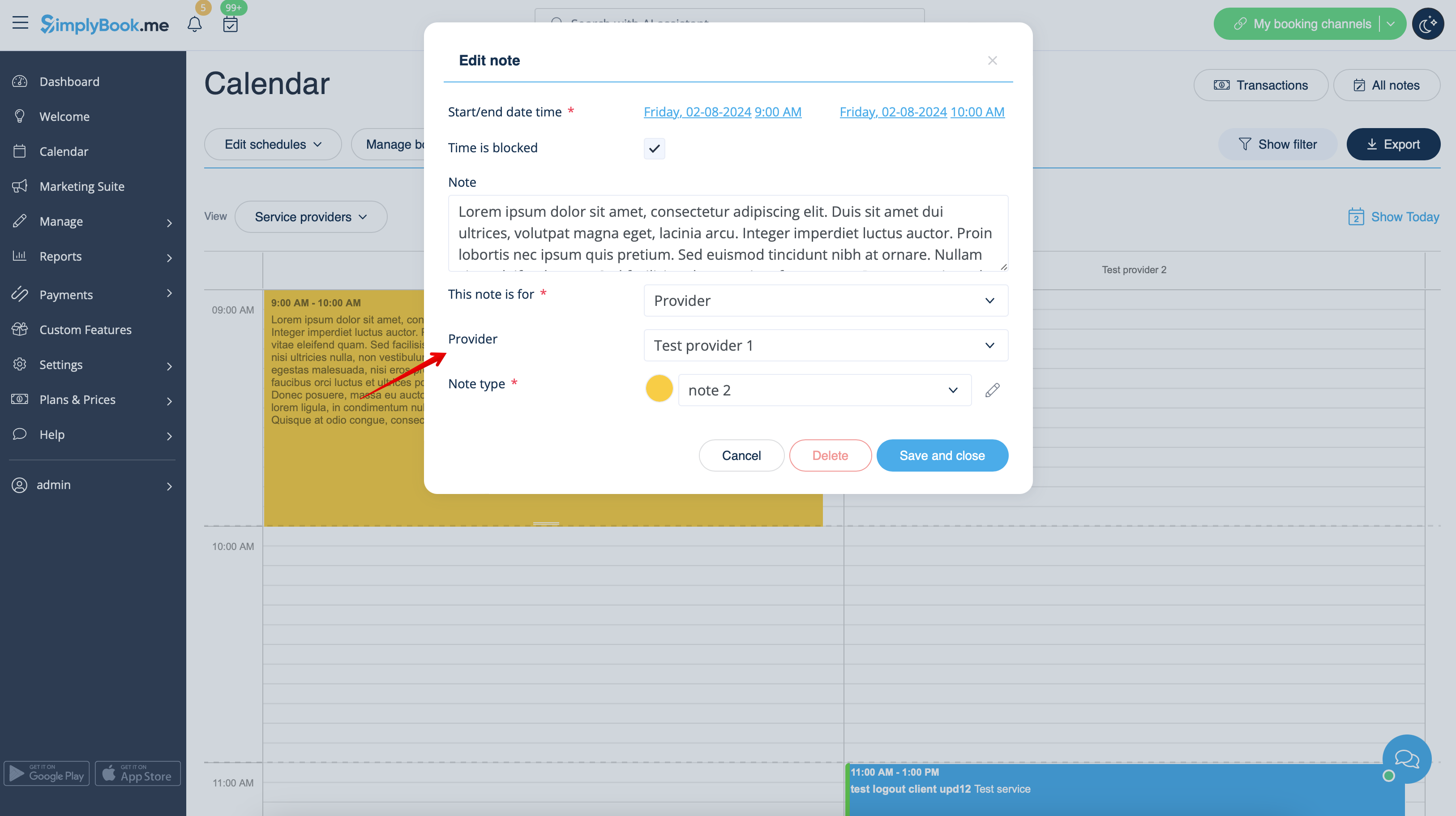
- 4. Click on the free space in the Calendar table where you would like to insert the information or block time to get note popup form.
- 5. Check Time is blocked option to close the availability if needed, add the details to the textbox and select the assignee: you can add a note or close time per specific provider, service or everyone.
- 6. To edit or delete the previously added note click on it to get the popup and use the needed function there.
- Notes overview options
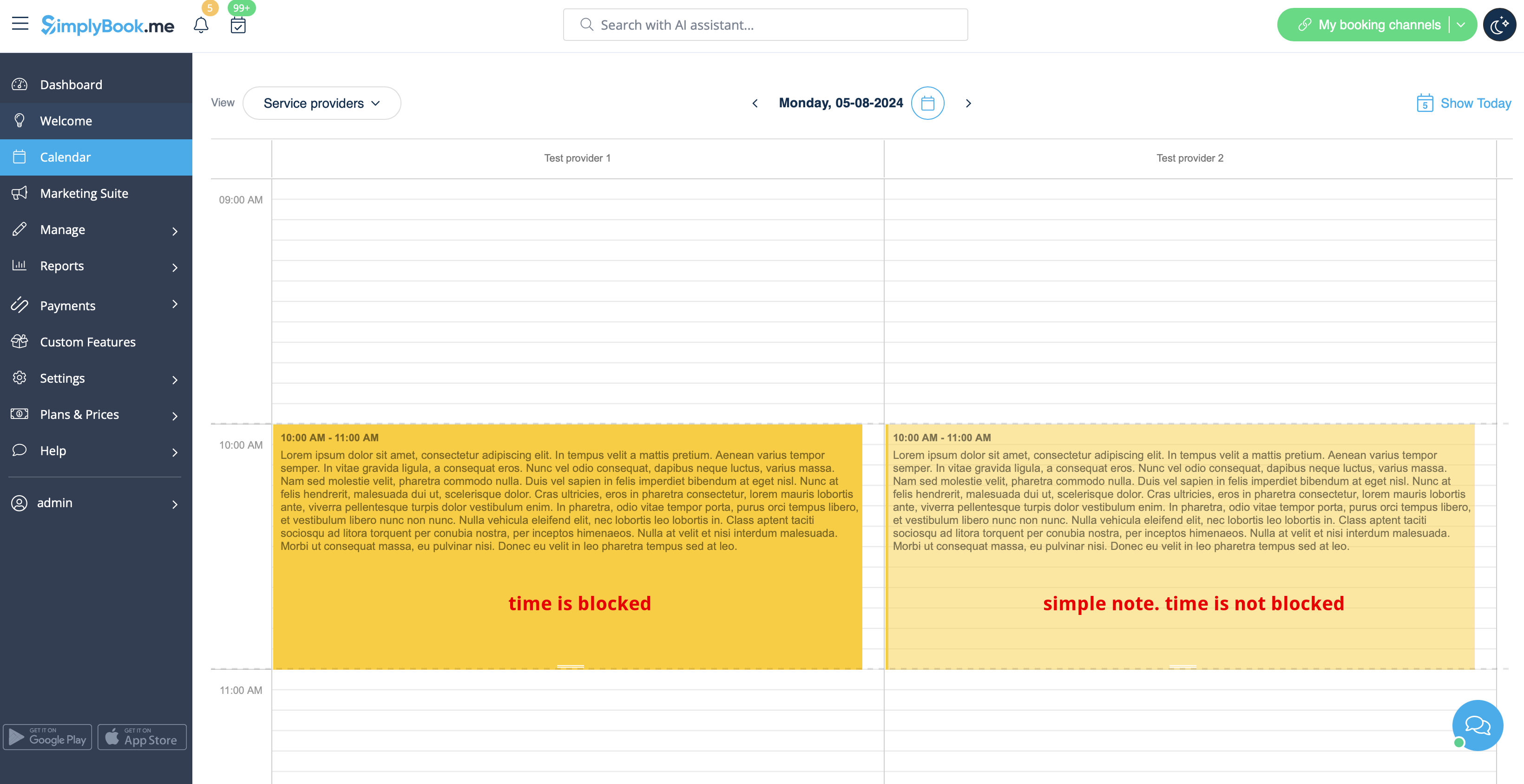
- If you have checked Time is blocked such notes will have a bit brighter color compared to simple text notes.
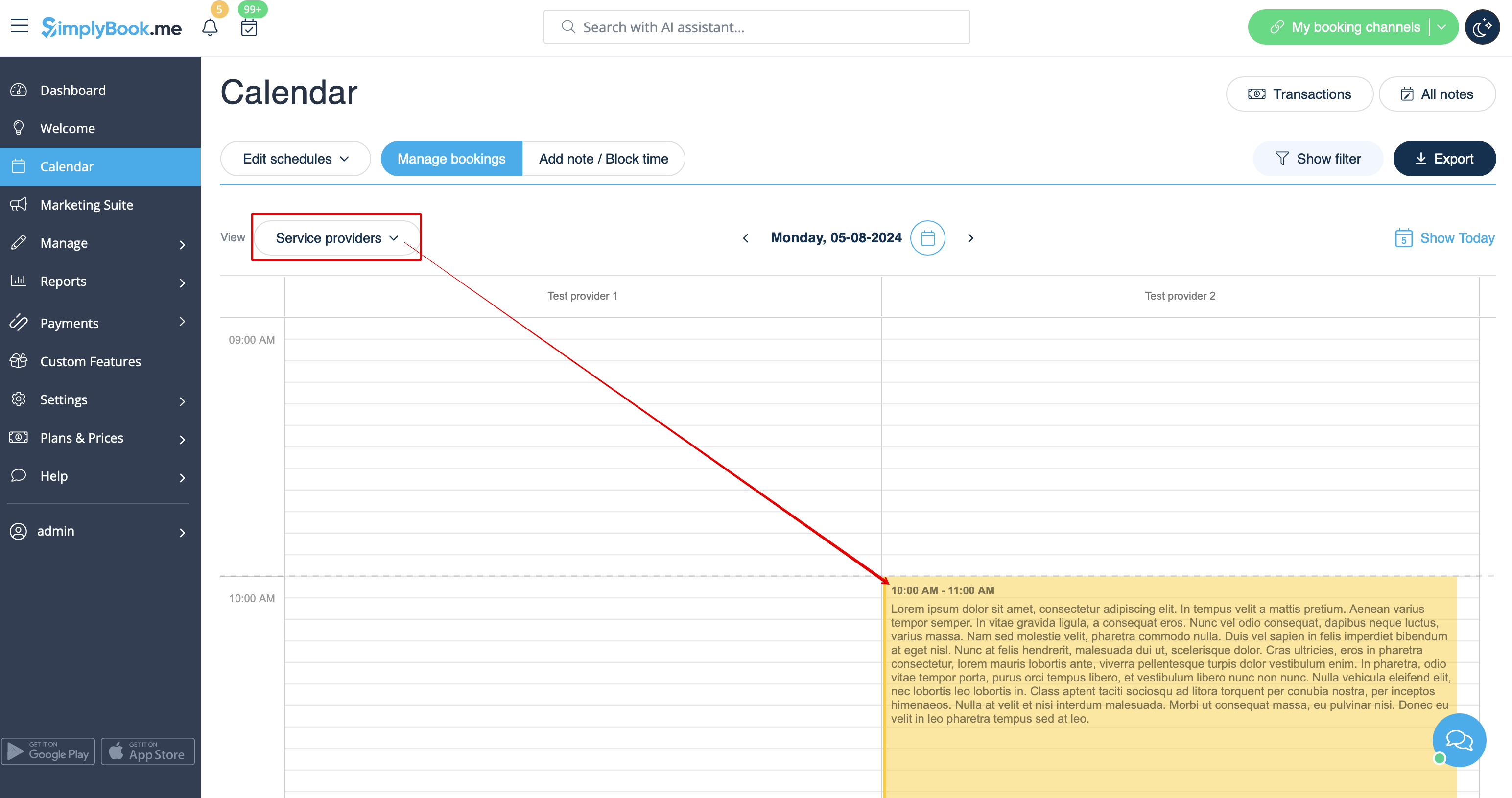
- If you have added a note per provider it will be shown in Service Provider, Timeline, Day, Week and Month views.
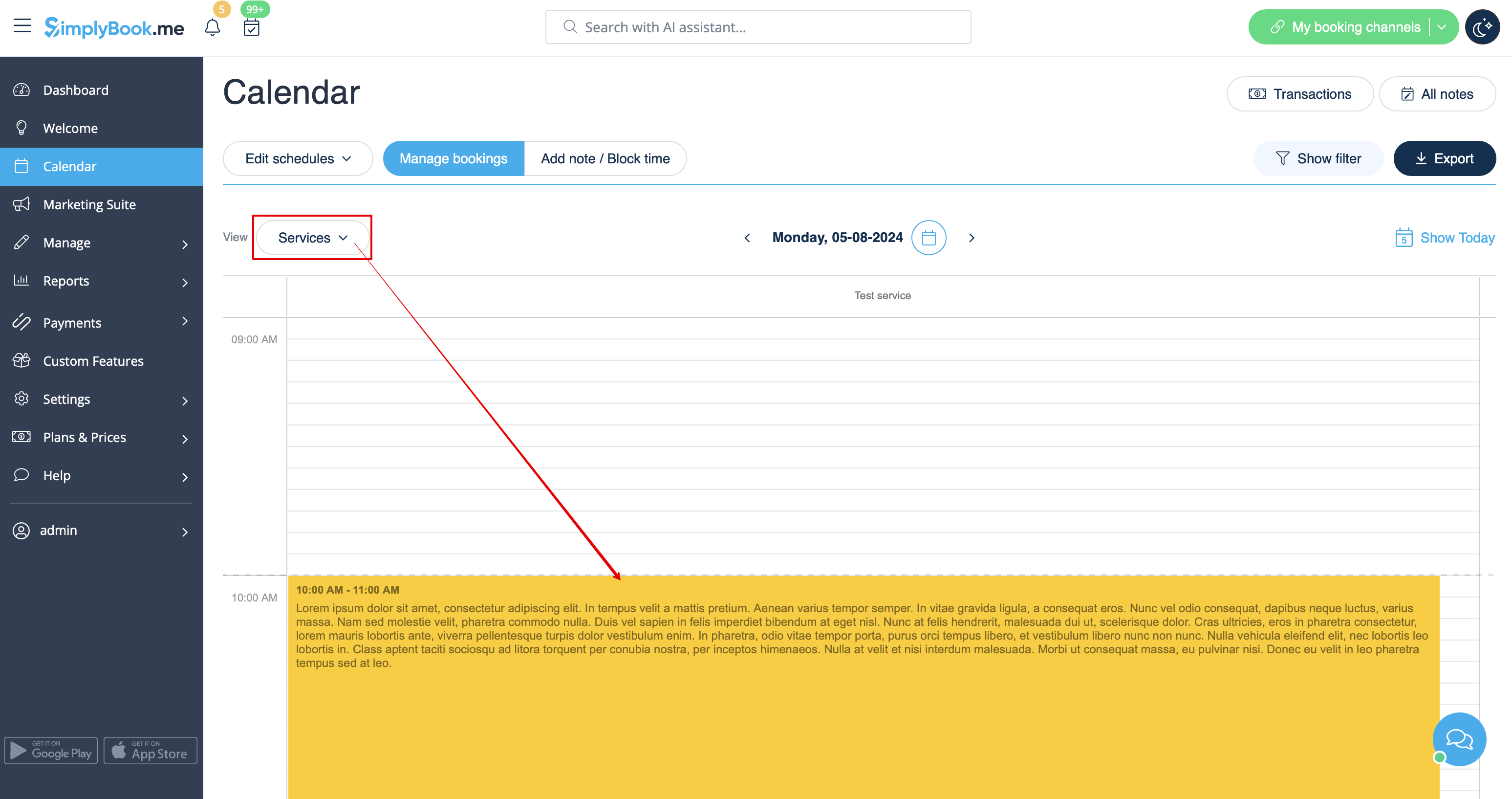
- If you have added a note per service you will be able to see it in Service, Day, Week and Month views.
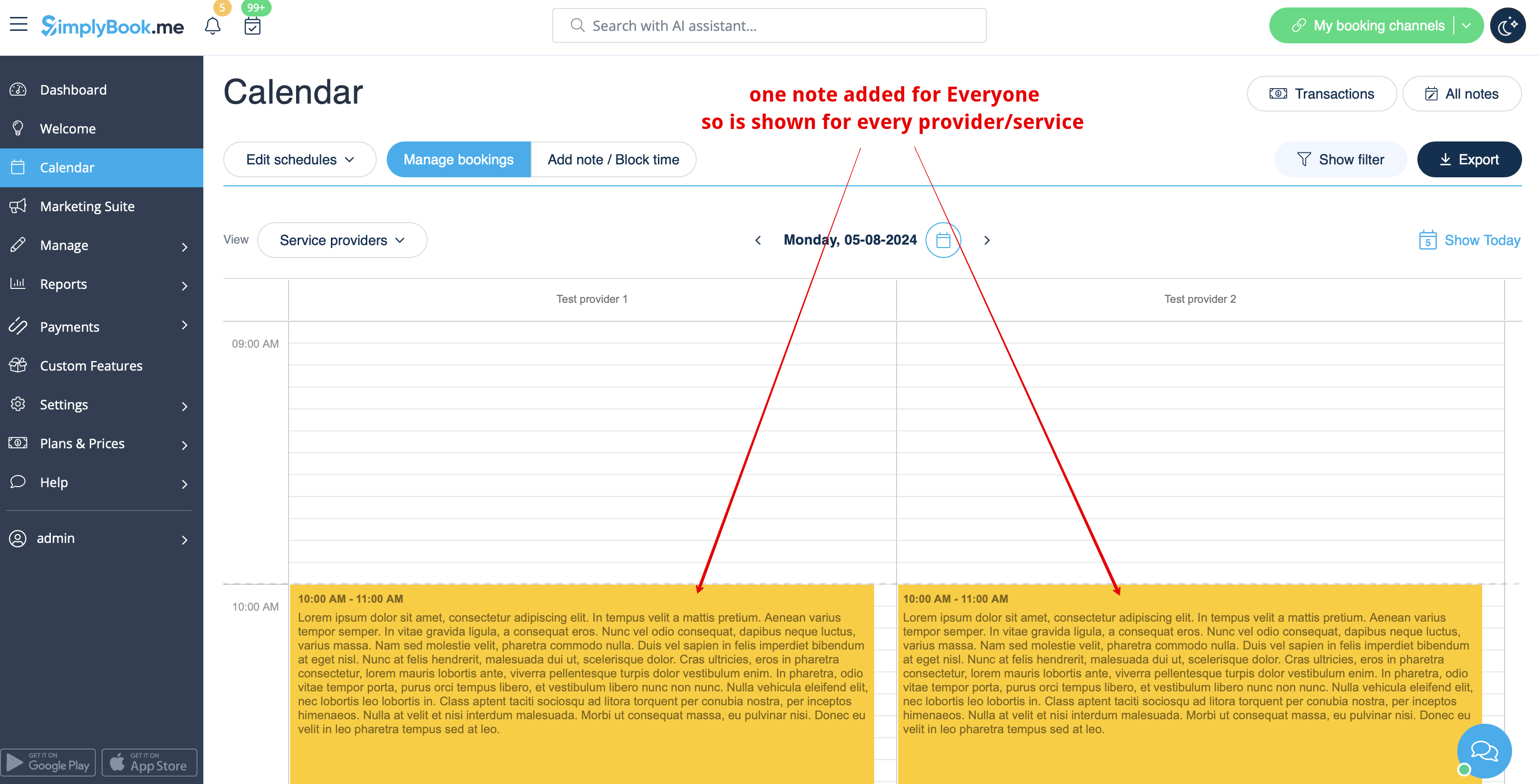
- The notes for Everyone are displayed in all calendar views.
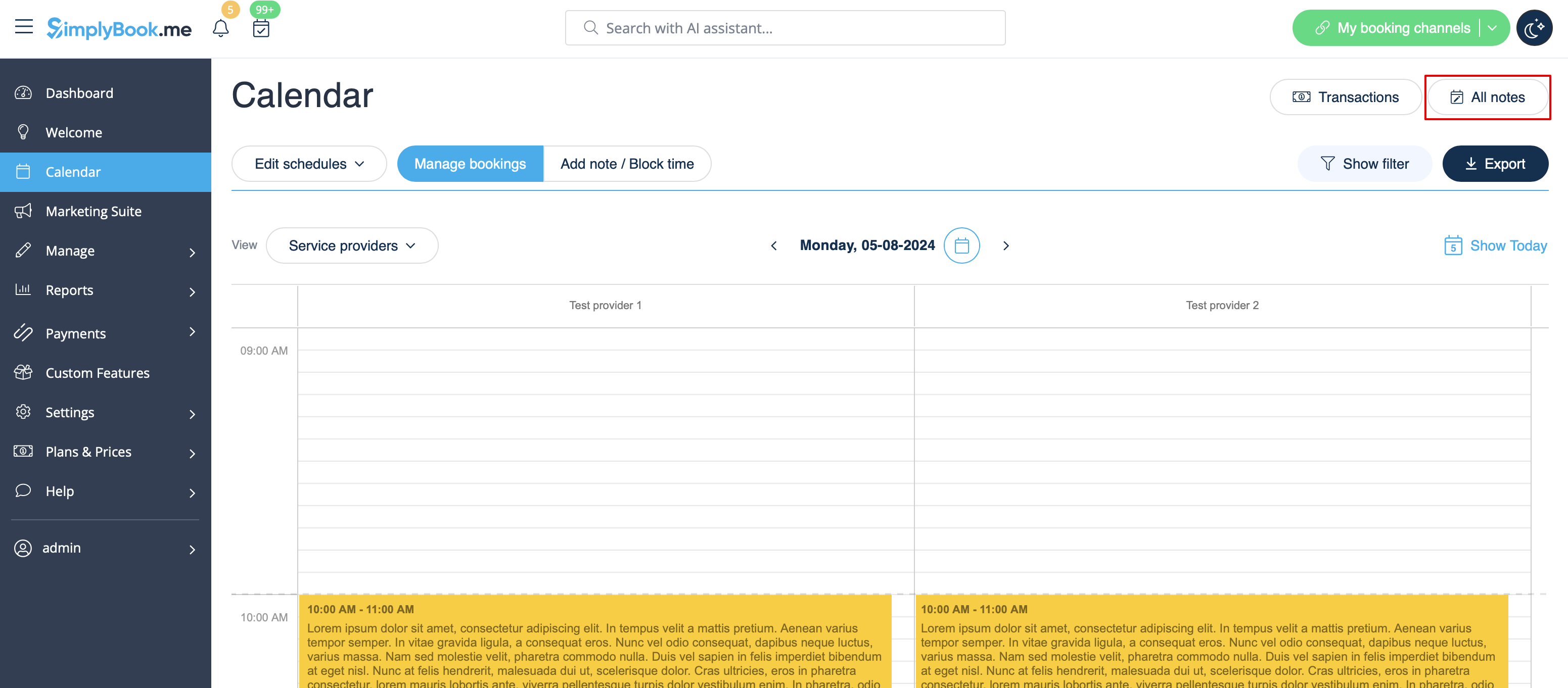
- As well you can access the list of all the notes added, use filters and export notes to excel in Calendar notes report by navigating either directly from Calendar page or from Reports section in left-side menu.