Звіти про бронювання
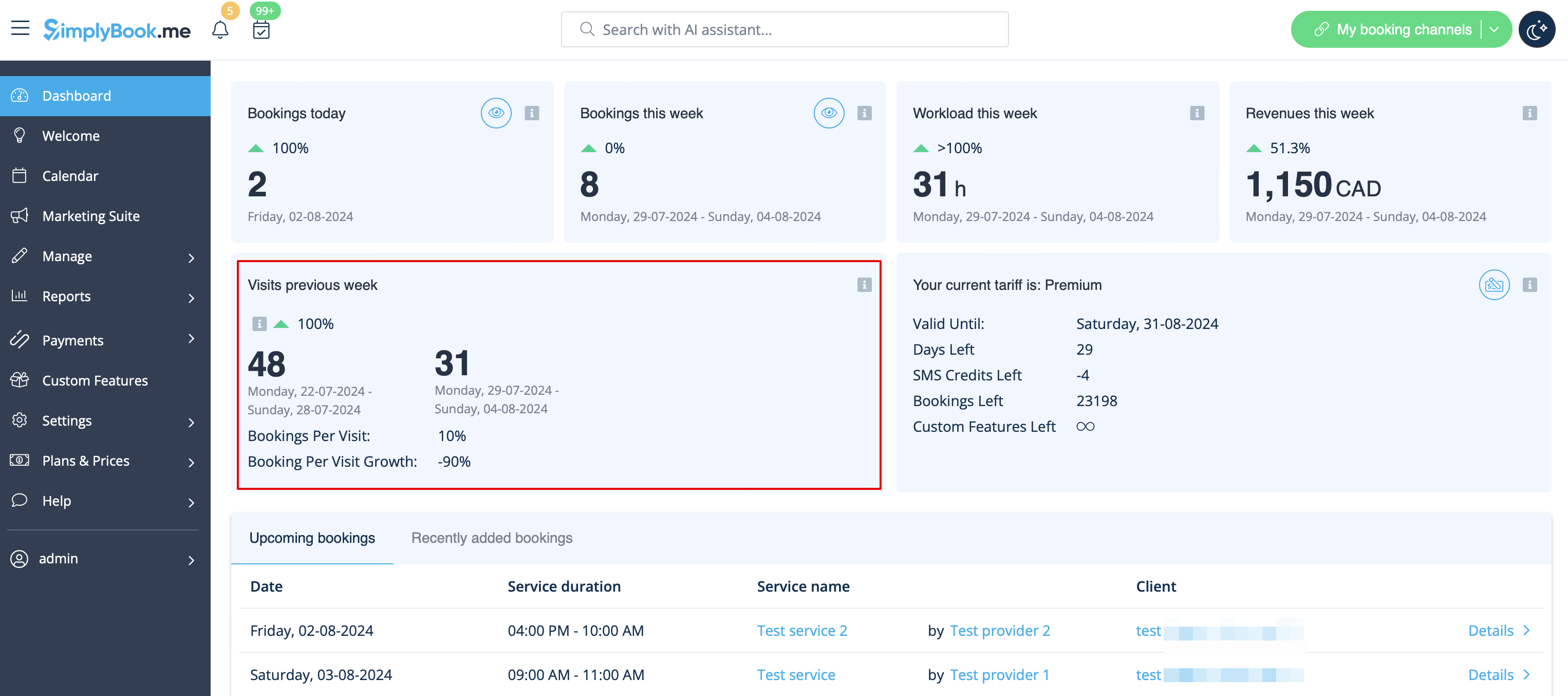
Лічильник відвідувачів
Результати відображаються на сторінці «Дашборд» в адміністративному інтерфейсі, якщо відповідна налаштована функція увімкнена.
Це дає можливість відстежувати відвідування вашого сайту бронювання.
Щоденний звіт
дозволяє щодня отримувати список замовлень на електронну адресу вашої компанії.
Щоб отримувати таку інформацію, необхідно увімкнути функцію налаштування щоденного звіту.
Ви можете налаштувати її надсилання, наприклад, вранці, щоб підготуватися до робочого дня.
Також можна вибрати отримання інформації про:
- нові бронювання;
- скасовані бронювання;
- майбутні бронювання.

Деталі бронювання
Відеоурок 
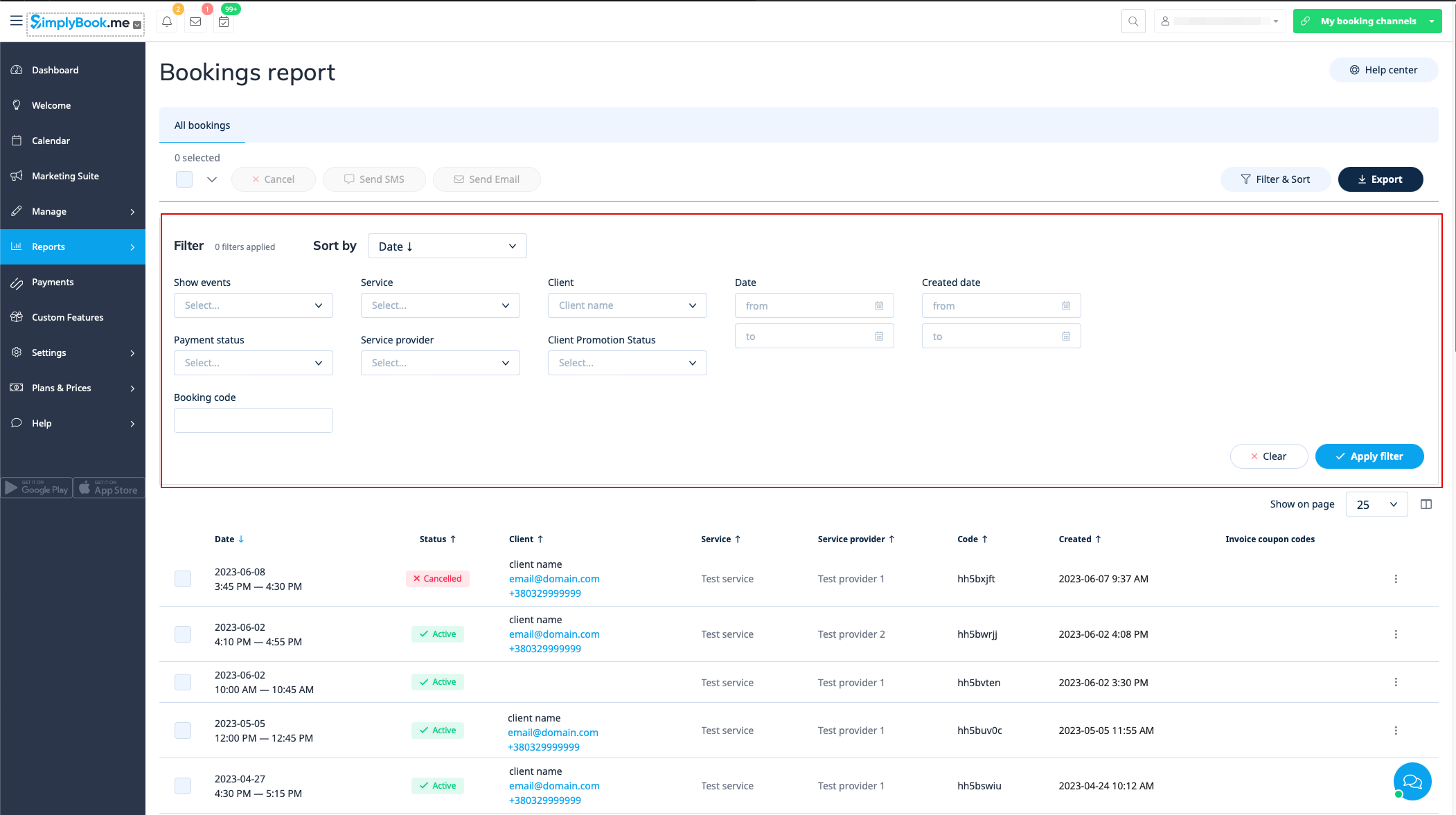
Ви можете знайти список усіх своїх бронювань у розділі «Звіти» // «Деталі бронювання».
У цьому звіті ви можете:
- натиснути «переглянути бронювання» в меню дій для кожного рядка, щоб переглянути деталі конкретного бронювання;
- надіслати електронний лист/SMS-повідомлення своїм клієнтам (ви навіть можете використовувати деякі змінні, зазначені там);
- перейти до звіту конкретного клієнта, вибравши опцію «Переглянути звіт клієнта» в кожному рядку;
- фільтрувати бронювання за:
- дату бронювання;
- дату, коли було зроблено бронювання;
- послуги;
- постачальника послуг;
- клієнта;
- унікальний код бронювання;
- статус (всі бронювання, скасовані бронювання, не скасовані бронювання);
- статус оплати (якщо функція прийому платежів увімкнена);
- статус промо-акції клієнта (щоб бачити тільки тих, хто підписався або відписався).
- експорт бронювань в Excel або .csv (використовуйте фільтри, щоб експортувати тільки бронювання за певний період або пов'язані з певним постачальником, виберіть стовпці для експорту тощо, якщо необхідно).
Звіт клієнта
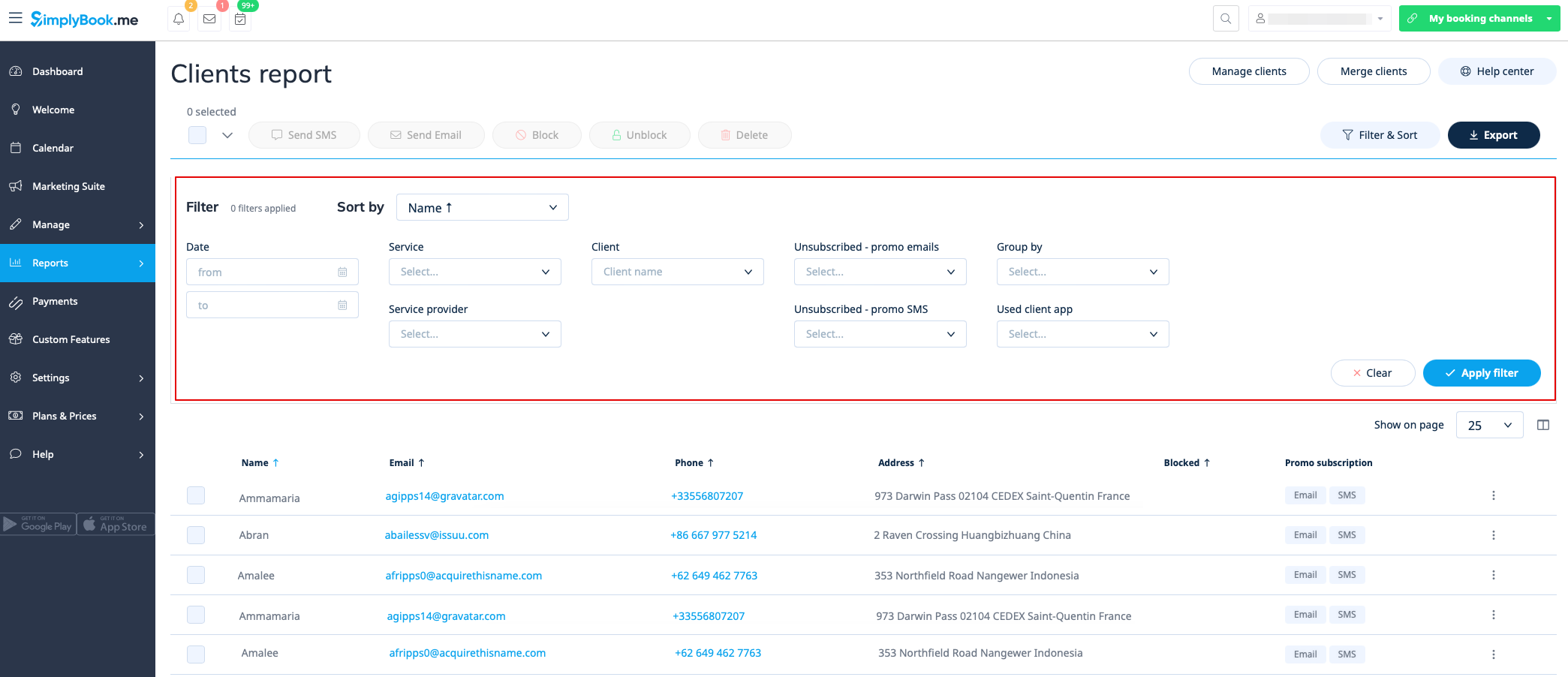
Ви можете знайти список усіх своїх клієнтів та зроблених ними замовлень у розділі «Звіти» // «Звіт про клієнтів».
У цьому звіті ви можете:
- натиснути «Переглянути деталі» для кожного рядка,
- щ
- об переглянут
- и
- деталі конкре
- т
- ного клієнта;
- н�
- �тиснути «Переглянути історію», щоб отримати список бронювань, зроблених конкретним клієнтом (з можливістю експорту в Exce
- l)
- ;
- надіслати еле�
- �тронний лист/SMS своїм клієнтам;
- заблокувати, розблокувати або видалити деяких клієнтів, якщо це необхідно;
- перейти на сторінку об'єднання записів клієнтів (якщо увімкнено функцію входу клієнта)
- фільтрувати бронювання за:
- Client mobile app; ;
- ;
- ;
- ;
- ; ; ; ; ; ; ; ; ; ; ; ; ; ; ; ; ; ; ; ; ; ; ; ; ; ; ; ; ; ;
- експортувати бронювання в Excel або .csv (використовуйте фільтри для експорту бронювань за певний період або для певного постачальника, виберіть, які стовпці експортувати).
Ви також можете вирішити, як групувати клієнтів (щоб уникнути дублювання клієнтів) за електронною поштою, телефоном або електронною поштою та телефоном.
Звіт за конкретним клієнтом
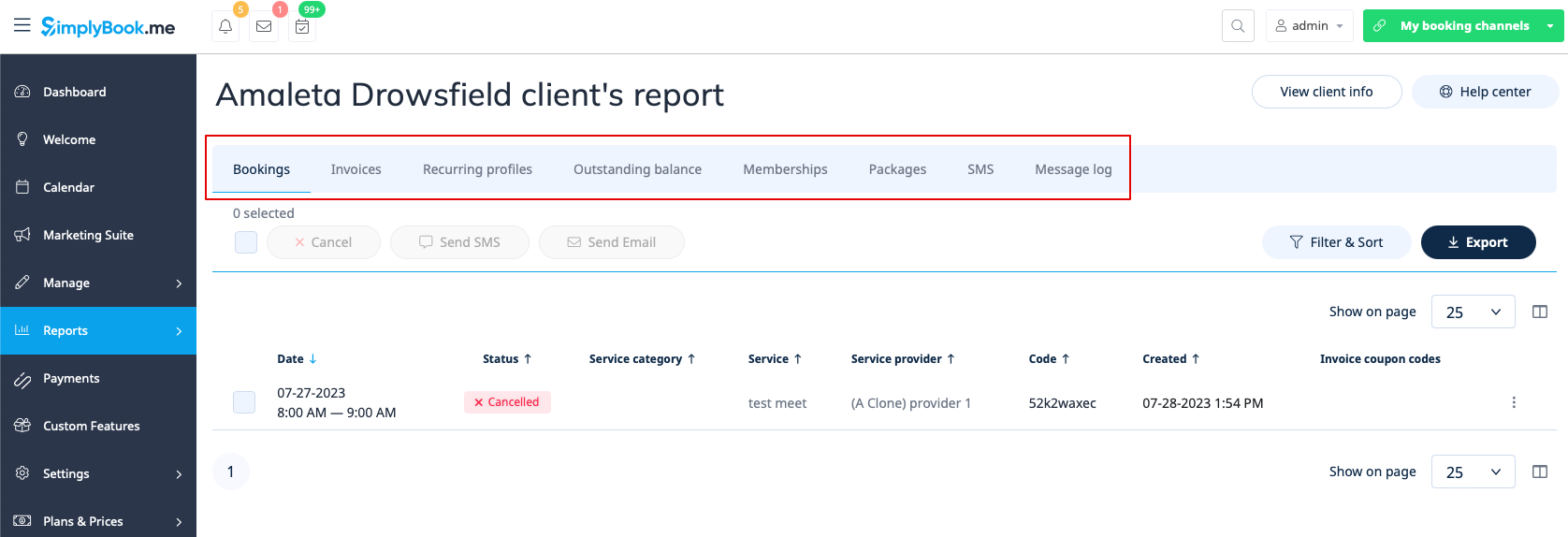
Цей звіт дозволяє переглядати різні звіти, що існують у системі, але відфільтровані за одним конкретним клієнтом в одному зручному місці.
Доступні такі звіти:
- Деталі бронювання
- Платіжні операції
- Повторювані профілі
- Несплачений залишок
- Членство
- Пакети
- SMS
- Журнал повідомлень
- Квитки
- Бонусні бали
Ви можете застосовувати різні фільтри для кожної вкладки, переглядати деталі або експортувати дані у формати xls/csv.
Звіт про повідомлення
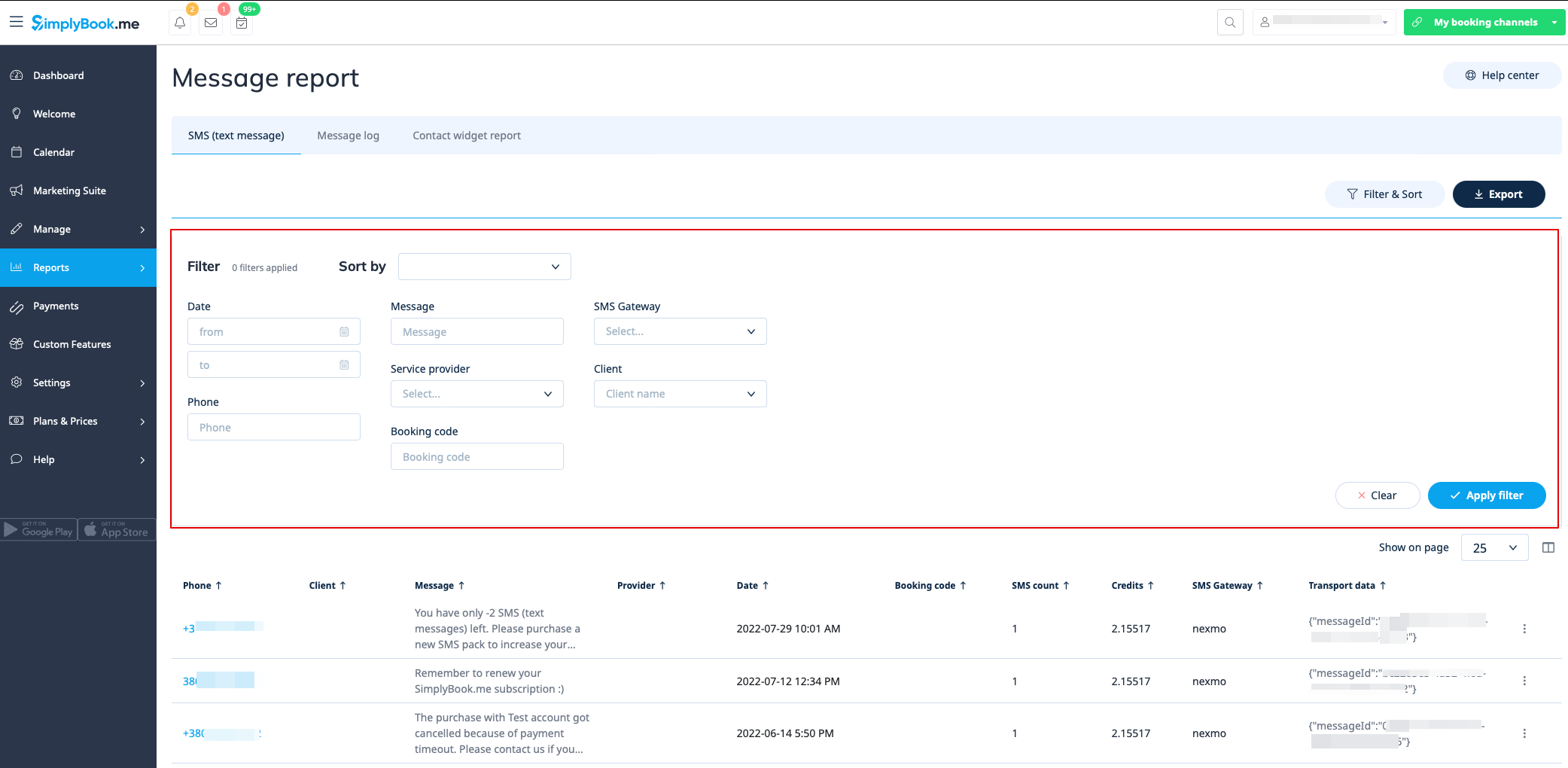
Ви можете знайти список усіх SMS-повідомлень, надісланих із системи, у звіті «Звіти//SMS (текстові повідомлення)» на першій вкладці.
У цьому звіті ви можете:
- фільтрувати повідомлення за:
- дату відправлення повідомлення;
- номер телефону;
- ім'я клієнта;
- назву провайдера;
- коду бронювання;
- SMS-шлюз;
- текст повідомлення.
- експорт повідомлень в Excel або .csv (за необхідності використовуйте фільтри та виберіть стовпці для експорту);
- перегляд кількості кредитів, використаних для надсилання конкретного повідомлення;
- перегляд кількості SMS, використаних для надсилання повідомлення (якщо використовувалися спеціальні символи та/або довгі тексти).
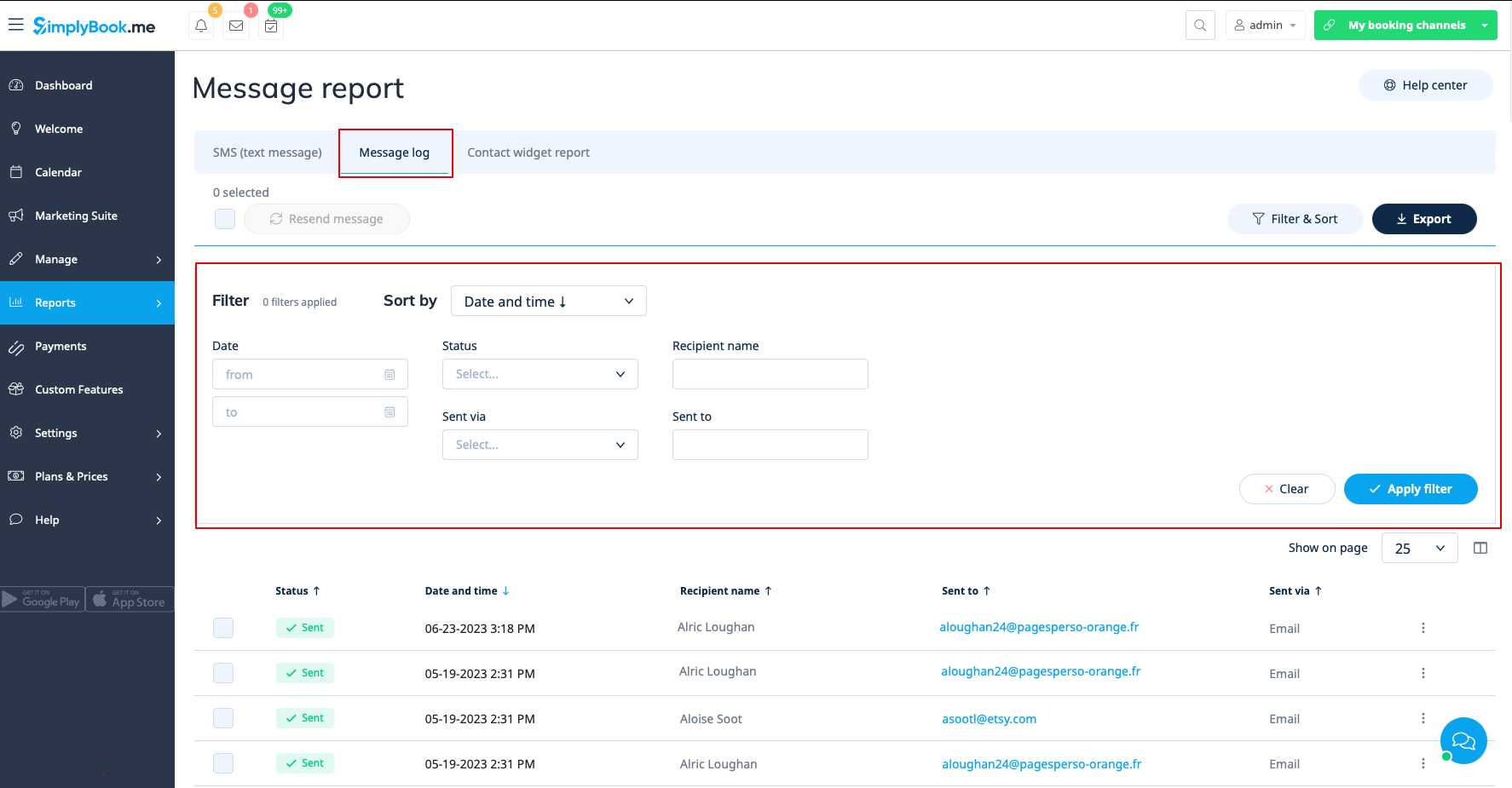
In the second tab, Message log you can:
- view promotional message log and messages statuses(sent, retry, new, sending, error);
- filter messages by:
- date range;
- status;
- recipient name;
- sent via email or sms;
- email address or phone number depending on the gateway.
- retry sending the messages to customers;
- export data to Excel or .csv (using the filters if needed).
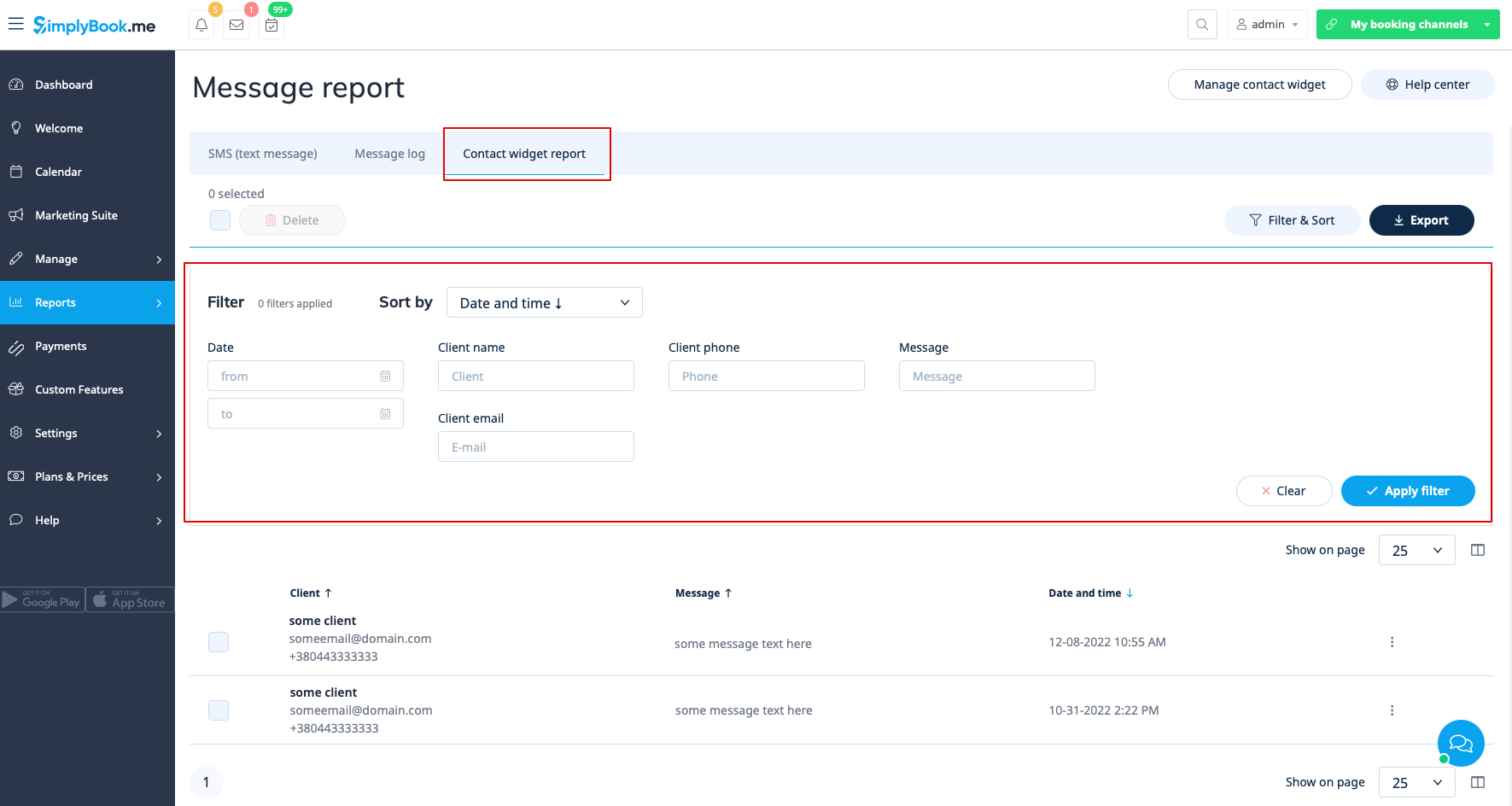
The third tab, Contact widget report can be used when contact widget custom feature is enabled and allows to:
- view the list of messages left by clients or potential clients on the booking website and respond to them;
- filter messages by:
- date range;
- client name;
- client phone;
- client email;
- message text.
- export data to Excel or .csv (using the filters if needed).
Reviews list
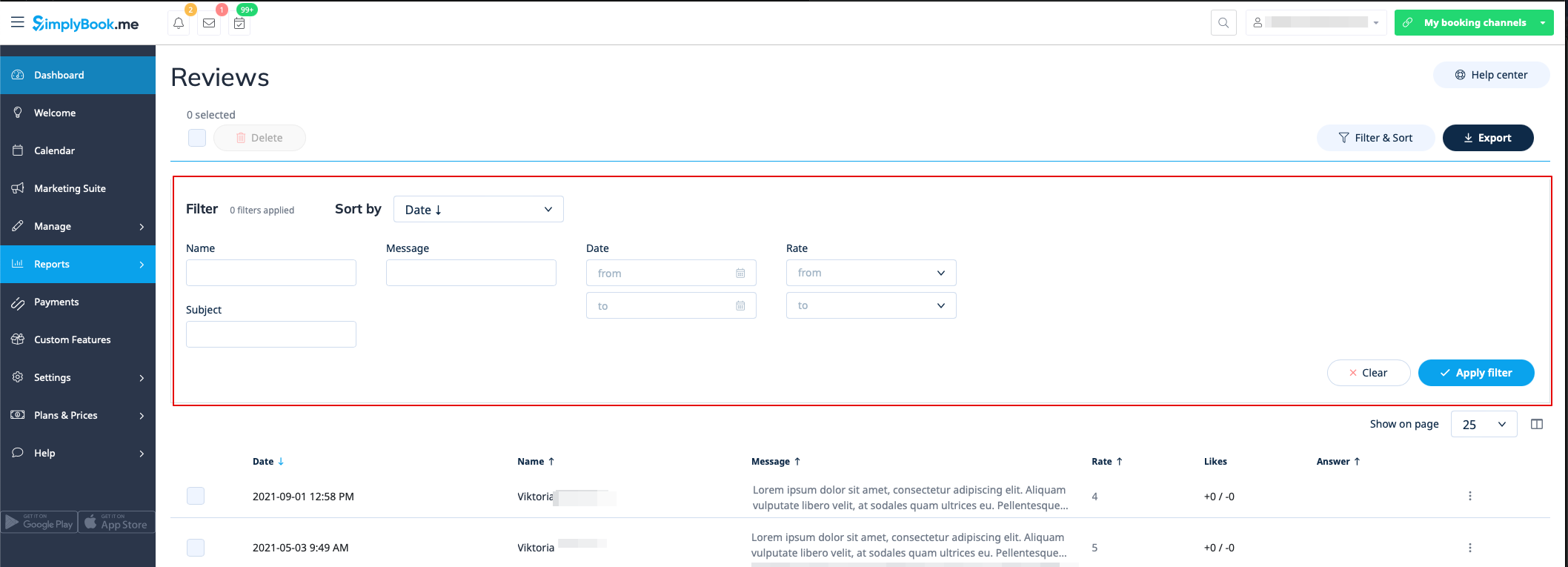
You can find a list of all feedback posts your clients left in Reports//Reviews.
In this report you can:
- filter reviews by:
- client name;
- subject;
- message;
- date range when the review was added;
- rate.
- export the reviews to Excel or .csv(use the filters if necessary and choose which columns to export);
- reply to your customers’ reviews (the replies will be visible to clients);
- delete reviews if necessary.
Payment transactions report
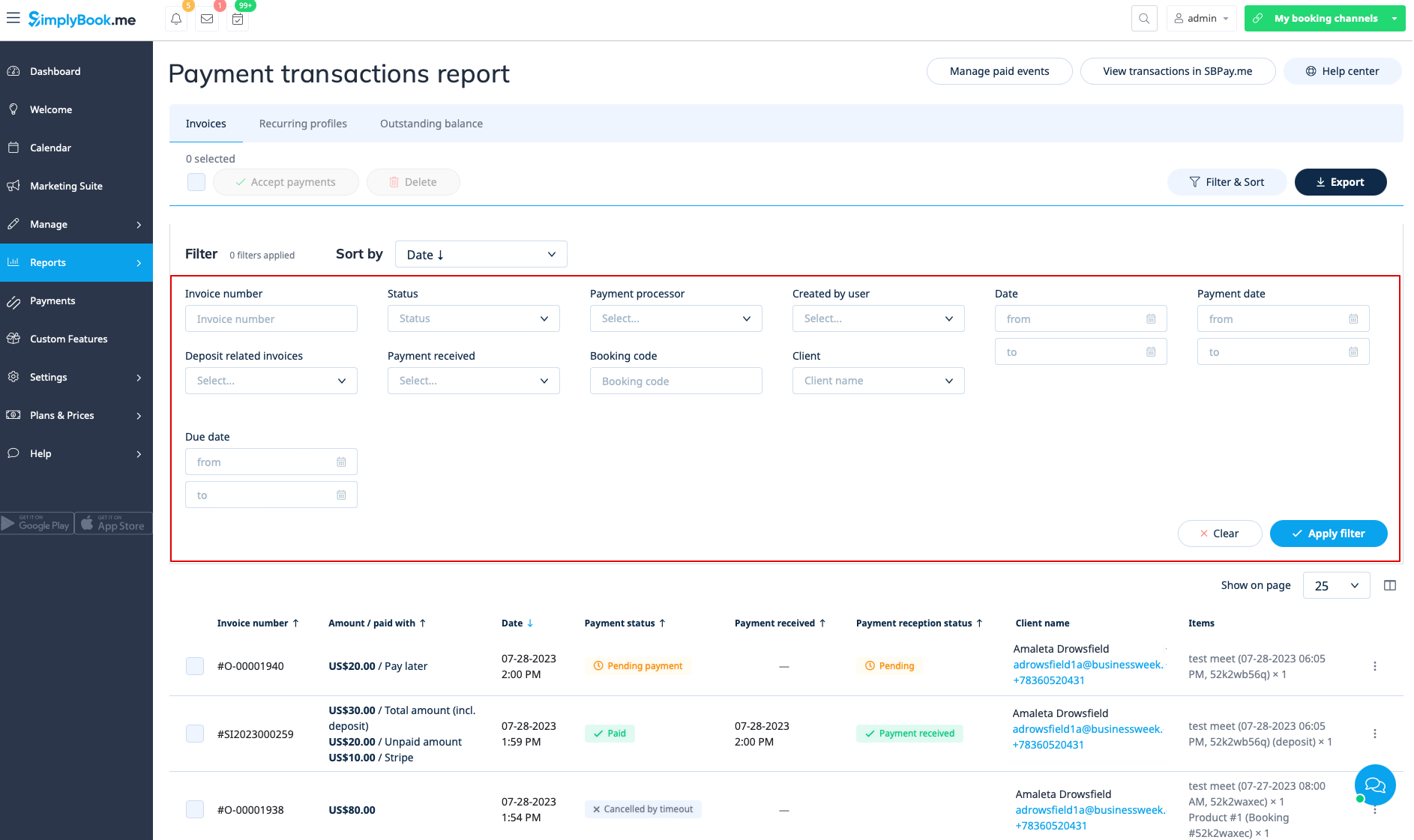
You can access it in Reports//Payment transactions. It allows you to see all payments related information in your system.
In this report you can use three tabs: Invoices, Recurring profiles, Outstanding balance.
In the first Invoices tab you can:
- see all invoices created when the clients were booking the service or purchasing packages, memberships, products for sale and/or gift cards;
- apply coupons or gift cards to pending orders (if you are using Coupons &Gift cards custom feature);
- approve pending payments(for example, if the clients selected “Pay later” on the booking site) using either default payment methods or, with SBPay.me Pro integration, use vaulted cards, send payment links or show QR code to pay;
- see payment processor used;
- process refunds (if SBPay.me Pro integration is enabled);
- view invoices details on SBPay.me side (if SBPay.me integration is enabled);
- print invoices;
- delete invoices;
- filter invoices by:
- invoice/order creation date range;
- invoice number;
- payment date range;
- payment due date range;
- client name;
- unique booking code;
- status(new, pending, paid, cancelled, error);
- payment processor;
- user who has created the record;
- payment received or not.
- export payment information to Excel or .csv (using the filters if needed).
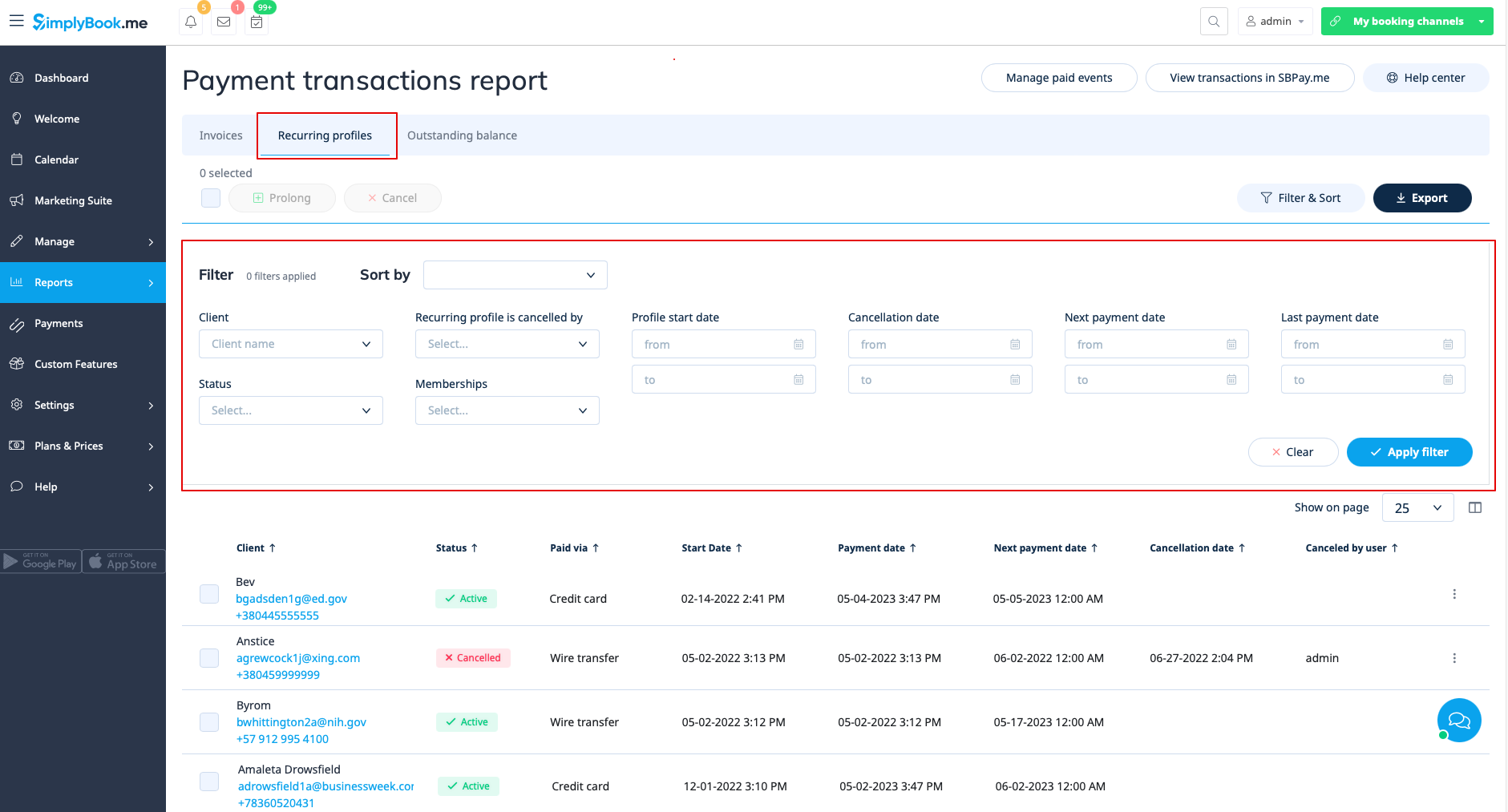
Recurring profiles tab allows to:
- view/cancel membership recurring profiles;
- prolong recurring profiles issued from admin side;
- filter membership profiles by:
- membership name;
- start date range;
- cancellation date range;
- next payment date range;
- last payment date range;
- client record;
- status(active, pending, cancelled, suspended, error);
- user who cancelled the profile.
- export membership profiles data to Excel or .csv (using the filters if needed).
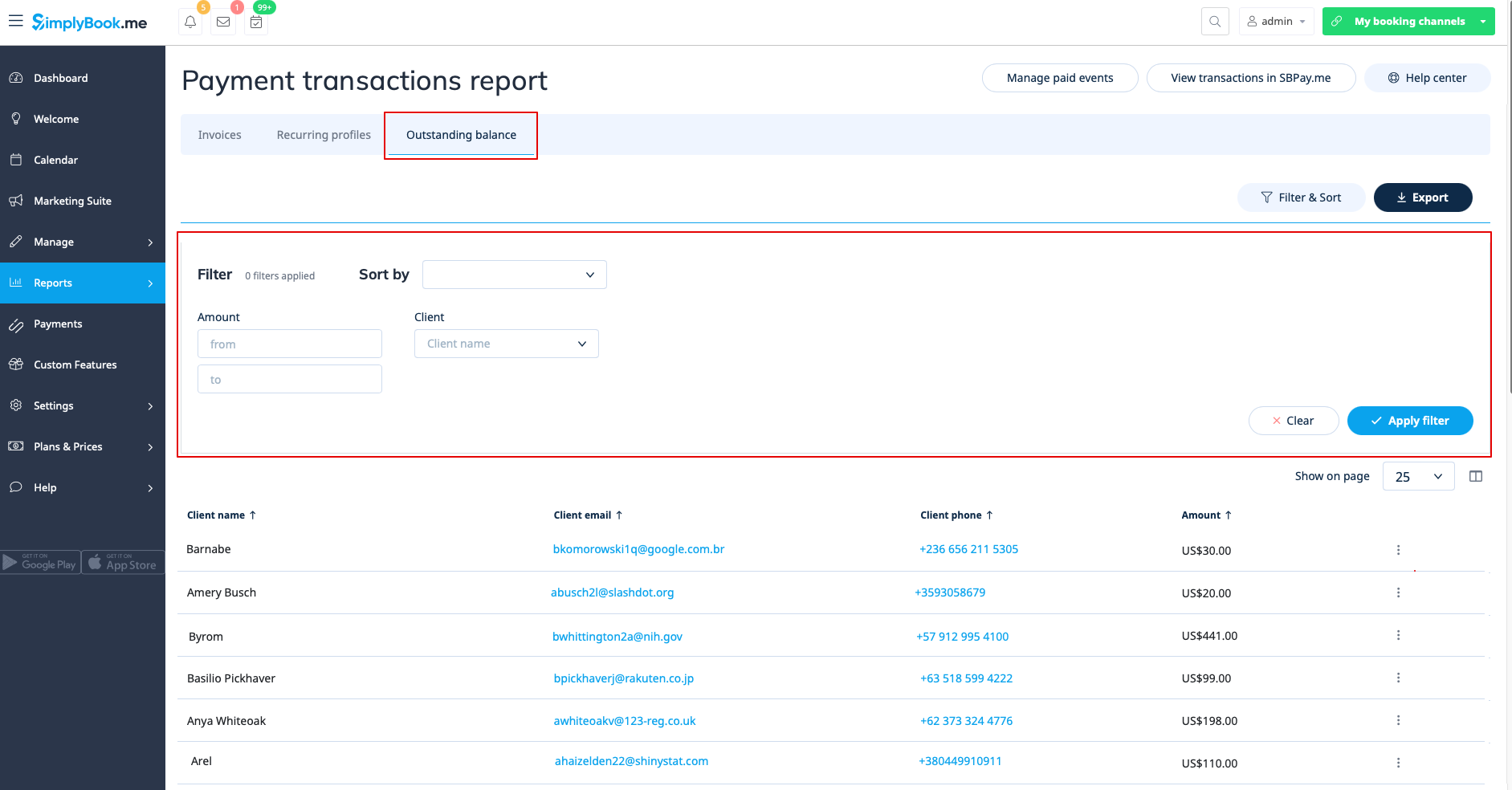
The third, Outstanding balance, tab allows to:
- see outstanding balance per client;
- filter outstanding balance by amount and/or client;
- export outstanding balance data to Excel or .csv (using the filters if needed).
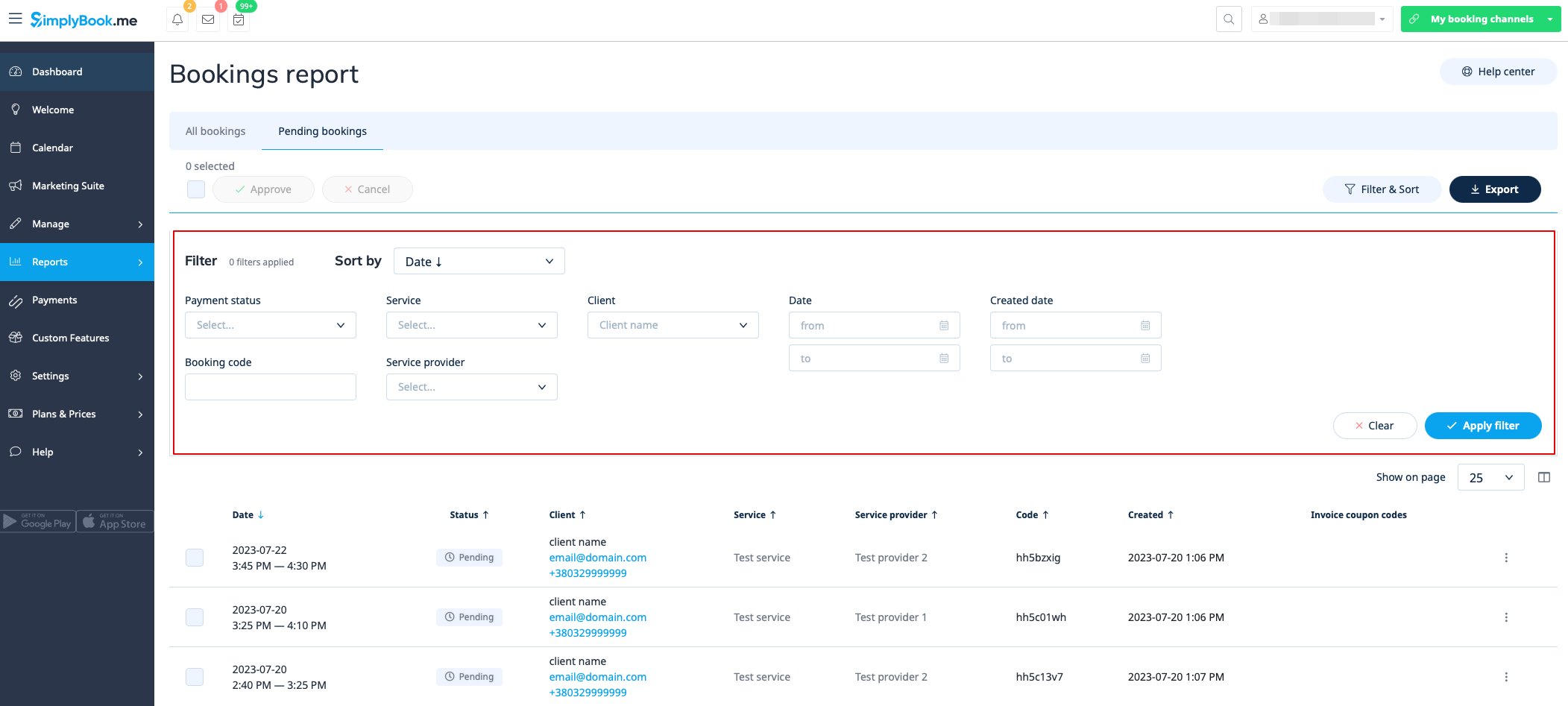
Pending bookings list
You can access it from calendar page if Approve bookings custom feature is on.
In this report you can:
- see/approve/decline pending bookings;
- filter them by:
- booking date;
- client name;
- provider name;
- service name;
- unique booking code.
- export data to Excel(using the filters if needed).
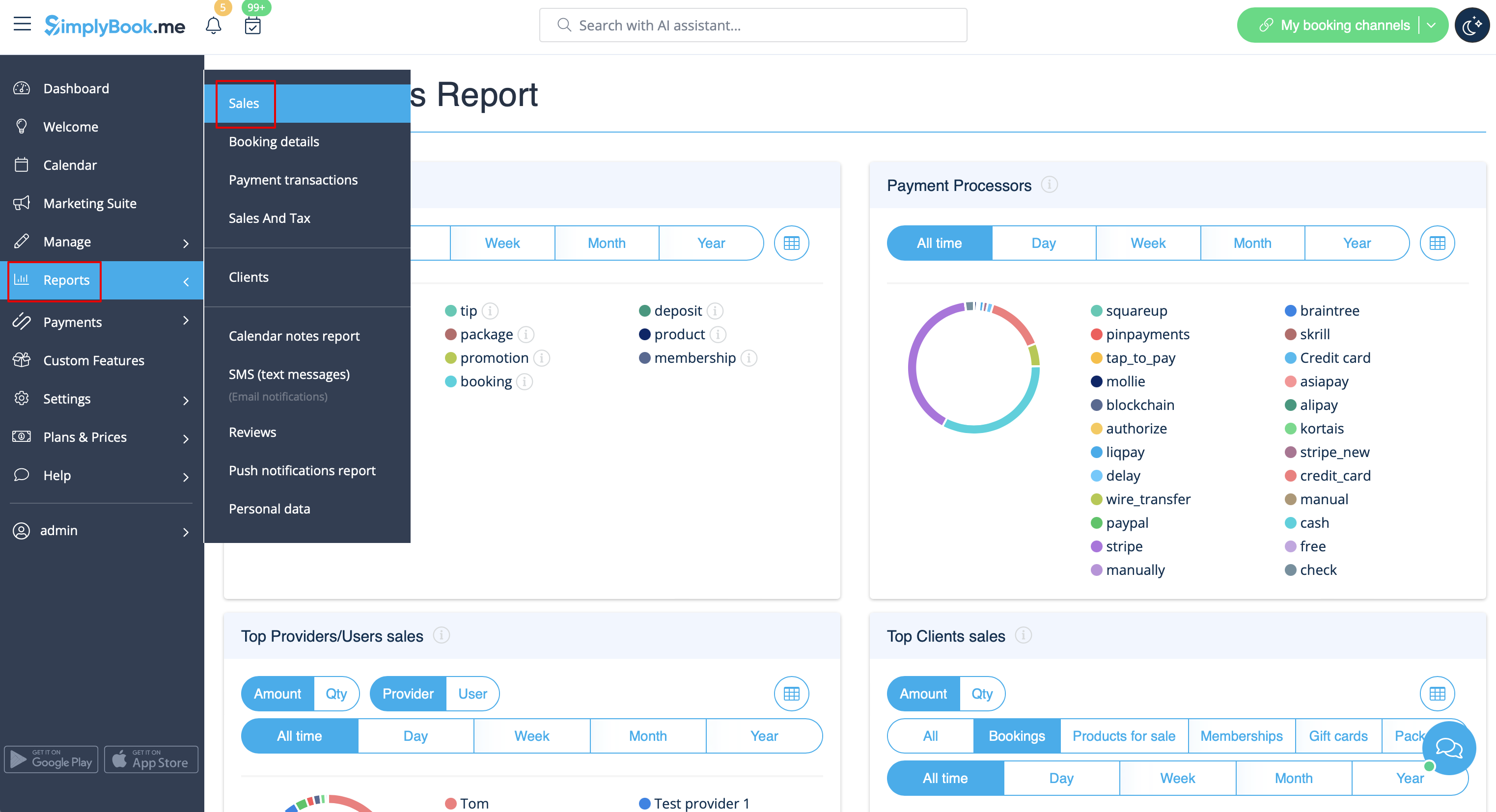
Sales report
Can be accessed in Reports//Sales report section. It can give you various charts, tables and diagrams on sales statistics.
This report can help you to analyze:
- popular income sources;
- payment processors mostly used by your clients(if you have several);
- top providers;
- clients who paid more;
- income amount.
You can filter the results by:
- time(day, week, month, year, all time);
- items(bookings, packages, service add-ons, products, memberships, gift cards);
- amount/quantity.
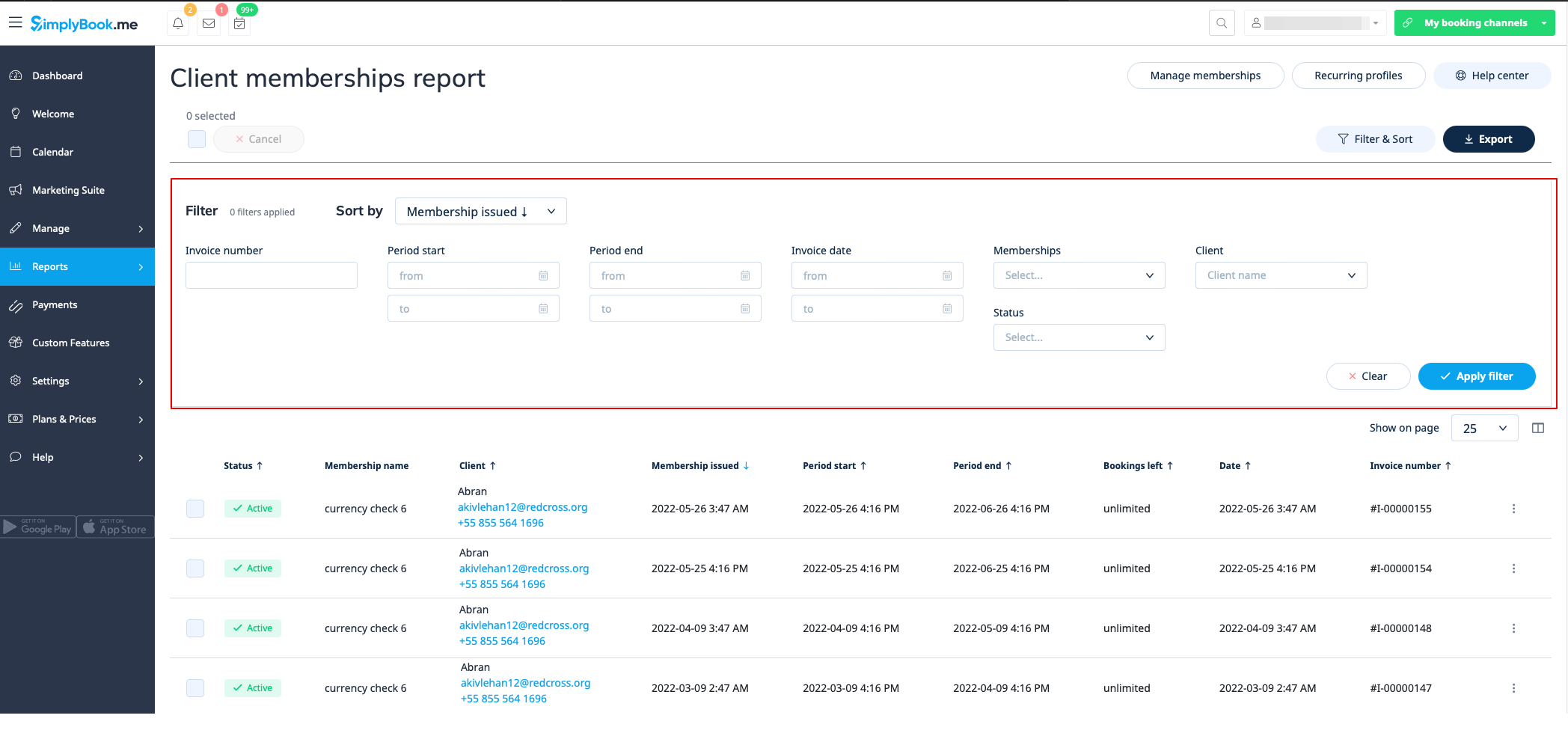
Membership payments
You can see it in Reports//Membership payments. Can be accessed if Membership custom feature is on.
This report can allow you to:
- see memberships purchased by your clients;
- cancel memberships;
- approve pending memberships;
- view invoices related;
- filter memberships by:
- start date range;
- end date range;
- invoice date range;
- invoice number;
- membership name;
- client name;
- status(active, cancelled, error).
- export data to Excel(using the filters if needed).
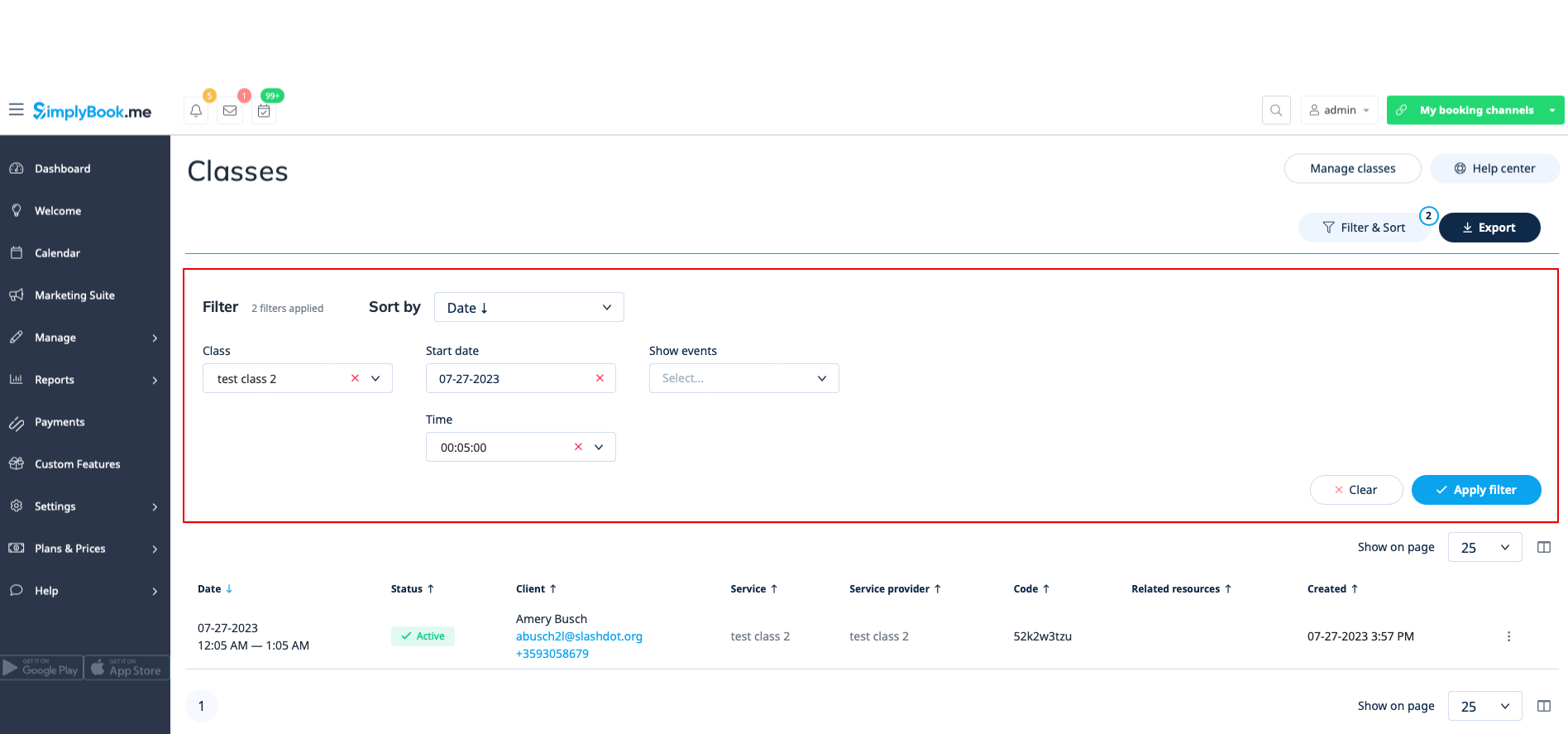
Classes report
Can be accessed in Reports//Classes report if you are using Classes custom feature.
This report can give you the information on every class participants.
Please filter the report by:
- class name;
- class date;
- class start time;
- canceled/non-cancelled bookings.
You will be able to see who has applied to take part in the particular class, their names, emails, phone numbers, as well as who has created bookings for them(the client himself or it was added by some system user) and if the client has booked your services/classes before.
Issued packages
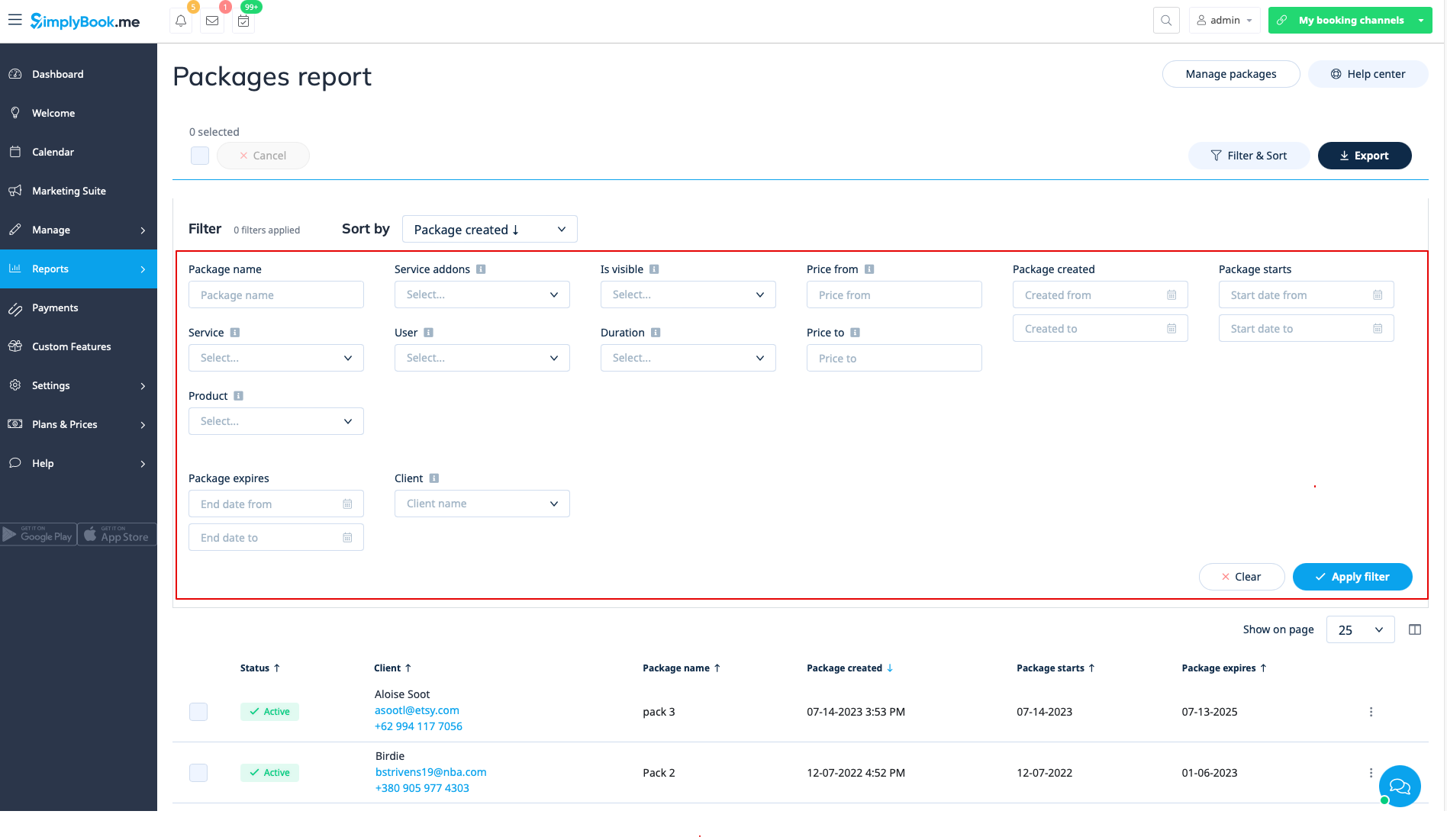
You can see it in Reports//Issued packages if you are using Packages custom feature.
In this report you can:
- see which packages were purchased/issued;
- packages statuses;
- filter the packages by:
- client name;
- user name who has issued the package;
- service/product/service add-on included in the package;
- package duration;
- price range;
- is the package visible on the booking site or not;
- status(Active, cancelled, error).
- export the data to Excel(using the filters if needed).
Issued coupons
Can be accessed if you are using Coupons & Gift cards custom feature.
In this report you can:
- see which coupons were issued;
- see coupons statuses(Valid or not valid, used, outdated);
- filter the coupons by:
- client name;
- user who has issued the coupon;
- discount type;
- coupon visible on the booking site or not ;
- service the coupon is related to.
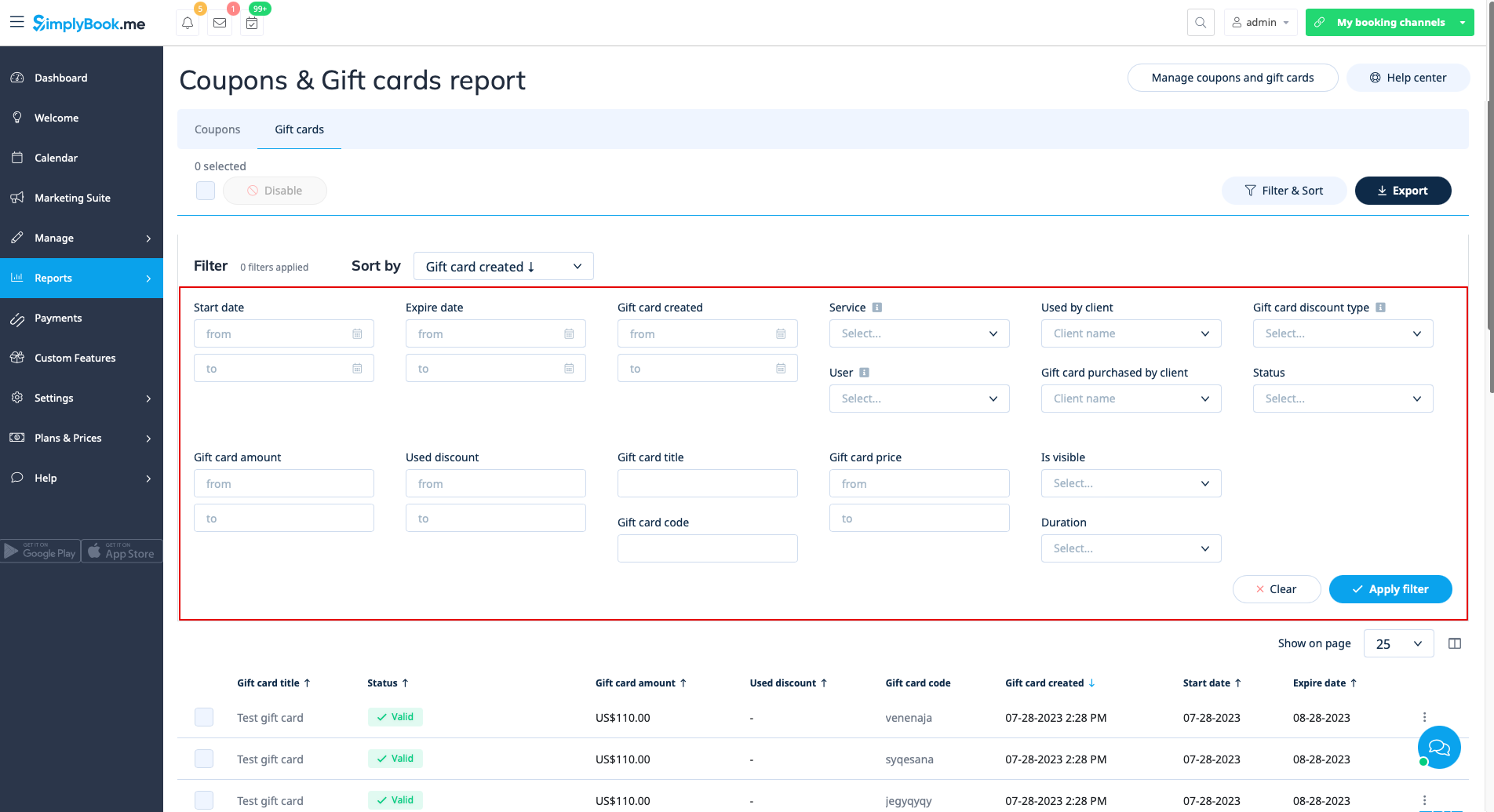
- see gift cards issued;
- filter the results by:
- client name who used the card;
- client name who purchased the card;
- gift card discount type;
- user who issued the card;
- service the gift card is related to;
- price range;
- gift card duration;
- gift card visible on the booking site or not;
- gift card status(valid, outdated, used).
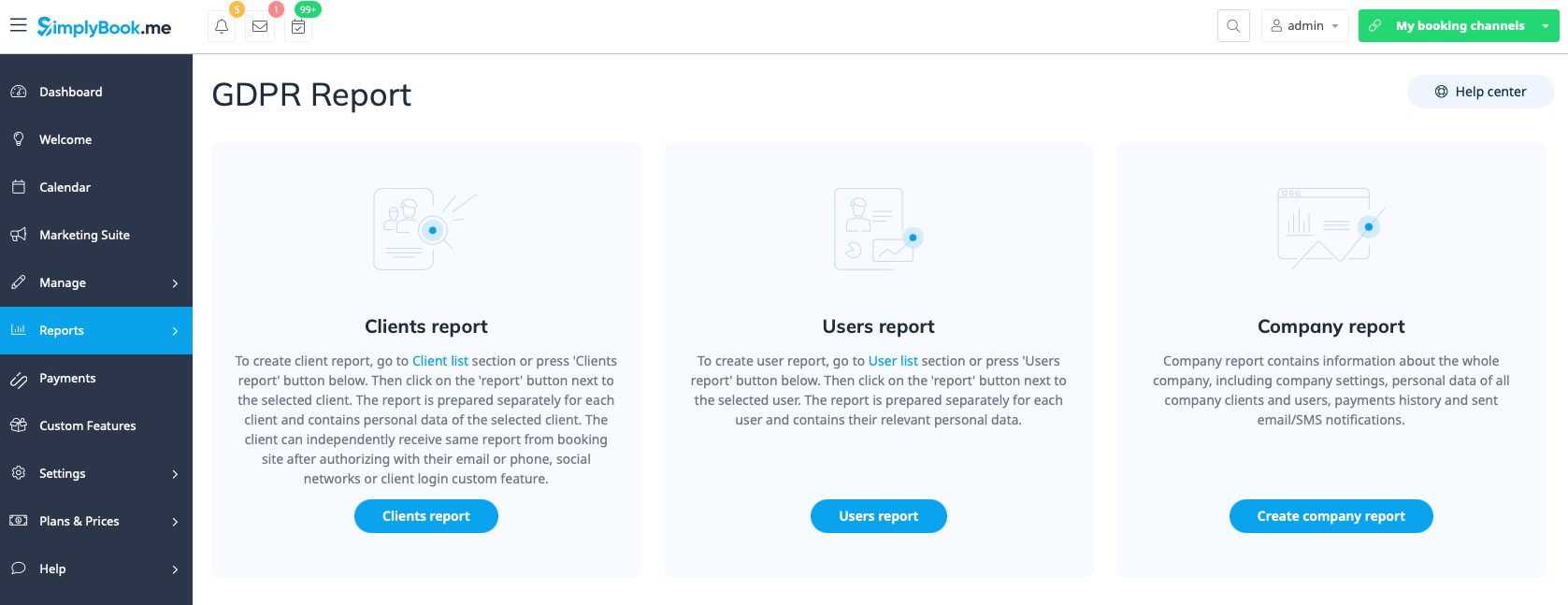
Personal data reports
Can be accessed in Reports//Personal data reports after you retype your password.
It is divided in three sections:
- Client report;
- Users report;
- Company report.
Each section can give you all the details about the data that is stored in the system on the corresponding entity.
For example, you can create a report on some customer or an employee who has requested the information and then provide these details to him/her.