Aangepaste functie voor campagnes
De aangepaste functie "Campagne" is een geavanceerde tool die is ontworpen voor het implementeren van massamarketingstrategieën en klantbetrokkenheid via diverse communicatiekanalen. Hiermee kunnen bedrijven advertentiecampagnes maken en optimaliseren, en berichten op een klantvriendelijke manier overbrengen. Tijdens het maken van een campagne kunnen gebruikers kiezen uit verschillende berichttypen, zoals sms, e-mails en pushmeldingen. U kunt handmatig klanten selecteren, alle klanten in één keer selecteren of campagneberichten naar klanten met specifieke tags verzenden met behulp van de functie Tags. Dankzij deze flexibiliteit kunt u communicatiestrategieën afstemmen op de specifieke behoeften en voorkeuren van uw doelgroep.

Met deze functie kunt u:
- Exclusieve aanbiedingen via e-mail naar geselecteerde klanten sturen;
- Promoties met klanten delen via sms;
- Klanten op de hoogte houden van belangrijke updates via pushmeldingen;
- De tags-functie gebruiken voor meer gerichte communicatie.
Video tutorial 
Please note
- This feature is exclusively available with paid subscriptions only.
- The Client login custom feature will be automatically enabled as well.
- You need to have SMS credits in order to be able to send SMS notifications.
- Clients need to be subscribed to receive promotional messages to be able to receive campaign messages
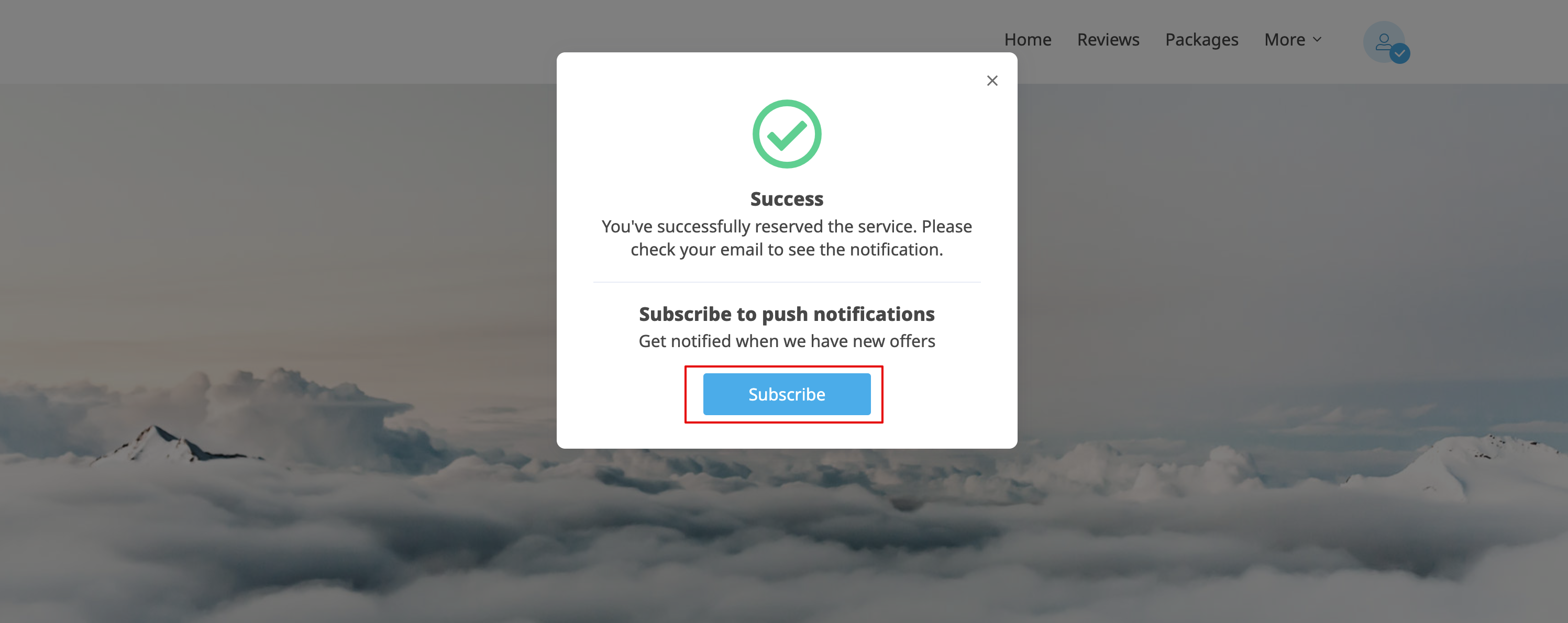
- Your clients need to allow push notifications in their browser and be subscribed to receiving them on the booking page to be able to receive Campaign push notifications
- Clients can subscribe to push notifications after the booking has been made
How to Set Up and Use:
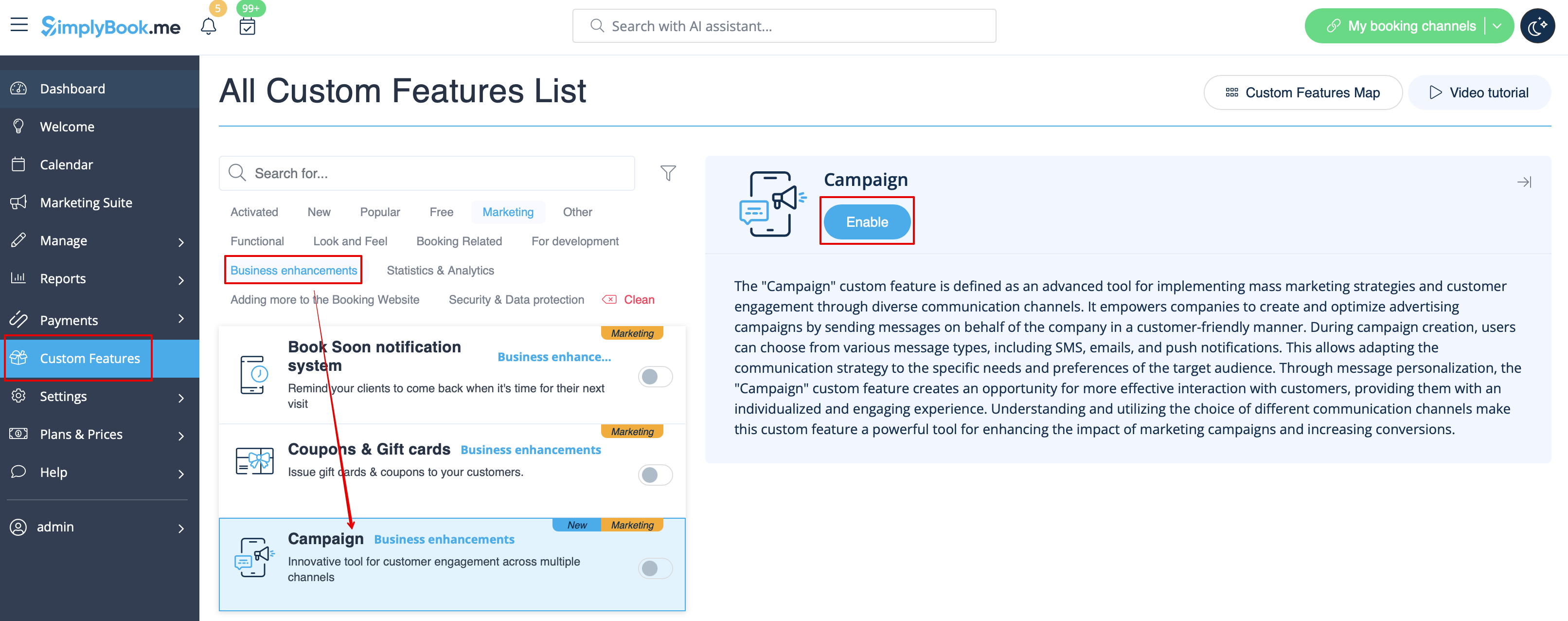
1. Navigate to the Custom Features page -> "Business enhancements" section and click on the "Enable" button next to Campaigns.
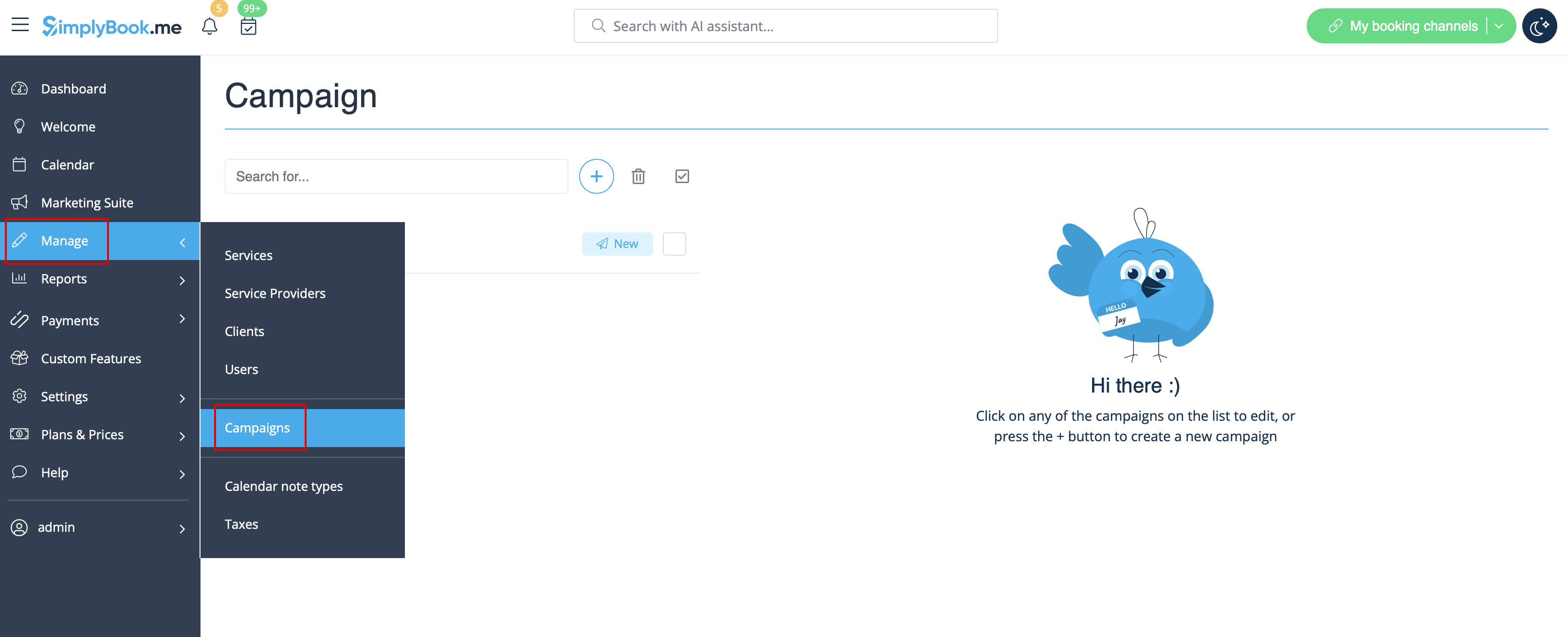
2. Once enabled, go to Manage // Campaigns to create your first campaign by clicking on the + icon. Create a new campaign template based on your needs.
Setting up a Campaign:
1. Click on "Create new campaign", fill in the Campaign name, select the delivery method, and fill in the template for the chosen delivery method.
You can choose SMS, Email and/or Push notification type.
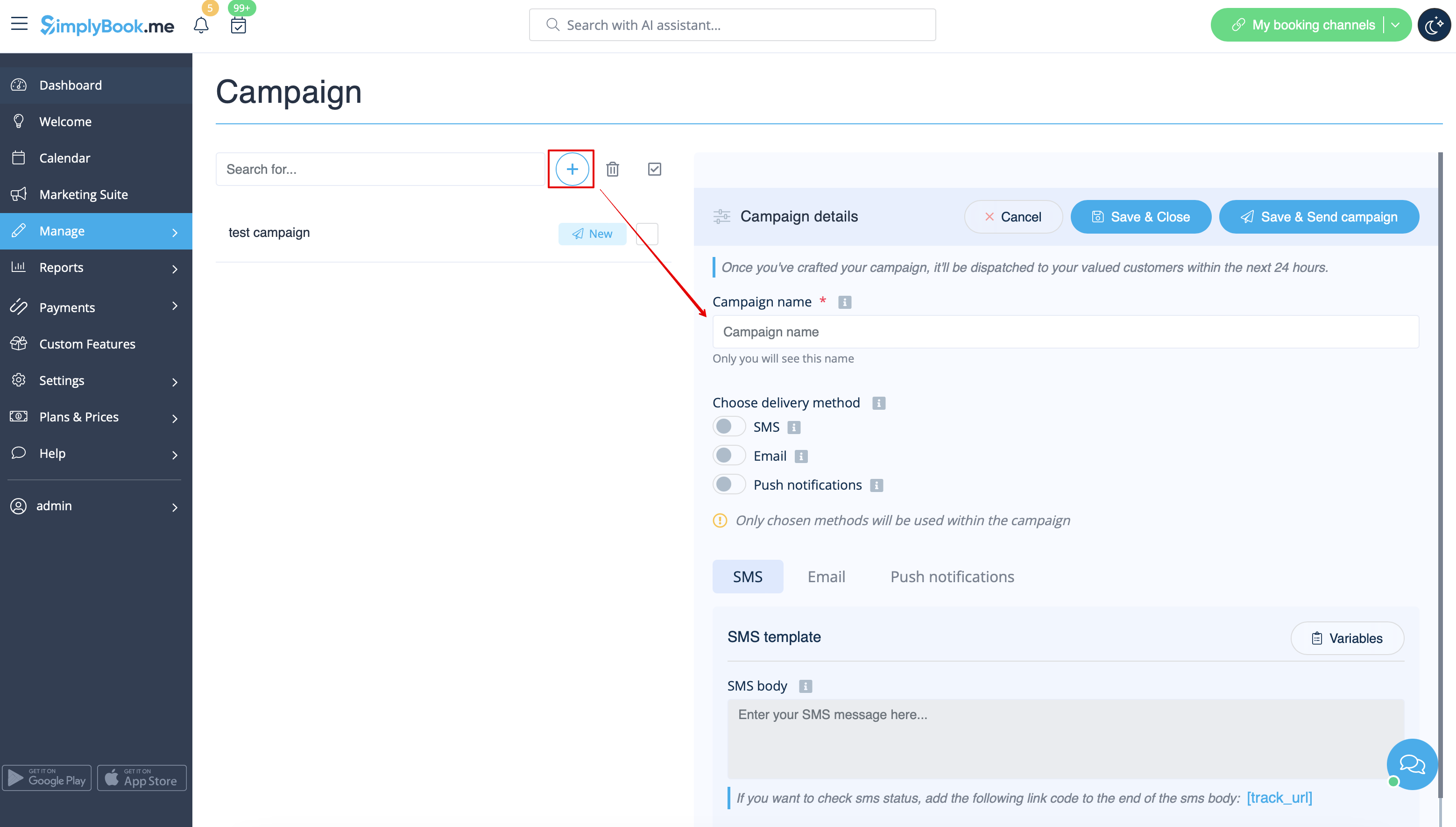
If you want to check SMS delivery status, you can add the following variable to the SMS body: [track_url] If the client opens the link such SMS will be reflected as "Opened" in the campaign statistics.
Statuses for emails and push notifications are tracked automatically.
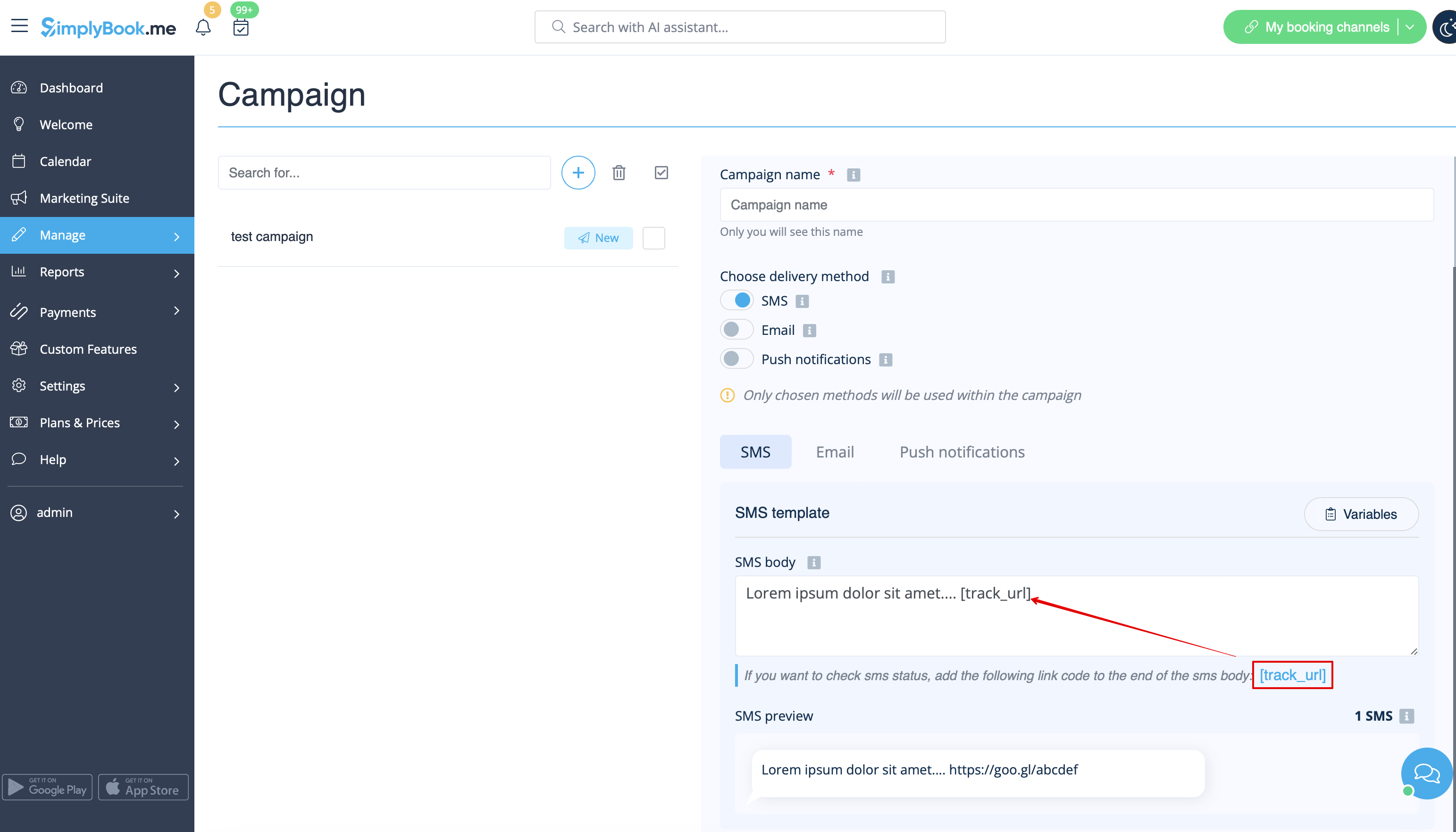
2. After clicking the “Save & Close” button, this campaign appears on the left in the list with the status “New”.
Selecting Recipients and Launching Your Campaign:
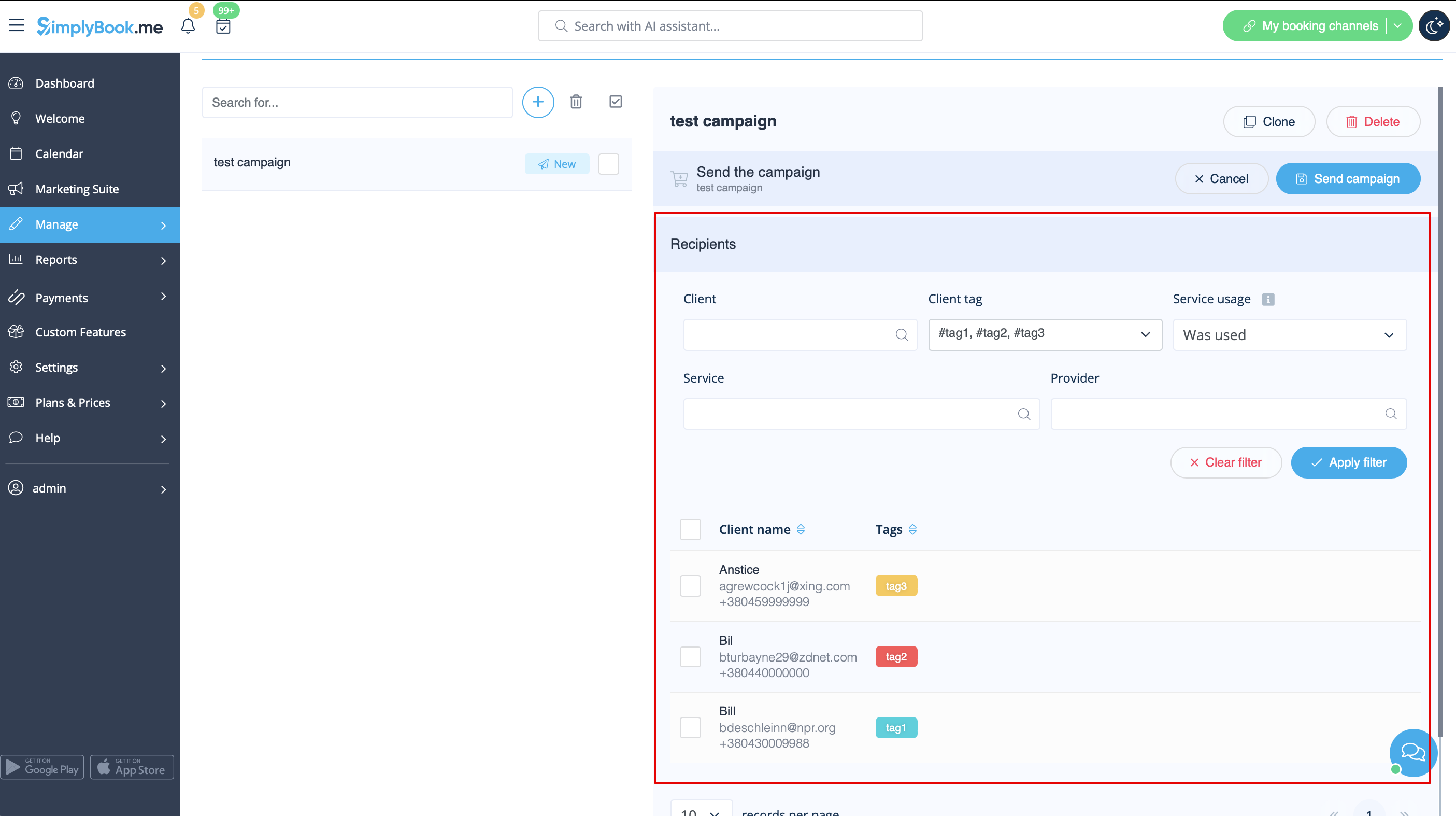
1. After all preparation is done, click on the " Save & send campaign" button to select the list of clients and send your campaign.
2. You can manually select clients one by one, use filters, choose all clients at once, or send the campaign message to clients under specific tags if you're using the Tags feature.
Post-launch Insights:
After the campaign is launched, you can not edit it anymore (only name can be changed and/or the content of push message page(the one the client sees after clicking on push notification).
If you need to send the similar campaign to your clients please use the “clone” option.
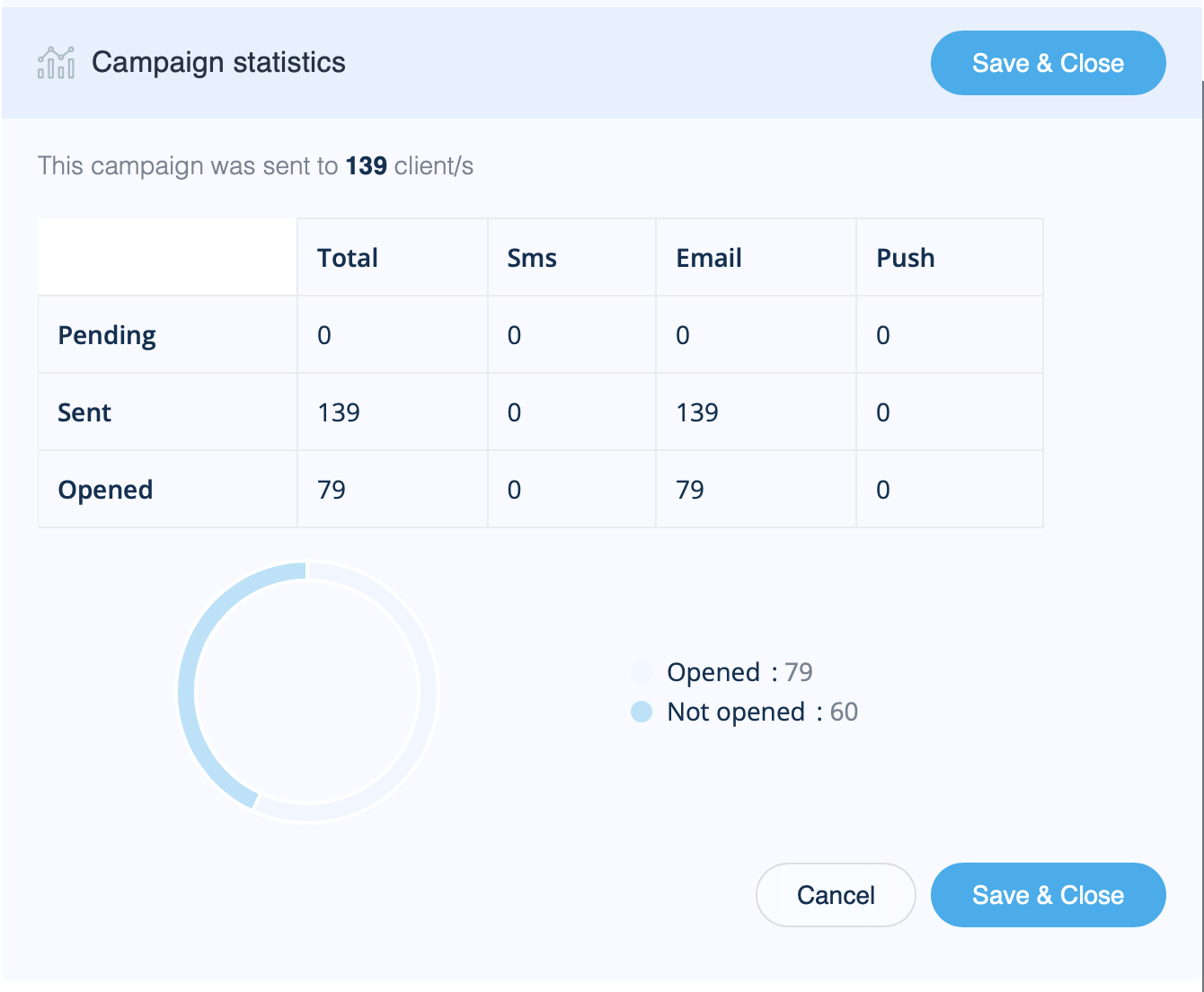
You can view Campaign statistics on the bottom right of the campaign details. It displays the numbers of sent/not sent SMS, email, and push notifications, as well as how many of them were opened by your clients.
Campaign Statuses:
There are different statuses you can receive after launching your campaign:
New - Campaign created, recipients specified, but campaign not launched
Completed - Campaign launched and ready for viewing statistics
In progress - Campaign is in process. Please await, it should be sent shortly
On review - Campaign launched and is currently on review by a system spam check
Declined - Campaign launched but had been declined after system spam check