Aangepaste functie van Google Business
png
Vergroot eenvoudig de zichtbaarheid van uw bedrijf op internet via de functie Google Mijn Bedrijf. Het kost niets, maar vergroot de zichtbaarheid in zoekresultaten en maakt uw bedrijf zichtbaar op Google Maps.

Gratis aangepaste functie!
Video-tutorial 
Google Business
- Gebruiksaanwijzing
- 1. Schakel deze aangepaste functie in op uw pagina Aangepaste functies.
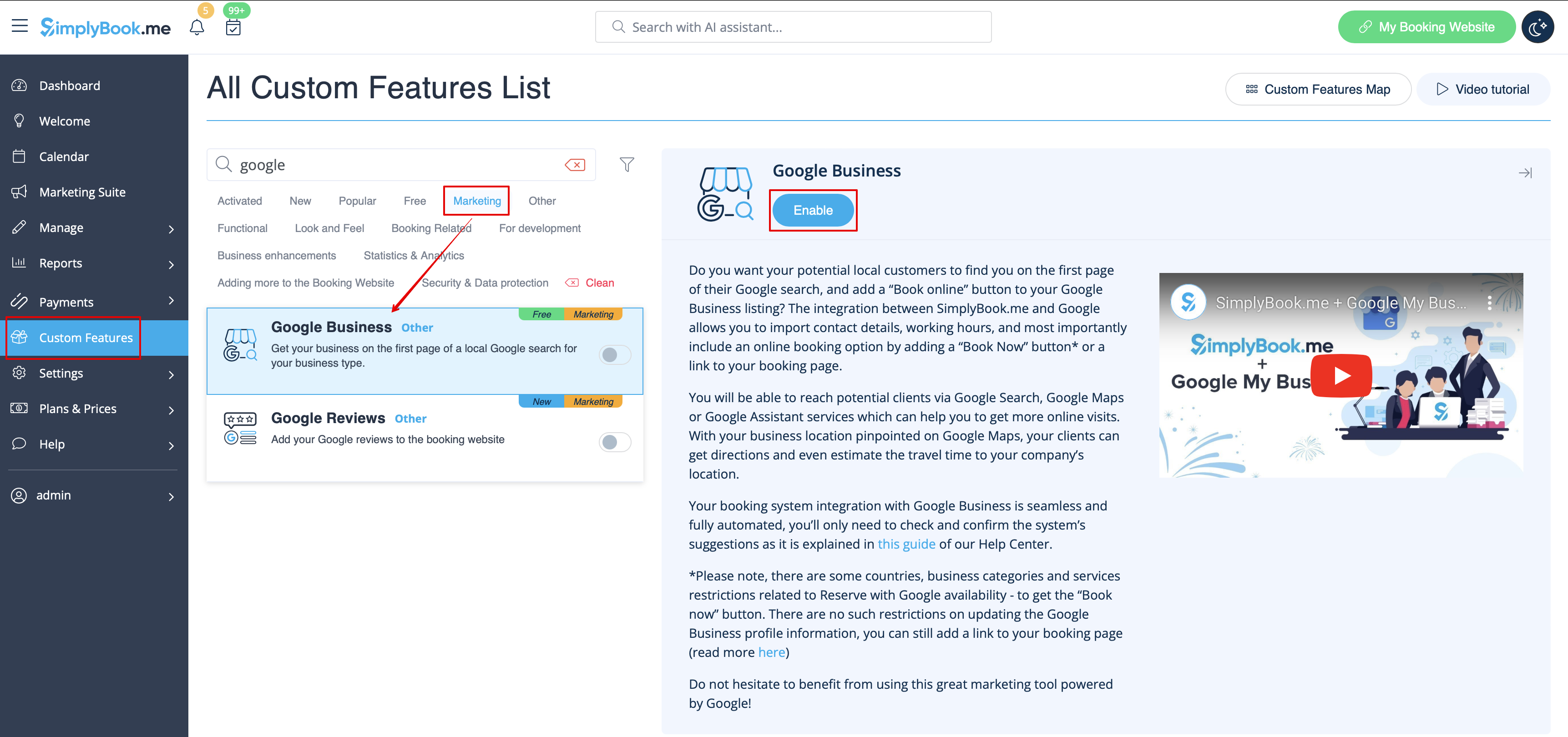
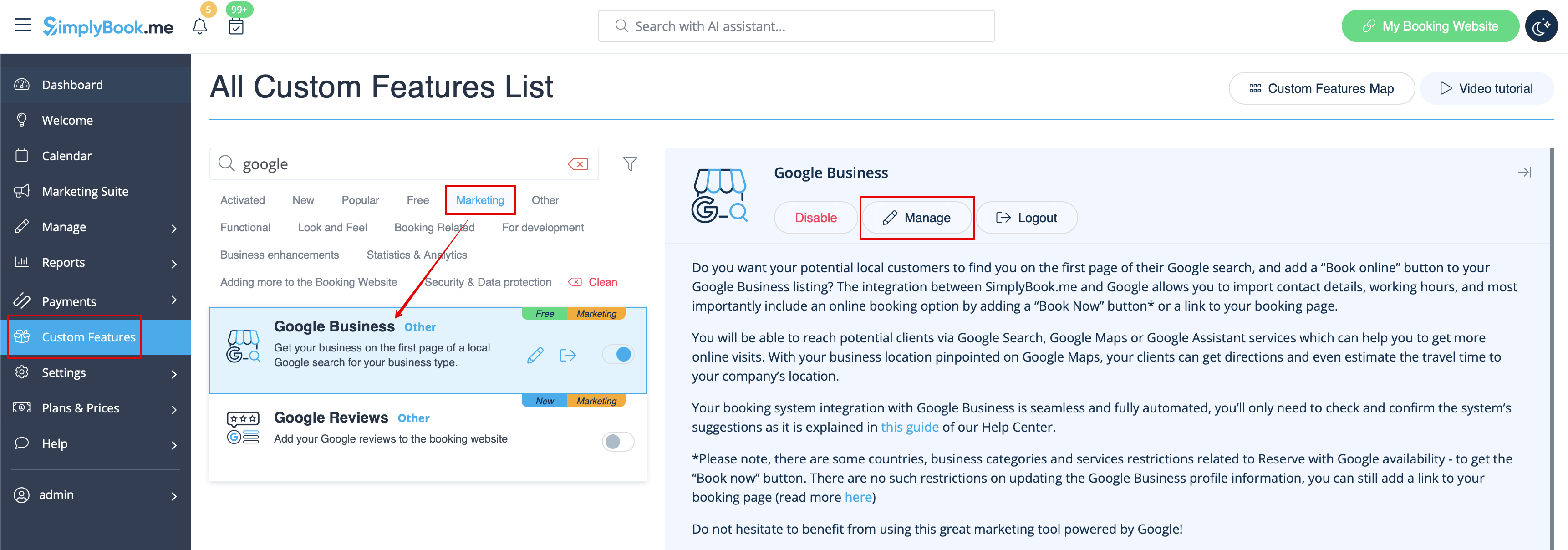
- 2. Ga naar Instellingen om een Google Business-account aan te maken als u er nog geen hebt, of koppel een bestaand Google Business-account.

- 3. Verleen de nodige machtigingen zodat uw locatie(s) in SimplyBook.me kunnen worden bekeken en bewerkt.
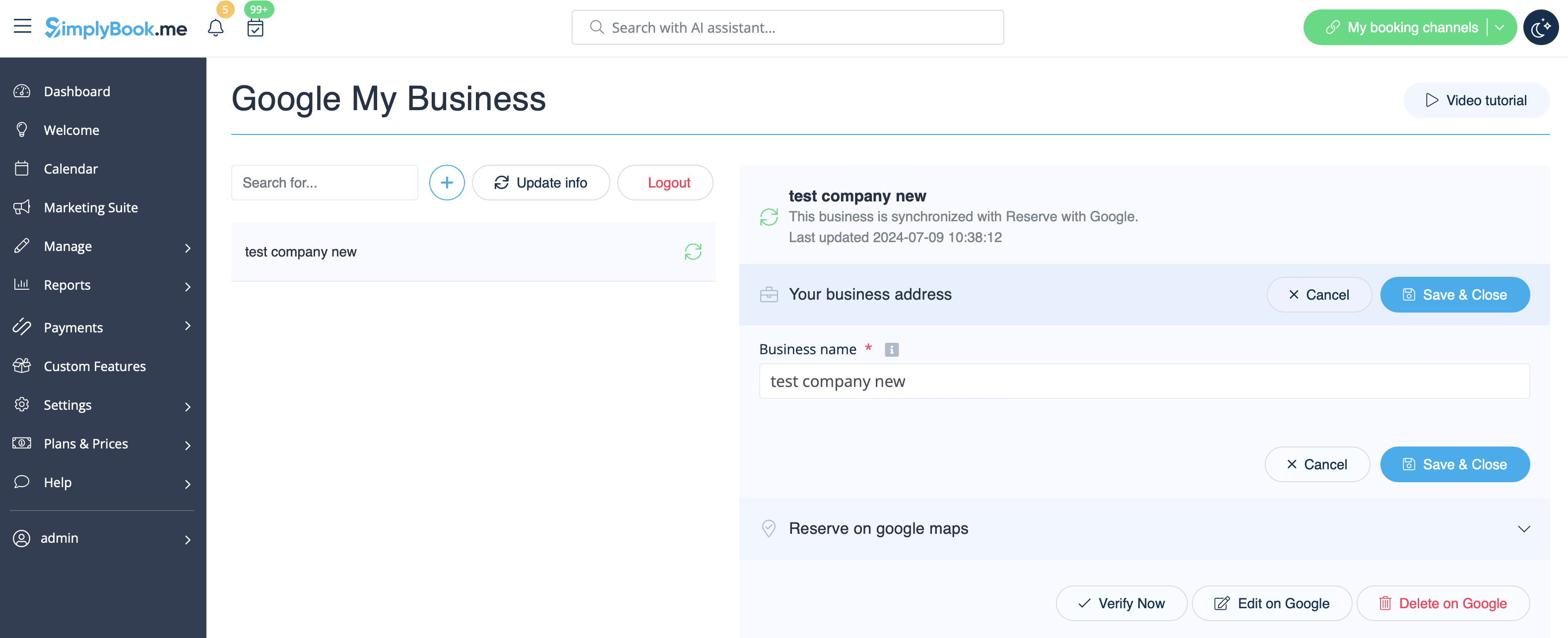
- 4. Als u al locaties in Google Business hebt, kunt u deze aan de linkerkant van de pagina zien.
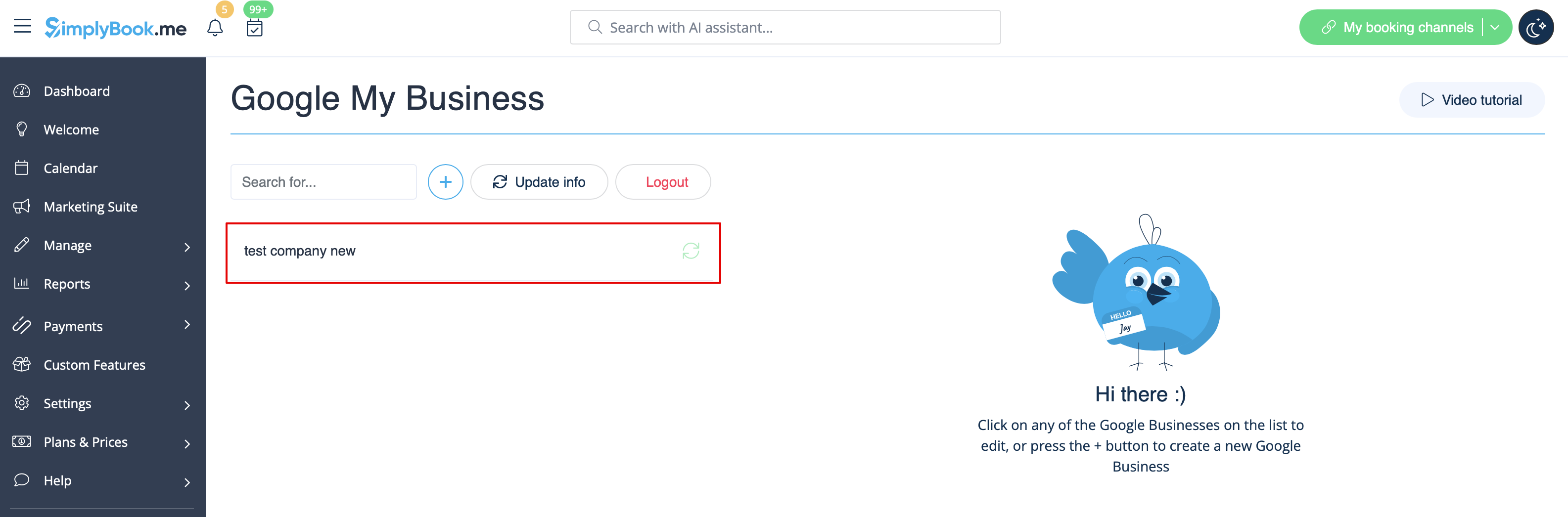
- 5. Klik op een van deze locaties als u wijzigingen wilt aanbrengen en schakel de optie Adres bijwerken in het profiel in, breng de nodige wijzigingen aan en sla de locatie opnieuw op, zodat de informatie op Google wordt bijgewerkt

- of kies de optie + om een nieuw bedrijfsadres toe te voegen.
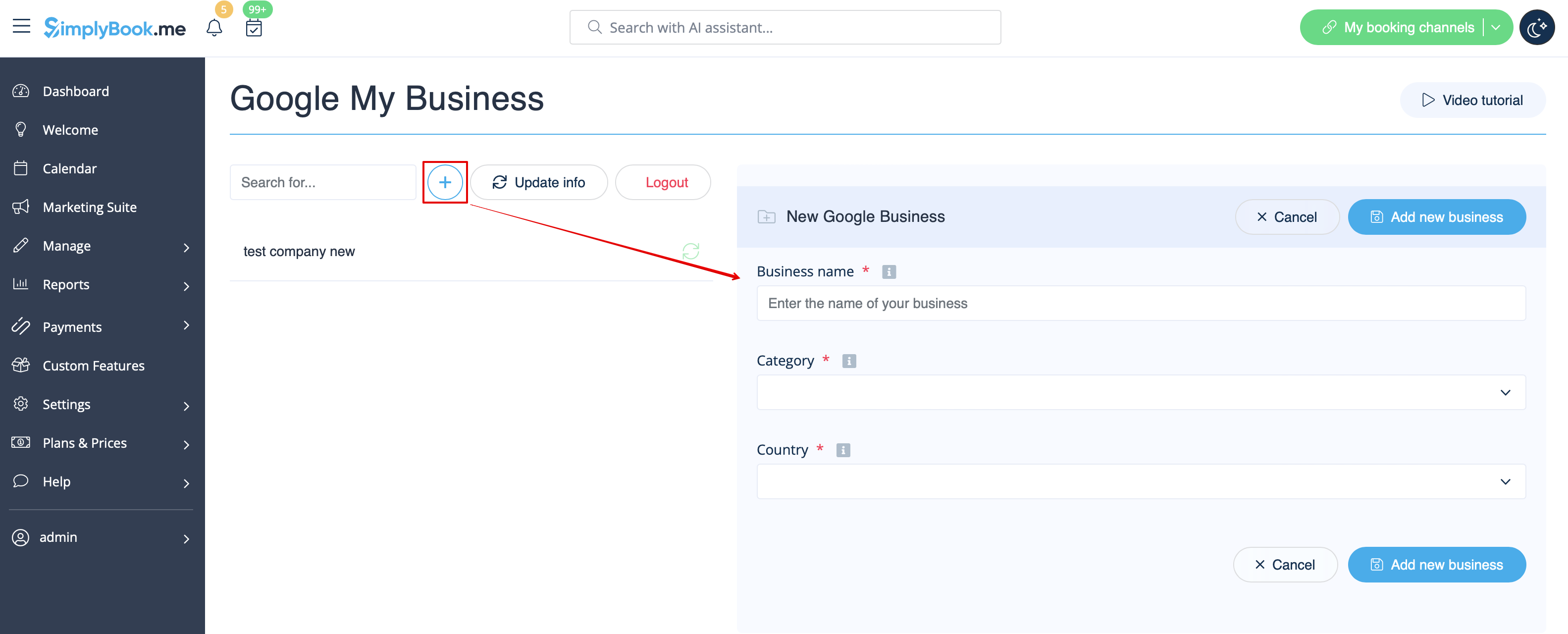
- 6. Nadat u het adres hebt toegevoegd, klikt u op Opslaan en sluiten. U kunt dan doorgaan met de verificatie van de bedrijfs locatie door Google (dit kan even duren).
- U kunt ook het pop-upvenster sluiten en later terugkeren naar de verificatiestap (er is een knop Nu verifiëren voor elke opgeslagen en gesynchroniseerde bedrijfsadres).
- Zodra uw locatie door Google is geverifieerd (u ziet de stappen van het verificatieproces terwijl u de instructies van Google volgt), verschijnt uw bedrijf in de zoekresultaten en op Google Maps.
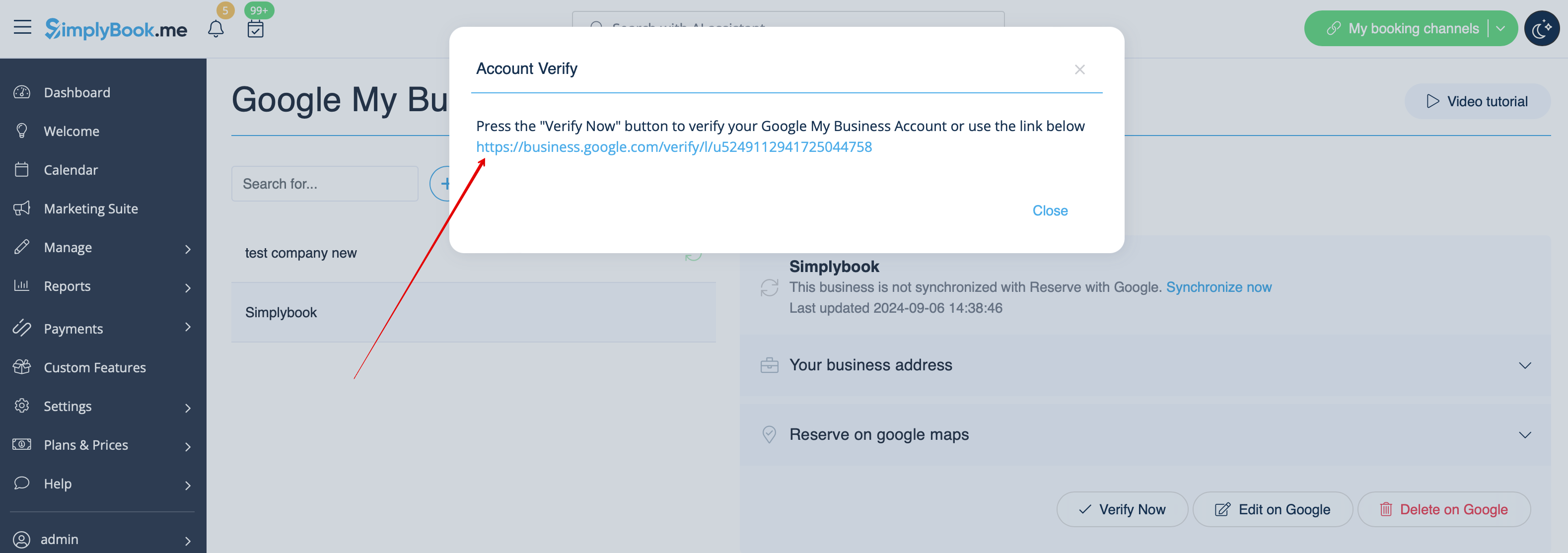
- 7. Wanneer u de locatie opslaat, wordt de volgende informatie over uw bedrijf doorgegeven aan Google:
- naam van de bedrijfslocatie;
- openingstijden van het bedrijf;
- telefoonnummer van het bedrijf;
- link naar de boekingssite;
- bedrijfscategorie (aangezien de categorieën van Google verschillen, wordt de meest geschikte categorie gezocht).

- Let op: als u enkele van deze gegevens in uw SimplyBook.me-account hebt gewijzigd, moet u het bedrijfsadres opnieuw opslaan in de instellingen van Google Bedrijven om de gegevens bij te werken in Google.
- 8. U kunt uw bedrijfsadresgegevens indien nodig ook in Google bewerken. Klik gewoon op de knop Bewerken op GMB bovenaan (verschijnt voor opgeslagen en gesynchroniseerde locaties).
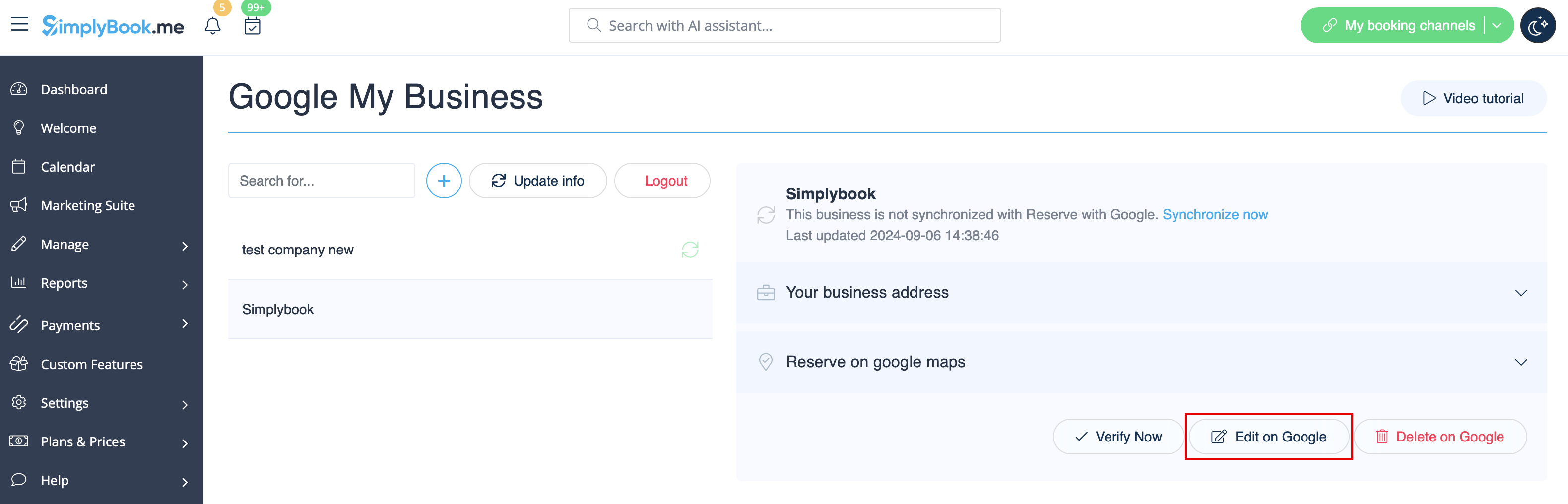
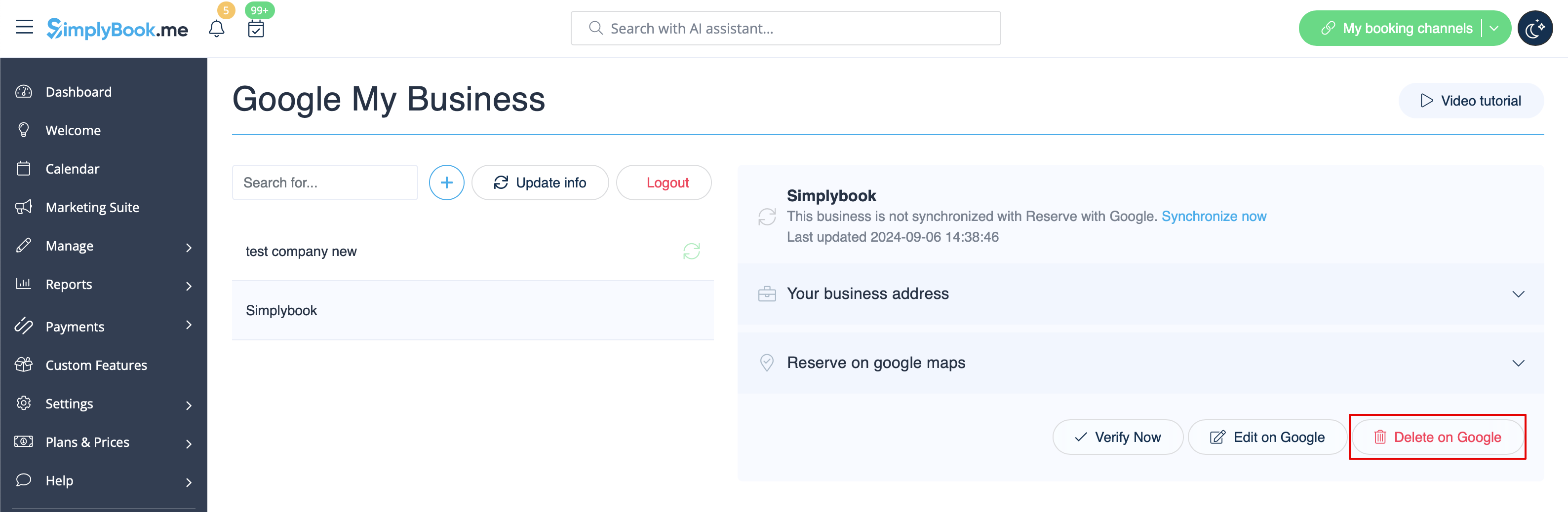
- 9. Als sommige locaties niet meer relevant zijn voor uw bedrijf, kunt u ze eenvoudig verwijderen in deze functie-instellingen. Klik gewoon op de optie Verwijderen op GMB.
Reserveren met Google
Add a Book online button to your Google Business listing. Allow your clients to find you easily on Google and book your services right there via Google Search, Google Maps or Google Assistant, powered by the SimplyBook.me booking system.
- Please note!:
- Reserve with Google is currently available only for supported countries listed here;
- Currently it is not possible to use this option for the following business categories: medical center, educational institution, government office, engineer, medical clinic, dentist, medical office, education center, event management company, city administration, embassy, general practice attorney, child care agency, university, college, school, library, financial institution.
- It is required to have Accept Payments custom feature enabled (Pay later (Allow delay payment) option should always be On) and prices should be added for all the services/classes you wish to be displayed and bookable through Google Maps;
- All the services/classes should have descriptions to be displayed on the Google side;
- If you are using Intake forms feature there should be no mandatory forms added to the services you wish to be available for booking;
- If a service is recurring or connected to Membership it will not be displayed in Reserve with Google;
- If you are using outdated Google Calendar Sync custom feature it will not be possible to use Reserve with Google.
- How to use
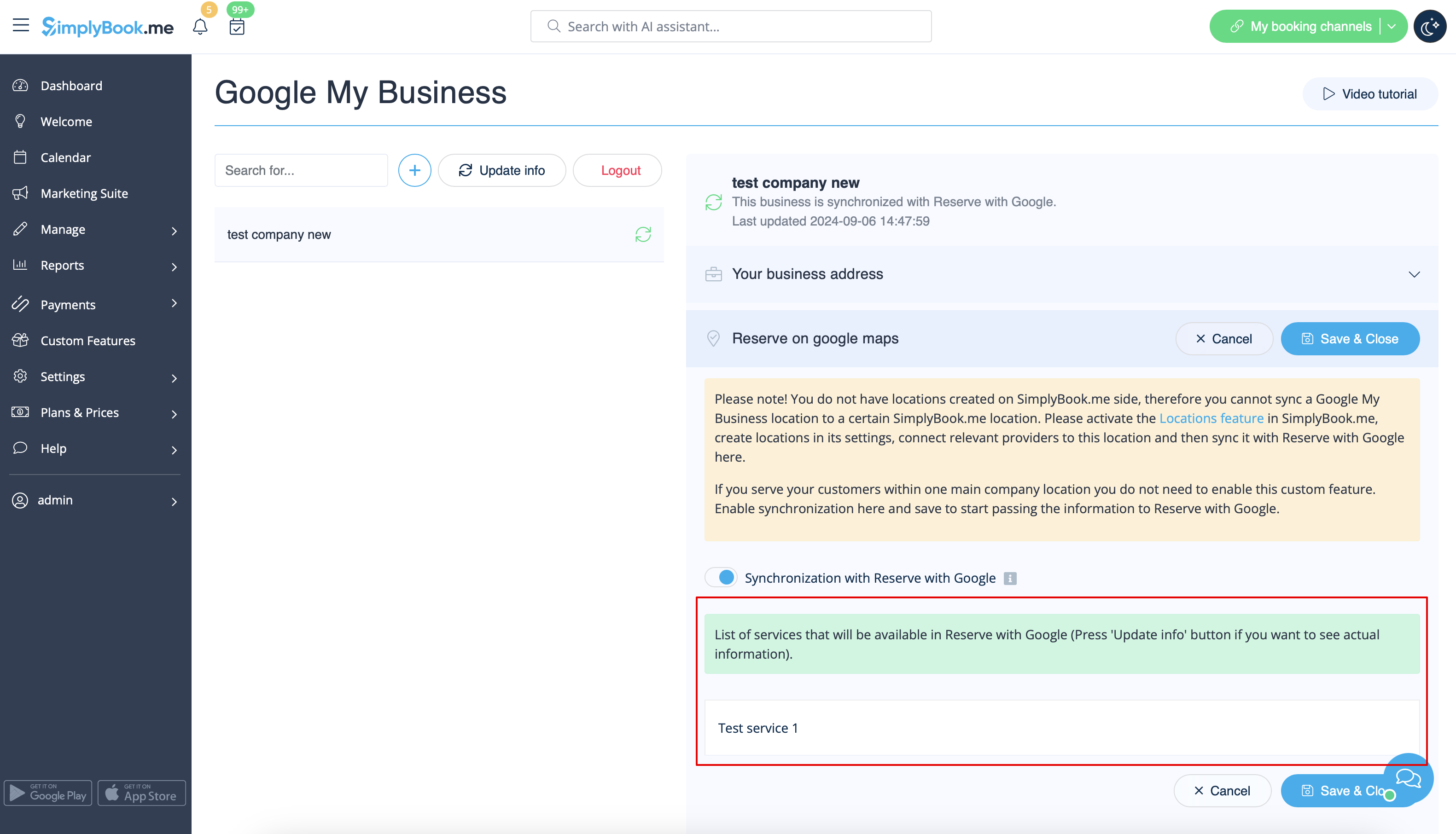
- 1. Add and verify your Google Business location(s) either via SimplyBook.me platform(previous part of this tutorial) or using your Google Business interface and re-save it(them) in Google Business custom feature settings.
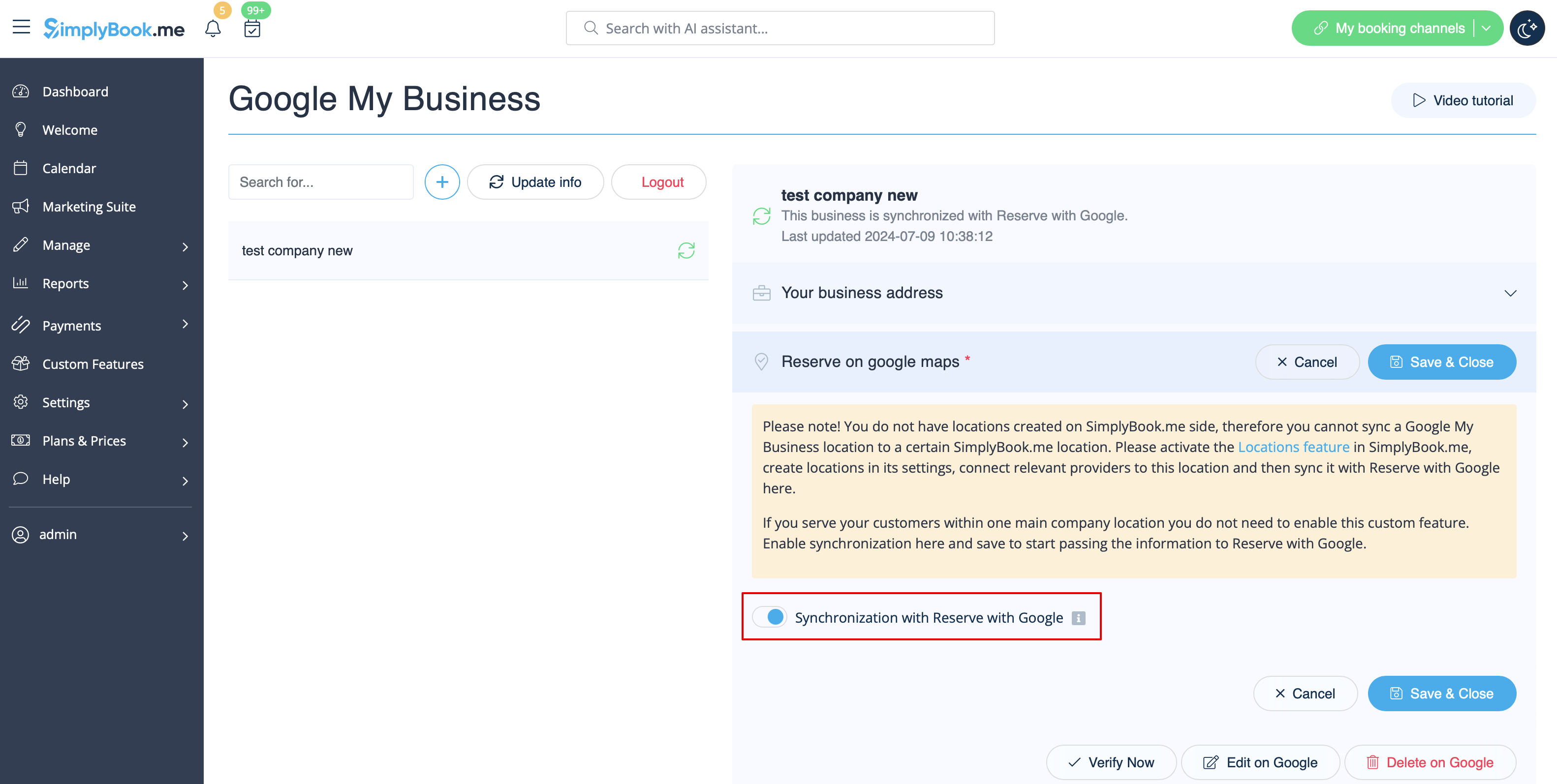
- 2. Navigate to Reserve on google maps tab and move the switcher Synchronization with Reserve with Google to an active position.
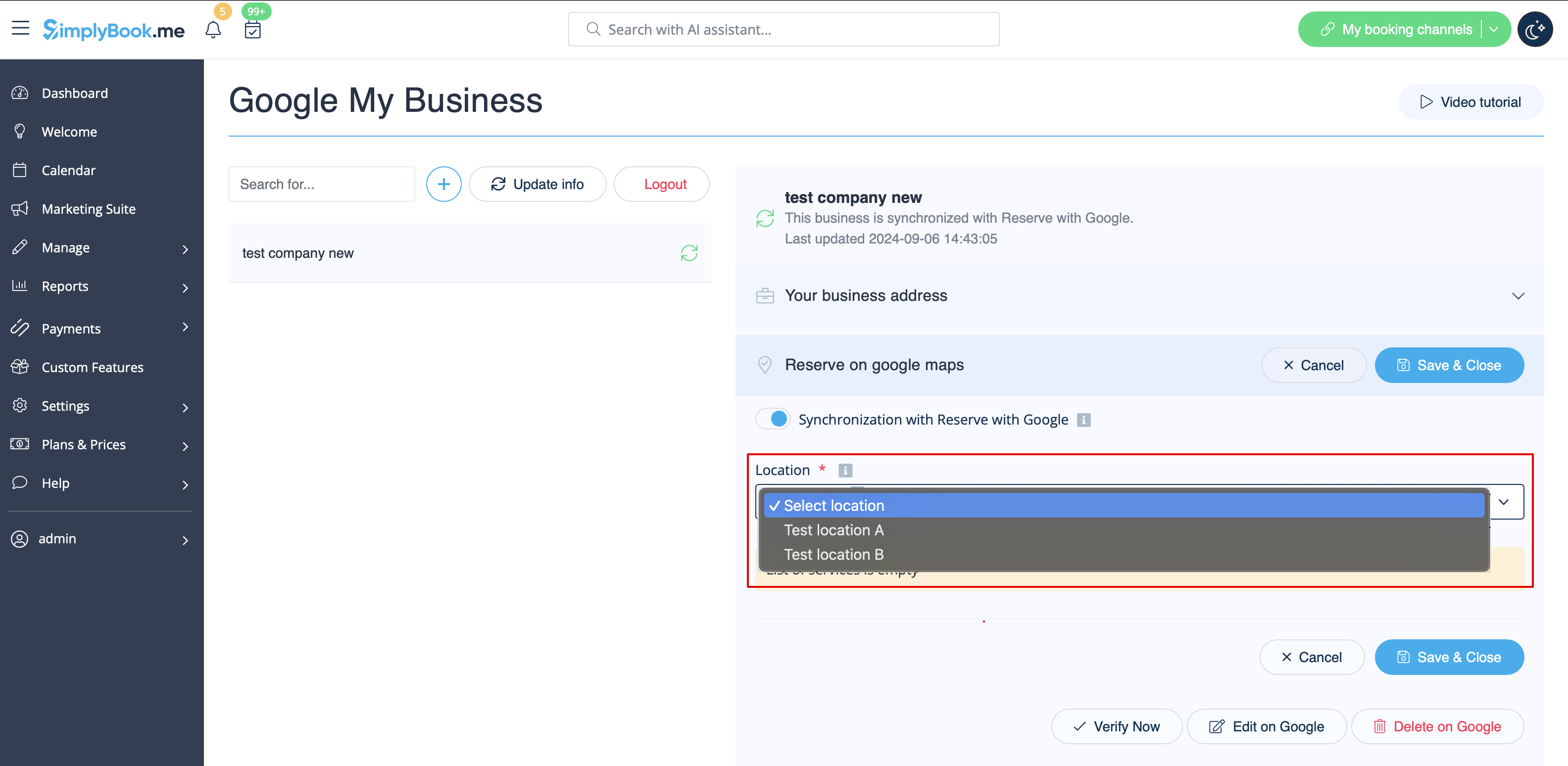
- 3. (optional) If you use Multiple Locations custom feature, connect your Google Businesses to desired SimplyBook.me locations.
- Please note! It is possible to connect one SimplyBook.me location to one Google Business.
- If you do not use Multiple Locations your main company location can be connected to one Google Business.
- 4. Save settings. Now the sync takes place and after you reload the page it will be possible to see the list of services that will be passed to Reserve with Google for booking.
- By default we gather all the information and pass the update to Google once a day, but you can use Update info button to prepare the information for transfer manually if any settings changes in your account(for example, if you have created new service) were made.