Tijd- en datum-instellingen
From SimplyBook.me
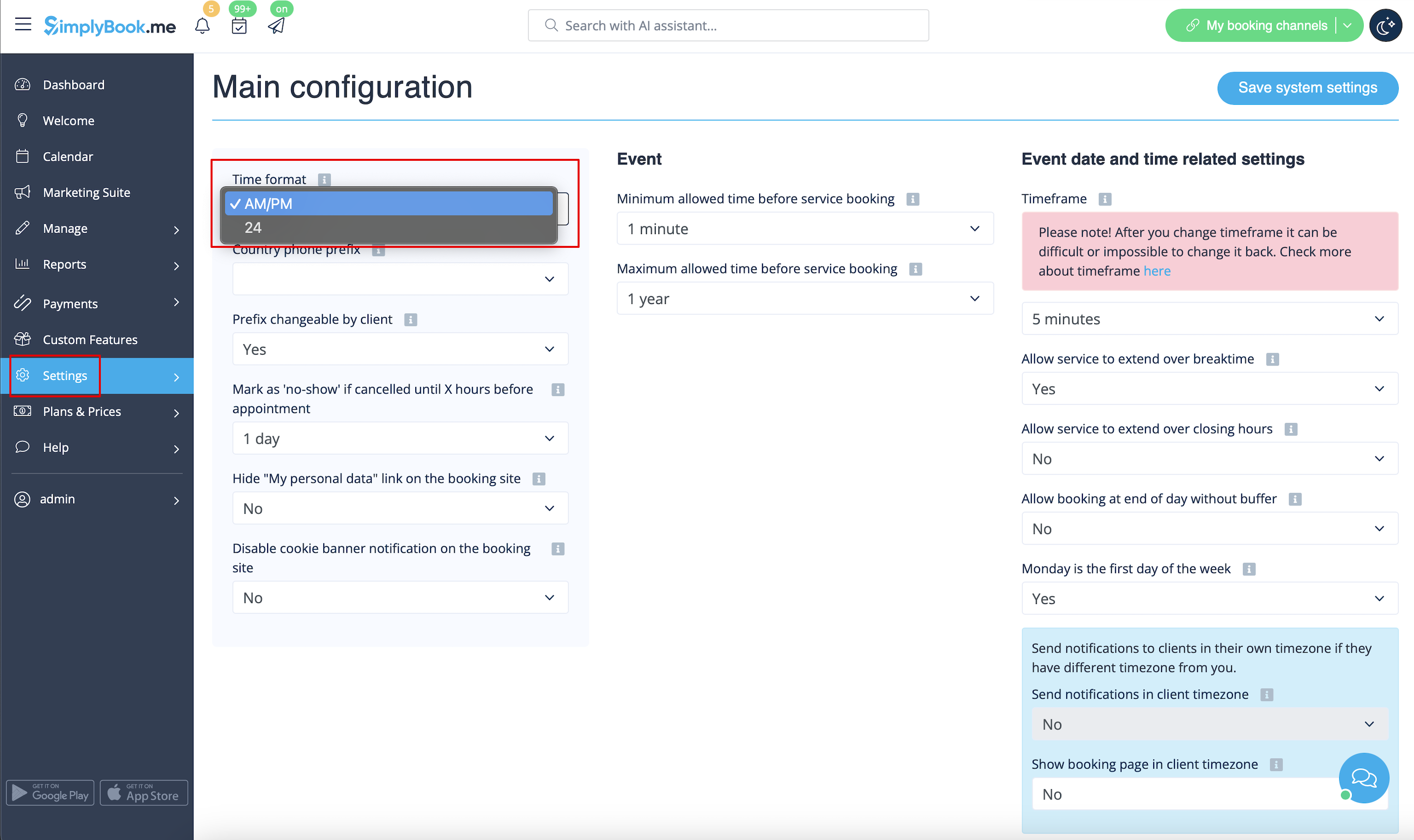
Wijzig de tijdnotatie AM/PM - 24
- Om dit aan te passen, ga naar Instellingen // Hoofdconfiguratie //

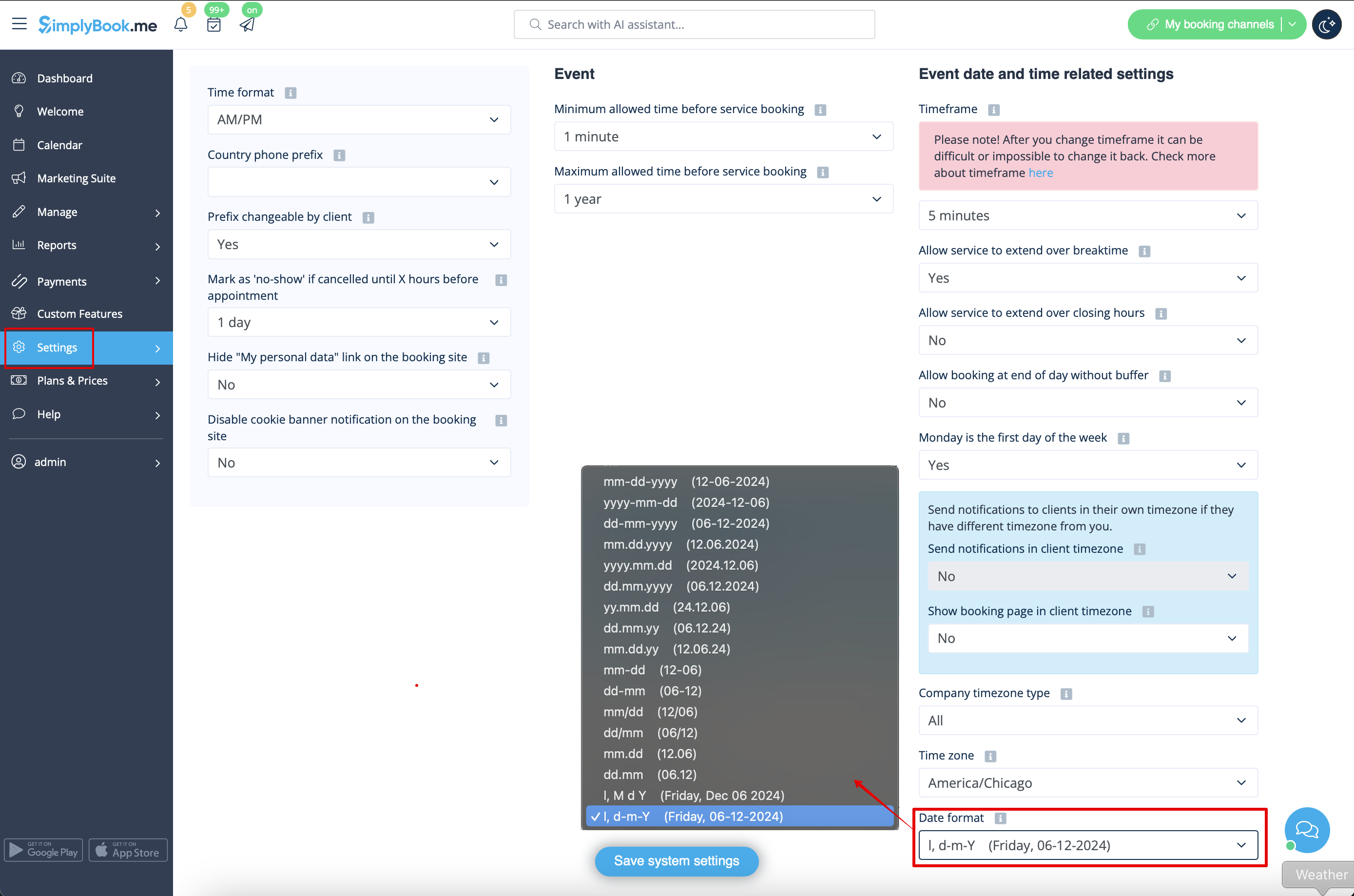
Datumnotatie wijzigen
- Om de gewenste indeling in te stellen, gaat u naar Instellingen // Hoofdconfiguratie // Datumnotatie.
Tijdzone wijzigen
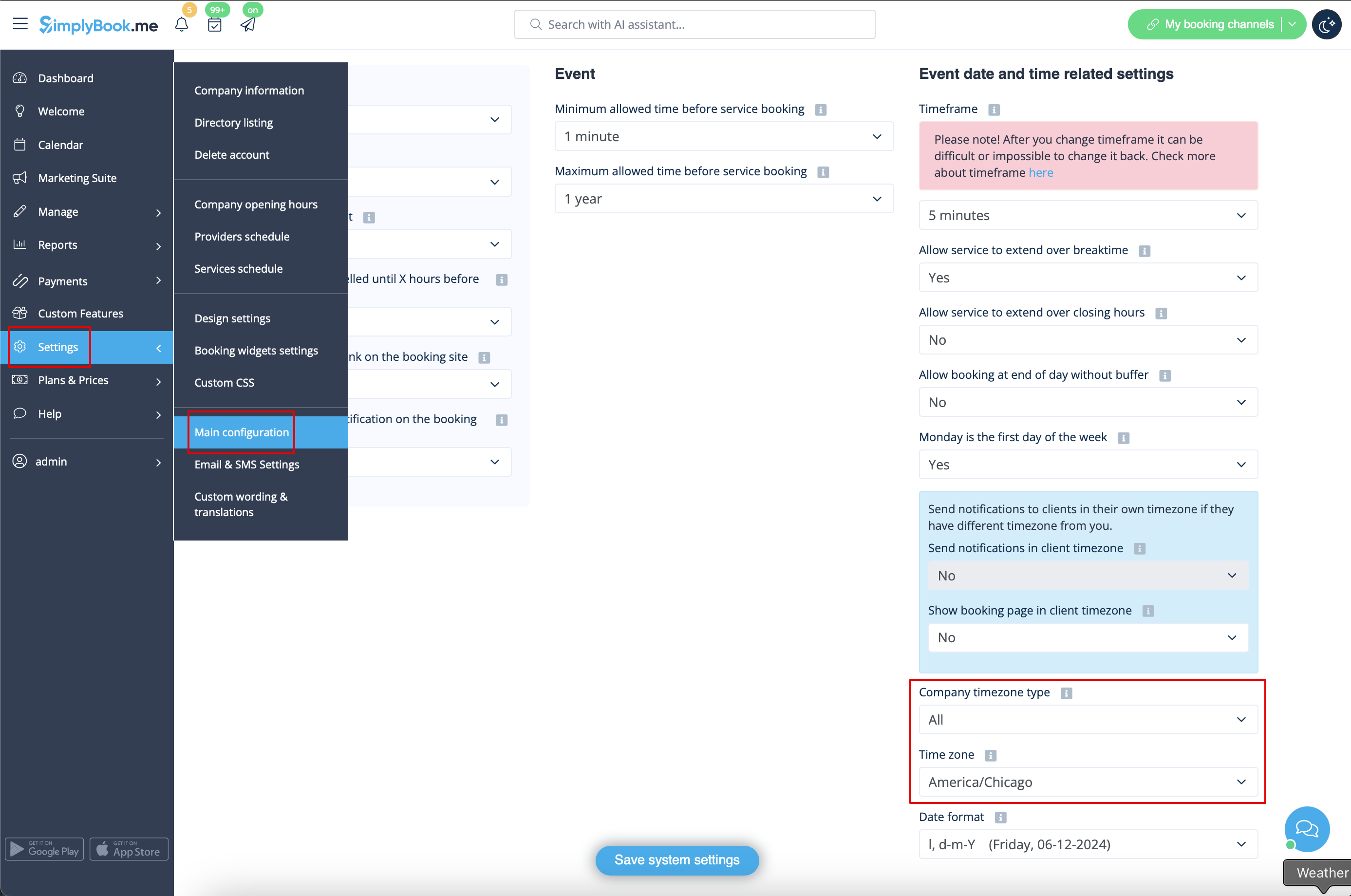
- De tijd op de boekingspagina is de tijd in de tijdzone van het bedrijf. U kunt uw tijdzone wijzigen in Instellingen // Hoofdconfiguratie // Tijdzone.
- Let op! De tijdzone van het bedrijf bepaalt de tijdzone van alle providers die binnen het account zijn aangemaakt. Het is niet mogelijk om voor elke provider een aparte tijdzone in te stellen.
Start kalender op zondag
- Ga hiervoor naar Instellingen // Hoofdconfiguratie // Maandag is de eerste dag van de week // Nee.

Minimum allowed time before service reservation
- If you need to restrict how far in advance your clients can book, you can set Minimum allowed time before service reservation in Settings // Main configuration. For example, if now is 2pm and you have minimum time before reservation set to 3 hours, the first available time for clients will be only after 5pm. This setting can help you to better prepare for your service and avoid clients booking at the last minute before the service.

Maximum allowed time before service reservation
- If you need to restrict how far ahead your clients can book, you can set Maximum allowed time before service reservation in Settings // Main configuration. For example, if now is Monday 2pm and you have maximum time before reservation set to 3 days, the last available time for clients will be only from Thursday after 2pm.
Show end time
- You can decide to show or hide the timeslot end time on the booking website. It is available for the following calendar layouts:
- modern
- slots weekly
- modern provider
- weekly classes
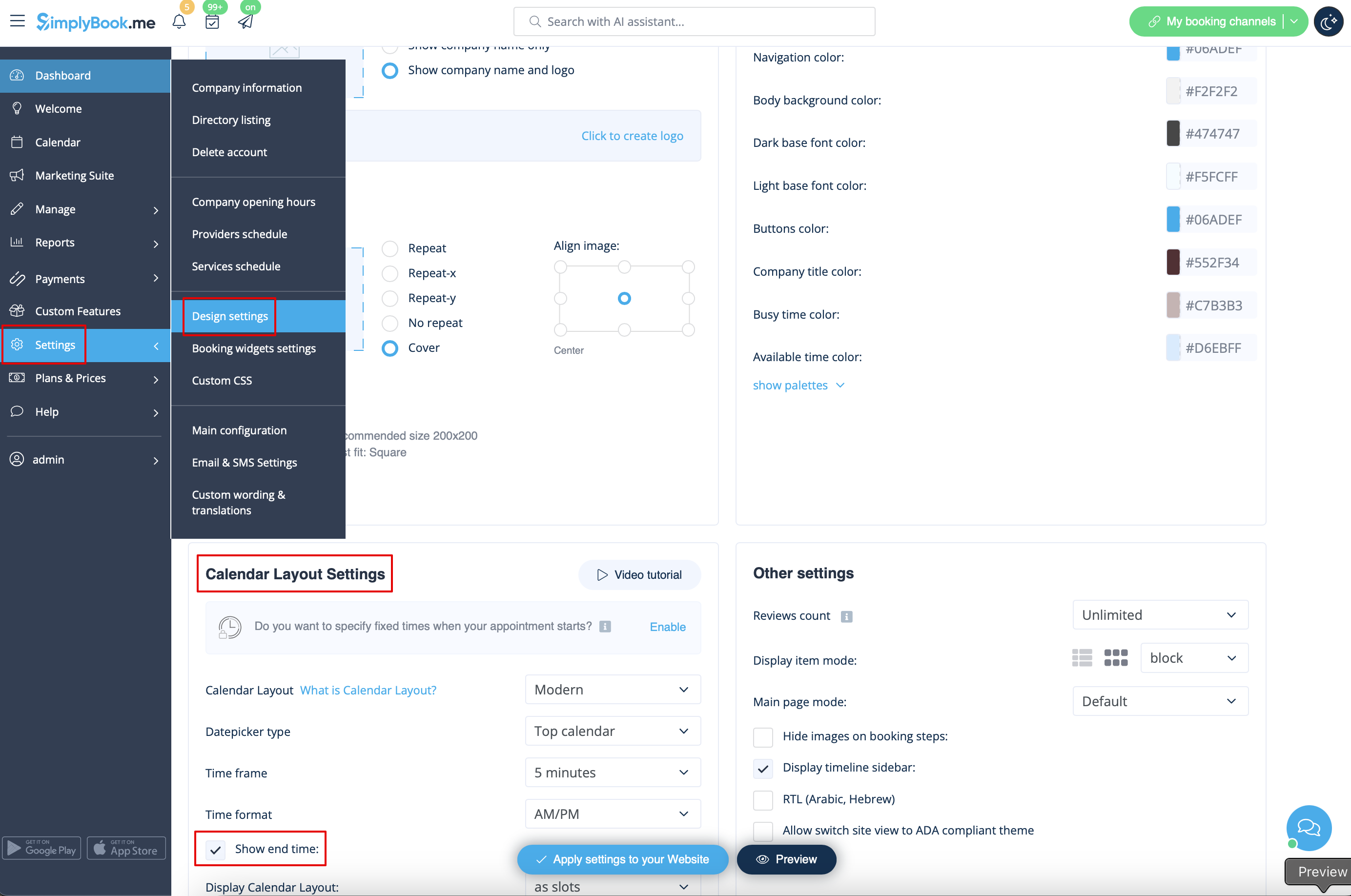
- To enable the end time display please navigate to Settings -> Design settings -> Calendar layout settings -> Show end time. Save settings.
- Daily classes calendar layout shows end time on the each timeslot by default and is defined by the status of "Hide duration on the booking page" setting in Manage -> Services/Classes -> select the service/class -> Time details.

