QuickBooks-integration

Denne nemme SBPay.me- integration med Quickbooks giver dig mulighed for automatisk at oprette fakturaer eller salgsbilag i QuickBooks for hver betalt ordre og sende dem til kunderne.
Video-vejledning 
Bemærk!
- De fakturaer, der genereres i QuickBooks som følge af integrationen, indeholder ikke oplysninger om skatter og rabatter, men kun det samlede beløb. SimplyBook-fakturaer indeholder derimod oplysninger om varepriser, skatter/rabatter (hvis relevant) og det samlede beløb.
- Multivaluta skal være aktiveret i QuickBooks for transaktionsdokumenter, der involverer forskellige valutaer.
Sådan indstilles og bruges
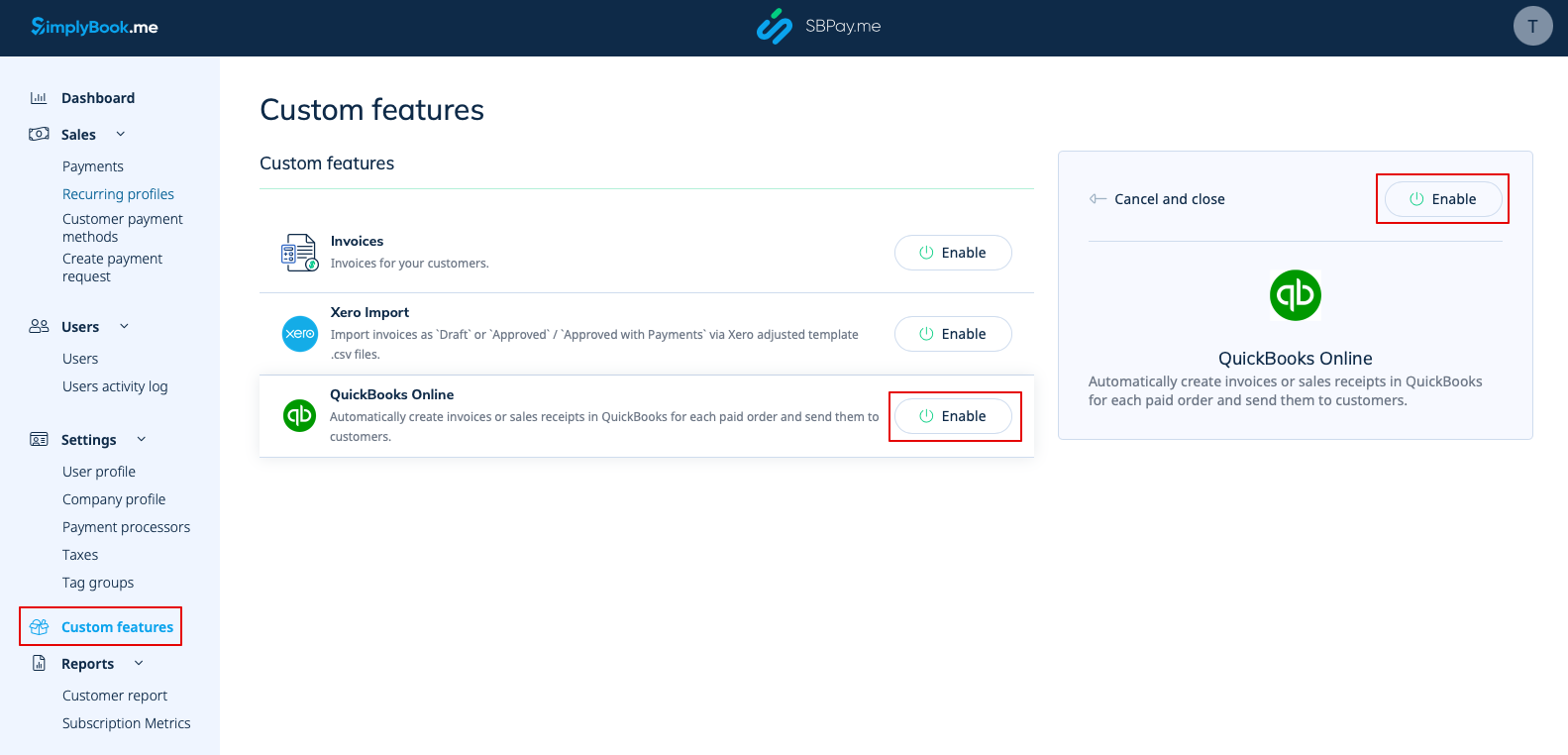
1. Gå til siden Custom Features (Tilpassede funktioner) i din SBPay.me-grænseflade, og klik på knappen Enable (Aktiver) ved siden af QuickBooks.
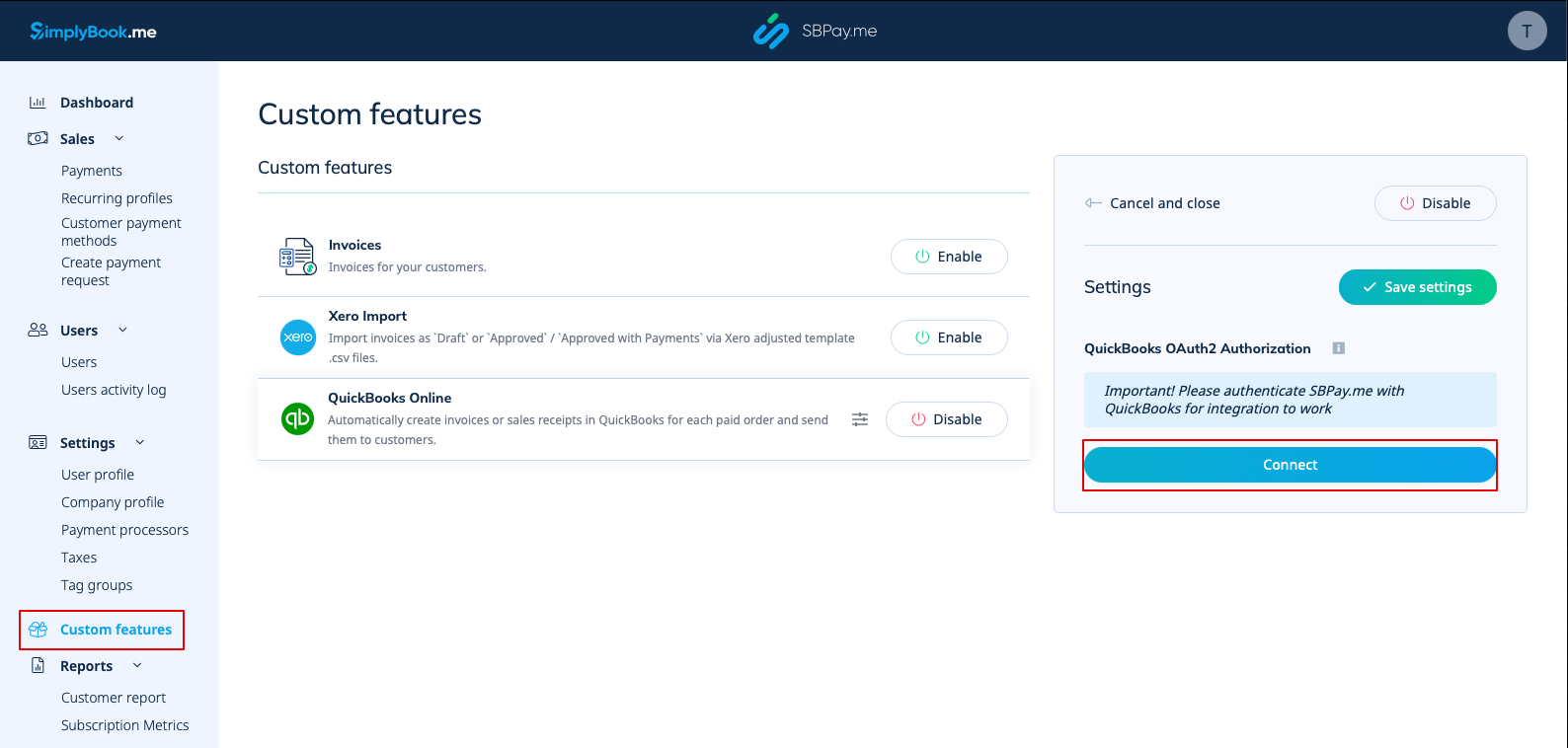
2. Når funktionen er aktiveret, skal du klikke på knappen Connect for at fortsætte med opsætningen.
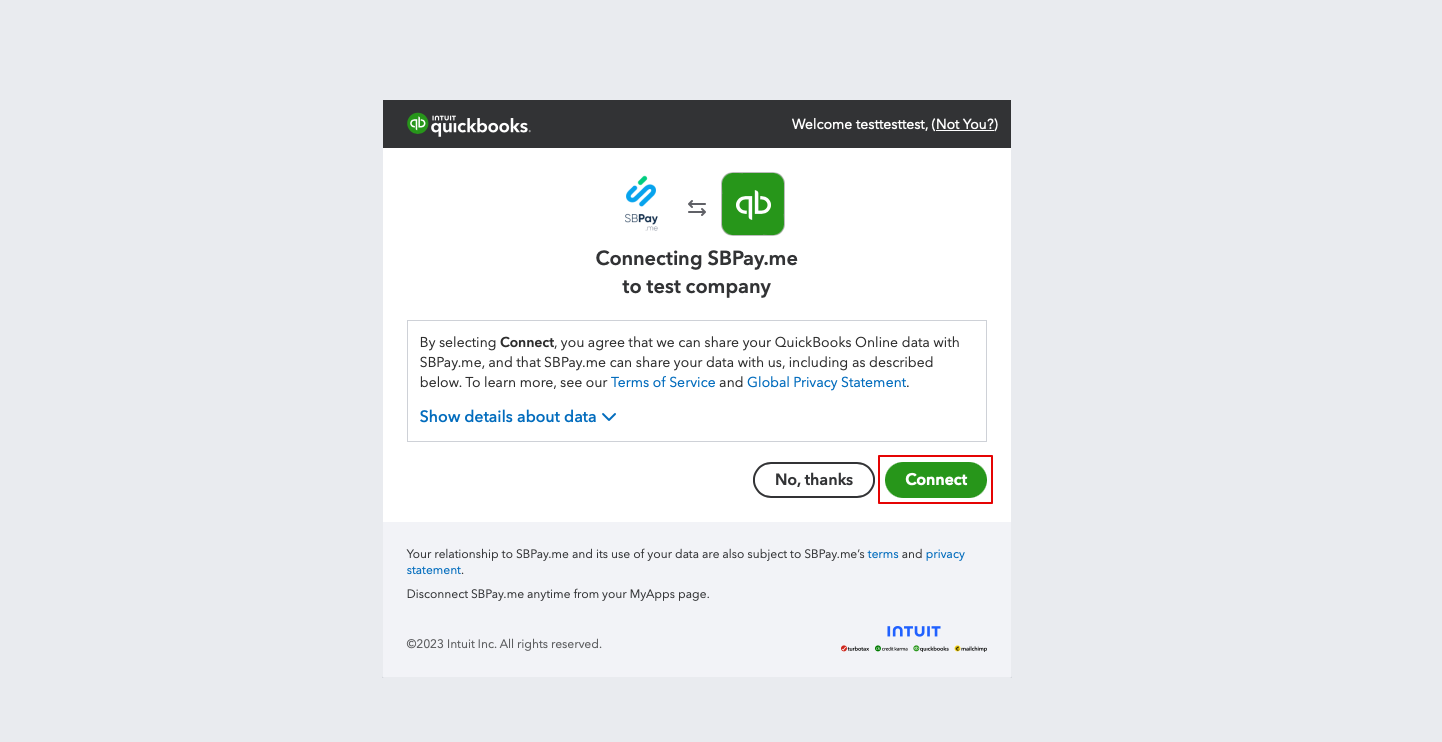
3. Du bliver bedt om at logge ind på din Quickbooks-konto for at oprette forbindelse. Hvis du allerede er logget ind i din browser, oprettes forbindelsen automatisk efter bekræftelse. Du vil også se SBPay.me i afsnittet Apps -> Mine apps i QuickBooks.
4. Når systemerne er forbundet, får du adgang til integrationsindstillingerne i SBPay.me-grænsefladen.
5. Vælg transaktionsdokumenttypen: Der er to muligheder: Faktura og salgsbilag. Faktura udløser oprettelsen af både en faktura og den tilhørende betaling i QuickBooks for hver opfyldt ordre på SimplyBook-siden. Du vil således se to poster (betaling og faktura) på QuickBooks-kontoen, der er knyttet til den samme transaktion. Salgskvittering resulterer i generering af en salgskvittering (betaling) udelukkende ved vellykket betaling for ordren.
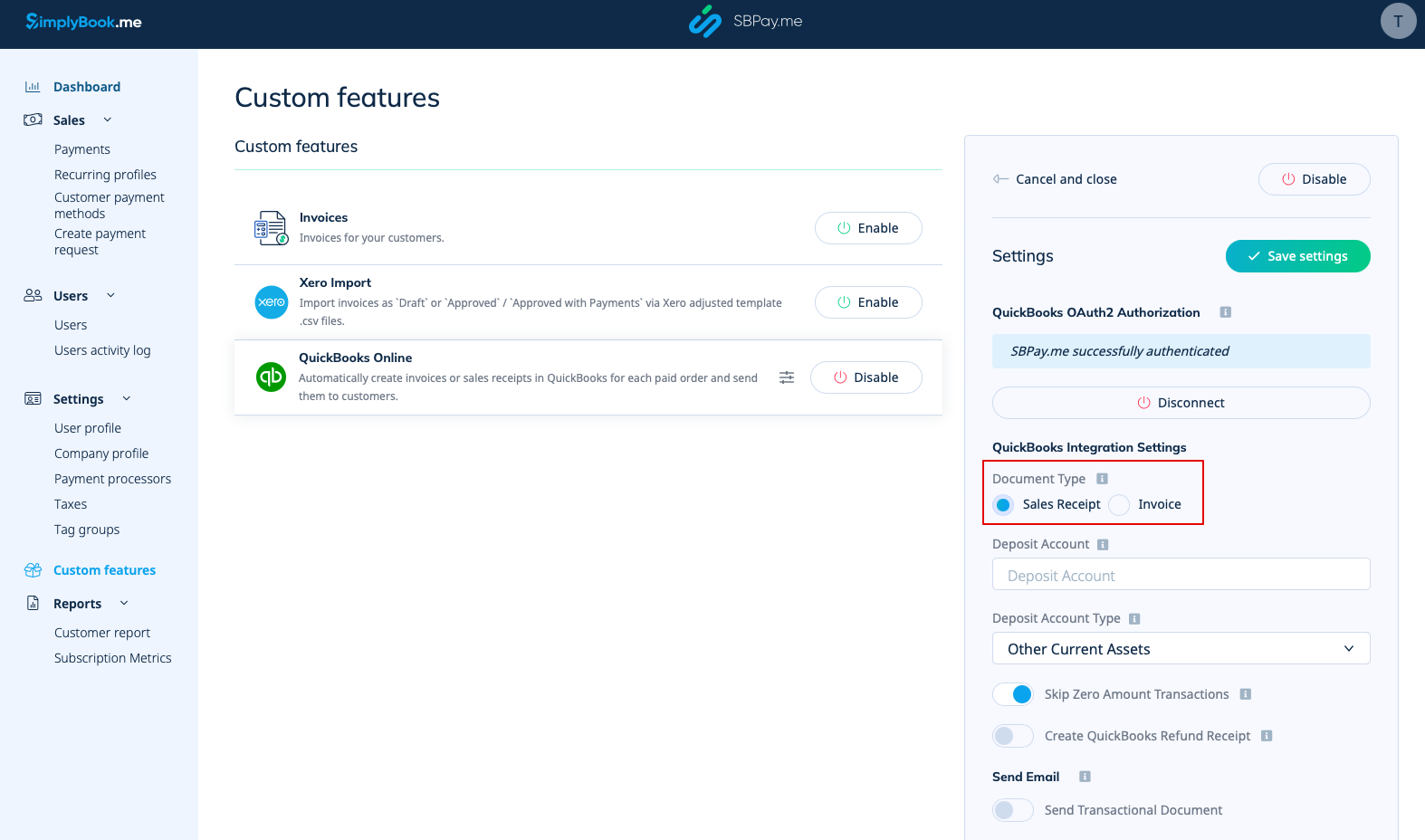
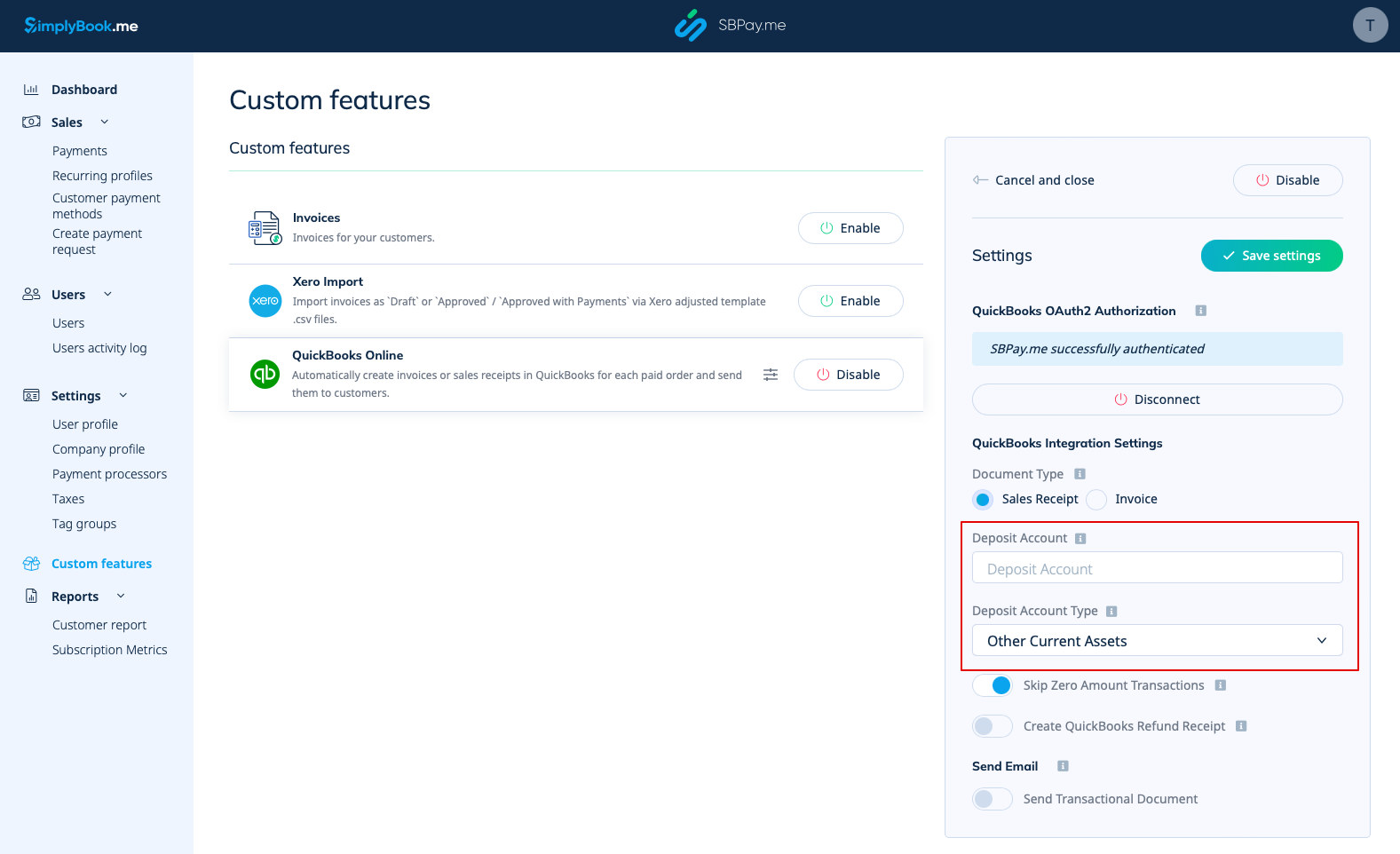
6. You can add a Deposit Account Name and select the deposit Account Type. It should be either Other Current Assets or Bank (Cash on Hand) type. If deposit account is not specified QuickBooks will use a default account called Undeposited Funds.
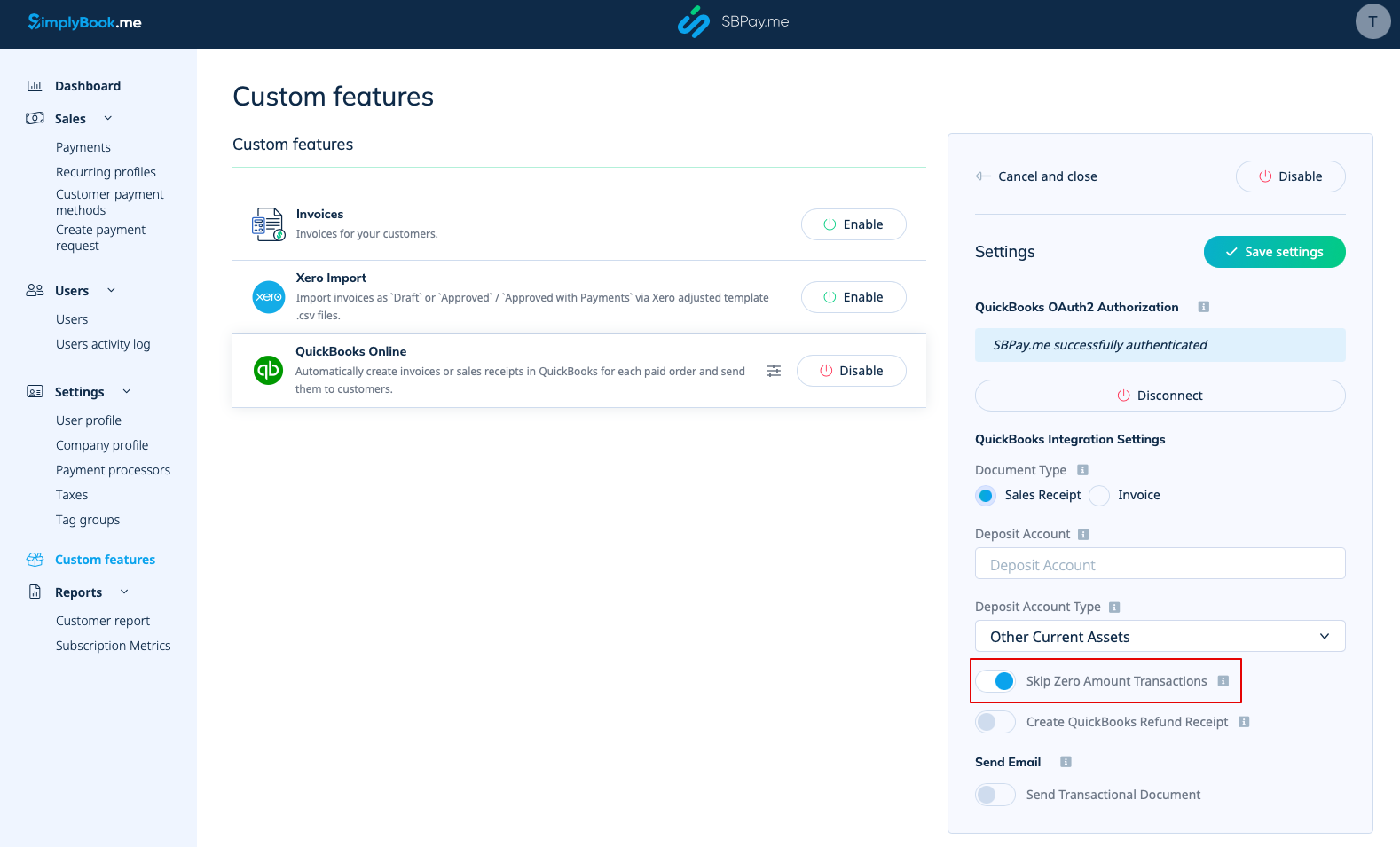
7. Skipping zero amount transactions is enabled by default to exclude zero amount orders from being transferred to QuickBooks. For example, the transactions where the discount was applied and the resulting total is 0. You can keep it as it is if you do not need to see such records in Quickbooks or disable if it is important to have them for your bookkeeping.
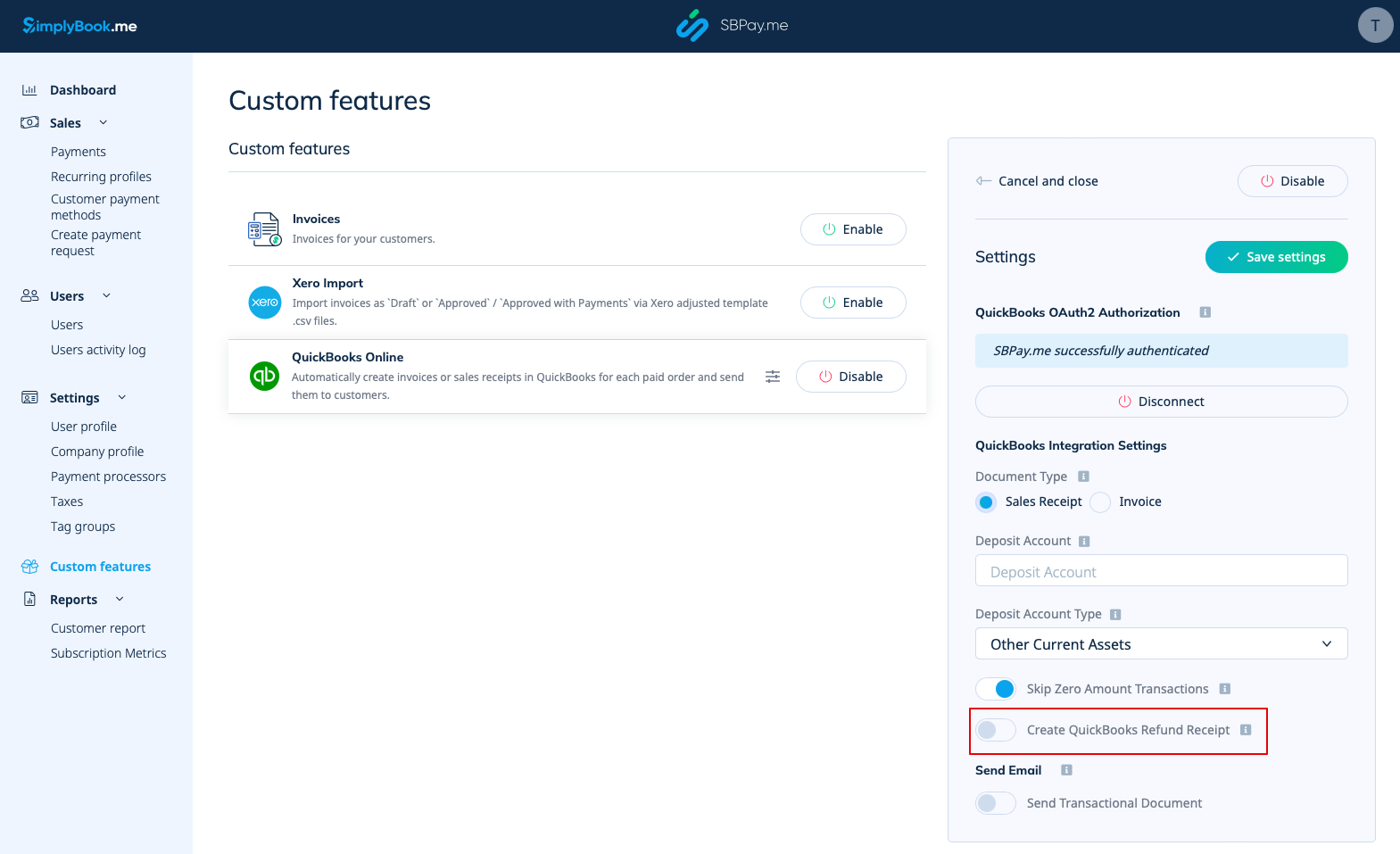
8. You can activate the automatic creation of a Refund Receipt entry in QuickBooks when a refund is made on the SBPay.me side. Please ensure to include the Deposit Account Name if you decide to enable this option as it is mandatory for refunds synchronisation.
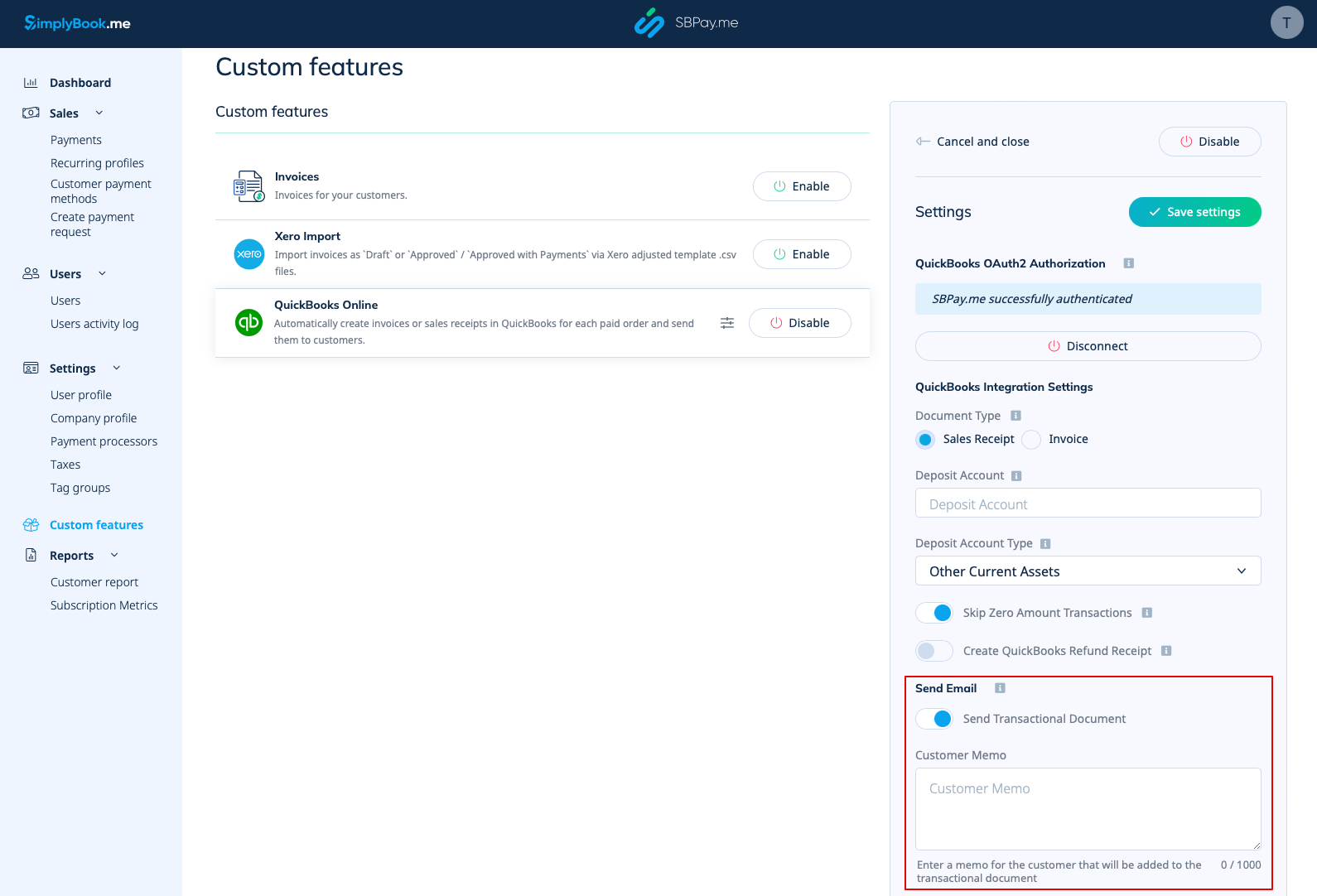
9. There is also an option to send a transactional document. If enabled, the client will also receive an invoice from QuickBooks in addition to other active notifications.
You can also add a note to be reflected in the Quickbooks invoices.
Taxes
To activate this option and pass taxes information to Quickbooks please check the "Add tax info to transaction document" in the Custom features -> Sales tax in your SBPay.me interface. And select the corresponding tax location.
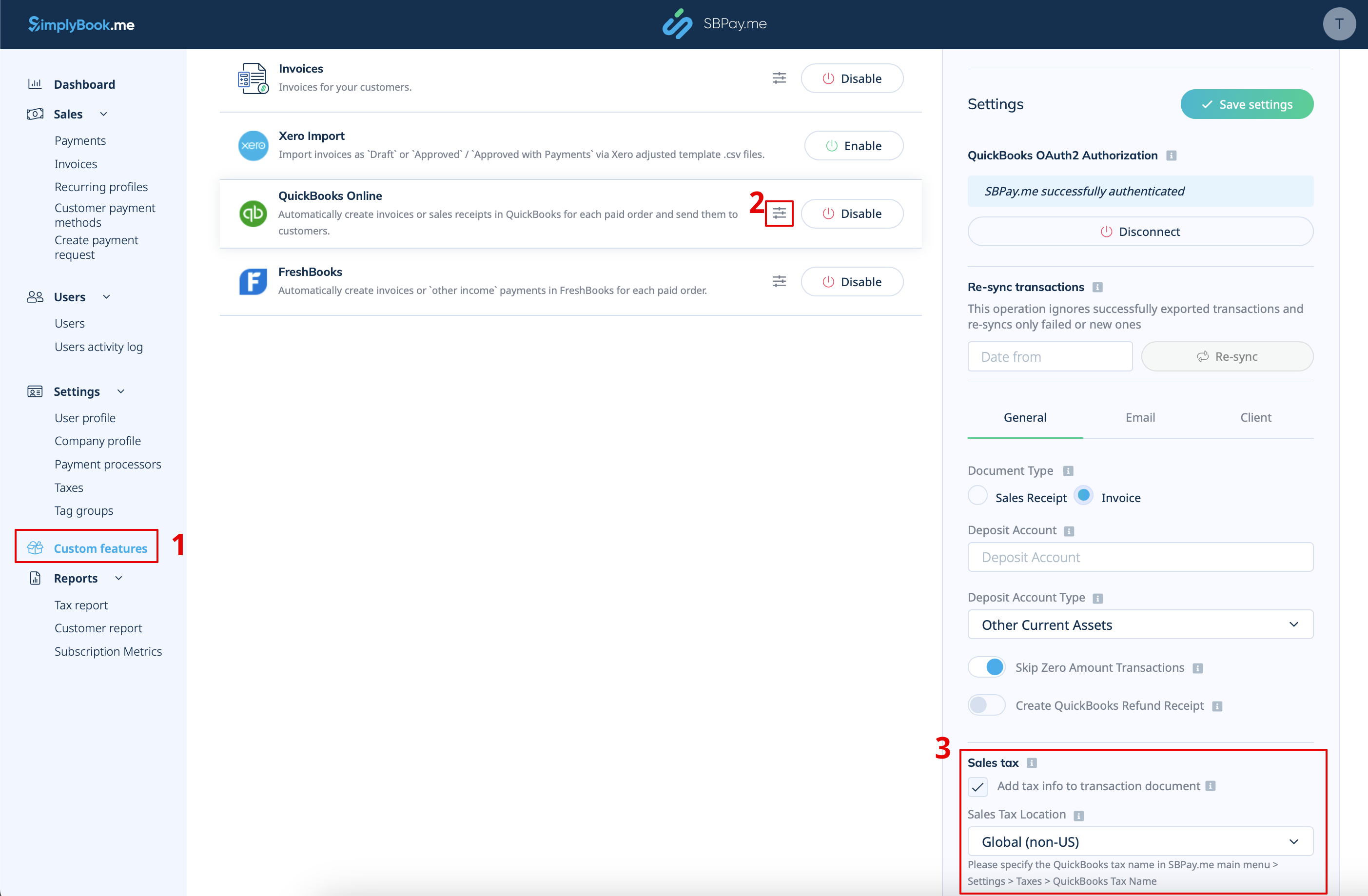
- For Global tax location
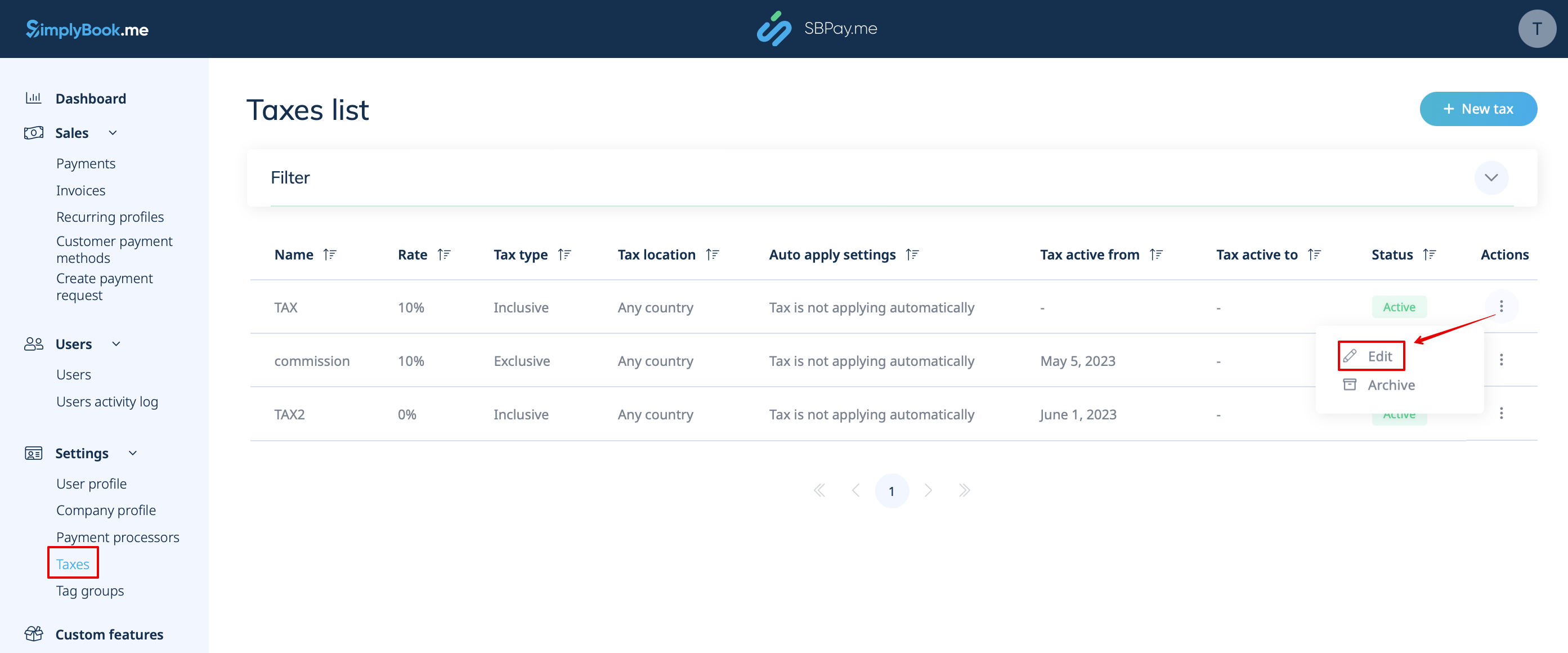
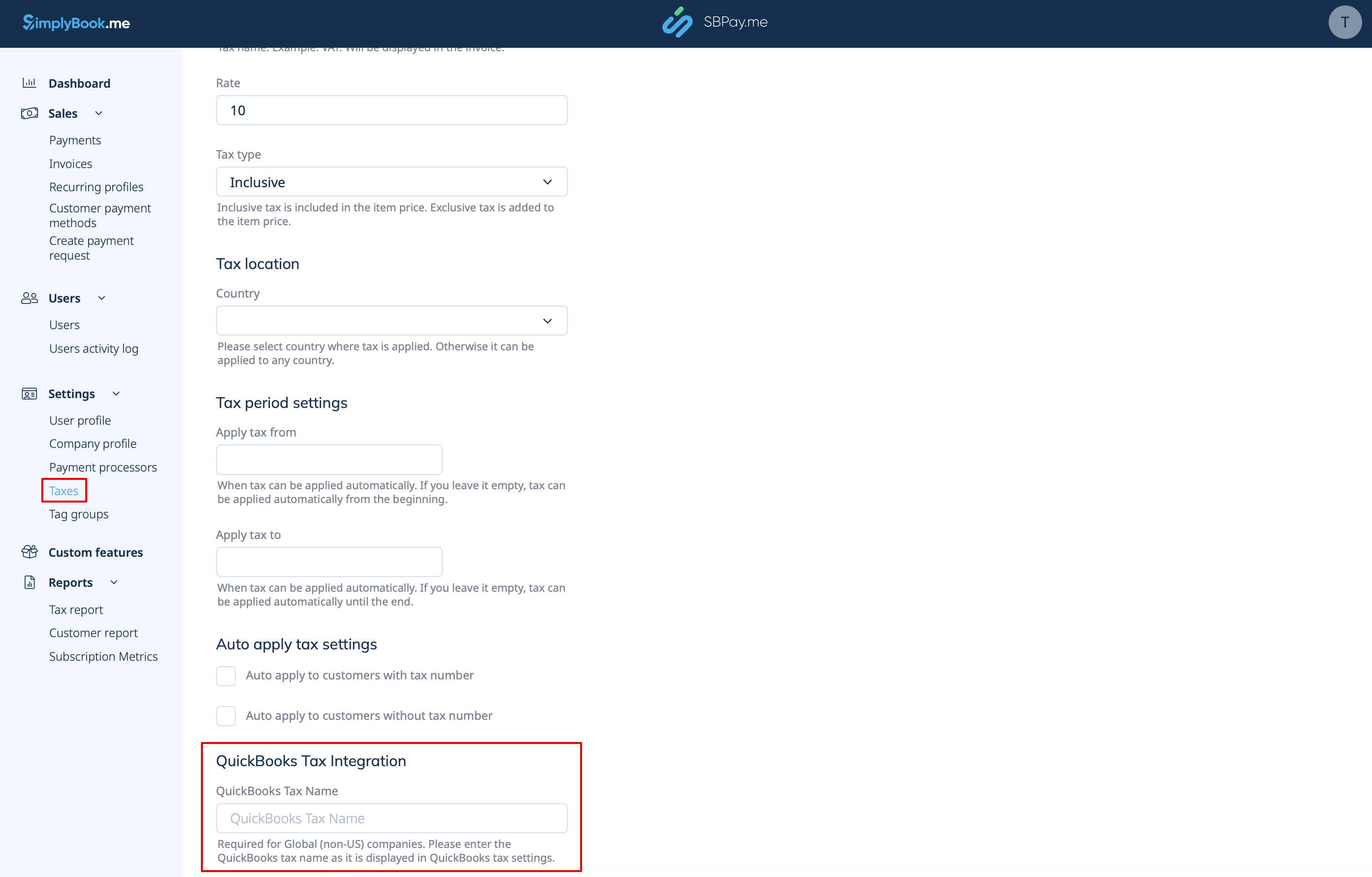
Also navigate to Settings -> Taxes in SBPay.me interface, select the necessary tax and set the exact tax name as it is defined in QuickBooks.
Please note!
- Tax is defined for each line separately;
- All lines with taxes should have the same tax type (inclusive or exclusive) throughout the order;
- The orders that contain lines with multiple taxes will not be passed to Quickbooks;
- If the order contains lines with no tax applied it will not be passed to Quickbooks;
- The orders that contain lines with mixed inclusive and exclusive taxes are not passed to Quickbooks;
- If the Quickbooks tax name is not set for some tax in that order it will not be passed to Quickbooks.
- For USA tax location
For now it is only possible to use Automated Sales Tax (AST) as defined in QuickBooks. If you set the tax name set in SBPay.me Settings -> Taxes, it will be ignored.
Please note!
- Tax is defined for the whole order. On the SBPay.me side, this means that ALL lines should have the same single tax with the same rate and type set for each order line;
- Tax is always exclusive.
