Tips voor specifieke bedrijven
Bedrijven in de schoonheidsbranche
- Videohandleidingen beschikbaar
- 1.

- 2.
- 3.
Simplybook is een perfect online boekingssysteem voor verschillende soorten quest- en escape rooms. Klanten kunnen een kamer kiezen en een specifiek tijdstip reserveren waarop het spel plaatsvindt. Klanten kunnen feedback achterlaten op de boekingspagina van het bedrijf na de follow-up-e-mail.
Om Simplybook.me efficiënt te gebruiken, raden we de volgende instellingen aan:
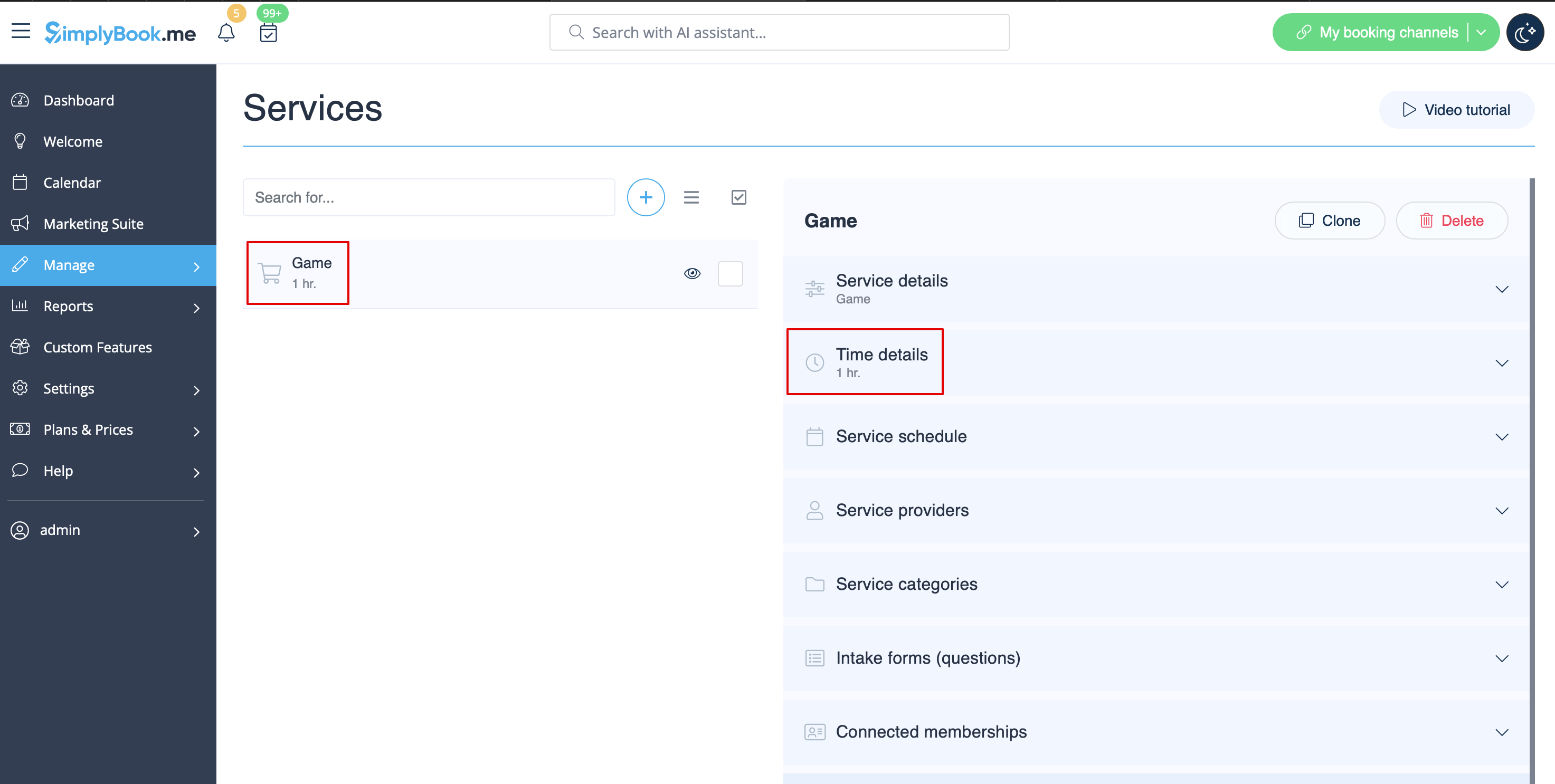
- 1. Maak een dienst aan als spel met de bijbehorende duur in Beheer // Diensten // "+". Gebruik Beheer // Diensten // Tijdgegevens om de duur van de dienst te bewerken.
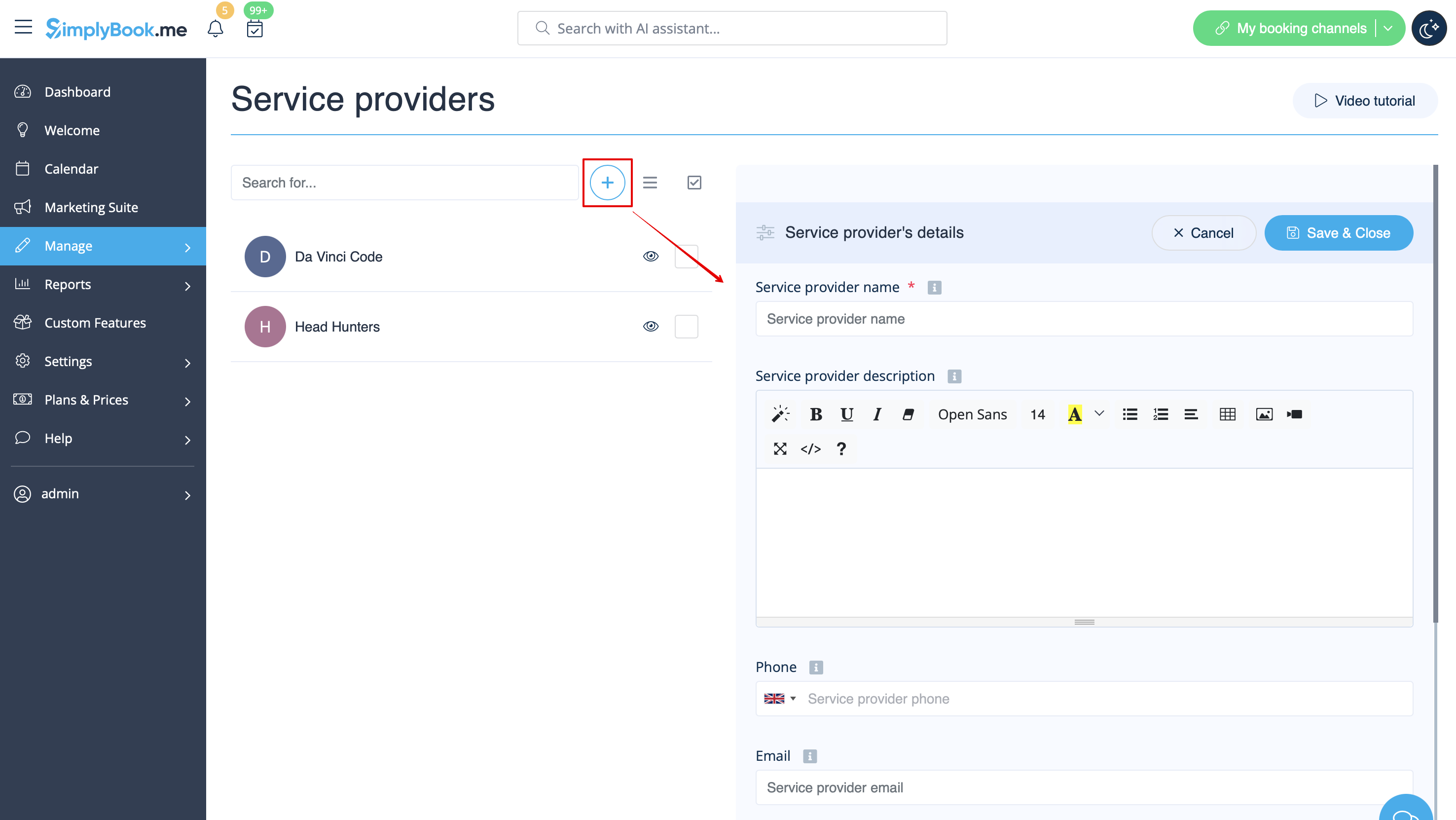
- 2. Maak aanbieders aan als kamers. Ga naar Beheer // Dienstverleners // "+" om een nieuwe dienstverlener toe te voegen - maak evenveel aanbieders aan als het aantal kamers dat u heeft.
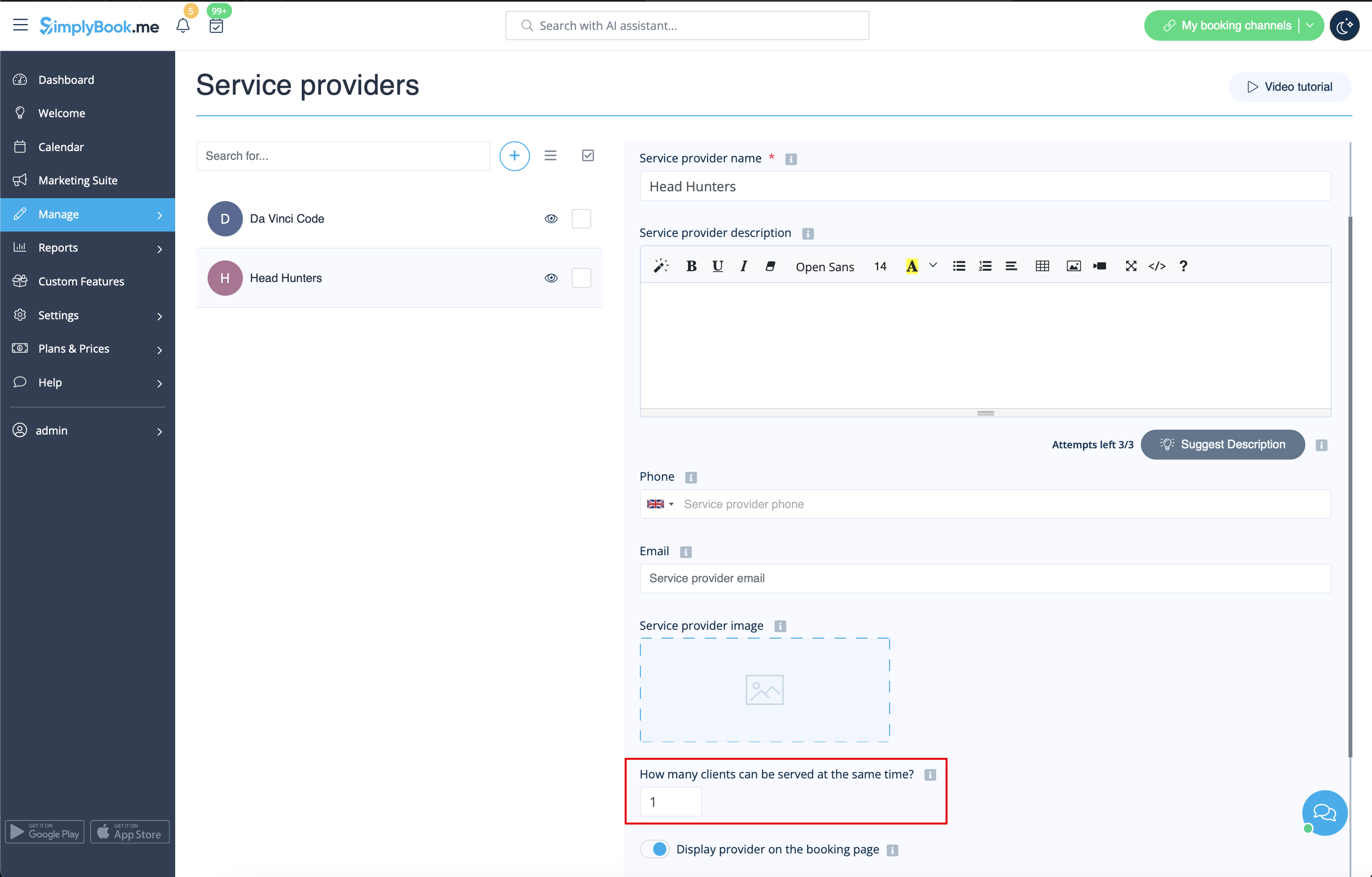
- 3. Zorg ervoor dat elke provider 1 klant tegelijk kan bedienen.
- 4. U kunt ook specifieke beschikbaarheid voor die kamer instellen door op "Tijdinstellingen voor deze aanbieder aanpassen" te klikken op het tabblad "Schema van dienstverleners" in Beheer // Dienstverleners.
- 5. Hernoem het woord "Medewerker" op de boekingspagina naar "Kamer" of "Spel" in Instellingen // Aangepaste bewoordingen en vertalingen.

- 6. Als elke kamer een andere prijs heeft en u van plan bent om online betalingen te accepteren met onze aangepaste functie Betalingen accepteren, maak dan meer diensten aan in Beheer // Diensten // Dienst toevoegen, stel de prijs voor die diensten in en koppel ze aan kamers door de betreffende vakjes aan te vinken in het tabblad "Dienstverleners".
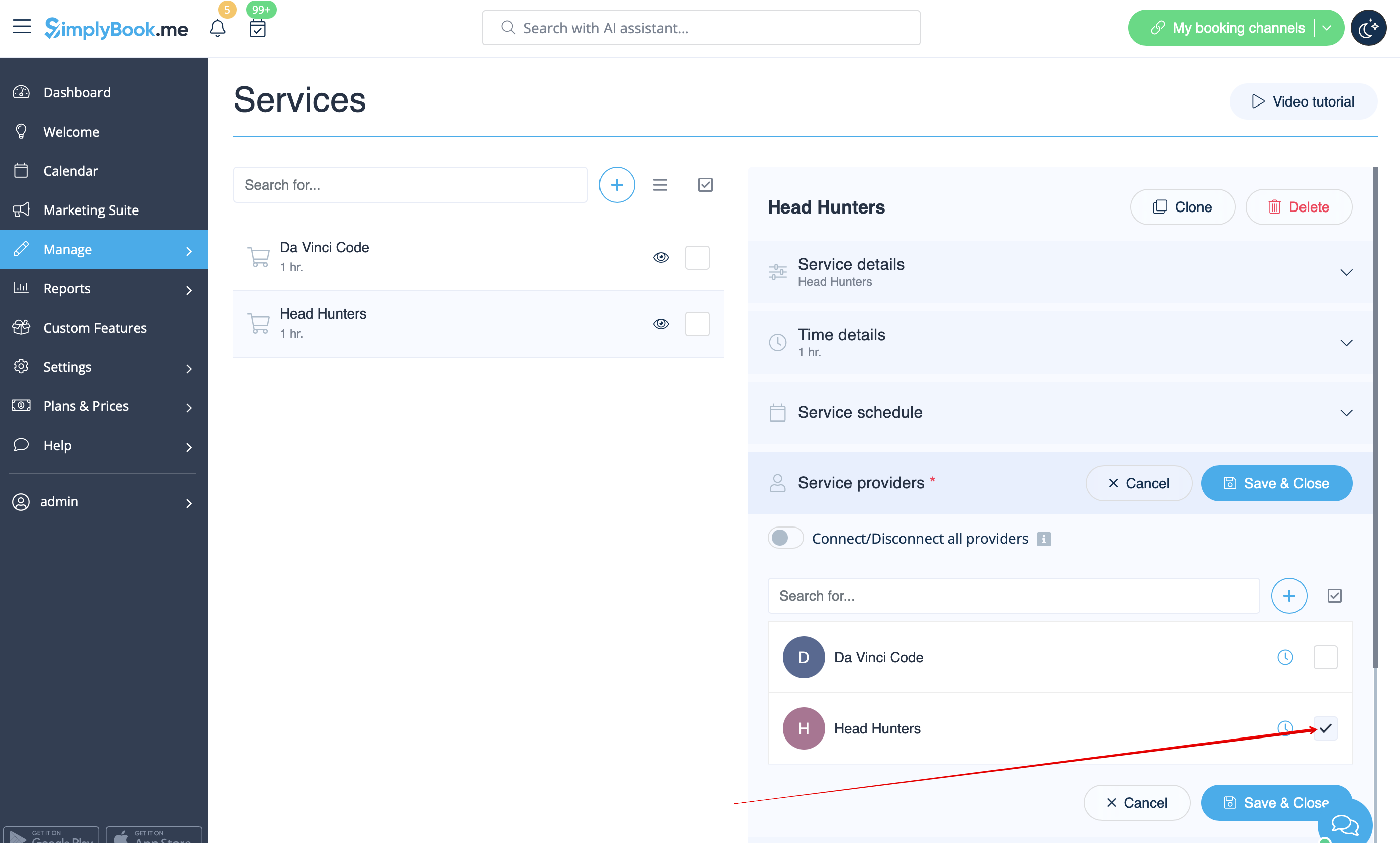
- 7. Als de prijzen voor spellen in de ochtend verschillen van die voor spellen in de avond/weekend, voeg dan de diensten 'Ochtendspellen' en 'Avond-/weekendspellen' toe in 'Beheer // Diensten' en stel voor elke dienst de juiste prijs in. Maak vervolgens in 'Beheer // Dienstverleners' twee dienstverleners voor elk spel en stel de beschikbare uren voor de dienstverleners in op het tabblad 'Dienstverlenerschema'.
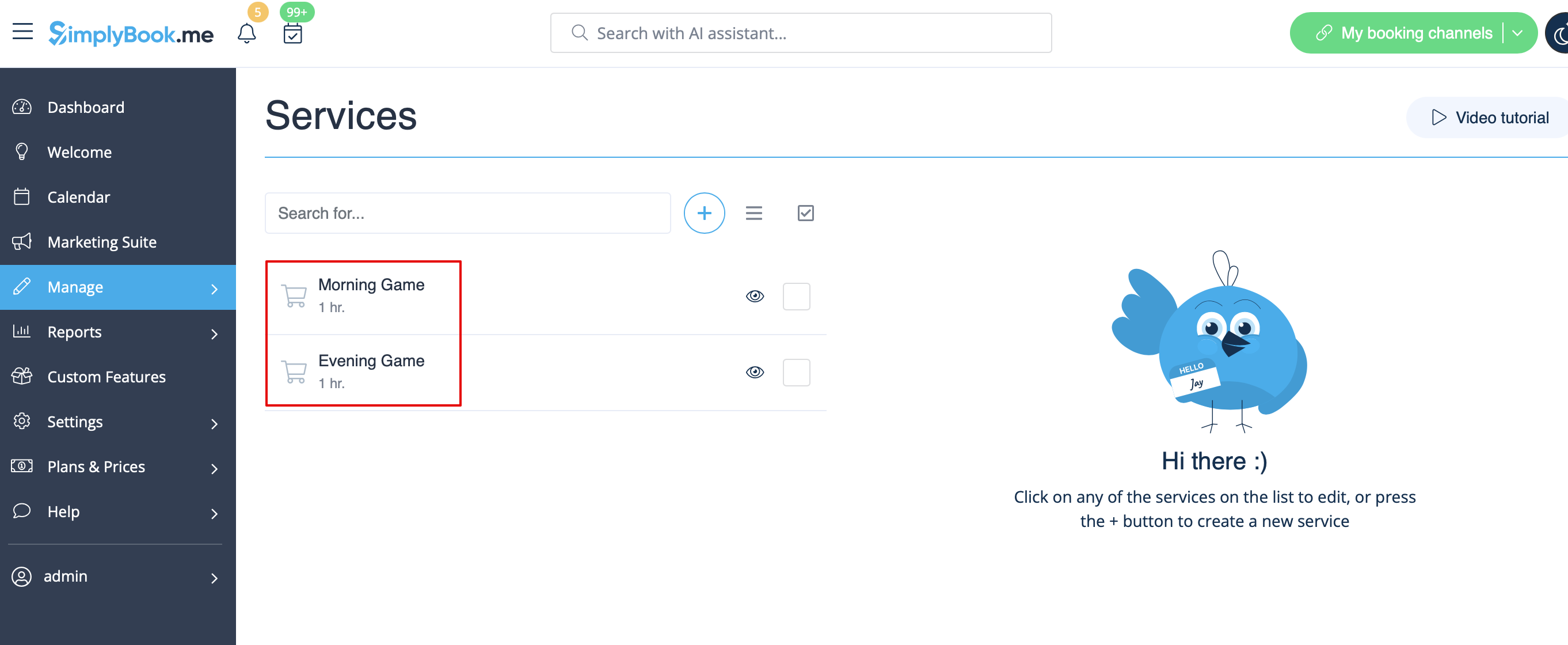
- 8. Verbind aanbieders met de bijbehorende diensten
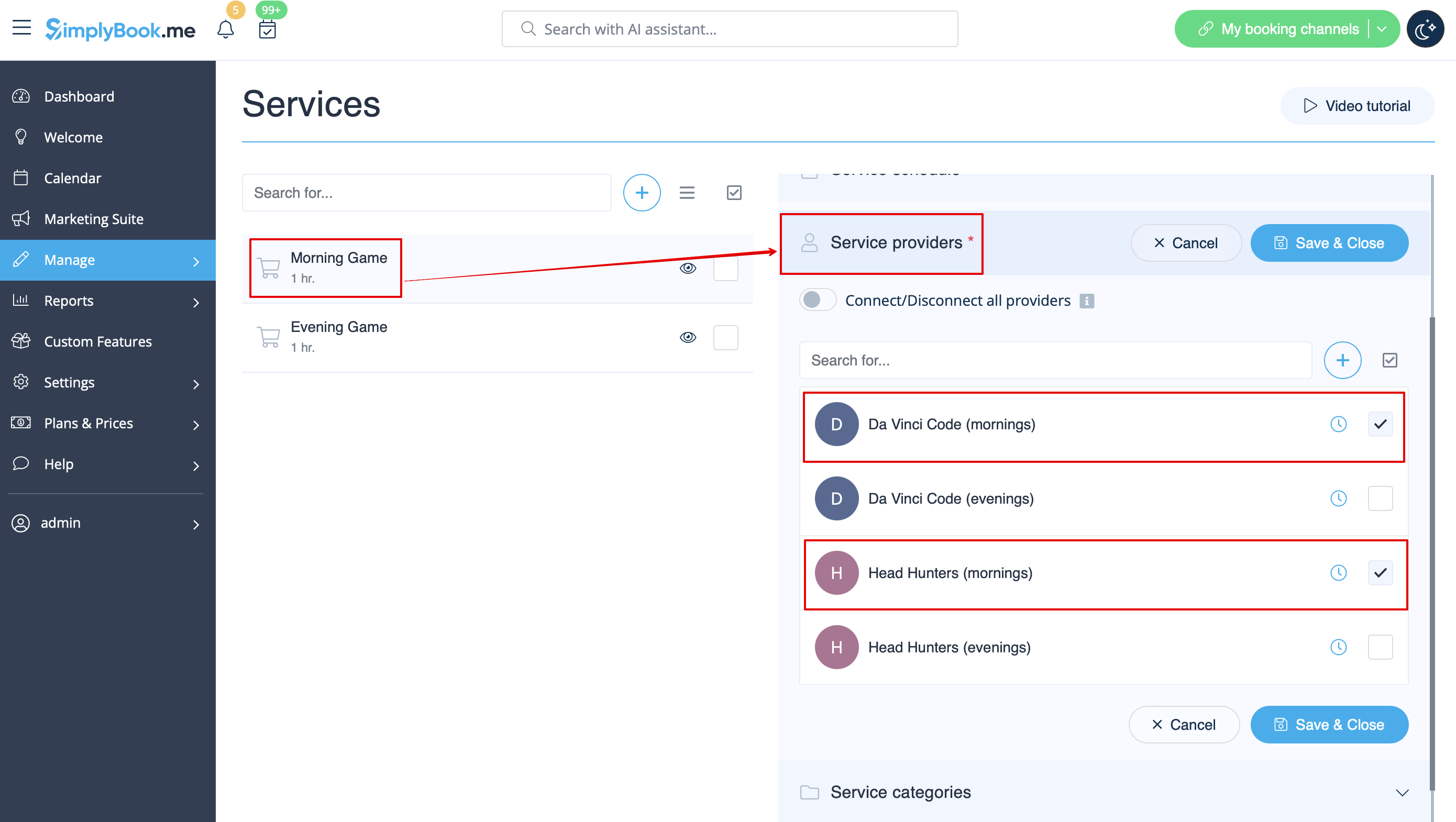
- 9. Op de boekingspagina kiezen klanten ochtend-/weekenduren, selecteren ze een spel en zien ze vervolgens de beschikbare tijdvakken.

- 10. Als u een vast schema heeft, heeft u wellicht de aangepaste functie Afspraak op vast tijdstip nodig, waarmee u voor elk van uw diensten specifieke starttijden kunt instellen.
- 11. Met behulp van de aangepaste functie Inschrijfformulieren kunt u aanvullende informatie van klanten vragen, zoals hoeveel klanten er in een groep zullen zijn.
- Videotutorial beschikbaar
- Videohandleiding beschikbaar
- Video tutorial available
- Video tutorial available
- Video tutorial available
- Video tutorial available
- Video tutorial available
- Video tutorial available
- If you rent items for hours
- Make your items as providers. For example if you rent musical instruments, create providers Flute, Bass, Violin, etc.
- If you rent for different duration you will need to create multiple services with different duration. For example: Renting 1 hour, Renting 2 hours, Renting 6 hours, etc.
- If you rent items for days
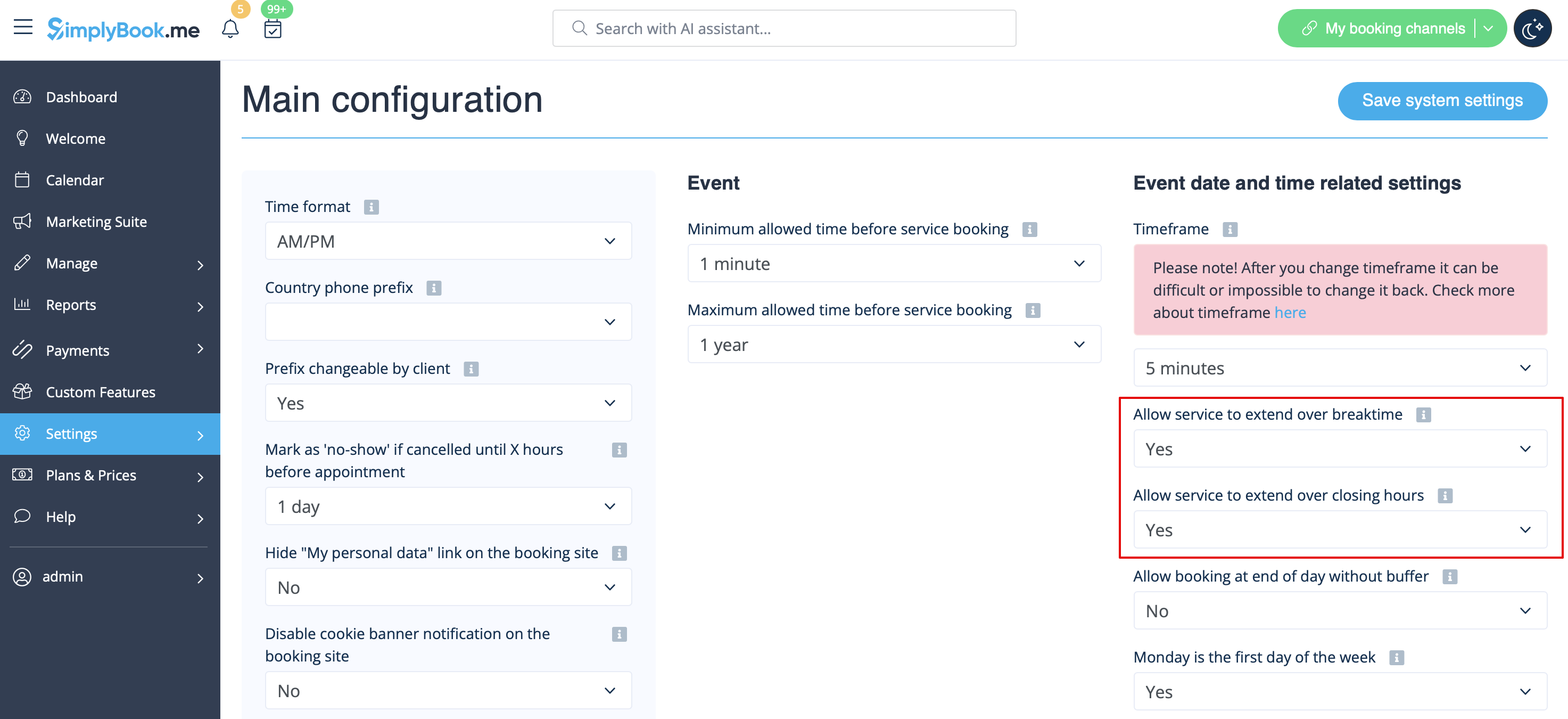
- 1. In Settings // Main configuration set both "Allow service to extend over breaktime" and "Allow service to extend over closing hours" to "Yes".
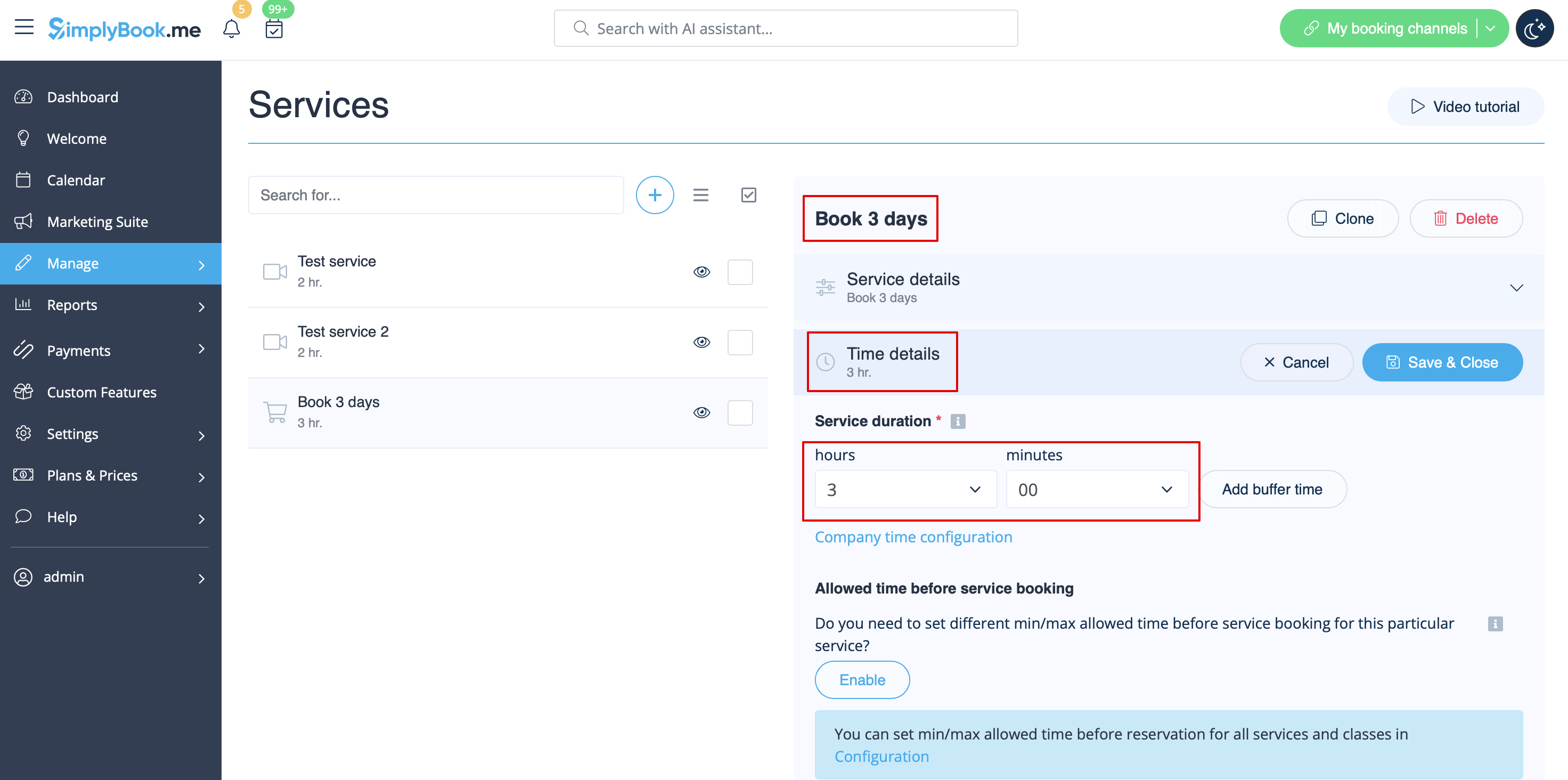
- 2. In Manage // Services // "+" create service with the duration corresponding to the amount of days your service will be offered for (3 days=3 hours, 7 days=7 hours).
- 3. In the Settings // Company opening hours (when you have only 1 service) or in the working hours of the service (Manage // Services // Service schedule) open only 1 hour each day.
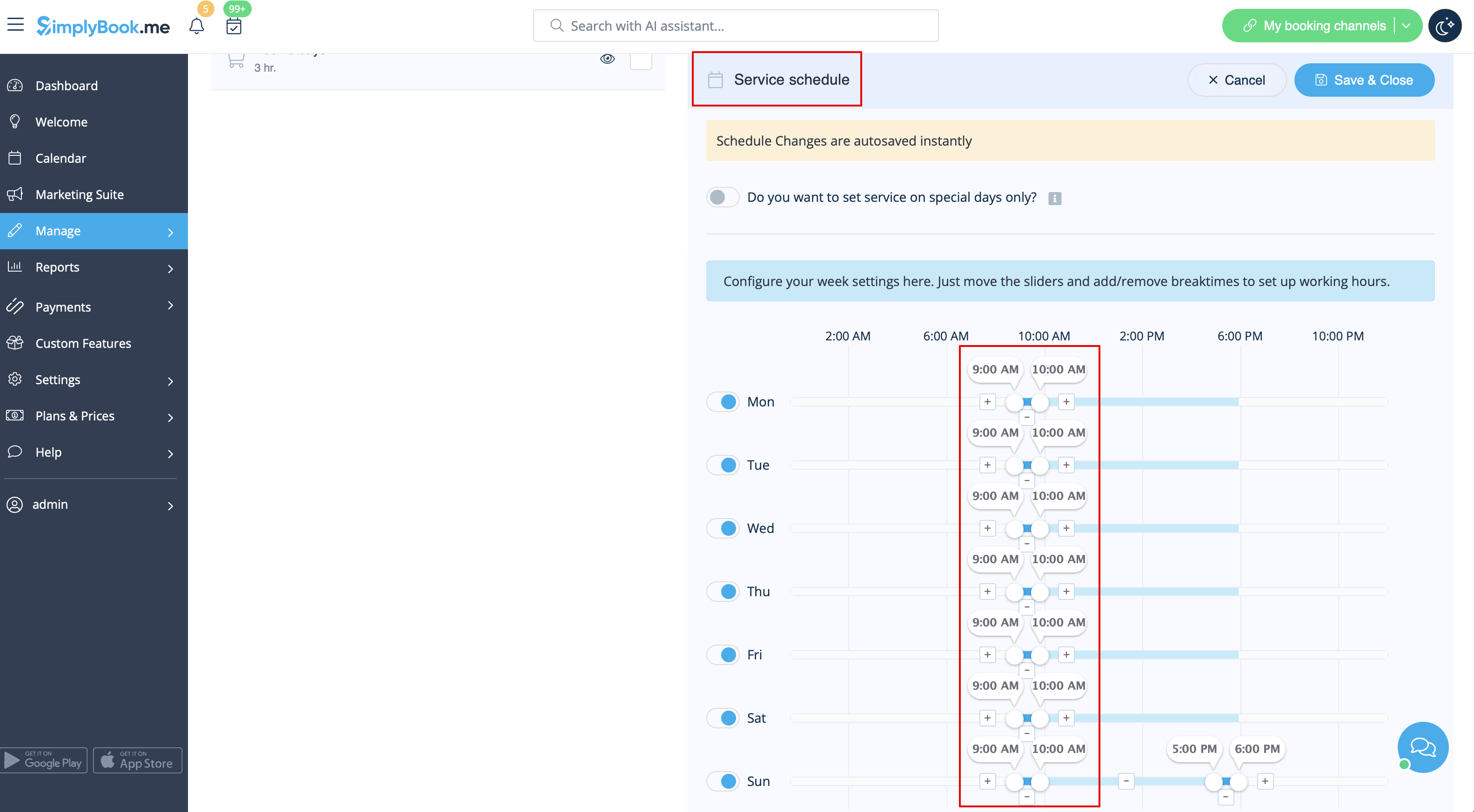
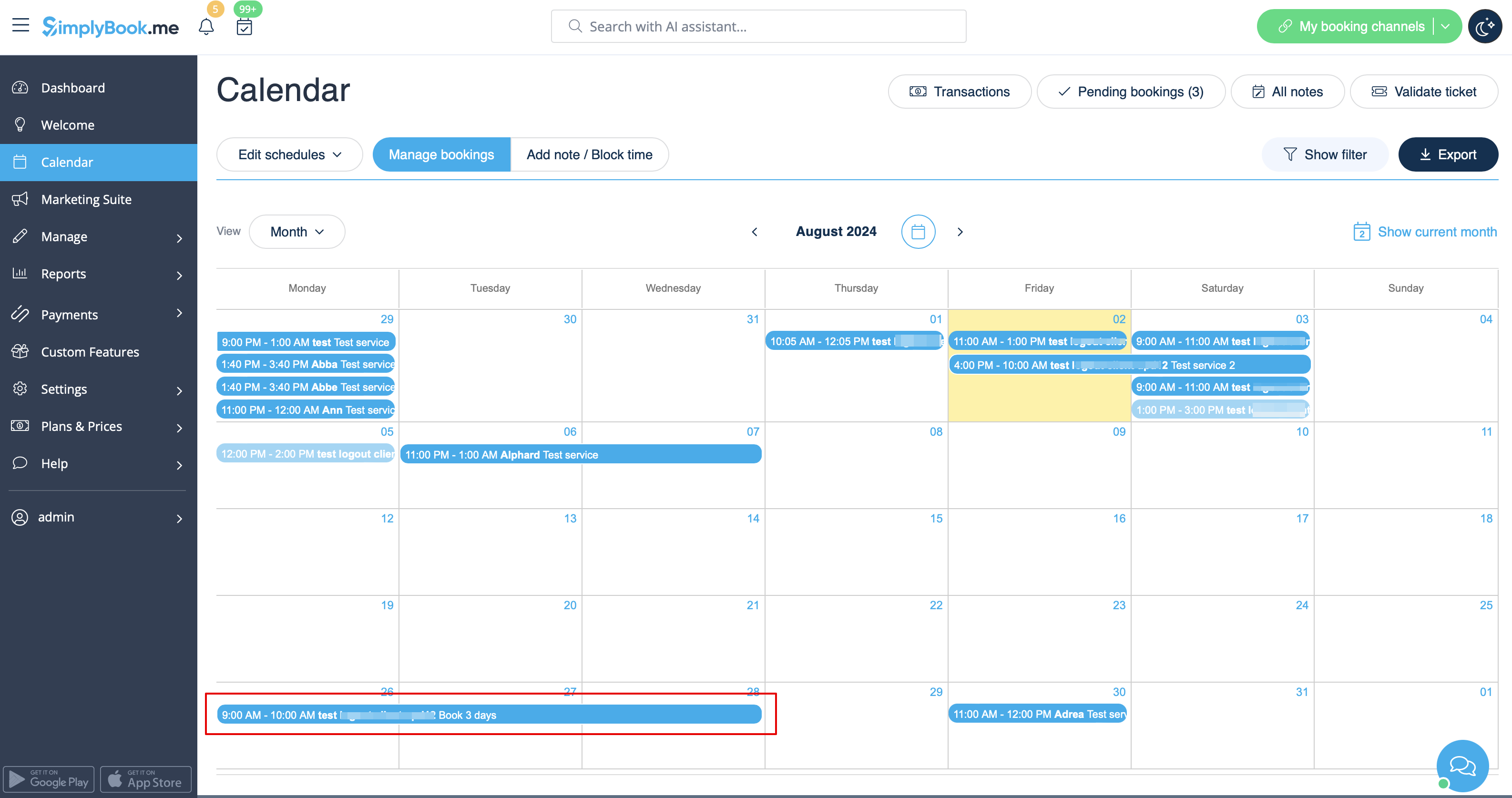
- 4. The system will then book the number of hours indicated in service duration as the number of days.
See extended tutorial about classes online scheduling here
And video tutorial how to sell membership related classes 
- Video tutorial available
Video available
If you plan to have 1 event or several events without regular services you should do the following:
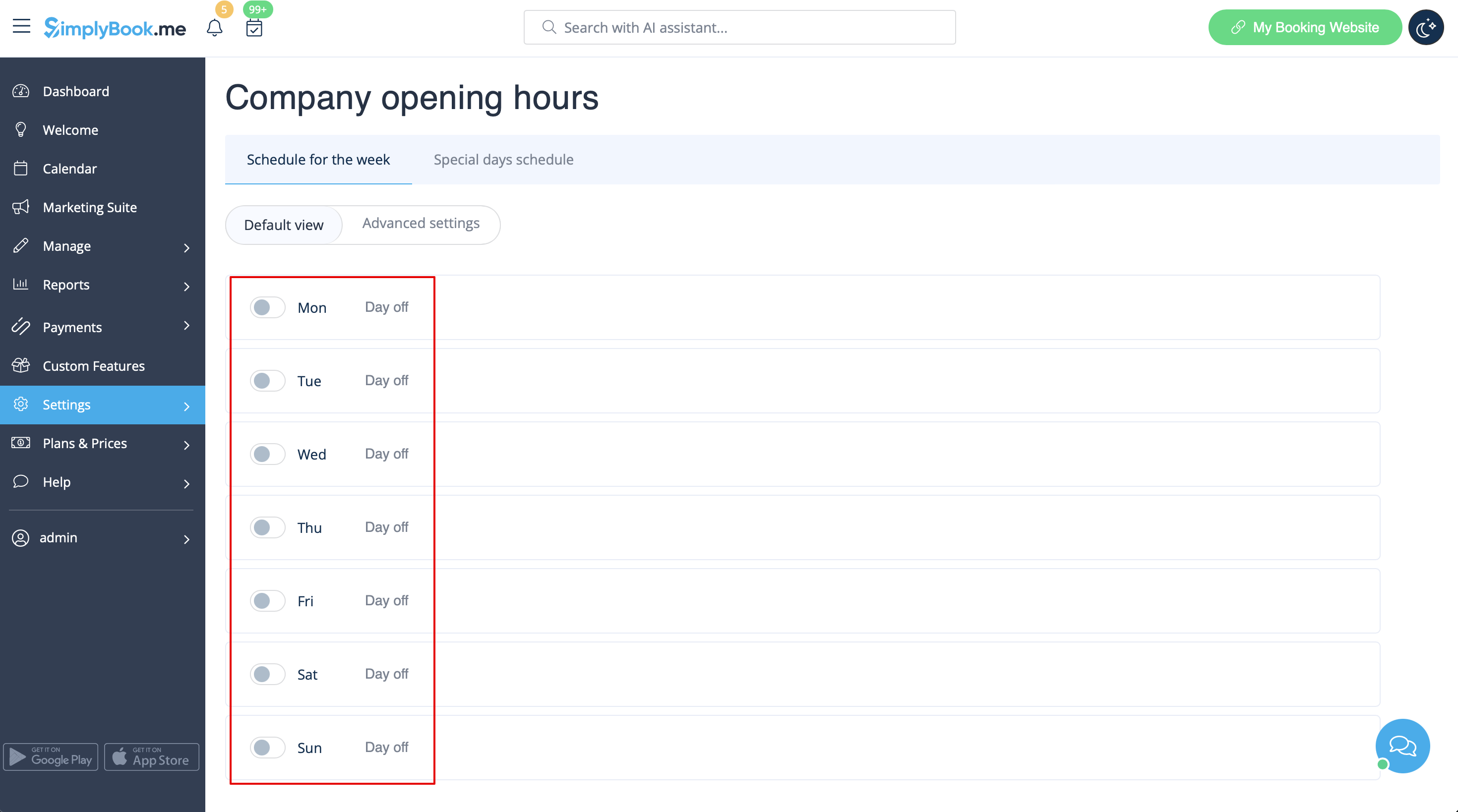
- 1. Close all company opening hours in Settings // Company opening hours - put the switchers near weekday names to "off" position.
- 2. Create events you need in Manage // Services // "+". See detailed tutorial about events here.
If your services will cross midnight, after you set up your availability make sure to set "Allow service to extend over closing hours" to "Yes" in Settings//Main configuration.
Different clinics/salons under one account
If you have several clinics/salons/gyms/etc you can use Locations Custom Feature and make each clinic or salon a location. You can assign providers who work on that location and while booking your services, clients will first choose location and then service and provider.
Services limited to the amount of rooms or items
For those companies that are restricted to amount of rooms or items we recommend to check Limit Bookings Custom Feature.
This Custom Feature allows you to restrict booking quantity which can be booked at the same time. This Custom Feature is useful when your services require additional things like dental chair or room in the studio etc. When the booking limit is reached the corresponding time interval will look like breaktime on the booking page (and in the admin interface if you haven't set to skip these restrictions for admin). It is possible to limit booking number at the same time generally, and also you can set certain limit for each service separately.
Or as another option you can use Related Resources custom feature as it allows to connect equipment, rooms or anything else that is limited in quantity to a service. Different resources can be connected to the same service when needed. You can create all the necessary equipment, define the number of items required for each appointment per service/class and the resources will be automatically attached during the booking process.
