Google Business-tilpasset funktion
From SimplyBook.me

png
Øg nemt din virksomheds synlighed på internettet via funktionen Google My Business. Det koster ikke noget, men øger synligheden i søgninger og gør din virksomhed synlig på Google Maps.
Gratis tilpasset funktion!
Video-vejledning 
Google Business
- Sådan bruges det
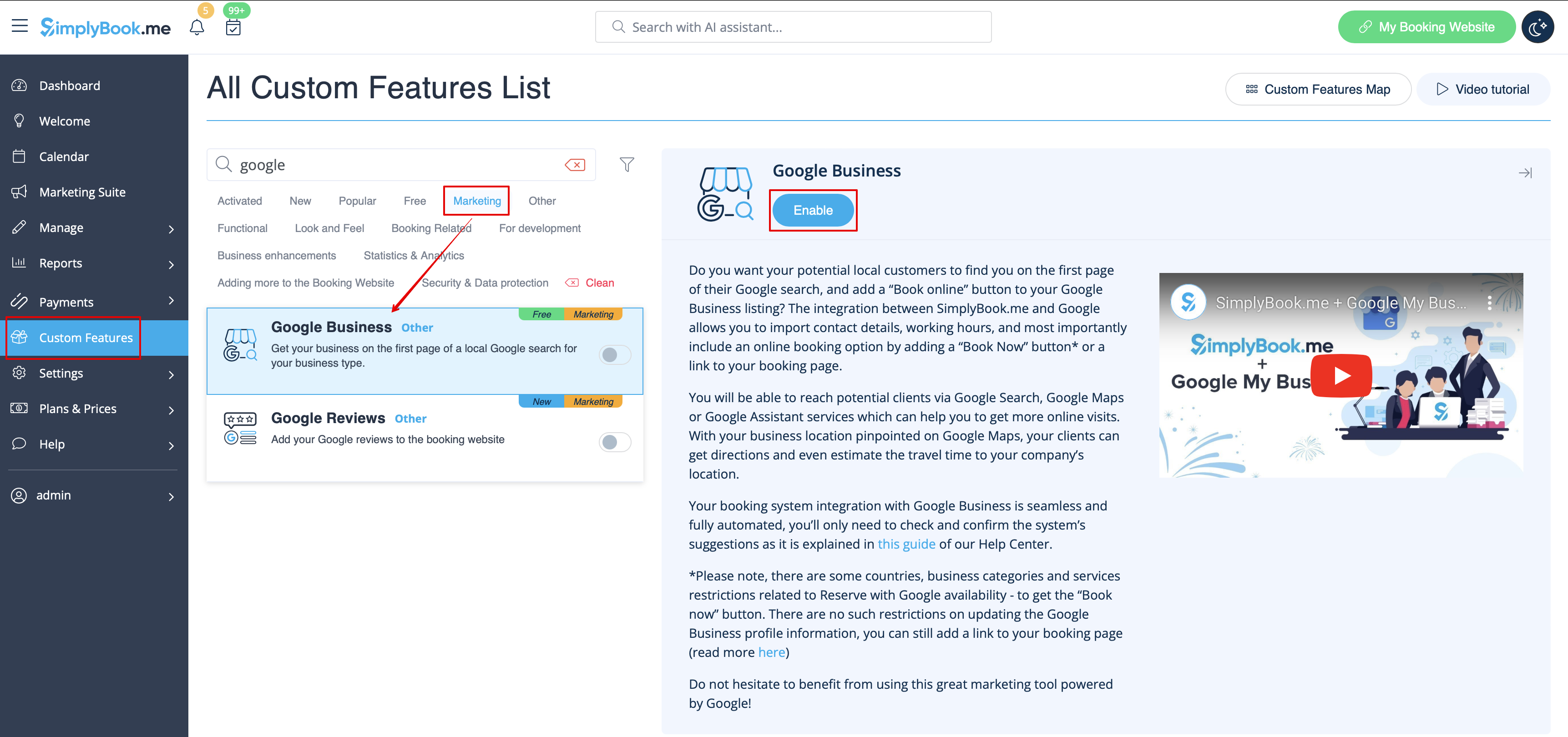
- 1. Aktivér denne tilpassede funktion på din side Tilpassede funktioner.
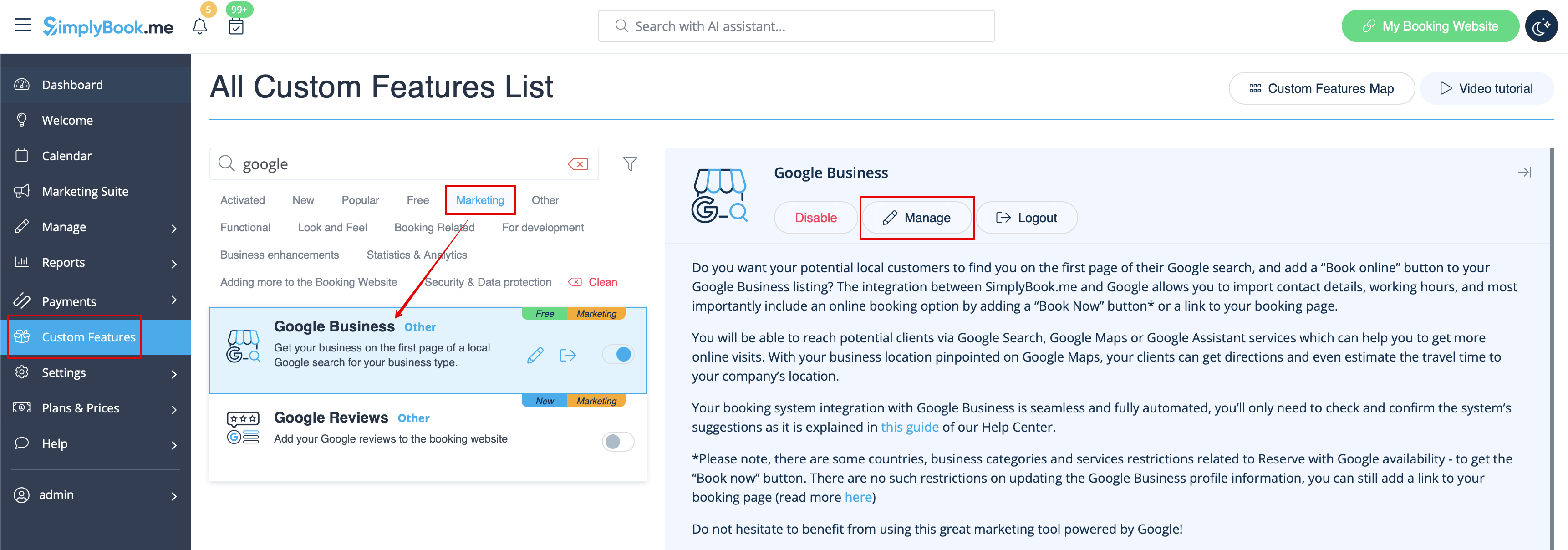
- 2. Gå til Indstillinger for at oprette en Google Business-konto, hvis du ikke allerede har en, eller tilslut en eksisterende Google Business-konto.

- 3. Giv de nødvendige tilladelser, så det bliver muligt at se og redigere din(e) placering(er) i SimplyBook.me.
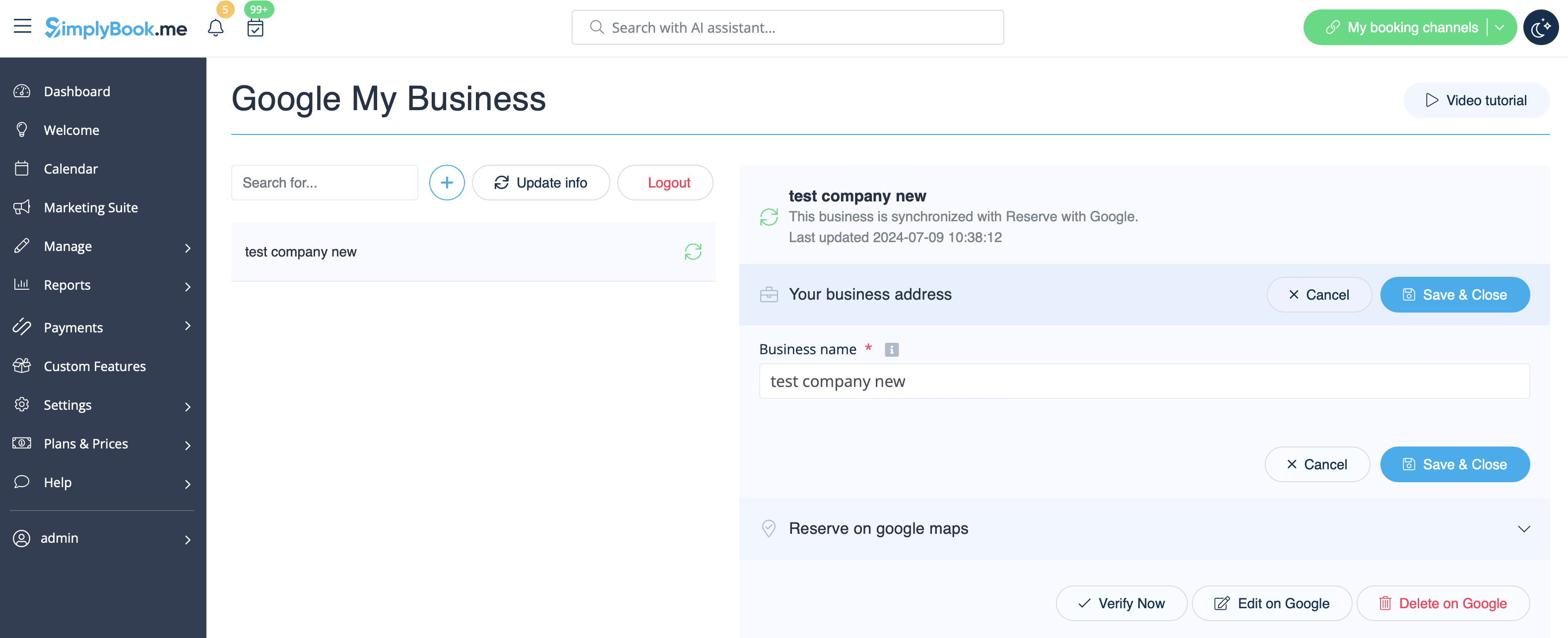
- 4. Hvis du allerede har nogle placeringer i Google Business, kan du se dem i venstre side af siden.
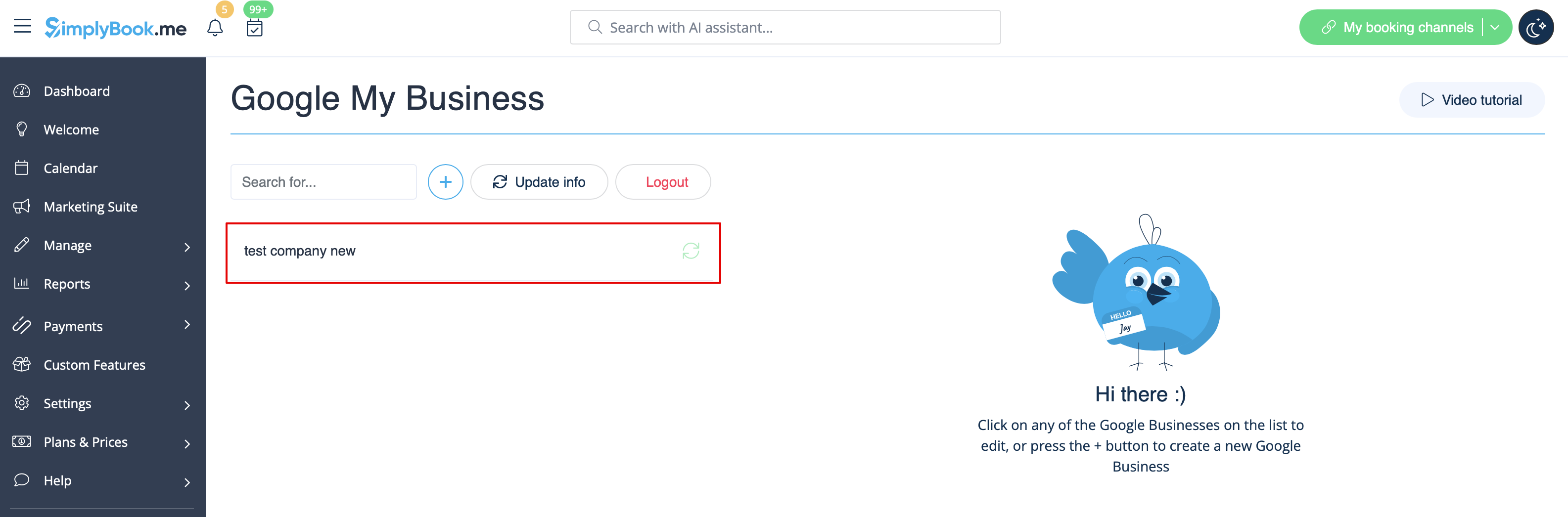
- 5. Klik blot på en af dem, hvis du skal foretage nogle ændringer, og aktiver indstillingen Opdater adresse i profilen, foretag de nødvendige ændringer, og gem placeringen igen, så oplysningerne opdateres på Google

- eller vælg + for at tilføje en ny virksomhedsadresse.
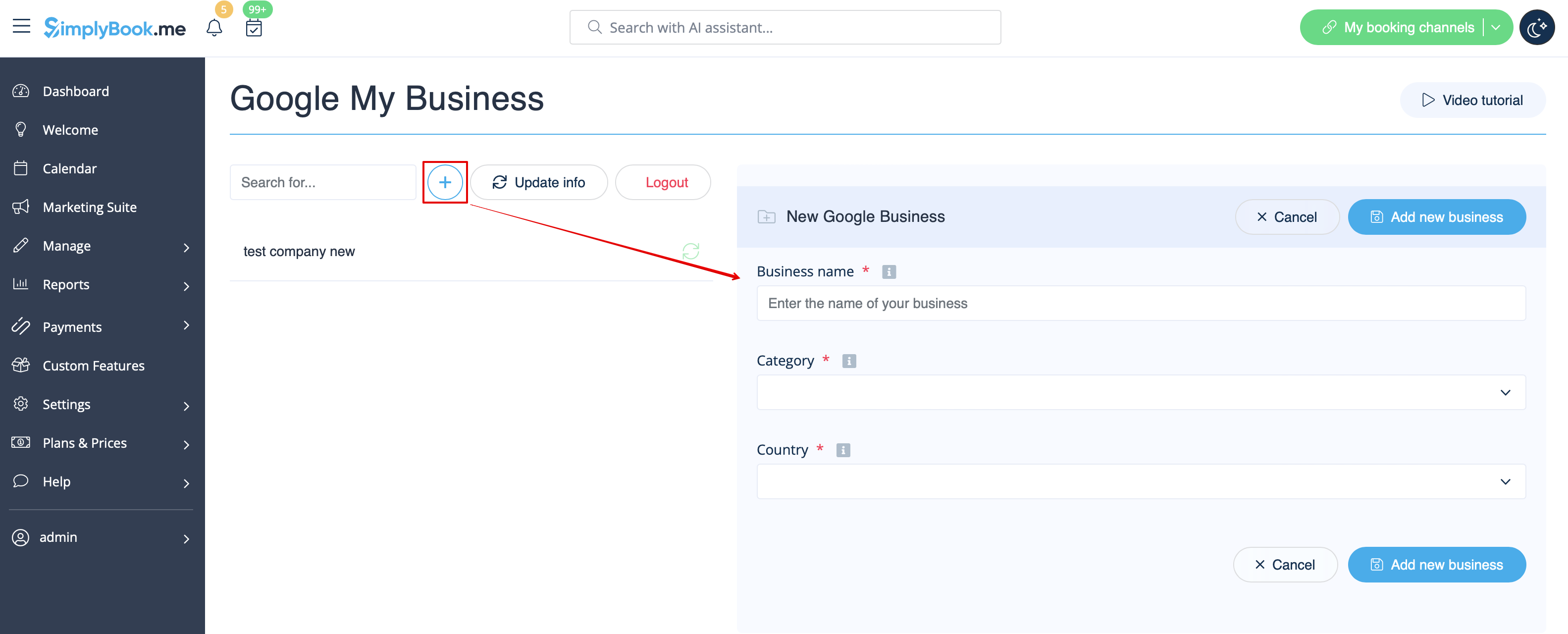
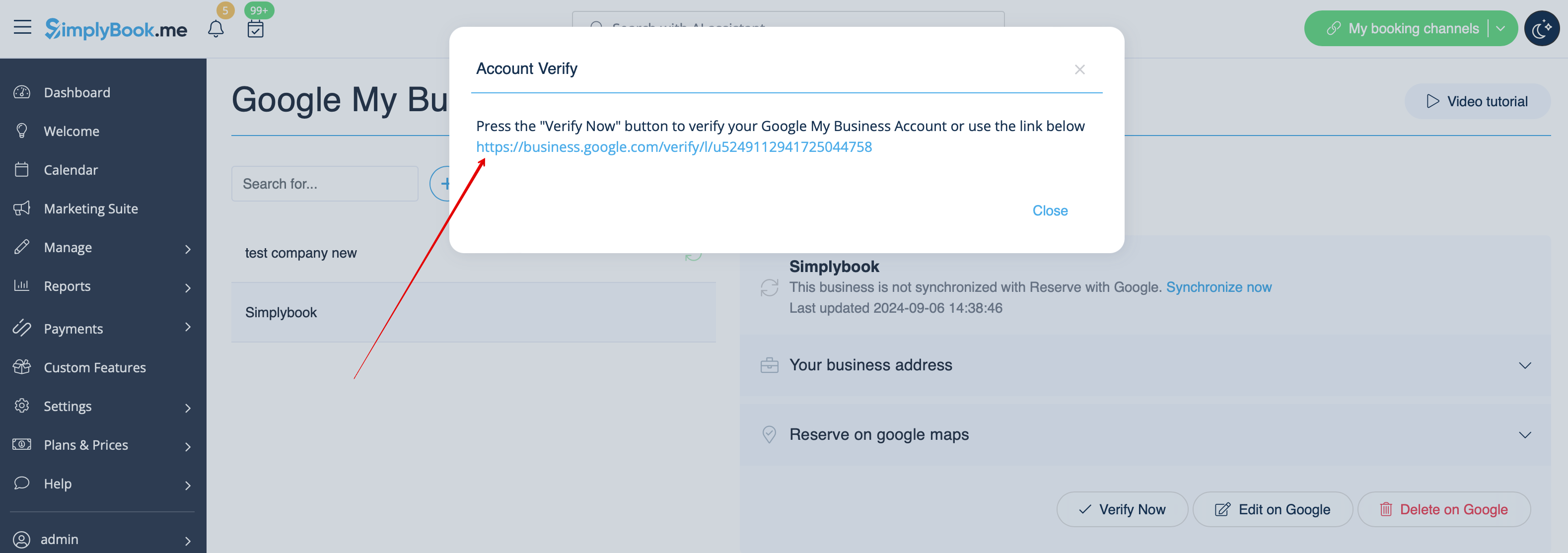
- 6. Når du har tilføjet adressen, skal du klikke på Gem og luk, hvorefter du kan fortsætte til verifikationen af virksomhedsplaceringen på Google (det kan tage lidt tid).
- Du kan også lukke pop op-vinduet og vende tilbage til bekræftelsestrinnet senere (der vil være en knap Bekræft nu for hver gemt og synkroniseret virksomhedsadresse).
- Så snart din placering er bekræftet af Google (du vil se trinene i bekræftelsesprocessen, mens du følger Googles instruktioner), vil din virksomhed blive vist i søgningen og på Google Maps.
- 7. Når du gemmer placeringen, sendes følgende oplysninger om din virksomhed til Google:
- virksomhedens placeringstitel;
- virksomhedens åbningstider;
- virksomhedens telefonnummer;
- link til reservationsside;
- virksomhedskategori (da Googles kategorier varierer, vil den bedst matchende blive fundet).

- Bemærk,at hvis du har ændret nogle af disse oplysninger i din SimplyBook.me-konto, skal du gemme forretningsadressen igen i Google Business-indstillingerne, for at oplysningerne bliver opdateret på Google.
- 8. Du kan også redigere dine forretningsadresseoplysninger på Google, hvis det er nødvendigt. Klik blot på knappen Rediger på GMB øverst (vises for gemte og synkroniserede placeringer).
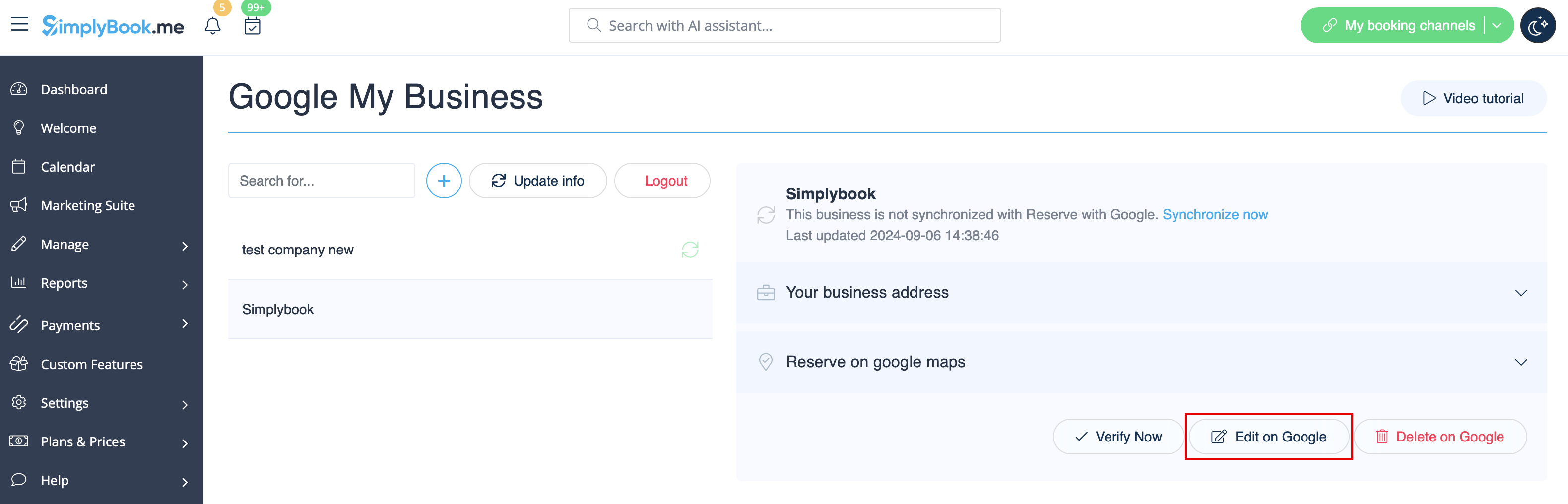
- 9. Hvis nogle placeringer ikke længere er relevante for din virksomhed, kan du nemt slette dem i denne funktionsindstilling. Klik blot på Slet på GMB-indstillingen.
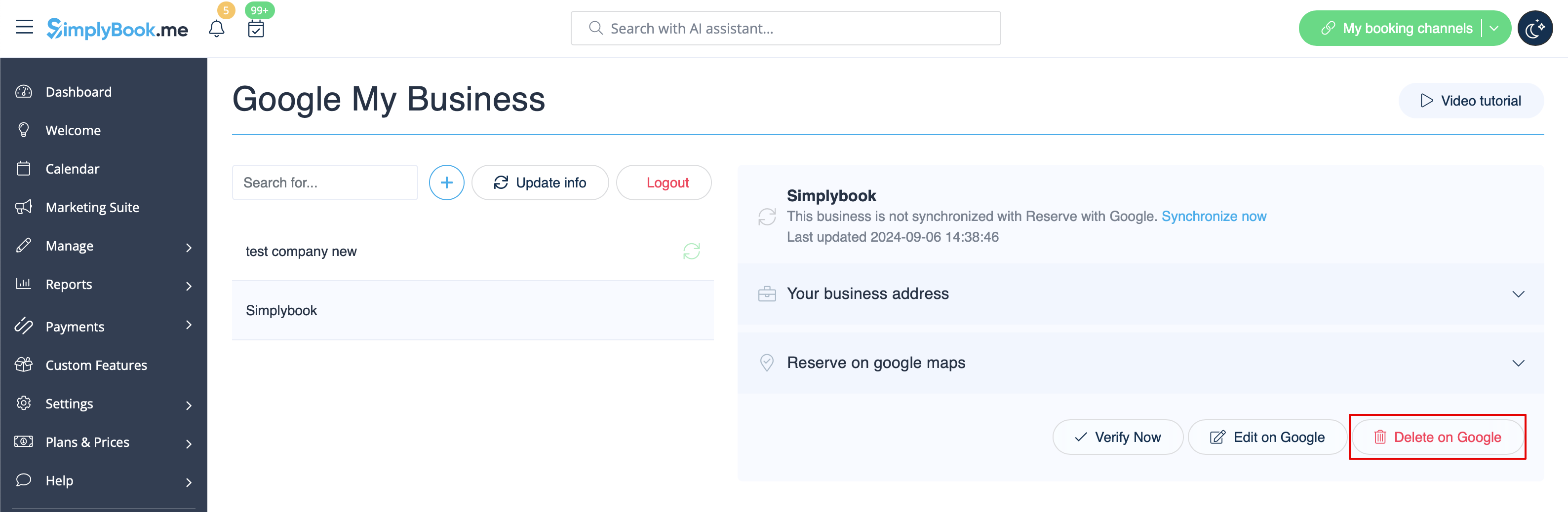
Reserver med Google
Add a Book online button to your Google Business listing. Allow your clients to find you easily on Google and book your services right there via Google Search, Google Maps or Google Assistant, powered by the SimplyBook.me booking system.
- Please note!:
- Reserve with Google is currently available only for supported countries listed here;
- Currently it is not possible to use this option for the following business categories: medical center, educational institution, government office, engineer, medical clinic, dentist, medical office, education center, event management company, city administration, embassy, general practice attorney, child care agency, university, college, school, library, financial institution.
- It is required to have Accept Payments custom feature enabled (Pay later (Allow delay payment) option should always be On) and prices should be added for all the services/classes you wish to be displayed and bookable through Google Maps;
- All the services/classes should have descriptions to be displayed on the Google side;
- If you are using Intake forms feature there should be no mandatory forms added to the services you wish to be available for booking;
- If a service is recurring or connected to Membership it will not be displayed in Reserve with Google;
- If you are using outdated Google Calendar Sync custom feature it will not be possible to use Reserve with Google.
- How to use
- 1. Add and verify your Google Business location(s) either via SimplyBook.me platform(previous part of this tutorial) or using your Google Business interface and re-save it(them) in Google Business custom feature settings.
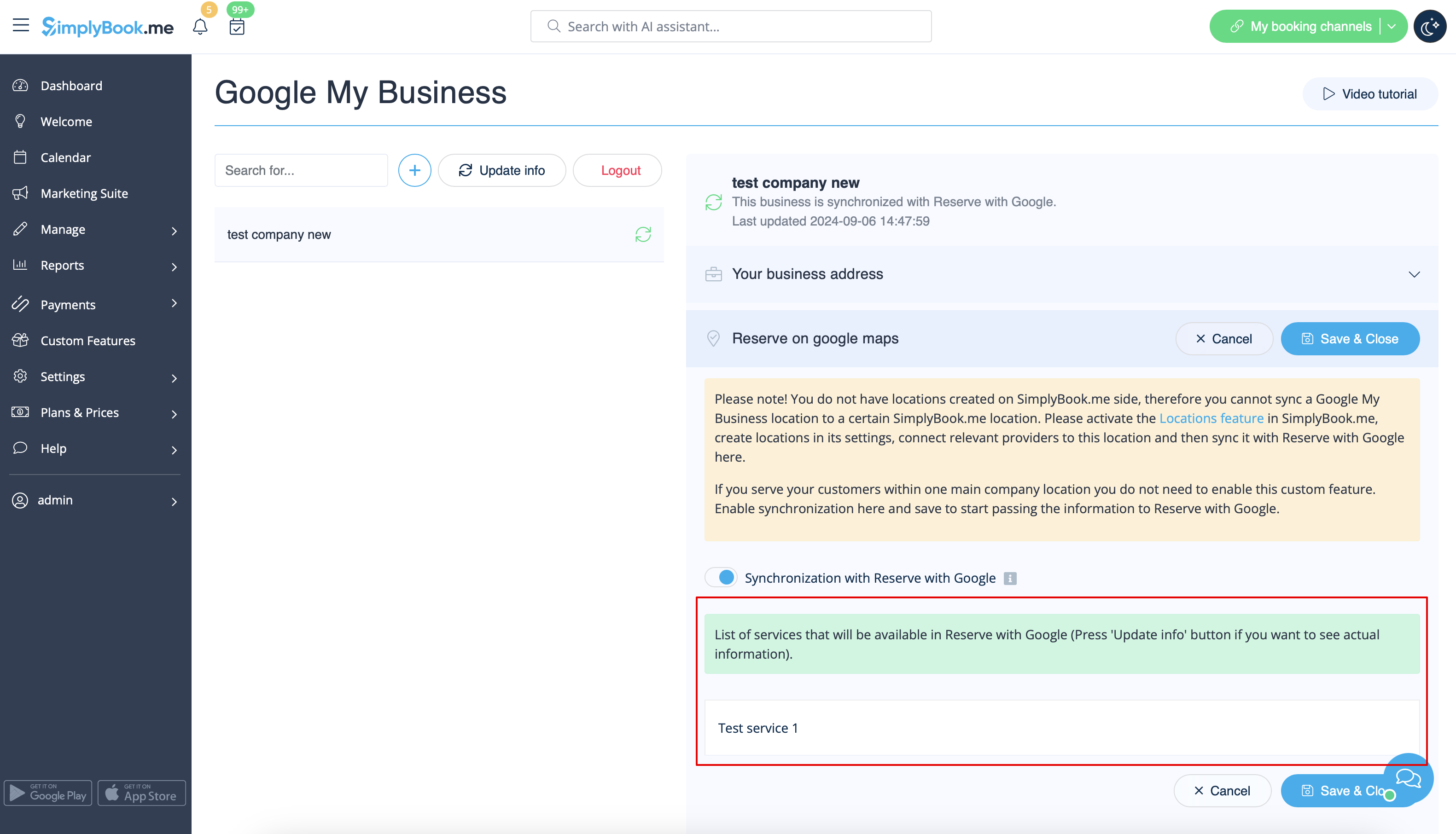
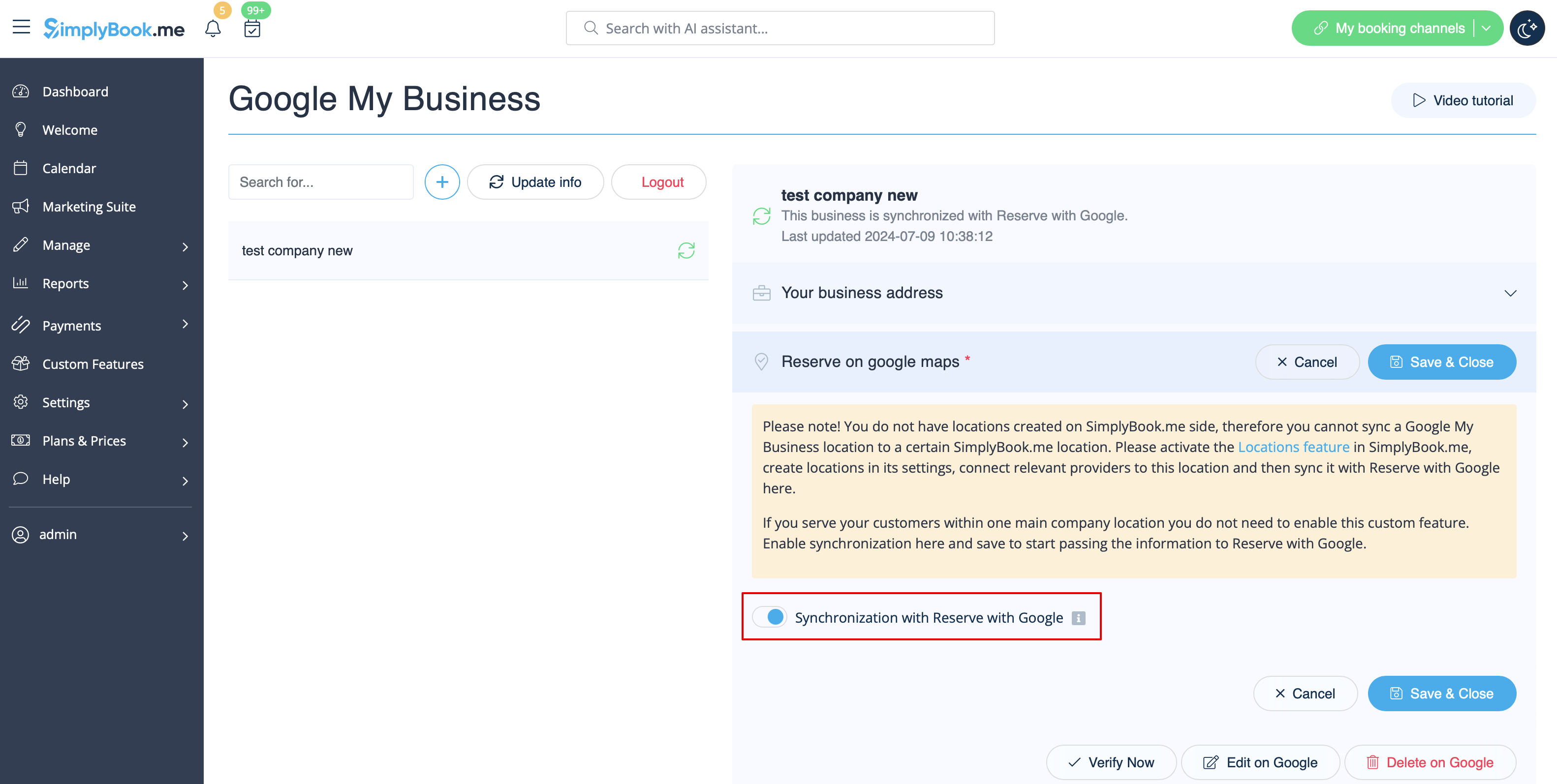
- 2. Navigate to Reserve on google maps tab and move the switcher Synchronization with Reserve with Google to an active position.
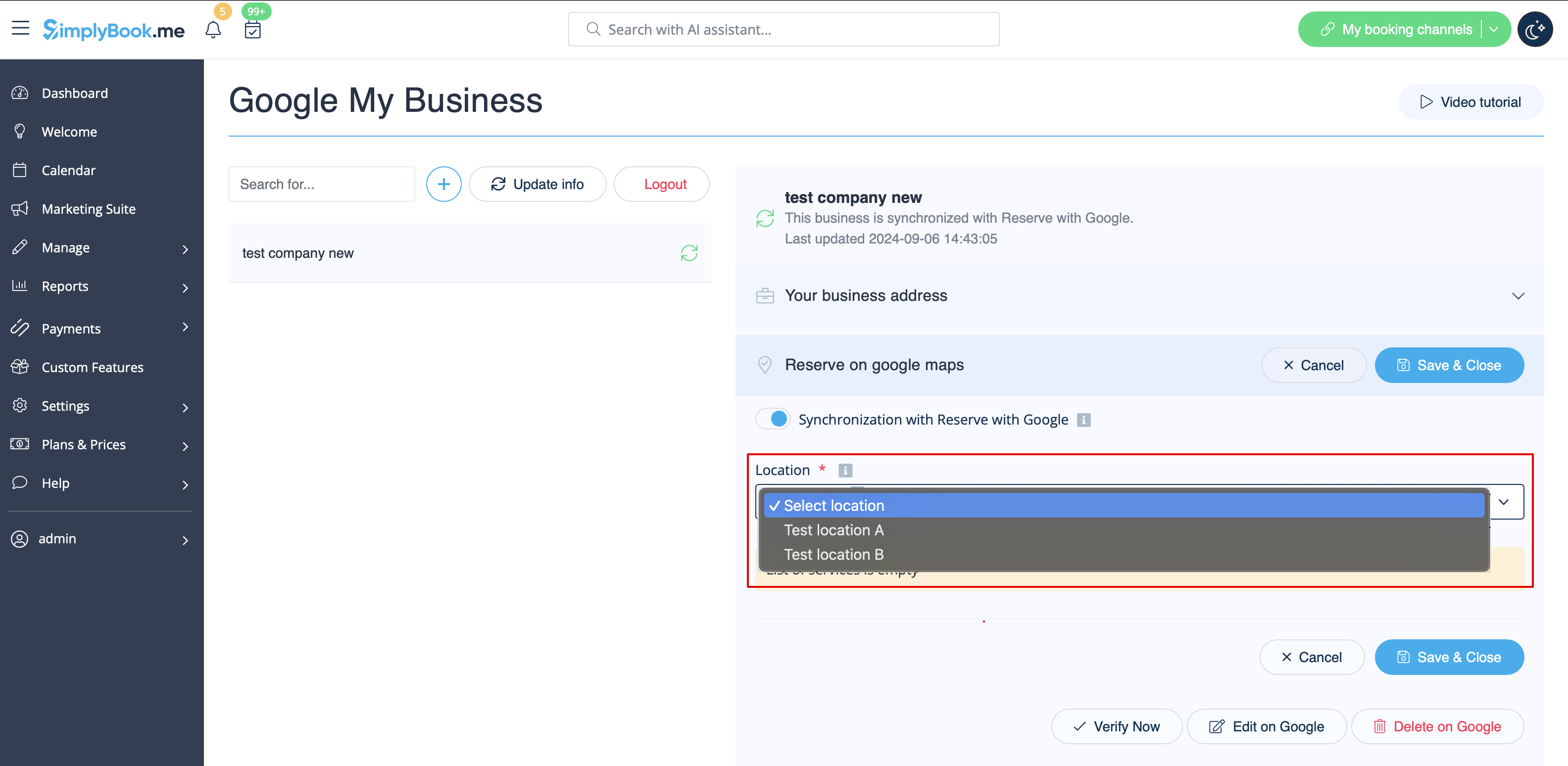
- 3. (optional) If you use Multiple Locations custom feature, connect your Google Businesses to desired SimplyBook.me locations.
- Please note! It is possible to connect one SimplyBook.me location to one Google Business.
- If you do not use Multiple Locations your main company location can be connected to one Google Business.
- 4. Save settings. Now the sync takes place and after you reload the page it will be possible to see the list of services that will be passed to Reserve with Google for booking.
- By default we gather all the information and pass the update to Google once a day, but you can use Update info button to prepare the information for transfer manually if any settings changes in your account(for example, if you have created new service) were made.