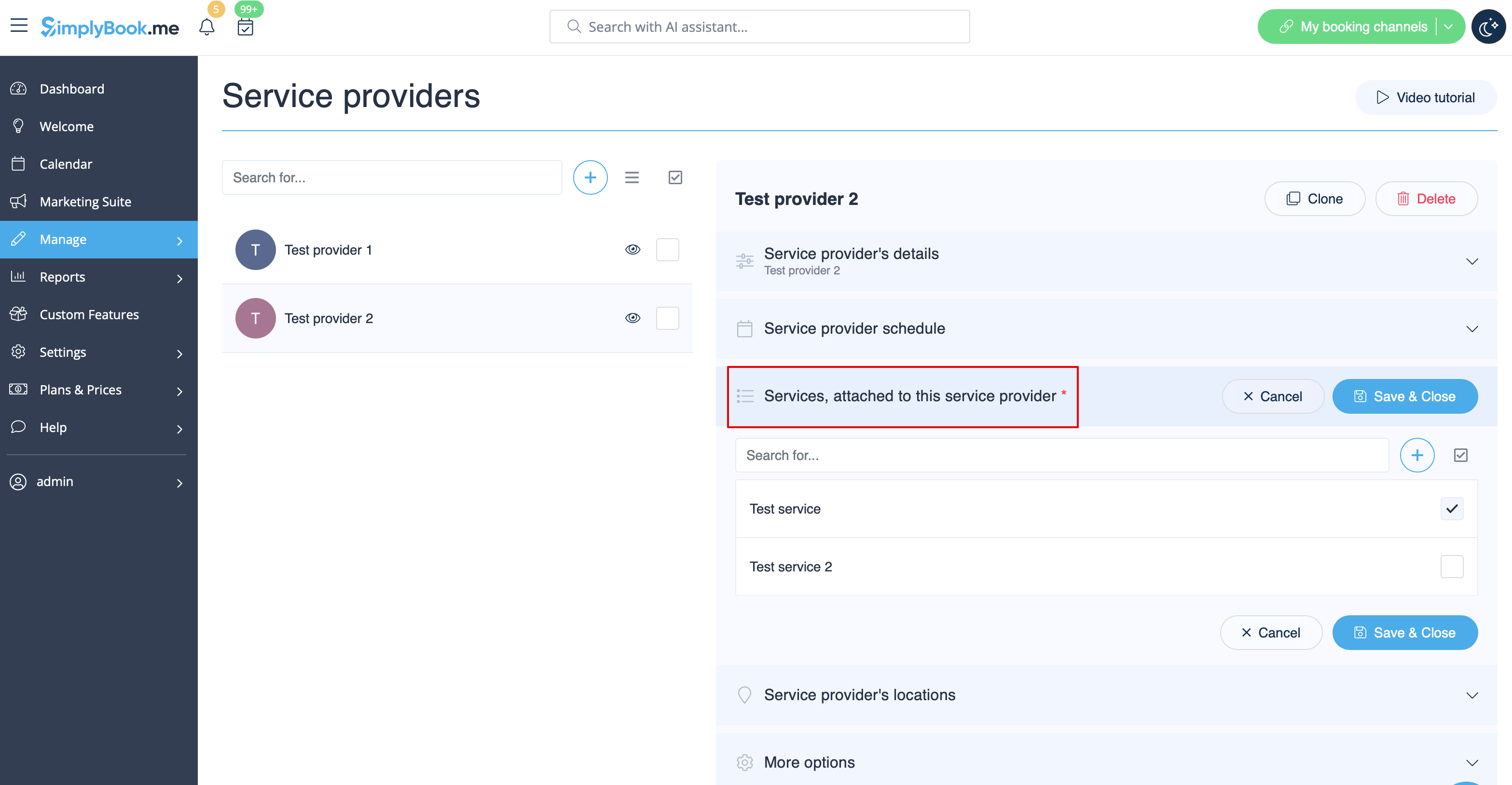
Relationer mellan tjänster och leverantörer
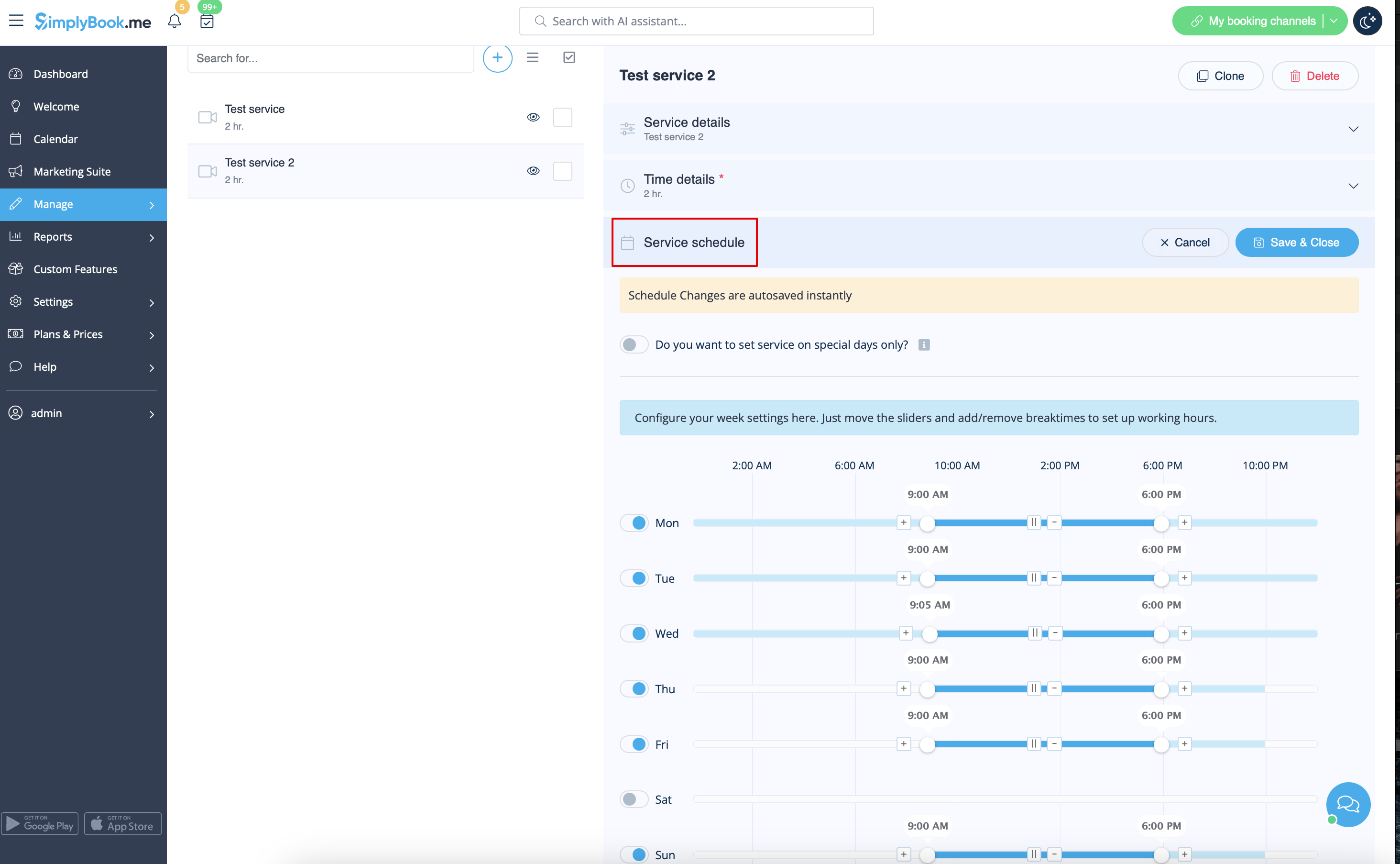
Hur man skapar scheman för tjänster
- I vårt system är det möjligt att ställa in scheman för varje tjänst. För att göra detta, följ dessa steg:
- 1. Gå till Hantera // Tjänster// Lägg till tjänst och skapa alla nödvändiga tjänster.
- 2. Klicka sedan på fliken "Tjänstschema" i Hantera // Tjänster och ställ in schema för varje tjänst.
Händelser (tjänster på vissa datum)
Alternativ 1 (som tjänst med eget schema)
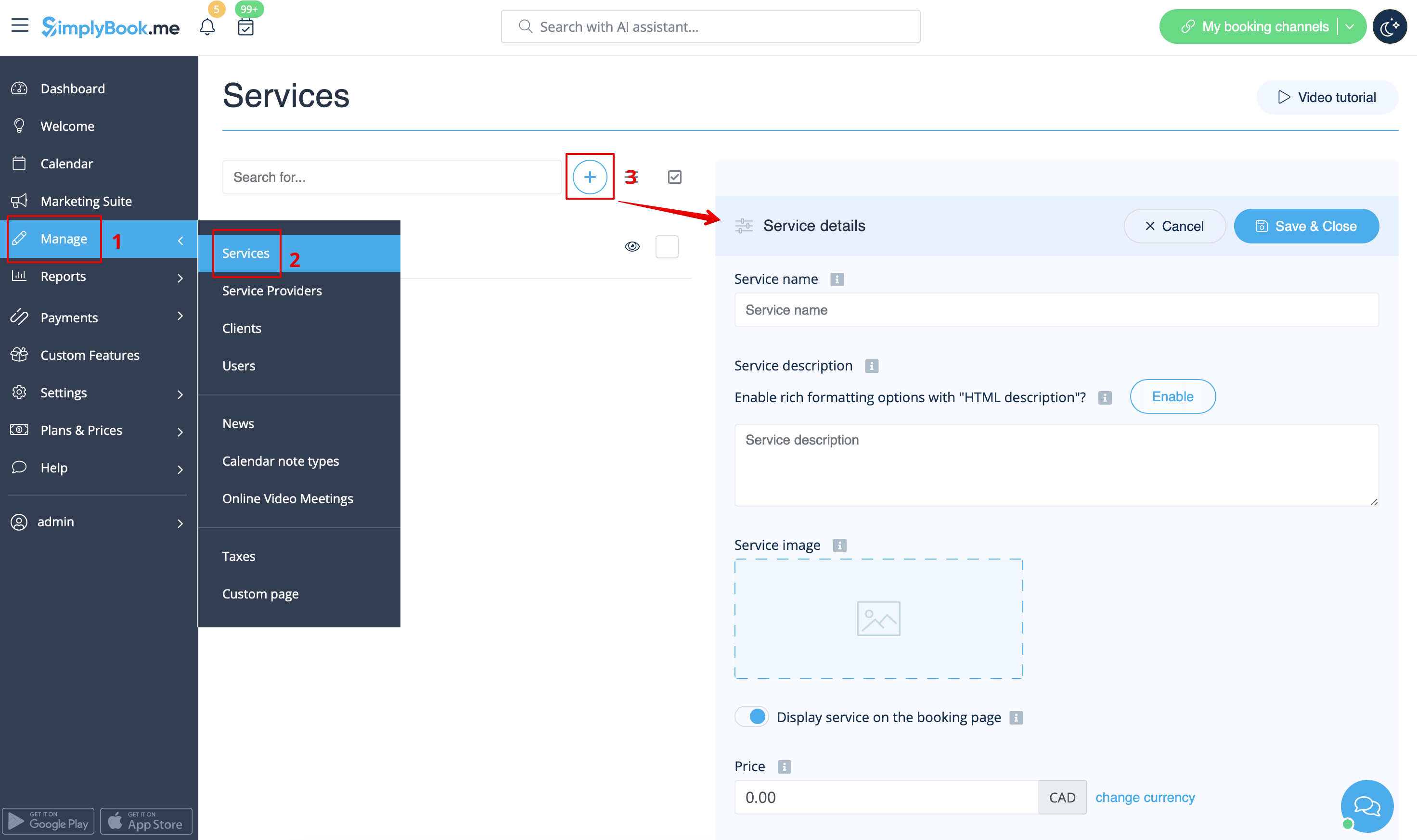
- 1. I Hantera//Tjänster klickar du på ikonen "+" för att skapa en ny tjänst.
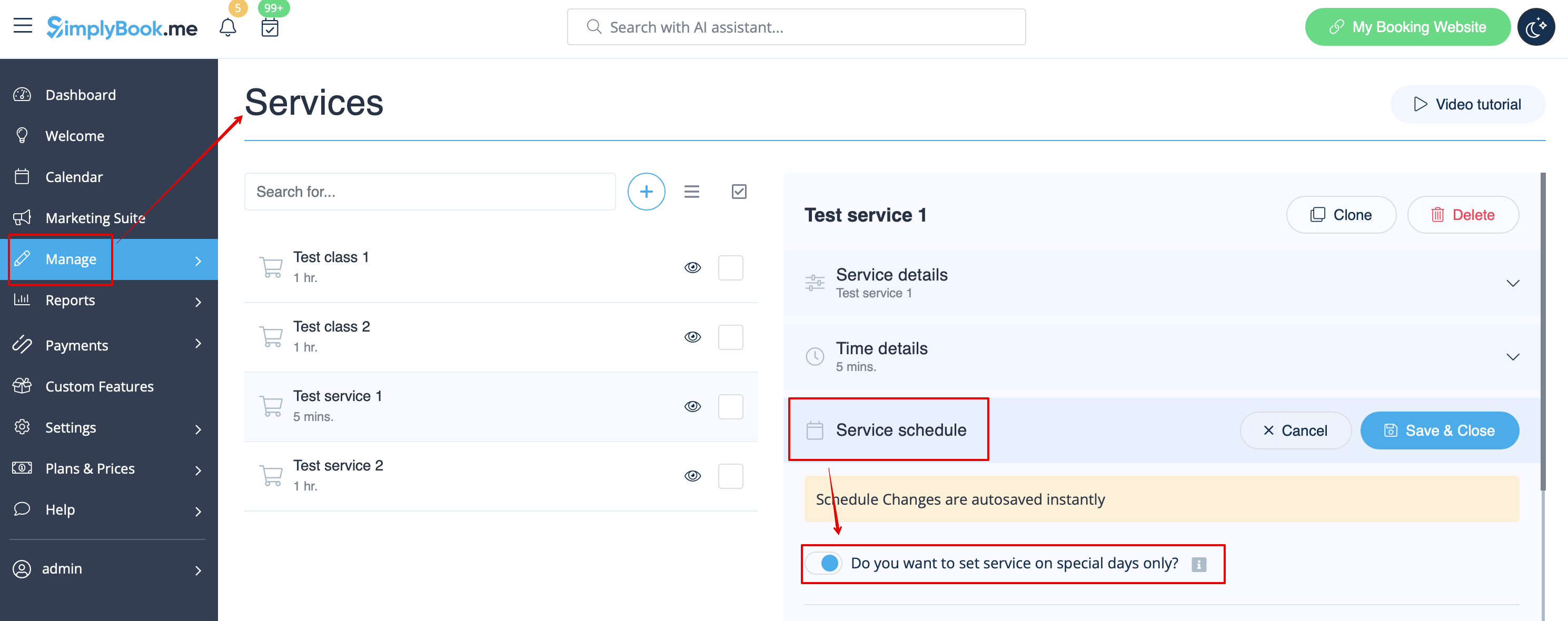
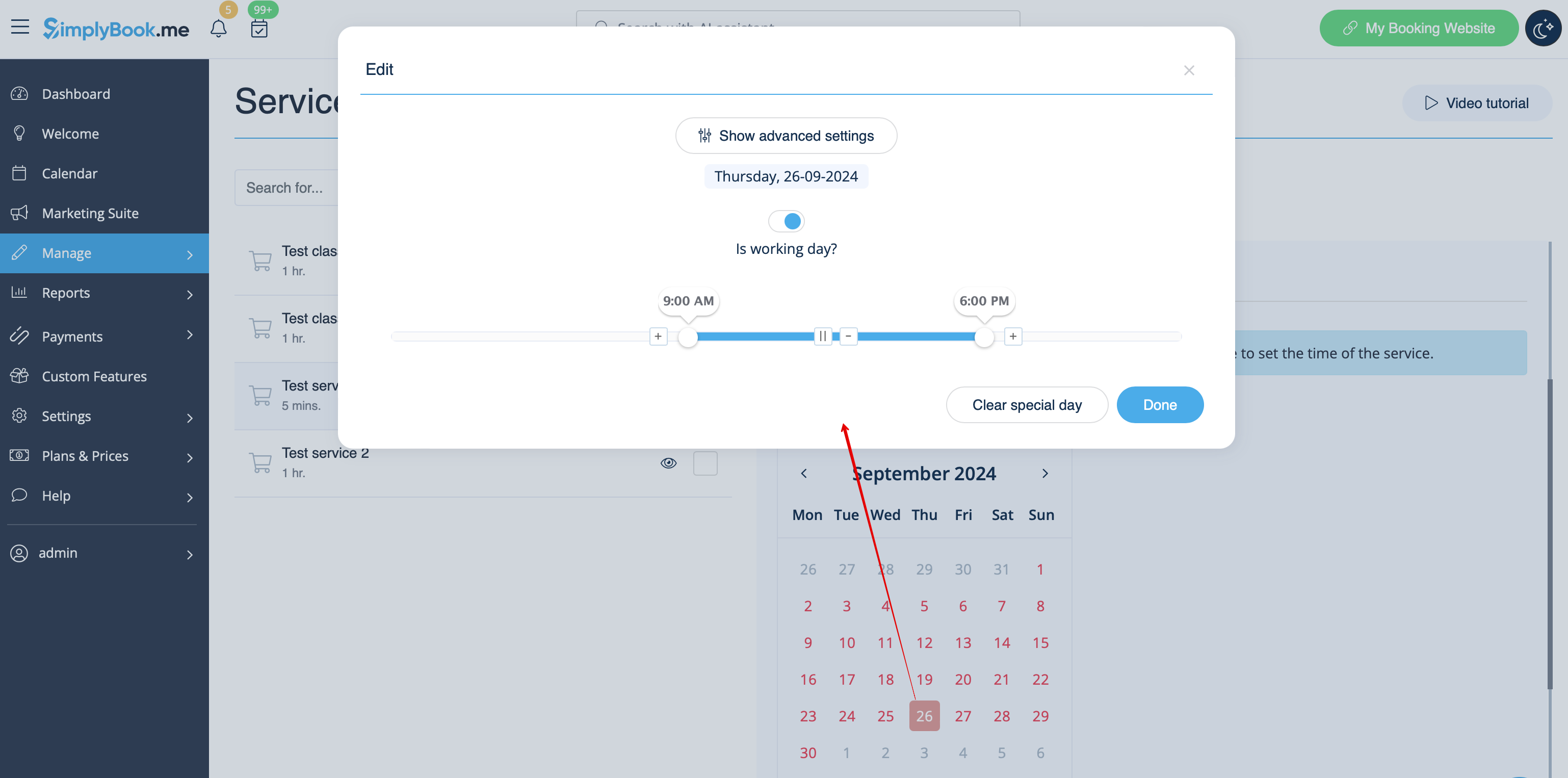
- 2. I Hantera//Tjänster väljer du fliken "Tjänstschema" på den nyskapade tjänsten och aktiverar alternativet "Vill du ställa in tjänsten endast på särskilda dagar?".
- 3. Använd sedan kalendern, klicka på de datum du vill öppna och ställ in schemat för dessa datum genom att flytta reglagen (den ljusblå zonen är öppen tid).
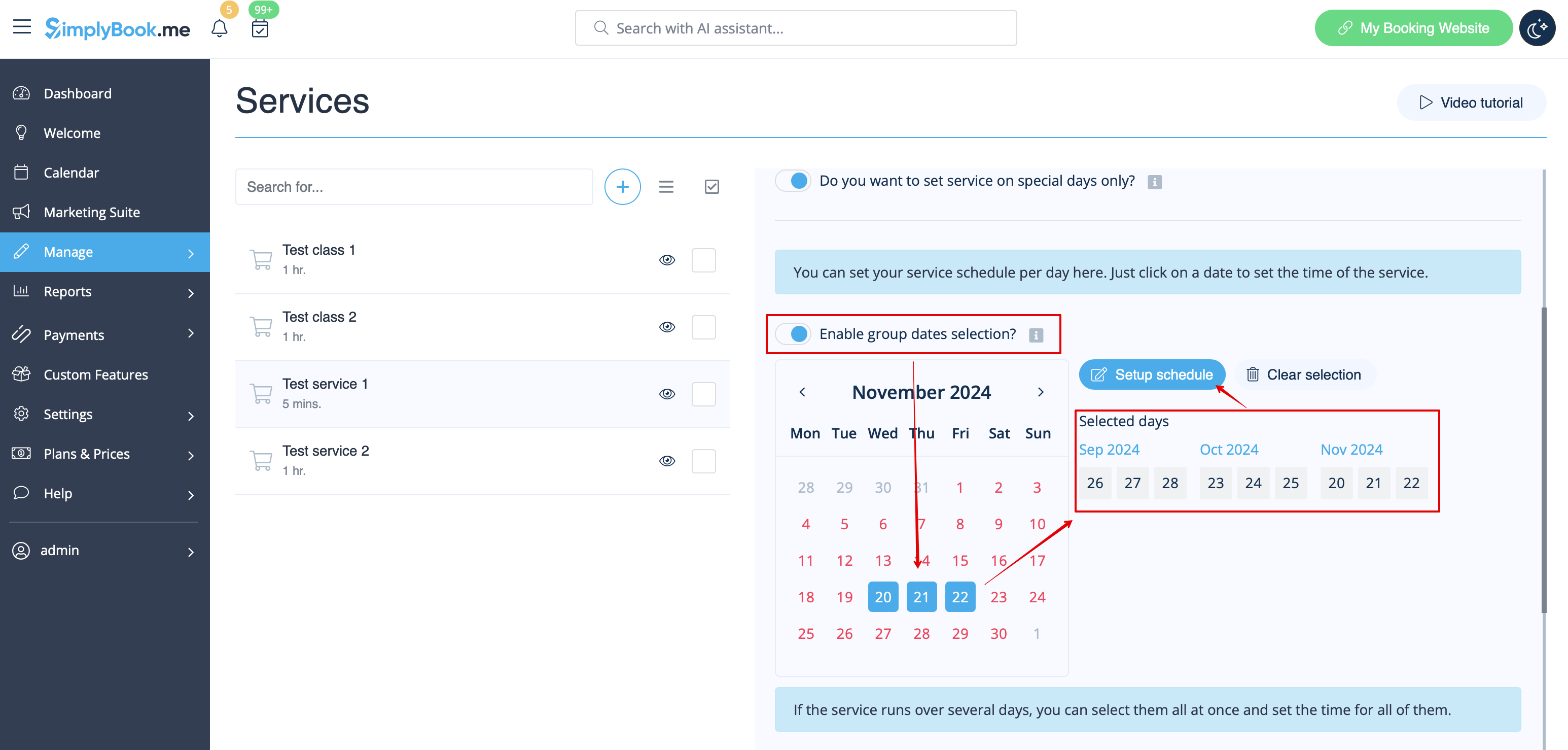
- Om du behöver välja flera datum samtidigt, aktivera "Aktivera val av gruppdatum?", välj de datum du vill redigera och klicka på "Ställ in schema" för att ställa in tiderna.
- 4. Anslut tjänsten till nödvändig leverantör i fliken "Tjänsteleverantörer".
Alternativ 2 (som händelse med hjälp av den anpassade funktionen Klasser )
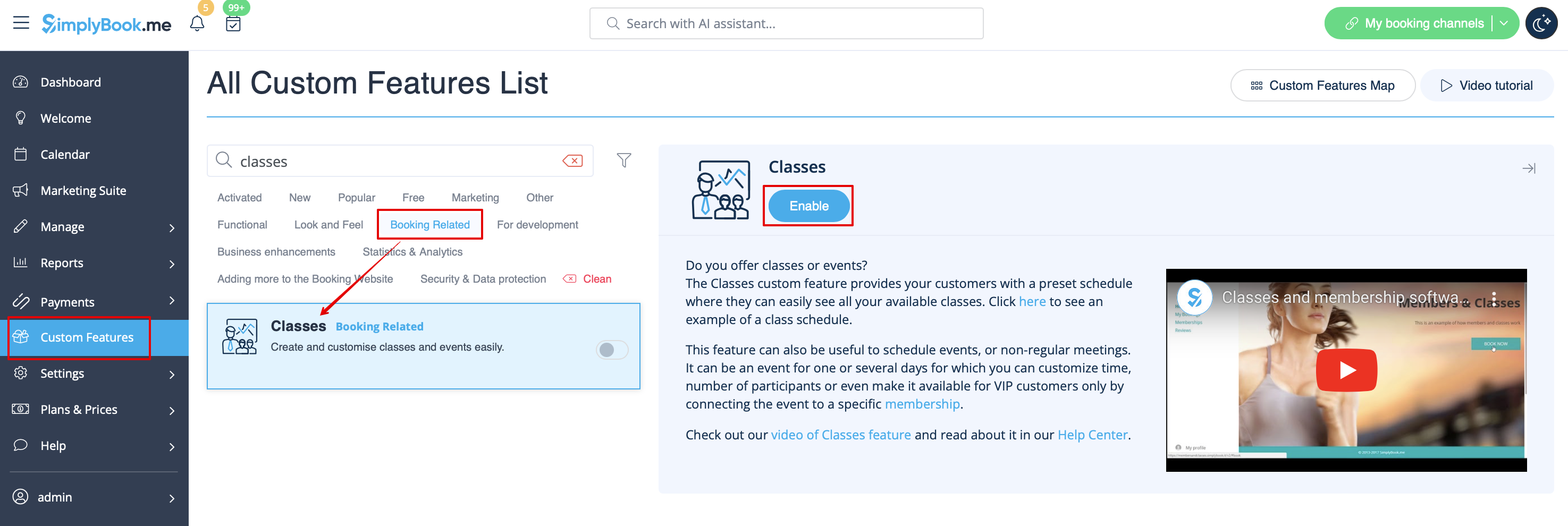
- 1. Aktivera anpassningsfunktionen Klasser på sidan Anpassade funktioner.
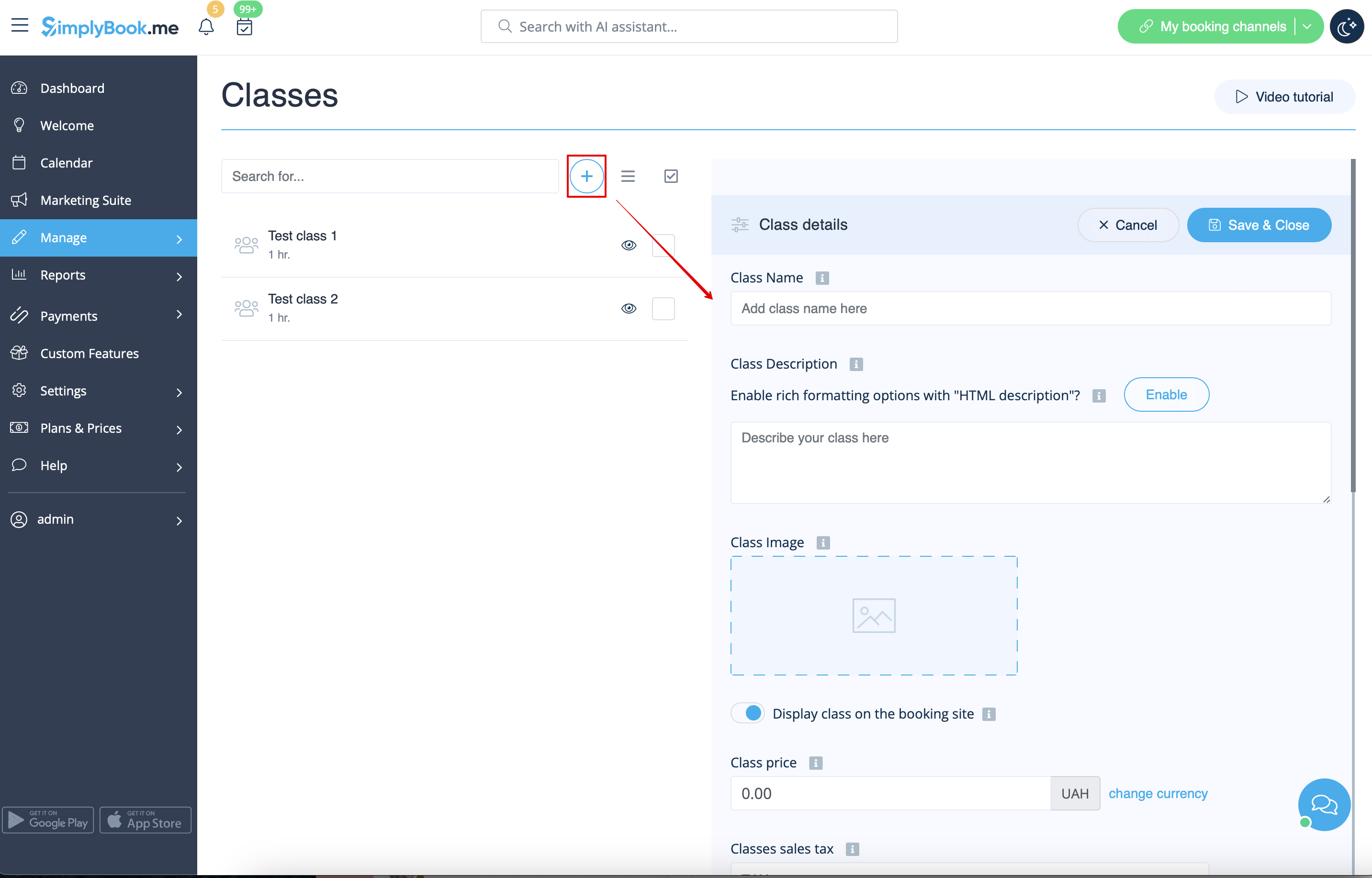
- 2. Navigera till sidan Hantera//Klasser och skapa en ny klass.
- 3. Välj fliken "Klasschema" på den nyskapade klassen och aktivera alternativet "Vill du ställa in tjänsten endast på särskilda dagar?"
- 4. Använd sedan kalendern, klicka på de datum du vill öppna och ställ in schemat för dessa datum genom att flytta skjutreglagen (den ljusblå zonen är öppen tid).
- How events(classes) work
The general logic of event(class) is creating Service + Provider related to it with dates selected in the settings of the event(class) as special days. When you use Classes custom feature the event creates service+provider related to it with identical name. In order to preserve proper functioning of the event on the dates needed, you should not delete provider with identical name related to event (but you can easily change his/her name) and should not disconnect provider from the event.

You can create recurring services and enable your clients to book a particular amount of sessions.
How to create recurring service:
- 1. Go to Manage // Services // "Time details" tab on the needed service.
- 2. Enable "Make service recurring (pack)?" there
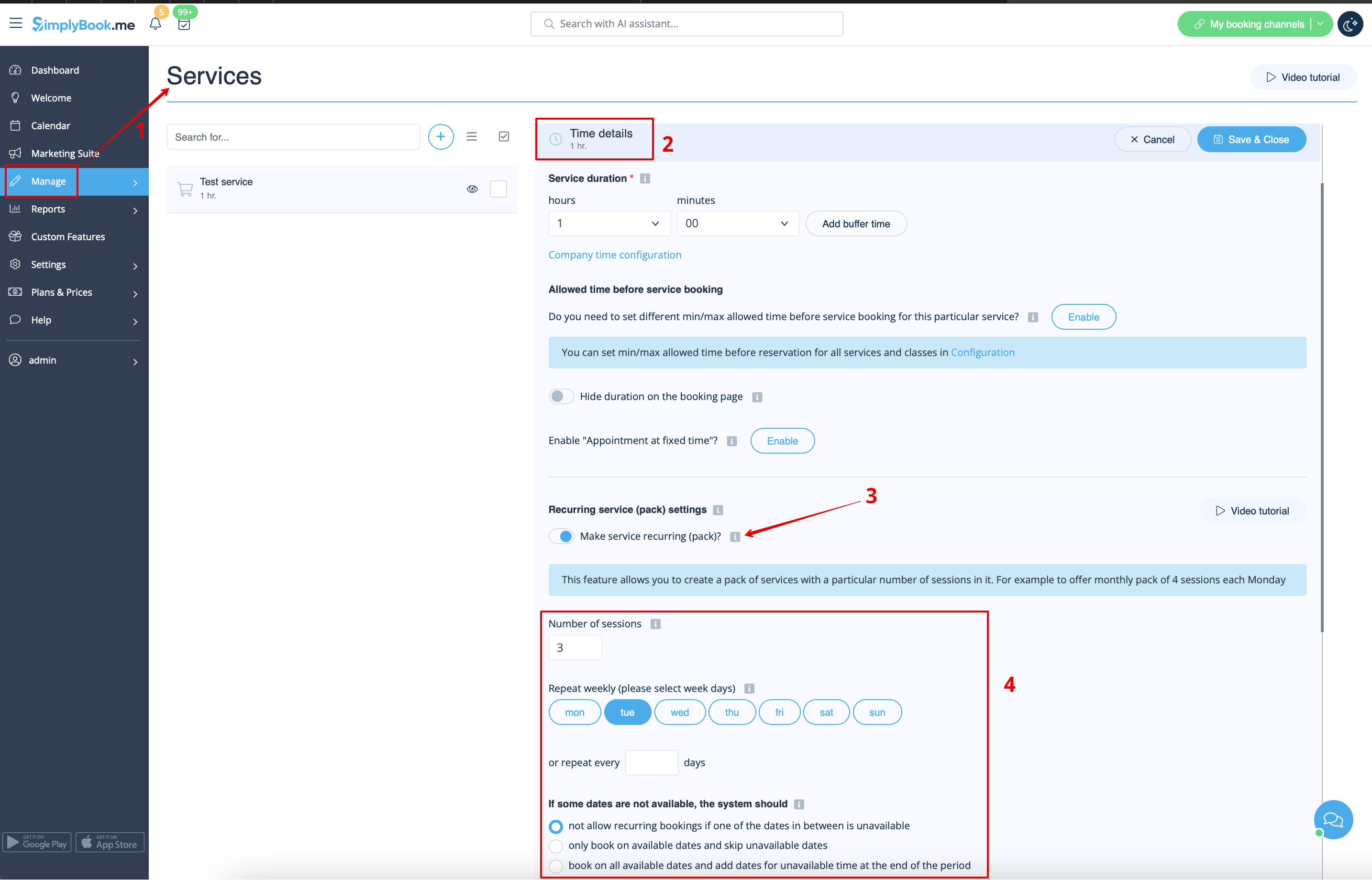
- 4. Choose when your service will repeat. Select "Repeat weekly (please select week days)" and day/days of the week (e.g Mondays) when your service occurs.
- If you need more specific intervals, you can choose "Or repeat each" and set your service to reoccur every 14 days, for example.
- 5. Choose the mode for the bookings. Available modes:
- Not allow - not allow recurring bookings if one of dates in between unavailable (Using the example below, if 15th is busy, the system will not allow to book 1st and 8th, only days after busy day).
- Book only on available date - only book on available dates and skip unavailable dates (Using the example below, if 15th is busy, the system will allow you to book 1st and 8th and 22nd (only 3 out of 4).
- Add appointments - book on all available dates and add dates behind for unavailable in between dates (Using the example below, if 15th is busy, the system will book 1 and 8th and 22nd + 1 day instead of busy 15th, which is August 29th).
- 6. Set the number of times your service will repeat in "Repeat count".
- Example: If you set up Mondays and repeat count 4, when clients book this service from booking page, they will book 4 Mondays at once.

Please note!
- If you make the recurring service paid, the amount that you set as the service price is the total for all the sessions.
It is currently not possible to set single session price for the recurring service packs.
That is why if you have single service and decide to make a recurring booking for it from the admin side/POS interface, its price will not be multiplied by the number of selected sessions.
- It is not possible to reschedule bookings related to recurring batch with Client rescheduling feature.
- When a client books a service set as recurring with a certain amount of sessions, the number of bookings that are created at one go equals the number of sessions you have set for such service.
Working on different locations
Locations are designed to group providers. Can be added with the help of Multiple Locations custom feature.
- How to add
Enable "Multiple Locations" custom feature and add locations either in the settings of the feature or in Manage//Service Providers//Add location. Click on "Location providers" tab of the location and check corresponding boxes to connect providers with location.
Categories are designed to group services. Can be added with the help of Service Categories custom feature.
- How to add
Enable Service Categories feature. In Manage//Services//Add category create all necessary categories. Click on "Category services" tab of the category and check necessary boxes to connect services with category.
Providers do only certain services
In Manage// Service Providers // select the desired provider // Services, attached to this service provider check boxes with necessary services to connect them.