Translations:SBPay.me integration/10/en
From SimplyBook.me
- 1. First of all, as you plan to work with online payment, you need to have Accept Payments custom feature enabled in your SimplyBook.me account.
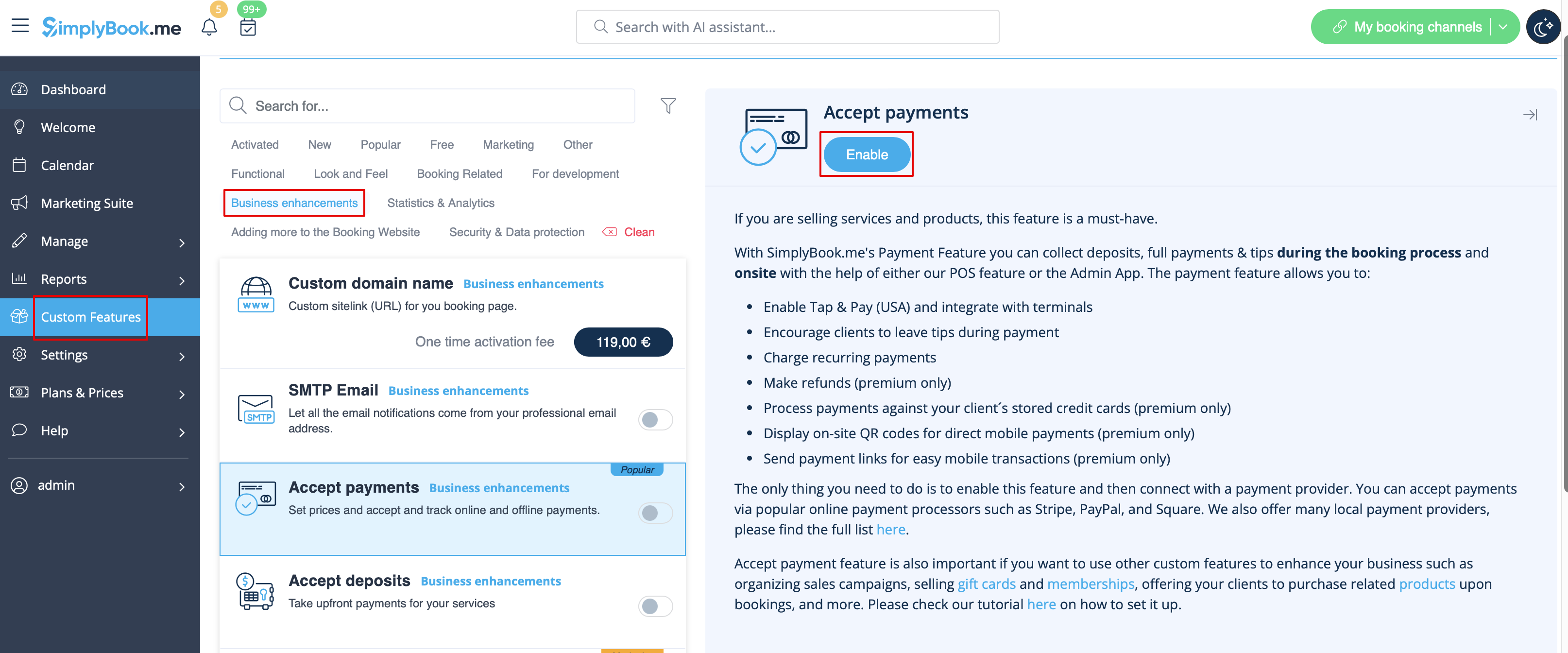
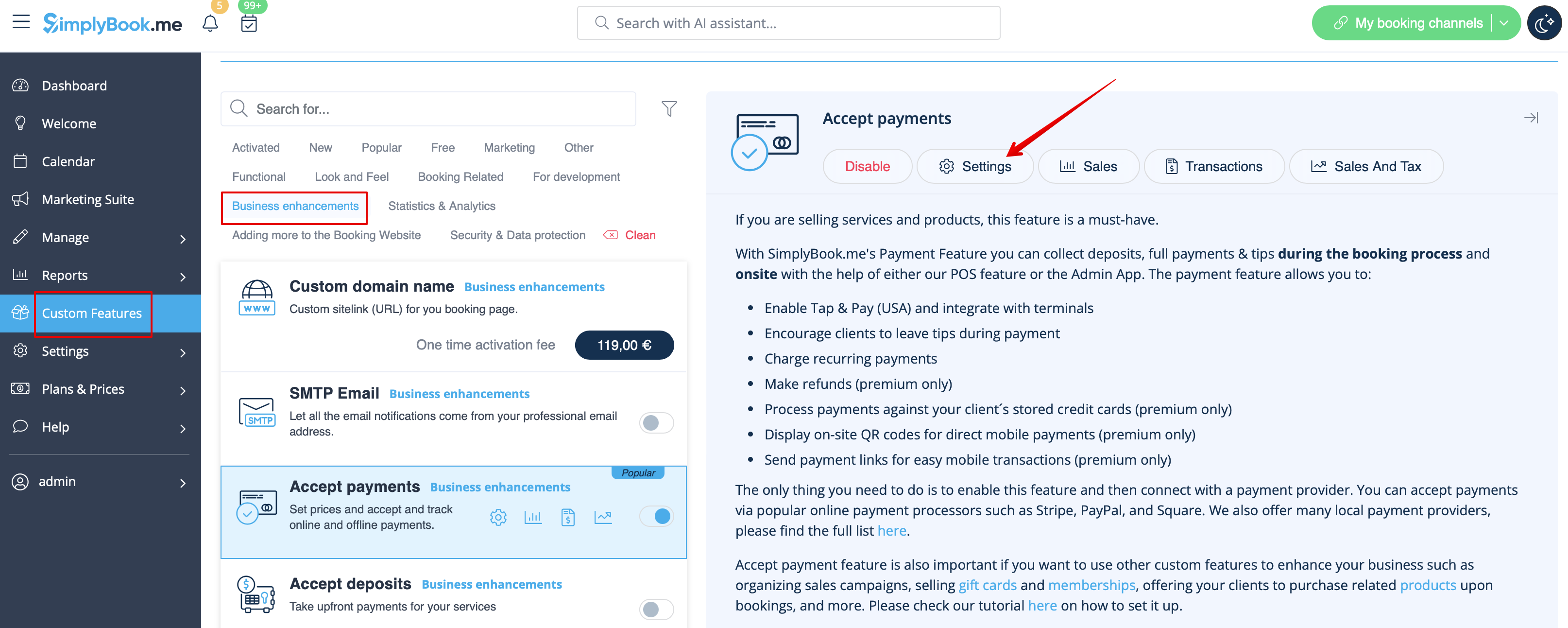
- 2. Click on Settings button on the custom features page next to the Accept Payments feature.
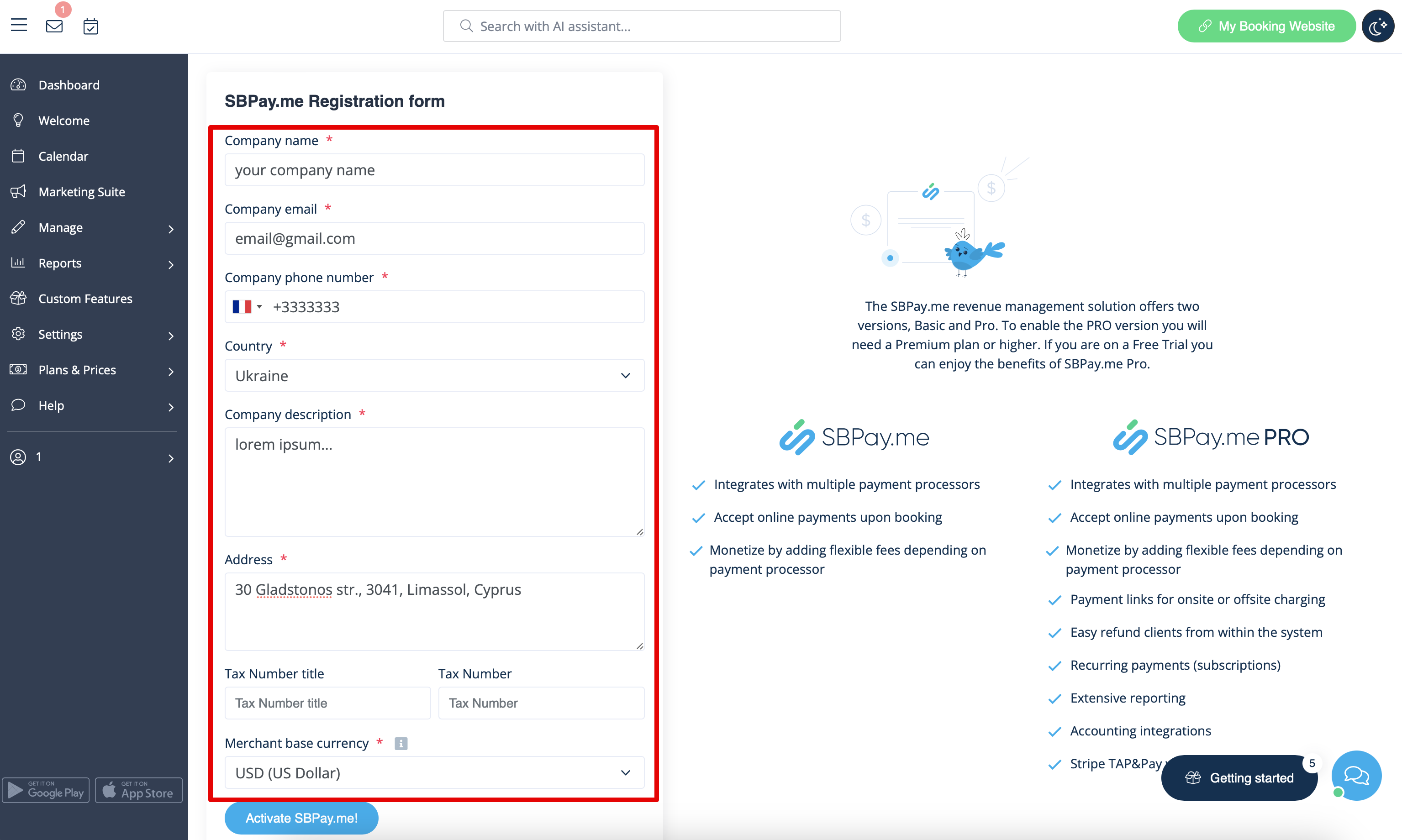
- 3. Adjust your company information in the registration form if necessary.
- (It will be autocompleted with the company details that you already have in your system).
- Click on Activate SBPay.me button below.
- Congratulations! Your SBPay.me account is created!
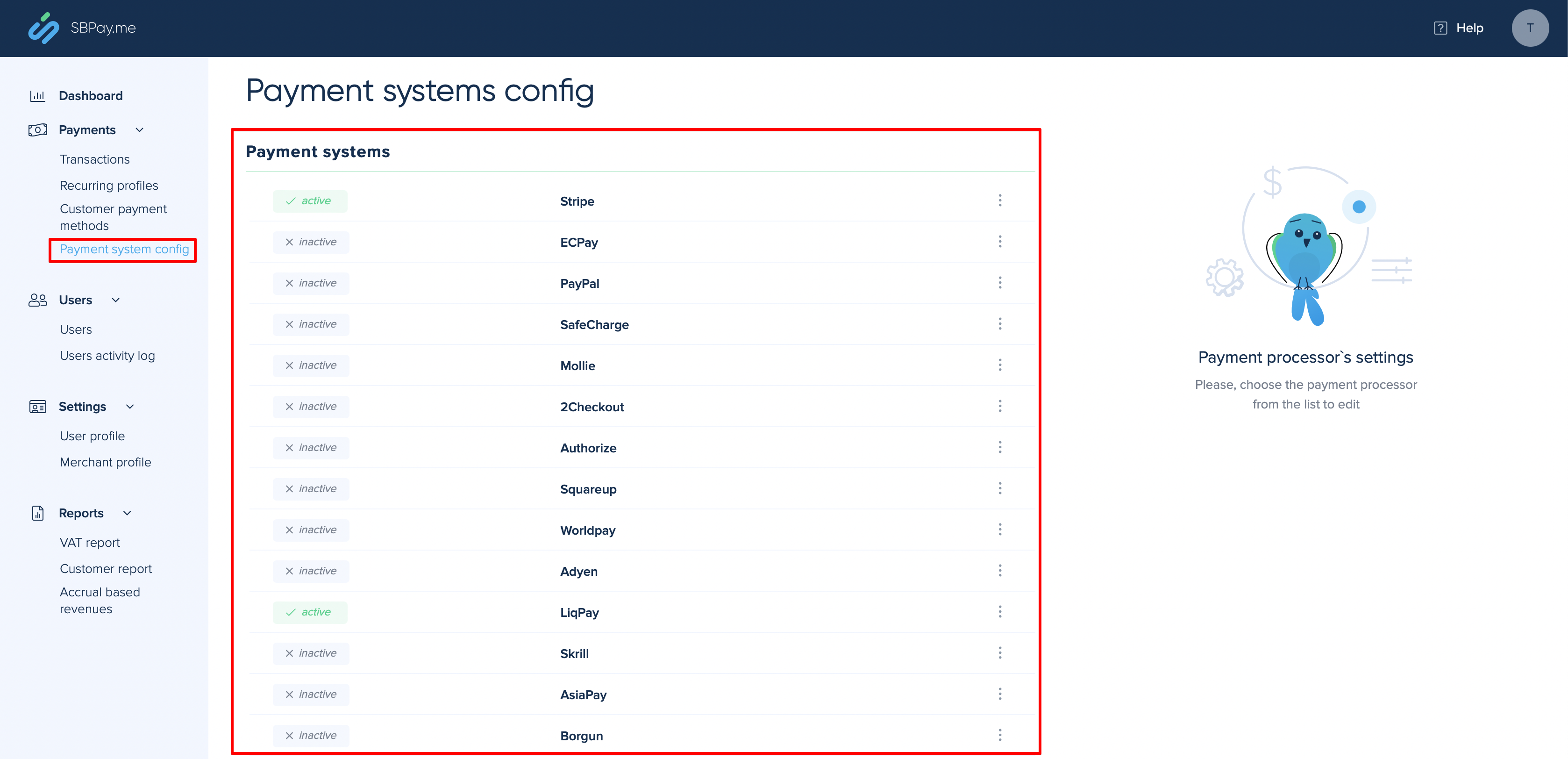
- 4. Navigate to the Payment system settings and add the credentials of the payment gateway that you plan to use for online payments.
- If you had some payment system details before enabling SBPay.me integration it may have been copied to SBPay.me side, but there may be some changes in the payment flow so you will need to check if all the settings are added there for the smooth online payments operation.
- 5. Once you have set the payment processors up you will be able to see the active ones on the SimplyBook.me side as well.
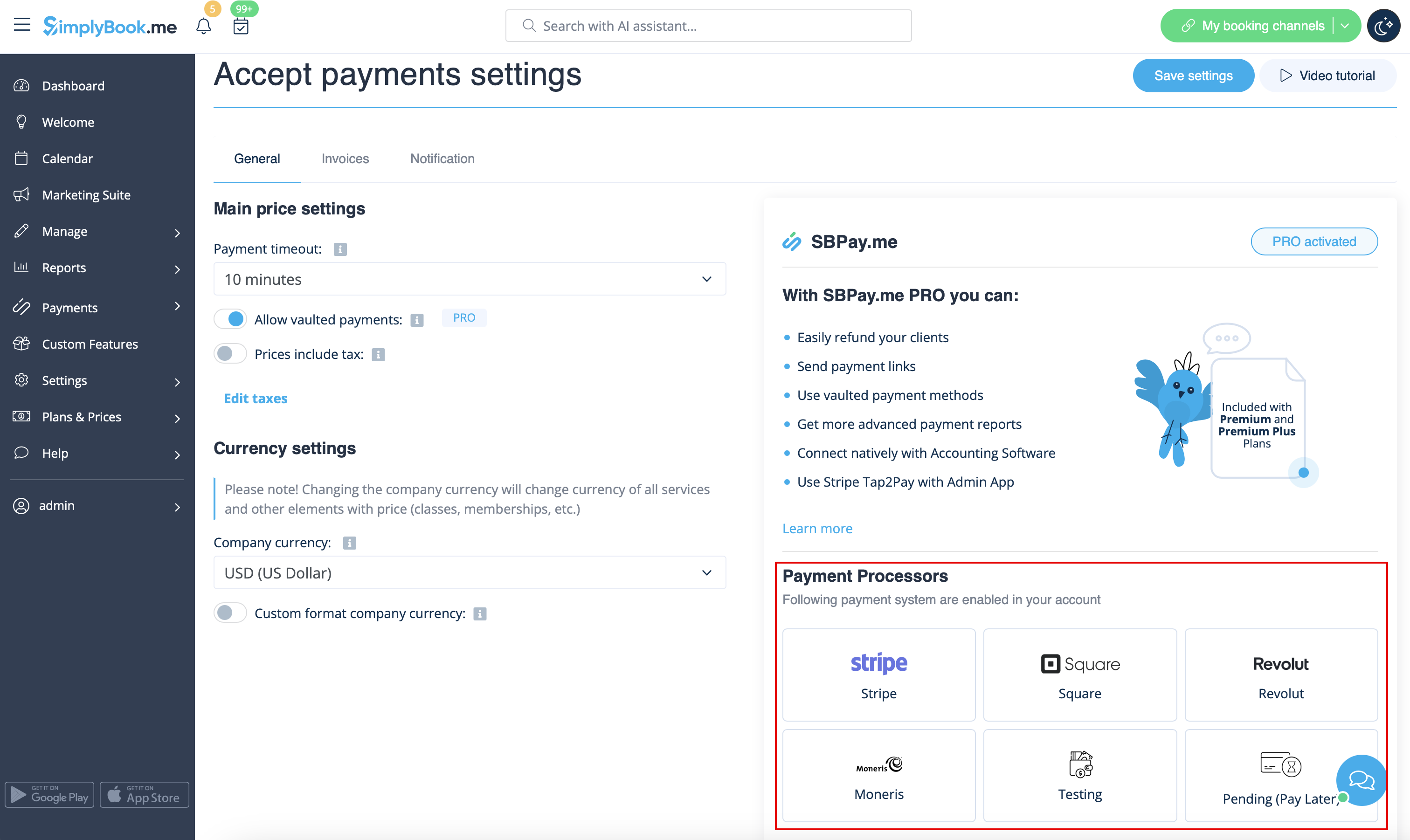
- 6. Set the prices for your services, classes, packages, memberships, gift cards, products or service add-ons in your SimplyBook.me account and you are ready to get payments online.
