Kalenderanteckningar
Det kan vara nödvändigt att lägga till viktig information på kalendersidan som visas tillsammans med bokningar, eller att snabbt blockera en viss tidsperiod och ange orsaken.
Därför har vi lanserat en ny funktion, Kalendernoteringar, med tidsblockeringsfunktion som gör detta möjligt, så att du nu kan ha allt du behöver till hands.
hur man använder:
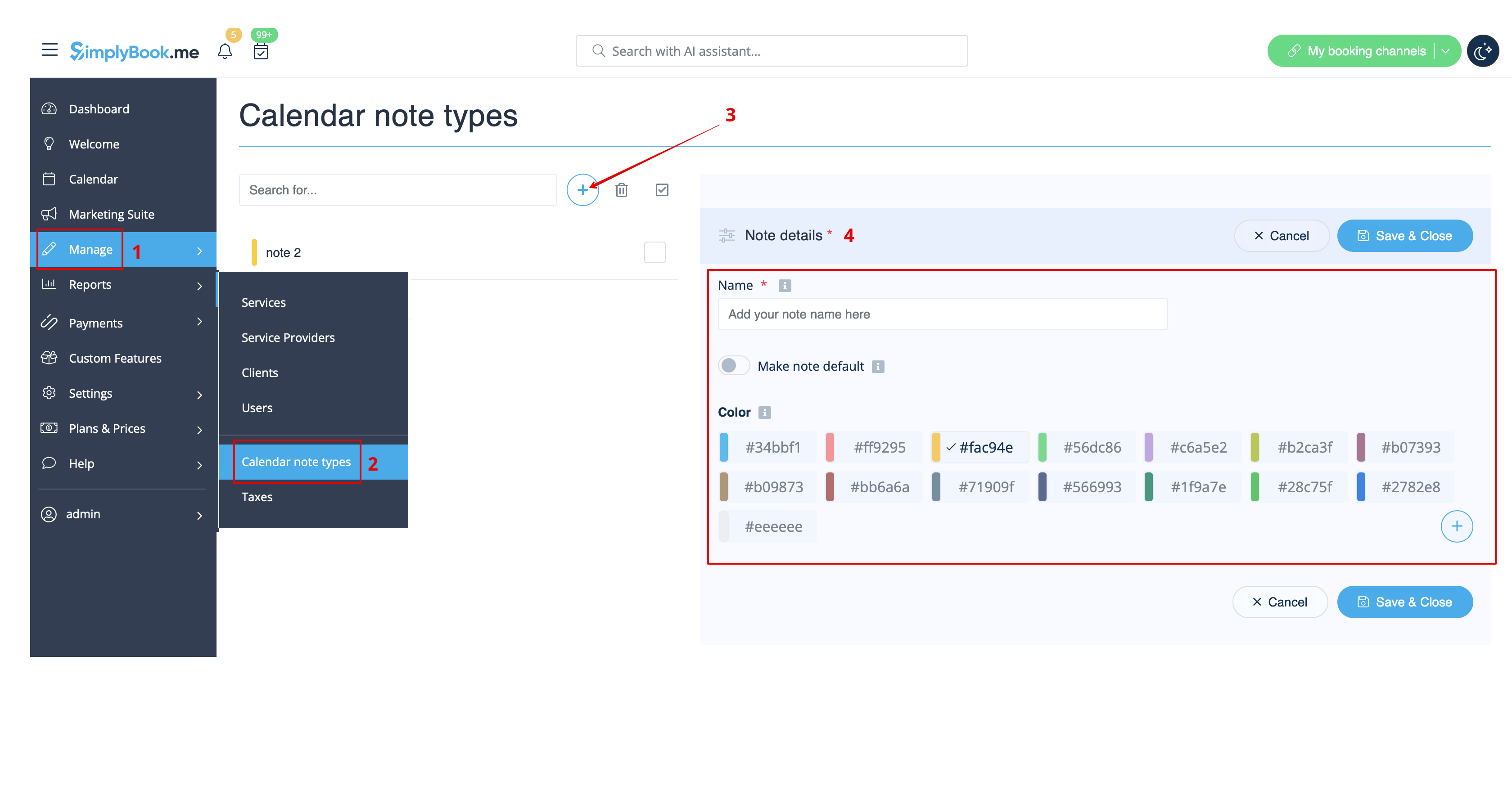
- 1. Som standard finns det en anteckningstyp tillagd i systemet, men du kan gå till Hantera -> Kalendernoteringstyper för att lägga till nya anteckningstyper och ställa in önskade färger för dem.
- 2. När alla typer är klara för användning navigerar du till sidan Kalender med hjälp av menyn till vänster.
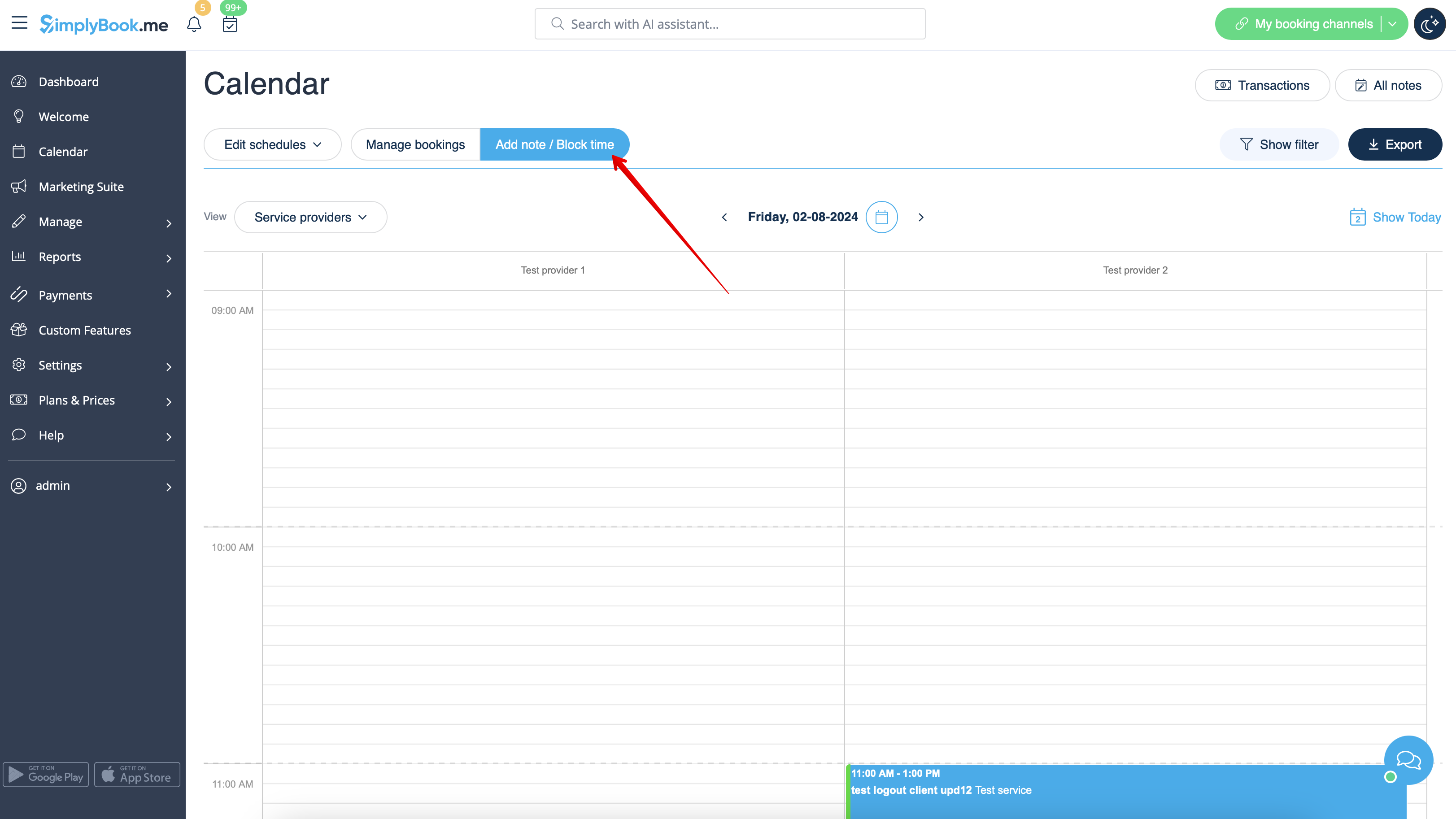
- 3. Växla till läget Lägg till anteckning/Blockera tid ovanför kalendern.
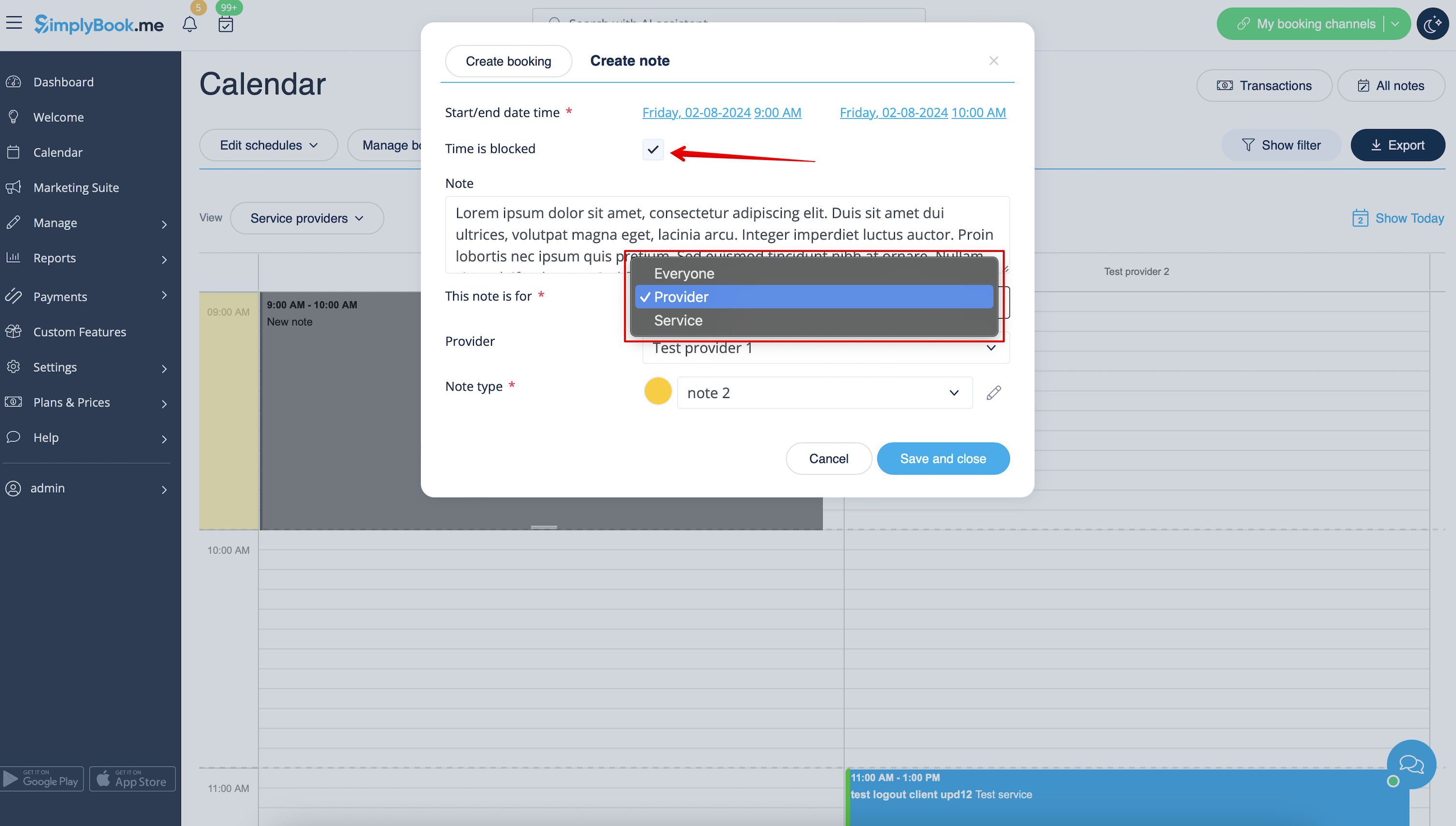
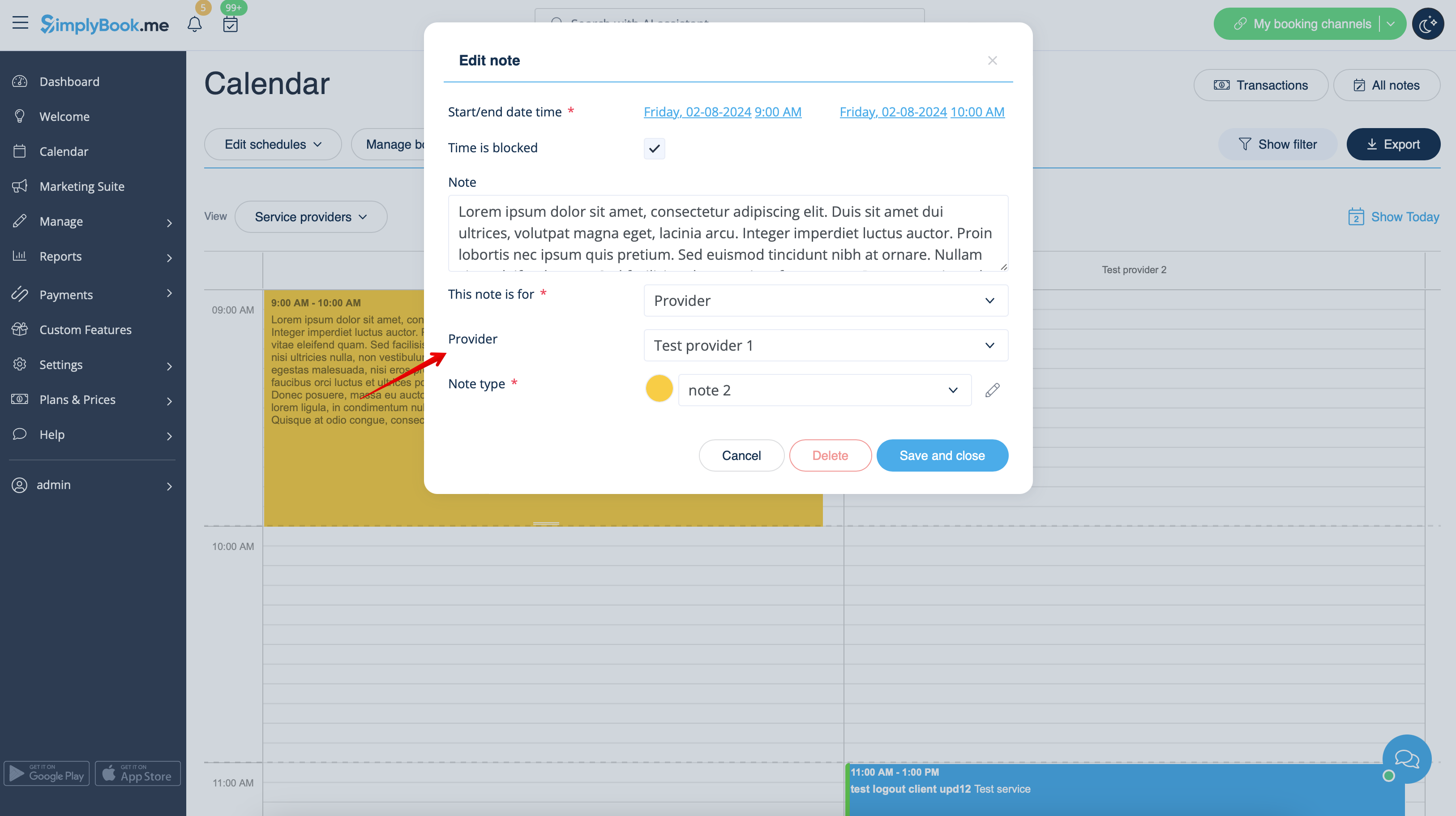
- 4. Click on the free space in the Calendar table where you would like to insert the information or block time to get note popup form.
- 5. Check Time is blocked option to close the availability if needed, add the details to the textbox and select the assignee: you can add a note or close time per specific provider, service or everyone.
- 6. To edit or delete the previously added note click on it to get the popup and use the needed function there.
- Notes overview options
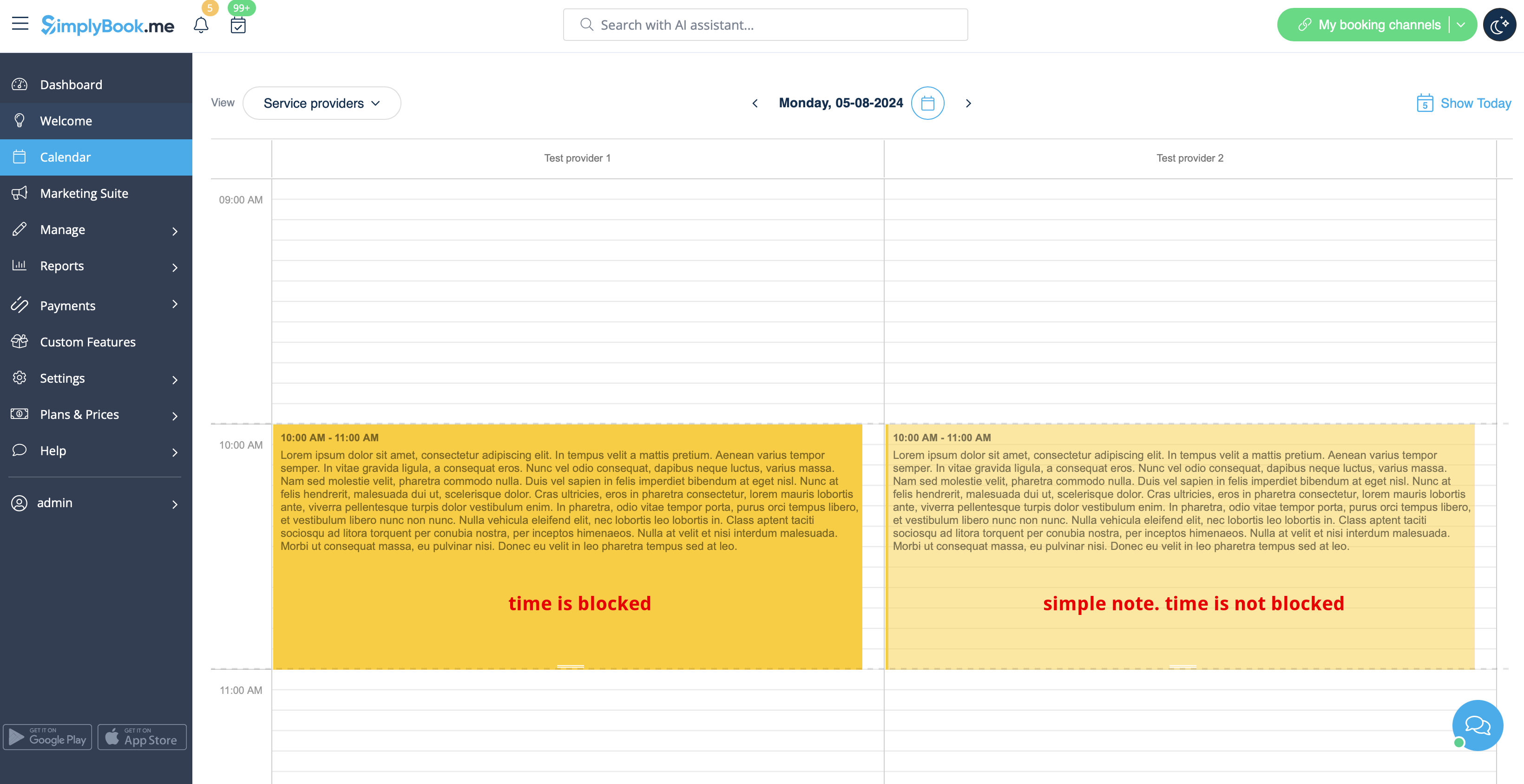
- If you have checked Time is blocked such notes will have a bit brighter color compared to simple text notes.
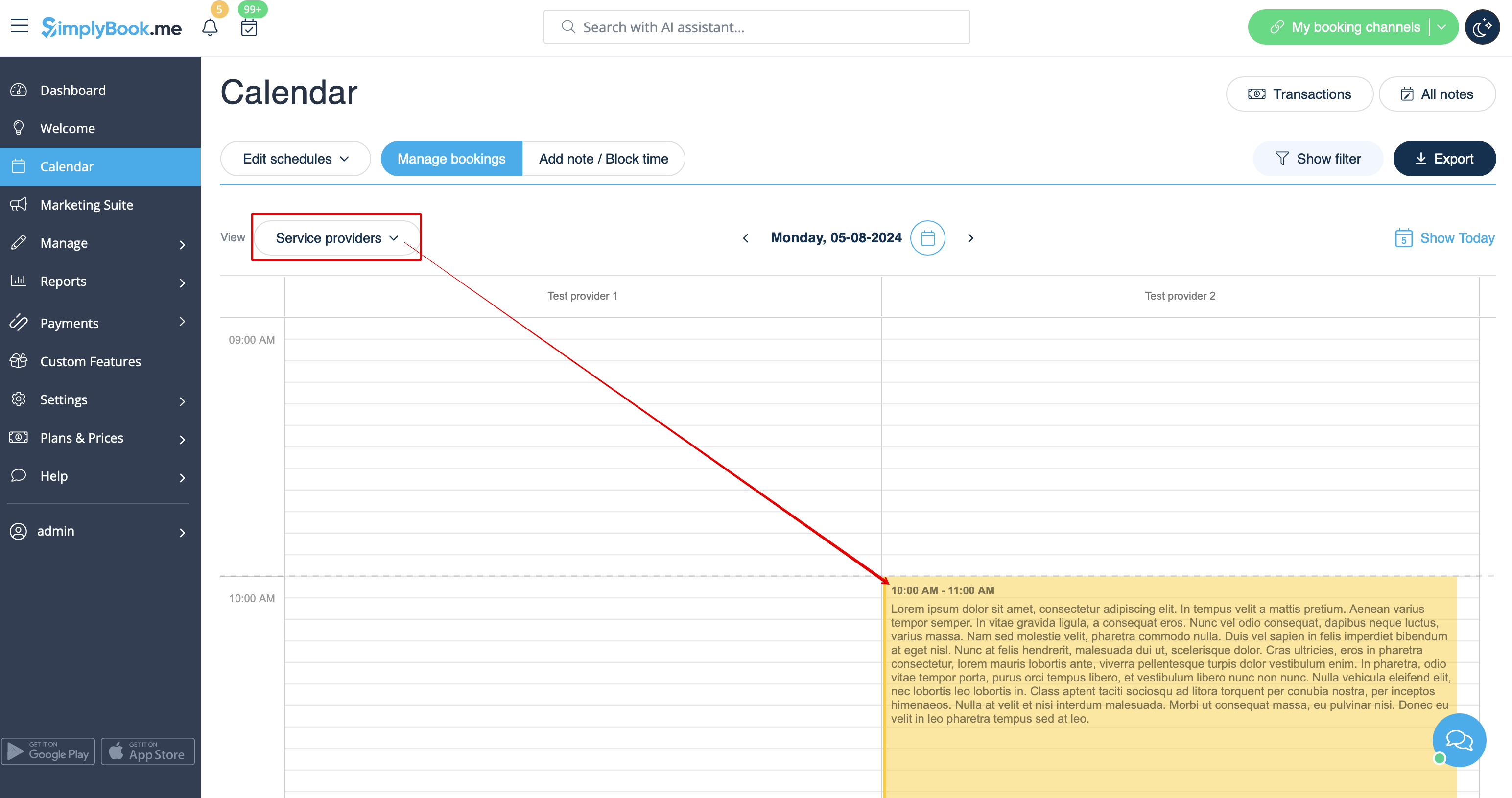
- If you have added a note per provider it will be shown in Service Provider, Timeline, Day, Week and Month views.
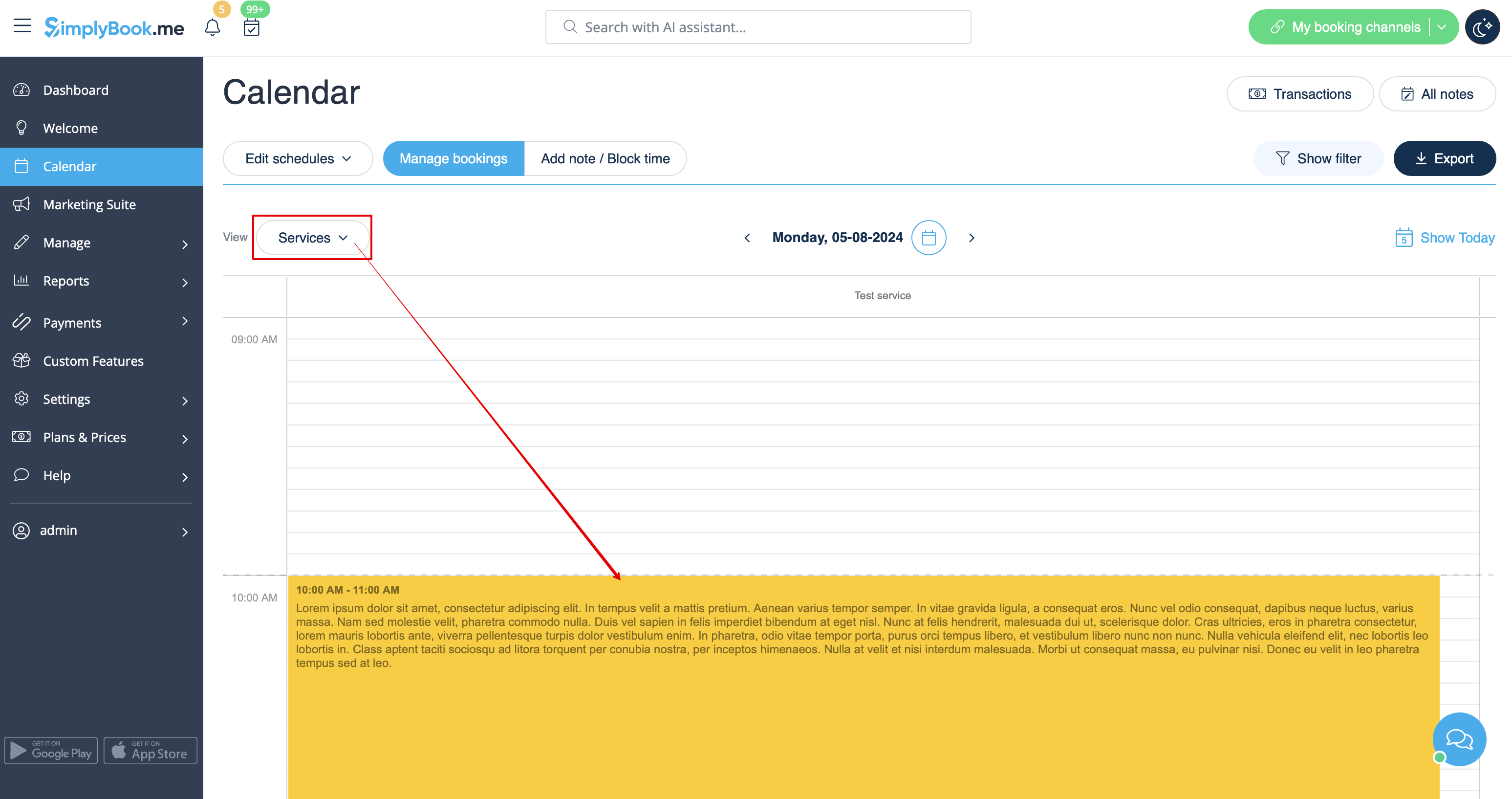
- If you have added a note per service you will be able to see it in Service, Day, Week and Month views.
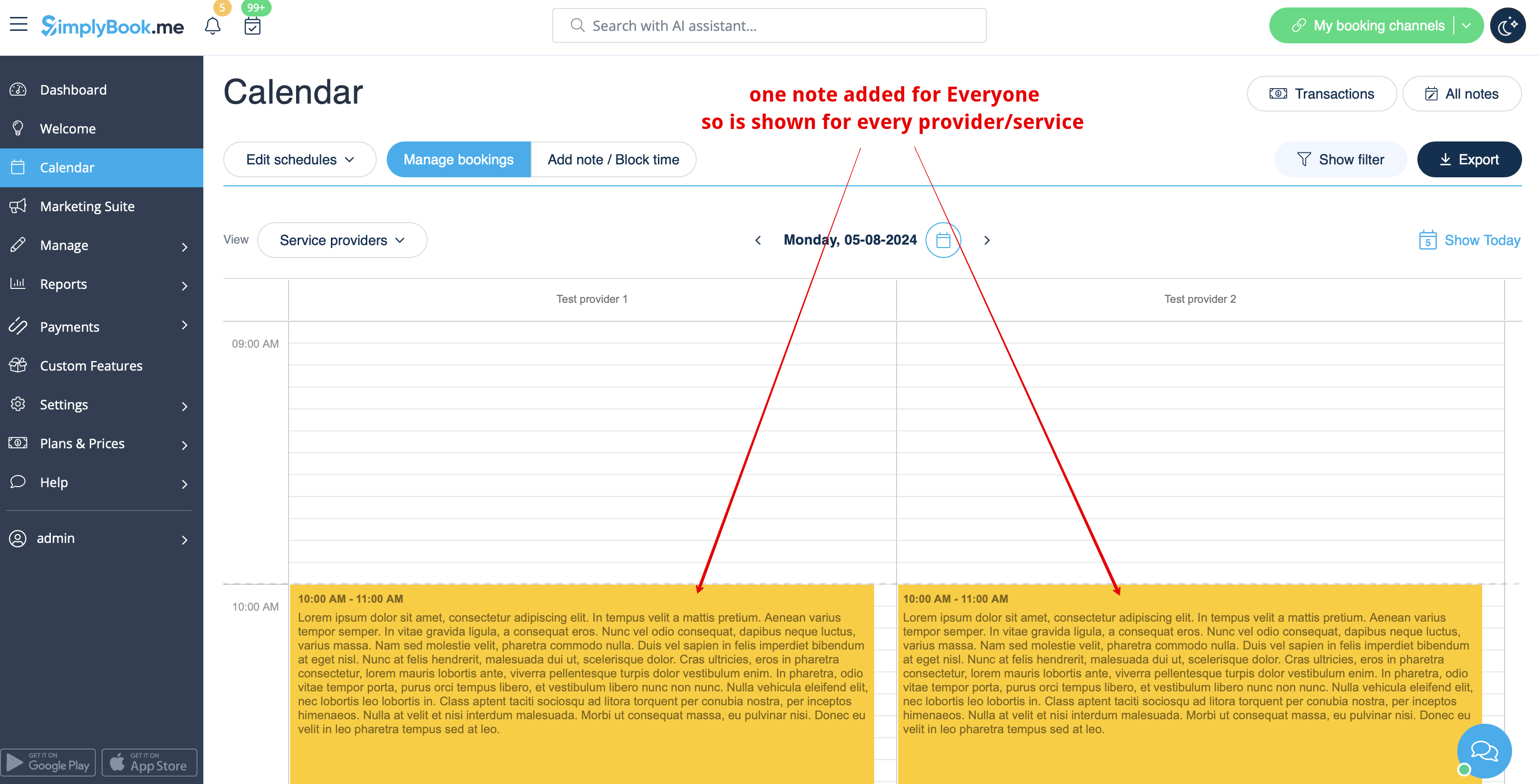
- The notes for Everyone are displayed in all calendar views.
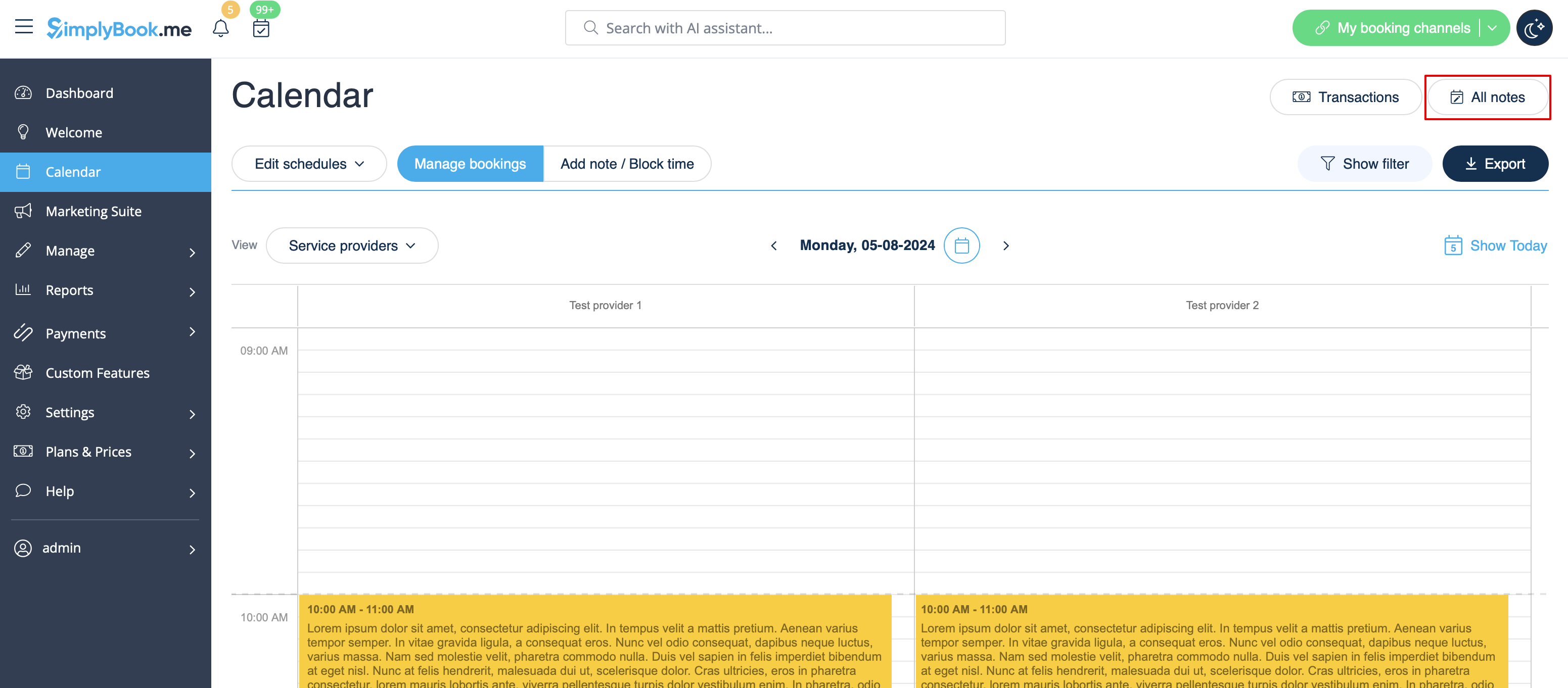
- As well you can access the list of all the notes added, use filters and export notes to excel in Calendar notes report by navigating either directly from Calendar page or from Reports section in left-side menu.