Translations:SSO-SAML Custom Feature/7/en
- (you may need paid MS Azure or Premium trial subscription there to add applications)
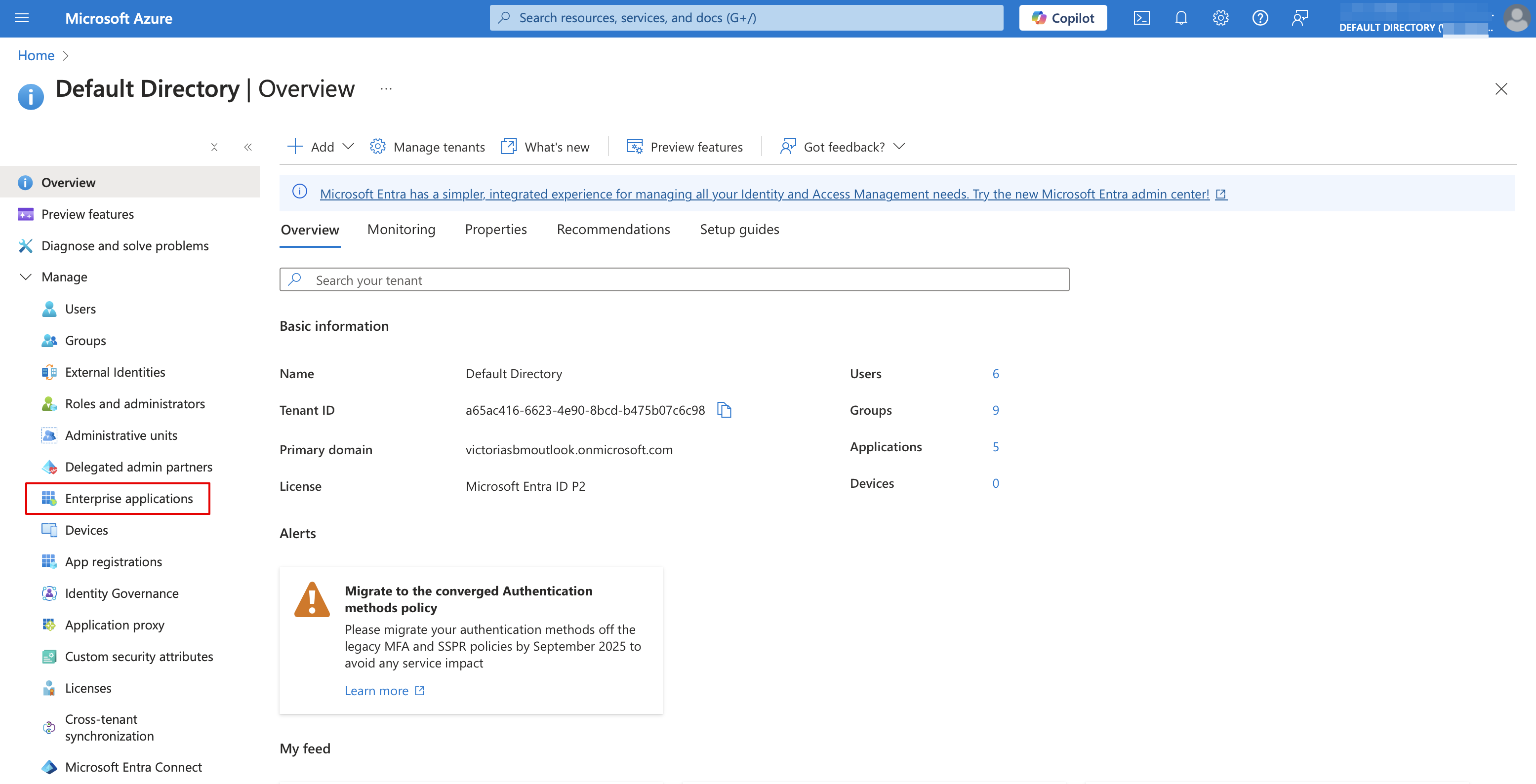
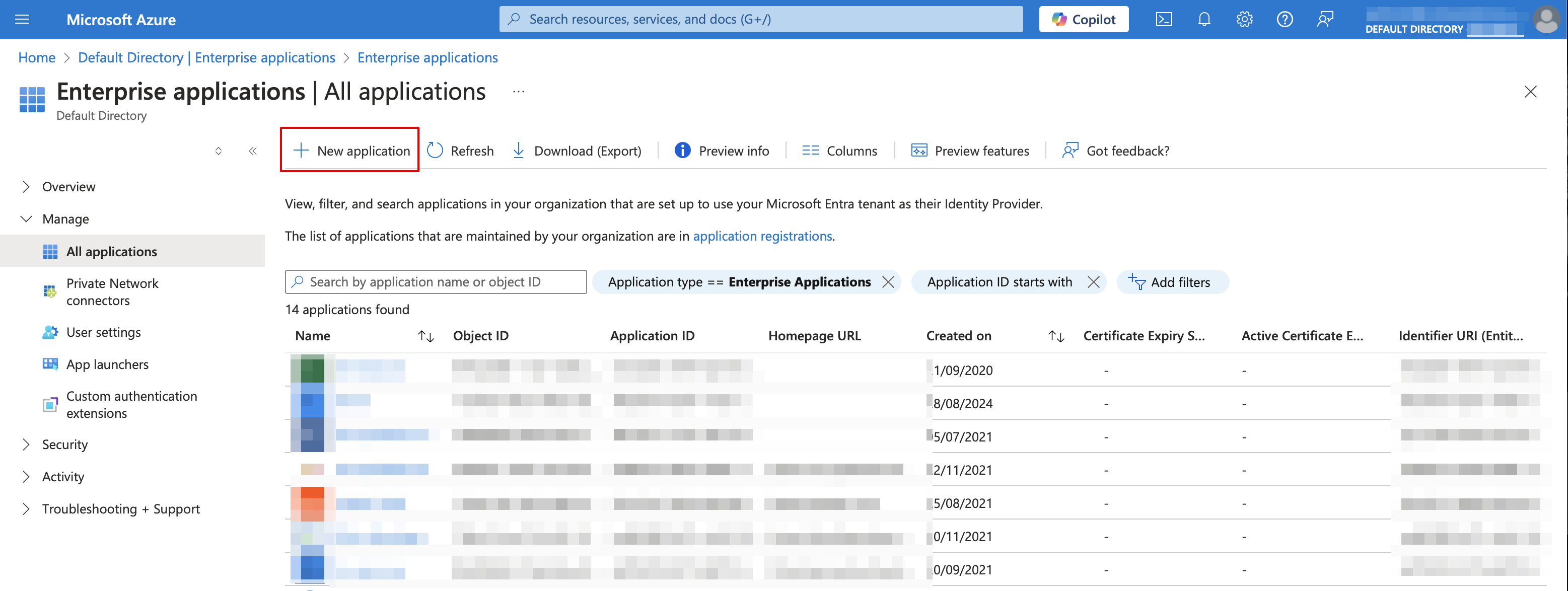
- 8. Choose non-gallery type. Add its name and save.
- 9. On the next page click on Set up single sign on and select SAML.
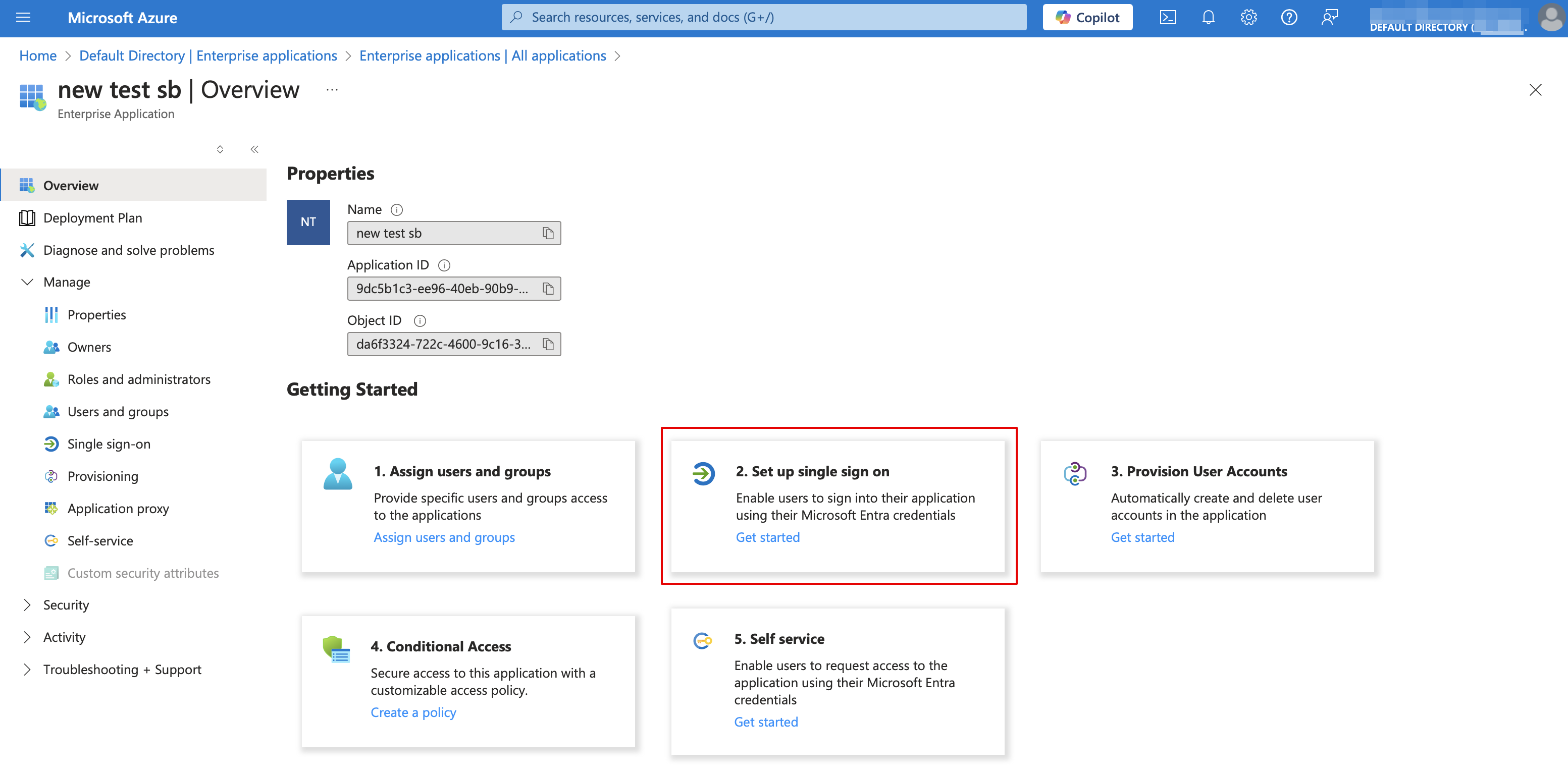

- 10. Use Pen icon in Basic SAML Configuration block to edit.

- 11. Copy the urls from SimplyBook.me SSO: SAML feature to the corresponding boxes on MS Azure side. Save.
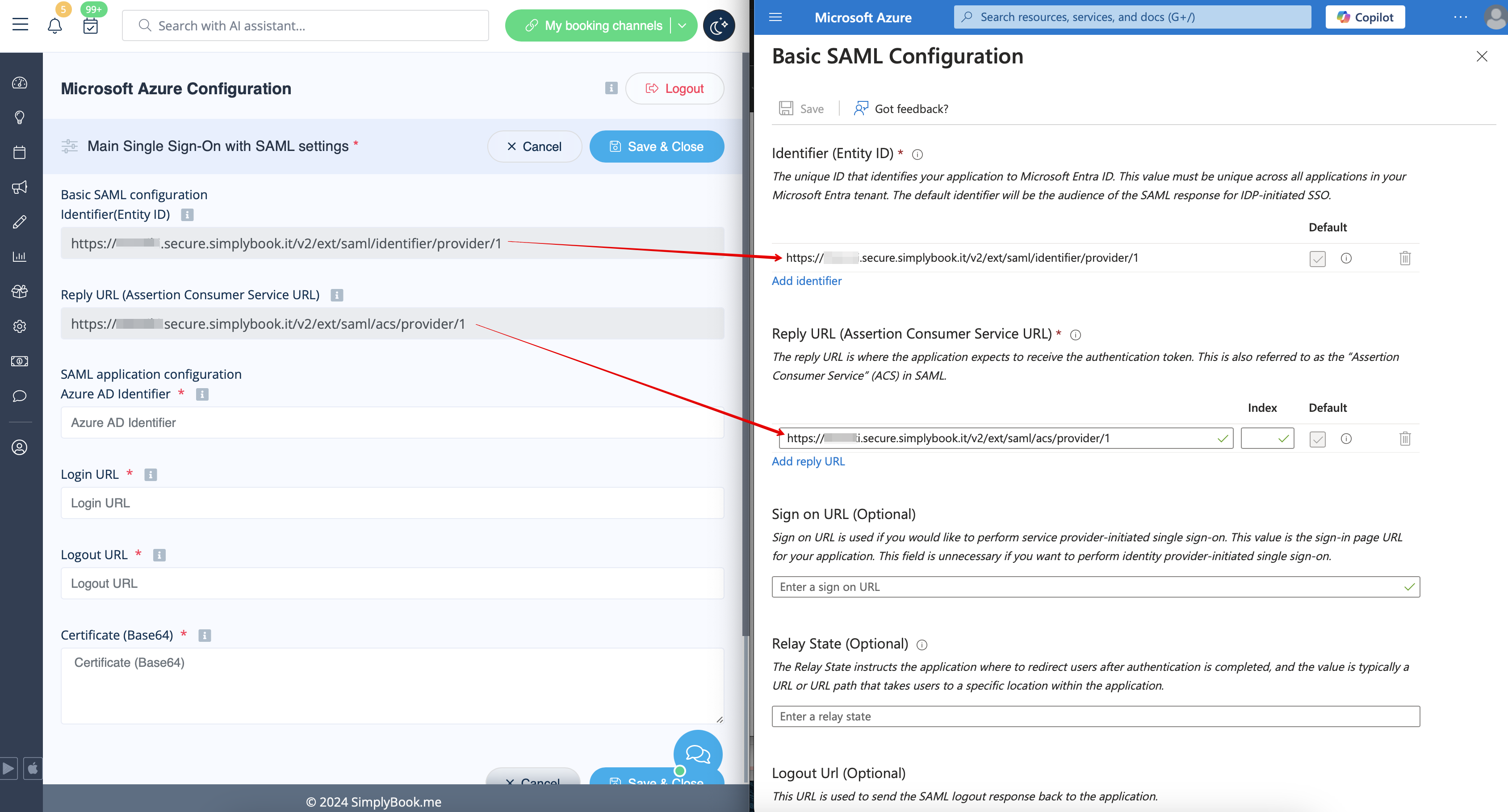
- 12. On MS Azure side scroll to SAML Signing Certificate part and download Certificate(Base64). Open it with notepad or similar text editor, copy the certificate code and paste it to the corresponding box into SSO: SAML Custom Feature.
