Hvor kan jeg ændre mine oplysninger?

=Firma titel
I Indstillinger // Virksomhedsoplysninger // Navn.
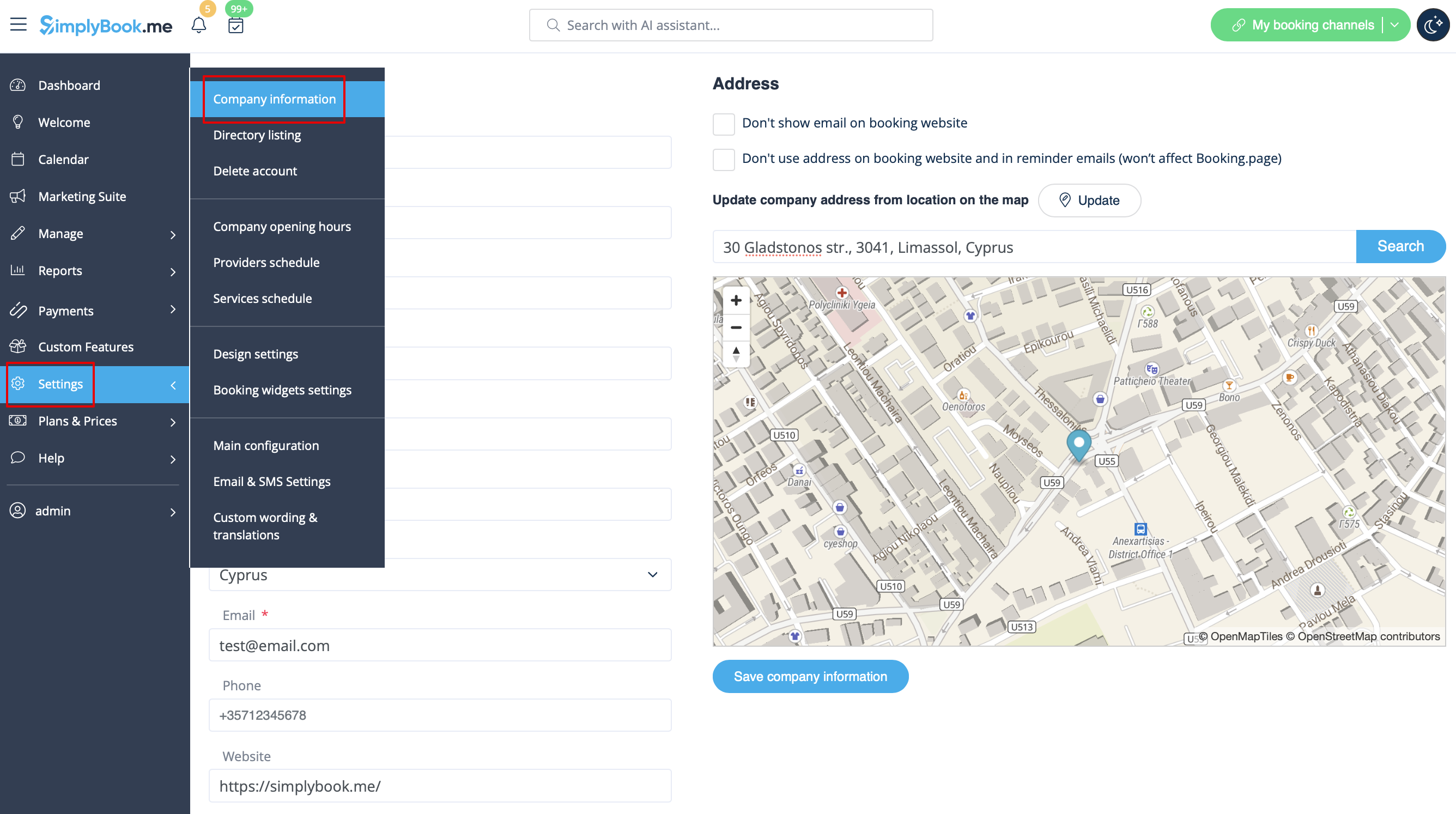
Company url
Desværre er der ingen mulighed for at ændre url i systemet. For at ændre den skal du registrere en ny virksomhed med den ønskede url.
Gratis:
Du kan oprette en ny virksomhed med det ønskede navn i url og manuelt overføre alle data og indstillinger dertil. Du kan oprette tjenester og udbydere og kopiere en liste over kunder til det nye system med den brugerdefinerede funktion Import Clients (se vejledningen her). Bookinger og andre indstillinger kan ikke overføres.
Betalt:
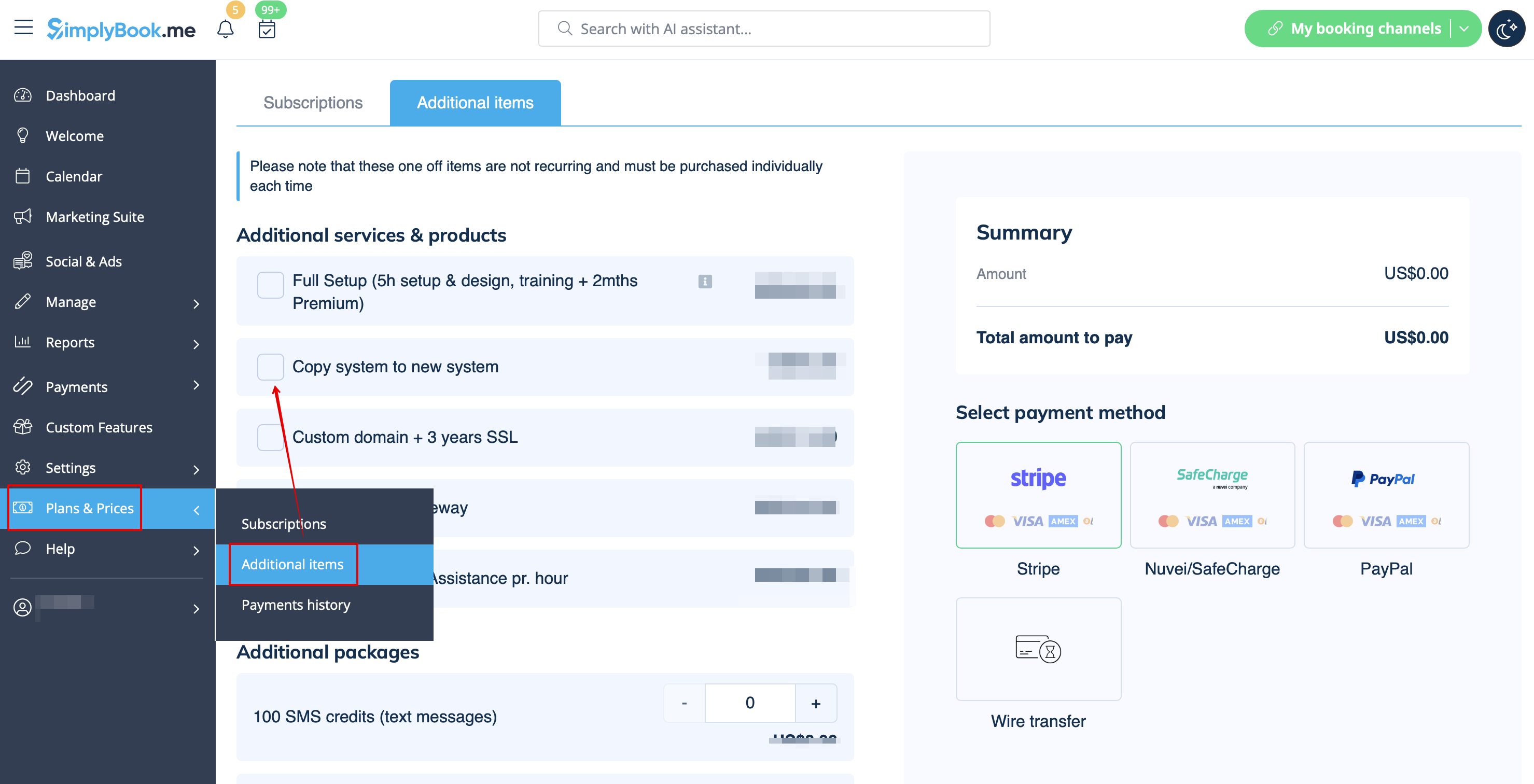
Opret et nyt system med det ønskede navn i url, gå til Plans&Prices // Additional items og vælg "Copy system to new system", foretag betaling, og vores udviklere vil overføre dine data. Når du har foretaget en betaling, skal du kontakte support, fortælle dem det gamle firmanavn og det nye firmanavn (bekræft ejerskab af begge konti) og anmode om overførsel af systemet.
Bemærk venligst! Anmeldelser og HTML-formatering i beskrivelser vil ikke blive kopieret til det nye system.
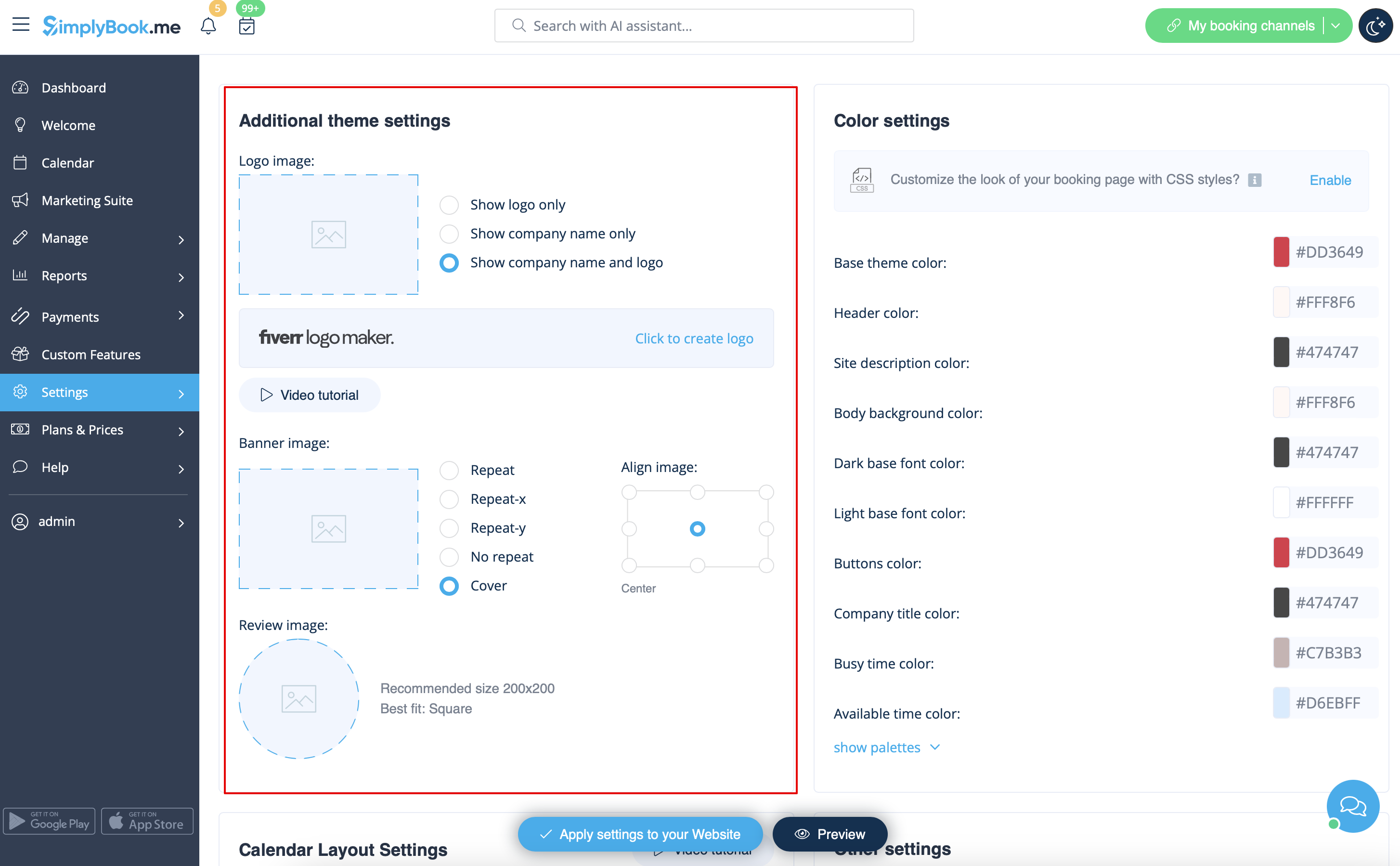
Firmalogo og baggrund
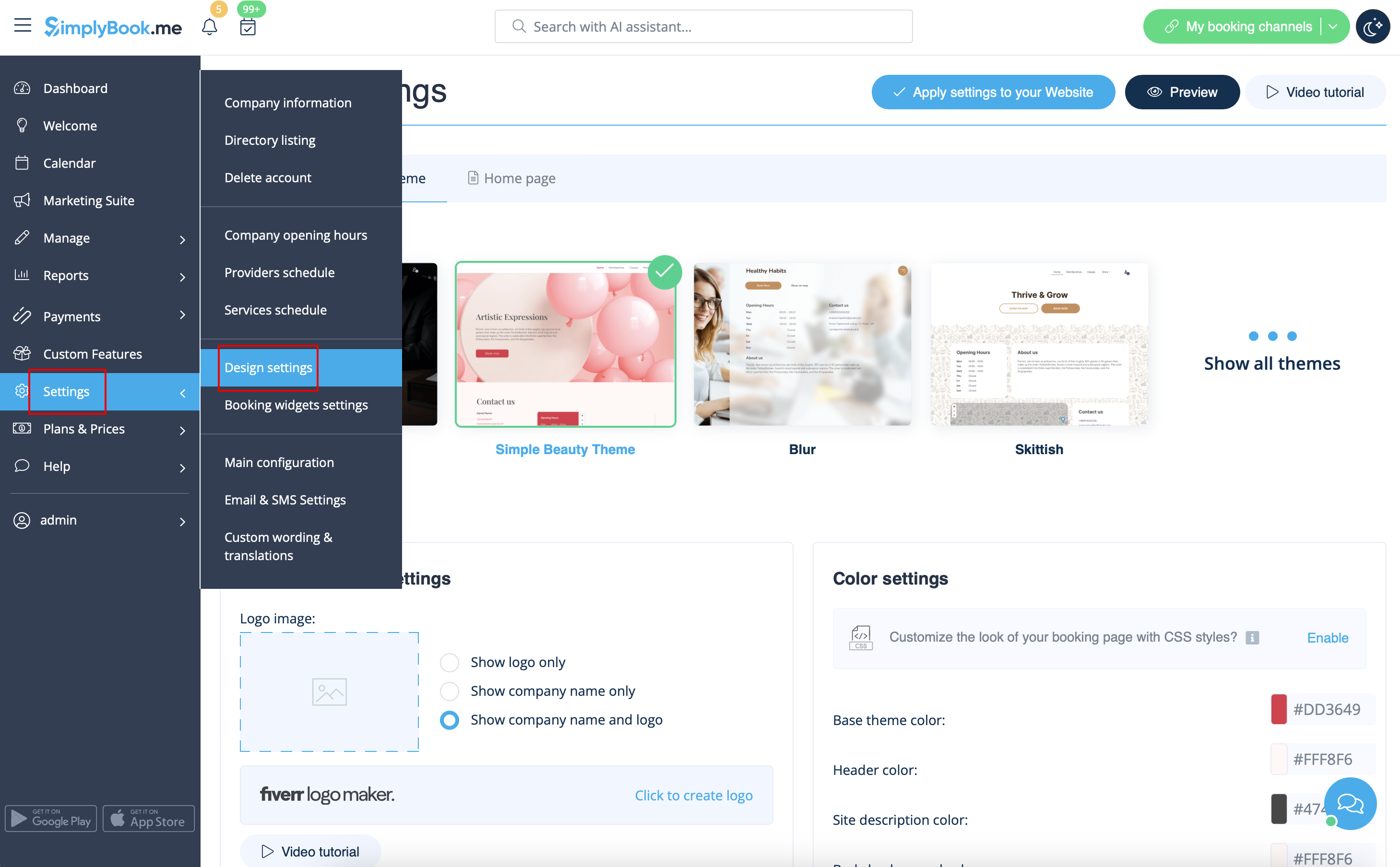
I Indstillinger // Designindstillinger // Yderligere temaindstillinger.
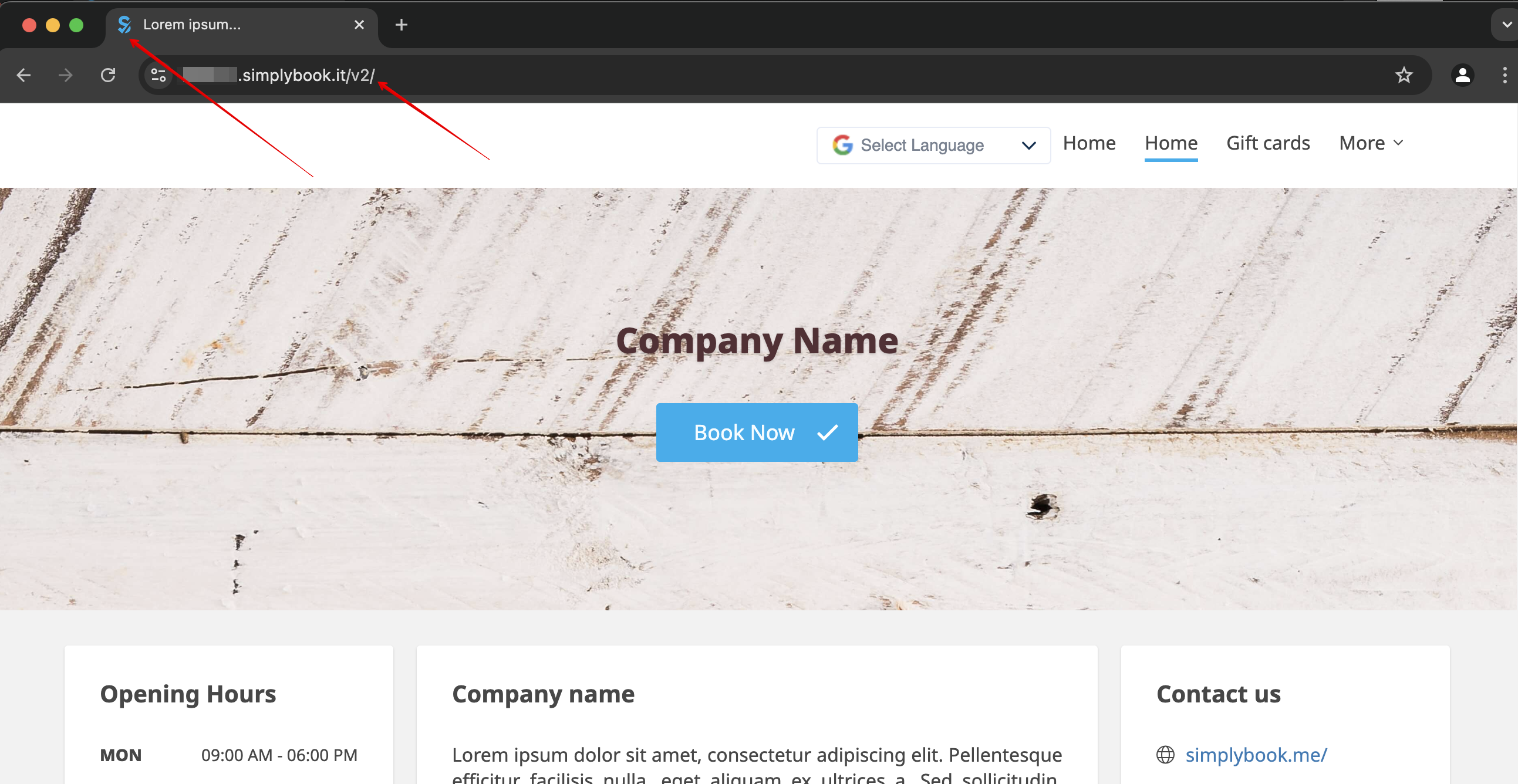
Favicon
Delen /v2/ i URL'en til bookingwebstedet kan ikke fjernes eller ændres.
Dette element er fast og kan ikke ændres.
Favicon (logo vist i browserfanen) kan kun ændres på virksomhedsniveau.
Design
I indstillinger // Designindstillinger.
- Anbefalede temaer
- Alle nye temaer
Disse temaer understøtter alle nye funktioner og har mulighed for at justere farverne på din bookingside.
Texts and language
If you need to adjust any texts on your booking page (for example change Employee to Therapist, Coach or Room), you can do it in Settings // Custom Wording & Translations.
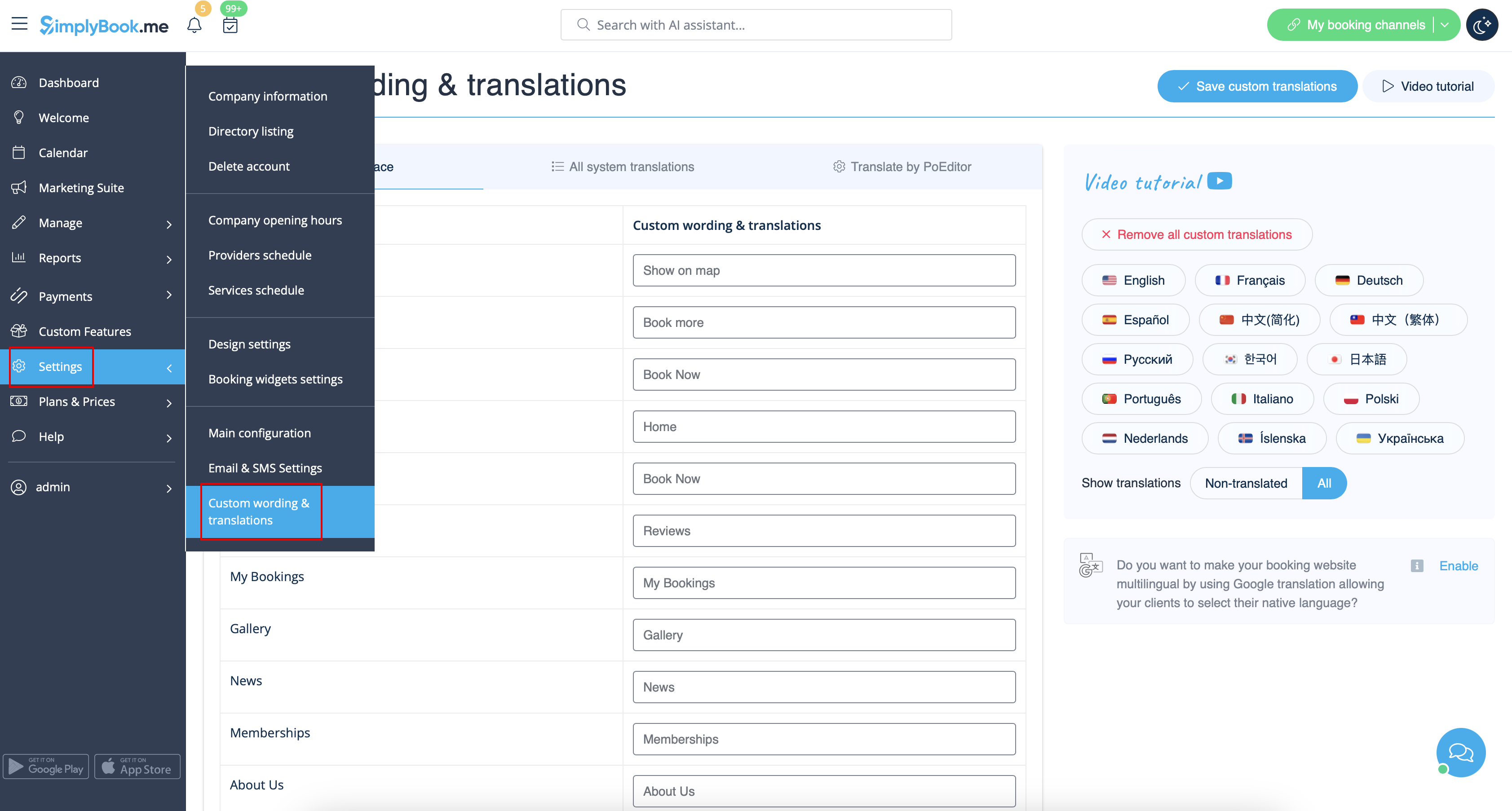
There, you can also change language of your booking page by clicking on the corresponding flag and pressing "Save custom translations". If your language is not in the list you can translate the system yourself.
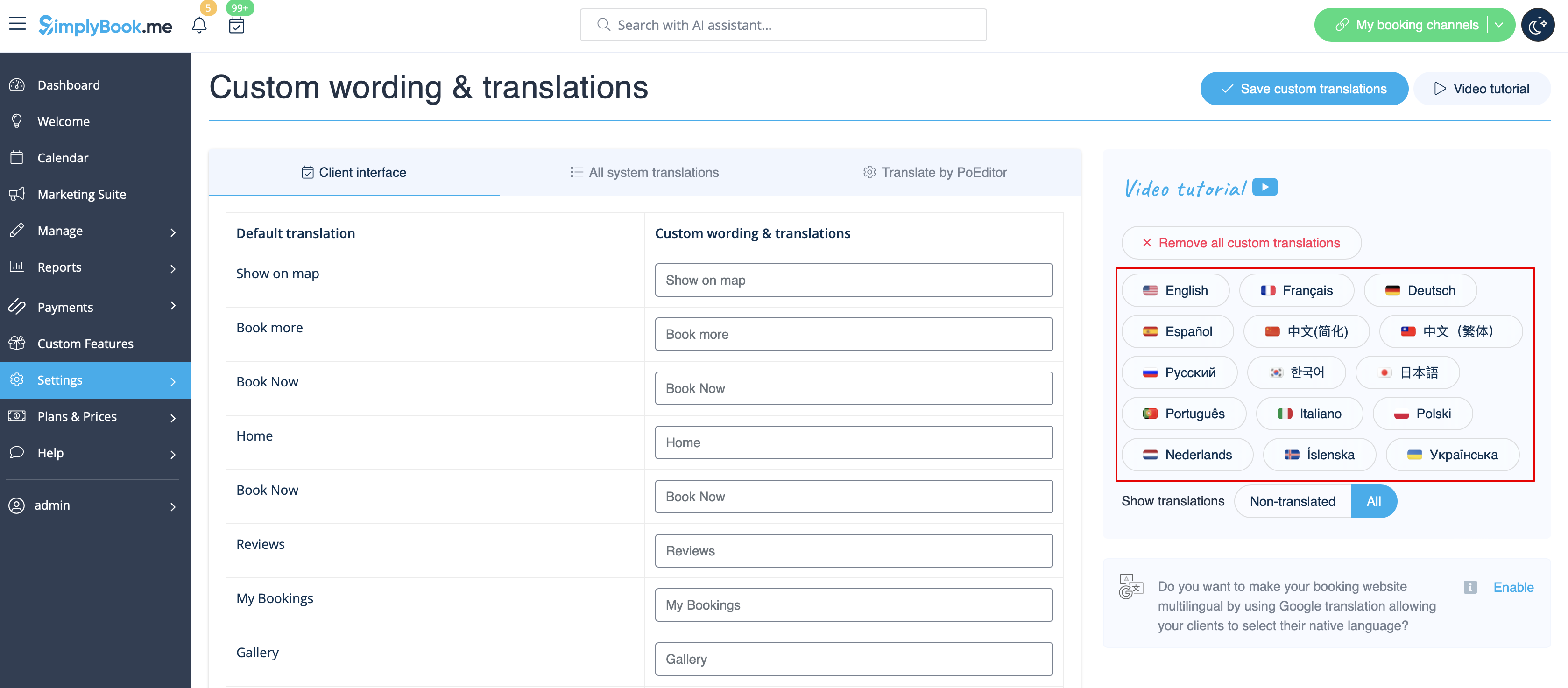
SEO Settings
By default the Title tag is represented by your company name that you have inserted in Settings -> Company information -> Name and automatic addition of Scheduling and Booking Website text.
Meta description is taken from the text that you have added in Settings -> Design settings -> Home page -> description text for About Us booking website block.
If you need you can set these two options to contain different data and thus influence your booking website SEO.
To set own Title tag and Meta description please navigate to Settings -> Design settings -> Home page and add the desired texts to the corresponding fields there.
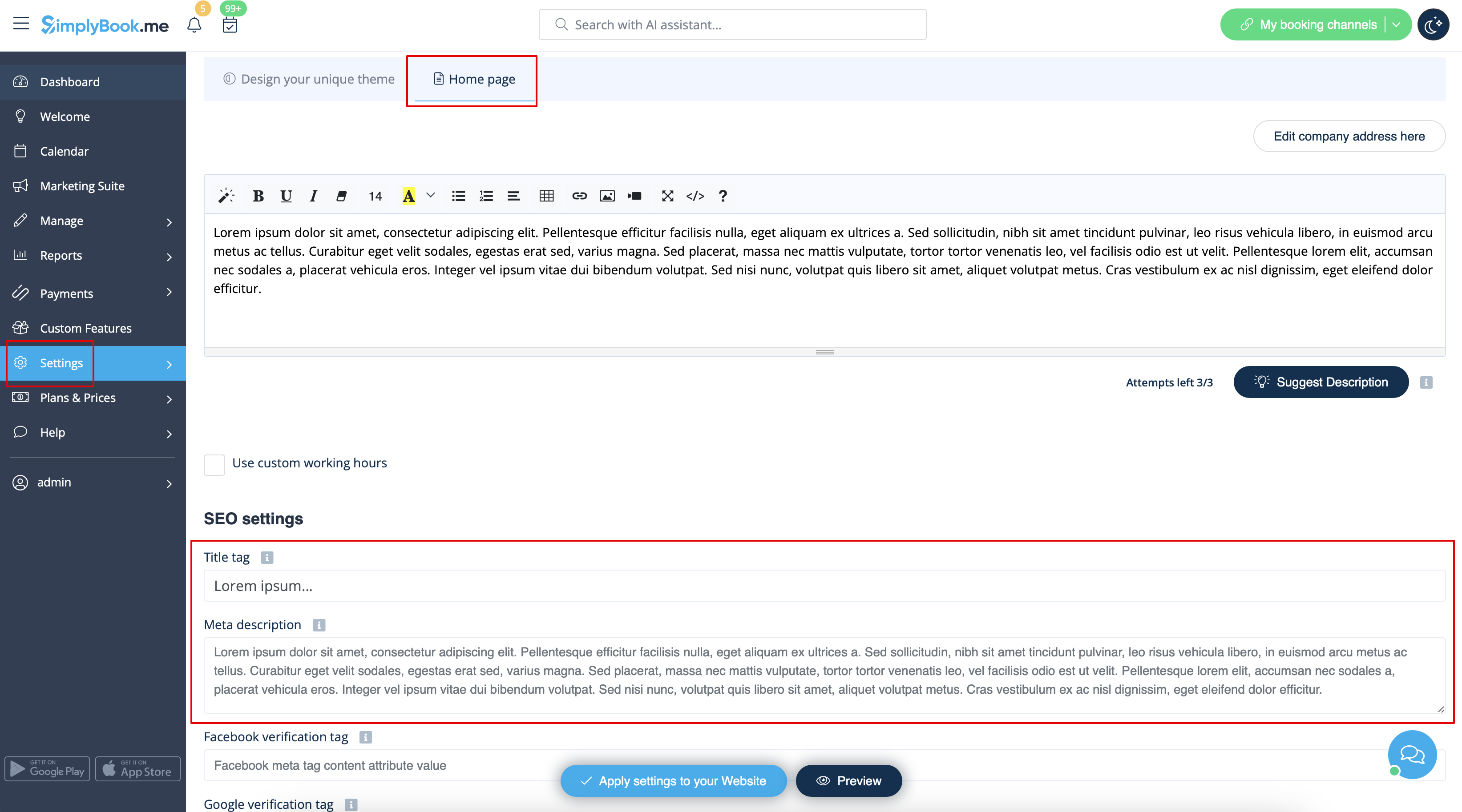
Please note!We recommend using no more than 60 symbols for Title tag.
Meta description is limited to 400 characters and if you try to add a longer abstract it will be automatically cut when saving the settings.
Our Time
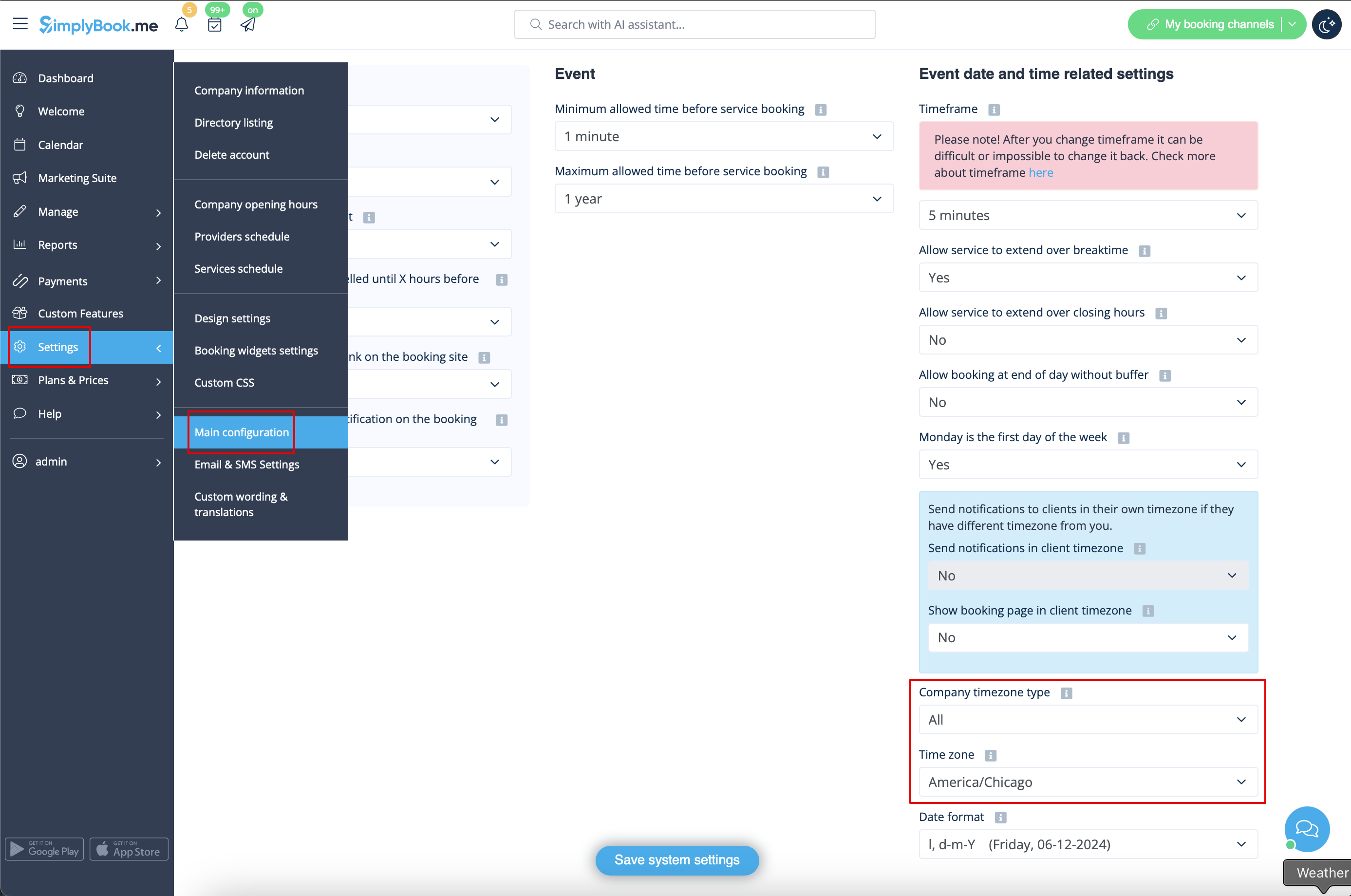
Your time on the booking page is the time of the company's time zone. You can change your time zone in Settings -> Main configuration -> Time zone.
About section
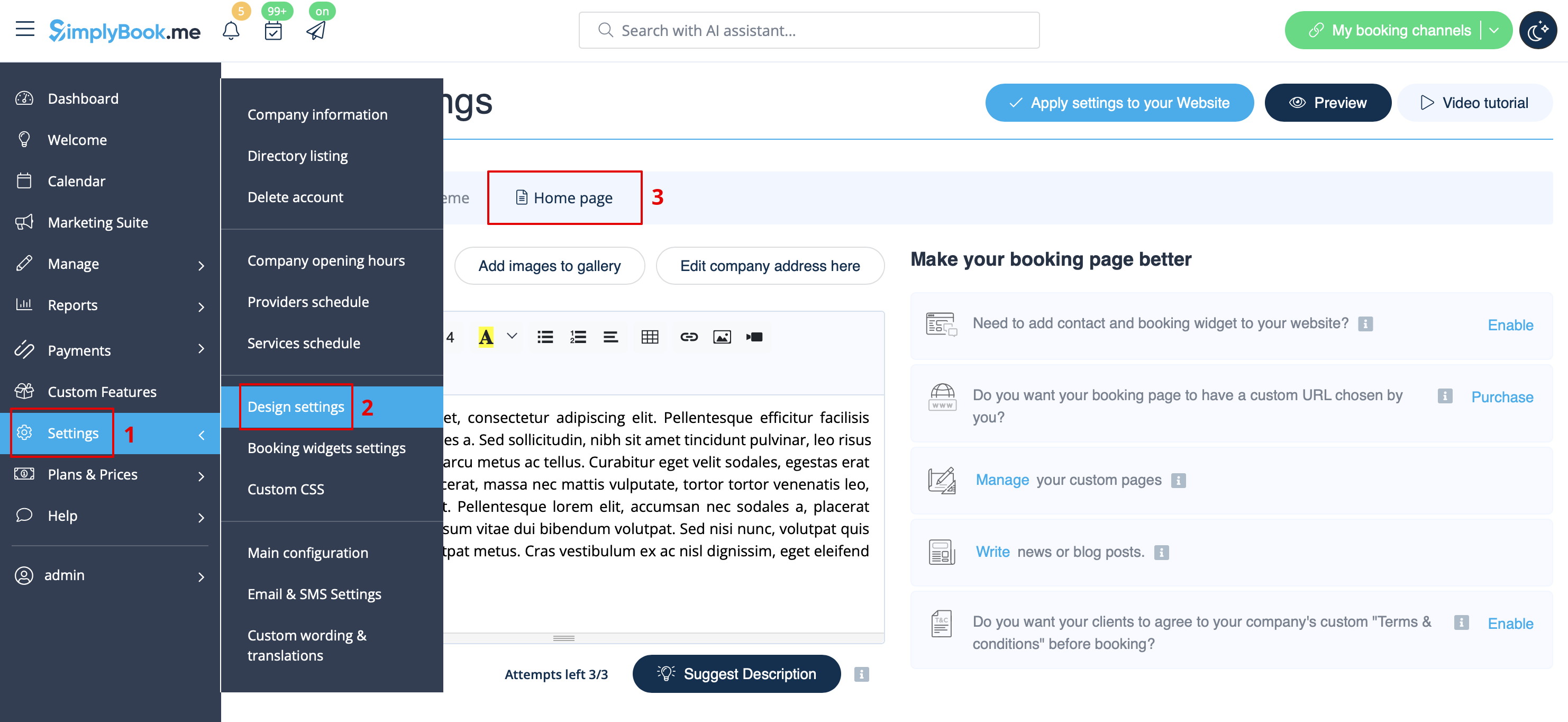
In Settings // Design settings // Home page // Company description.
Address
In Settings // Company Information // Address.
Company Contacts
You can edit them in Settings -> Company information
The following details can be added/edited:
- Email address
- Phone number
- Website address
- WhatsApp phone
- Facebook profile url
- X.com (Twitter) page link
- Instagram page url
- LinkedIn page
An example of the client side look.
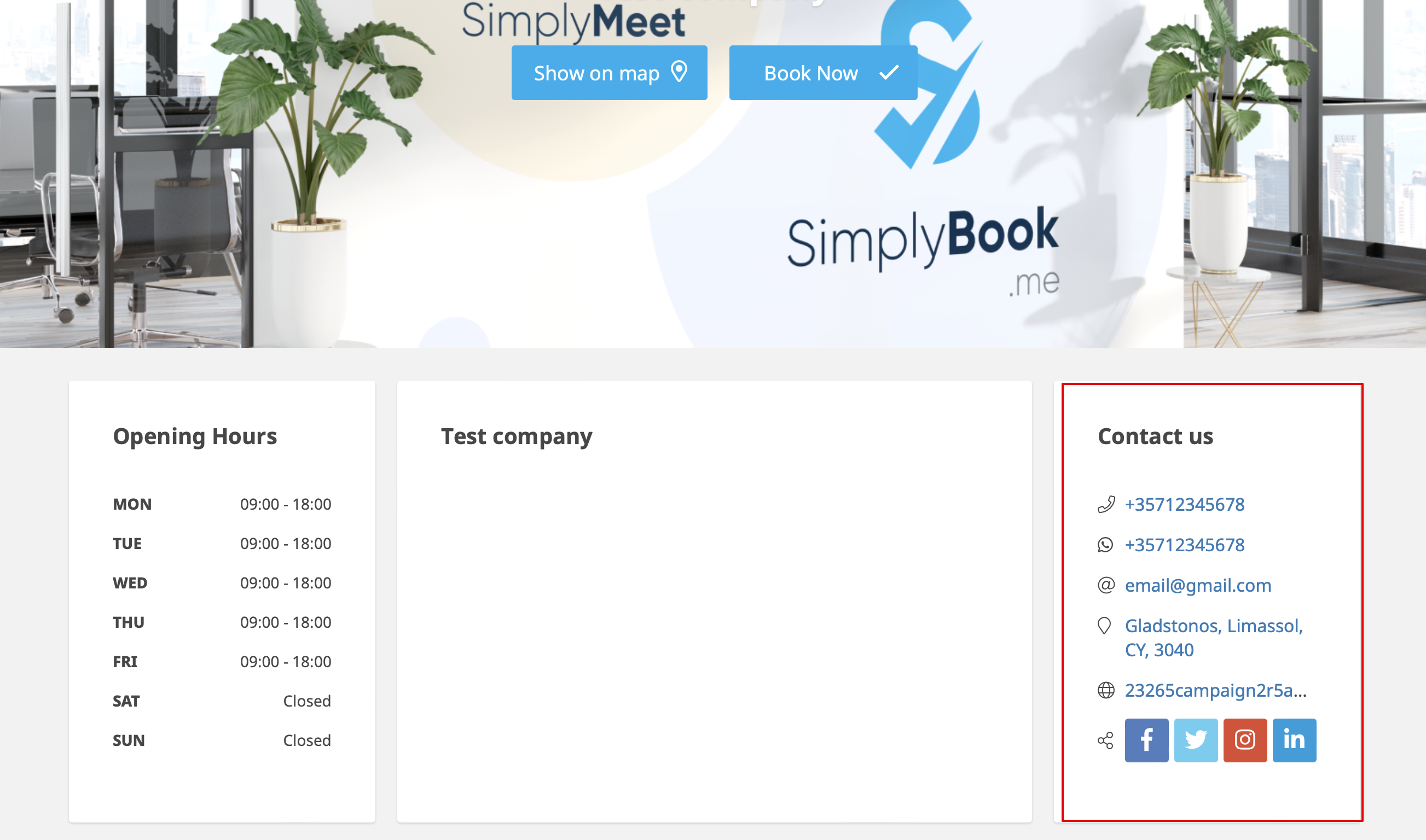
The clients will be able to, for example, click on WhatsApp number and be redirected to the WhatsApp messenger to easily contact you there.
Working hours
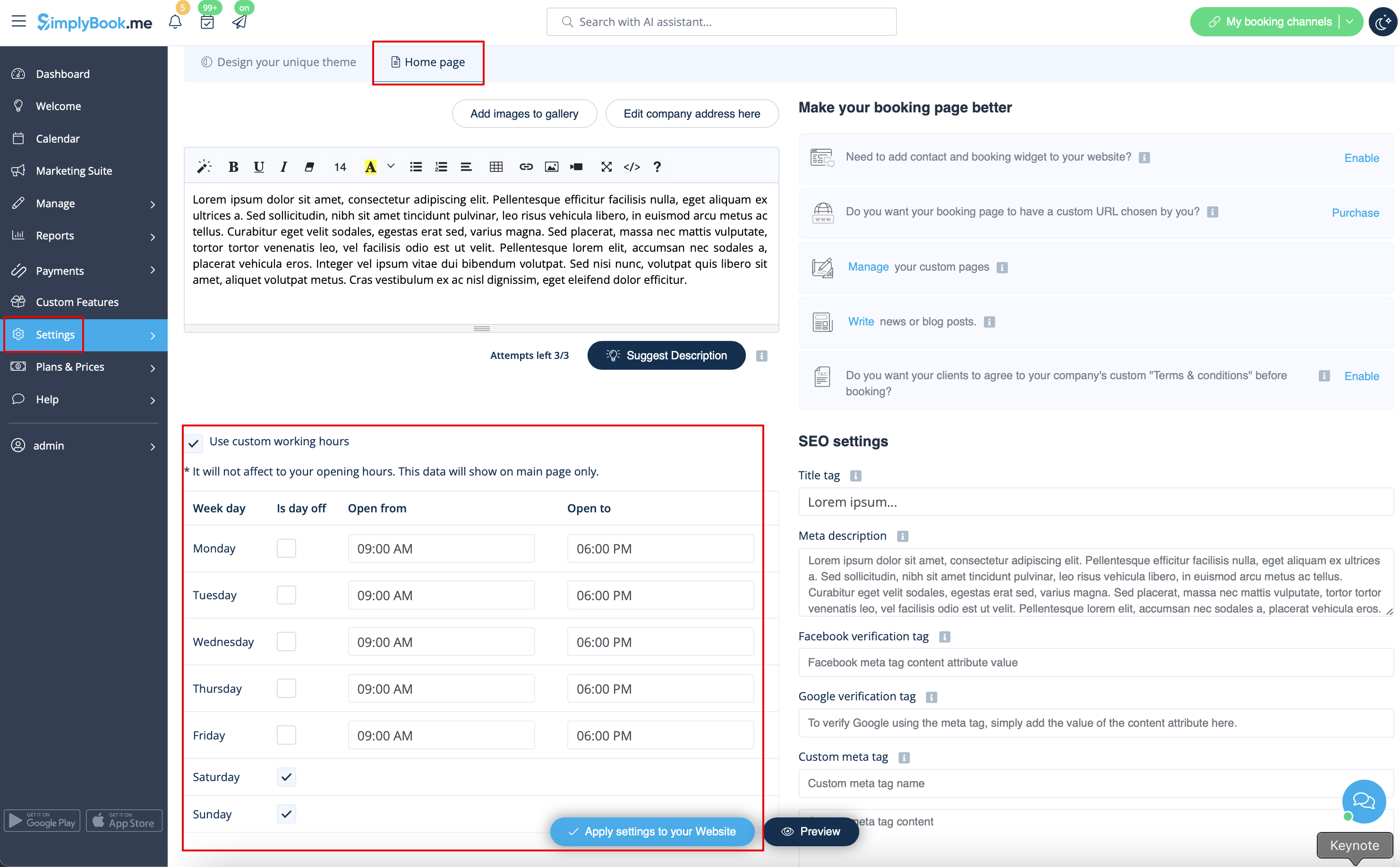
Working hours block on the booking page:

To change working hours block go to Settings // Company opening hours.
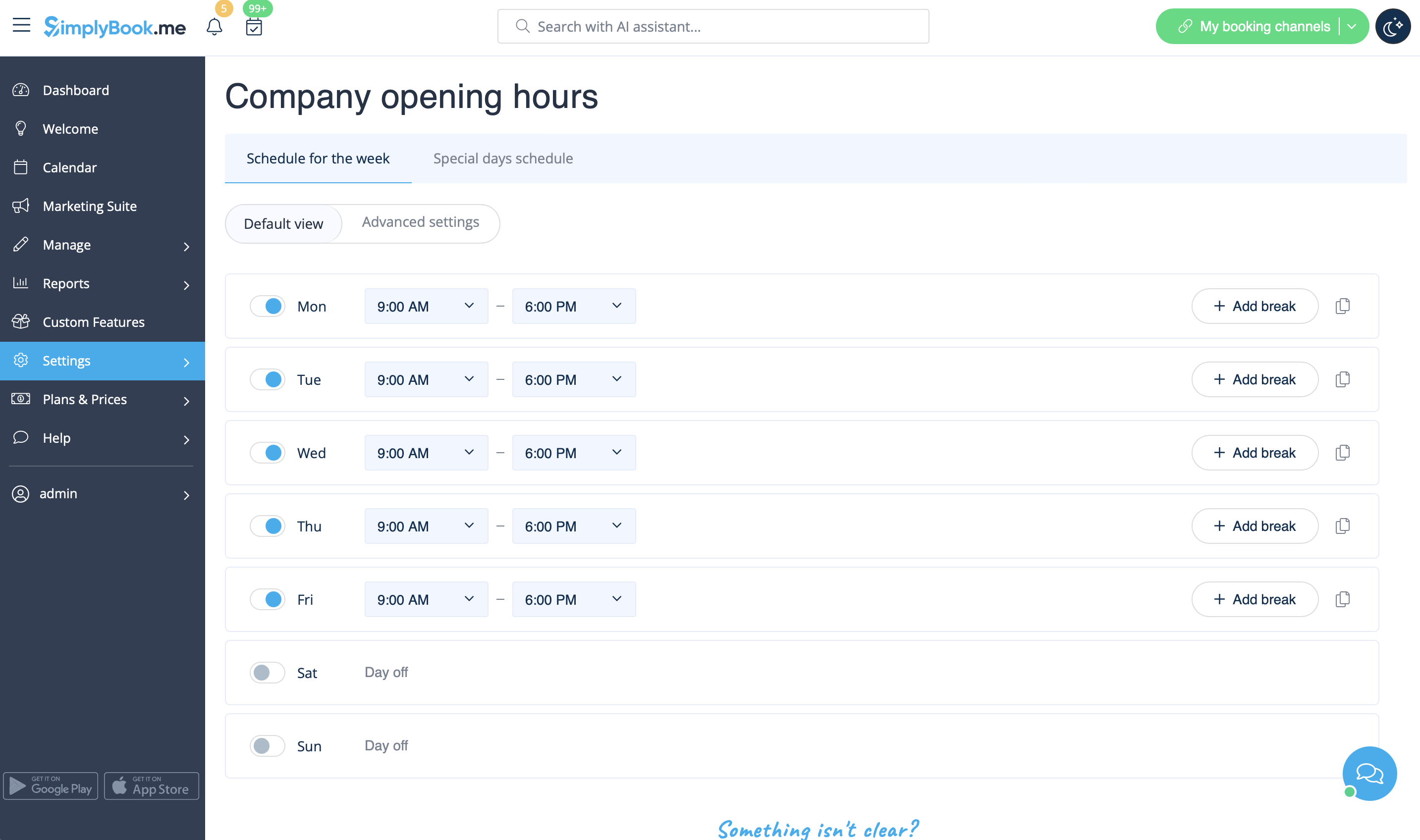
If you wish to display times different from real working hours there you can use "Use custom working hours" in Settings//Design settings//Home page.
Calendar Layout
You can change calendar layout in Settings // Design settings // Calendar Layout settings // Calendar Layout drop-down
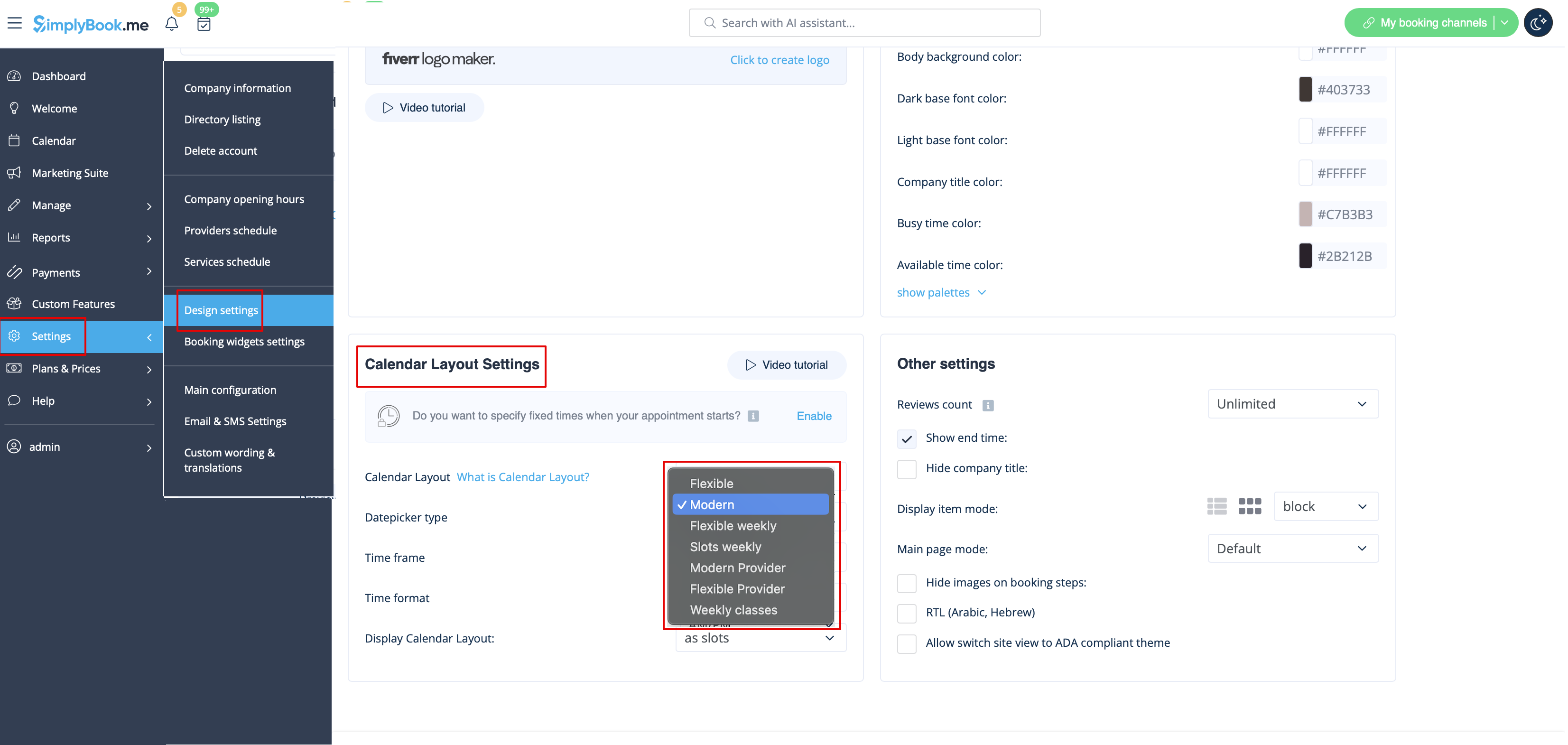
There are 9 types of calendar layout:
- Slots weekly - shows available time in the intervals equal to your service duration for a week. Starts counting from the first available time.
- Modern - shows available time in the intervals equal to your service duration for a day. Starts counting from the first available time.
- Flexible weekly - shows available time in the intervals equal to your timeframe duration for a week. Starts counting from the first available time.
- Flexible - shows available time in the intervals equal to your timeframe duration for a day. Starts counting from the first available time.
- Modern provider - shows available time for providers for chosen date. Starts counting from the first available time of all providers.
- Flexible provider- shows available times for providers in the intervals equal to your timeframe duration. Starts counting from the first available time on selected date.
- Daily Classes- shows available times for classes in the intervals equal to class duration. Starts counting from the first available time.
- Please note! Multiple Bookings custom feature currently does not work with Classes layout.
- Weekly Classes shows available times for classes in the intervals equal to class duration with weekly options. Starts counting from the first available time for a date. Only available times are displayed, unavailable slots are hidden.
If you have services that have fixed start times, you can try using Appointment at fixed time Custom Feature.
Interval
You can change it in Settings // Main configuration // Timeframe.
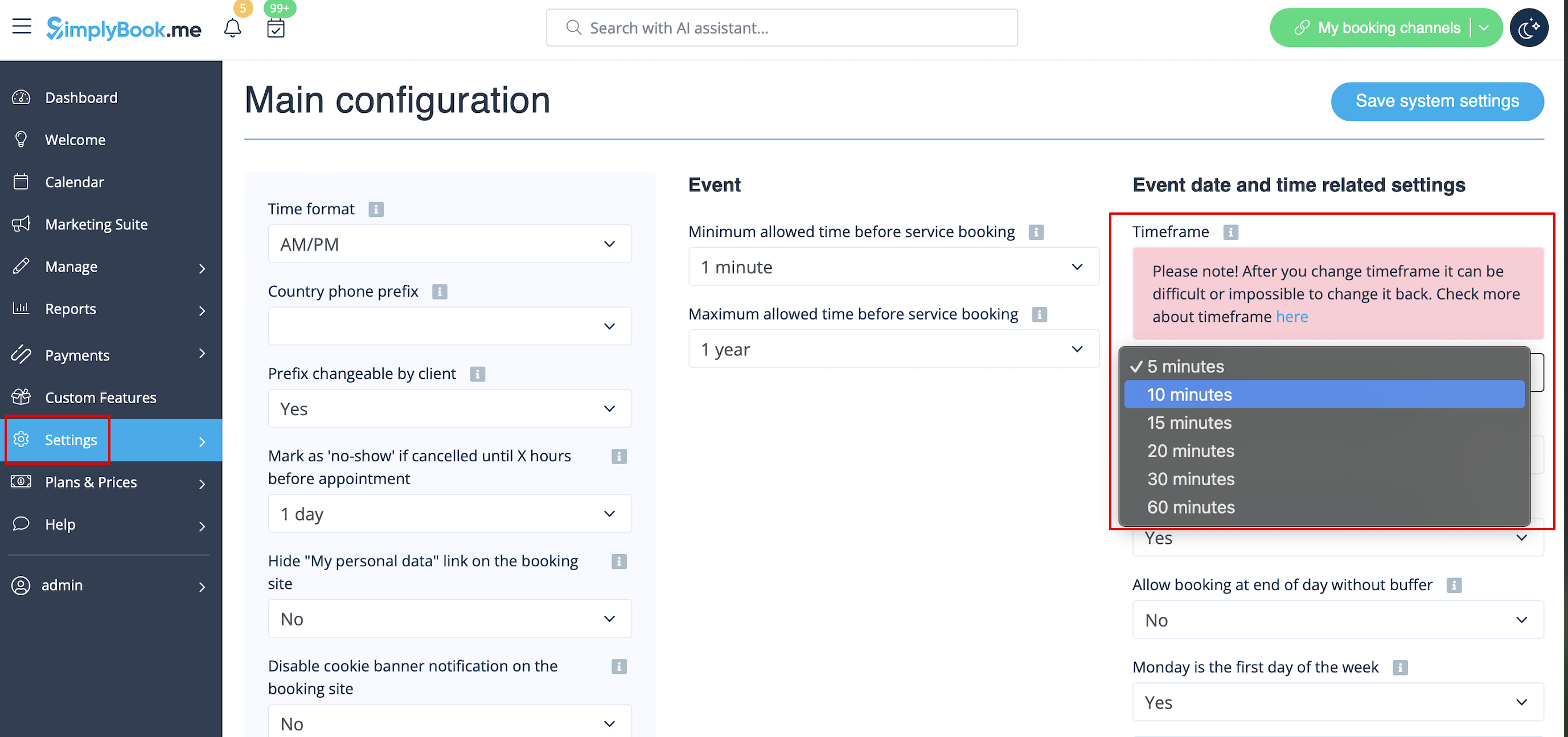
You can also try to change calendar layout to flexible in order to show availability according to your interval. Check types of Calendar Layouts here.